> ## Documentation Index
> Fetch the complete documentation index at: https://help.draftable.com/llms.txt
> Use this file to discover all available pages before exploring further.
# Configuring preferences with Group Policy (Draftable Clean)
> Centrally configure Draftable Clean across your organization using Active Directory Group Policy and ADMX administrative templates — including admin cleaning profiles, Outlook add-in lockdown, and must-clean metadata enforcement.
This guide is for administrators deploying Draftable Clean settings through **Active Directory Group Policy**. For cloud-managed devices, see [Configuring preferences with Microsoft Intune (Draftable Clean)](/hc/en-us/Draftable-Clean-articles/Configuring-preferences-with-Microsoft-Intune-Draftable-Clean). For an overview of both methods, see [Configuring preferences for your organization](/hc/en-us/Draftable-Clean-articles/Configuring-preferences-for-your-organisation-Draftable-Clean).
## Administrative templates
Draftable Clean provides **administrative templates** (ADMX/ADML files) that list all available settings, making it easy to discover and configure them directly from the Group Policy editor without needing to know individual registry paths.
The templates are found in the **GroupPolicy** folder under the Draftable Clean installation path. The `current` folder is a shortcut that always points to the latest installed version.
```
%LocalAppData%\DraftableClean\current\GroupPolicy
```
If the `current` shortcut is not available, look for the folder with the highest version number under `%LocalAppData%\DraftableClean\` — the latest templates will be inside its `GroupPolicy` subfolder.
**v26.6.0 (June 2026)** ships updated ADMX/ADML templates. Reinstall templates from a v26.6.0 or later installation before configuring new policies — especially Outlook add-in and must-clean settings introduced in this release.
Copy the Draftable Clean `.admx` file to:
```
C:\Windows\PolicyDefinitions
```
Then copy the `.adml` language file from:
```
%LocalAppData%\DraftableClean\current\GroupPolicy\en-US
```
to:
```
C:\Windows\PolicyDefinitions\en-US
```
Alternatively, copy the templates to your organization's **Central Store** network path.
Once installed, Draftable Clean policies appear in the Group Policy editor under:
* **Computer Configuration > Administrative Templates > Draftable Clean**
* **User Configuration > Administrative Templates > Draftable Clean**
Some settings may only appear under one scope if they are not supported in the other.
## Available policy settings
Draftable Clean policies are written under the following registry root, depending on the scope you select in the Group Policy editor:
```
Computer Configuration: HKLM\Software\Policies\Draftable\Clean
User Configuration: HKCU\Software\Policies\Draftable\Clean
```
Every policy below can be set under **both** Computer Configuration and User Configuration, with one exception: **Configure HTTP listener port** is available under Computer Configuration only. When the same policy is set in more than one location, the order of precedence is described in [Priority of settings](/hc/en-us/Draftable-Clean-articles/Configuring-preferences-for-your-organisation-Draftable-Clean#priority-of-settings).
The **Value name** column gives the exact registry value to target when configuring settings directly via Intune OMA-URI, the Settings Catalog, or a registry script. Each value sits under the registry root above, in the subkey shown in the section heading (for example, the add-in settings live under `...\Clean\AddIn`).
### Licensing
The product key is **not** included in the administrative templates. To activate machines centrally, set it as a registry value (directly, via Intune OMA-URI, or with a registry script). Draftable Clean reads it on launch and activates automatically.
| Setting | Value name | Type | Description |
| --------------- | ------------ | -------- | ------------------------------------------------------------------------------------------------------------------------------------------------------ |
| **Product key** | `ProductKey` | `REG_SZ` | Product key used for automatic license activation. Set directly under the registry root above — `HKLM` for all users on a machine, or `HKCU` per user. |
### Outlook add-in (`...\Clean\AddIn`)
| Policy | Value name | Type / values | Description | Version |
| -------------------------------------------- | ----------------------- | --------------------- | -------------------------------------------------------------------------------------------- | --------------- |
| **Default cleaning profile (no recipients)** | `NoRecipientsProfileId` | `REG_SZ` (profile ID) | Profile used when an email has no recipients. Leave empty to use the global default profile. | v26.6.0 onwards |
Sets the profile to use when no email recipients have been entered. Leave empty to use the global default profile.
This setting is separate from [domain rules](#configuring-domain-rules). Domain rules apply once recipients are present; this policy controls the profile when an email has no recipients.
| Policy | Value name | Type / values | Description | Version |
| ----------------------------------------- | ---------------------- | ----------------- | ----------------------------------------------------------------------------------------------------- | --------------- |
| **Allow per-attachment profile override** | `AllowProfileOverride` | `REG_DWORD` (1/0) | When enabled, users can override the cleaning profile for individual attachments in the add-in panel. | v26.6.0 onwards |
When enabled, users can override the cleaning profile for individual attachments in the add-in panel. When disabled, the assigned profiles cannot be changed.
| Policy | Value name | Type / values | Description | Version |
| ---------------------------------- | ------------------------- | --------------------------- | ----------------------------------------------------------------------- | --------------- |
| **Default attachment list format** | `AttachmentSummaryFormat` | `REG_SZ` (`table` / `list`) | Default format for the attachment summary inserted into the email body. | v26.6.0 onwards |
The default format for the attachment summary inserted into the email body. Choose from `table` or `list`.
| Policy | Value name | Type / values | Description | Version |
| ----------------------------------------------------- | ----------------------------- | --------------------------------------- | ----------------------------------------------------------------------------------- | --------------- |
| **Send behaviour: attachments not finished cleaning** | `SendGateNotFinishedCleaning` | `REG_SZ` (`block` / `prompt` / `allow`) | What happens when the user tries to send while attachments are still being cleaned. | v26.6.0 onwards |
Controls what happens when the user tries to send an email while attachments are still being cleaned. Values: `block` (prevent sending), `prompt` (ask user), `allow` (send anyway).
| Policy | Value name | Type / values | Description | Version |
| -------------------------------------------------------- | -------------------------------- | --------------------------------------- | ------------------------------------------------------------------ | --------------- |
| **Send behaviour: tracked changes or comments detected** | `SendGateTrackedChangesDetected` | `REG_SZ` (`block` / `prompt` / `allow`) | What happens when attachments contain tracked changes or comments. | v26.6.0 onwards |
Controls what happens when the user tries to send an email with attachments that contain tracked changes or comments. Values: `block` (prevent sending), `prompt` (ask user), `allow` (send anyway).
| Policy | Value name | Type / values | Description | Version |
| ------------------------------------------ | ------------------------- | --------------------------------------- | ------------------------------------------------------ | --------------- |
| **Send behaviour: unsupported file types** | `SendGateUnsupportedFile` | `REG_SZ` (`block` / `prompt` / `allow`) | What happens when unsupported file types are attached. | v26.6.0 onwards |
Controls what happens when the user tries to send an email with unsupported file types attached. Values: `block` (prevent sending), `prompt` (ask user), `allow` (send anyway).
| Policy | Value name | Type / values | Description | Version |
| -------------------------------------------- | ------------------- | --------------- | -------------------------------------------------------------------------------------------------------------------------------------------- | ----------------- |
| **Configure Outlook add-in settings (JSON)** | `AddInSettingsJson` | `REG_SZ` (JSON) | Legacy single-JSON form of all add-in settings. Used only if the individual settings above are not configured. Prefer the individual fields. | v26.3.100 onwards |
**Legacy:** Specifies all add-in settings as a single JSON string. Prefer the individual settings, as this is only used if the individual settings are not configured. When enabled, the configured settings are applied. When disabled or not configured, application defaults are used.
**Breaking change in v26.6.0 — Outlook add-in policy format.** Outlook add-in settings are now exposed as **individual Group Policy fields** (default profile, each send-protection behaviour, attachment summary format, and profile-override). Previously these were configured through a single combined JSON value. A new ADMX template surfaces the **DomainRules** and **AddInSettings** policies explicitly.
If your organization scripted or deployed the previous single JSON value, you must migrate to the new individual fields. Reinstall the v26.6.0 administrative templates (see [Obtaining the templates](#obtaining-the-templates)) and reconfigure the add-in policies using the individual settings above.
| Policy | Value name | Type | Description | Version |
| -------------------------- | ----------------- | --------------- | ----------------------------------------------------------------------------------------------------- | ----------------- |
| **Configure domain rules** | `DomainRulesJson` | `REG_SZ` (JSON) | Domain-based profile assignment rules that map email recipient domains to specific cleaning profiles. | v26.3.100 onwards |
Specifies domain-based profile assignment rules as a JSON string. Each rule maps email recipient domains to a specific cleaning profile. When enabled, the configured rules are applied. When disabled or not configured, no domain rules are applied.
Registry subkey: `...\Clean\DomainRules`.
**Domain rules** map recipient email domains to cleaning profiles, so the Outlook add-in automatically applies the right profile based on who an email is being sent to. When you configure rules through the app UI (**Settings > Add-In**), Draftable Clean writes them to the registry for you. When you deploy centrally through the **Configure domain rules** policy, you set the same value — `DomainRulesJson` — directly, so it helps to know the JSON format.
The profile used when an email has **no** recipients is a separate setting — the **Default cleaning profile (no recipients)** field (`NoRecipientsProfileId`), listed under Outlook add-in in [Available policy settings](#available-policy-settings). Domain rules only apply once recipients are present.
#### JSON format
The policy value is a single JSON object with a `rules` array. Each rule maps one or more domains to a profile:
```json theme={null}
{
"rules": [
{
"id": "2b6f0cc9-0b0a-4e5a-9b7e-1f2a3b4c5d6e",
"name": "Internal",
"domains": ["yourfirm.com"],
"profileId": "built-in-draft"
},
{
"id": "7d4e1a2b-3c4d-5e6f-7a8b-9c0d1e2f3a4b",
"name": "Default",
"domains": ["*"],
"profileId": "built-in-standard"
}
]
}
```
| Field | Description |
| ----------- | -------------------------------------------------------------------------------------------------------------------------------------------------------------------------------------------------------- |
| `id` | A unique identifier for the rule. Any unique string works — a GUID is typical, but the value is arbitrary and is **not** tied to a machine, so you can reuse the same JSON across your whole deployment. |
| `name` | A label for the rule, shown in the Settings UI (for example, `Internal`). |
| `domains` | An array of recipient domains the rule matches. Subdomains match automatically — `acme.com` also matches `mail.acme.com`. Use `["*"]` for the catch-all default rule. |
| `profileId` | The ID of the cleaning profile to apply. See [Choosing the profile ID](#choosing-the-profile-id). |
To start from a rule you have already built in the app, copy the JSON from the user setting at `HKCU\Software\Draftable\Clean\DomainRules` (value `DomainRulesJson`) and paste it into the policy. Check the `profileId` values before deploying widely — see below.
#### Choosing the profile ID
The `profileId` in each rule must match a profile that exists on the target machine. The three built-in profiles have **fixed IDs that are identical on every machine**, so they are always safe to reference:
| Profile | `profileId` |
| -------------- | ------------------- |
| Standard Clean | `built-in-standard` |
| Clean Share | `built-in-share` |
| Clean Draft | `built-in-draft` |
A profile that a user creates in the app is assigned a **random, machine-specific ID**. If a domain rule references such an ID and you deploy it to other machines, that profile will not exist there and Draftable Clean falls back to the default profile — so the rule silently stops doing what you intended. To reference a custom profile reliably across machines, deploy it as an [admin cleaning profile](#configuring-admin-cleaning-profiles) so the same profile ID is present everywhere, then use that ID as the `profileId`.
#### How domain rules are matched
* **For a single recipient domain**, the most specific matching pattern wins. An exact match beats a parent-domain (subdomain) match, which beats the wildcard `*`.
* **When an email has recipients across multiple domains**, Draftable Clean applies the **least specific** of the matched rules. This is a deliberate safety measure: if any recipient falls outside your specific rules, the catch-all rule applies, so documents going to external or unknown recipients are cleaned with your default profile rather than a lighter internal one.
Always keep a catch-all rule with `"domains": ["*"]` that points to a full cleaning profile. Without it, an email addressed to **both** an internal and an external recipient can match only your internal rule and skip cleaning for everyone. The catch-all guarantees external mail is always cleaned.
#### Disabling cleaning for specific domains
To stop attachments being cleaned for certain recipients (for example, internal colleagues), point a domain rule at a profile that preserves all metadata:
Launch the [admin profile editor](#configuring-admin-cleaning-profiles) and create a profile with every metadata type set to **Preserve**. Deploying it as an admin profile means its profile ID is the same on every machine.
In the exported profile JSON, find the `id` value for the profile you created.
In your domain rules, add a rule whose `domains` list contains your internal domains and whose `profileId` is that profile's ID.
Leave your `["*"]` rule pointing at a full cleaning profile so external mail is still cleaned.
If you have configured [enforced cleaning rules](#enforcing-must-clean-metadata-types-across-all-profiles), those metadata types are always removed regardless of the active profile — including a preserve-all profile. Domain rules cannot override enforced cleaning.
### Email export — desktop Email button (`...\Clean\Export`)
These settings apply to the desktop application's **Email** button, not the Outlook add-in.
| Policy | Value name | Type / values | Description | Version |
| ---------------------------------- | -------------------- | ------------- | -------------------------------------------------------------------- | ----------------- |
| **Configure custom email subject** | `CustomEmailSubject` | `REG_SZ` | Default email subject line used when exporting via the Email option. | v26.3.100 onwards |
Sets a custom email subject line used when exporting via the Email option in the application. When enabled, the configured subject is used as the default. When disabled or not configured, the application default subject is used.
| Policy | Value name | Type / values | Description | Version |
| ------------------------------- | ----------------- | ------------- | ------------------------------------------------------------ | ----------------- |
| **Configure custom email body** | `CustomEmailBody` | `REG_SZ` | Default email body used when exporting via the Email option. | v26.3.100 onwards |
Sets the default email body used when exporting via the Email option in the application. When enabled, the configured body text is used. When disabled or not configured, the application default body is used.
| Policy | Value name | Type / values | Description | Version |
| --------------------------------------------- | ------------------------ | ------------------------------------ | -------------------------------------------------------------------------------- | ----------------- |
| **Configure email attachment summary format** | `EmailAttachmentSummary` | `REG_SZ` (`None` / `List` / `Table`) | How file attachment information is summarized in email exports. Default: `List`. | v26.3.100 onwards |
Controls how file attachment information is summarised in email exports from the application. When enabled, the selected format is used. When disabled or not configured, the default format (`List`) is used.
### Cleaning profiles and enforcement (`...\Clean\Profiles`)
| Policy | Value name | Type | Description | Version |
| ------------------------------------- | ------------------------ | --------------- | --------------------------------------------------------------------------- | ----------------- |
| **Configure admin cleaning profiles** | `AdminProfileCollection` | `REG_SZ` (JSON) | Administrator-managed cleaning profiles that users cannot modify or delete. | v26.3.100 onwards |
Specifies admin-managed cleaning profiles. When enabled, the configured profiles are applied as policy-managed profiles that users cannot modify or delete. When disabled or not configured, no admin profiles are applied and users see built-in default profiles.
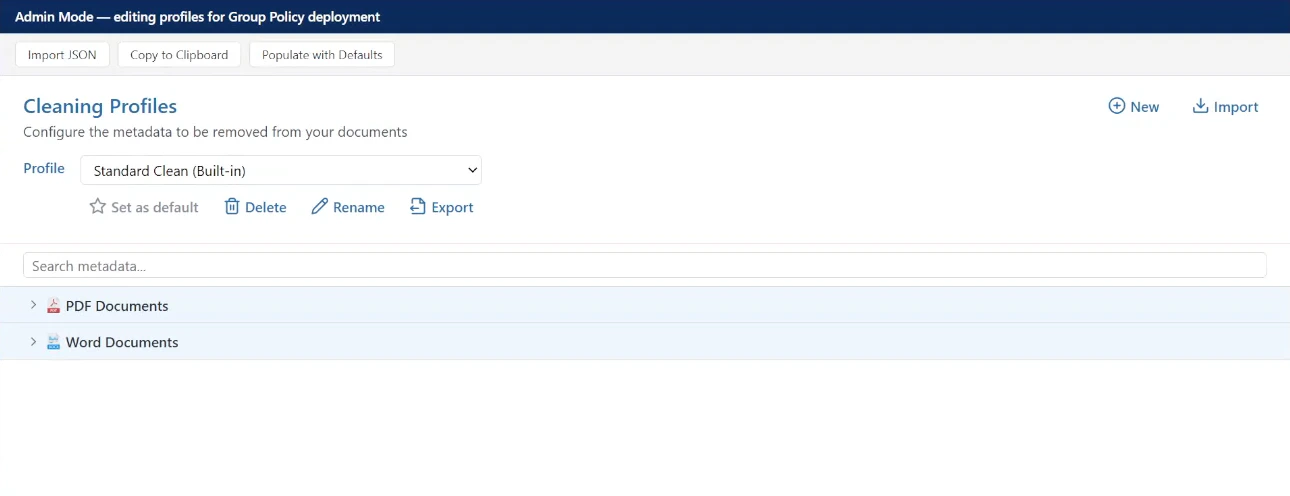
You can edit this field by starting Draftable Clean with the `--admin-profile-editor` flag. This opens an in-memory profile editor where you can create, modify, and export a profile collection as a policy value.
The **Configure admin cleaning profiles** setting is a User Configuration policy that allows administrators to define cleaning profiles centrally. These profiles are deployed to users and cannot be edited by them.
The policy value is a JSON string representing the profile collection. Draftable Clean includes a built-in **admin profile editor** to simplify creating and updating this JSON — this workflow is designed for Group Policy deployment.
The admin profile editor is intended for use with **Group Policy**. Launch Draftable Clean with the `--admin-profile-editor` flag, edit profiles visually, then copy the exported JSON into the Group Policy setting. If you deploy settings via Microsoft Intune, you can use the editor to generate the JSON value, but you must deploy it through your Intune configuration profile — see [Configuring preferences with Microsoft Intune](/hc/en-us/Draftable-Clean-articles/Configuring-preferences-with-Microsoft-Intune-Draftable-Clean).
Launch Draftable Clean with the `--admin-profile-editor` flag:
```
DraftableClean.exe --admin-profile-editor
```
This opens an in-memory profile editor where you can create, modify, and export a profile collection as the policy value.
**Workflow for updating admin profiles:**
1. Copy the existing profile collection JSON string from Group Policy
2. Open Draftable Clean with the `--admin-profile-editor` flag
3. Import the JSON string into the admin profile editor
4. Make the required changes using the visual editor
5. Copy the updated JSON string back to the clipboard
6. Paste the updated JSON string into the Group Policy setting to apply the changes
 | Policy | Value name | Type | Description | Version |
| ------------------------------------- | ----------------------- | --------------- | ---------------------------------------------------------------------------------------------------- | --------------- |
| **Configure enforced cleaning rules** | `EnforcedCleaningRules` | `REG_SZ` (JSON) | Metadata types that must always be removed across every profile (built-in, admin, and user-created). | v26.6.0 onwards |
Specifies metadata cleaning rules that are enforced across all profiles (built-in, admin-created, and user-created). When enabled, each enforced rule pins a specific metadata kind to a specific cleaning action (for example, remove, or replace with a fixed string). The enforced action overrides whatever action the active profile would otherwise apply for that kind. Users cannot change the action for enforced kinds in the profile editor. When disabled or not configured, no enforcement is applied and profiles fully control cleaning behaviour.
The value is a JSON string of the form:
```json theme={null}
{
"version": 1,
"rules": [
{
"kind": "author",
"action": { "action": "remove" }
},
{
"kind": "last-saved-by",
"action": { "action": "string-replace", "value": "Redacted" }
}
]
}
```
The **Enforced cleaning rules** policy lets administrators require that specific metadata types are **always** removed when files are cleaned — regardless of which cleaning profile is active. Enforcement is applied across **all** profiles: the built-in profiles, administrator-managed profiles, and any custom profiles users create later. Enforced rules are read-only at runtime and cannot be overridden by a profile's own settings.
This gives legal and IT teams a guaranteed baseline — for example, ensuring author, comments, and tracked-change metadata are stripped from every outbound document no matter how a profile is configured.
Enforced cleaning rules are defined as a JSON value in Group Policy. The set of available metadata types matches the [Supported Metadata Types](/hc/en-us/Draftable-Clean-articles/Supported-Metadata-Types) reference.
### Privacy and telemetry (`...\Clean\Reporting`)
| Policy | Value name | Type | Description | Version |
| ----------------------------------------- | ------------------ | ----------------- | --------------------------------------------------------------------------------------------------------------- | ----------------- |
| **Configure submission of error reports** | `SendErrorReports` | `REG_DWORD` (1/0) | Whether error reports are automatically submitted. When not configured, the application default (send) is used. | v26.3.100 onwards |
Controls whether error reports are automatically submitted to help identify and fix issues. When enabled, error reports are sent. When disabled, error reports are not sent. When not configured, the application default (send) is used.
| Policy | Value name | Type | Description | Version |
| -------------------------------------------- | ---------------- | ----------------- | -------------------------------------------------------------------------------------------------------------- | ----------------- |
| **Configure submission of usage statistics** | `SendStatistics` | `REG_DWORD` (1/0) | Whether anonymous usage statistics are submitted. When not configured, the application default (send) is used. | v26.3.100 onwards |
Controls whether anonymous usage statistics are submitted to help improve the product. When enabled, statistics are sent. When disabled, statistics are not sent. When not configured, the application default (send) is used.
### Local HTTP listener (`...\Clean\Listener`) — Computer Configuration only
| Policy | Value name | Type | Description | Version |
| -------------------------------- | ------------------ | ----------- | ------------------------------------------------------------------------------------------------------------------------------------------------- | --------------- |
| **Configure HTTP listener port** | `HttpListenerPort` | `REG_DWORD` | Port number for the local HTTP listener used for communication between the Draftable Clean application and its browser-based UI. Default: `5044`. | v26.6.0 onwards |
Specifies the port number for the local HTTP listener used for communication between the Draftable Clean application and browser-based UI. When enabled, the configured port is used. When disabled or not configured, the default port (`5044`) is used.
For a complete and up-to-date list, refer to the administrative templates installed on your system — they are the definitive source of truth for all configurable settings.
### Locking Outlook add-in defaults
Each Outlook add-in policy field can be set as a fixed value that end users **cannot override** from the desktop application's **Settings > Add-In** panel. This lets administrators lock the default profile and send-protection behaviours to organisation standards while leaving other settings user-editable. Where a field is left unset by policy, the user's own setting applies. See [Priority of settings](/hc/en-us/Draftable-Clean-articles/Configuring-preferences-for-your-organisation-Draftable-Clean#priority-of-settings) for the full precedence order.
## Need help?
If you need assistance configuring Draftable Clean with Group Policy, contact the Draftable team at [support@draftable.com](mailto:support@draftable.com).
| Policy | Value name | Type | Description | Version |
| ------------------------------------- | ----------------------- | --------------- | ---------------------------------------------------------------------------------------------------- | --------------- |
| **Configure enforced cleaning rules** | `EnforcedCleaningRules` | `REG_SZ` (JSON) | Metadata types that must always be removed across every profile (built-in, admin, and user-created). | v26.6.0 onwards |
Specifies metadata cleaning rules that are enforced across all profiles (built-in, admin-created, and user-created). When enabled, each enforced rule pins a specific metadata kind to a specific cleaning action (for example, remove, or replace with a fixed string). The enforced action overrides whatever action the active profile would otherwise apply for that kind. Users cannot change the action for enforced kinds in the profile editor. When disabled or not configured, no enforcement is applied and profiles fully control cleaning behaviour.
The value is a JSON string of the form:
```json theme={null}
{
"version": 1,
"rules": [
{
"kind": "author",
"action": { "action": "remove" }
},
{
"kind": "last-saved-by",
"action": { "action": "string-replace", "value": "Redacted" }
}
]
}
```
The **Enforced cleaning rules** policy lets administrators require that specific metadata types are **always** removed when files are cleaned — regardless of which cleaning profile is active. Enforcement is applied across **all** profiles: the built-in profiles, administrator-managed profiles, and any custom profiles users create later. Enforced rules are read-only at runtime and cannot be overridden by a profile's own settings.
This gives legal and IT teams a guaranteed baseline — for example, ensuring author, comments, and tracked-change metadata are stripped from every outbound document no matter how a profile is configured.
Enforced cleaning rules are defined as a JSON value in Group Policy. The set of available metadata types matches the [Supported Metadata Types](/hc/en-us/Draftable-Clean-articles/Supported-Metadata-Types) reference.
### Privacy and telemetry (`...\Clean\Reporting`)
| Policy | Value name | Type | Description | Version |
| ----------------------------------------- | ------------------ | ----------------- | --------------------------------------------------------------------------------------------------------------- | ----------------- |
| **Configure submission of error reports** | `SendErrorReports` | `REG_DWORD` (1/0) | Whether error reports are automatically submitted. When not configured, the application default (send) is used. | v26.3.100 onwards |
Controls whether error reports are automatically submitted to help identify and fix issues. When enabled, error reports are sent. When disabled, error reports are not sent. When not configured, the application default (send) is used.
| Policy | Value name | Type | Description | Version |
| -------------------------------------------- | ---------------- | ----------------- | -------------------------------------------------------------------------------------------------------------- | ----------------- |
| **Configure submission of usage statistics** | `SendStatistics` | `REG_DWORD` (1/0) | Whether anonymous usage statistics are submitted. When not configured, the application default (send) is used. | v26.3.100 onwards |
Controls whether anonymous usage statistics are submitted to help improve the product. When enabled, statistics are sent. When disabled, statistics are not sent. When not configured, the application default (send) is used.
### Local HTTP listener (`...\Clean\Listener`) — Computer Configuration only
| Policy | Value name | Type | Description | Version |
| -------------------------------- | ------------------ | ----------- | ------------------------------------------------------------------------------------------------------------------------------------------------- | --------------- |
| **Configure HTTP listener port** | `HttpListenerPort` | `REG_DWORD` | Port number for the local HTTP listener used for communication between the Draftable Clean application and its browser-based UI. Default: `5044`. | v26.6.0 onwards |
Specifies the port number for the local HTTP listener used for communication between the Draftable Clean application and browser-based UI. When enabled, the configured port is used. When disabled or not configured, the default port (`5044`) is used.
For a complete and up-to-date list, refer to the administrative templates installed on your system — they are the definitive source of truth for all configurable settings.
### Locking Outlook add-in defaults
Each Outlook add-in policy field can be set as a fixed value that end users **cannot override** from the desktop application's **Settings > Add-In** panel. This lets administrators lock the default profile and send-protection behaviours to organisation standards while leaving other settings user-editable. Where a field is left unset by policy, the user's own setting applies. See [Priority of settings](/hc/en-us/Draftable-Clean-articles/Configuring-preferences-for-your-organisation-Draftable-Clean#priority-of-settings) for the full precedence order.
## Need help?
If you need assistance configuring Draftable Clean with Group Policy, contact the Draftable team at [support@draftable.com](mailto:support@draftable.com).