> ## Documentation Index
> Fetch the complete documentation index at: https://help.draftable.com/llms.txt
> Use this file to discover all available pages before exploring further.
# Draftable Clean Quick Start Guide
> This step-by-step guide will help you set up Draftable Clean and clean your first document — whether using the desktop application or the Draftable Clean Outlook add-in.
## What is Draftable Clean?
Draftable Clean is a metadata cleaning solution built for legal professionals. Documents contain hidden metadata — author names, tracked changes, comments, revision history, and system properties — that can inadvertently disclose sensitive or privileged information when shared externally.
Draftable Clean gives you two ways to clean documents:
| Workflow | What it is | Best for |
| ---------------------------------- | ------------------------------------------------------------------------------------------- | --------------------------------------------------------------------- |
| **Desktop application** | Standalone Windows application for scanning, reviewing, and cleaning documents | Bulk cleaning, detailed metadata review, saving cleaned files locally |
| **Draftable Clean Outlook add-in** | Right-hand panel inside Outlook that automatically cleans attachments as you compose emails | Cleaning documents as part of your email sending workflow |
## Setting up the Desktop application and Outlook add-in
### Setting up the desktop application
Draftable Clean is available as a per-user **.exe** installer or a machine-wide **MSI** for enterprise deployments. See [Deployment options](/hc/en-us/Draftable-Clean-articles/Deployment-options) to choose the right installer for your environment.
To install using the default per-user installer, download Draftable Clean here: [https://dl.draftable.com/clean/DraftableCleanSetup.exe](https://dl.draftable.com/clean/DraftableCleanSetup.exe)
Run the installer and follow the prompts.
On first launch, you will be asked to acknowledge the **terms and conditions** and your **telemetry preferences** before continuing.
Activate the product.
1. If you already have a license, enter your product key — it should have been sent to your email.
2. If you don't have a license yet, you can start a **free 5-day trial directly from the application** — no need to contact sales first. You can also start a trial from the [Draftable Clean product page](https://www.draftable.com/draftable-clean).
That's it! Draftable Clean is now set up and ready to use.
### Setting up the Outlook add-in
The add-in is deployed organization-wide by a Microsoft 365 administrator. Setup involves uploading the Draftable Clean manifest file to the Microsoft 365 admin center and assigning it to your users.
If you don't see the Draftable Clean button in the Outlook ribbon, contact your IT team to have it installed. Administrators can follow the [Installing Draftable Clean Outlook Add-in](/hc/en-us/Draftable-Clean-articles/Installing-Draftable-Clean-Outlook-Add-in) guide for deployment instructions.
***
## Part 1: Desktop application
### Cleaning your first document (desktop)
Open Draftable Clean to see the main application window with the toolbar across the top.
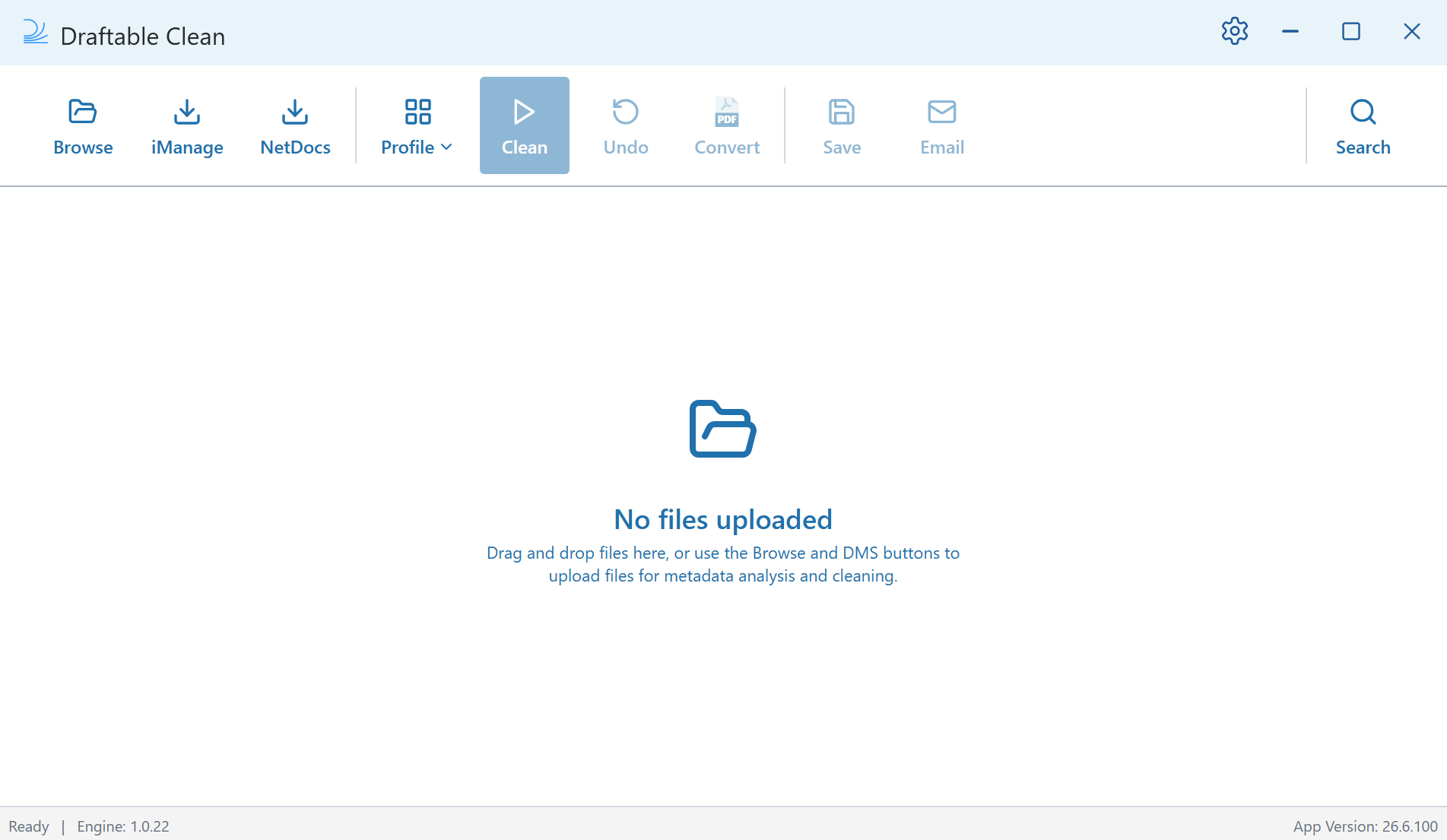 The toolbar follows three key steps:
* **Upload** — **Browse**, **iManage**, **NetDocs**
* **Clean** — **Clean**, **Undo**
* **Export** — **Save**, **Email**
**UPLOAD:** Add files to Draftable Clean by clicking **Browse** to select documents from a local folder, **iManage** or **NetDocs** to upload from your document management system, or by dragging and dropping files directly into the application window.
The toolbar follows three key steps:
* **Upload** — **Browse**, **iManage**, **NetDocs**
* **Clean** — **Clean**, **Undo**
* **Export** — **Save**, **Email**
**UPLOAD:** Add files to Draftable Clean by clicking **Browse** to select documents from a local folder, **iManage** or **NetDocs** to upload from your document management system, or by dragging and dropping files directly into the application window.
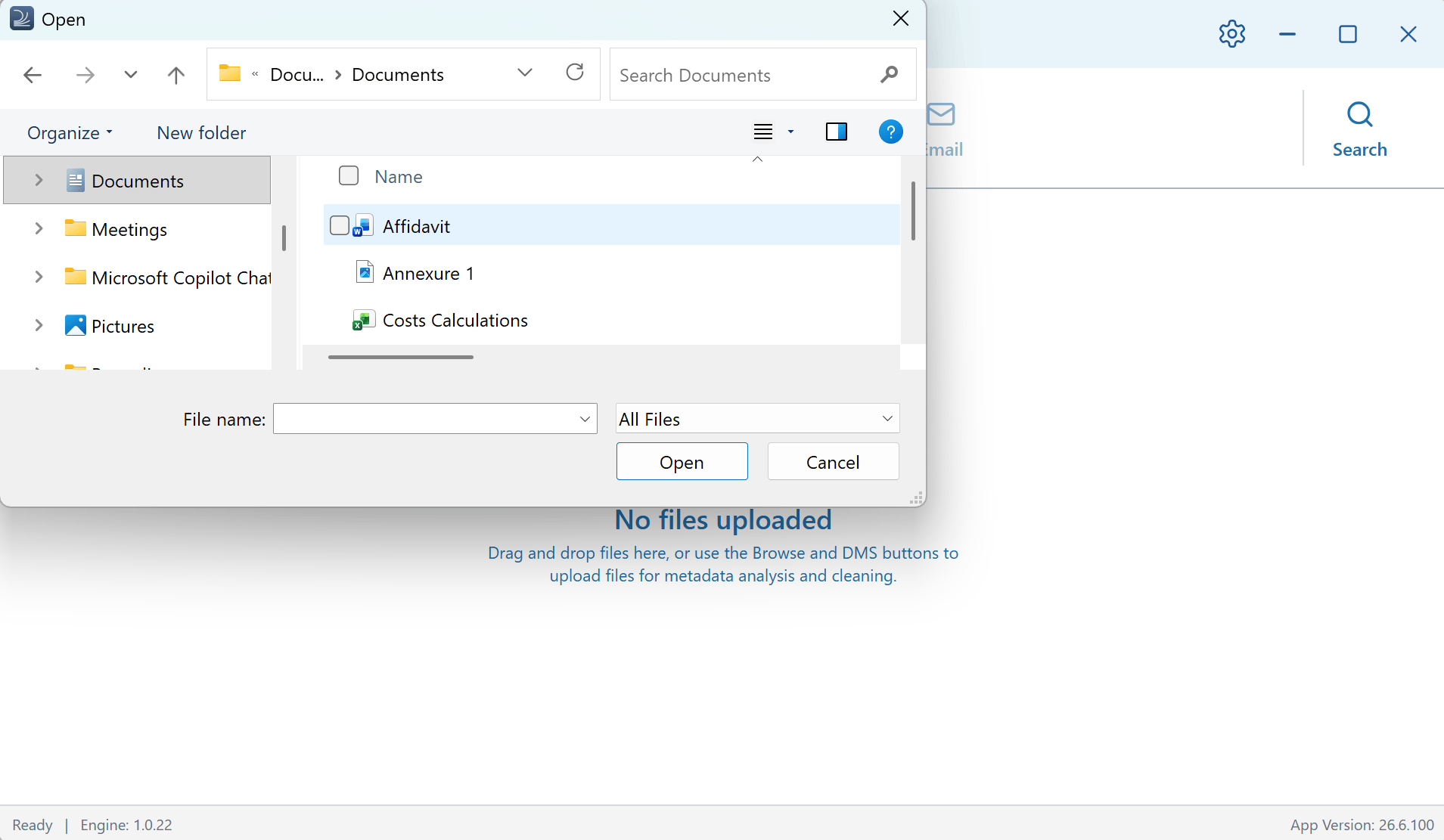 You can select multiple files at once. Draftable Clean handles all [supported file types](/hc/en-us/Draftable-Clean-articles/Supported-file-types) simultaneously.
If an **iManage** or **NetDocs** button is not visible, you may need to enable the integration in **Settings > Integrations**. See [Troubleshooting: DMS integrations](/hc/en-us/Draftable-Clean-articles/Troubleshooting-DMS-Integrations) for help.
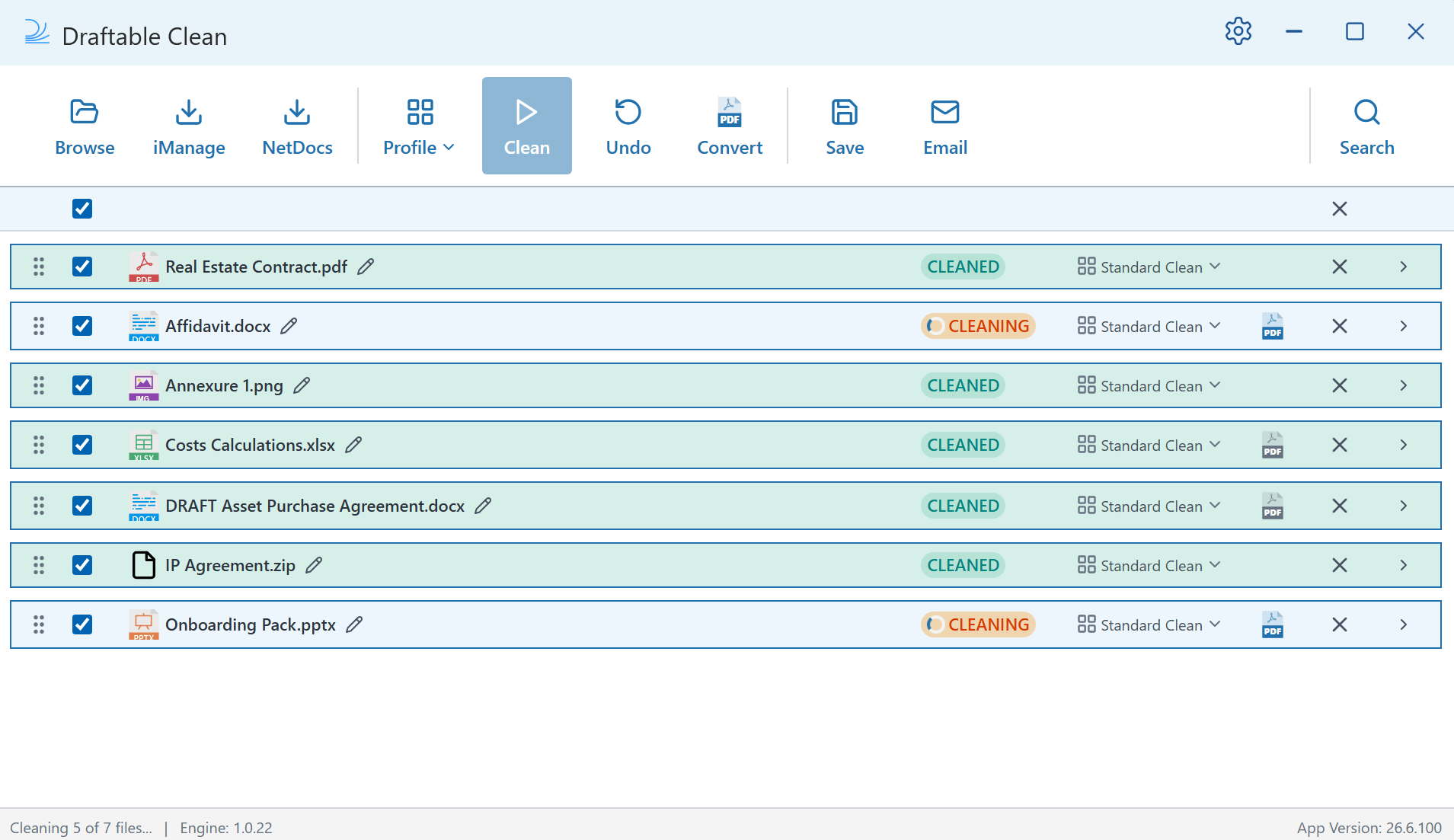
**CLEAN:** Once uploaded, files are automatically scanned and assigned a risk rating. When you are ready, click **Clean** in the toolbar. All selected files are cleaned and their status changes to **CLEANED**.
You can select multiple files at once. Draftable Clean handles all [supported file types](/hc/en-us/Draftable-Clean-articles/Supported-file-types) simultaneously.
If an **iManage** or **NetDocs** button is not visible, you may need to enable the integration in **Settings > Integrations**. See [Troubleshooting: DMS integrations](/hc/en-us/Draftable-Clean-articles/Troubleshooting-DMS-Integrations) for help.
**CLEAN:** Once uploaded, files are automatically scanned and assigned a risk rating. When you are ready, click **Clean** in the toolbar. All selected files are cleaned and their status changes to **CLEANED**.
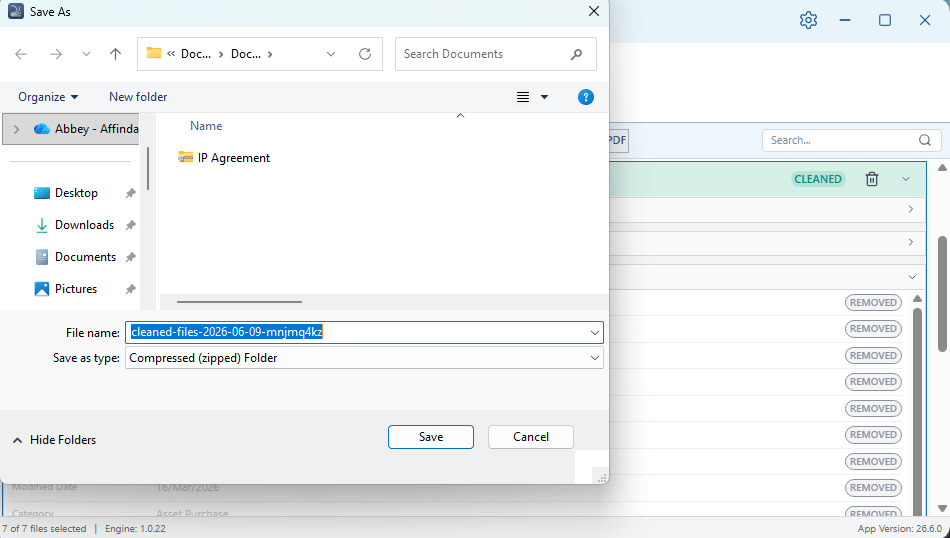
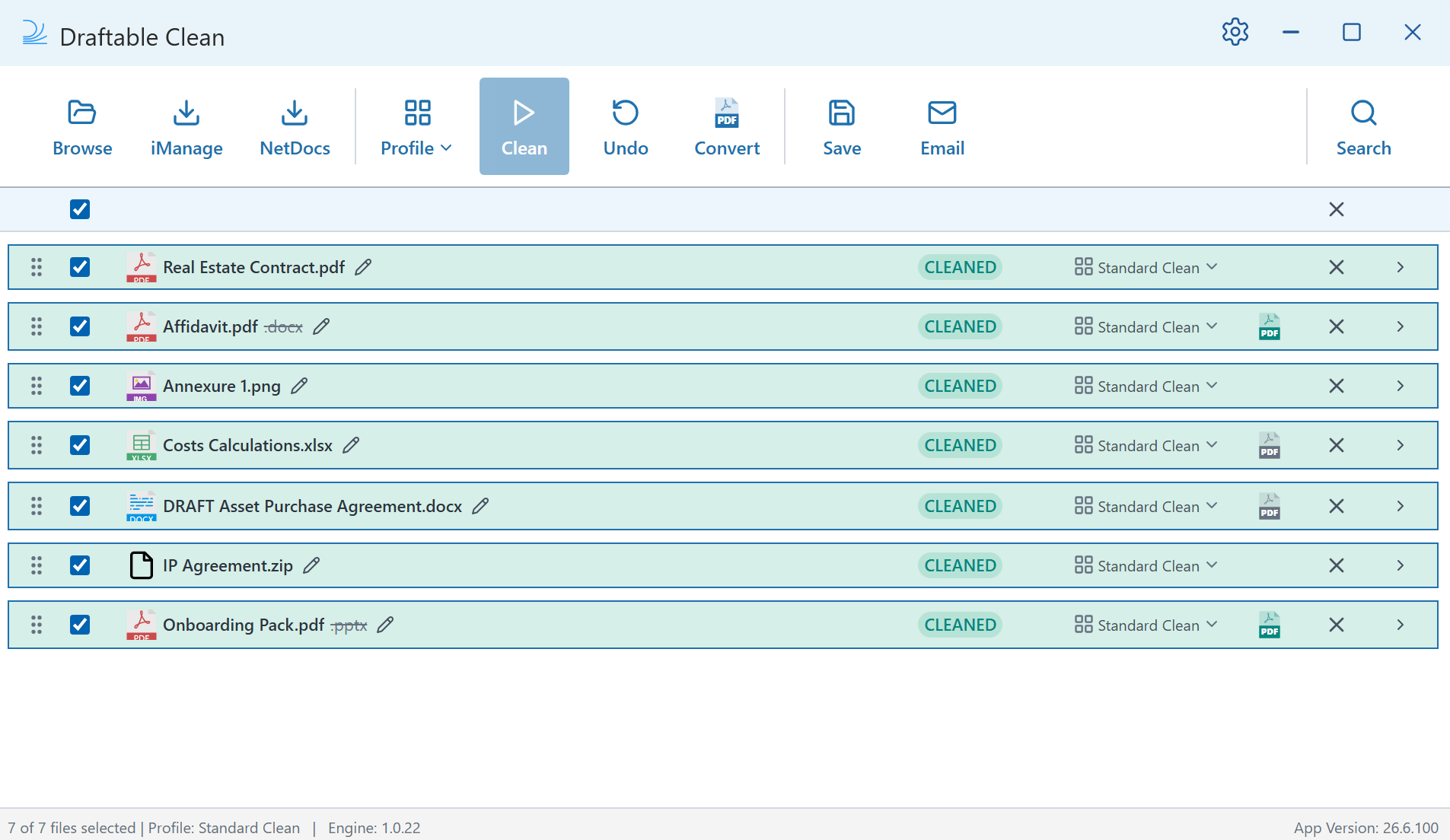 **EXPORT:** Save or share your cleaned files from the toolbar.
* **Save** — Packages cleaned files into a compressed ZIP folder with a timestamped filename.
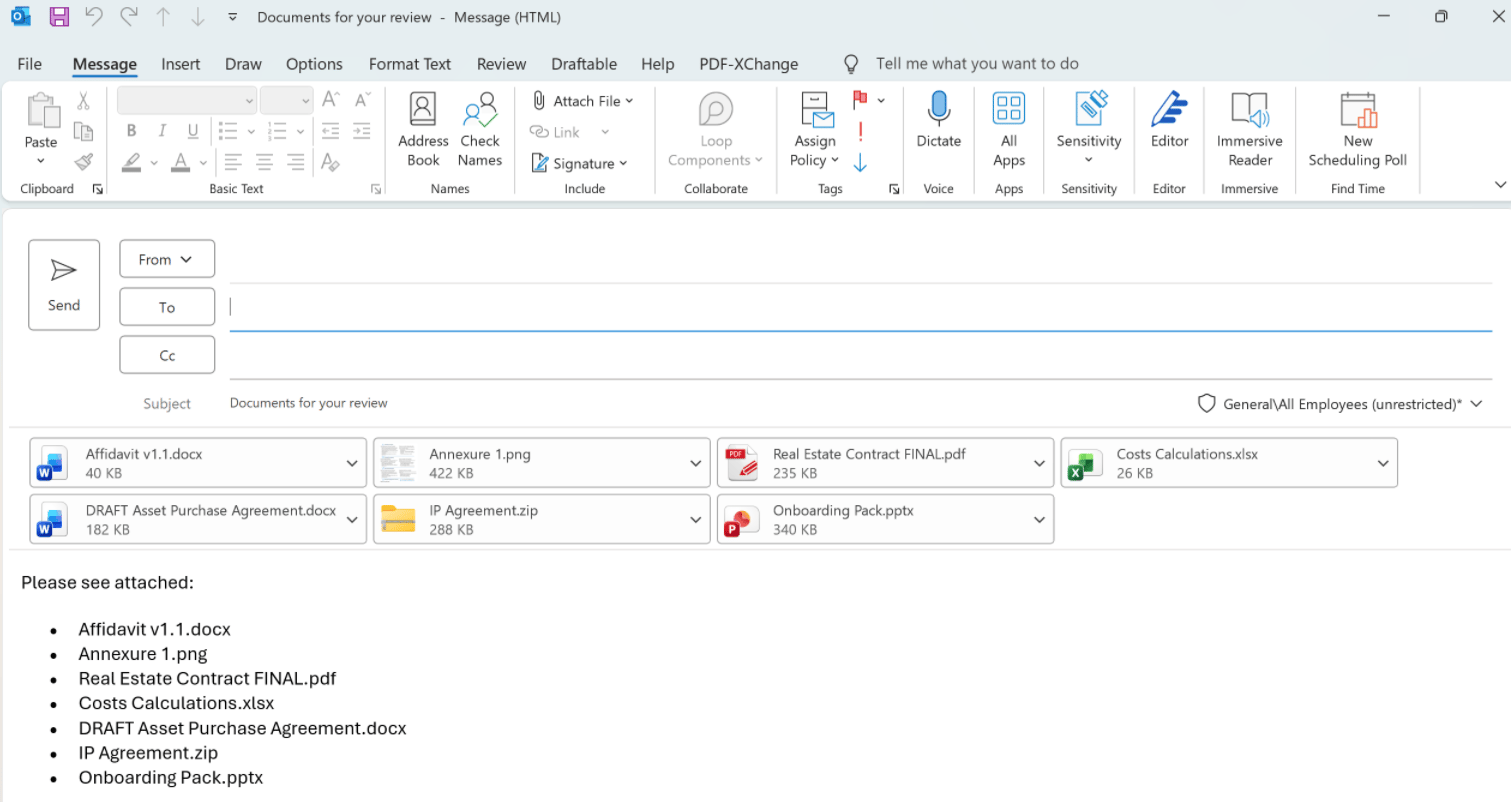
* **Email** — Opens a new Outlook message with your cleaned files pre-attached. Draftable Clean preserves file order and any filenames you have renamed, and populates the email subject, body, and attachment summary from your preferences.
**EXPORT:** Save or share your cleaned files from the toolbar.
* **Save** — Packages cleaned files into a compressed ZIP folder with a timestamped filename.
* **Email** — Opens a new Outlook message with your cleaned files pre-attached. Draftable Clean preserves file order and any filenames you have renamed, and populates the email subject, body, and attachment summary from your preferences.
 ### Configuring email defaults
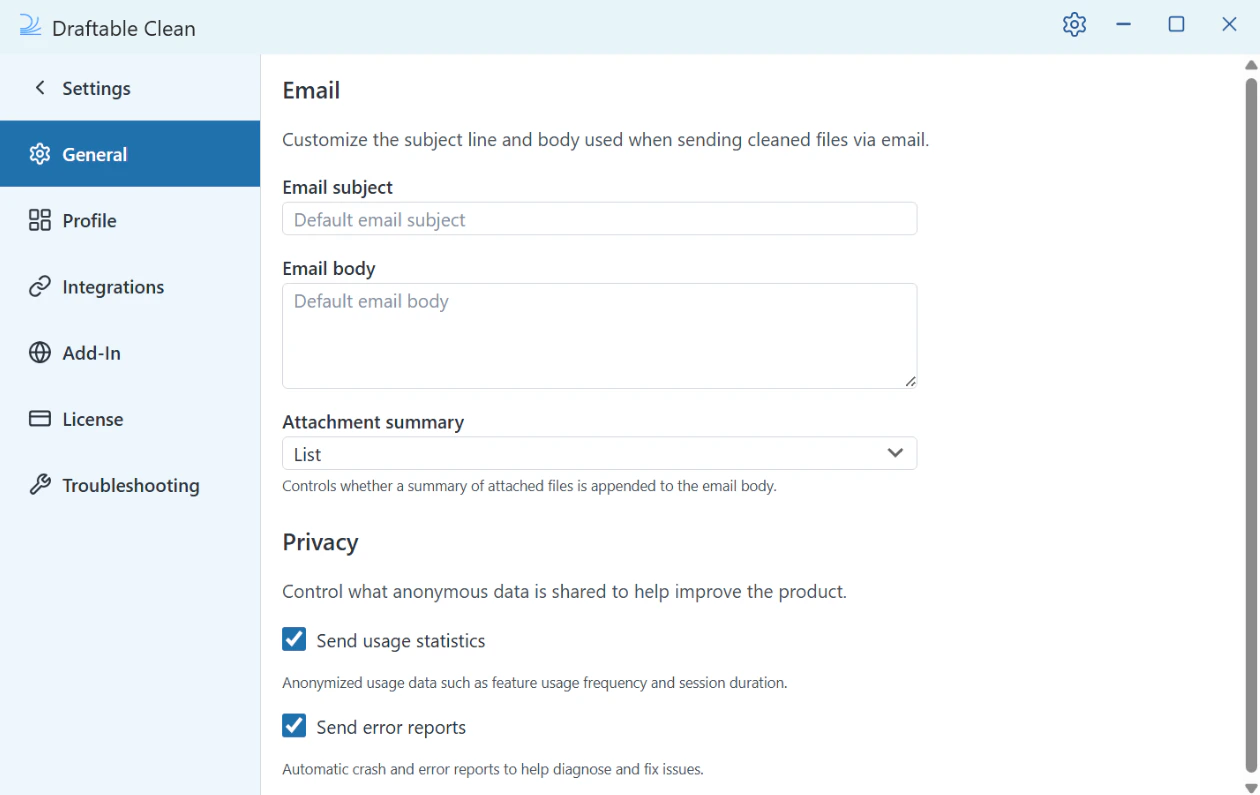
In **Settings > General**, you can prepare defaults for emails sent from the desktop application:
* **Email subject** — The default subject line
* **Email body** — The default body text
* **Attachment summary** — Whether a **List** (bullet points) or **Table** (with columns) of attachments is inserted into the email body
### Configuring email defaults
In **Settings > General**, you can prepare defaults for emails sent from the desktop application:
* **Email subject** — The default subject line
* **Email body** — The default body text
* **Attachment summary** — Whether a **List** (bullet points) or **Table** (with columns) of attachments is inserted into the email body
 ### Password-protected files
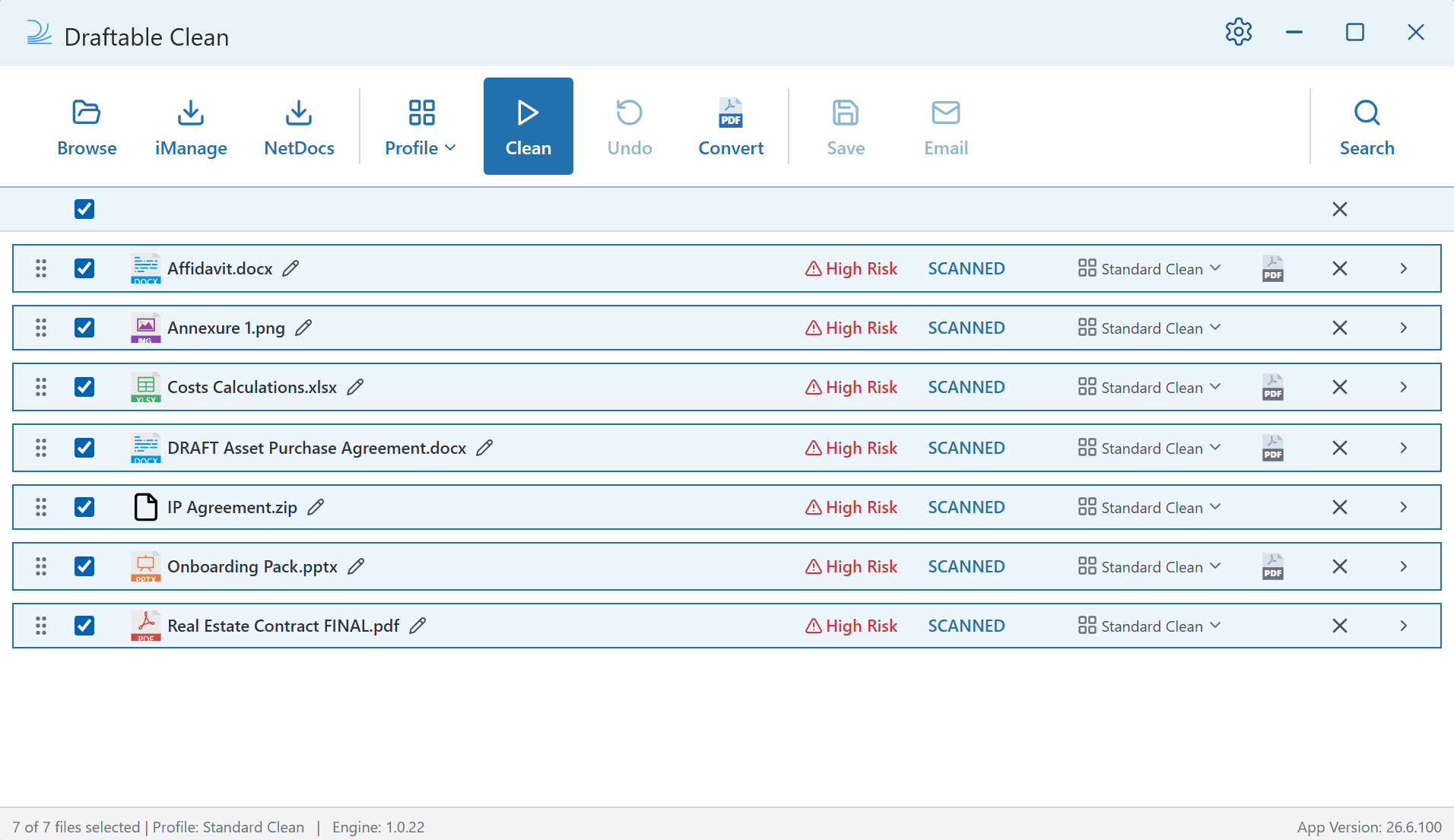
If a file shows a **PASSWORD** status (highlighted in orange), it is password-protected and cannot be scanned until you provide the password. A **Password Required** prompt appears automatically below the file with a password field.
### Password-protected files
If a file shows a **PASSWORD** status (highlighted in orange), it is password-protected and cannot be scanned until you provide the password. A **Password Required** prompt appears automatically below the file with a password field.
 Enter the file's password — you can use the **eye icon** to toggle visibility — and click **Check Password**.
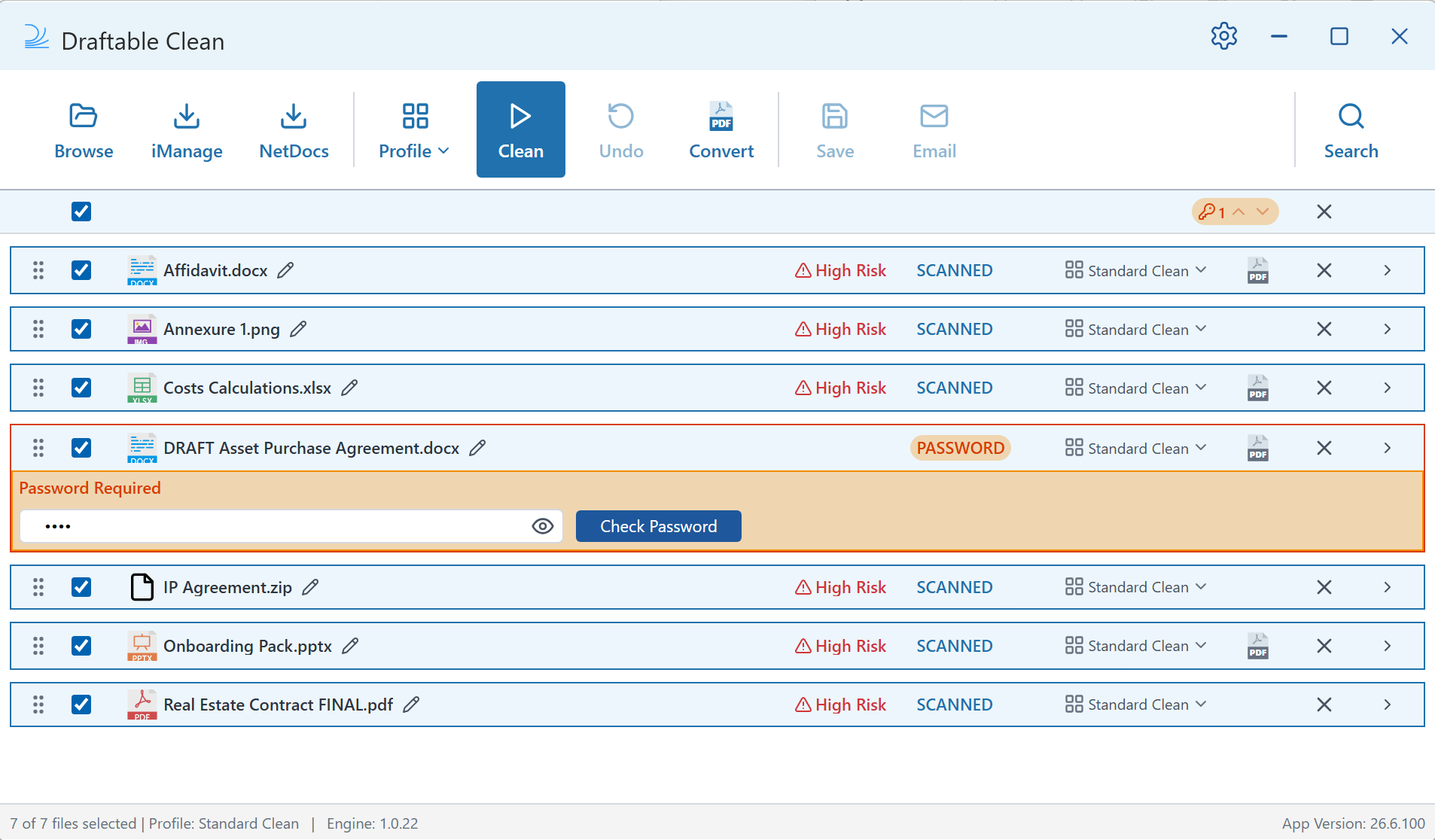 If the password is correct, the file is scanned and its status changes to **SCANNED** with a risk rating, just like your other files.
If the password is incorrect, a **Password Invalid** message is displayed. Re-enter the correct password and click **Check Password** again. See [Troubleshooting: Cleaning issues](/hc/en-us/Draftable-Clean-articles/Troubleshooting-Cleaning-Issues#password-protected-files) for further help.
Password-protected files don't block the rest of your workflow. You can continue scanning, renaming, reordering, and cleaning other files while a password-protected file awaits authentication.
### Reviewing metadata in files
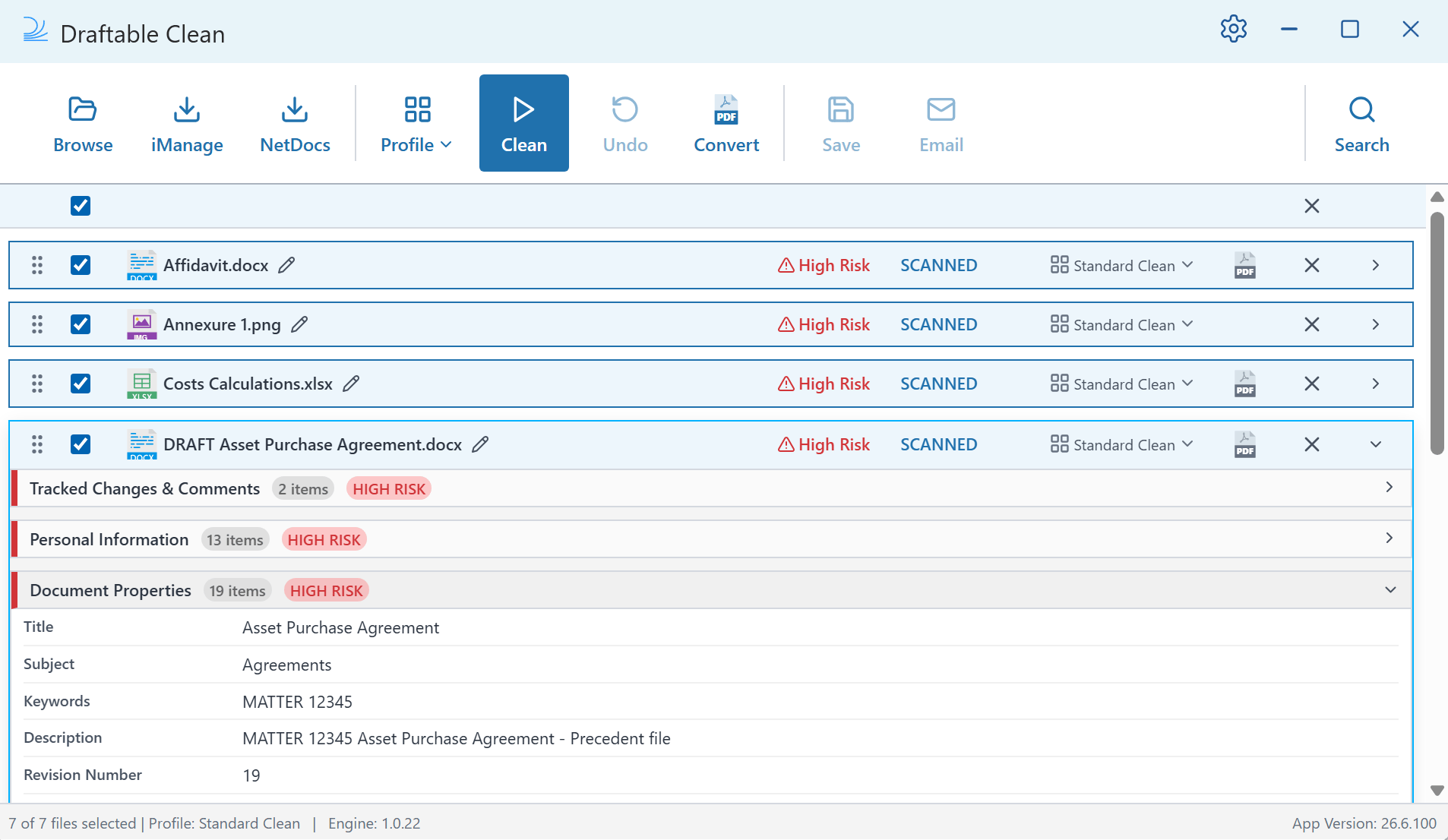
Click the **expand arrow** (>) on any file to see a detailed breakdown of its metadata. Metadata is grouped into categories — such as **Document Properties**, **Personal Information**, **Tracked Changes & Comments**, and more — each with their own item count and risk level.
If the password is correct, the file is scanned and its status changes to **SCANNED** with a risk rating, just like your other files.
If the password is incorrect, a **Password Invalid** message is displayed. Re-enter the correct password and click **Check Password** again. See [Troubleshooting: Cleaning issues](/hc/en-us/Draftable-Clean-articles/Troubleshooting-Cleaning-Issues#password-protected-files) for further help.
Password-protected files don't block the rest of your workflow. You can continue scanning, renaming, reordering, and cleaning other files while a password-protected file awaits authentication.
### Reviewing metadata in files
Click the **expand arrow** (>) on any file to see a detailed breakdown of its metadata. Metadata is grouped into categories — such as **Document Properties**, **Personal Information**, **Tracked Changes & Comments**, and more — each with their own item count and risk level.
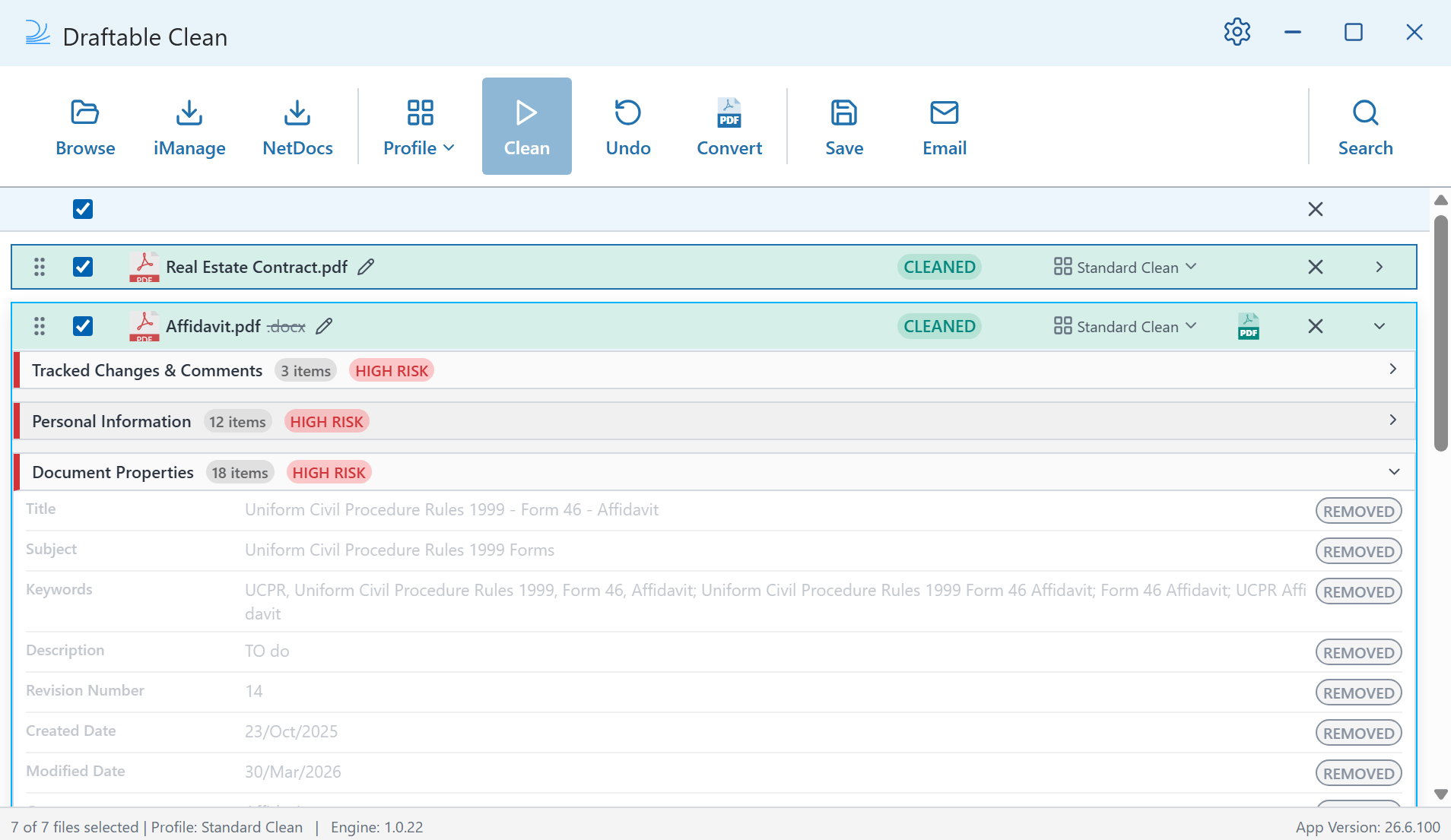
 After cleaning, expand a file again to see exactly which metadata fields were removed. Each field displays a **REMOVED** badge, so you have full visibility into what was stripped from the document.
 ### Searching metadata in files
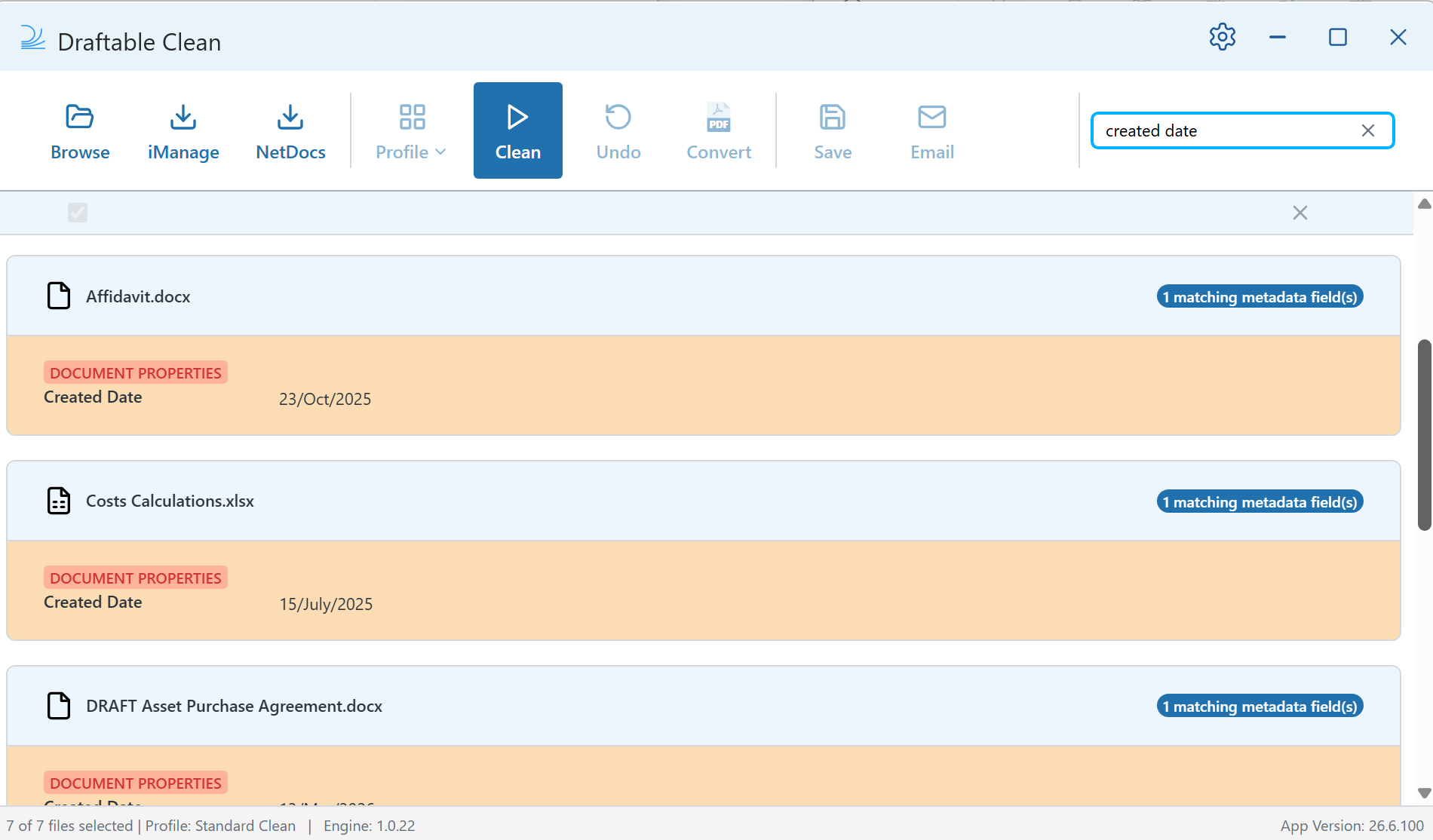
Use the search bar above the file list to find specific metadata across all loaded files. This helps you locate particular fields — such as author names or tracked changes — before you clean or export.
### Searching metadata in files
Use the search bar above the file list to find specific metadata across all loaded files. This helps you locate particular fields — such as author names or tracked changes — before you clean or export.
 ### Renaming and reordering files
Rename and reorder files directly in the file list before cleaning:
* **Rename** — Click the **pencil icon** next to a file name to edit it inline. Press **Enter** or click away to confirm.
### Renaming and reordering files
Rename and reorder files directly in the file list before cleaning:
* **Rename** — Click the **pencil icon** next to a file name to edit it inline. Press **Enter** or click away to confirm.
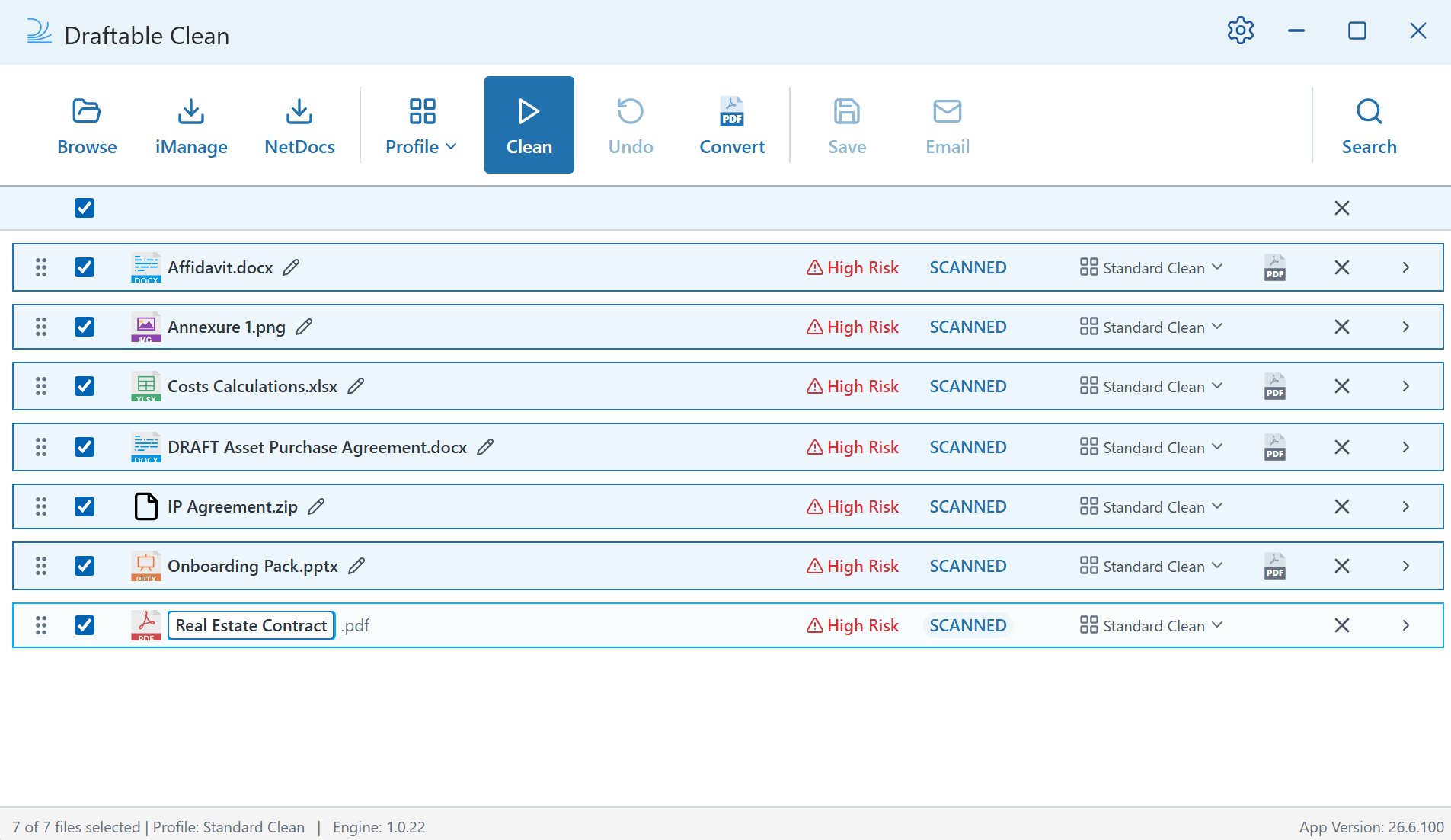 * **Reorder** — Drag files up or down in the list to change the attachment order.
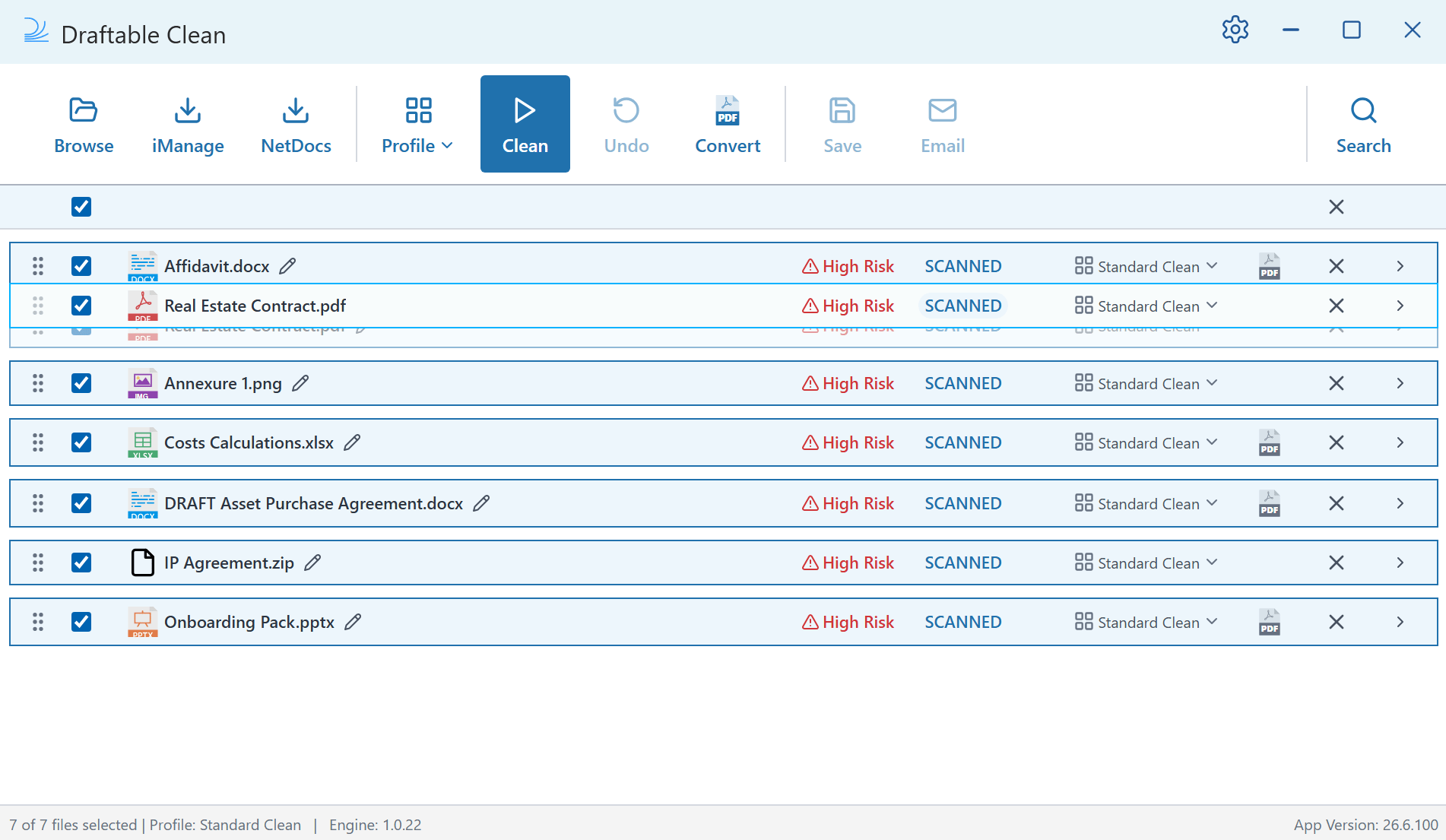 Renamed filenames and custom ordering are preserved when you save or email cleaned files from the desktop application.
### Converting to PDF
Before cleaning, you can optionally flag supported files for conversion to PDF. Click the **PDF icon** inline with a file to flag it — the icon turns **blue** when flagged. Alternatively, select one or more files and click **Convert** in the toolbar to flag them for conversion. Flagged files are converted when you click **Clean**. You can flag or unflag files for conversion before or after cleaning.
Renamed filenames and custom ordering are preserved when you save or email cleaned files from the desktop application.
### Converting to PDF
Before cleaning, you can optionally flag supported files for conversion to PDF. Click the **PDF icon** inline with a file to flag it — the icon turns **blue** when flagged. Alternatively, select one or more files and click **Convert** in the toolbar to flag them for conversion. Flagged files are converted when you click **Clean**. You can flag or unflag files for conversion before or after cleaning.
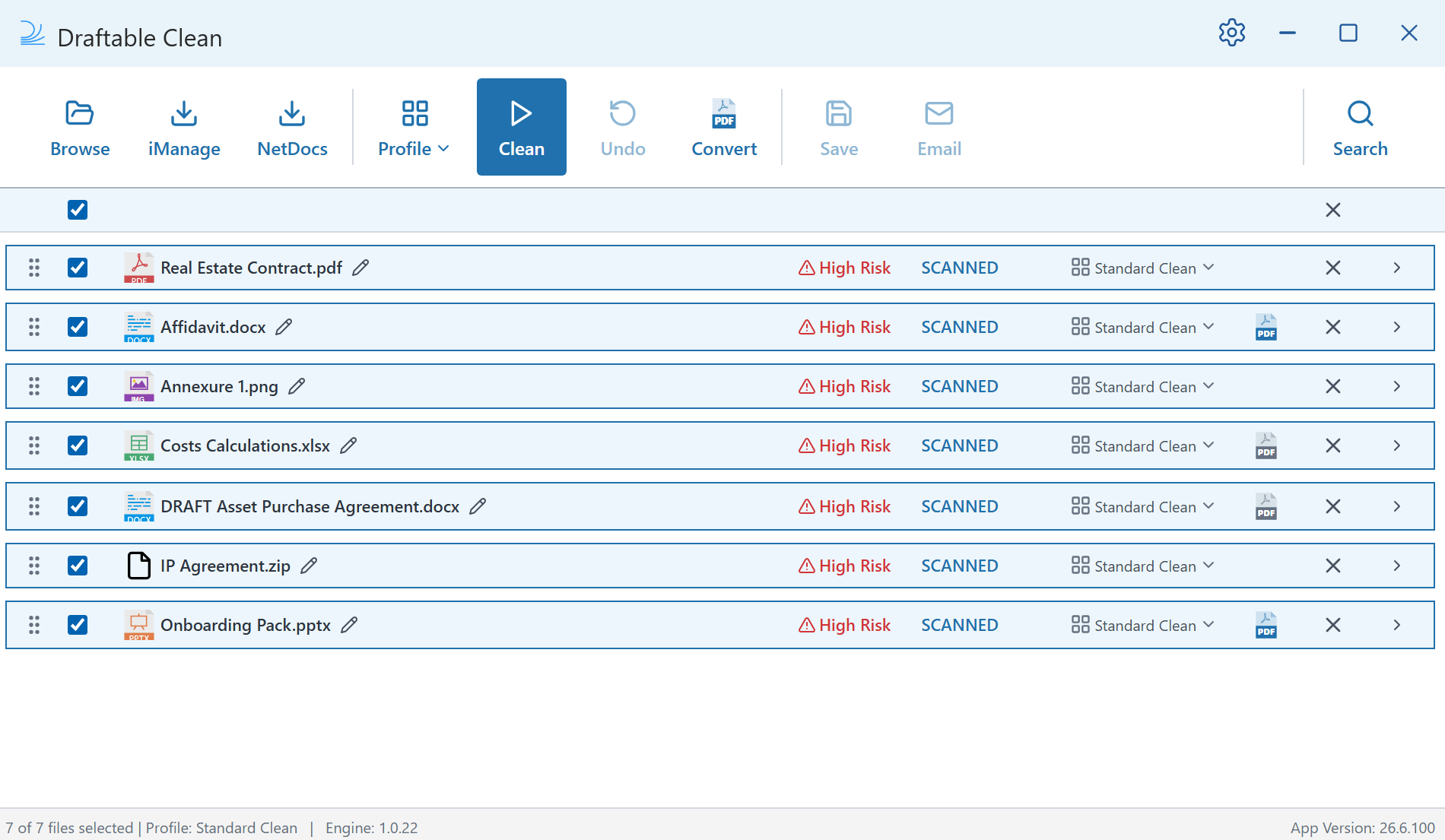 Supported files flagged for conversion are converted to PDF alongside metadata removal when you click **Clean**.
 ***
## Part 2: Draftable Clean Outlook add-in
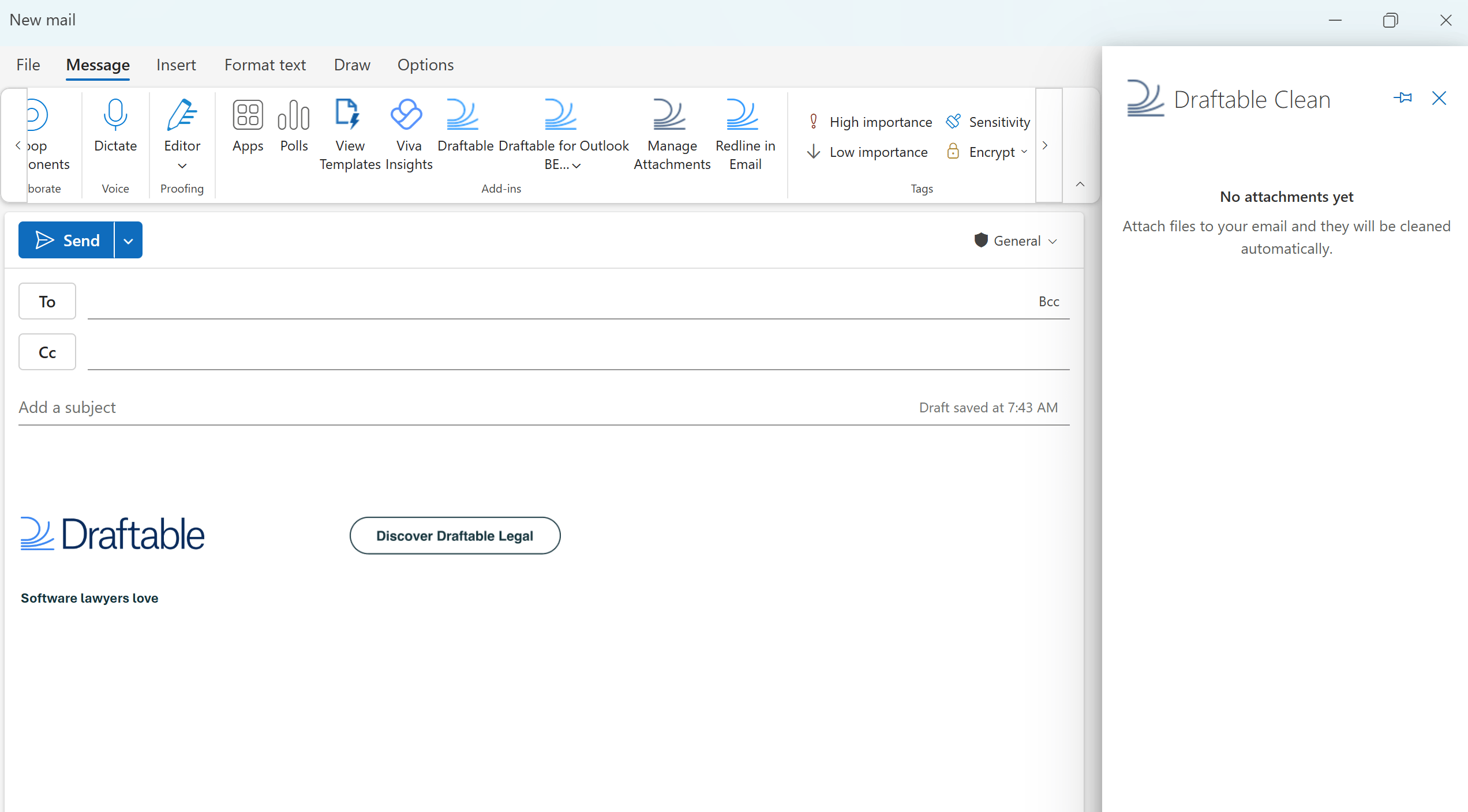
The **Draftable Clean** add-in runs directly inside Microsoft Outlook and automatically cleans attachments as you compose emails.
Attach files and compose your email as you normally would, then click **Send**. Draftable Clean cleans your attachments in the background according to your organization's policies — you can send with confidence that your files have been cleaned.
***
## Part 2: Draftable Clean Outlook add-in
The **Draftable Clean** add-in runs directly inside Microsoft Outlook and automatically cleans attachments as you compose emails.
Attach files and compose your email as you normally would, then click **Send**. Draftable Clean cleans your attachments in the background according to your organization's policies — you can send with confidence that your files have been cleaned.
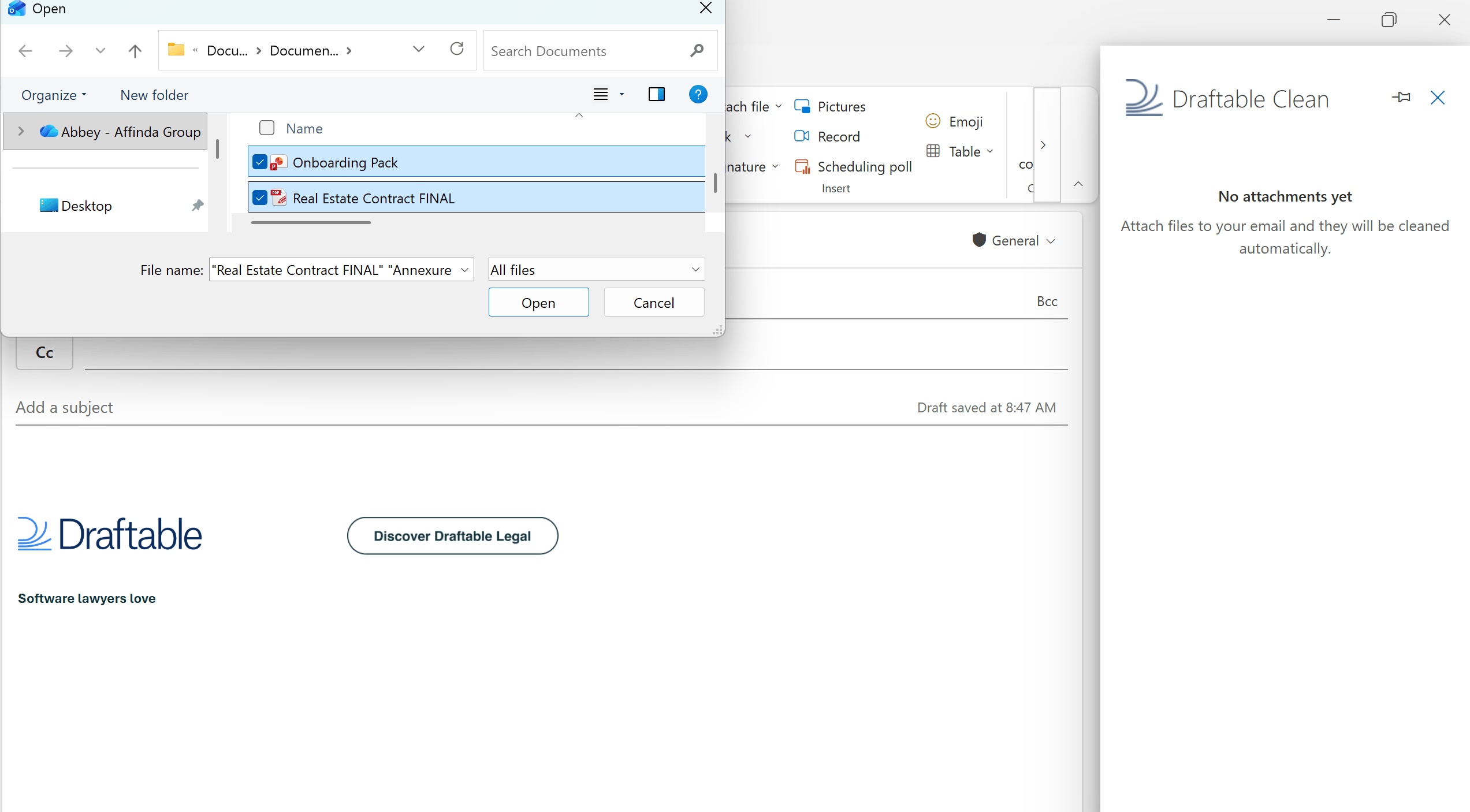 The desktop application must be running for the add-in to function. If it is not already open, the add-in will attempt to launch it silently in the background.
In **Classic Outlook**, you must pin the Draftable Clean pane and keep it open for files to be cleaned. In **New Outlook**, the pane does not need to be open — you can attach files and send without opening the panel.
Open **Manage Attachments** in the Outlook ribbon at any time to view cleaning progress and access the options below.
The desktop application must be running for the add-in to function. If it is not already open, the add-in will attempt to launch it silently in the background.
In **Classic Outlook**, you must pin the Draftable Clean pane and keep it open for files to be cleaned. In **New Outlook**, the pane does not need to be open — you can attach files and send without opening the panel.
Open **Manage Attachments** in the Outlook ribbon at any time to view cleaning progress and access the options below.
 ### Changing the add-in language
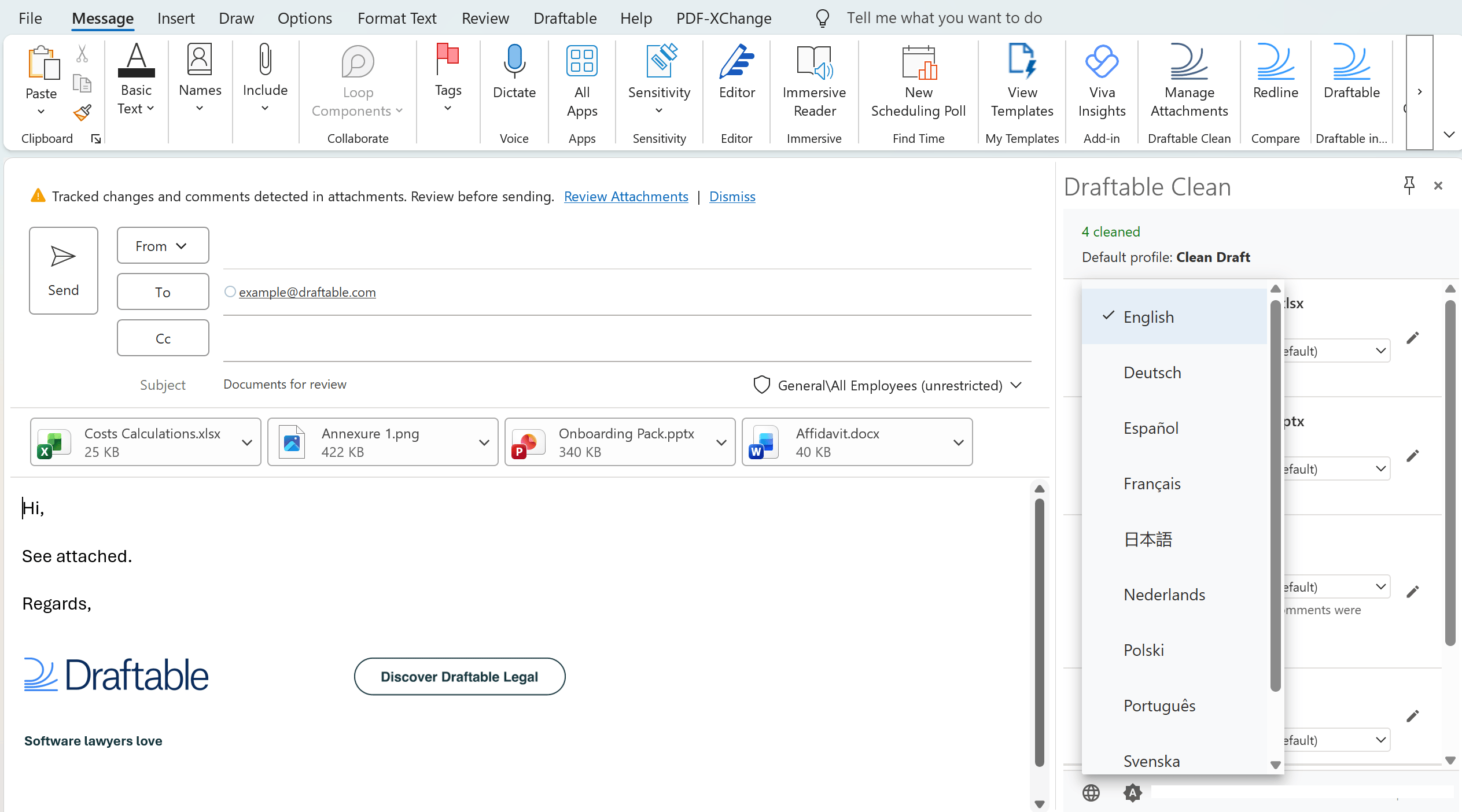
Draftable Clean supports multiple languages including English, Deutsch, Español, Français, 日本語, Nederlands, Polski, Português, Svenska, and Tagalog. Open the add-in pane and click the **globe icon** at the bottom of the panel to select your preferred language.
### Changing the add-in language
Draftable Clean supports multiple languages including English, Deutsch, Español, Français, 日本語, Nederlands, Polski, Português, Svenska, and Tagalog. Open the add-in pane and click the **globe icon** at the bottom of the panel to select your preferred language.
 ### Automatic profile switching based on recipients
Draftable Clean intelligently adjusts the cleaning profile based on recipient email domains. Domain rules are configured in **Settings > Add-In** and determine which cleaning profile is applied. For example, a typical configuration might be:
* **No recipients entered** — A default profile such as **Standard Clean** is used
* **Internal recipients** (e.g. `colleague@yourfirm.com`) — A lighter profile such as **Clean Draft** that preserves tracked changes and comments
* **External recipients** (e.g. `contact@externalfirm.com`) — A stricter profile such as **Standard Clean**
These are examples — administrators and users can customize the default profile for when no recipients are entered, and configure domain rules to map specific email domains to any cleaning profile via **Settings > Add-In**. See [Metadata cleaning profiles](/hc/en-us/Draftable-Clean-articles/Metadata-Cleaning-Profiles) for details on managing profiles and domain rules.
When you add or change recipients, a banner appears: **"Recipients changed — re-cleaning attachments with updated profile."** You can click **Review Attachments** to check the changes.
### Automatic profile switching based on recipients
Draftable Clean intelligently adjusts the cleaning profile based on recipient email domains. Domain rules are configured in **Settings > Add-In** and determine which cleaning profile is applied. For example, a typical configuration might be:
* **No recipients entered** — A default profile such as **Standard Clean** is used
* **Internal recipients** (e.g. `colleague@yourfirm.com`) — A lighter profile such as **Clean Draft** that preserves tracked changes and comments
* **External recipients** (e.g. `contact@externalfirm.com`) — A stricter profile such as **Standard Clean**
These are examples — administrators and users can customize the default profile for when no recipients are entered, and configure domain rules to map specific email domains to any cleaning profile via **Settings > Add-In**. See [Metadata cleaning profiles](/hc/en-us/Draftable-Clean-articles/Metadata-Cleaning-Profiles) for details on managing profiles and domain rules.
When you add or change recipients, a banner appears: **"Recipients changed — re-cleaning attachments with updated profile."** You can click **Review Attachments** to check the changes.
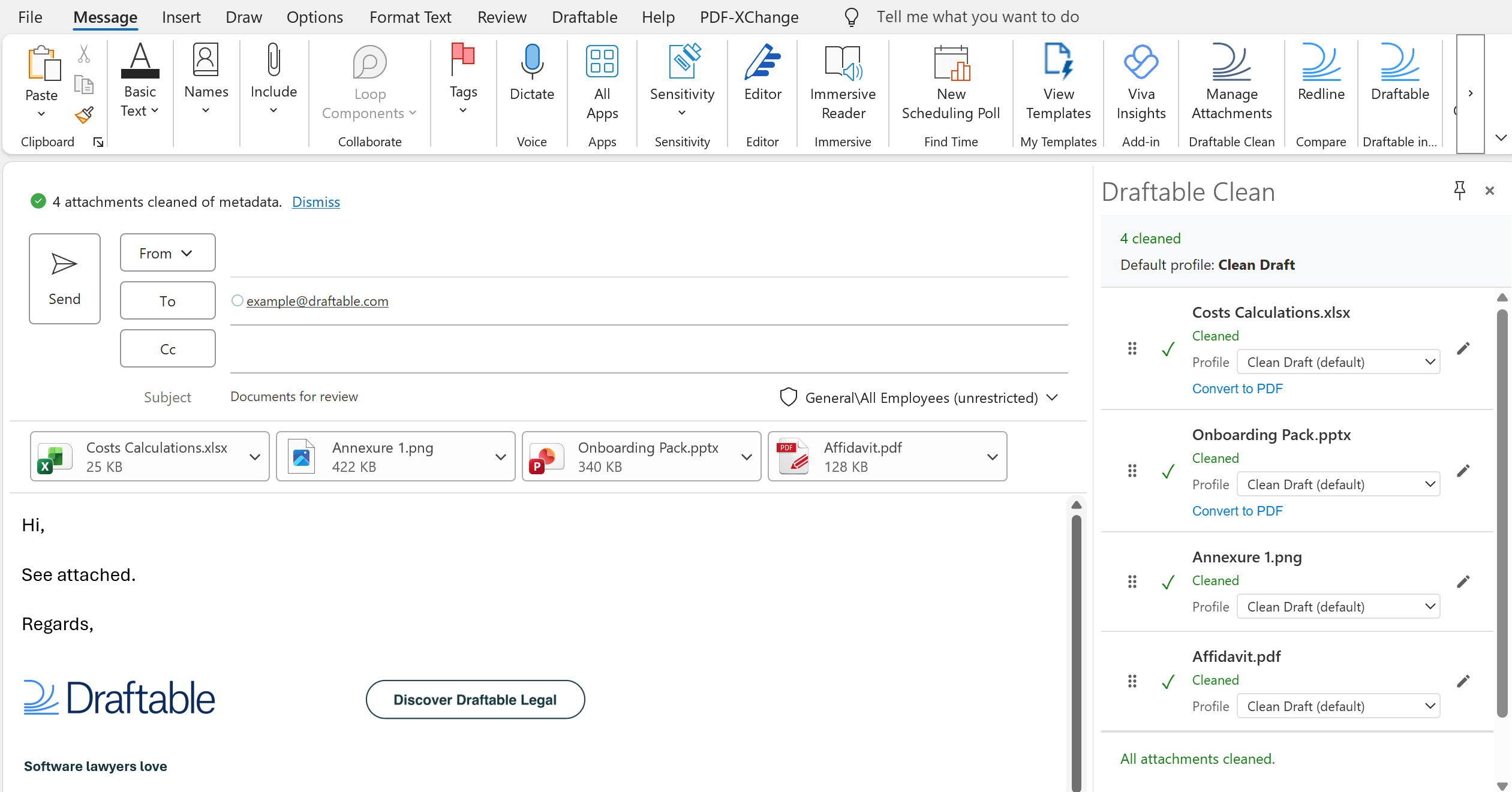
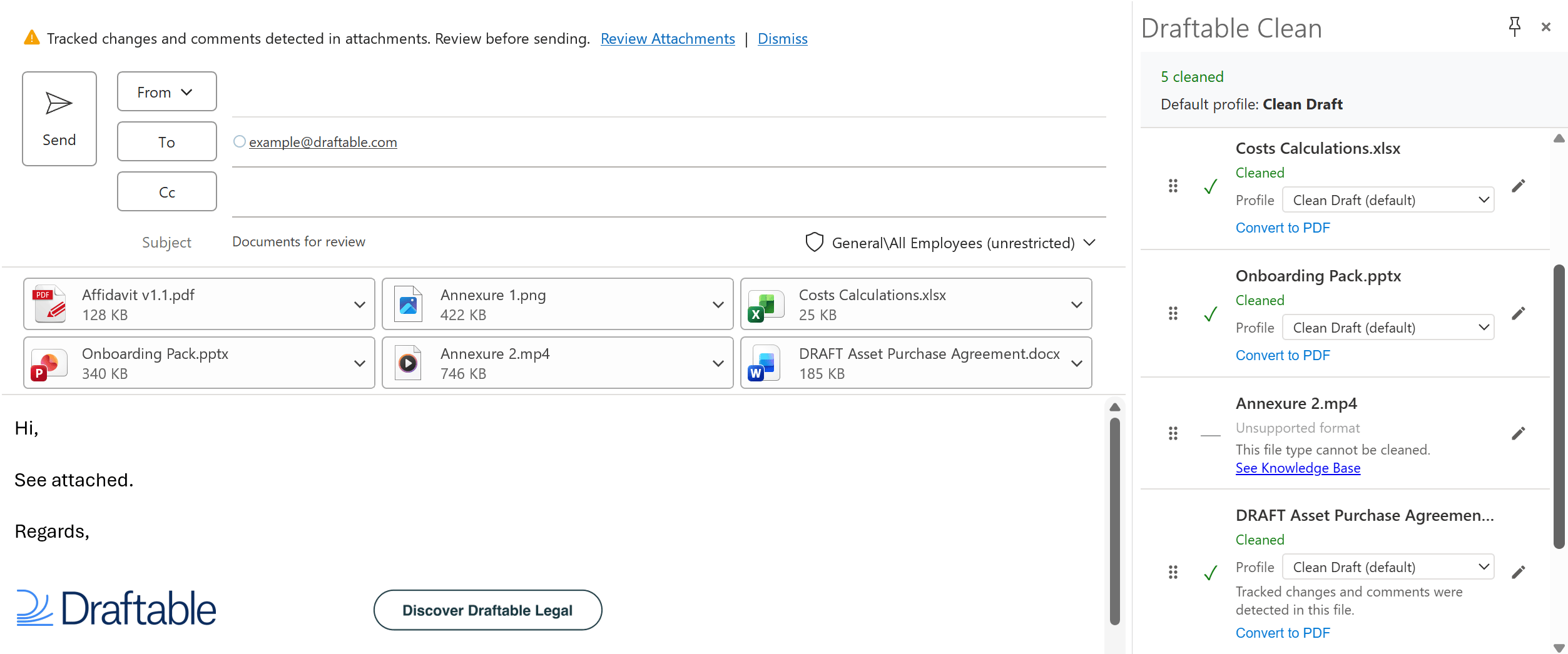
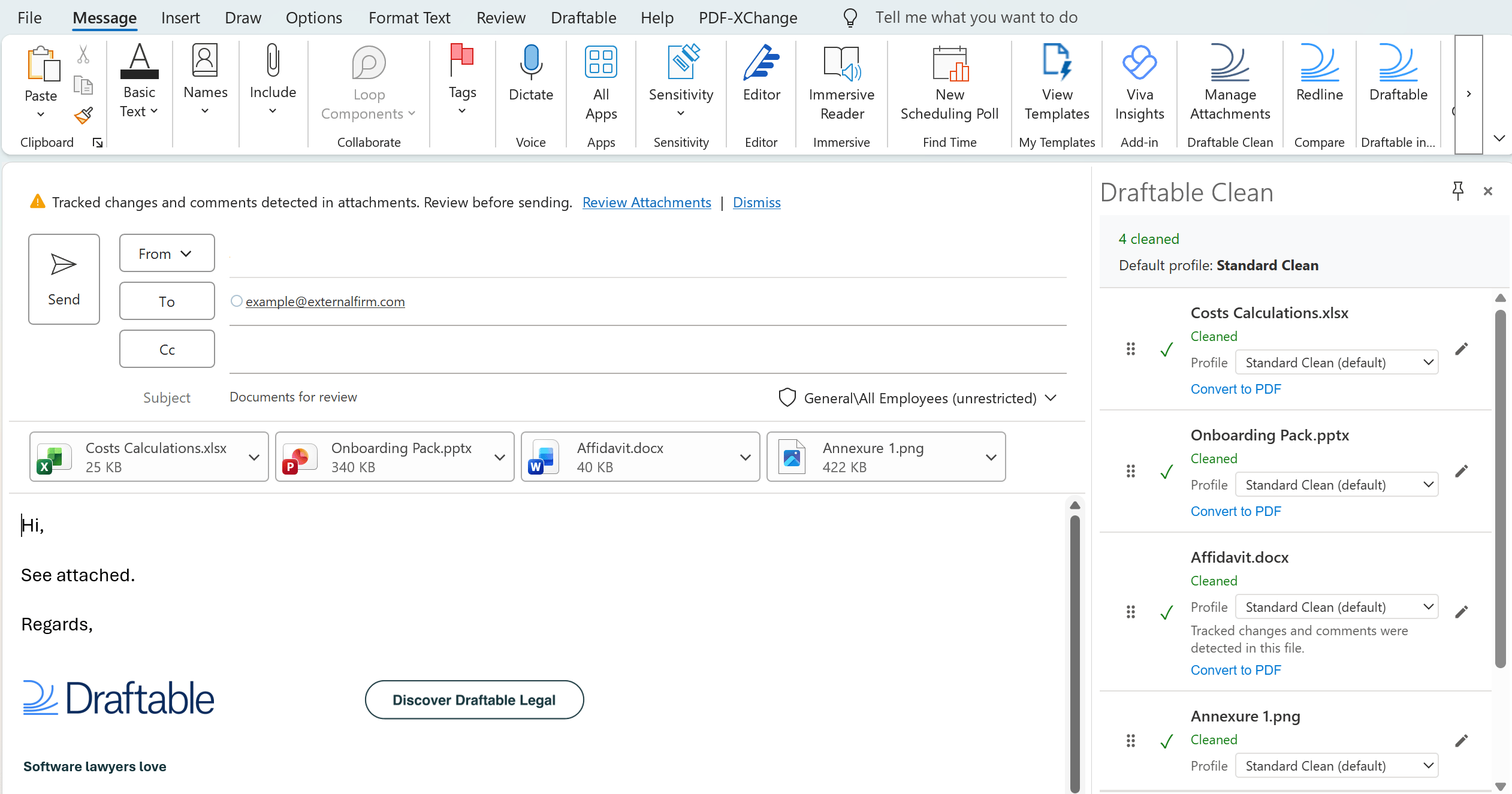 As attachments are cleaned, the panel shows cleaning progress or identifies if tracked changes or comments are present.
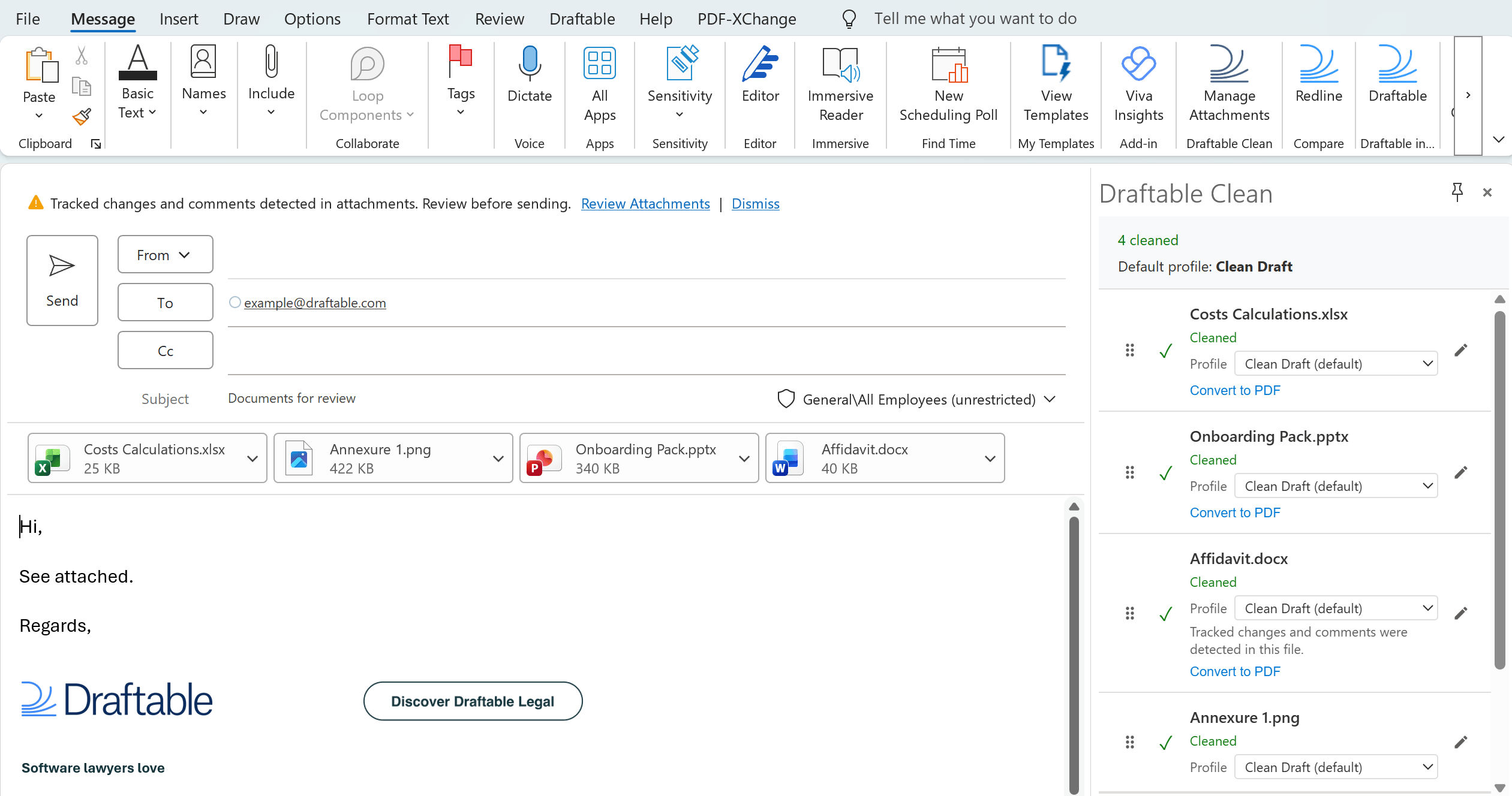 ### Updating the file profile
If enabled by your administrator in **Settings > Add-In**, you can override the cleaning profile for individual files using the per-file **Profile** dropdown in the add-in pane.
### Converting attachments to PDF
Supported **Word**, **Excel**, and **PowerPoint** attachments can be converted to PDF from the add-in panel. Click **Convert to PDF** on an attachment to flag it — the file is converted automatically when cleaning completes.
### Updating the file profile
If enabled by your administrator in **Settings > Add-In**, you can override the cleaning profile for individual files using the per-file **Profile** dropdown in the add-in pane.
### Converting attachments to PDF
Supported **Word**, **Excel**, and **PowerPoint** attachments can be converted to PDF from the add-in panel. Click **Convert to PDF** on an attachment to flag it — the file is converted automatically when cleaning completes.
.png?fit=max&auto=format&n=ku8YqcThAWDOA_hT&q=85&s=1b5abe938503aa2c64492e6b3b689baa) Once conversion is complete, the panel updates to reflect the cleaned and converted attachments. If tracked changes or comments were present on a file and removed in PDF conversion, the notification reverts to showing the total number of files cleaned.
Once conversion is complete, the panel updates to reflect the cleaned and converted attachments. If tracked changes or comments were present on a file and removed in PDF conversion, the notification reverts to showing the total number of files cleaned.
 ### Renaming attachments
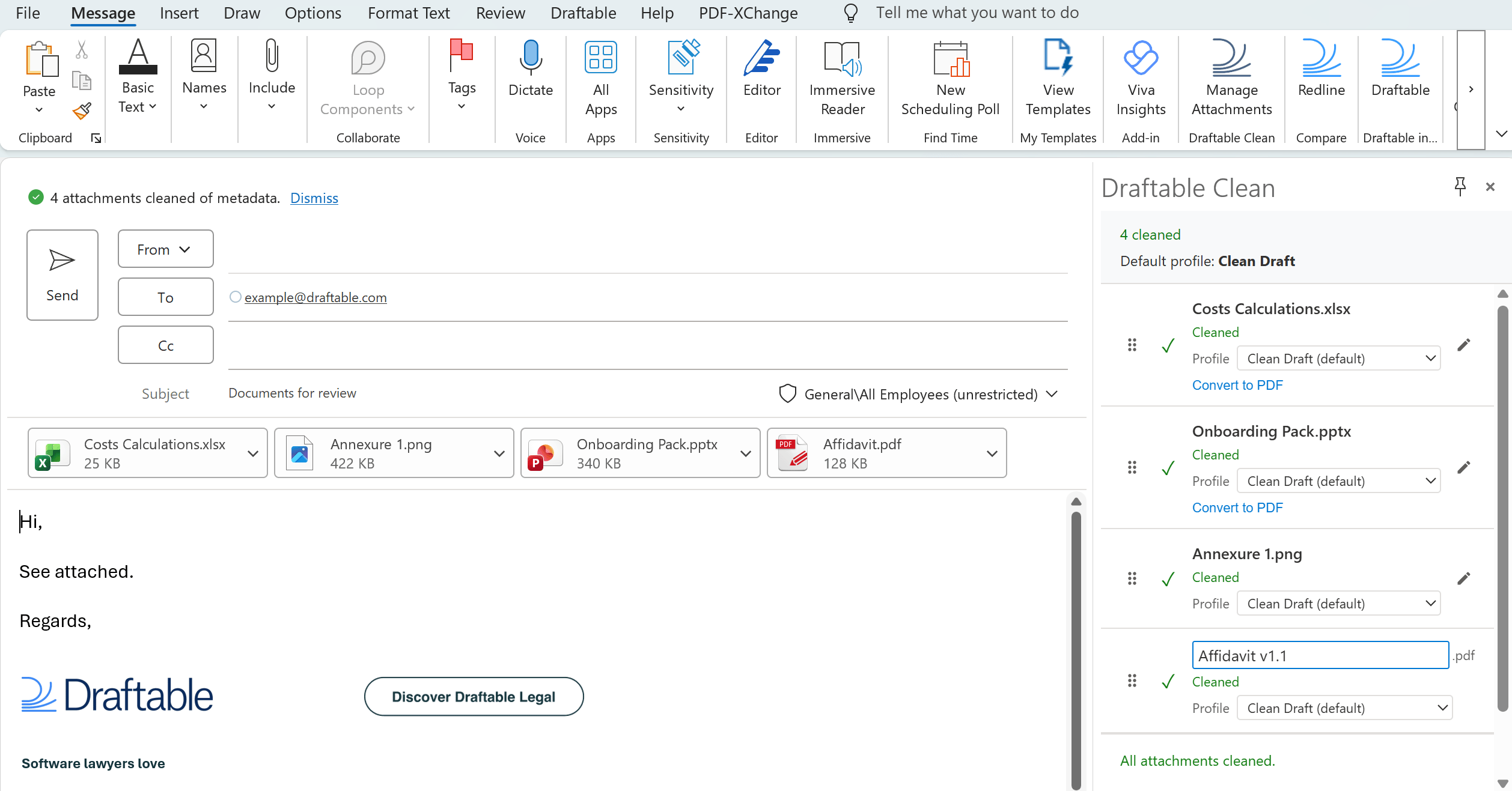
After cleaning, you can rename files directly in the Draftable Clean panel. Click the **pencil icon** next to a file name to edit it inline.
### Renaming attachments
After cleaning, you can rename files directly in the Draftable Clean panel. Click the **pencil icon** next to a file name to edit it inline.
 ### Unsupported file types
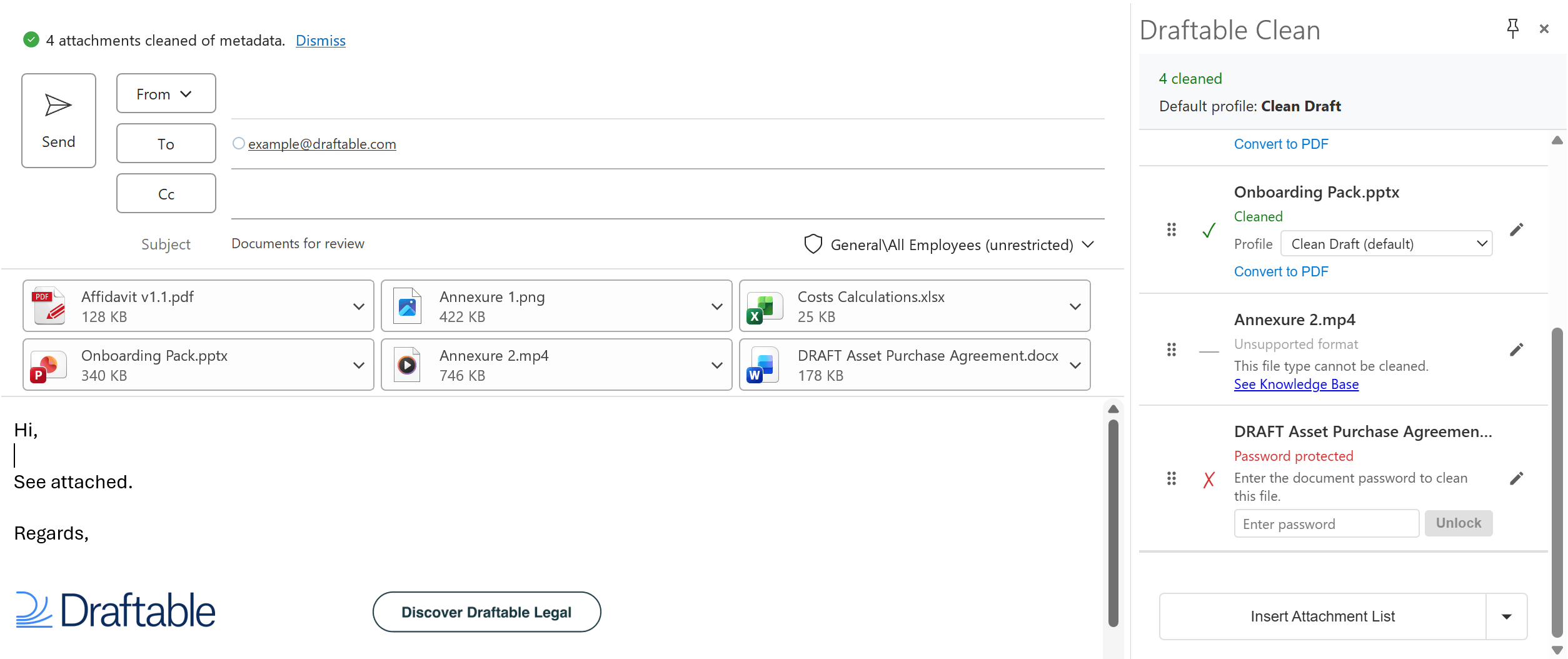
If you attach a file in a format Draftable Clean does not support, the Draftable Clean panel displays an **"Unsupported format"** status with the message: "This file type cannot be cleaned. See Knowledge Base." Unsupported files do not block sending by default — this behavior is configurable in **Settings > Add-In > Send Protection**.
### Unsupported file types
If you attach a file in a format Draftable Clean does not support, the Draftable Clean panel displays an **"Unsupported format"** status with the message: "This file type cannot be cleaned. See Knowledge Base." Unsupported files do not block sending by default — this behavior is configurable in **Settings > Add-In > Send Protection**.
 ### Password-protected files
If you attach a password-protected file, it shows an orange **"Password protected"** status with the message: "Enter the document password to clean this file." Enter the password in the provided field and click **Unlock** to authenticate and clean the file.
If the password is incorrect, an **"Incorrect password. Please try again."** message is displayed. Re-enter the correct password and click **Unlock** again.
### Password-protected files
If you attach a password-protected file, it shows an orange **"Password protected"** status with the message: "Enter the document password to clean this file." Enter the password in the provided field and click **Unlock** to authenticate and clean the file.
If the password is incorrect, an **"Incorrect password. Please try again."** message is displayed. Re-enter the correct password and click **Unlock** again.
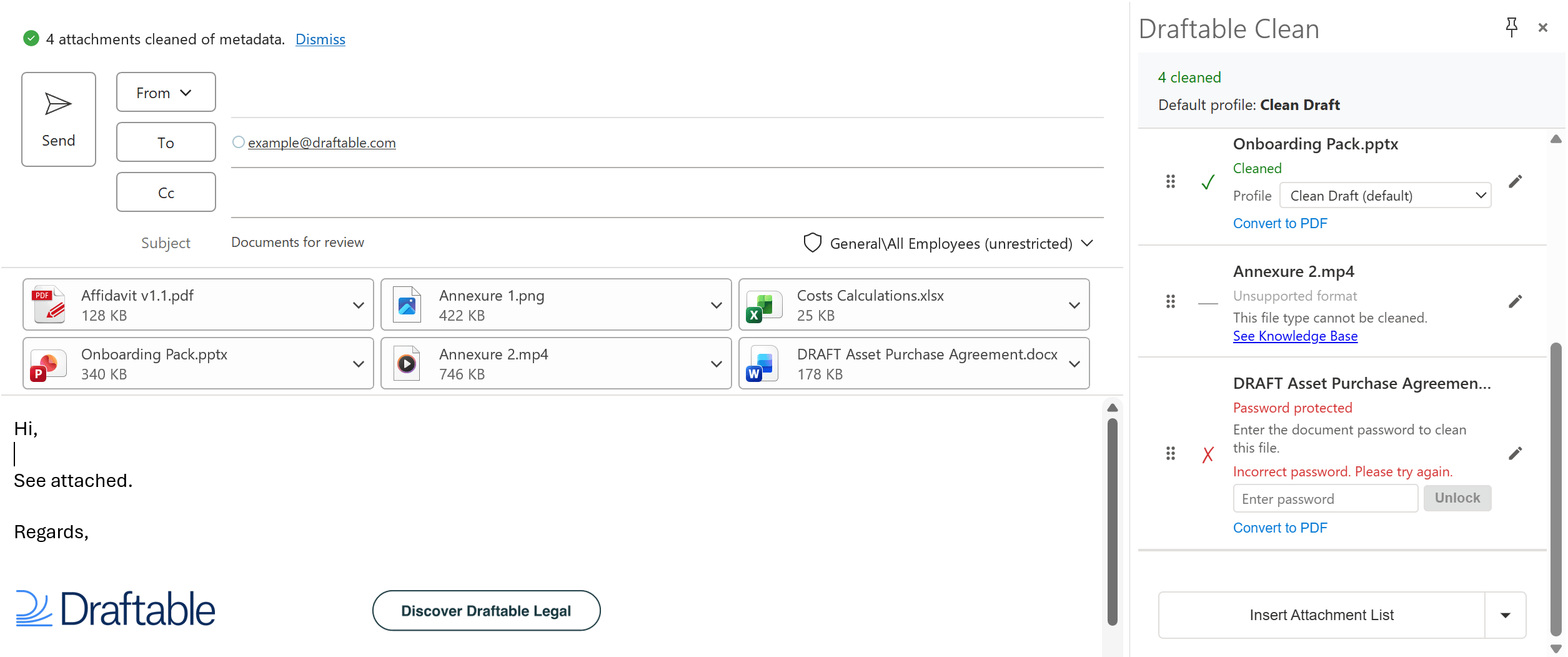 Once the correct password is provided, the file is cleaned automatically and shows the same "Cleaned" status as your other files.
 ### Inserting an attachment list or table
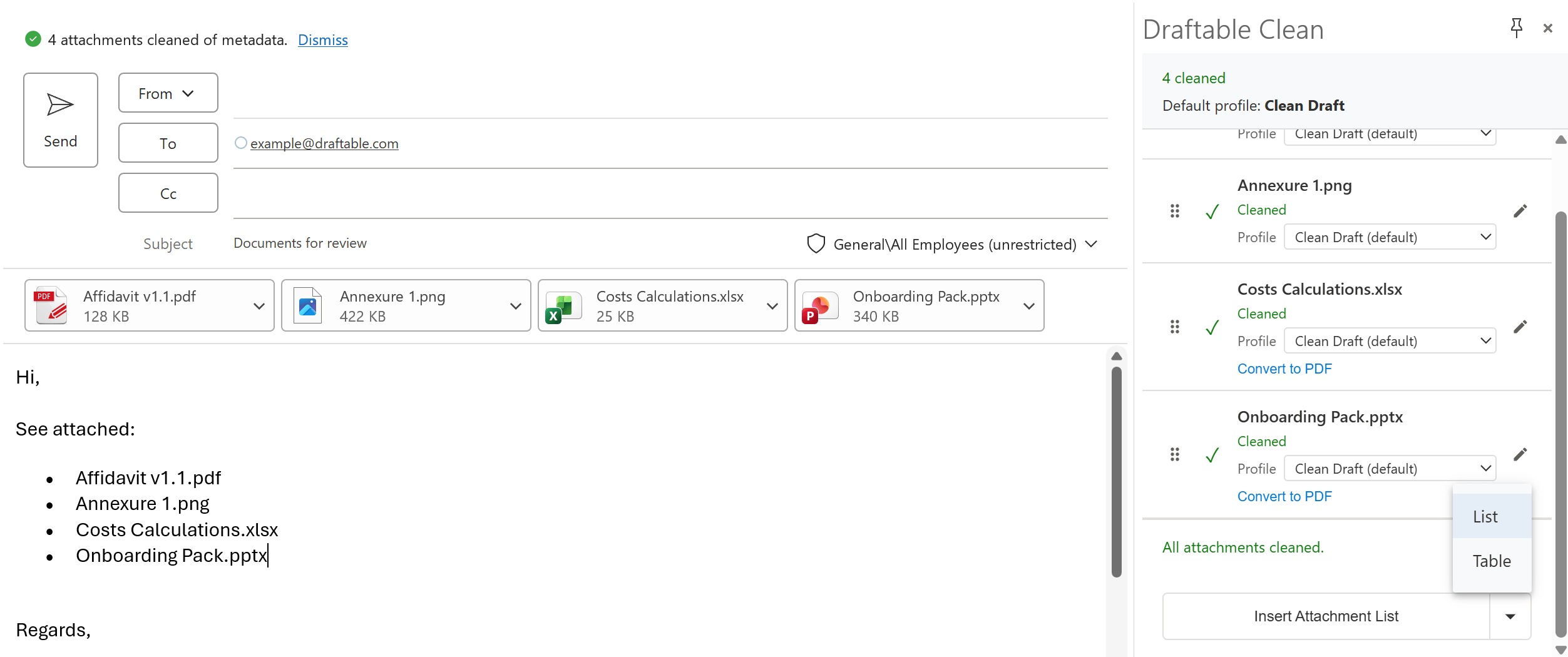
Click **Insert Attachment List** to add a formatted summary into the email body. The button includes a **dropdown arrow** with two format options:
* **List** — A bullet-point list of attachment names
### Inserting an attachment list or table
Click **Insert Attachment List** to add a formatted summary into the email body. The button includes a **dropdown arrow** with two format options:
* **List** — A bullet-point list of attachment names
 * **Table** — A table with Attachment and Description columns
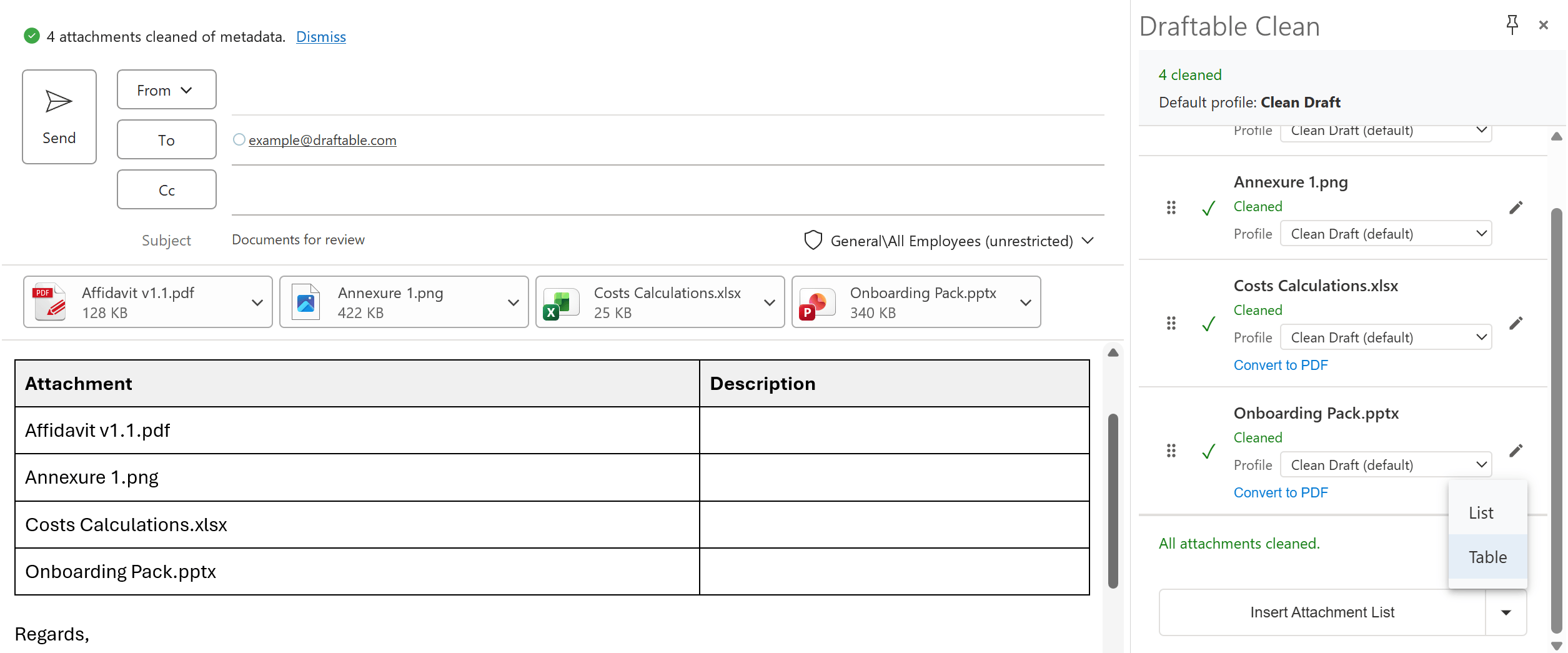 The default format is configurable in **Settings > Add-In > Attachment Summary**.
### Send protection
Draftable Clean controls what happens when issues are detected on send. By default:
The screenshots below are from **New Outlook**. Dialogs and prompts appear similarly in **Classic Outlook**.
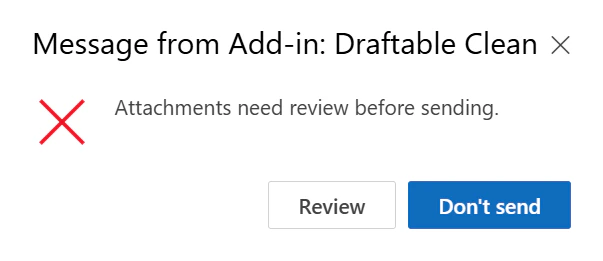
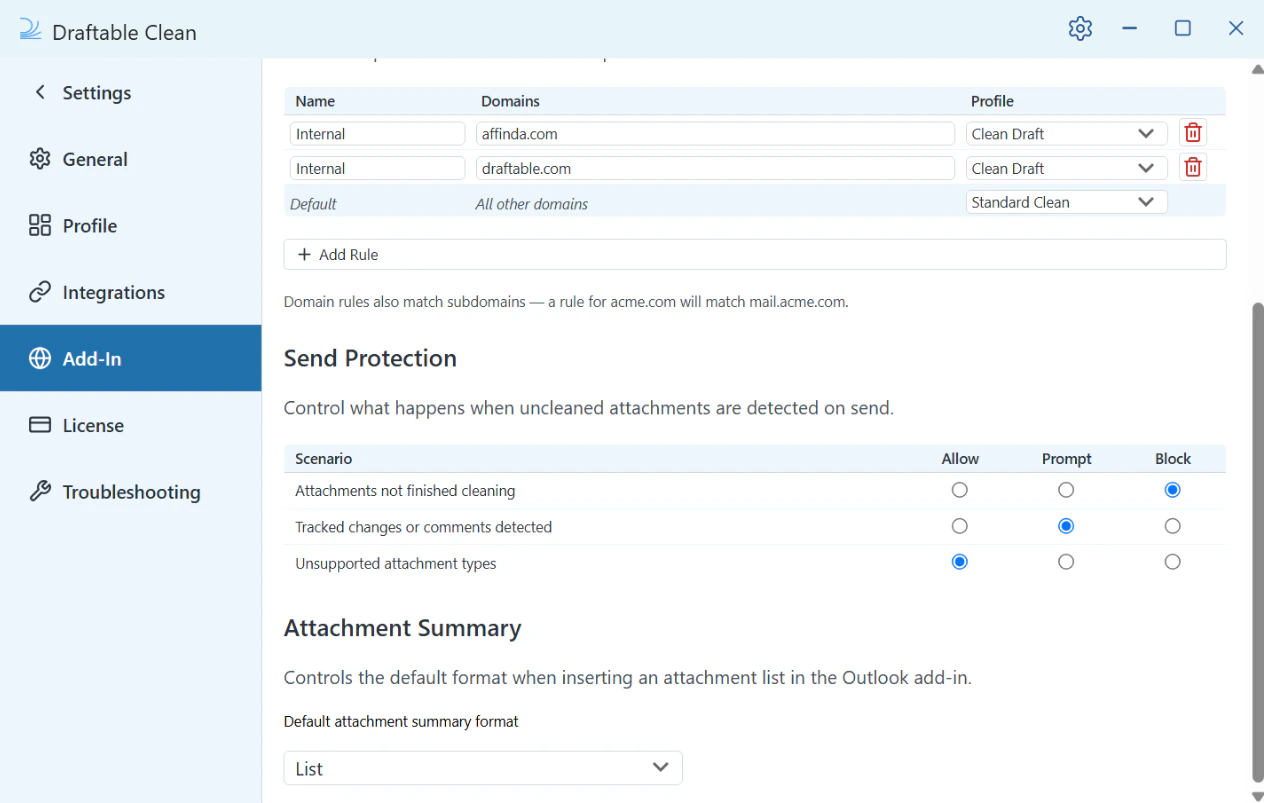
* **Attachments not finished cleaning** — Sending is **blocked** with a dialog: "Attachments need review before sending." The user can click **Review** to return to the email or **Don't send** to cancel.
The default format is configurable in **Settings > Add-In > Attachment Summary**.
### Send protection
Draftable Clean controls what happens when issues are detected on send. By default:
The screenshots below are from **New Outlook**. Dialogs and prompts appear similarly in **Classic Outlook**.
* **Attachments not finished cleaning** — Sending is **blocked** with a dialog: "Attachments need review before sending." The user can click **Review** to return to the email or **Don't send** to cancel.
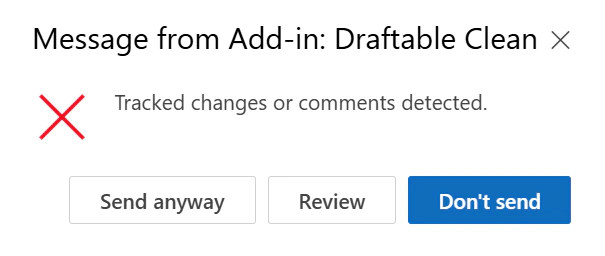
 * **Tracked changes or comments detected** — The user is **prompted** with a dialog: "Tracked changes or comments detected." The user can click **Send anyway**, **Review**, or **Don't send**.
 * **Unsupported attachment types** — Sending is **allowed**
Each scenario can be configured to **Allow**, **Prompt**, or **Block** in **Settings > Add-In > Send Protection**.
* **Unsupported attachment types** — Sending is **allowed**
Each scenario can be configured to **Allow**, **Prompt**, or **Block** in **Settings > Add-In > Send Protection**.
 ***
## Next steps
Learn more about Draftable Clean's features and how metadata cleaning protects your documents.
See which file types Draftable Clean can scan and clean, and what metadata is detected.
Customize how metadata is removed with configurable cleaning profiles.
Full reference of every metadata type Draftable Clean can detect and clean.
***
## Next steps
Learn more about Draftable Clean's features and how metadata cleaning protects your documents.
See which file types Draftable Clean can scan and clean, and what metadata is detected.
Customize how metadata is removed with configurable cleaning profiles.
Full reference of every metadata type Draftable Clean can detect and clean.