> ## Documentation Index
> Fetch the complete documentation index at: https://help.draftable.com/llms.txt
> Use this file to discover all available pages before exploring further.
# Enable the Windows 11 right-click menu for Draftable Clean
> Add the Clean in Draftable command to the main Windows 11 right-click menu so you can clean document metadata straight from File Explorer.
Draftable Clean can add a **Clean in Draftable** command to the main Windows 11 right-click menu, so you can clean a document's metadata straight from File Explorer without opening the app first. This is the short menu you see first, not the **Show more options** overflow menu.
## Prerequisites
* Windows 11
* Draftable Clean 26.7.0 or later (see the [Draftable Clean release log](/hc/en-us/Draftable-Clean-articles/Release-logs-and-notes/Release-Log-Draftable-Clean))
## Enable the menu
Open Draftable Clean, click the settings gear, and select **Integrations**. Scroll to the **Windows integration** section.
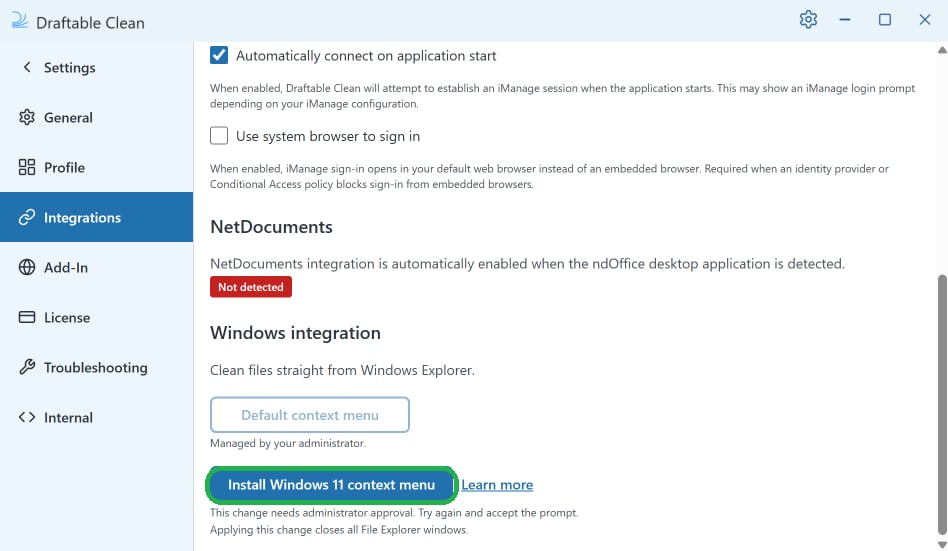 Click **Install Windows 11 context menu**.
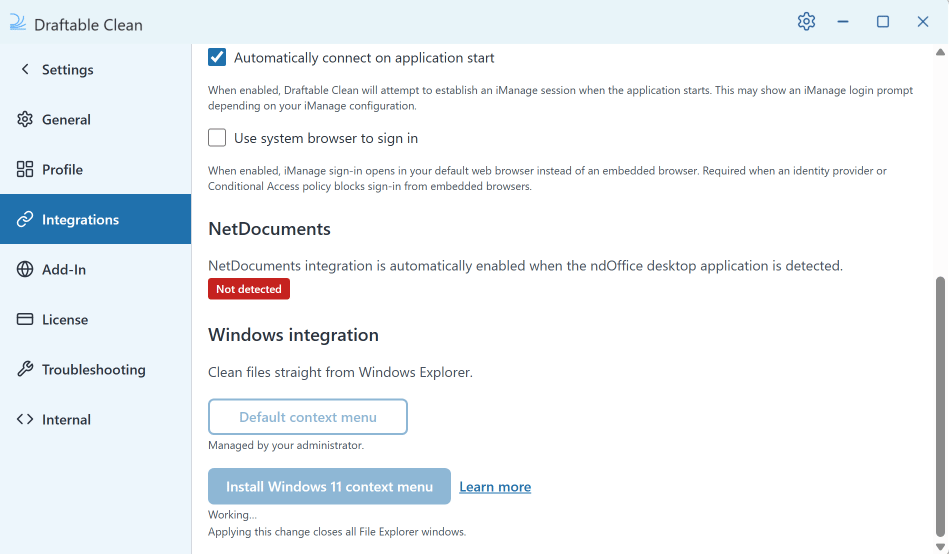
This change needs administrator approval, so approve the Windows prompt when it appears. Applying the change closes all open File Explorer windows.
Click **Install Windows 11 context menu**.
This change needs administrator approval, so approve the Windows prompt when it appears. Applying the change closes all open File Explorer windows.
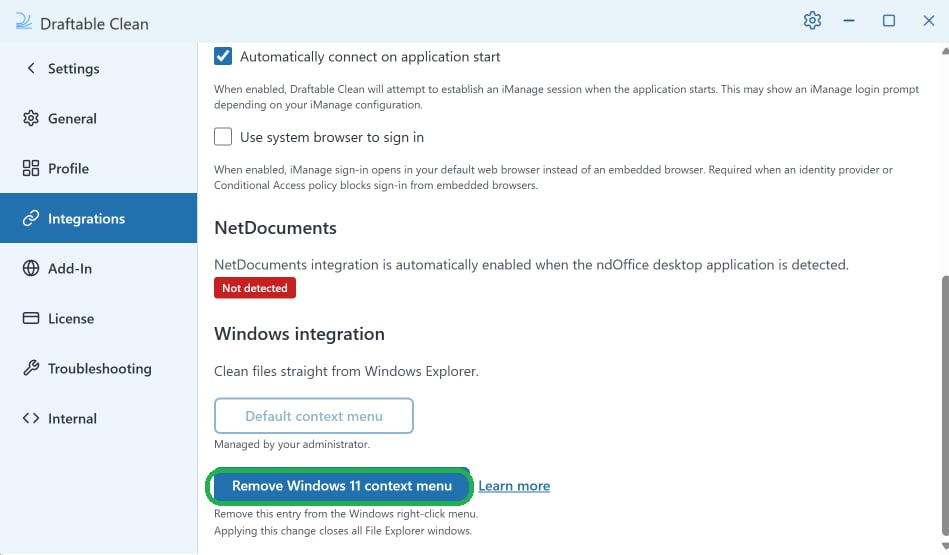
 Once installed, the button changes to **Remove Windows 11 context menu**. You can use that button at any time to take the command back out of the menu.
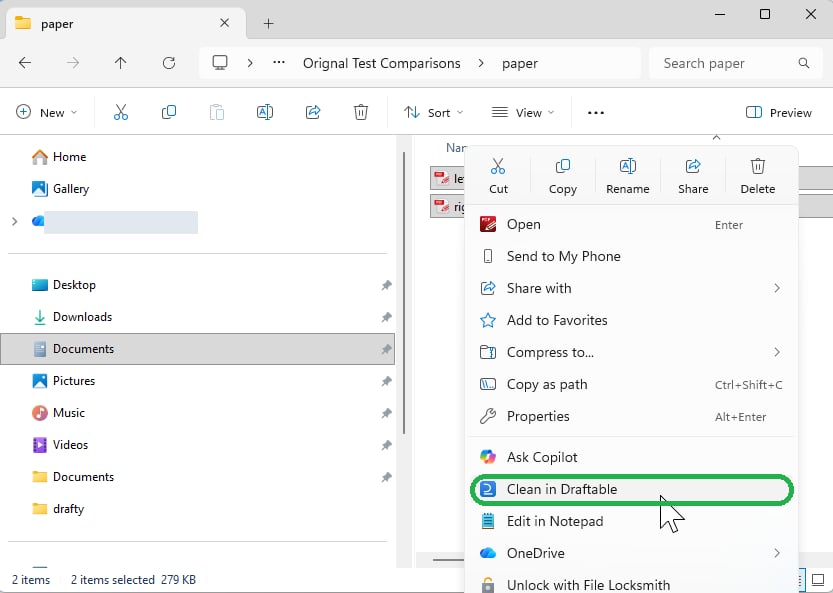
 Right-click a supported file in File Explorer and select **Clean in Draftable**. Draftable Clean opens with the selected file ready to scan and clean.
 ## Remove the menu
To remove the command, return to **Settings > Integrations > Windows integration** and click **Remove Windows 11 context menu**.
## For IT administrators
The Windows 11 menu can also be enabled across managed machines as part of an enterprise deployment, without each user doing it themselves. Contact [support@draftable.com](mailto:support@draftable.com) for the deployment package.
## Troubleshooting
Applying the change closes all File Explorer windows. Open a new File Explorer window and try again. If it still does not appear, sign out of Windows and back in. This feature requires Windows 11.
Your organization controls this setting, so you cannot change it yourself. Contact your IT administrator.
## Remove the menu
To remove the command, return to **Settings > Integrations > Windows integration** and click **Remove Windows 11 context menu**.
## For IT administrators
The Windows 11 menu can also be enabled across managed machines as part of an enterprise deployment, without each user doing it themselves. Contact [support@draftable.com](mailto:support@draftable.com) for the deployment package.
## Troubleshooting
Applying the change closes all File Explorer windows. Open a new File Explorer window and try again. If it still does not appear, sign out of Windows and back in. This feature requires Windows 11.
Your organization controls this setting, so you cannot change it yourself. Contact your IT administrator.