> ## Documentation Index
> Fetch the complete documentation index at: https://help.draftable.com/llms.txt
> Use this file to discover all available pages before exploring further.
# Release Notes: Draftable Clean - October 2026 (26.10.0 and Outlook 1.12.110.0)
> Skip cleaning for trusted recipients, control Clean in New Outlook, and review file origins and activity. Includes Outlook attachment and send-protection fixes.
The 1 October releases bring **Draftable Clean 26.10.0** for Windows and **Draftable Clean for Outlook 1.12.110.0**. Together, they give you more control over when attachments are cleaned, clearer information about file sources, and more reliable attachment handling in Outlook.
* **Skip Cleaning for trusted recipients**, or before any recipients have been entered.
* **Control Clean in New Outlook**, with a user setting and an administrator policy.
* **Review a file's source and activity** from the desktop file list.
* **See real NetDocuments version labels**, such as 2.1.
* **Use more reliable Outlook send protection**, attachment tracking, and email size checks.
See the [release log](/hc/en-us/Draftable-Clean-articles/Release-logs-and-notes/Release-Log-Draftable-Clean) for the full list of changes.
## Choose when to skip cleaning
In **Settings > Add-In**, you can now select **Skip Cleaning (do not clean)** for the no-recipient default and for domain rules. The Outlook pane labels these files **Skipped**, and they remain unchanged.
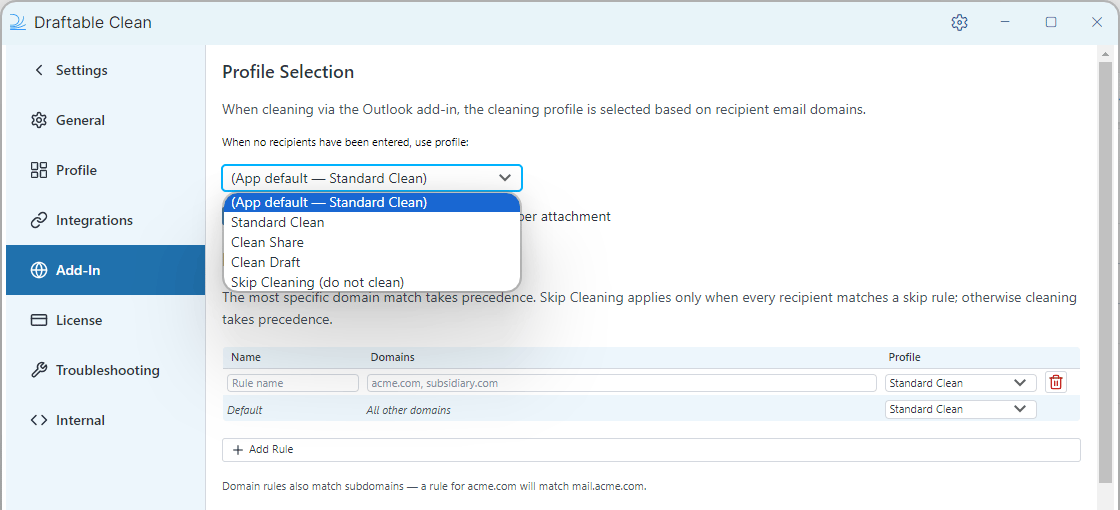 Skipping applies only when **every recipient** resolves to a skip rule. If any recipient needs cleaning or matches no rule, a cleaning profile or the default profile takes precedence. Keep a cleaning profile assigned to **Default** (all other domains).
Skip Cleaning does not remove metadata. Use a cleaning profile where metadata removal is required. See [Metadata cleaning profiles](/hc/en-us/Draftable-Clean-articles/Metadata-Cleaning-Profiles).
## Control Clean in New Outlook
Under **Settings > Add-In > New Outlook (beta)**, **Clean attachments in New Outlook** lets you turn Clean on or off for New Outlook for Windows. Administrators can enforce the choice through Group Policy or Intune.
Skipping applies only when **every recipient** resolves to a skip rule. If any recipient needs cleaning or matches no rule, a cleaning profile or the default profile takes precedence. Keep a cleaning profile assigned to **Default** (all other domains).
Skip Cleaning does not remove metadata. Use a cleaning profile where metadata removal is required. See [Metadata cleaning profiles](/hc/en-us/Draftable-Clean-articles/Metadata-Cleaning-Profiles).
## Control Clean in New Outlook
Under **Settings > Add-In > New Outlook (beta)**, **Clean attachments in New Outlook** lets you turn Clean on or off for New Outlook for Windows. Administrators can enforce the choice through Group Policy or Intune.
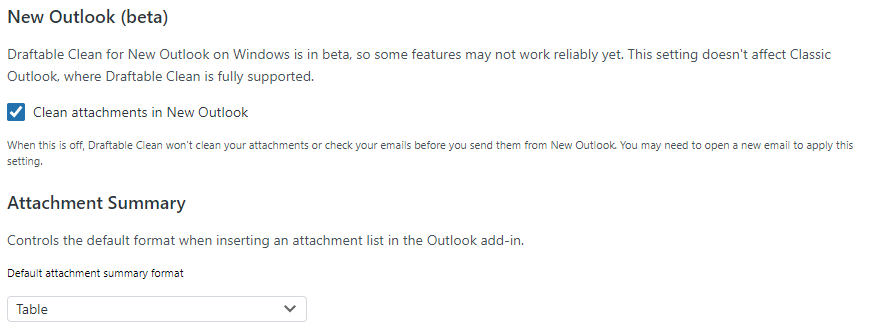 When turned off, Clean does not clean attachments or perform pre-send checks in New Outlook. Its pane explains that it is off. Classic Outlook, Outlook on the web, and Outlook for Mac are unaffected by this switch. New Outlook support remains in beta.
Use the **26.10.0 desktop app** and **1.12.110.0 add-in** together for the new settings. Updating the desktop application does not update an add-in deployment pinned to an earlier version.
## Review file origins and activity
Select the **File history** icon beside a filename to see its original filename, source, output filename, and the activity recorded for it during the current session.
When turned off, Clean does not clean attachments or perform pre-send checks in New Outlook. Its pane explains that it is off. Classic Outlook, Outlook on the web, and Outlook for Mac are unaffected by this switch. New Outlook support remains in beta.
Use the **26.10.0 desktop app** and **1.12.110.0 add-in** together for the new settings. Updating the desktop application does not update an add-in deployment pinned to an earlier version.
## Review file origins and activity
Select the **File history** icon beside a filename to see its original filename, source, output filename, and the activity recorded for it during the current session.
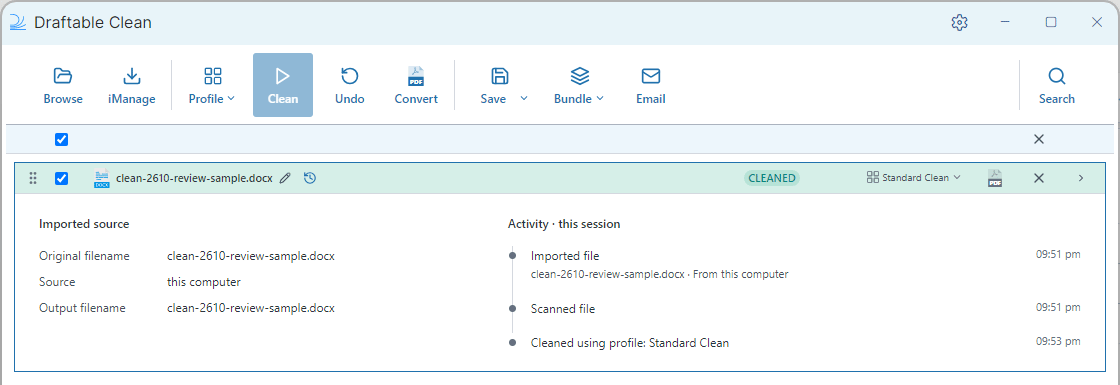 Files imported from a document management system also show a source and version label beside the filename. NetDocuments versions now use their real display labels, such as **2.1**, in the file list, imported-version details, and save confirmations. This display change does not renumber the document in NetDocuments.
The timeline is for the current Clean session, not a permanent DMS audit log. See [Using the desktop application](/hc/en-us/Draftable-Clean-articles/Using-the-Desktop-Application).
## More reliable Outlook attachments and send protection
Files imported from a document management system also show a source and version label beside the filename. NetDocuments versions now use their real display labels, such as **2.1**, in the file list, imported-version details, and save confirmations. This display change does not renumber the document in NetDocuments.
The timeline is for the current Clean session, not a permanent DMS audit log. See [Using the desktop application](/hc/en-us/Draftable-Clean-articles/Using-the-Desktop-Application).
## More reliable Outlook attachments and send protection
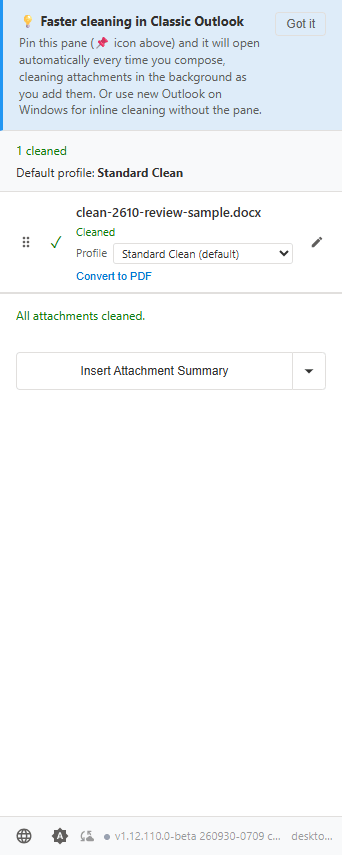 This add-in release fixes cases involving duplicate attachments, stale cleaned copies after recipient changes, and reattached files incorrectly appearing as already cleaned. It also improves detection of forwarded attachments in Classic Outlook and starts the user's Clean app in the background in Service Mode.
Classic Outlook now applies your **Allow**, **Prompt**, or **Block** policy even when the pane has not been opened. If those settings cannot be read yet, Outlook asks you to open the Clean pane before sending. Attached emails and ZIP archives with unchecked contents follow the unsupported-attachment policy.
Email size checks use the organisation's actual Microsoft 365 mailbox limit where available, with clearer errors when attachments would exceed it. This uses existing permissions and needs no new consent. On-premises Exchange retains its existing behaviour. Signed PDFs remain intentionally unsupported for cleaning, with a clearer explanation in the pane.
See [Using the Outlook add-in](/hc/en-us/Draftable-Clean-articles/Using-the-Outlook-Add-in) and [Outlook troubleshooting](/hc/en-us/Draftable-Clean-articles/Troubleshooting-Outlook-Add-in).
## Refresh administrator templates
Replace both ADMX and ADML files with the **26.10.0 templates** before configuring the new controls. The pair carries revision **2610.0**. The New Outlook policy's supported-version label says **26.9.2 (or later)**, but that version was not publicly released; use **26.10.0 or later**.
Download the shipped templates and review the settings in [Configuring preferences with Group Policy](/hc/en-us/Draftable-Clean-articles/Configuring-preferences-with-Group-Policy-Draftable-Clean), or follow the [Intune guide](/hc/en-us/Draftable-Clean-articles/Configuring-preferences-with-Microsoft-Intune-Draftable-Clean).
For help with the update, contact [support@draftable.com](mailto:support@draftable.com).
This add-in release fixes cases involving duplicate attachments, stale cleaned copies after recipient changes, and reattached files incorrectly appearing as already cleaned. It also improves detection of forwarded attachments in Classic Outlook and starts the user's Clean app in the background in Service Mode.
Classic Outlook now applies your **Allow**, **Prompt**, or **Block** policy even when the pane has not been opened. If those settings cannot be read yet, Outlook asks you to open the Clean pane before sending. Attached emails and ZIP archives with unchecked contents follow the unsupported-attachment policy.
Email size checks use the organisation's actual Microsoft 365 mailbox limit where available, with clearer errors when attachments would exceed it. This uses existing permissions and needs no new consent. On-premises Exchange retains its existing behaviour. Signed PDFs remain intentionally unsupported for cleaning, with a clearer explanation in the pane.
See [Using the Outlook add-in](/hc/en-us/Draftable-Clean-articles/Using-the-Outlook-Add-in) and [Outlook troubleshooting](/hc/en-us/Draftable-Clean-articles/Troubleshooting-Outlook-Add-in).
## Refresh administrator templates
Replace both ADMX and ADML files with the **26.10.0 templates** before configuring the new controls. The pair carries revision **2610.0**. The New Outlook policy's supported-version label says **26.9.2 (or later)**, but that version was not publicly released; use **26.10.0 or later**.
Download the shipped templates and review the settings in [Configuring preferences with Group Policy](/hc/en-us/Draftable-Clean-articles/Configuring-preferences-with-Group-Policy-Draftable-Clean), or follow the [Intune guide](/hc/en-us/Draftable-Clean-articles/Configuring-preferences-with-Microsoft-Intune-Draftable-Clean).
For help with the update, contact [support@draftable.com](mailto:support@draftable.com).