> ## Documentation Index
> Fetch the complete documentation index at: https://help.draftable.com/llms.txt
> Use this file to discover all available pages before exploring further.
# Troubleshooting: DMS integrations
> Solutions for iManage and NetDocuments integration issues in Draftable Clean, including enabling integrations and resolving connection problems.
## iManage button not visible or not connecting
If the **iManage** button is not visible in the toolbar, the integration needs to be enabled:
1. Open **Settings > Integrations** and check **Enable iManage integration**.
2. The **iManage** button will appear in the toolbar once the integration is enabled.
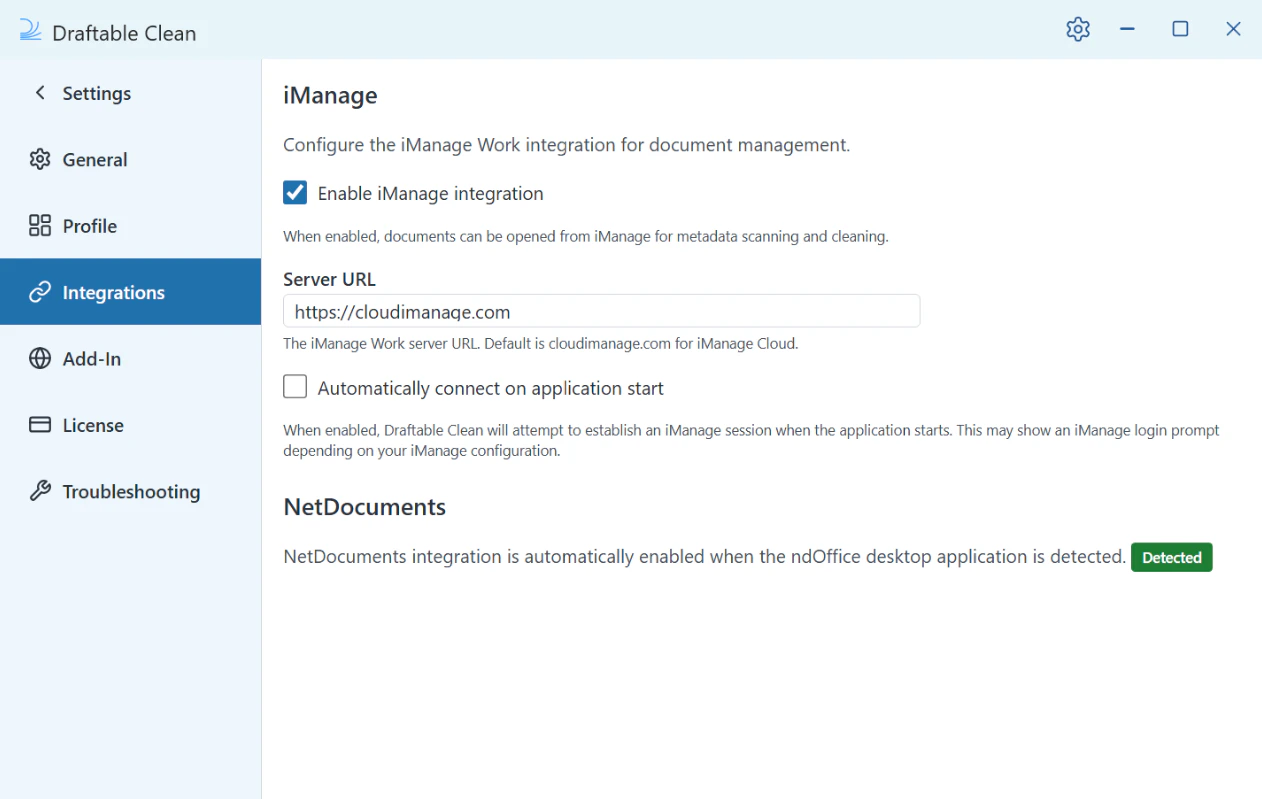 If the iManage button is visible but not connecting, check the following:
1. Verify the **Server URL** in **Settings > Integrations** matches your organization's iManage URL (e.g. `https://cloudimanage.com`).
2. Check that your network allows connections to the iManage server. See [Network Requirements](/hc/en-us/Draftable-Clean-articles/Network-Requirements).
## NetDocuments not detected
NetDocuments integration is automatically enabled when the **ndOffice** desktop application is detected on your machine. If Draftable Clean shows NetDocs as unavailable:
1. Verify that ndOffice is installed and running.
2. Restart Draftable Clean after installing or updating ndOffice.
If the iManage button is visible but not connecting, check the following:
1. Verify the **Server URL** in **Settings > Integrations** matches your organization's iManage URL (e.g. `https://cloudimanage.com`).
2. Check that your network allows connections to the iManage server. See [Network Requirements](/hc/en-us/Draftable-Clean-articles/Network-Requirements).
## NetDocuments not detected
NetDocuments integration is automatically enabled when the **ndOffice** desktop application is detected on your machine. If Draftable Clean shows NetDocs as unavailable:
1. Verify that ndOffice is installed and running.
2. Restart Draftable Clean after installing or updating ndOffice.