> ## Documentation Index
> Fetch the complete documentation index at: https://help.draftable.com/llms.txt
> Use this file to discover all available pages before exploring further.
# Using the Desktop Application
> Learn how to upload, scan, clean, and export documents using the Draftable Clean desktop application on Windows.
## Part 1: Desktop application
### Cleaning your first document (desktop)
Open Draftable Clean to see the main application window with the toolbar across the top.
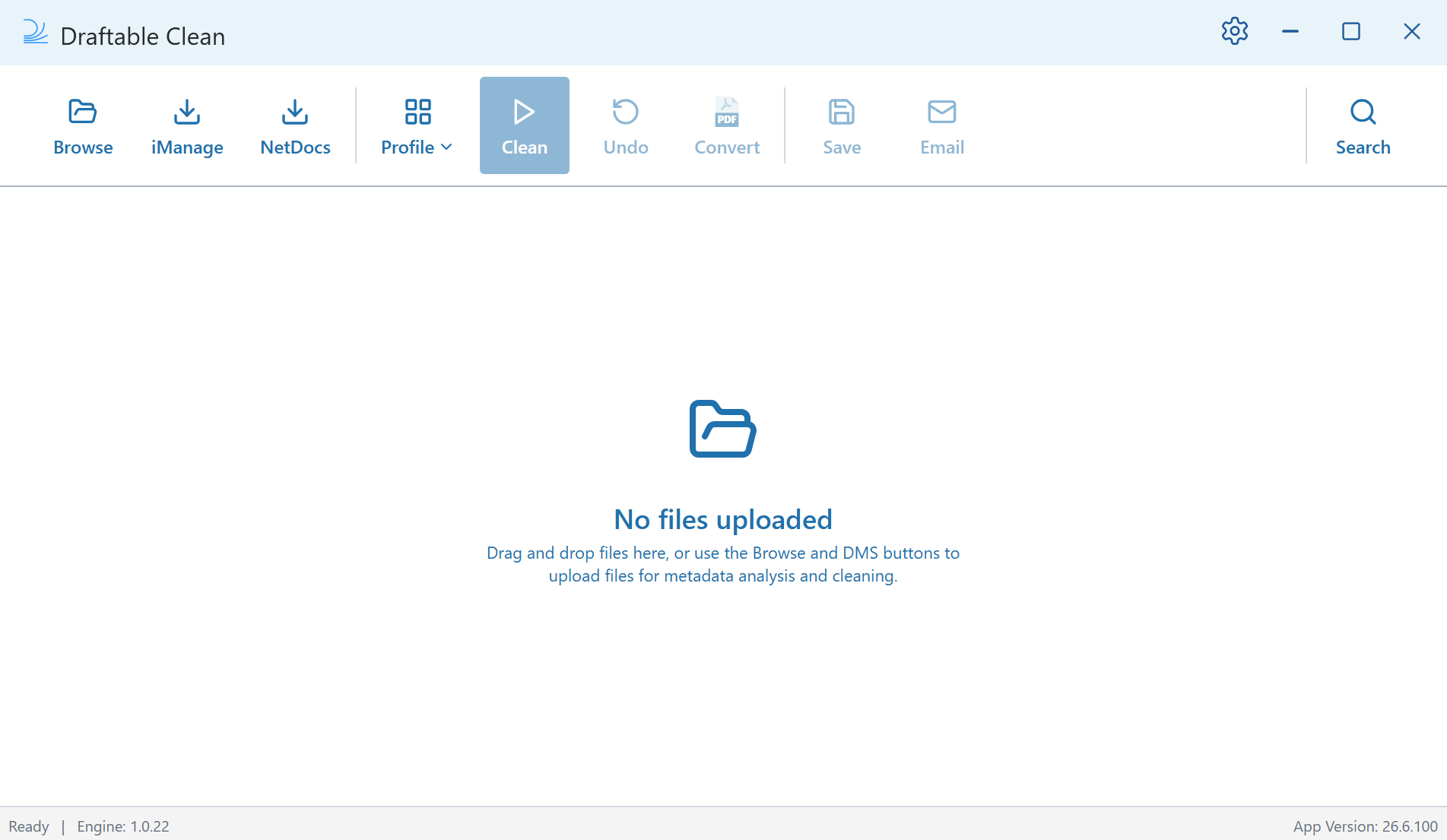 The toolbar follows three key steps:
* **Upload** — **Browse**, **iManage**, **NetDocs**
* **Clean** — **Clean**, **Undo**
* **Export** — **Save**, **Email**
**UPLOAD:** Add files to Draftable Clean by clicking **Browse** to select documents from a local folder, **iManage** or **NetDocs** to upload from your document management system, or by dragging and dropping files directly into the application window.
The toolbar follows three key steps:
* **Upload** — **Browse**, **iManage**, **NetDocs**
* **Clean** — **Clean**, **Undo**
* **Export** — **Save**, **Email**
**UPLOAD:** Add files to Draftable Clean by clicking **Browse** to select documents from a local folder, **iManage** or **NetDocs** to upload from your document management system, or by dragging and dropping files directly into the application window.
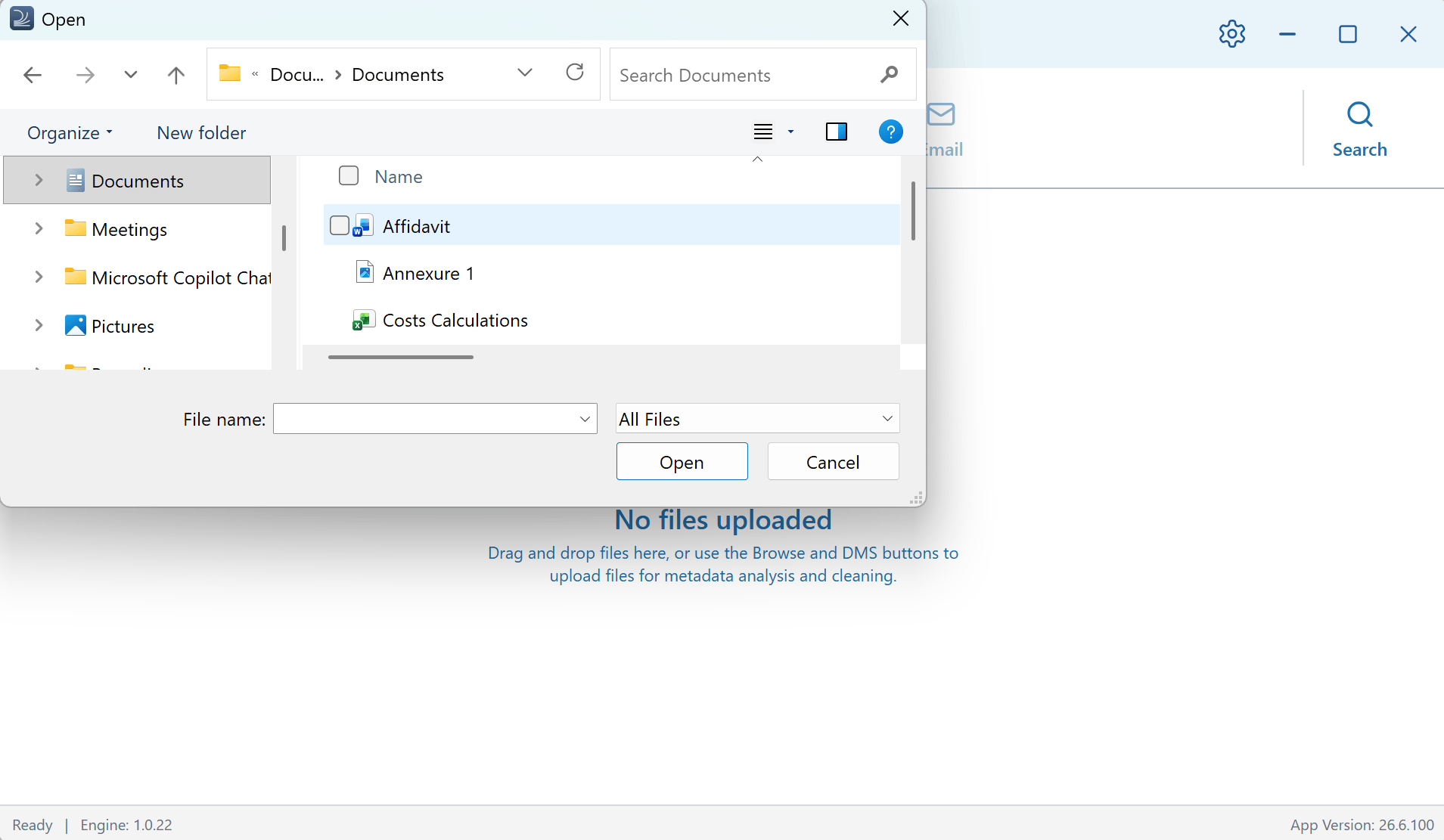 You can select multiple files at once. Draftable Clean handles all [supported file types](/hc/en-us/Draftable-Clean-articles/Supported-file-types) simultaneously.
If an **iManage** or **NetDocs** button is not visible, you may need to enable the integration in **Settings > Integrations**. See [Troubleshooting: DMS integrations](/hc/en-us/Draftable-Clean-articles/Troubleshooting-DMS-Integrations) for help.
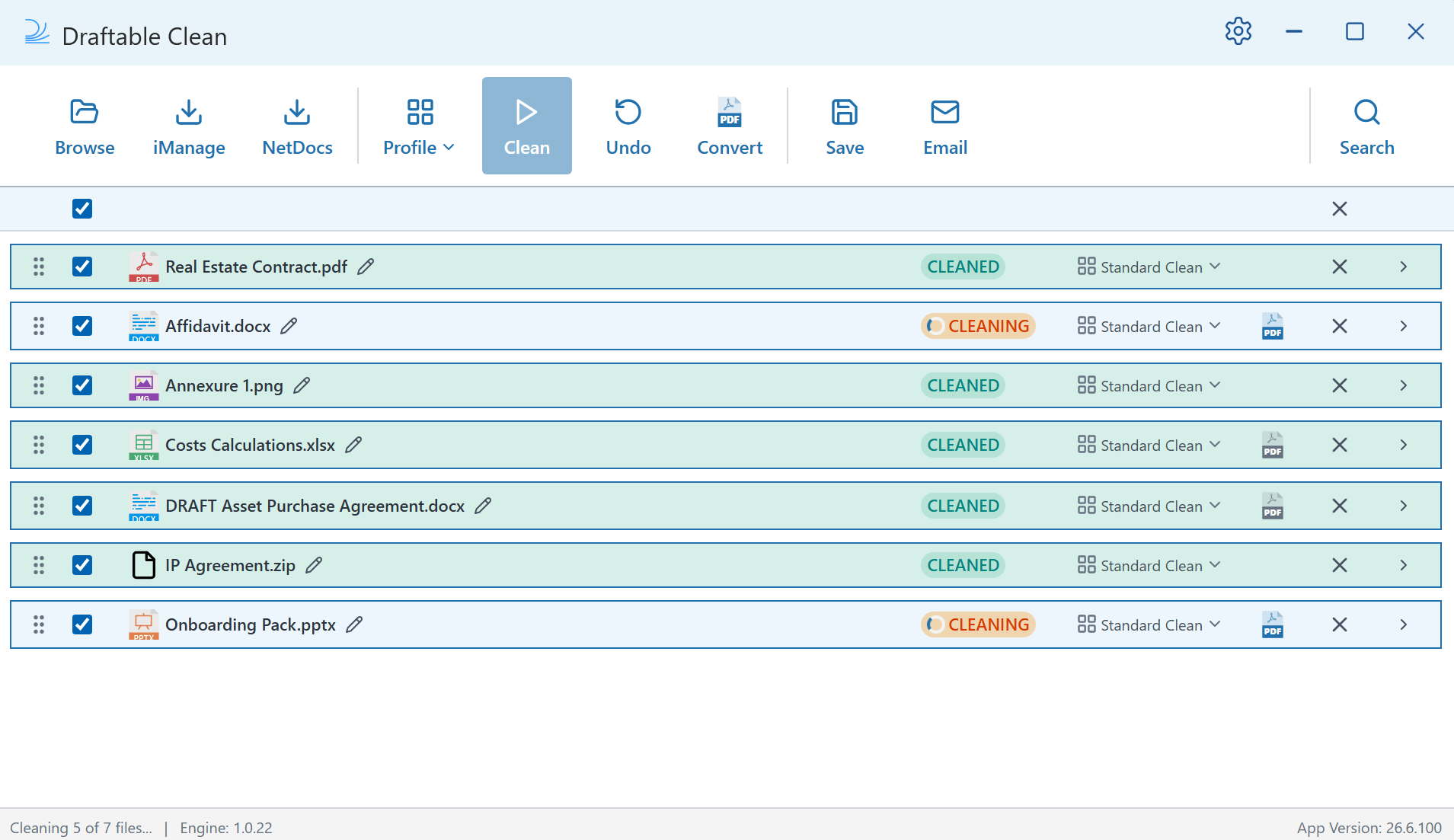
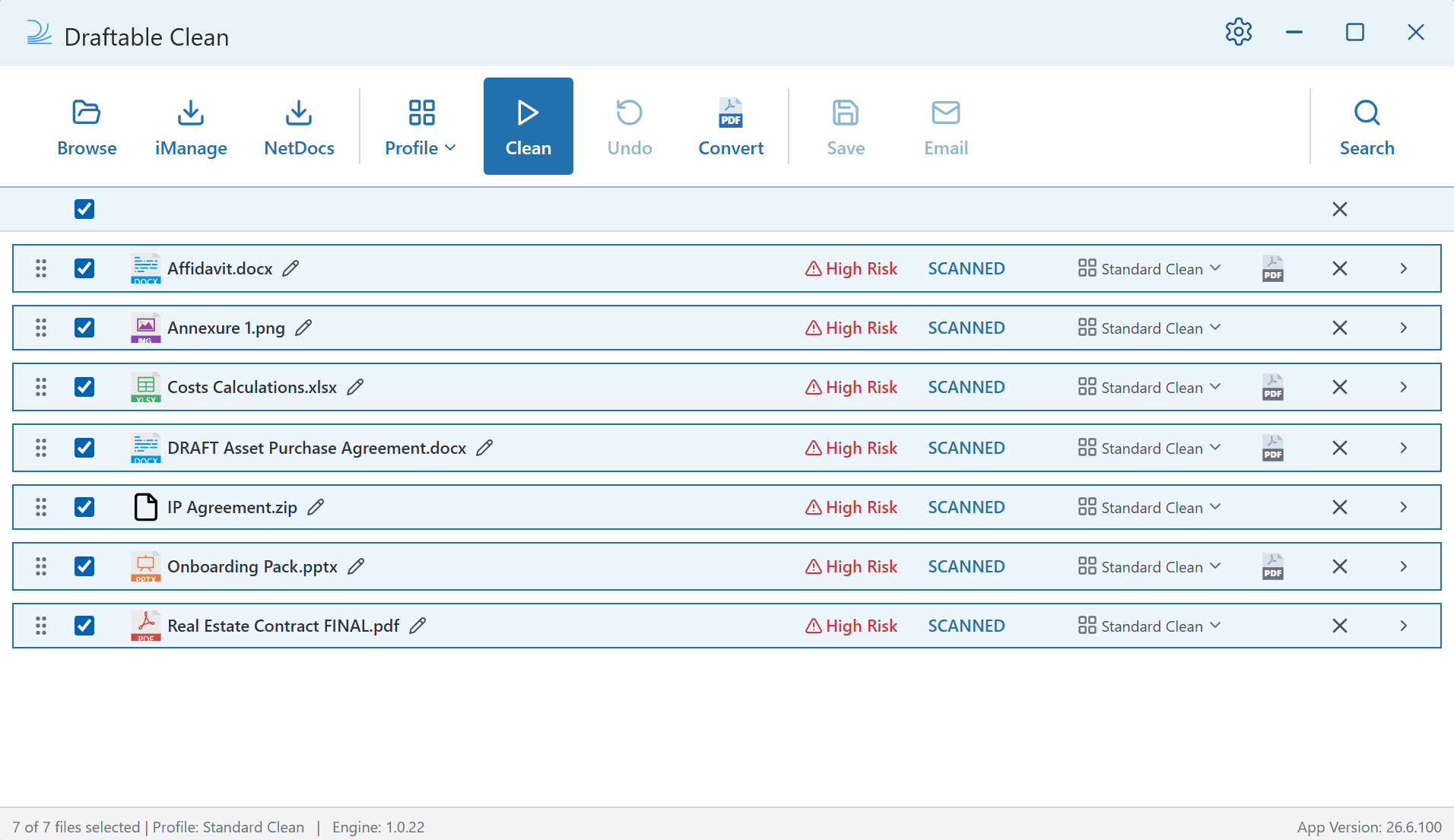
**CLEAN:** Once uploaded, files are automatically scanned and assigned a risk rating. When you are ready, click **Clean** in the toolbar. All selected files are cleaned and their status changes to **CLEANED**.
You can select multiple files at once. Draftable Clean handles all [supported file types](/hc/en-us/Draftable-Clean-articles/Supported-file-types) simultaneously.
If an **iManage** or **NetDocs** button is not visible, you may need to enable the integration in **Settings > Integrations**. See [Troubleshooting: DMS integrations](/hc/en-us/Draftable-Clean-articles/Troubleshooting-DMS-Integrations) for help.
**CLEAN:** Once uploaded, files are automatically scanned and assigned a risk rating. When you are ready, click **Clean** in the toolbar. All selected files are cleaned and their status changes to **CLEANED**.
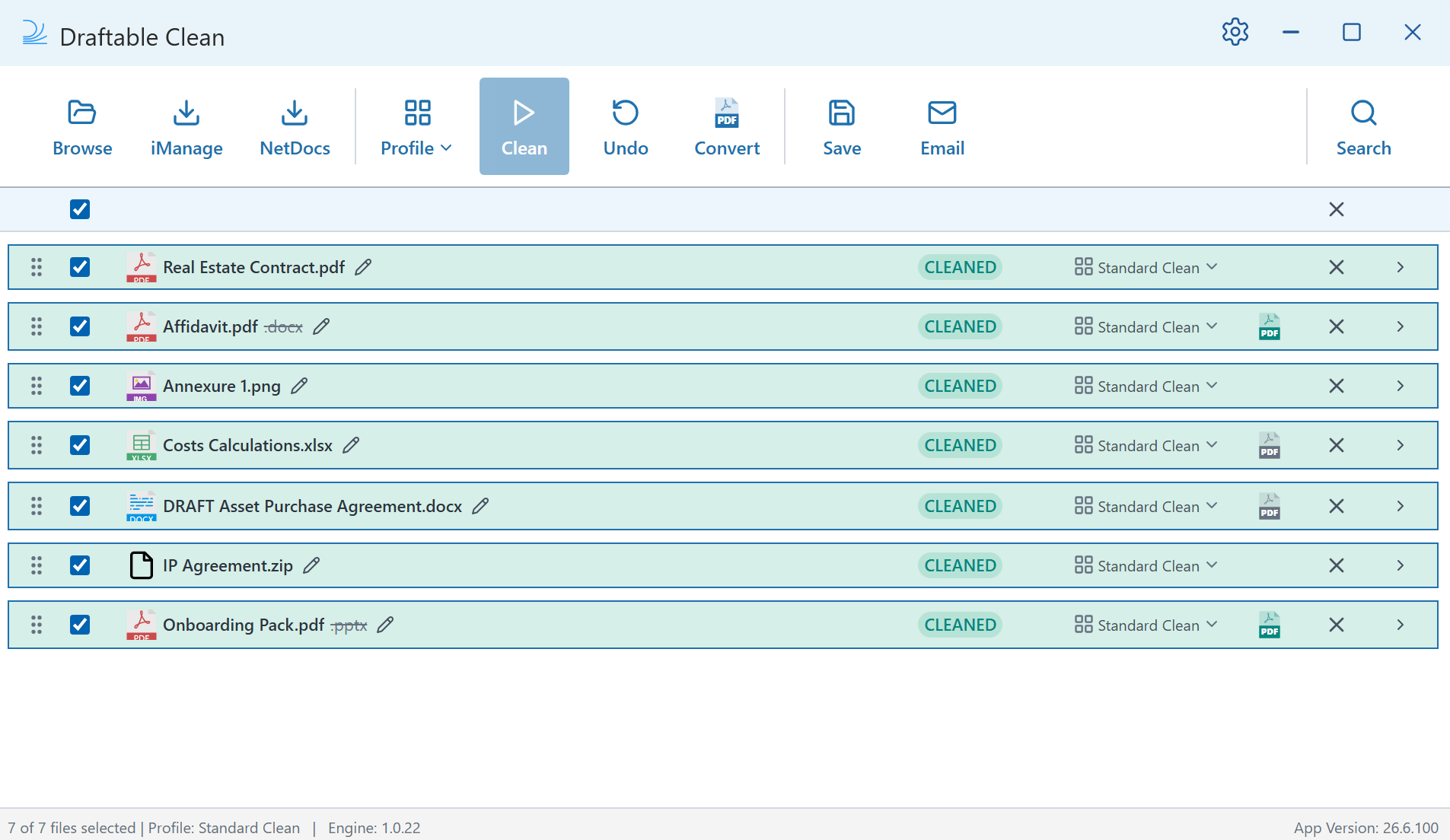 **EXPORT:** Save or share your cleaned files from the toolbar.
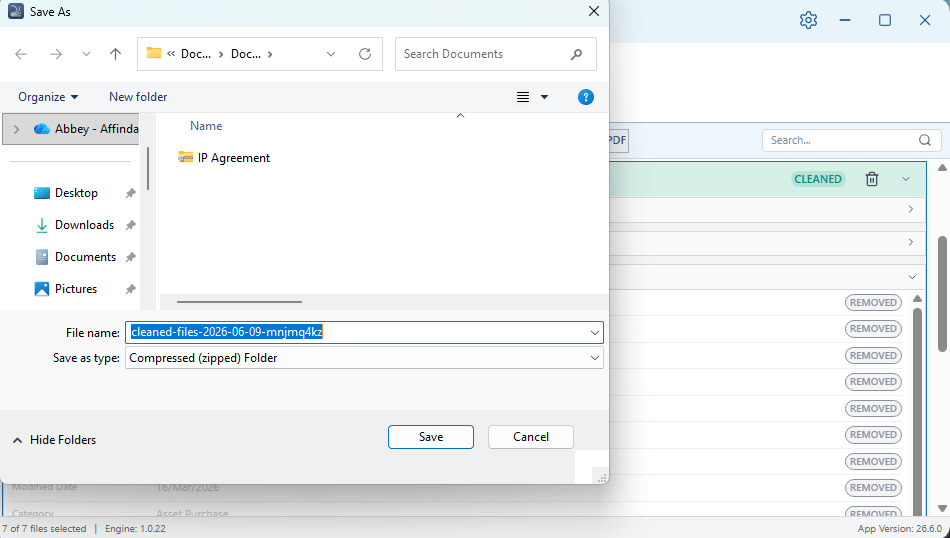
* **Save** — Packages cleaned files into a compressed ZIP folder with a timestamped filename.
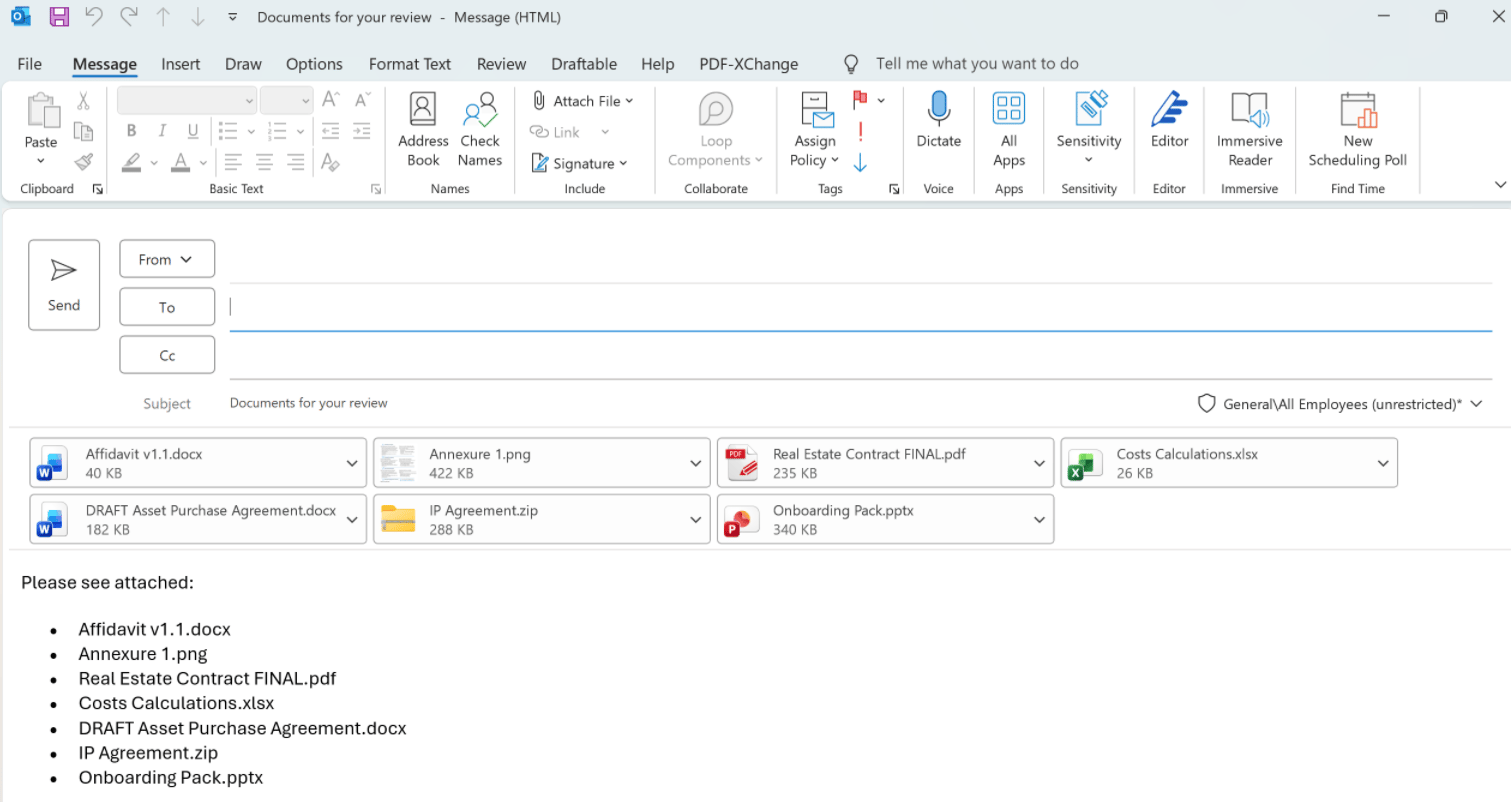
* **Email** — Opens a new Outlook message with your cleaned files pre-attached. Draftable Clean preserves file order and any filenames you have renamed, and populates the email subject, body, and attachment summary from your preferences.
**EXPORT:** Save or share your cleaned files from the toolbar.
* **Save** — Packages cleaned files into a compressed ZIP folder with a timestamped filename.
* **Email** — Opens a new Outlook message with your cleaned files pre-attached. Draftable Clean preserves file order and any filenames you have renamed, and populates the email subject, body, and attachment summary from your preferences.
 ### Configuring email defaults
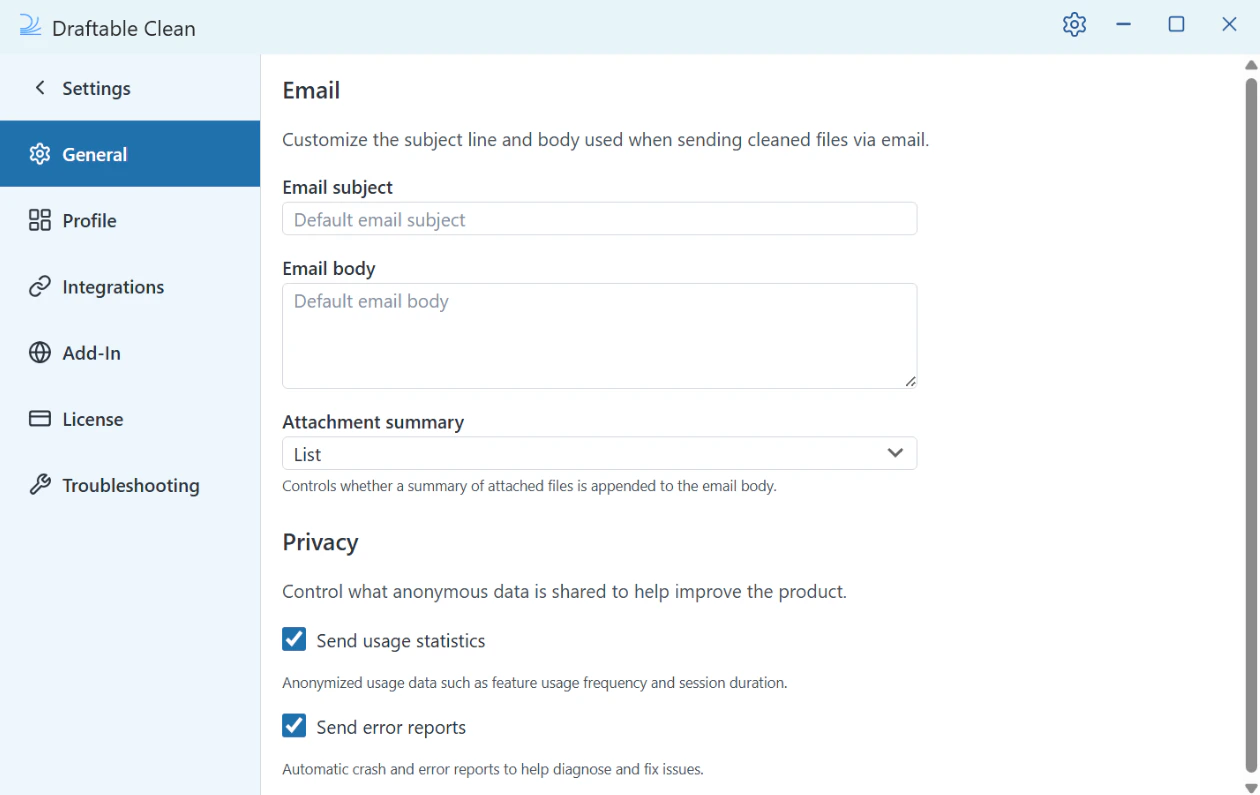
In **Settings > General**, you can prepare defaults for emails sent from the desktop application:
* **Email subject** — The default subject line
* **Email body** — The default body text
* **Attachment summary** — Whether a **List** (bullet points) or **Table** (with columns) of attachments is inserted into the email body
### Configuring email defaults
In **Settings > General**, you can prepare defaults for emails sent from the desktop application:
* **Email subject** — The default subject line
* **Email body** — The default body text
* **Attachment summary** — Whether a **List** (bullet points) or **Table** (with columns) of attachments is inserted into the email body
 ### Password-protected files
If a file shows a **PASSWORD** status (highlighted in orange), it is password-protected and cannot be scanned until you provide the password. A **Password Required** prompt appears automatically below the file with a password field.
### Password-protected files
If a file shows a **PASSWORD** status (highlighted in orange), it is password-protected and cannot be scanned until you provide the password. A **Password Required** prompt appears automatically below the file with a password field.
 Enter the file's password — you can use the **eye icon** to toggle visibility — and click **Check Password**.
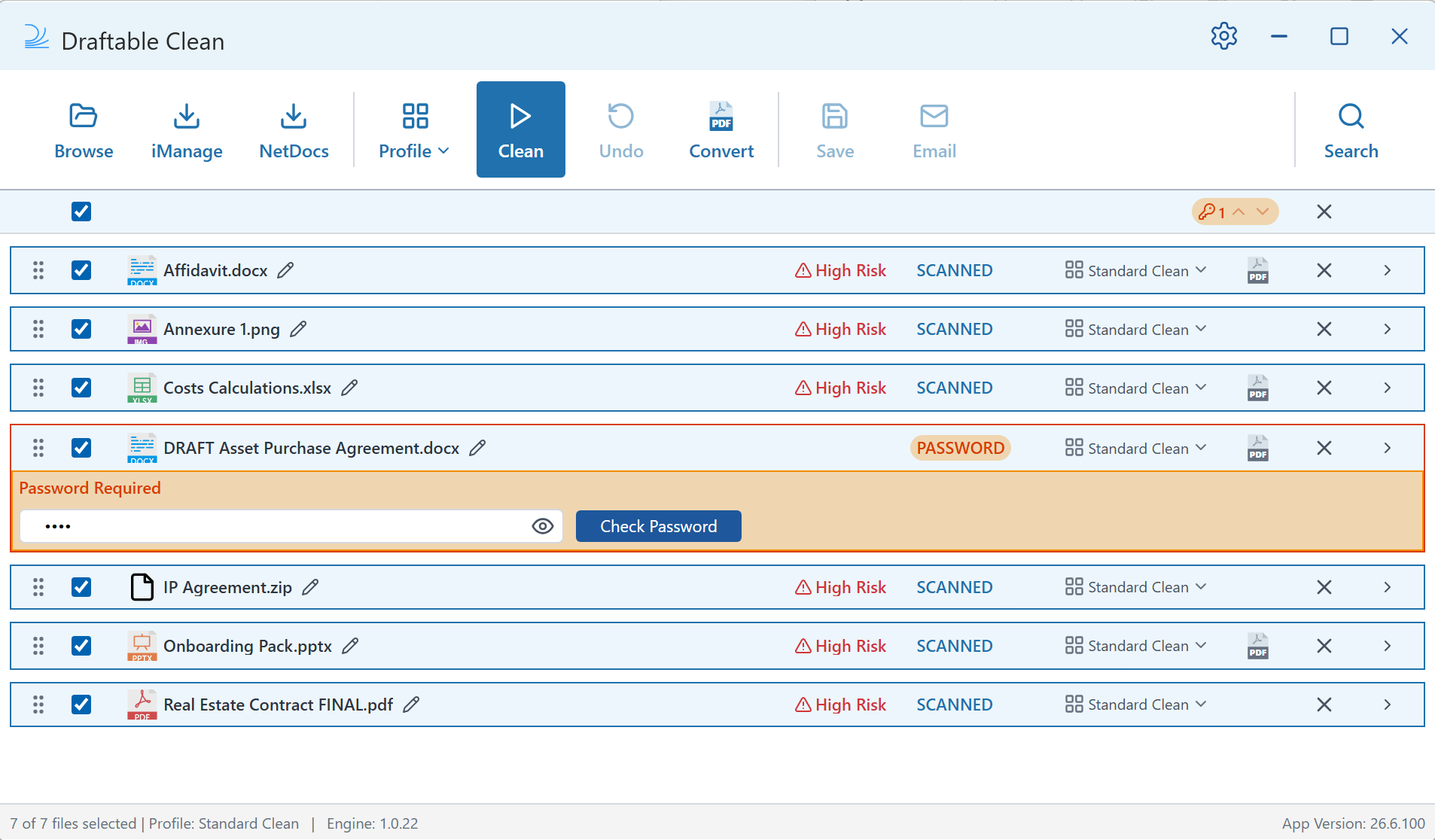 If the password is correct, the file is scanned and its status changes to **SCANNED** with a risk rating, just like your other files.
If the password is incorrect, a **Password Invalid** message is displayed. Re-enter the correct password and click **Check Password** again. See [Troubleshooting: Cleaning issues](/hc/en-us/Draftable-Clean-articles/Troubleshooting-Cleaning-Issues#password-protected-files) for further help.
Password-protected files don't block the rest of your workflow. You can continue scanning, renaming, reordering, and cleaning other files while a password-protected file awaits authentication.
### Reviewing metadata in files
Click the **expand arrow** (>) on any file to see a detailed breakdown of its metadata. Metadata is grouped into categories — such as **Document Properties**, **Personal Information**, **Tracked Changes & Comments**, and more — each with their own item count and risk level.
If the password is correct, the file is scanned and its status changes to **SCANNED** with a risk rating, just like your other files.
If the password is incorrect, a **Password Invalid** message is displayed. Re-enter the correct password and click **Check Password** again. See [Troubleshooting: Cleaning issues](/hc/en-us/Draftable-Clean-articles/Troubleshooting-Cleaning-Issues#password-protected-files) for further help.
Password-protected files don't block the rest of your workflow. You can continue scanning, renaming, reordering, and cleaning other files while a password-protected file awaits authentication.
### Reviewing metadata in files
Click the **expand arrow** (>) on any file to see a detailed breakdown of its metadata. Metadata is grouped into categories — such as **Document Properties**, **Personal Information**, **Tracked Changes & Comments**, and more — each with their own item count and risk level.
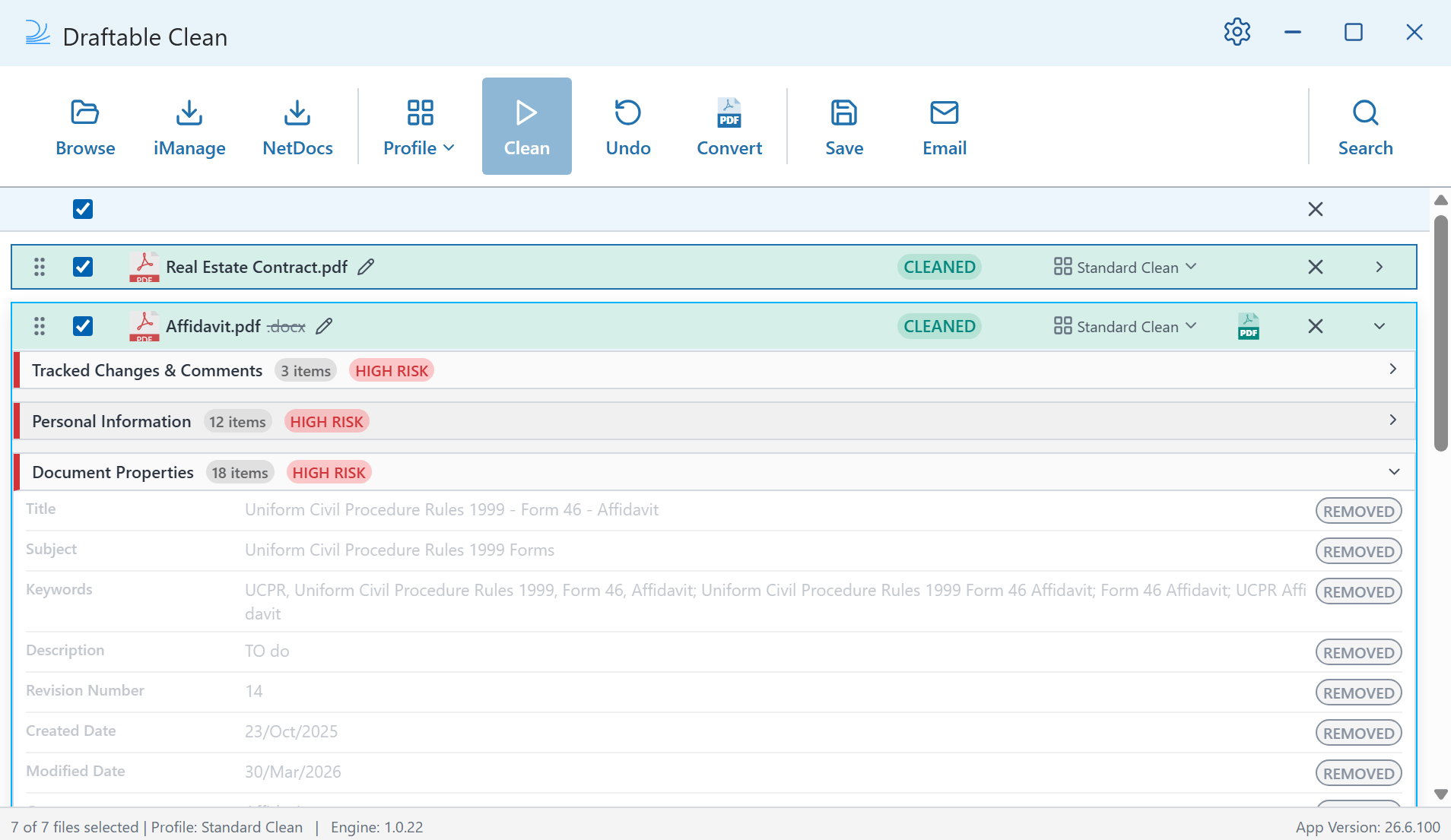
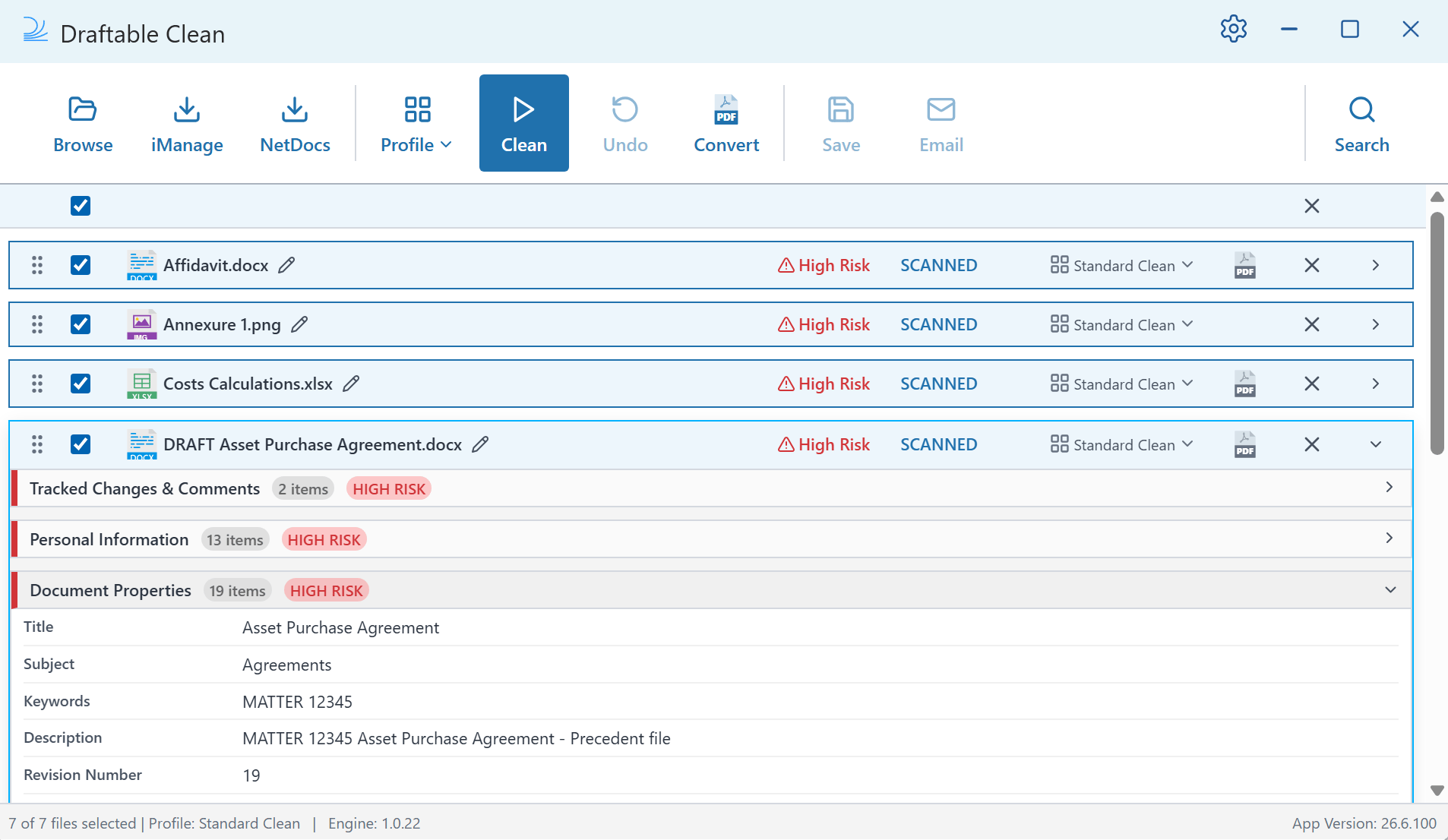 After cleaning, expand a file again to see exactly which metadata fields were removed. Each field displays a **REMOVED** badge, so you have full visibility into what was stripped from the document.
 ### Searching metadata in files
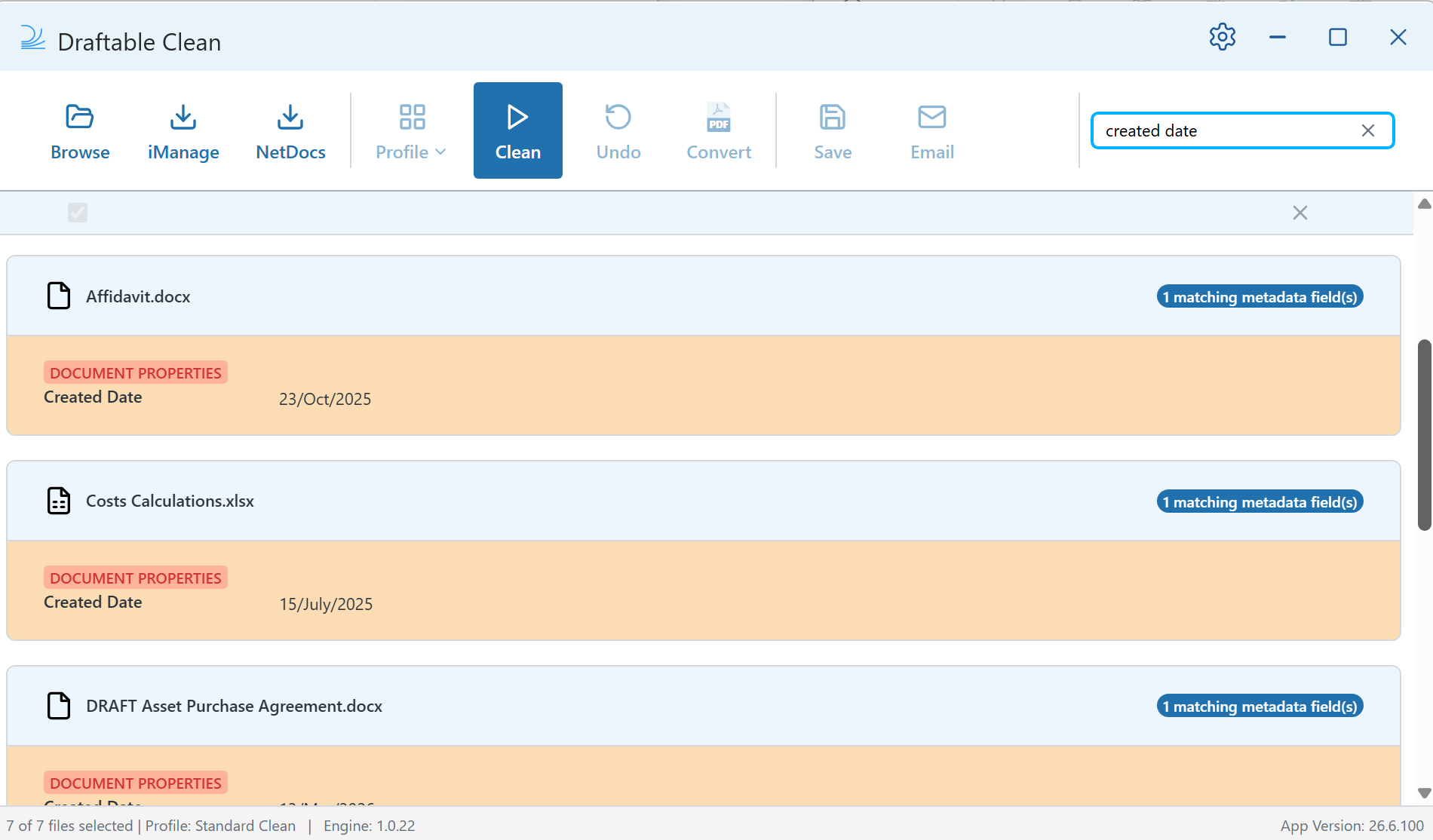
Use the search bar above the file list to find specific metadata across all loaded files. This helps you locate particular fields — such as author names or tracked changes — before you clean or export.
### Searching metadata in files
Use the search bar above the file list to find specific metadata across all loaded files. This helps you locate particular fields — such as author names or tracked changes — before you clean or export.
 ### Renaming and reordering files
Rename and reorder files directly in the file list before cleaning:
* **Rename** — Click the **pencil icon** next to a file name to edit it inline. Press **Enter** or click away to confirm.
### Renaming and reordering files
Rename and reorder files directly in the file list before cleaning:
* **Rename** — Click the **pencil icon** next to a file name to edit it inline. Press **Enter** or click away to confirm.
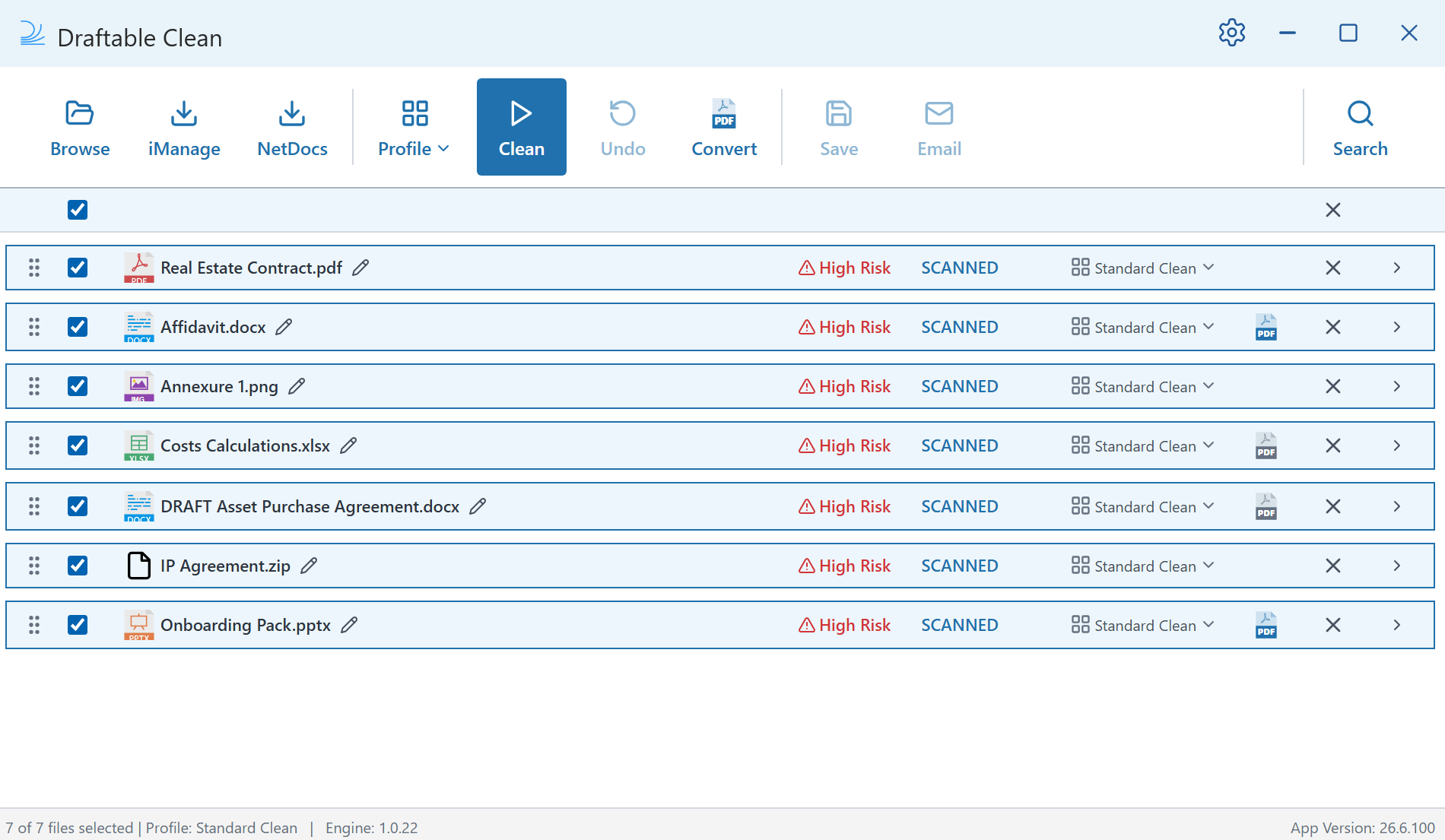
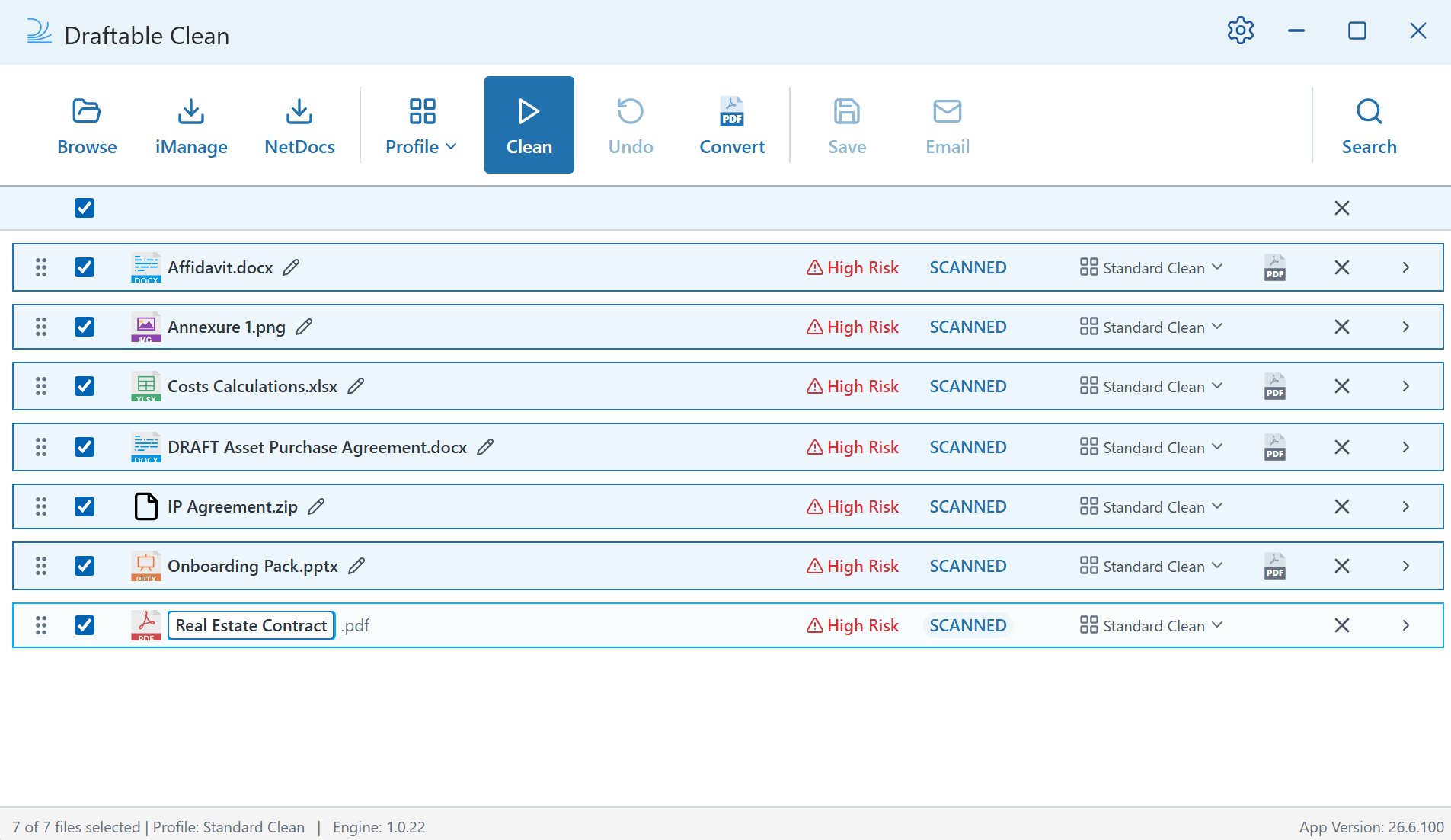 * **Reorder** — Drag files up or down in the list to change the attachment order.
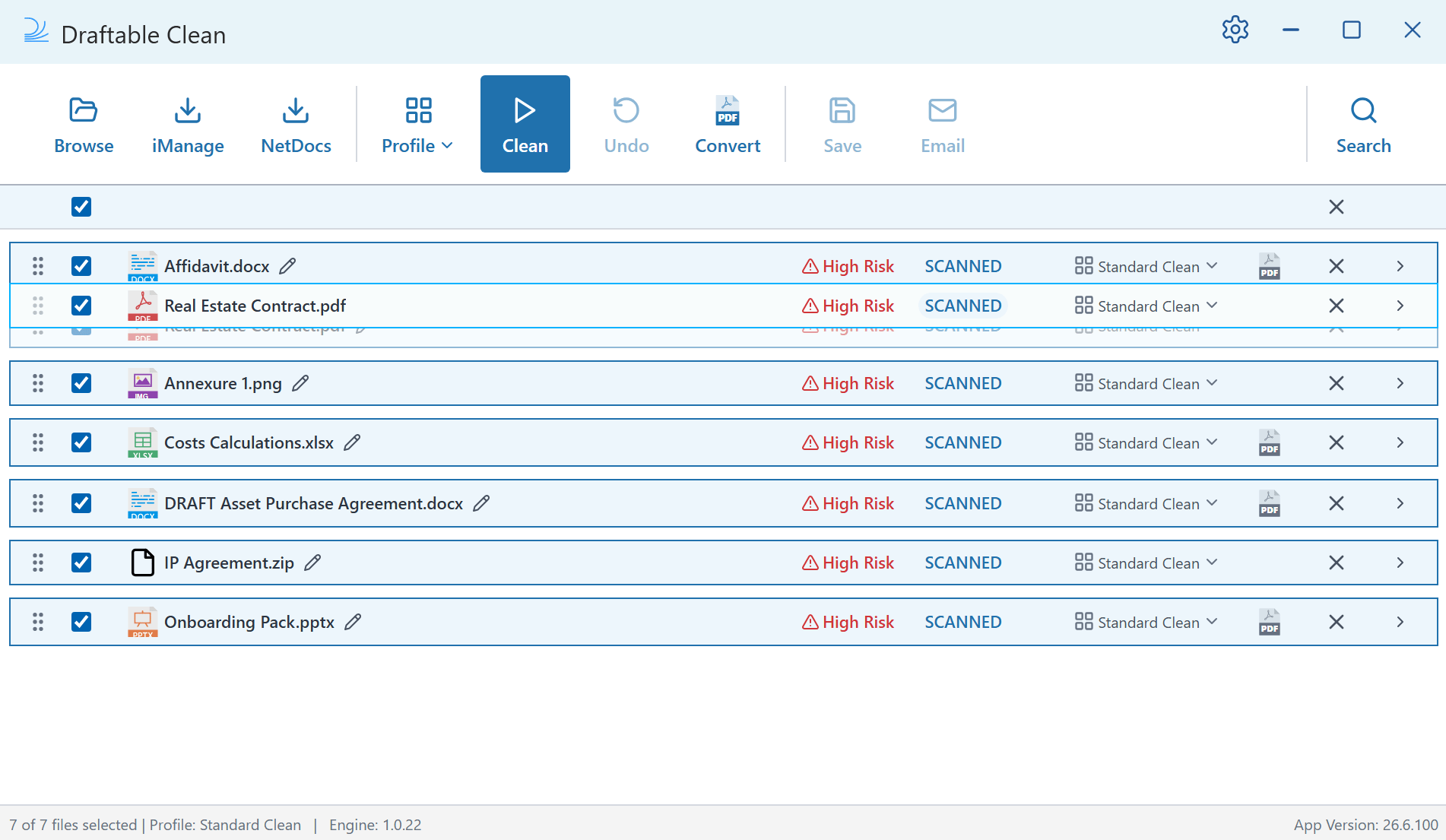 Renamed filenames and custom ordering are preserved when you save or email cleaned files from the desktop application.
### Converting to PDF
Before cleaning, you can optionally flag supported files for conversion to PDF. Click the **PDF icon** inline with a file to flag it — the icon turns **blue** when flagged. Alternatively, select one or more files and click **Convert** in the toolbar to flag them for conversion. Flagged files are converted when you click **Clean**. You can flag or unflag files for conversion before or after cleaning.
Renamed filenames and custom ordering are preserved when you save or email cleaned files from the desktop application.
### Converting to PDF
Before cleaning, you can optionally flag supported files for conversion to PDF. Click the **PDF icon** inline with a file to flag it — the icon turns **blue** when flagged. Alternatively, select one or more files and click **Convert** in the toolbar to flag them for conversion. Flagged files are converted when you click **Clean**. You can flag or unflag files for conversion before or after cleaning.
 Supported files flagged for conversion are converted to PDF alongside metadata removal when you click **Clean**.