> ## Documentation Index
> Fetch the complete documentation index at: https://help.draftable.com/llms.txt
> Use this file to discover all available pages before exploring further.
# Draftable Business Quick Start Guide
> This article can help you set up Draftable Business and run a comparison within minutes!
## What is Draftable Business?
Draftable Business is a document comparison solution for teams and individuals that makes it easy to see what's changed between two documents.
Simply select two versions of a document and Draftable Business will show you every single change in an easy-to-understand viewer.
## Setting up Draftable Desktop
Download Draftable Business here: [https://draftable.com/desktop/download/](https://draftable.com/desktop/download/)
Run the installer & follow the prompts
Activate the product by entering your product key
1. If you already have a license, your product key should have been sent to your email.
2. If you want to start a trial, you can get a trial key here: [https://www.draftable.com/book-a-demo](https://www.draftable.com/book-a-demo)
3. If you are ready to buy a license, you can see the options here: [https://draftable.com/desktop/buy/](https://draftable.com/desktop/buy/)
That's it! Draftable Business is now setup & ready to use.
## Running your first comparison
Start Draftable Business
The **New Comparison launcher** will appear
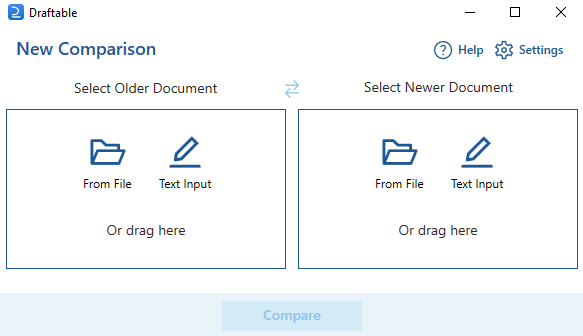 Select two documents you want to compare.\
The older/original/source document goes on the left.\
The newer/revised/modified document goes on the right.
Hit **Compare**
Draftable Business will now be comparing the documents. This can take from a few seconds up to a few minutes, depending on the contents.
Once the comparison is complete, the comparison results will load in our **comparison viewer** window
## Reviewing comparison results
Select two documents you want to compare.\
The older/original/source document goes on the left.\
The newer/revised/modified document goes on the right.
Hit **Compare**
Draftable Business will now be comparing the documents. This can take from a few seconds up to a few minutes, depending on the contents.
Once the comparison is complete, the comparison results will load in our **comparison viewer** window
## Reviewing comparison results
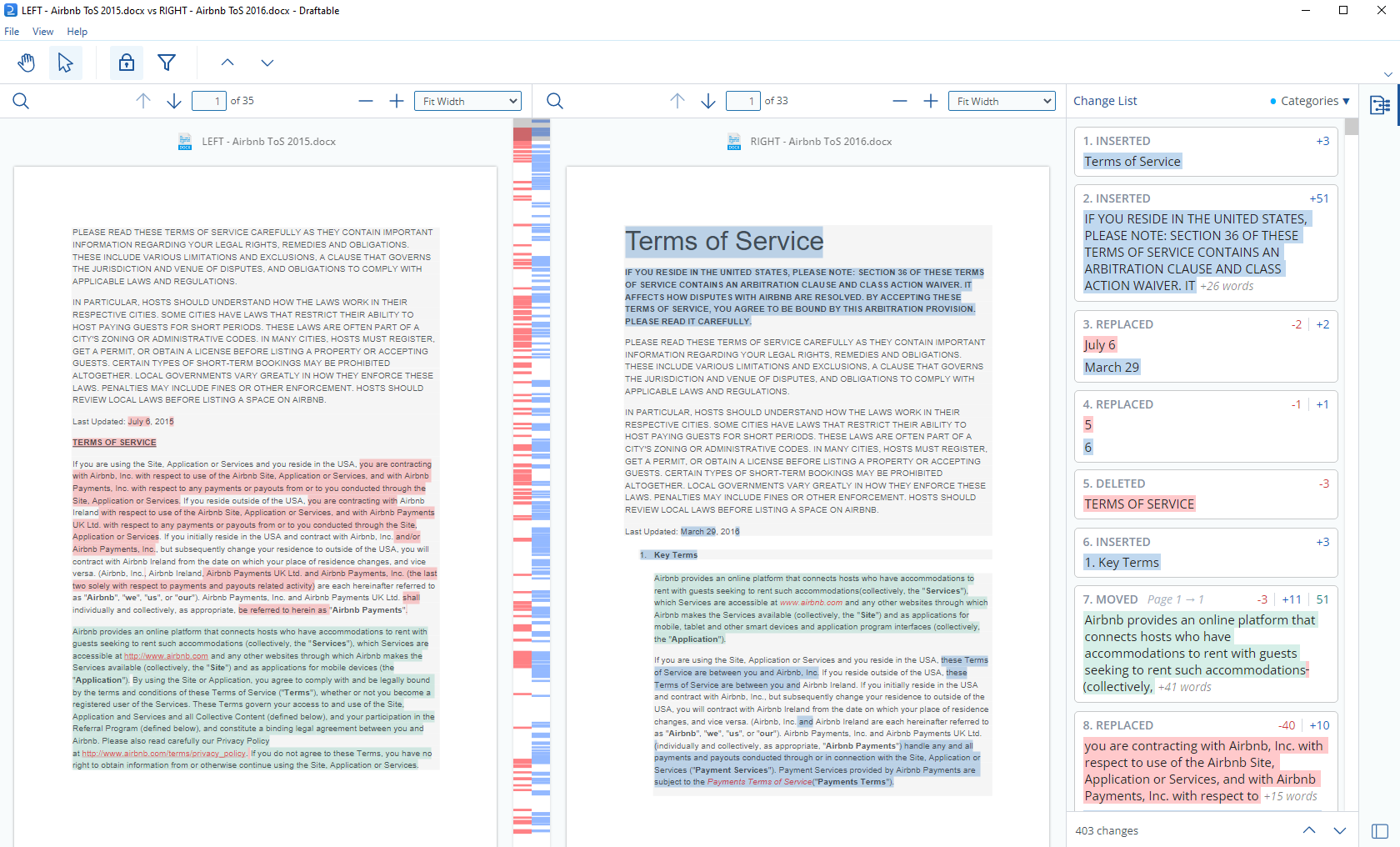 The **comparison viewer** makes it easy to review changes side-by-side.
* The older document is displayed on the left, and the newer document is displayed on the right.
* View all changes, and where in the document they sit.
* Navigate the change list to find specific changes.
* [Export](/hc/en-us/articles/6140816202393-Comparison-Outputs) the comparison results.
* Select the way you view the comparison, with various zoom options.
* Choose which types of changes you want to see.
The **comparison viewer** makes it easy to review changes side-by-side.
* The older document is displayed on the left, and the newer document is displayed on the right.
* View all changes, and where in the document they sit.
* Navigate the change list to find specific changes.
* [Export](/hc/en-us/articles/6140816202393-Comparison-Outputs) the comparison results.
* Select the way you view the comparison, with various zoom options.
* Choose which types of changes you want to see.