> ## Documentation Index
> Fetch the complete documentation index at: https://help.draftable.com/llms.txt
> Use this file to discover all available pages before exploring further.
# Updating Draftable Business
> This article explains how updates work in Draftable Business, how to check which version is currently installed and how to manually apply updates.
## Updates in Draftable Business
Draftable regularly releases new updates, which can range from bug fixes & UI improvements to new features & functionality.
Updates are downloaded automatically and installed on application restart (or system restart).
Sometimes, as part of support, we may release a specific update for you. This will not be automatically installed. You will need to manually update to get these updates.
## How to check the current version of Draftable Business
To check which version of Draftable Business you currently have:
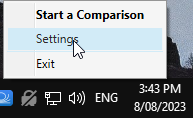
In your system tray, right click Draftable and go to **Settings**
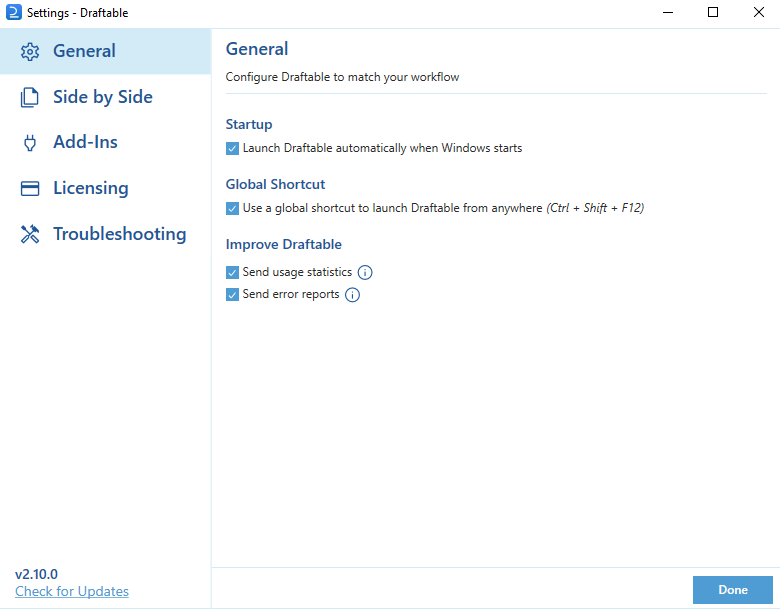
 In **Settings**, the current version is shown in the the bottom left corner
 ## Manually updating Draftable Business
To manually update Draftable Business to the latest version:
In your system tray, right click Draftable and go to **Settings**
## Manually updating Draftable Business
To manually update Draftable Business to the latest version:
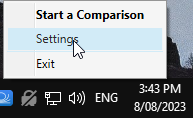
In your system tray, right click Draftable and go to **Settings**
 Click **Check For Updates**
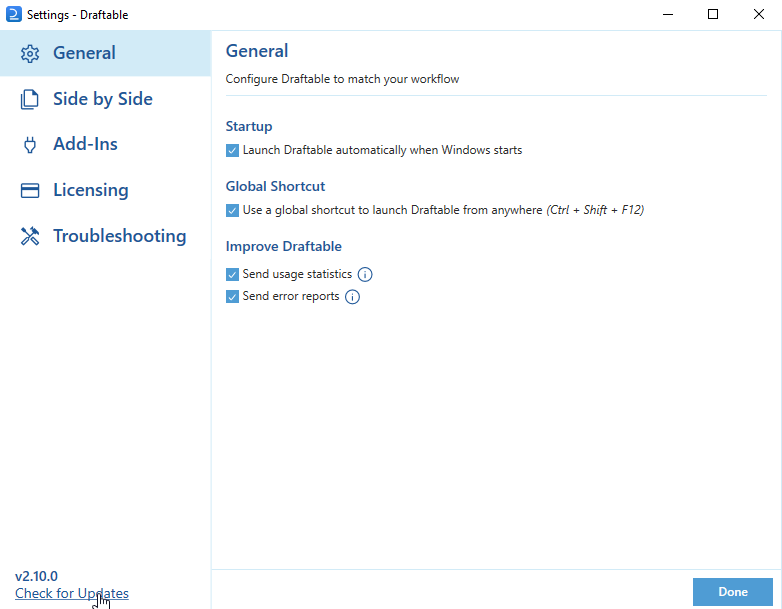 If there is an update available, the update will start immediately.
Once the update is complete, restart the program.
Draftable Business is now updated to the latest version.
If you have any issues with updating Draftable Business, please get in contact with the support team at [support@draftable.com](mailto:support@draftable.com).
If there is an update available, the update will start immediately.
Once the update is complete, restart the program.
Draftable Business is now updated to the latest version.
If you have any issues with updating Draftable Business, please get in contact with the support team at [support@draftable.com](mailto:support@draftable.com).