> ## Documentation Index
> Fetch the complete documentation index at: https://help.draftable.com/llms.txt
> Use this file to discover all available pages before exploring further.
# MFA configuration
> Multi Factor Authentication (MFA) is a security method that is used to grant instance access to users only after they provide two sets of login credentials. The first is the user's password and the second is a code generated by an authentication app.
**This documentation is for API Self-Hosted Version 2 (Legacy)**
Version 2 is a legacy deployment model. All new customers **must** use Version 3, which features a modern multi-container architecture with improved security and performance.
👉 [Get started with API Self-Hosted v3](/hc/en-us/articles/51133475373465-API-Self-Hosted-v3-Quick-Start-Guide)
If you wish to use MFA, users will be required to use an authentication app on their mobile devices.
## Setting up MFA for all users
As an administrator account, navigate to the **Users** tab and see the User Security window in the bottom left. You can click on **enable** to immediately require all users to use MFA to login with their account.
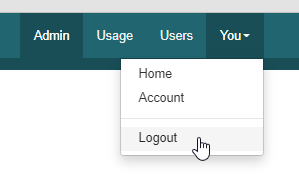
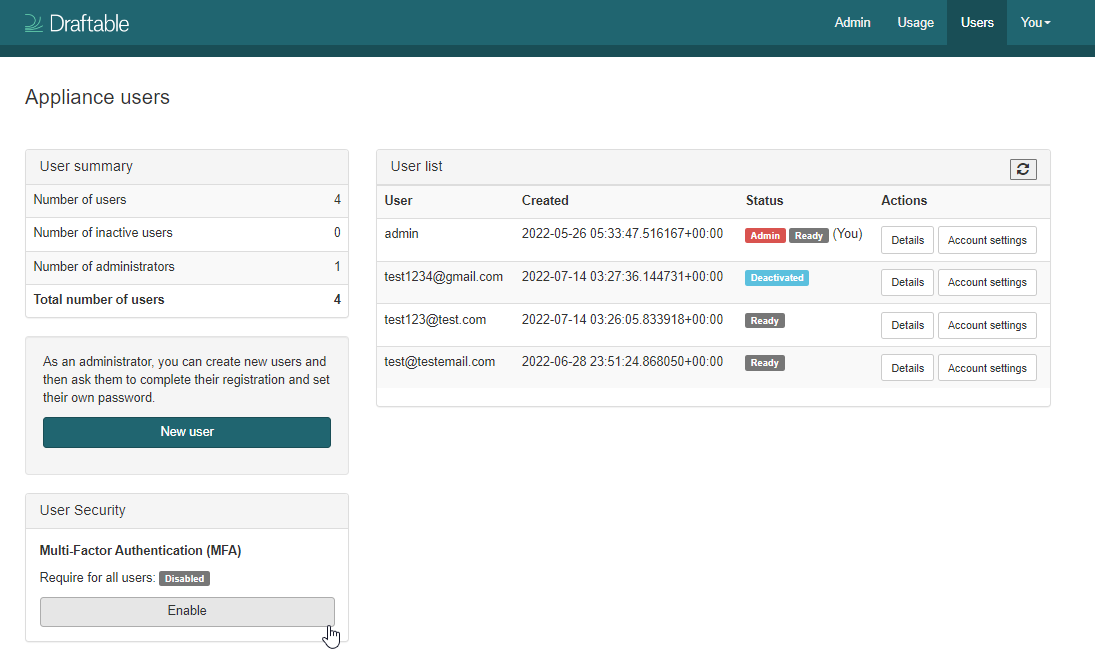 To setup the MFA once enabled by the administrator, ensure your users (including yourself) log out of the instance, and attempt to log back in.
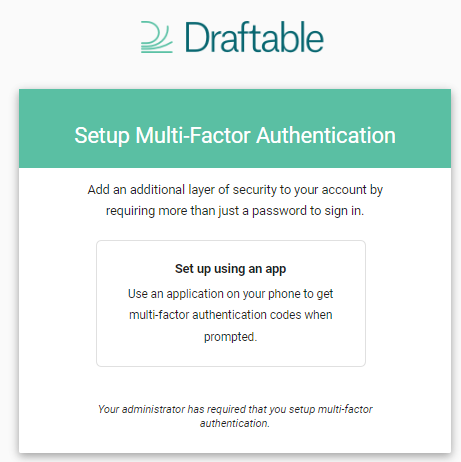
 Once you have provided your username and password, you will be presented with the initial setup for the MFA. Click **Set up using an app,** and using your mobile device scan the QR code that will be presented.
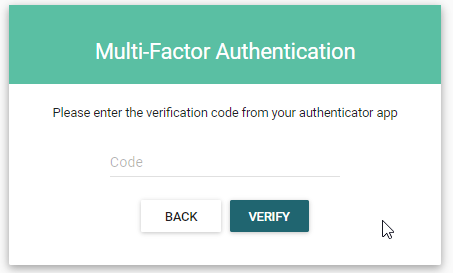
 Once complete enter the requested passcode from the authenticator app.
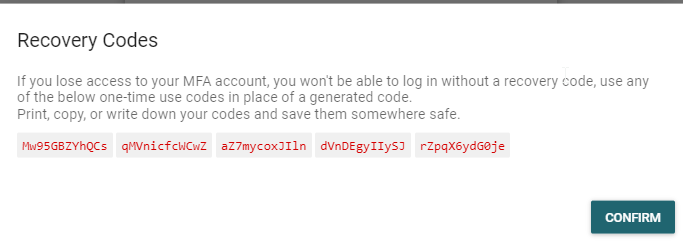
 Upon initial setup, users will also be provided with recovery codes in a situation where they have lost their mobile device or are unable to provide a passcode.
 ## Removing MFA for users
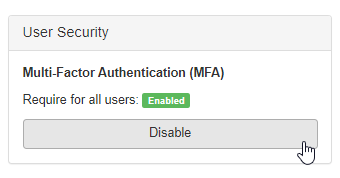
You can remove MFA from all users by returning to the **users** page within the **admin** section, and by clicking **disable** in the User Security window. This will immediately remove MFA requirements for login, for all user accounts.
## Removing MFA for users
You can remove MFA from all users by returning to the **users** page within the **admin** section, and by clicking **disable** in the User Security window. This will immediately remove MFA requirements for login, for all user accounts.
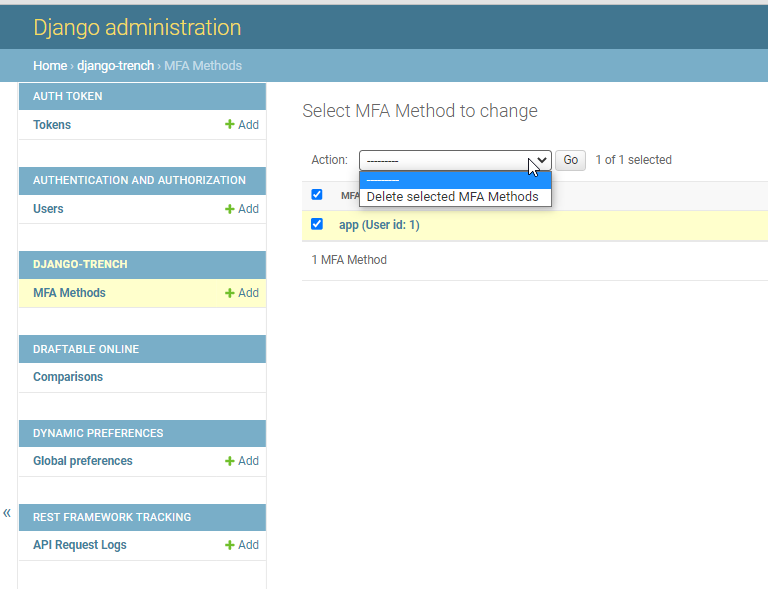
 If you wanted to reset an MFA login for a specific user, without having to disable MFA completely, the administrator can delete an MFA method for a specific user, which will force them to complete a new MFA setup the next time they log in.