> ## Documentation Index
> Fetch the complete documentation index at: https://help.draftable.com/llms.txt
> Use this file to discover all available pages before exploring further.
# Draftable Legal Quick Start Guide
> This step-by-step guide will help you set up Draftable Legal and run your first comparison in minutes.
## What is Draftable Legal?
Draftable Legal is an enterprise document comparison platform built for legal professionals. It goes beyond simple redlining, compare Word, PDF, Excel, and PowerPoint files with multiple output formats including redline PDFs, Word tracked changes, departures tables, and side-by-side views.
With integrations into leading document management systems like iManage, NetDocuments, and SharePoint, plus features like Bulk Compare, 1-Click Compare, AI-Ready Redline export, and a powerful Change List for reviewing, tagging, and filtering changes, Draftable Legal fits seamlessly into your existing workflows.
## Setting up Draftable Legal
Download the Draftable Desktop application here: [https://draftable.com/desktop/download/](https://draftable.com/desktop/download/)
Run the installer and follow the prompts.
Your IT team may have already installed and configured Draftable Legal for you. If so, you can skip steps 1 and 2.
Once installed, launch Draftable Legal. What happens next depends on how your product key was configured.
If your IT team has already deployed your product key (for example, via Group Policy or registry configuration), Draftable Legal will open directly to the **New Comparison** window — no activation is required on your part.
You're ready to go! Skip ahead to [Running your first comparison](#running-your-first-comparison).
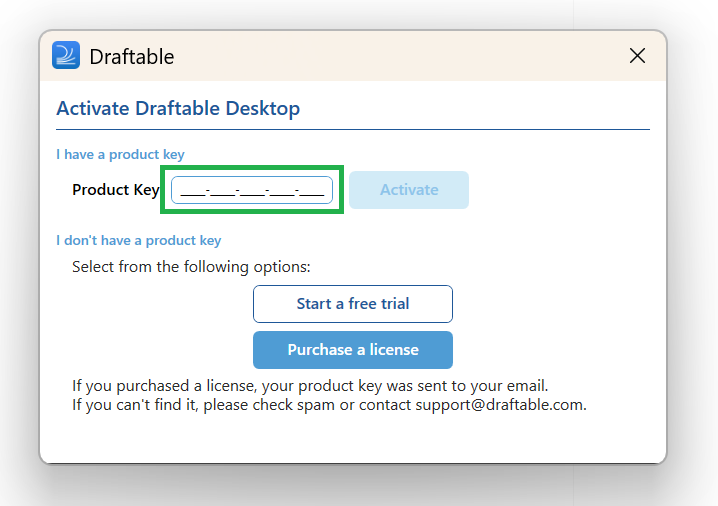
If your product key has not been pre-configured, Draftable Legal will prompt you to enter it on launch.
If you don't already have a license or haven't purchased Draftable, visit our [pricing page](https://www.draftable.com/pricing) to get started. If you're looking to buy for a team, [book a demo](https://www.draftable.com/draftable-legal) with our sales team.
1. Enter your product key in the **Product Key** field.
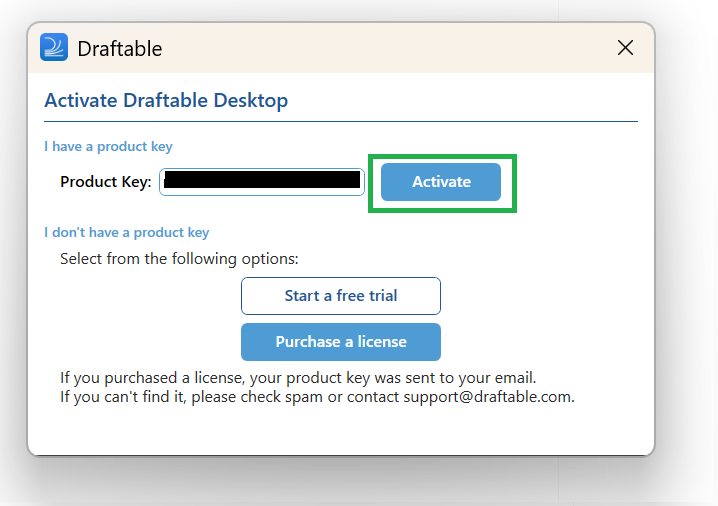
 2. Click **Activate**.
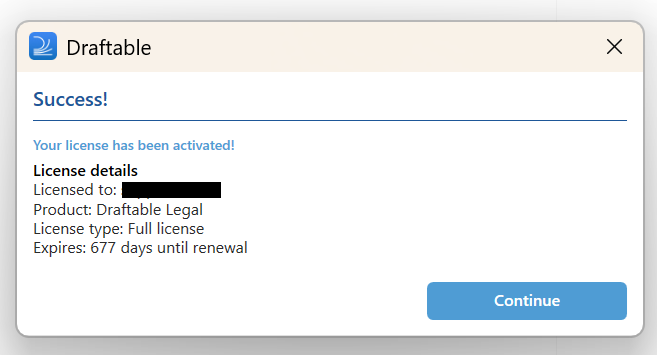
 3. A confirmation screen will appear showing your license details. Click **Continue**.
 4. Draftable will run first-time checks to verify your system is correctly configured for all Draftable features. This takes one to two minutes. We recommend letting it complete — if any issues are flagged, contact [Draftable Support](mailto:support@draftable.com). If you prefer, you can skip this step by closing the window.
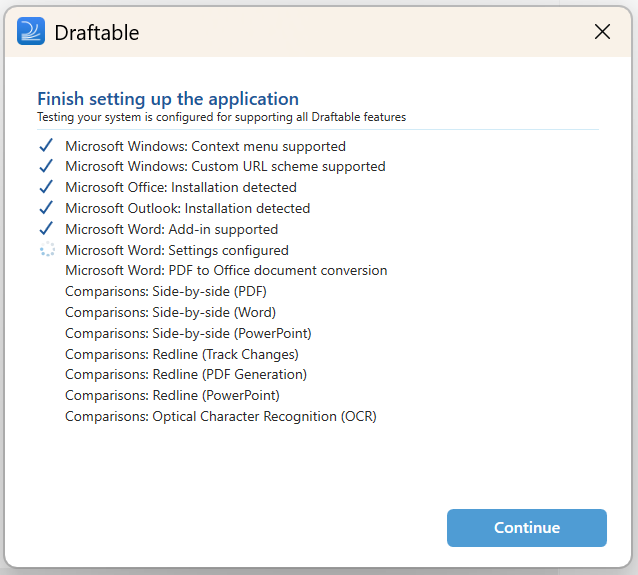 5. Click **Continue** once the checks are complete. The **New Comparison** window will appear.
Draftable Legal is now set up and ready to use.
## Running your first comparison
Start Draftable Legal
The **New Comparison launcher** will appear
5. Click **Continue** once the checks are complete. The **New Comparison** window will appear.
Draftable Legal is now set up and ready to use.
## Running your first comparison
Start Draftable Legal
The **New Comparison launcher** will appear
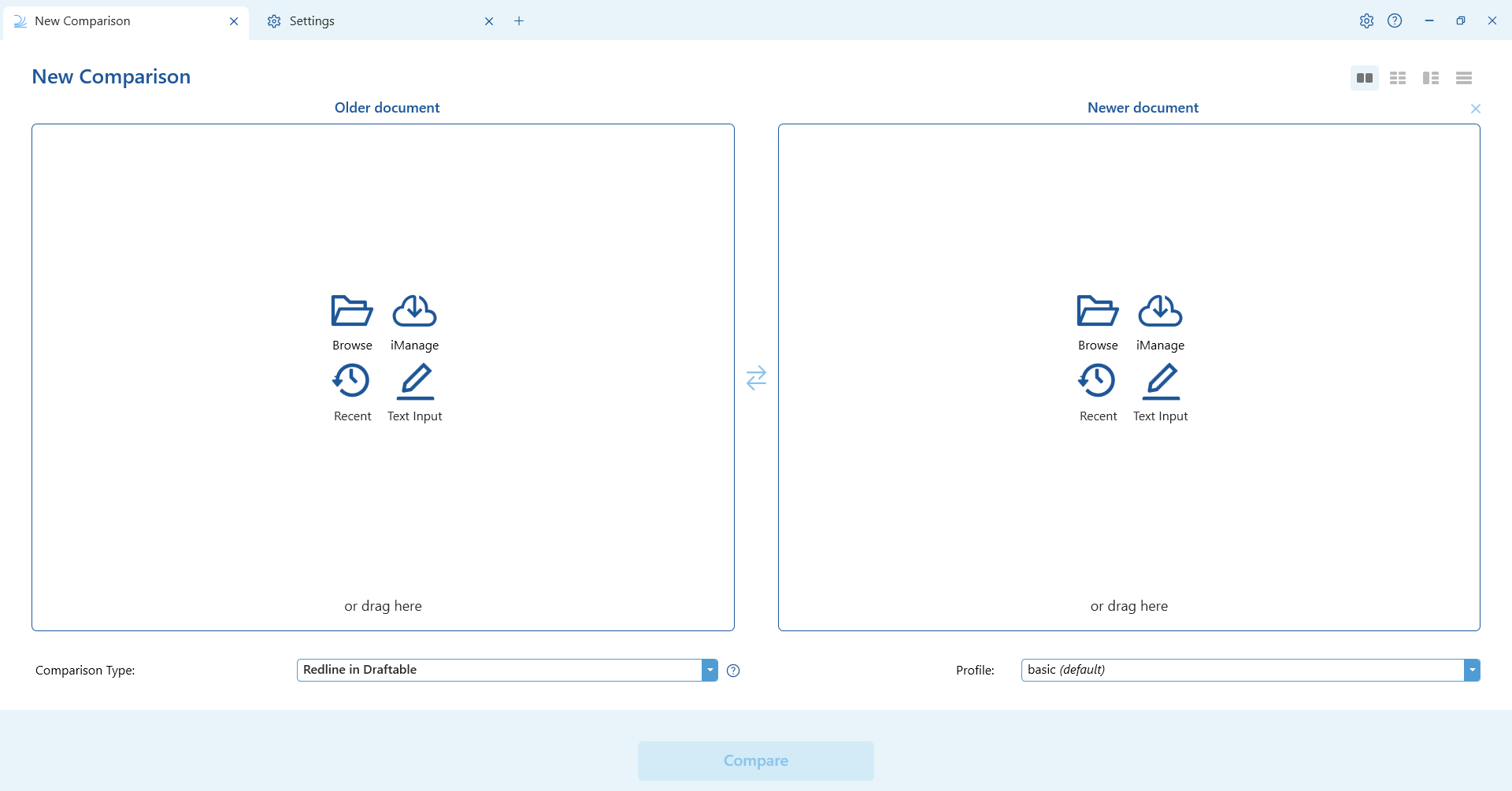 Select two documents you want to compare\
The older/original/source document goes on the left\
The newer/revised/modified document goes on the right
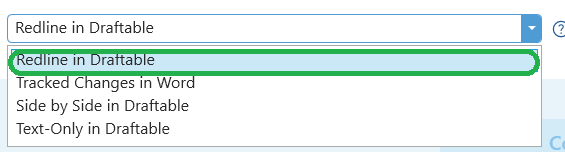
Open the **Comparison Type** dropdown and select **Redline in Draftable**
Select two documents you want to compare\
The older/original/source document goes on the left\
The newer/revised/modified document goes on the right
Open the **Comparison Type** dropdown and select **Redline in Draftable**
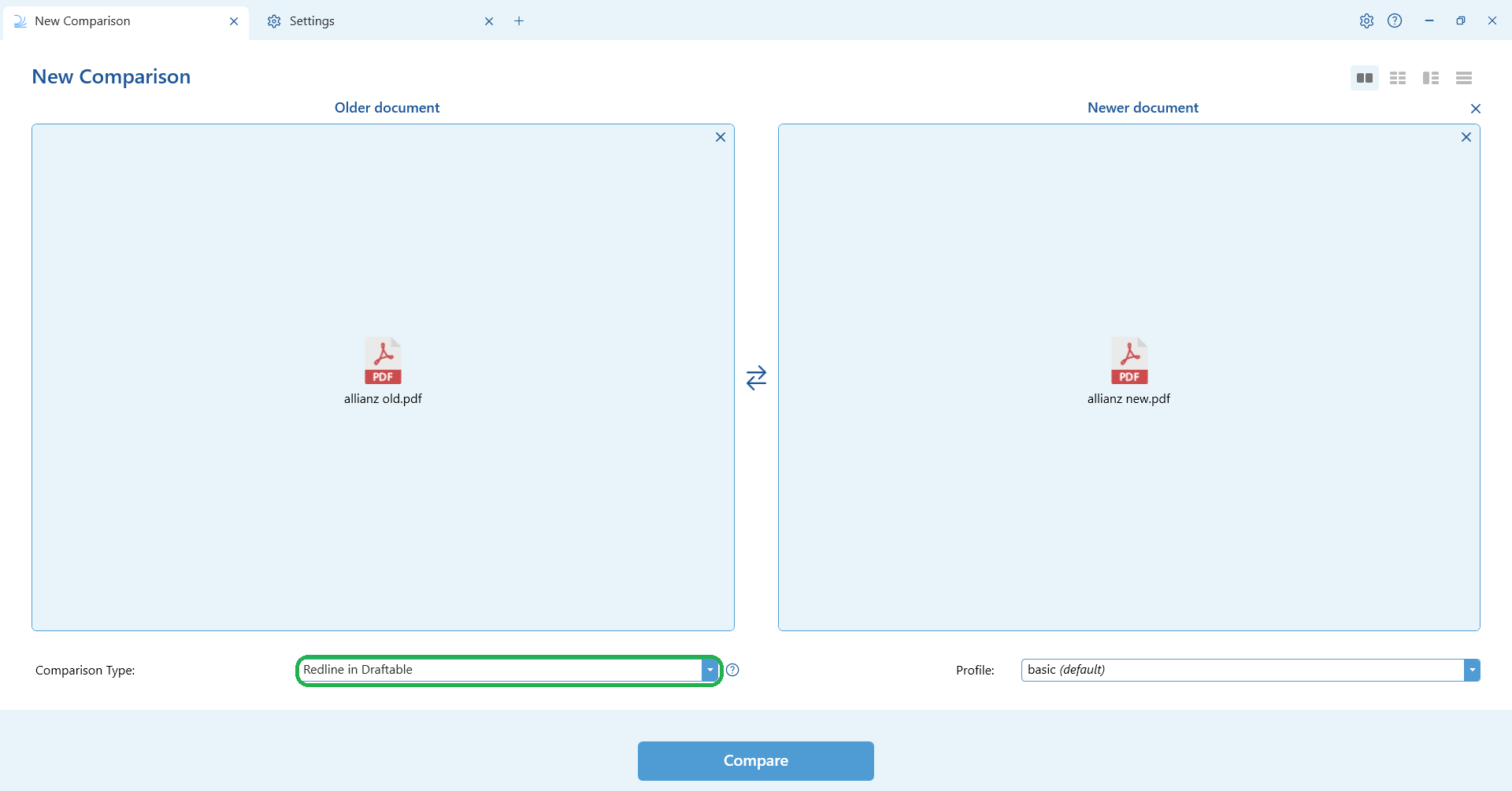 Hit **Compare**
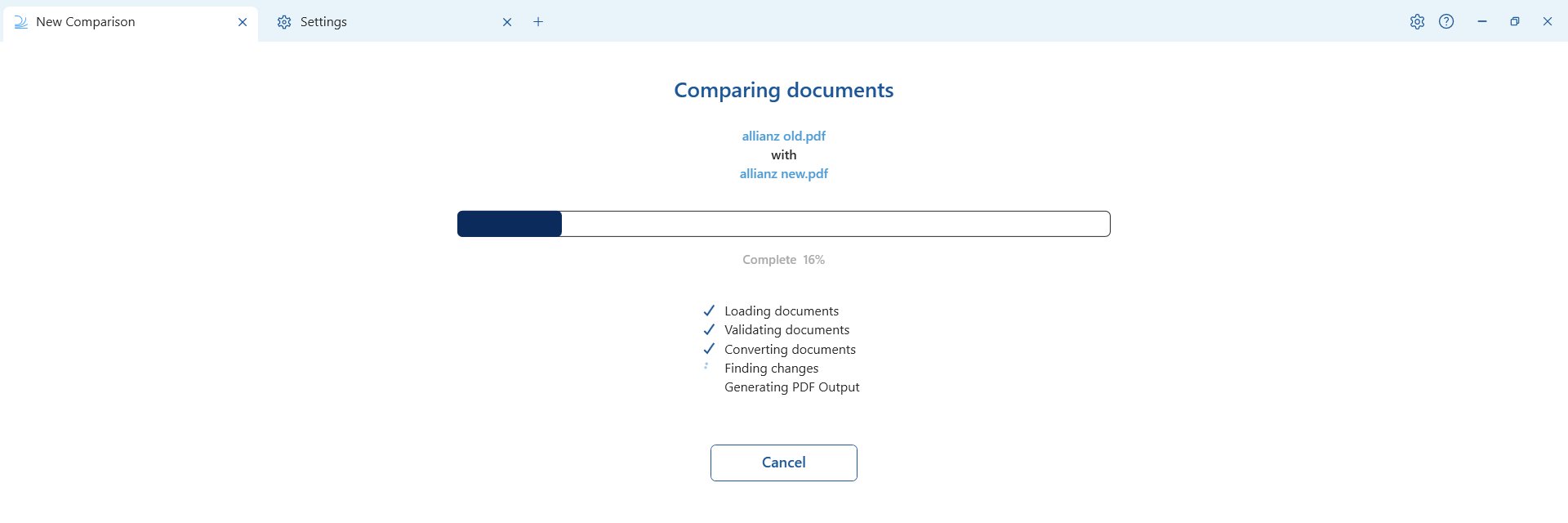
Draftable will now be comparing the documents. This can take from a few seconds up to a few minutes, depending on the contents.
Hit **Compare**
Draftable will now be comparing the documents. This can take from a few seconds up to a few minutes, depending on the contents.
 Once the comparison is complete, the comparison results will load in our **redline comparison viewer** window
## Reviewing comparison results
### Redline viewer
The **Redline comparison viewer** makes it easy to review changes.
The Change List is shown on the right-hand side of the Comparison Viewer. [You can read more about Change List features here](/hc/en-us/articles/32514479509785-Using-the-Redline-Change-List-to-review-filter-tag-add-notes-and-export-your-changes).
Once the comparison is complete, the comparison results will load in our **redline comparison viewer** window
## Reviewing comparison results
### Redline viewer
The **Redline comparison viewer** makes it easy to review changes.
The Change List is shown on the right-hand side of the Comparison Viewer. [You can read more about Change List features here](/hc/en-us/articles/32514479509785-Using-the-Redline-Change-List-to-review-filter-tag-add-notes-and-export-your-changes).
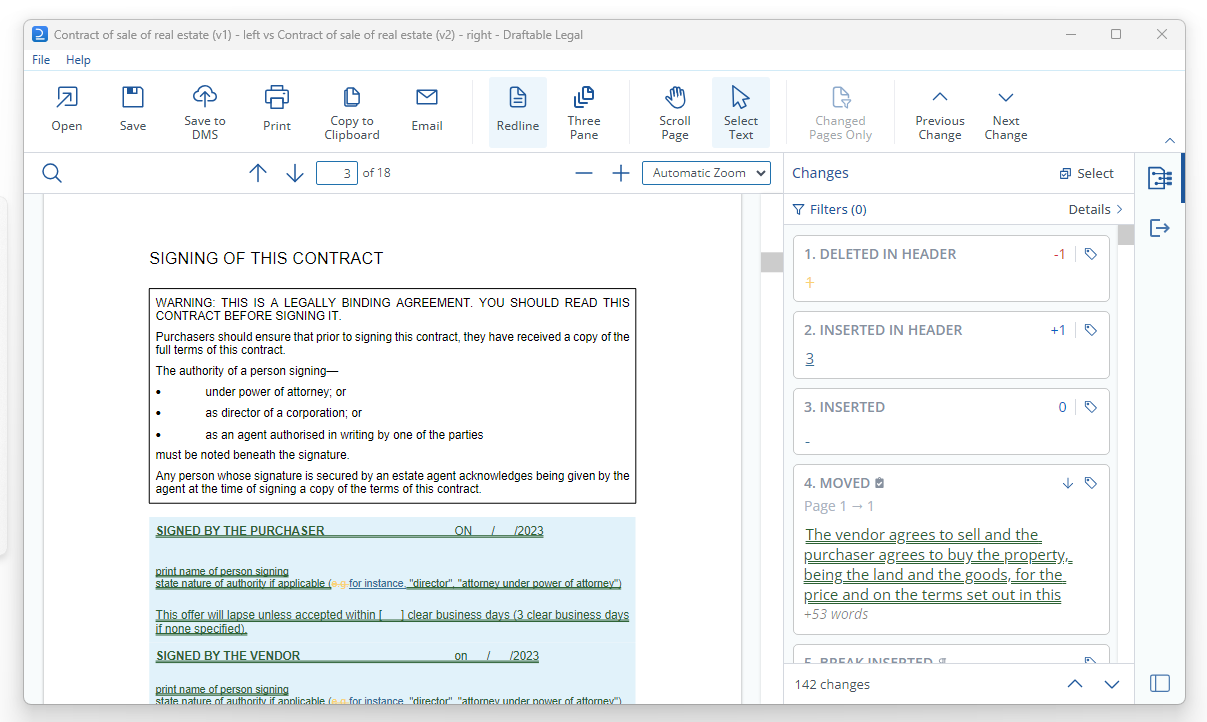 You can toggle the Change List on or off by selecting the button below highlighted.
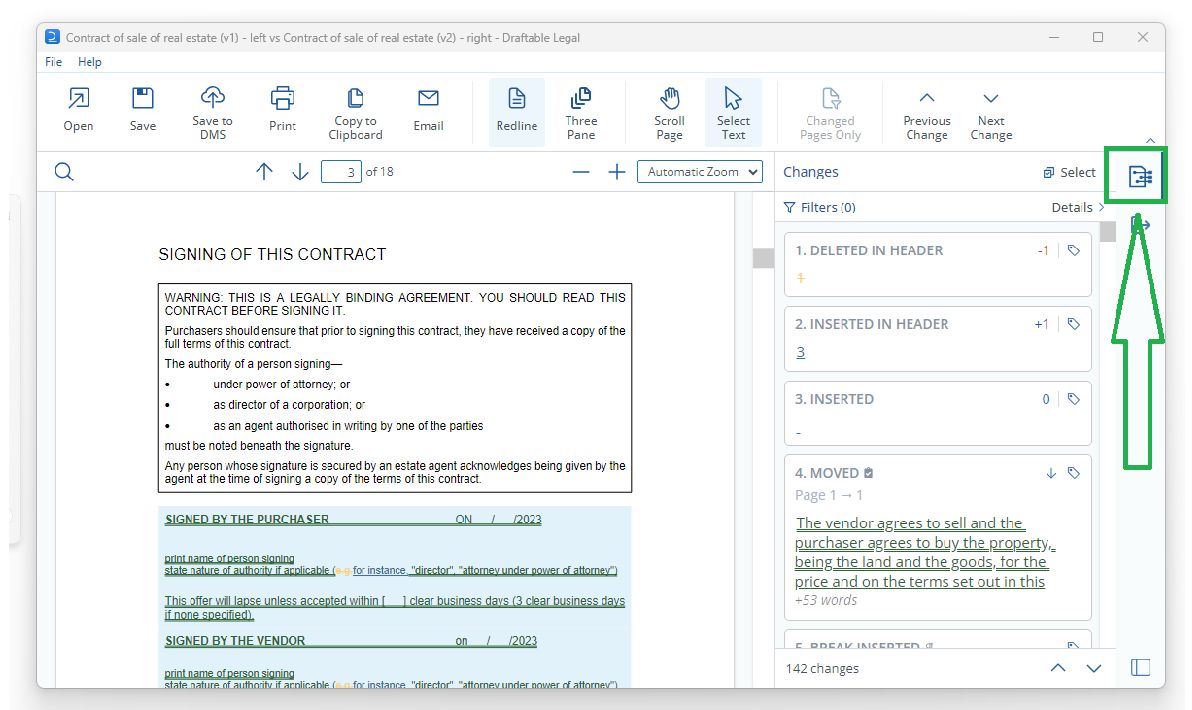 At the top of the ribbon menu within the comparison viewer, are all your comparison output options.
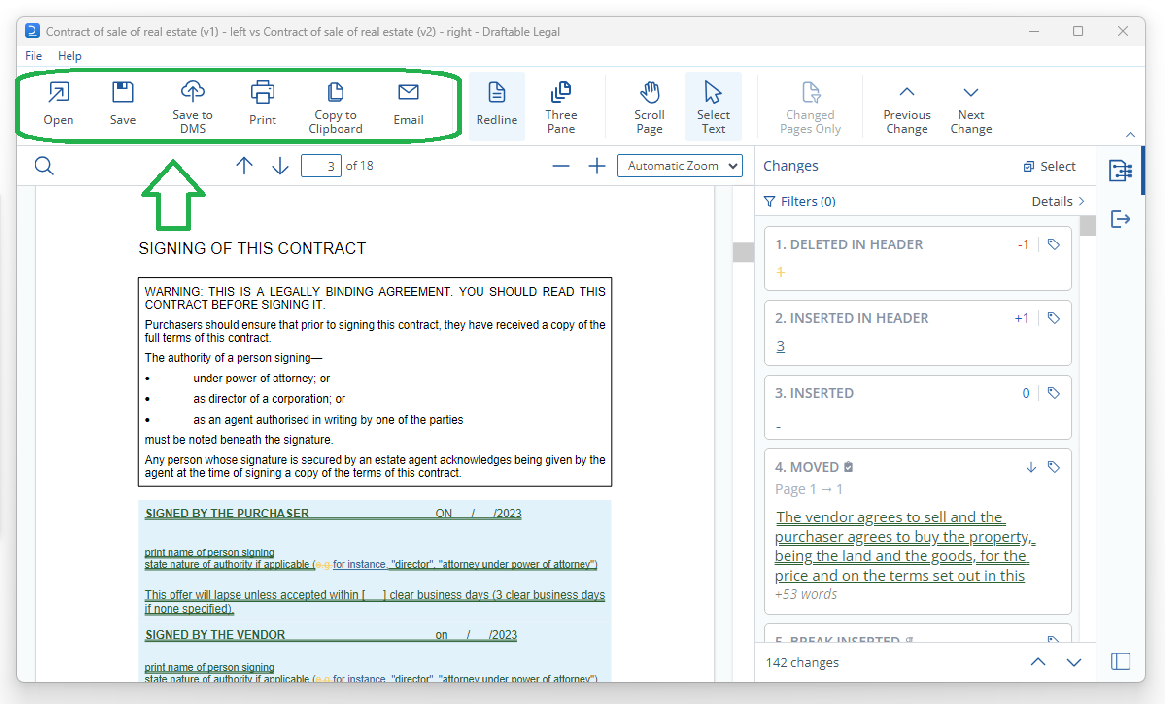 These options allow you to quickly and easily share comparisons via your preferred method or DMS. A quick summary of these options are:
* **Open** the results directly in your preferred Word processor or PDF reader.
These options allow you to quickly and easily share comparisons via your preferred method or DMS. A quick summary of these options are:
* **Open** the results directly in your preferred Word processor or PDF reader.
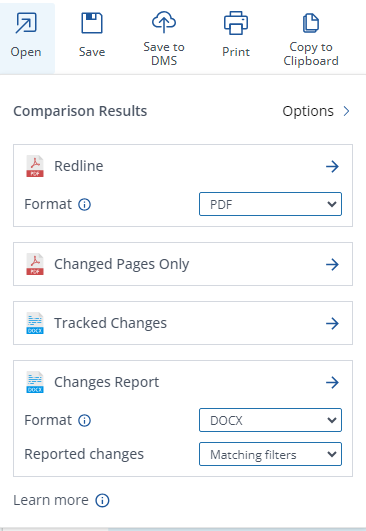 * **Save** the comparison result to your computer.
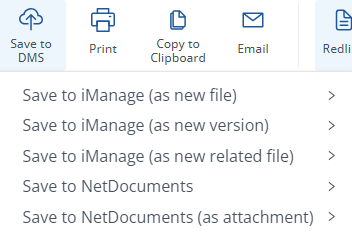
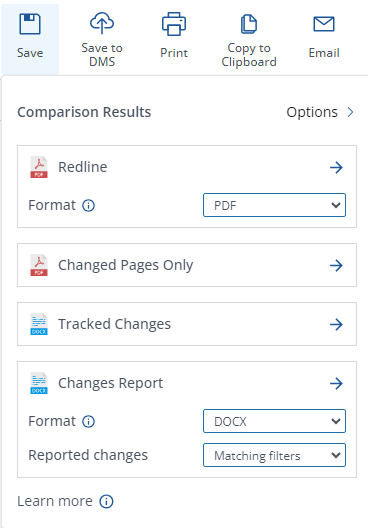 * **Save** **to DMS**, e.g. iManage, NetDocuments
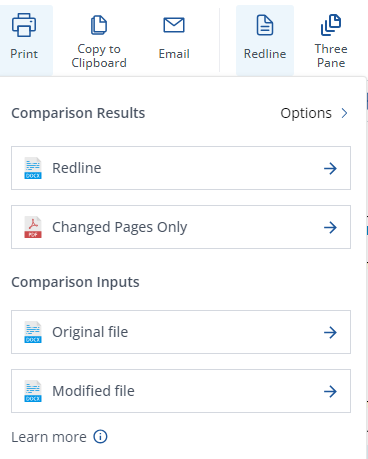
 * **Print** a hard copy of the comparison results.
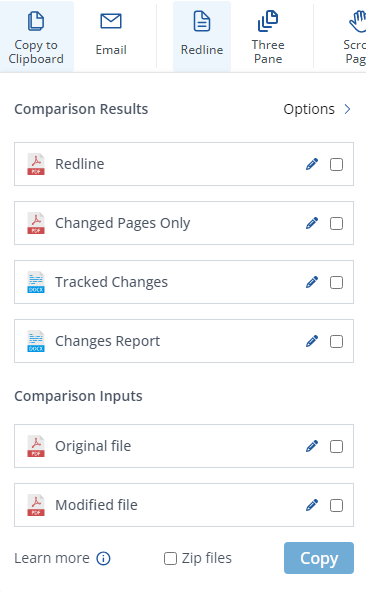
 * **Copy to Clipboard** and save the comparison output to your clipboard.
 * **Email** the comparison results and/or the input documents using Outlook.
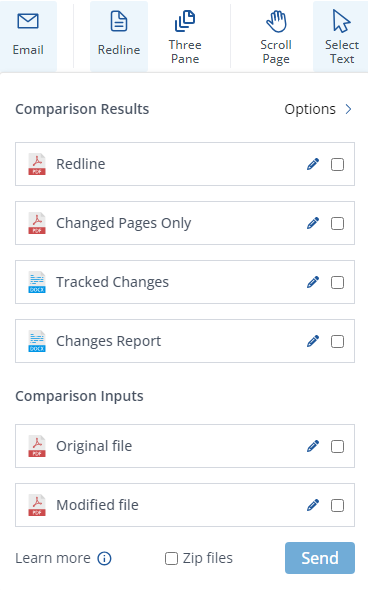 For more information about these specific output options, please see our [Using Draftable](/hc/en-us/sections/15894418277017-Using-Draftable-Legal) section of our Knowledgebase.
## Other Comparison Types
Draftable Legal offers a range of Comparison Types to suit different file types and workflows. You can read more about [how to select the right Comparison Type here](/hc/en-us/articles/33190528521881-Comparison-Type-How-to-choose-the-right-option-in-the-Draftable-New-Comparison-Window).
### Side by Side in Draftable
This allows you to compare two documents and have them shown on a comparison screen in a Side by Side view. This can make it very easy to see the differences between two documents and works best for PDF files (but Word files are also supported). Side by Side comparisons also have the option to create a comparison output (or export), and is very useful when comparing Excel and PowerPoint files.
### Tracked Changes in Word
The Tracked Changes comparison type will generate a Word document (.docx) with the changes marked up as Track Changes. Once ready, you will be prompted to either save or open the output. This will open in Word and let you use Word's inbuilt Tracked Changes functionality to navigate through changes and accept/reject changes.
### Redline in Word
This Comparison Type creates a Word (docx) file with static redline markup but no tracked changes metadata. This is particularly useful when using metadata cleaning tools that would otherwise remove tracked changes information.
### Redline in Excel / Redline in PowerPoint
Draftable has dedicated comparison algorithms for Excel and PowerPoint files that produce redline output in the native Office format (.xlsx or .pptx). The output opens directly in Excel or PowerPoint so you can continue working on the file after review.
### Comparing Excel and PowerPoint in the Draftable viewer
Excel and PowerPoint files can also be reviewed directly inside the Draftable Comparison Viewer. To do this, choose **Redline in Draftable** as the comparison type for your Excel or PowerPoint files. This gives you access to the interactive Change List, tagging, filtering, and export options without leaving Draftable. If you would prefer redline output in the native Office format instead, use **Redline in Excel** or **Redline in Powerpoint** (described above).
### Departures Table
A specialised report that presents changes at the section or clause level rather than as inline edits. The Departures Table highlights the entire section where a change occurred, making it ideal for long contracts and policy documents where stakeholders need to understand the scope of changes at a glance. Output format is DOCX only.
### Redline - Changed Pages Only
A streamlined output that includes only the pages where changes were detected between the original and revised documents. Unchanged pages are excluded entirely, providing a quicker way to review modifications without a full redline. Output format is PDF only.
### Text-Only in Draftable
Text-Only Compare strips all formatting, styles, numbering, and layout from both documents before comparing, leaving only substantive text changes. This is useful for documents with complex formatting or as a fallback when a standard comparison produces unexpected results.
### Live Redline Preview
When both inputs are set to free text, Draftable displays a real-time redline preview directly in the Compare Selector as you type or paste — no need to click Compare. The output can be copied as tracked changes, redline, or AI-ready format for use with generative AI tools.
## Advanced steps
For further advanced steps see the below articles:
For more information about these specific output options, please see our [Using Draftable](/hc/en-us/sections/15894418277017-Using-Draftable-Legal) section of our Knowledgebase.
## Other Comparison Types
Draftable Legal offers a range of Comparison Types to suit different file types and workflows. You can read more about [how to select the right Comparison Type here](/hc/en-us/articles/33190528521881-Comparison-Type-How-to-choose-the-right-option-in-the-Draftable-New-Comparison-Window).
### Side by Side in Draftable
This allows you to compare two documents and have them shown on a comparison screen in a Side by Side view. This can make it very easy to see the differences between two documents and works best for PDF files (but Word files are also supported). Side by Side comparisons also have the option to create a comparison output (or export), and is very useful when comparing Excel and PowerPoint files.
### Tracked Changes in Word
The Tracked Changes comparison type will generate a Word document (.docx) with the changes marked up as Track Changes. Once ready, you will be prompted to either save or open the output. This will open in Word and let you use Word's inbuilt Tracked Changes functionality to navigate through changes and accept/reject changes.
### Redline in Word
This Comparison Type creates a Word (docx) file with static redline markup but no tracked changes metadata. This is particularly useful when using metadata cleaning tools that would otherwise remove tracked changes information.
### Redline in Excel / Redline in PowerPoint
Draftable has dedicated comparison algorithms for Excel and PowerPoint files that produce redline output in the native Office format (.xlsx or .pptx). The output opens directly in Excel or PowerPoint so you can continue working on the file after review.
### Comparing Excel and PowerPoint in the Draftable viewer
Excel and PowerPoint files can also be reviewed directly inside the Draftable Comparison Viewer. To do this, choose **Redline in Draftable** as the comparison type for your Excel or PowerPoint files. This gives you access to the interactive Change List, tagging, filtering, and export options without leaving Draftable. If you would prefer redline output in the native Office format instead, use **Redline in Excel** or **Redline in Powerpoint** (described above).
### Departures Table
A specialised report that presents changes at the section or clause level rather than as inline edits. The Departures Table highlights the entire section where a change occurred, making it ideal for long contracts and policy documents where stakeholders need to understand the scope of changes at a glance. Output format is DOCX only.
### Redline - Changed Pages Only
A streamlined output that includes only the pages where changes were detected between the original and revised documents. Unchanged pages are excluded entirely, providing a quicker way to review modifications without a full redline. Output format is PDF only.
### Text-Only in Draftable
Text-Only Compare strips all formatting, styles, numbering, and layout from both documents before comparing, leaving only substantive text changes. This is useful for documents with complex formatting or as a fallback when a standard comparison produces unexpected results.
### Live Redline Preview
When both inputs are set to free text, Draftable displays a real-time redline preview directly in the Compare Selector as you type or paste — no need to click Compare. The output can be copied as tracked changes, redline, or AI-ready format for use with generative AI tools.
## Advanced steps
For further advanced steps see the below articles: