> ## Documentation Index
> Fetch the complete documentation index at: https://help.draftable.com/llms.txt
> Use this file to discover all available pages before exploring further.
# Printing comparison outputs
> Draftable Legal will let you directly print the results of your comparison with ease. Once you've compared your documents, you can easily create a printed version of your comparison.
## Printing Redline outputs
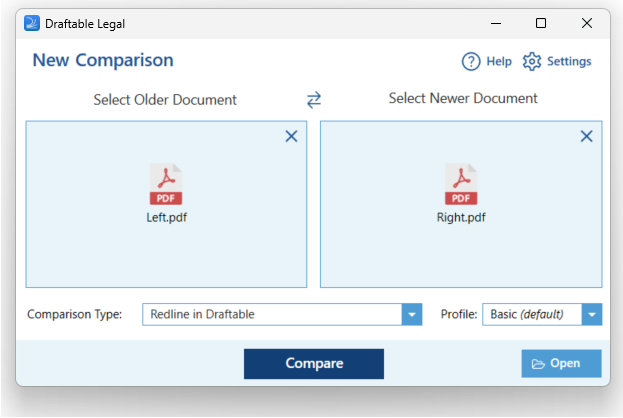
Start by opening the New Comparison window, selecting a Redline comparison as the comparison type. Choose your documents, and then hit **Compare**.
 On the top ribbon menu of the comparison viewer, select the **Print** option. From here you can select the following options
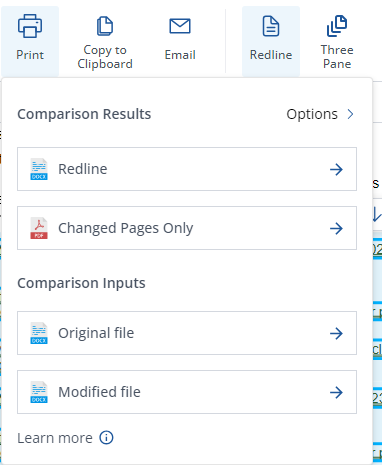 * From here you can select from four options:
* **Redline (DOCX):** Print the comparison as a Redline output as a DOCX file
* **Changed Pages Only:** This output shows only the changed pages between the older and newer documents. It marks up all changes in the changed pages as a Redline view
* **Original file:** An copy of the older document
* **Modified file:** An copy of the newer document
Click on the **Print export option** and you will be prompted to print your output and follow the printing dialog that appears.
## Summary page
The summary page option can be shown by selecting the **options** icon in the email output window.
* From here you can select from four options:
* **Redline (DOCX):** Print the comparison as a Redline output as a DOCX file
* **Changed Pages Only:** This output shows only the changed pages between the older and newer documents. It marks up all changes in the changed pages as a Redline view
* **Original file:** An copy of the older document
* **Modified file:** An copy of the newer document
Click on the **Print export option** and you will be prompted to print your output and follow the printing dialog that appears.
## Summary page
The summary page option can be shown by selecting the **options** icon in the email output window.
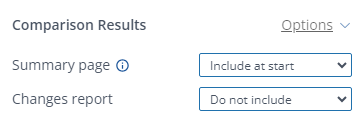 This allows you to add a summary page to the output and there are 3 options:
* **Include at end:** Adds a summary page at the end of the output
* **Include at start:** Adds a summary page at the start of the output
* **Do not include:** Does not add a summary page
You can also choose to include a changes report as well, with the same options as above.
This allows you to add a summary page to the output and there are 3 options:
* **Include at end:** Adds a summary page at the end of the output
* **Include at start:** Adds a summary page at the start of the output
* **Do not include:** Does not add a summary page
You can also choose to include a changes report as well, with the same options as above.