> ## Documentation Index
> Fetch the complete documentation index at: https://help.draftable.com/llms.txt
> Use this file to discover all available pages before exploring further.
# Launching comparisons directly from file explorer
> Draftable Legal simplifies document comparison by starting comparisons directly from your file explorer's menu.
File explorer is a file manager application that is included with Microsoft Windows, and examples of how to launch comparisons for both Windows 11 and 10 are shown in this article.
## How to launch comparisons directly from file explorer (Windows 11)
Navigate to the desired folder which contains your desired files to compare
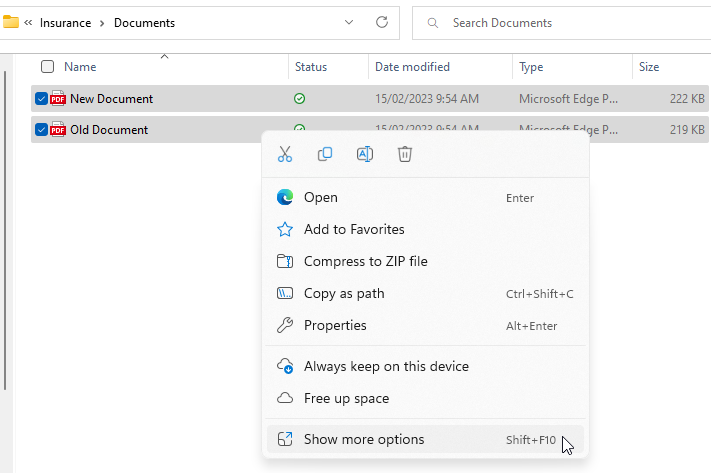
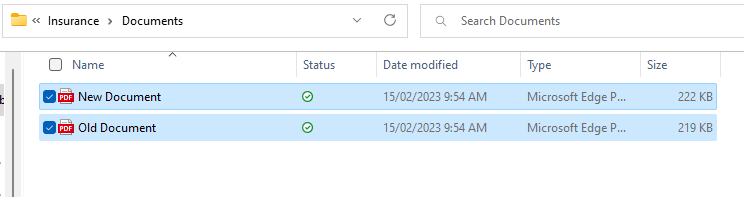 Select the files and **right-click** them, and then click **Show more options**
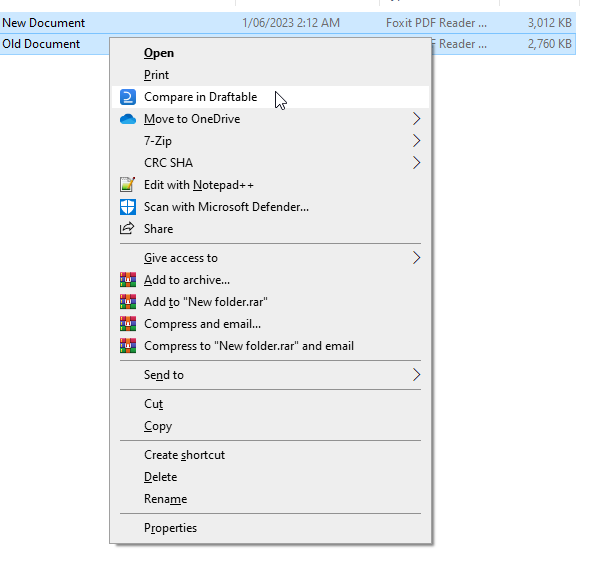
 Click **Compare with Draftable**
 The New Comparison window will appear with your selected documents
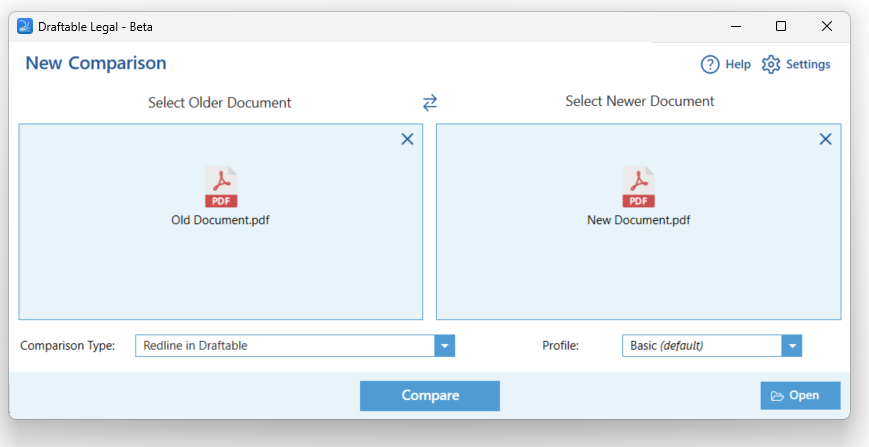 Just select the **comparison type** and click **compare** when you're ready!
## How to launch comparisons directly from file explorer (Windows 10)
Navigate to the desired folder which contains your desired files to compare
Just select the **comparison type** and click **compare** when you're ready!
## How to launch comparisons directly from file explorer (Windows 10)
Navigate to the desired folder which contains your desired files to compare
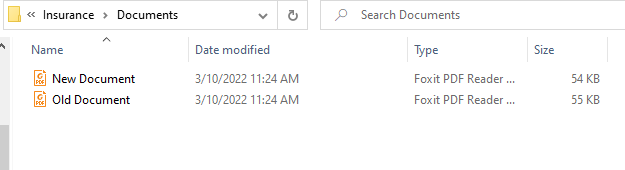 Select the files and **right-click** them, and then click **Compare with Draftable**
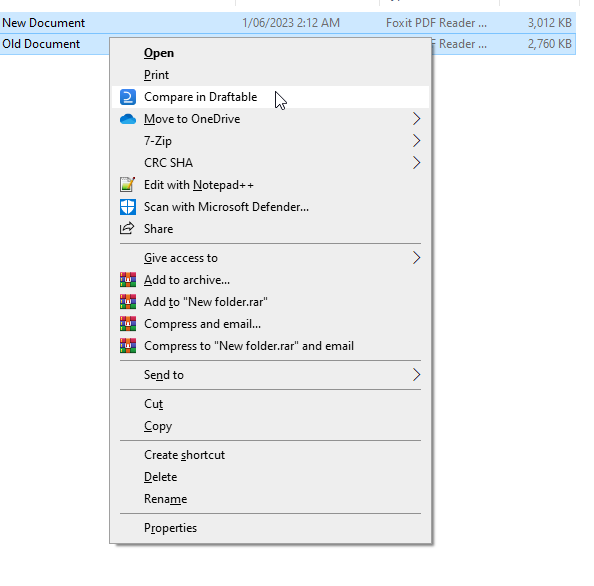 The New Comparison window will appear with your selected documents
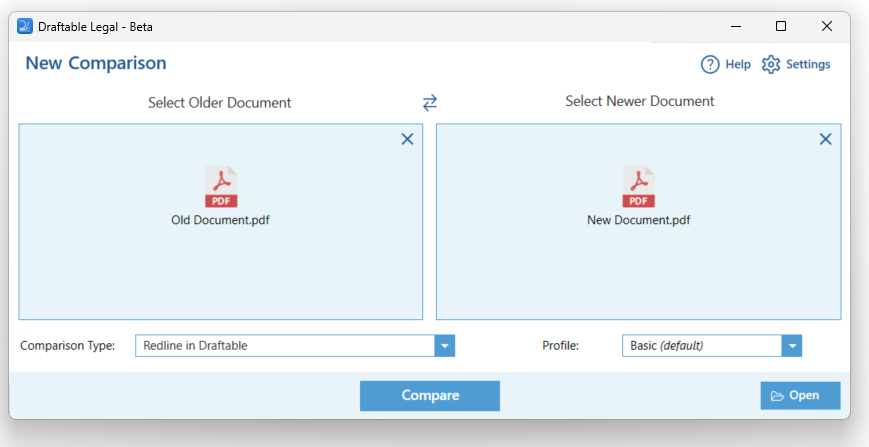 Just select the **comparison type** and click **compare** when you're ready!
## Drag and drop
You can also **drag and drop** your files directly from File Explorer into the **New Comparison** window to add documents for your comparison.
Just select the **comparison type** and click **compare** when you're ready!
## Drag and drop
You can also **drag and drop** your files directly from File Explorer into the **New Comparison** window to add documents for your comparison.
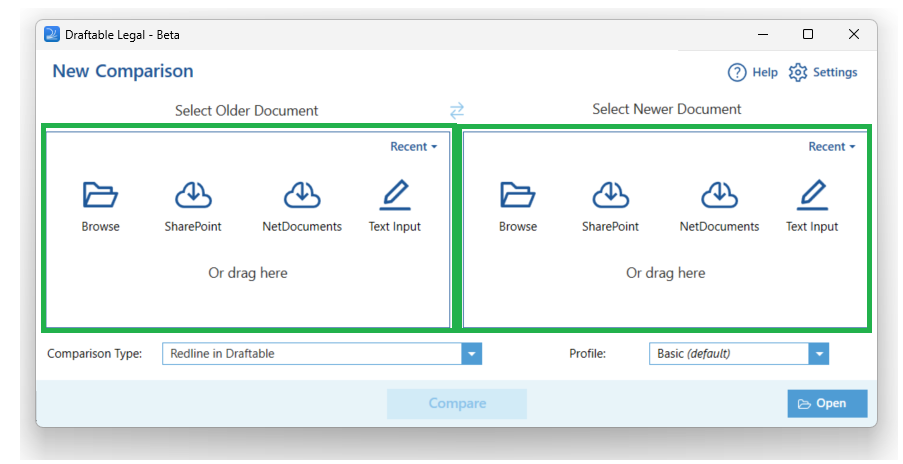 Simply click and drag the documents from your file location into each area for the older and newer documents.
**New Outlook — Drag and drop not supported:**
Dragging and dropping email attachments from Microsoft's **New Outlook** into Draftable is not supported. This is due to a Microsoft limitation — New Outlook does not expose file attachment data in a way that external applications can consume. To compare email attachments when using New Outlook, use the [Draftable for Outlook](/hc/en-us/articles/Using-Draftable-for-Outlook) or [Draftable in Outlook](/hc/en-us/articles/Using-Draftable-in-Outlook) add-in workflows instead of drag and drop. See [Microsoft's documentation](https://learn.microsoft.com/en-us/answers/questions/5535929/new-outlook-drag-drop-support-in-winforms) for further details.
Simply click and drag the documents from your file location into each area for the older and newer documents.
**New Outlook — Drag and drop not supported:**
Dragging and dropping email attachments from Microsoft's **New Outlook** into Draftable is not supported. This is due to a Microsoft limitation — New Outlook does not expose file attachment data in a way that external applications can consume. To compare email attachments when using New Outlook, use the [Draftable for Outlook](/hc/en-us/articles/Using-Draftable-for-Outlook) or [Draftable in Outlook](/hc/en-us/articles/Using-Draftable-in-Outlook) add-in workflows instead of drag and drop. See [Microsoft's documentation](https://learn.microsoft.com/en-us/answers/questions/5535929/new-outlook-drag-drop-support-in-winforms) for further details.