> ## Documentation Index
> Fetch the complete documentation index at: https://help.draftable.com/llms.txt
> Use this file to discover all available pages before exploring further.
# iManage Integration with Draftable Legal
> iManage is a document and email management software for legal, financial, and accounting professionals. It provides advanced features and an intuitive interface to securely organize, store, and collaborate on documents.
**The settings menu was reorganised in Draftable Legal 26.6.** If you are on 26.6 or later, follow the "26.6 and later" tabs below. On earlier versions, follow "Before 26.6". To check your version, open Settings. The version number shows at the bottom-left (for example, v26.6.0).
You can connect your iManage account to Draftable Legal, which will save comparison outputs into iManage. In this article, we will guide you in connecting your iManage account to Draftable Legal.
**Video Resource:** For a comprehensive understanding of Draftable with iManage, we offer our specially crafted explainer video, accessible [via this link.](/hc/en-us/articles/27925873128601-Draftable-Legal-integration-with-iManage)
## Connecting your iManage account to Draftable Legal
Depending on what version of Draftable you are using, there are two different procedures you need to follow depending on the version.
### If you are using Draftable v25.9.300 or earlier:
Now we need to ensure that we are logging into our cloud iManage account. Open the iManage settings and select **cloud**.
Ensure you have logged into iManage on your Draftable Legal application. This can be done following the process below.
Open the settings menu and navigate to the iManage settings.
Open the **Integrations** section of the settings and select **iManage**.
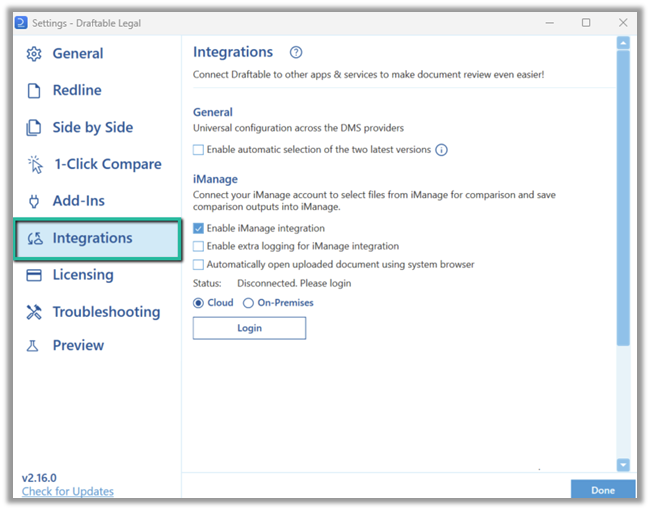 Click the **Login** button and enter your credentials for your iManage account. It should display as *Connected as* with your correct account details if done correctly.
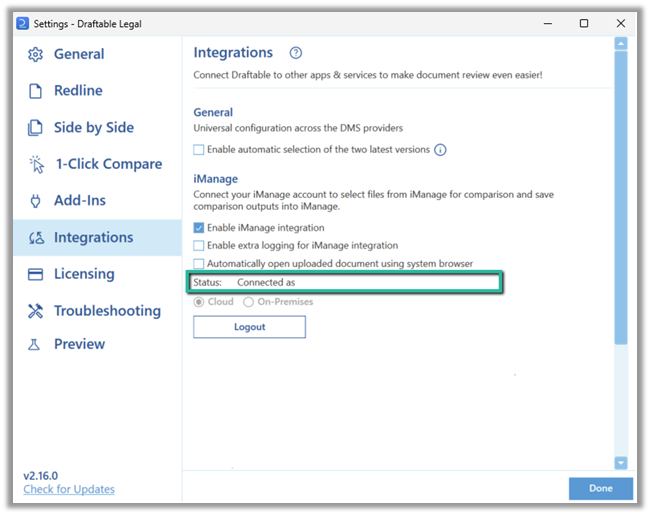 That concludes the iManage configuration process between Draftable Legal and cloud iManage.
### If you are using Draftable v25.10.000 or later
Before you can connect, you need to turn on the iManage integration. In the settings menu, select **DMS Connections**, find the **iManage** section, and switch on its enable toggle. The connection options and **Servers** list only appear once iManage is enabled.
That concludes the iManage configuration process between Draftable Legal and cloud iManage.
### If you are using Draftable v25.10.000 or later
Before you can connect, you need to turn on the iManage integration. In the settings menu, select **DMS Connections**, find the **iManage** section, and switch on its enable toggle. The connection options and **Servers** list only appear once iManage is enabled.
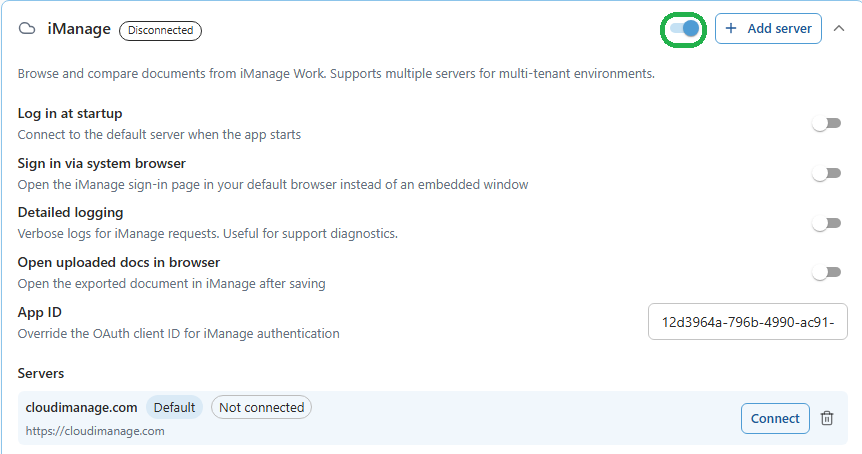 Open the settings menu, select **DMS Connections**, then expand the **iManage** section.
Here you can manage your connection options, including **Log in at startup**, **Sign in via system browser**, **Detailed logging**, **Open uploaded docs in browser**, and **App ID**. Your iManage servers are listed at the bottom under **Servers**.
Open the settings menu, select **DMS Connections**, then expand the **iManage** section.
Here you can manage your connection options, including **Log in at startup**, **Sign in via system browser**, **Detailed logging**, **Open uploaded docs in browser**, and **App ID**. Your iManage servers are listed at the bottom under **Servers**.
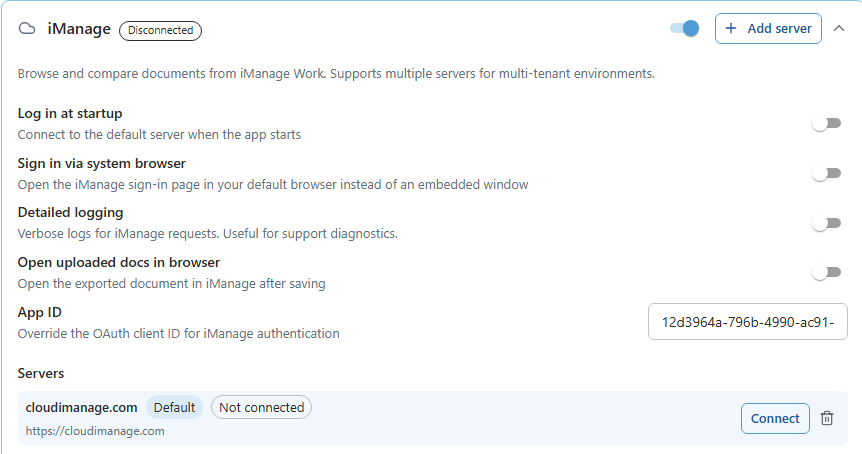 To add a server, click **Add server**. In the **Add iManage Server** dialog, enter your iManage Work server address in the **Server URL** field (for example, `https://cloudimanage.com`), then click **Add Server**.
In 26.6 and later the dialog has a single **Server URL** field. There is no separate name field; the server name is taken from the URL. You connect and authenticate after the server has been added.
To add a server, click **Add server**. In the **Add iManage Server** dialog, enter your iManage Work server address in the **Server URL** field (for example, `https://cloudimanage.com`), then click **Add Server**.
In 26.6 and later the dialog has a single **Server URL** field. There is no separate name field; the server name is taken from the URL. You connect and authenticate after the server has been added.
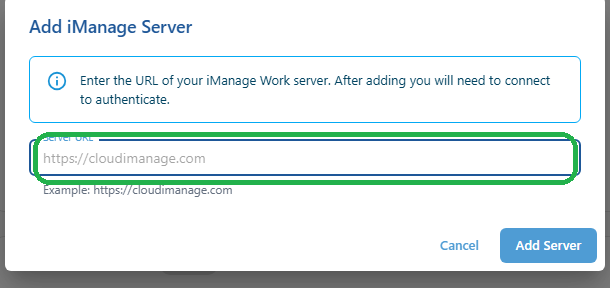 The server is added to the **Servers** list. You can add more than one server if you work across multiple tenancies.
 Find the server you want to use in the **Servers** list and click **Connect**, then enter your iManage credentials (unless they have already been configured by Group Policy).
 Once authentication succeeds, the connection is validated: the iManage header shows a green **Connected as** badge with your account, the server is marked **Connected** in the **Servers** list, and its **Connect** button changes to **Disconnect**.
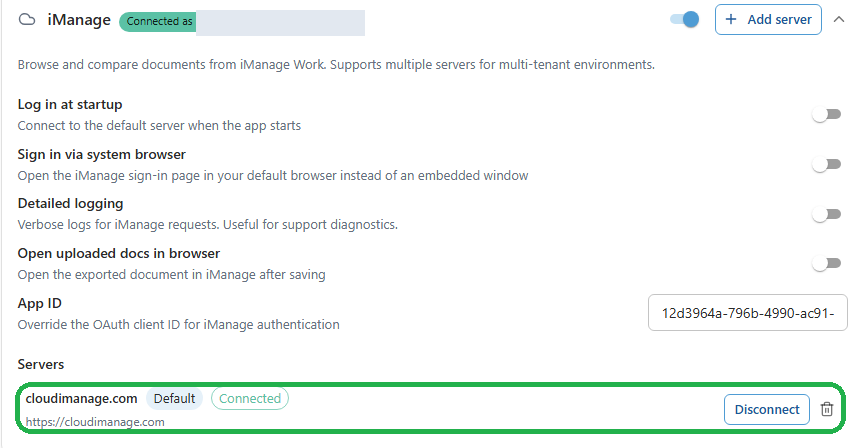 Open the settings menu and navigate to the iManage settings.
Open the **Integrations** section of the settings and select **iManage**.
Open the settings menu and navigate to the iManage settings.
Open the **Integrations** section of the settings and select **iManage**.
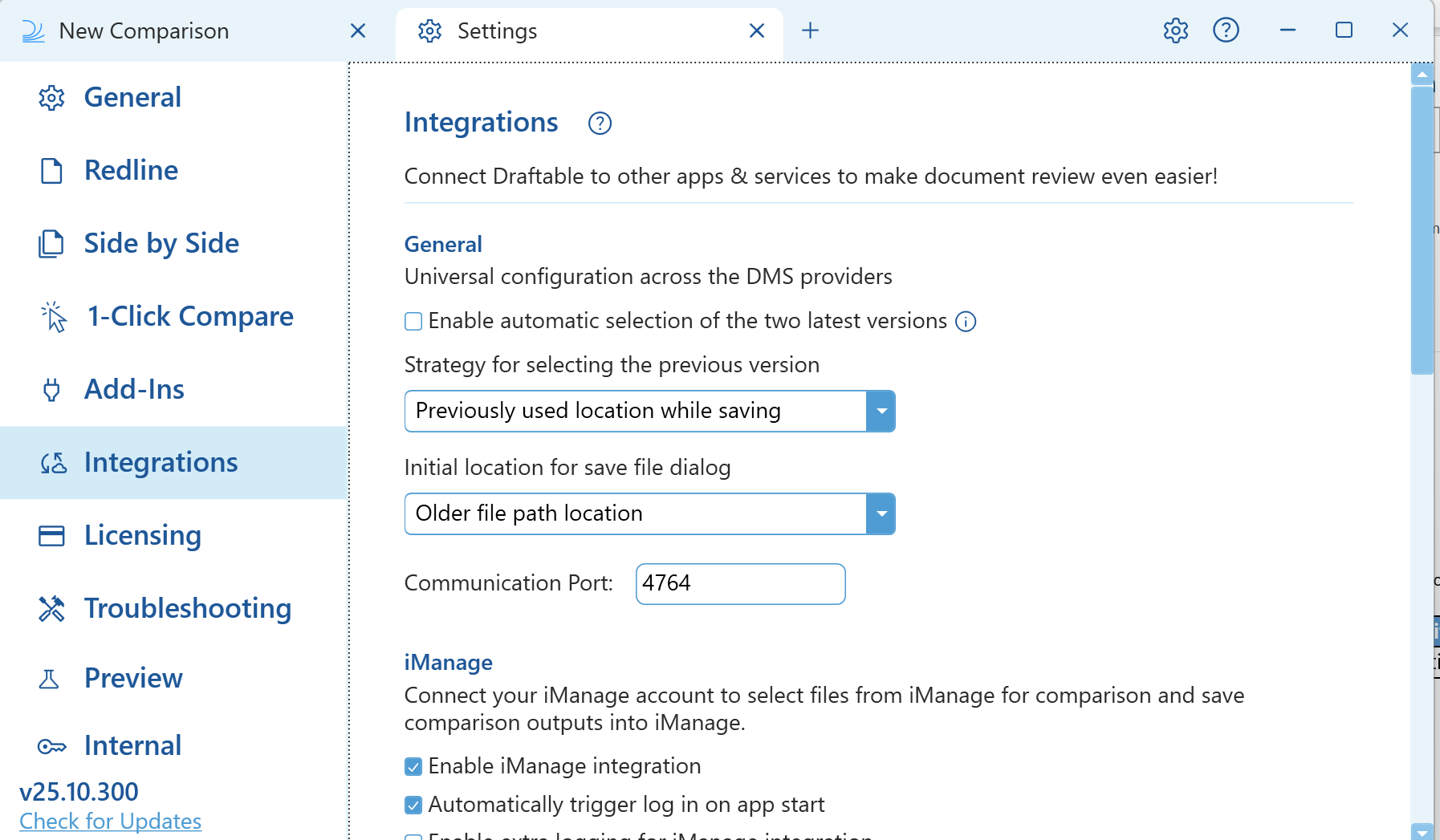 Enter your credentials for your iManage account (if they haven't already been configured by Group Policy) by clicking the arrow in the **Manage endpoints** section.
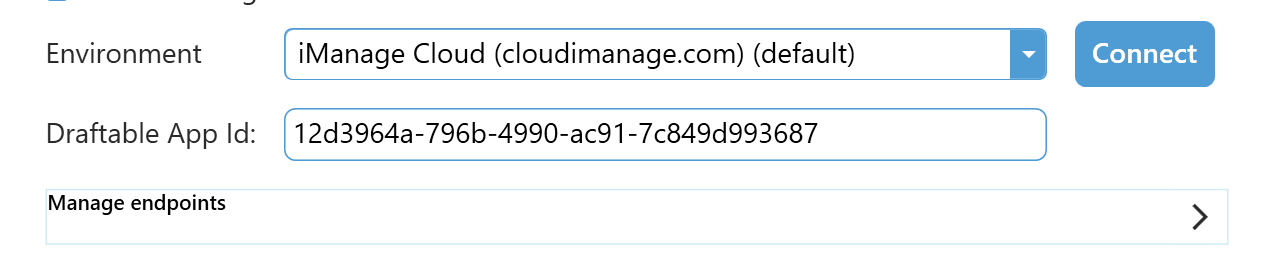 You can enter the endpoint name and the endpoint URL. This is important if you are using multiple tenancies.
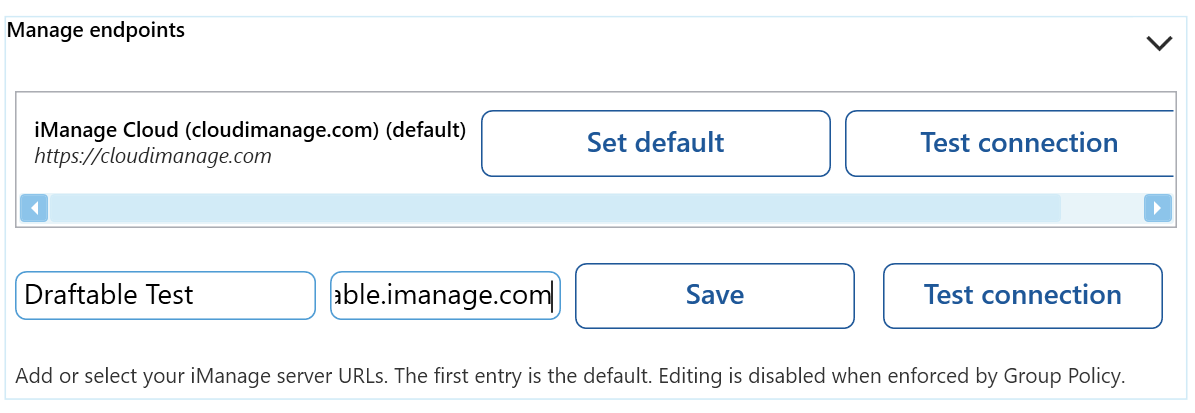 Click the **Save** button. It will now add that endpoint to the endpoint section.
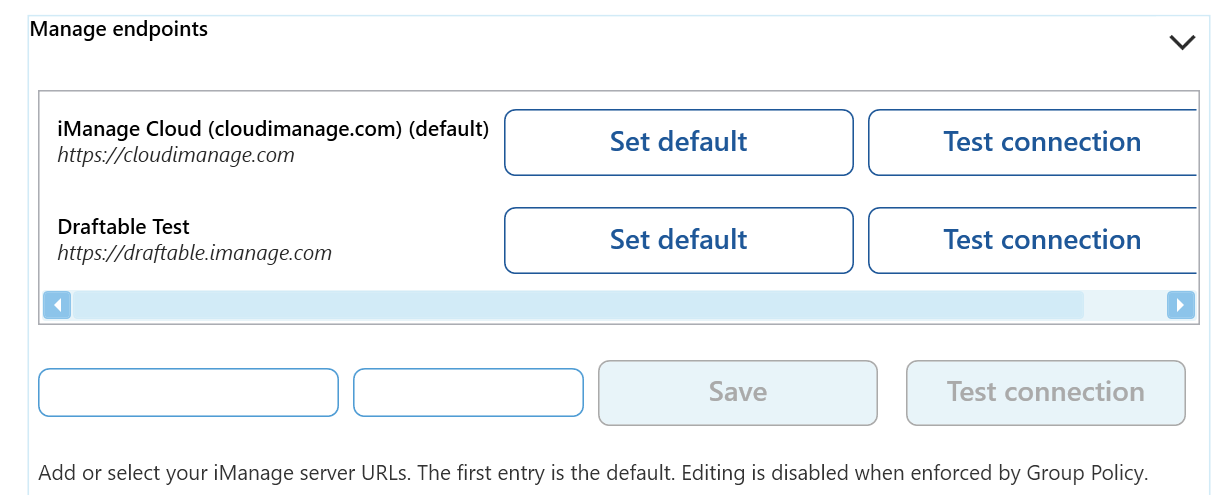 In the environment dropdown section, select the endpoint you want to connect to and click **Connect**. In this case, you would select the On-Premises endpoint you would've just defined.
 Connection is validated when the "Logout" button appears and the dropdown icon greys out.
 That concludes the iManage configuration process between Draftable Legal and cloud iManage.