> ## Documentation Index
> Fetch the complete documentation index at: https://help.draftable.com/llms.txt
> Use this file to discover all available pages before exploring further.
# Configuring Side-by-Side comparison settings
> The side-by-side comparison settings allow users to configure the contents and experience of side-by-side comparisons. Draftable Legal has a dedicated side-by-side comparison settings section, which provides many options so that your comparisons appear the way you want them to.
**The settings menu was reorganised in Draftable Legal 26.6.** If you are on 26.6 or later, follow the "26.6 and later" tabs below. On earlier versions, follow "Before 26.6". To check your version, open Settings. The version number shows at the bottom-left (for example, v26.6.0).
This article includes information on the following topics:
* **How to access the side-by-side comparison options**
* **Comparison output options**
* **Viewer options**
## Accessing the Side by Side settings
### Open the settings menu via the taskbar
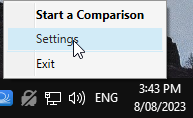
Right-click the **Draftable Legal** icon in the taskbar
Select **Settings** as the 2nd option
 ### Open the settings menu via the new comparison window
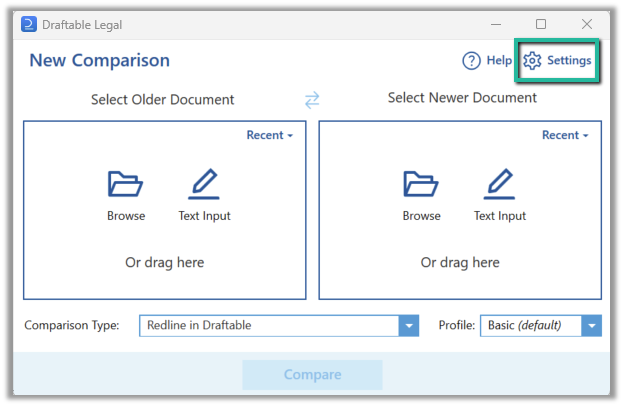
Open the [New Comparison window](/hc/en-us/articles/19002140760217-Launching-a-Comparison-in-Draftable-Legal-A-Step-by-Step-Guide)
Select **Settings** in the top right of the window
### Open the settings menu via the new comparison window
Open the [New Comparison window](/hc/en-us/articles/19002140760217-Launching-a-Comparison-in-Draftable-Legal-A-Step-by-Step-Guide)
Select **Settings** in the top right of the window
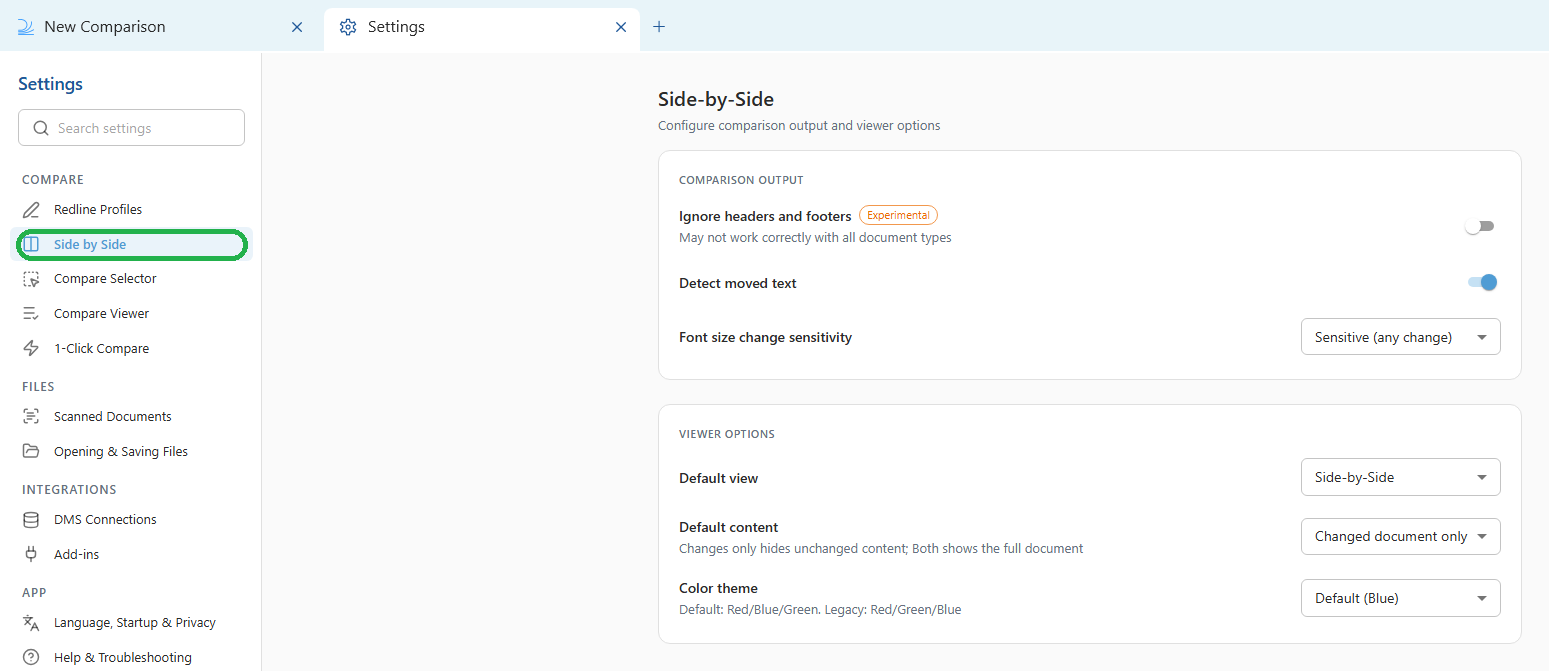
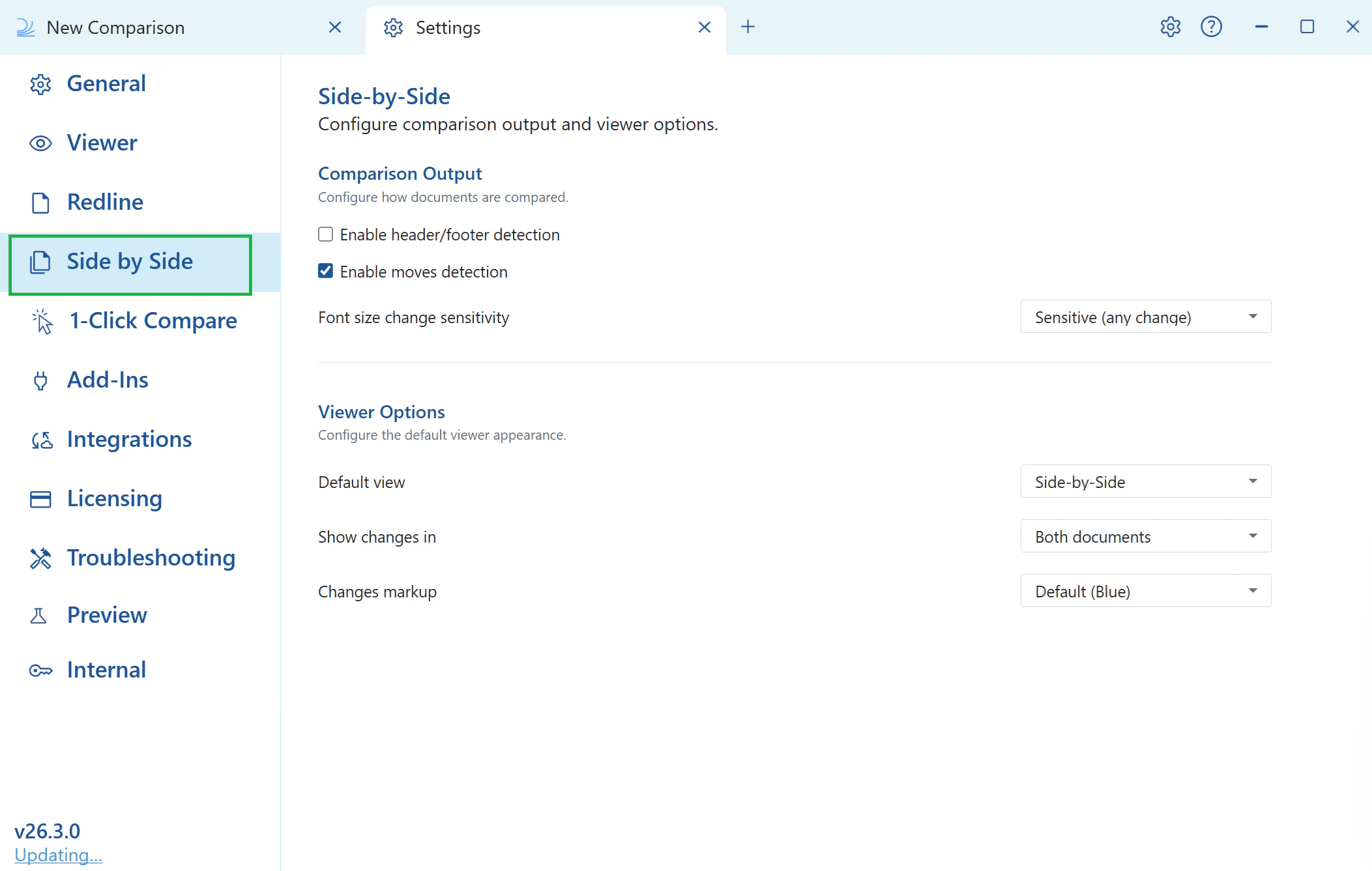
 In 26.6 and later, select **Side by Side** under the **Compare** group. On earlier versions, open the **Side by Side** tab. Either way you get the same comparison output and viewer options.
 ## Comparison output
These options control how the side-by-side comparison behaves and looks.
**Ignore headers and footers** (called "Ignore changes inside Headers and Footers" before 26.6): instructs the comparison not to detect content within headers and footers, including page numbering changes. This is an experimental feature that may not provide full accuracy.
**Detect moved text** (called "Enable moves" before 26.6): toggles moves detection, which detects whether content has been moved positionally between the documents.
**Font size change sensitivity** (called "Font size sensitivity" before 26.6): sets the threshold for font size change detection within side-by-side comparisons.
* **Sensitive (any change):** Detects all changes in font size
* **Somewhat (moderate changes):** Detects only changes in font size that are at least 1pt greater
* **Significant (large changes only):** Detects only changes in font size that are at least 2pt greater
In versions before 26.6, the **Preserve Word comments when converting to PDF** option also lived in the Side by Side comparison output settings. In 26.6 and later, it is renamed **Keep Word comments in PDF output** and moved to the **Help & Troubleshooting** settings under the **Technical** heading.
## Viewer options
These options control the viewer for side-by-side comparisons.
**Default view** (called "Default view mode" before 26.6): sets the view mode shown when you open a comparison.
* **Side-by-Side view:** shows both old and new documents next to each other, with changes marked up in each
* **Single document view:** combines both documents into a single view showing changes inline
**Default content** (called "Default changes shown" before 26.6): sets how much of the document is shown by default.
* **Changed document only:** hides unchanged content so you can focus on what changed
* **Both:** shows the full document
**Color theme** (called "Changes Markup" before 26.6): sets the markup colour scheme.
* **Default (Blue):** Deletions are red, insertions are blue, and moves are green
* **Legacy (Green):** Deletions are red, insertions are green, and moves are blue
In 26.6 the change list default state is set under the **Compare Viewer** settings (as **Change list visibility**) rather than under Side by Side.
## Comparison output
These options control how the side-by-side comparison behaves and looks.
**Ignore headers and footers** (called "Ignore changes inside Headers and Footers" before 26.6): instructs the comparison not to detect content within headers and footers, including page numbering changes. This is an experimental feature that may not provide full accuracy.
**Detect moved text** (called "Enable moves" before 26.6): toggles moves detection, which detects whether content has been moved positionally between the documents.
**Font size change sensitivity** (called "Font size sensitivity" before 26.6): sets the threshold for font size change detection within side-by-side comparisons.
* **Sensitive (any change):** Detects all changes in font size
* **Somewhat (moderate changes):** Detects only changes in font size that are at least 1pt greater
* **Significant (large changes only):** Detects only changes in font size that are at least 2pt greater
In versions before 26.6, the **Preserve Word comments when converting to PDF** option also lived in the Side by Side comparison output settings. In 26.6 and later, it is renamed **Keep Word comments in PDF output** and moved to the **Help & Troubleshooting** settings under the **Technical** heading.
## Viewer options
These options control the viewer for side-by-side comparisons.
**Default view** (called "Default view mode" before 26.6): sets the view mode shown when you open a comparison.
* **Side-by-Side view:** shows both old and new documents next to each other, with changes marked up in each
* **Single document view:** combines both documents into a single view showing changes inline
**Default content** (called "Default changes shown" before 26.6): sets how much of the document is shown by default.
* **Changed document only:** hides unchanged content so you can focus on what changed
* **Both:** shows the full document
**Color theme** (called "Changes Markup" before 26.6): sets the markup colour scheme.
* **Default (Blue):** Deletions are red, insertions are blue, and moves are green
* **Legacy (Green):** Deletions are red, insertions are green, and moves are blue
In 26.6 the change list default state is set under the **Compare Viewer** settings (as **Change list visibility**) rather than under Side by Side.