> ## Documentation Index
> Fetch the complete documentation index at: https://help.draftable.com/llms.txt
> Use this file to discover all available pages before exploring further.
# New Comparison: How to launch and set up a comparison
> There are several ways to launch the Draftable Legal comparison window, and we will cover four different methods to help you choose the most convenient option for your workflow.
**Video Resource:** This topic is included in our specially crafted explainer videos:
* For iManage users, it's accessible [via this link.](/hc/en-us/articles/33897196071833-Draftable-Legal-Uploading-Files-Launching-Comparison-iManage-users)
* For NetDocuments users, it's accessible [via this link.](/hc/en-us/articles/33898410808729-Draftable-Legal-Uploading-Files-Launching-Comparison-NetDocuments-users)
## Method 1: Double-click the Draftable Icon on the Desktop
Locate the Draftable Legal icon on your desktop. The icon should display the Draftable logo and be labelled **"Draftable Desktop"**.\\
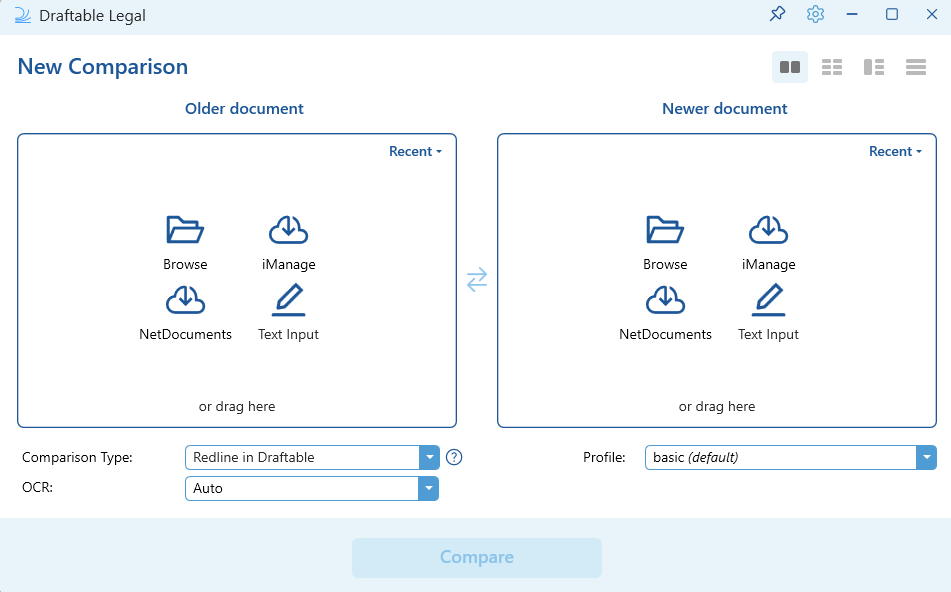
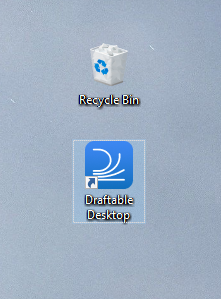 Double-click the Draftable Legal icon using your left mouse button. The software will launch, and you should see the Draftable Compare window appear on your screen.\\
 ## Method 2: Start a Comparison from the Taskbar
Find the Draftable Legal icon in your taskbar, usually located at the bottom right corner of your screen. The icon should display the Draftable logo.
## Method 2: Start a Comparison from the Taskbar
Find the Draftable Legal icon in your taskbar, usually located at the bottom right corner of your screen. The icon should display the Draftable logo.
 **Note:**
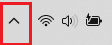
If the Draftable Legal logo does not appear in the taskbar, click the **up arrow** to expand the taskbar overflow and you should see the Draftable logo there.
**Note:**
If the Draftable Legal logo does not appear in the taskbar, click the **up arrow** to expand the taskbar overflow and you should see the Draftable logo there.
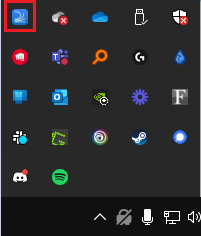 Right-click the Draftable Legal icon using your right mouse button to open a menu.\\
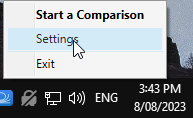 In the menu, click on "Start a comparison." The Draftable Legal software will launch, and you should see the Draftable Legal New Comparison window appear on your screen with the comparison interface.\\
## Method 3: Search for Draftable in the Windows Search Bar
Click on the Windows Search bar, usually located at the bottom left corner of your screen.\\
In the menu, click on "Start a comparison." The Draftable Legal software will launch, and you should see the Draftable Legal New Comparison window appear on your screen with the comparison interface.\\
## Method 3: Search for Draftable in the Windows Search Bar
Click on the Windows Search bar, usually located at the bottom left corner of your screen.\\
 Type "Draftable" in the search bar and wait for the search results to appear.\\
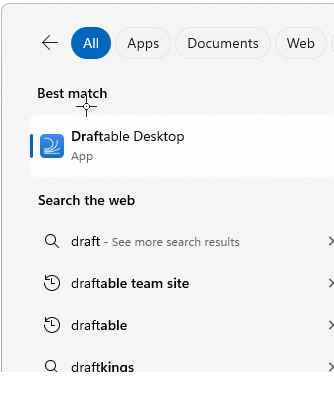 In the search results, locate the Draftable application with the Draftable Legal logo. Click on it using your left mouse button to launch the software. The Draftable New Comparison window should appear on your screen.\\
## Method 4: Opening Draftable via Microsoft Word
If you are working with a document in Microsoft Word that you want to compare, you can open Draftable Legal from within Microsoft Word.
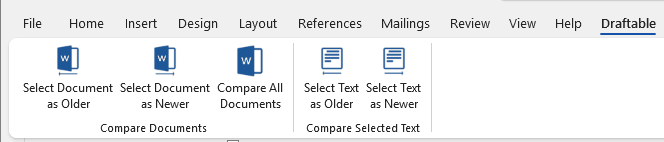
In Microsoft Word, select the tab **Draftable**\\
In the search results, locate the Draftable application with the Draftable Legal logo. Click on it using your left mouse button to launch the software. The Draftable New Comparison window should appear on your screen.\\
## Method 4: Opening Draftable via Microsoft Word
If you are working with a document in Microsoft Word that you want to compare, you can open Draftable Legal from within Microsoft Word.
In Microsoft Word, select the tab **Draftable**\\
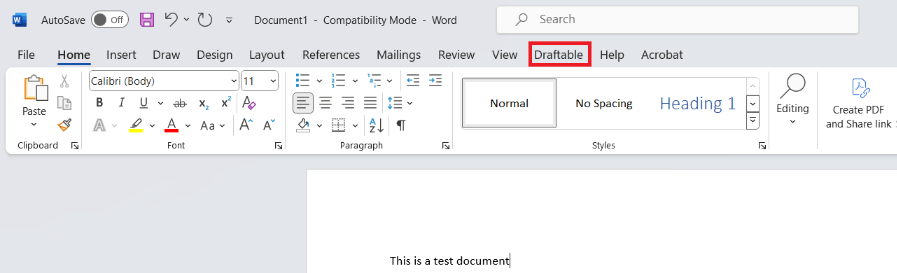 Then click, **Compare Document as Older or Newer** (Clicking Compare Text will compare the selected text content of the Word document as Older or Newer).\\
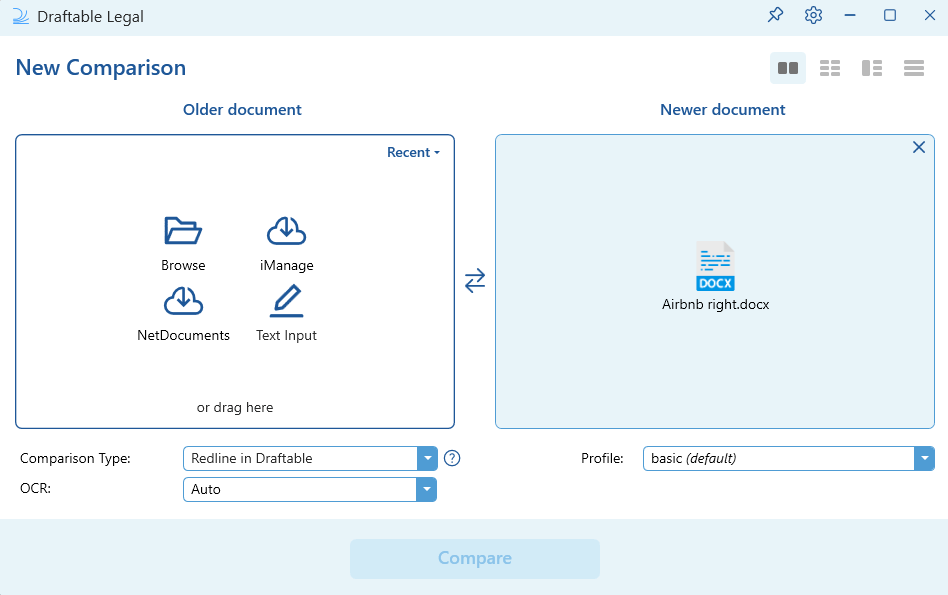
 The New comparison window will open with the Word document you were working on within Microsoft Word automatically depending on whether you choose the Newer or Older document option within the Add-in. Simply select the other document and hit **Compare** to start a comparison.\\
 ## Method 5: Opening Draftable via Microsoft Outlook
**New Outlook — Drag and drop not supported:**
Dragging and dropping email attachments from Microsoft's **New Outlook** into Draftable is not supported. This is due to a Microsoft limitation — New Outlook does not expose file attachment data in a way that external applications can consume. To compare email attachments when using New Outlook, use the Draftable Outlook Add-in workflows described below, or use the [Draftable for Outlook](/hc/en-us/articles/Using-Draftable-for-Outlook) / [Draftable in Outlook](/hc/en-us/articles/Using-Draftable-in-Outlook) add-ins. See [Microsoft's documentation](https://learn.microsoft.com/en-us/answers/questions/5535929/new-outlook-drag-drop-support-in-winforms) for further details.
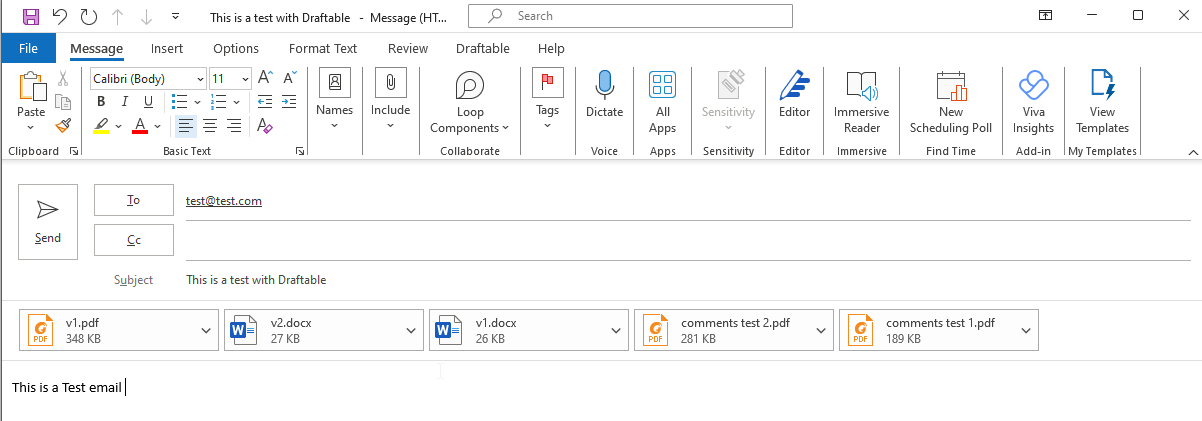
Open any email that you wish to compare with the documents attached or the text itself within the email. Below is an example email used to show how this process is done. \\
## Method 5: Opening Draftable via Microsoft Outlook
**New Outlook — Drag and drop not supported:**
Dragging and dropping email attachments from Microsoft's **New Outlook** into Draftable is not supported. This is due to a Microsoft limitation — New Outlook does not expose file attachment data in a way that external applications can consume. To compare email attachments when using New Outlook, use the Draftable Outlook Add-in workflows described below, or use the [Draftable for Outlook](/hc/en-us/articles/Using-Draftable-for-Outlook) / [Draftable in Outlook](/hc/en-us/articles/Using-Draftable-in-Outlook) add-ins. See [Microsoft's documentation](https://learn.microsoft.com/en-us/answers/questions/5535929/new-outlook-drag-drop-support-in-winforms) for further details.
Open any email that you wish to compare with the documents attached or the text itself within the email. Below is an example email used to show how this process is done. \\
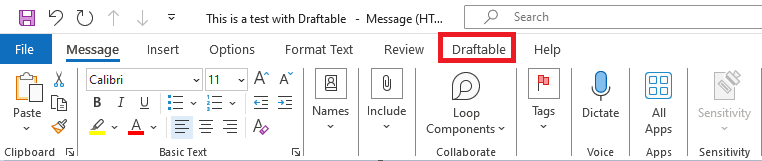
 Note the **Draftable** toolbar item at the top of Outlook as highlight below. Select **Draftable** to open this toolbar item.\\
 Now you will be presented with three icons, one called **Compare attachments**, another called **1-Click Compare** and the third called **Compare text.** **Compare Attachments** allows you to select documents attached in the email for compare, **1-Click Compare** allows you to compare and generate the output you have set in the Draftable Settings, \*\* \*\*whilst **Compare text** allows you to highlight text within the email to directly add to the New Comparison window for text compare.\\
 ## Using the Compare Attachments option
If you wish to compare documents that are attached in your email, in the Draftable tab select **Compare Attachments.**
## Using the Compare Attachments option
If you wish to compare documents that are attached in your email, in the Draftable tab select **Compare Attachments.**
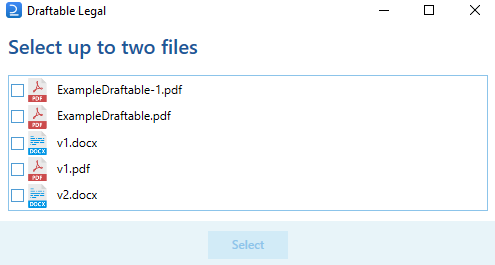
 You will be presented with a new window that requests you to select two files from the list of attachments on the email. Select the files you wish to compare then click **Select.**
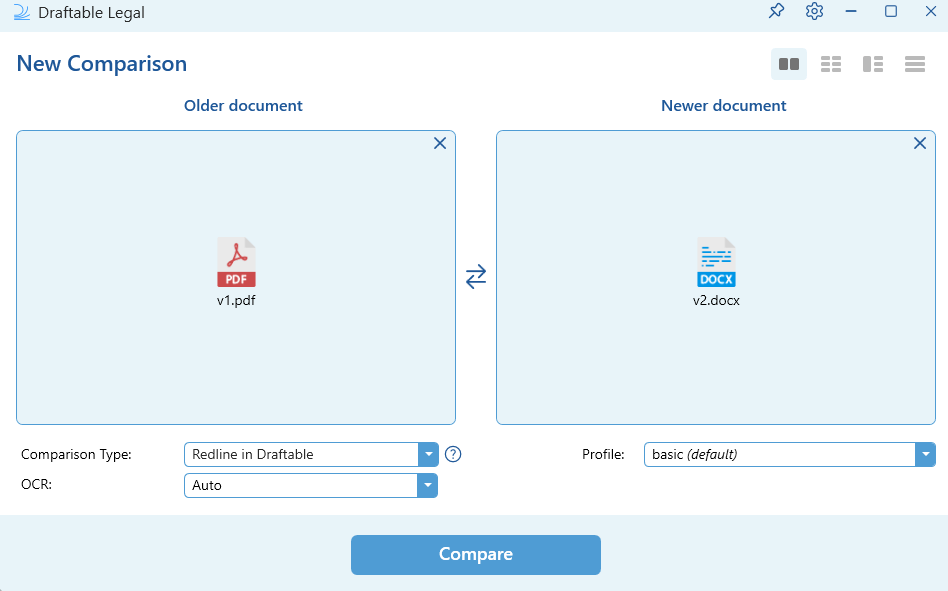
 The New Comparison window will open showing the selected documents chosen in the last step. Simply hit **Compare** to compare these documents.
 ## Using the Compare text option
If you wish to compare text from within an email, first highlight the text within the email you want to add to the comparison and then select **Compare text.**
## Using the Compare text option
If you wish to compare text from within an email, first highlight the text within the email you want to add to the comparison and then select **Compare text.**

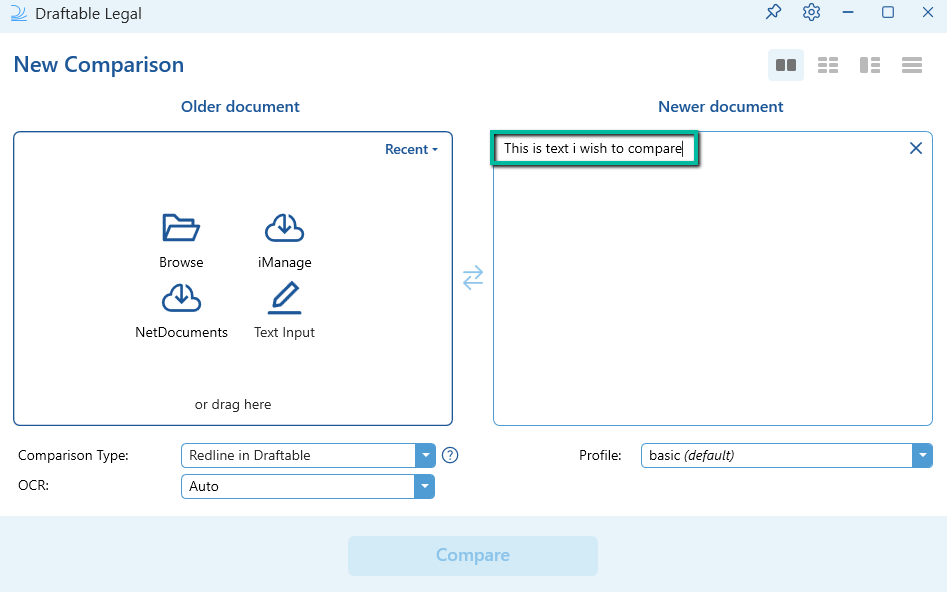
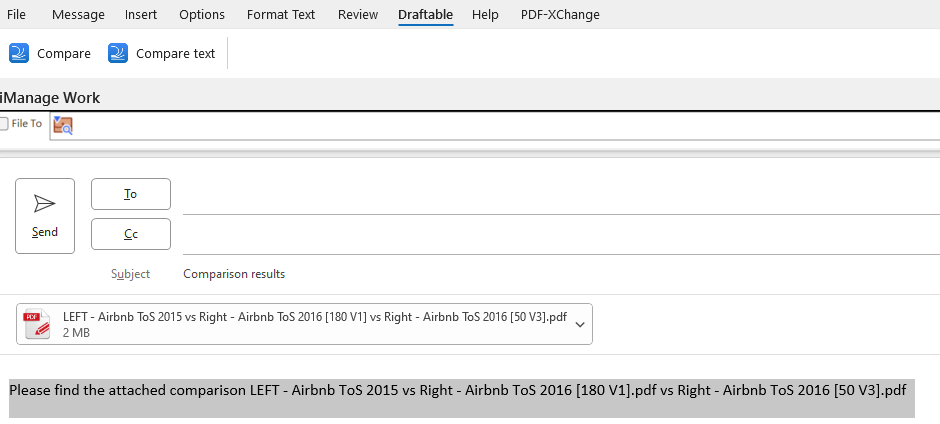 The New Comparison window will open with the selected text from the email added to one of the text/document selection windows, as shown below.