> ## Documentation Index
> Fetch the complete documentation index at: https://help.draftable.com/llms.txt
> Use this file to discover all available pages before exploring further.
# Customizing your Draftable Legal experience
> A guide to the Draftable Legal settings menu and what each section configures, covering both the 26.6 and later layout and earlier versions.
**The settings menu was reorganised in Draftable Legal 26.6.** If you are on 26.6 or later, follow the "26.6 and later" tabs below. On earlier versions, follow "Before 26.6". To check your version, open Settings. The version number shows at the bottom-left (for example, v26.6.0).
## Opening the settings menu
There are 3 methods that allow you to open the settings menu for Draftable Legal.
### Open the settings menu via the taskbar
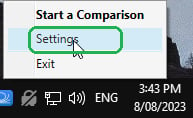
Right-click the **Draftable Legal** icon in the taskbar
Select **Settings** as the 2nd option
 ### Open the settings menu via the New Comparison Window
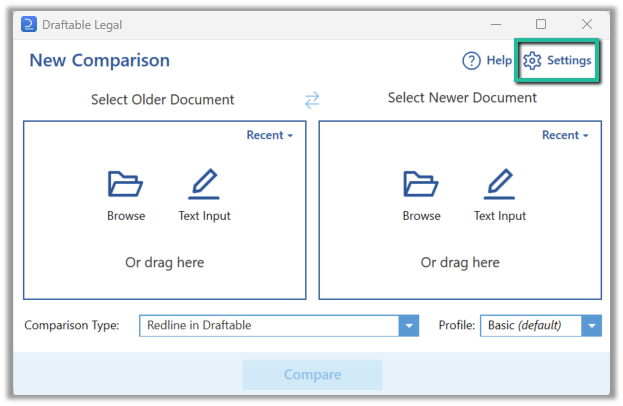
Open the [New Comparison window](/hc/en-us/articles/19002140760217-Launching-a-Comparison-in-Draftable-Legal-A-Step-by-Step-Guide)
Select **Settings** in the top right of the window
### Open the settings menu via the New Comparison Window
Open the [New Comparison window](/hc/en-us/articles/19002140760217-Launching-a-Comparison-in-Draftable-Legal-A-Step-by-Step-Guide)
Select **Settings** in the top right of the window
 ### Open the settings menu whilst viewing a comparison
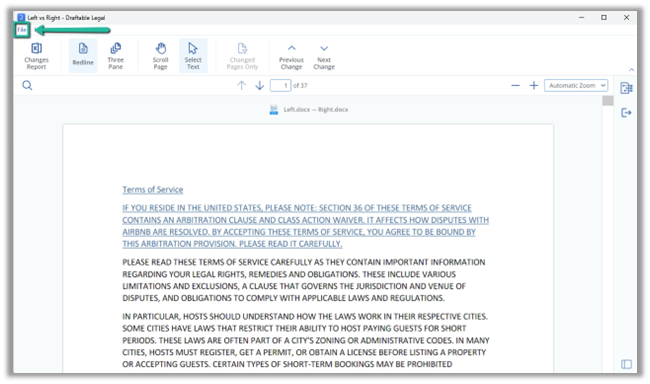
Have the comparison viewer open
Select **Settings** in the top right of the window
### Open the settings menu whilst viewing a comparison
Have the comparison viewer open
Select **Settings** in the top right of the window
 ## Settings sections
The settings available are the same across versions, but Draftable Legal 26.6 reorganised them into a grouped menu with clearer names. Select the tab that matches your version.
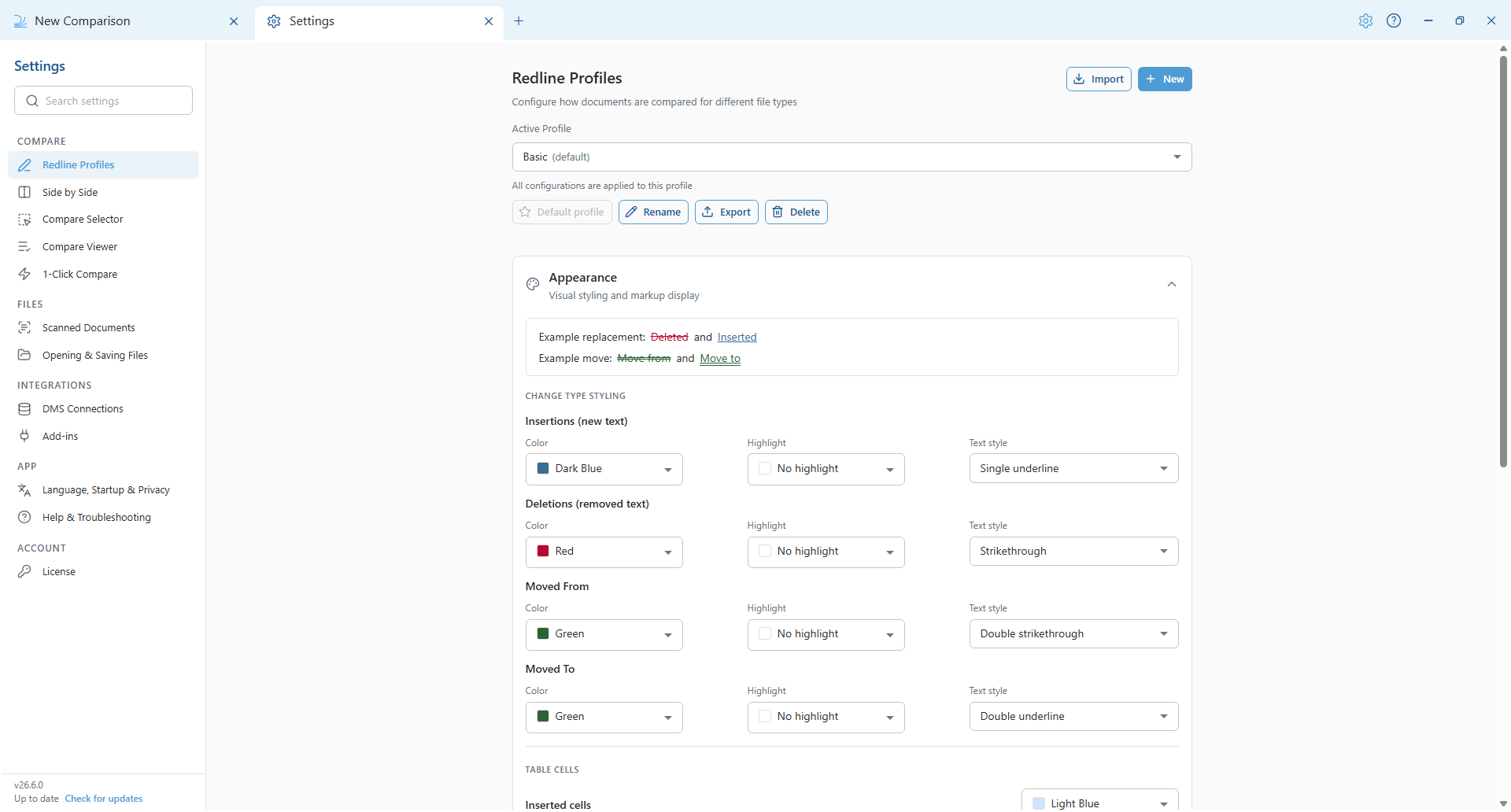
Settings open in a dedicated **Settings** tab, organised into groups: **Compare**, **Files**, **Integrations**, **App**, and **Account**. Select a section in the left-hand list to open it, or use the **Search settings** box at the top to jump straight to a setting.
#### Compare
**Redline Profiles** — Configure how redline comparisons look and behave: markup colours and text styles for insertions, deletions and moves, table cell changes, and per-format options for Word, Excel and PowerPoint. You can also manage comparison profiles here. See [Redline comparison settings](/hc/en-us/articles/16549612535705-Redline-comparison-settings).
## Settings sections
The settings available are the same across versions, but Draftable Legal 26.6 reorganised them into a grouped menu with clearer names. Select the tab that matches your version.
Settings open in a dedicated **Settings** tab, organised into groups: **Compare**, **Files**, **Integrations**, **App**, and **Account**. Select a section in the left-hand list to open it, or use the **Search settings** box at the top to jump straight to a setting.
#### Compare
**Redline Profiles** — Configure how redline comparisons look and behave: markup colours and text styles for insertions, deletions and moves, table cell changes, and per-format options for Word, Excel and PowerPoint. You can also manage comparison profiles here. See [Redline comparison settings](/hc/en-us/articles/16549612535705-Redline-comparison-settings).
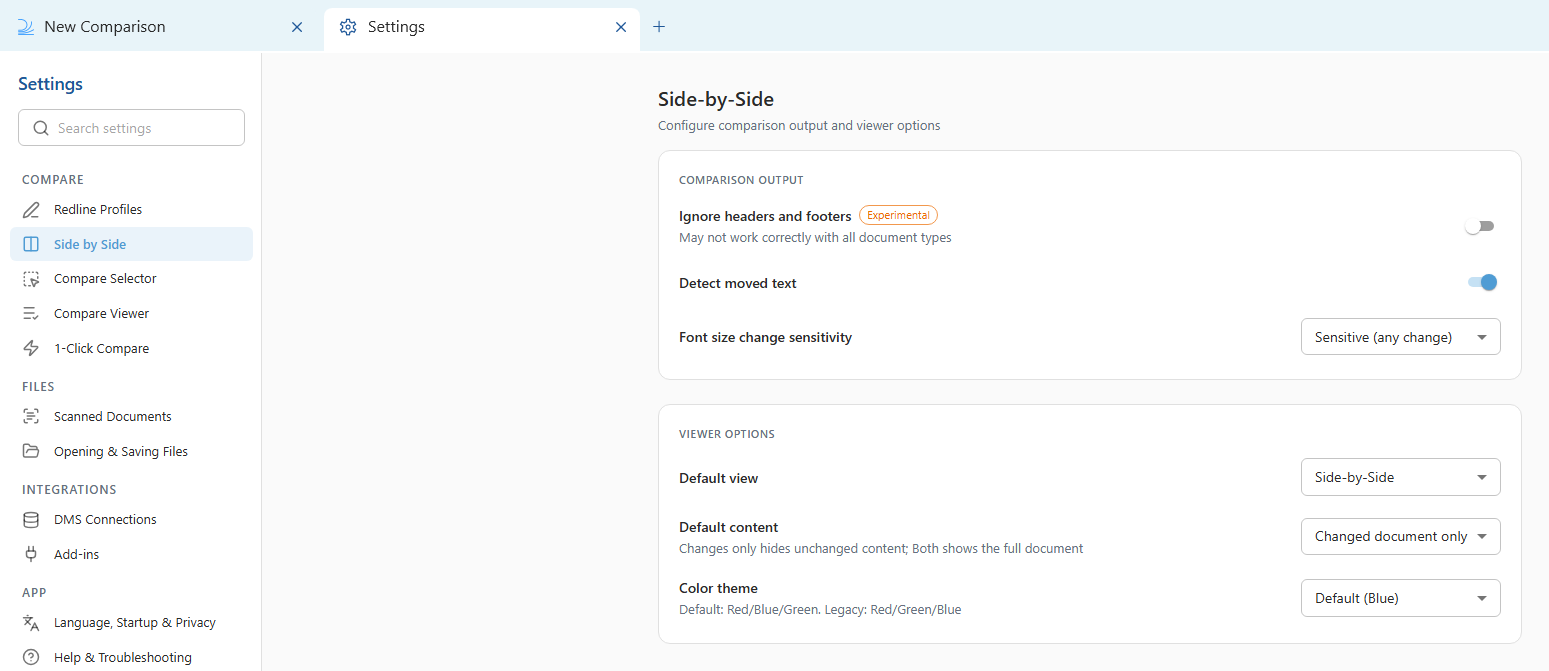
 **Side by Side** — Configure the output and viewer options for side-by-side comparisons. See [Configuring Side-by-Side comparison settings](/hc/en-us/articles/17693437607065-Configuring-Side-by-Side-comparison-settings).
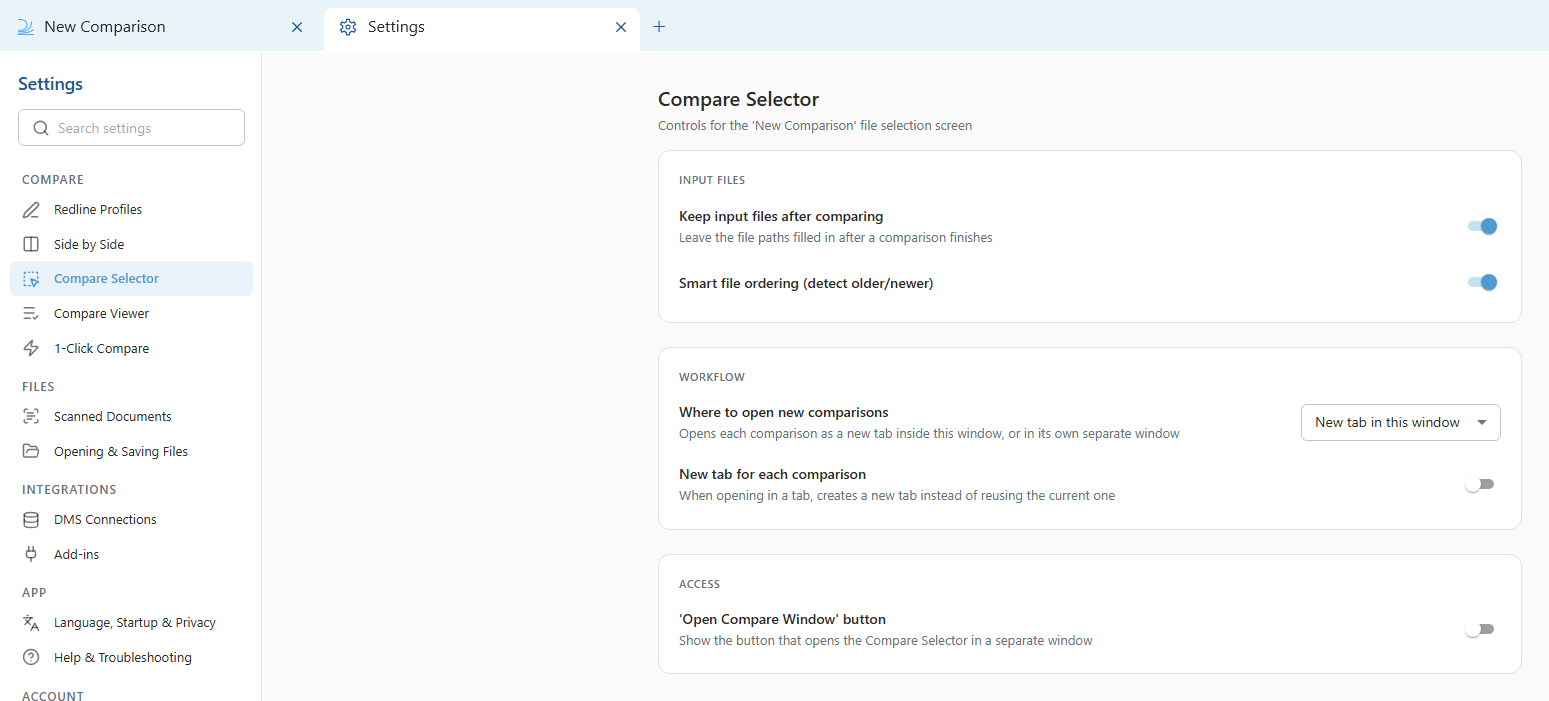
 **Compare Selector** — Controls for the New Comparison screen, including whether to keep input files after comparing, smart file ordering, and where new comparisons open.
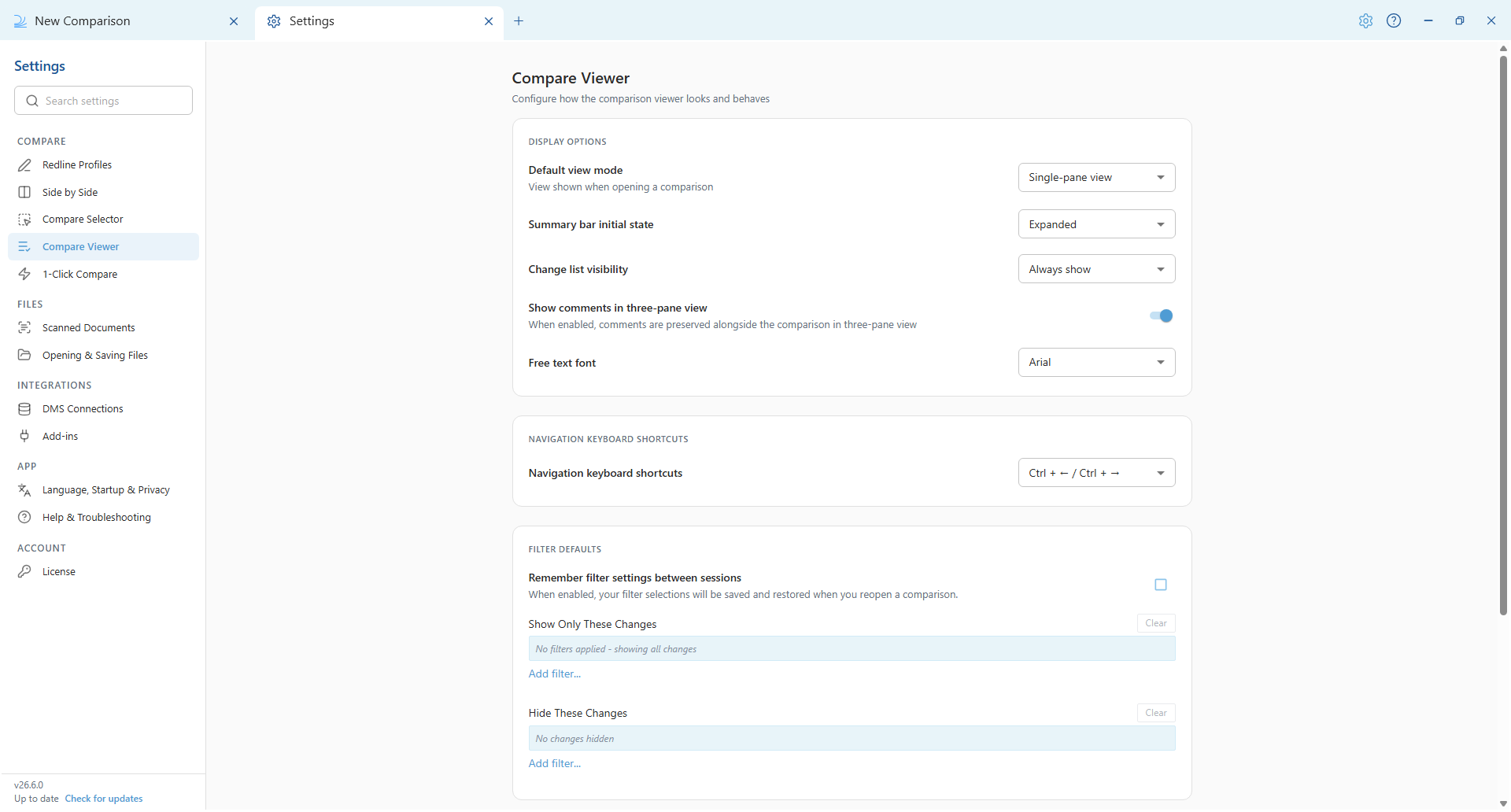
 **Compare Viewer** — How the comparison viewer looks and behaves: default view mode, summary bar, change list, filter defaults and status tags.
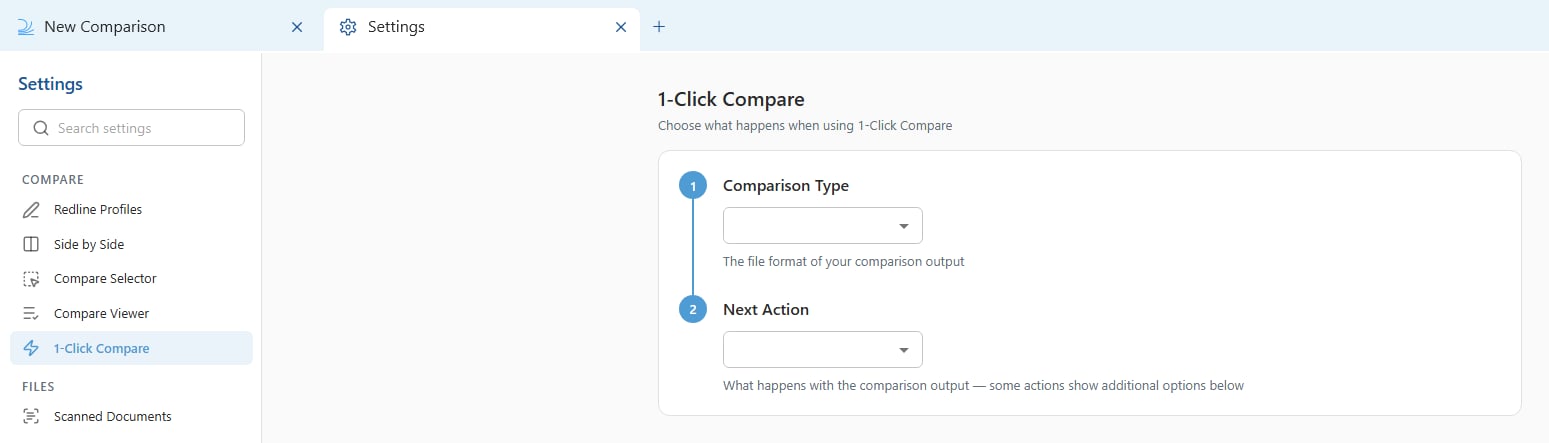
 **1-Click Compare** — Choose the default comparison type and action when you run a 1-Click comparison from File Explorer. The dropdowns are empty until you select your options. See [Using 1-Click Compare](/hc/en-us/articles/31611819497753-Using-1-Click-Compare-to-run-comparisons-with-your-preferred-default-workflow).
 #### Files
**Scanned Documents** — Control OCR text detection so scanned PDFs can be compared.
#### Files
**Scanned Documents** — Control OCR text detection so scanned PDFs can be compared.
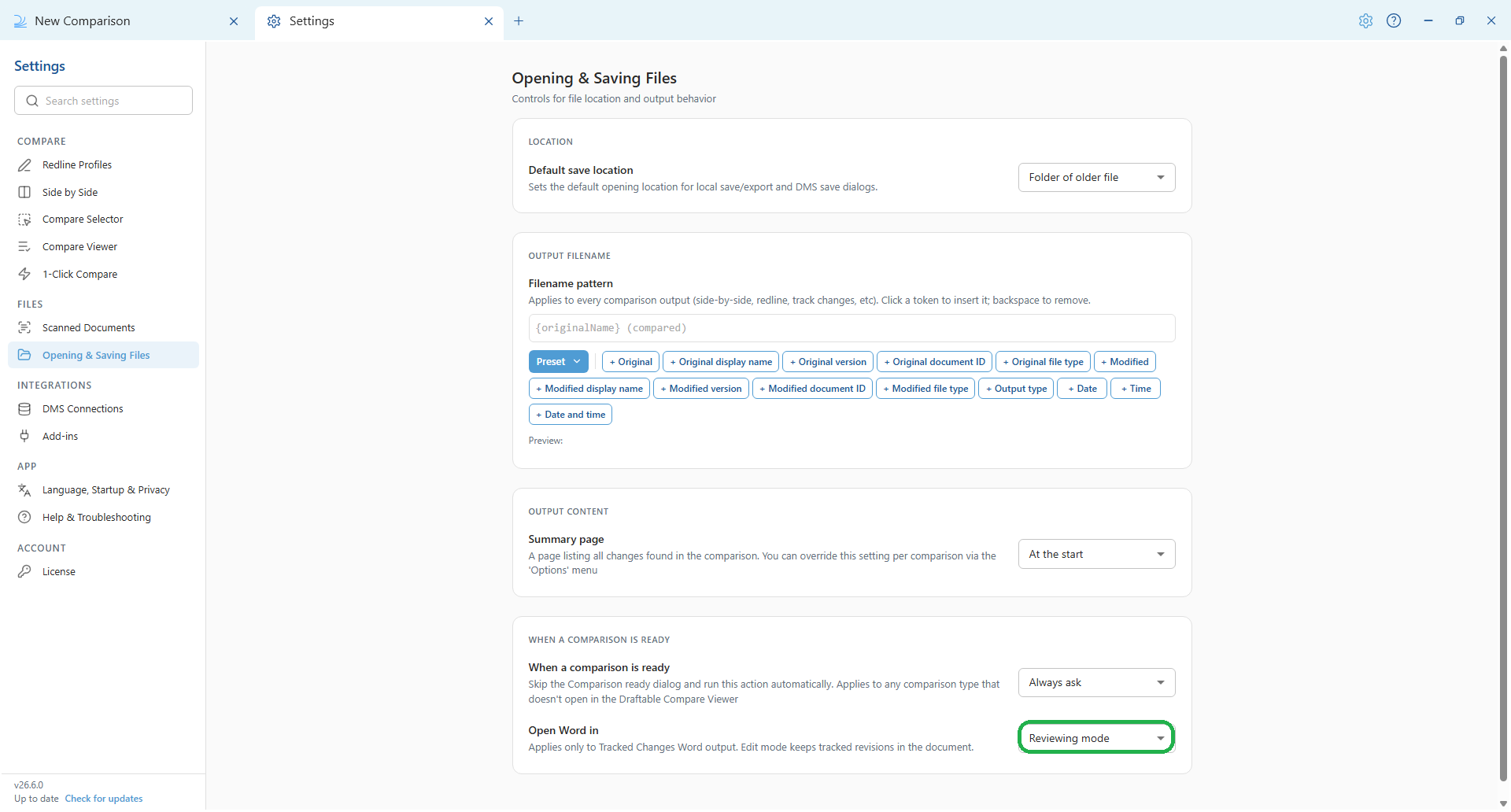
 **Opening & Saving Files** — Set the default save location, the output filename pattern, summary page placement, and what happens when a comparison is ready (including the new **Open Word in** option for tracked-changes output).
 #### Integrations
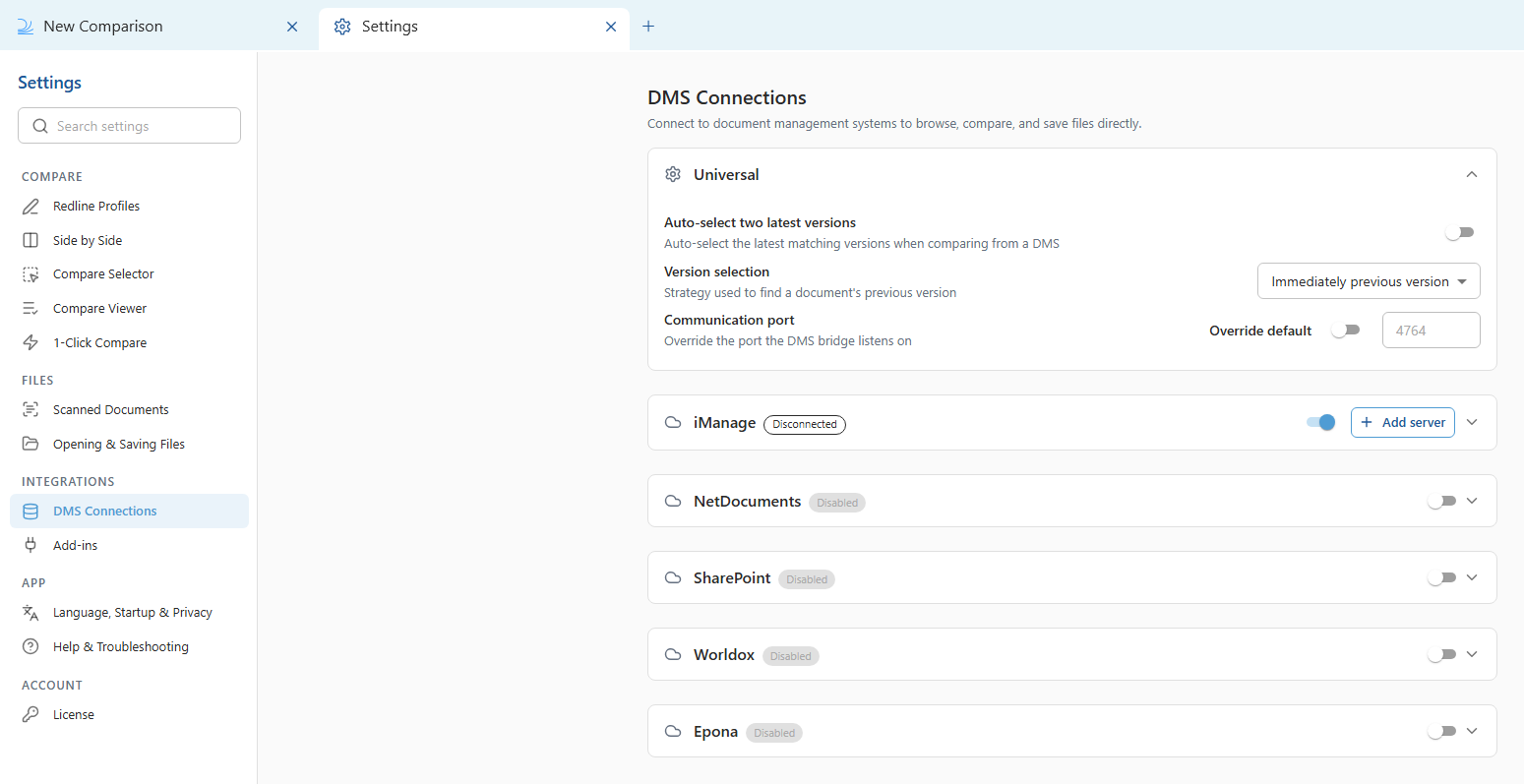
**DMS Connections** — Connect to document management systems to browse, compare and save files directly. Draftable Legal supports [iManage](/hc/en-us/sections/20525461300633-Using-Draftable-Legal-with-iManage), [NetDocuments](/hc/en-us/sections/25953160161049-Using-Draftable-Legal-with-NetDocuments), [SharePoint](/hc/en-us/sections/25458896791961-Using-Draftable-Legal-with-SharePoint), [Worldox](/hc/en-us/articles/31708233972121-How-to-enable-Worldox-integration-in-Draftable-Legal) and [Epona](/hc/en-us/sections/36945795877273-Using-Draftable-Legal-with-Epona).
#### Integrations
**DMS Connections** — Connect to document management systems to browse, compare and save files directly. Draftable Legal supports [iManage](/hc/en-us/sections/20525461300633-Using-Draftable-Legal-with-iManage), [NetDocuments](/hc/en-us/sections/25953160161049-Using-Draftable-Legal-with-NetDocuments), [SharePoint](/hc/en-us/sections/25458896791961-Using-Draftable-Legal-with-SharePoint), [Worldox](/hc/en-us/articles/31708233972121-How-to-enable-Worldox-integration-in-Draftable-Legal) and [Epona](/hc/en-us/sections/36945795877273-Using-Draftable-Legal-with-Epona).
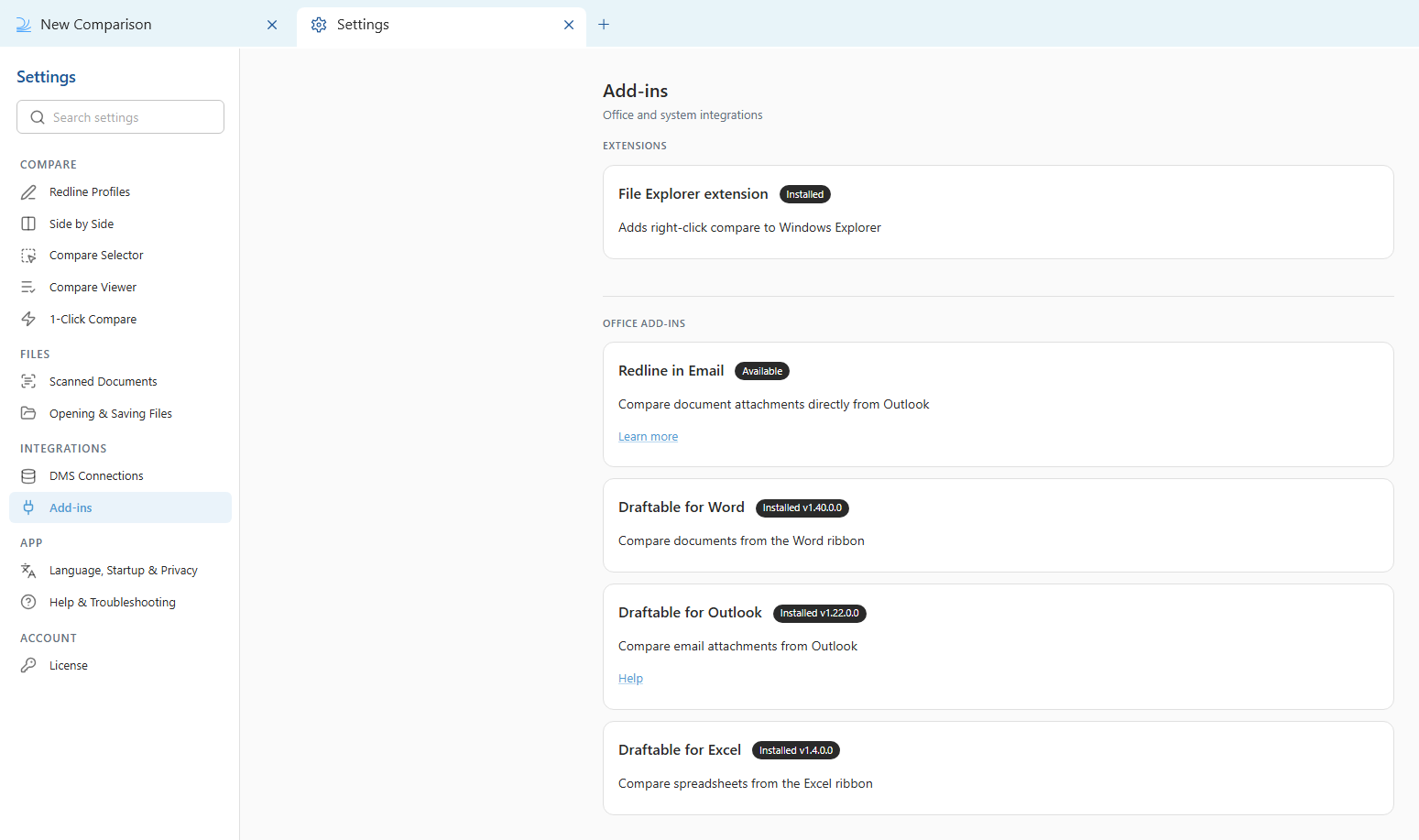
 **Add-ins** — Manage the File Explorer extension and the Office add-ins (Draftable for Word, Outlook and Excel) and Redline in Email.
 #### App
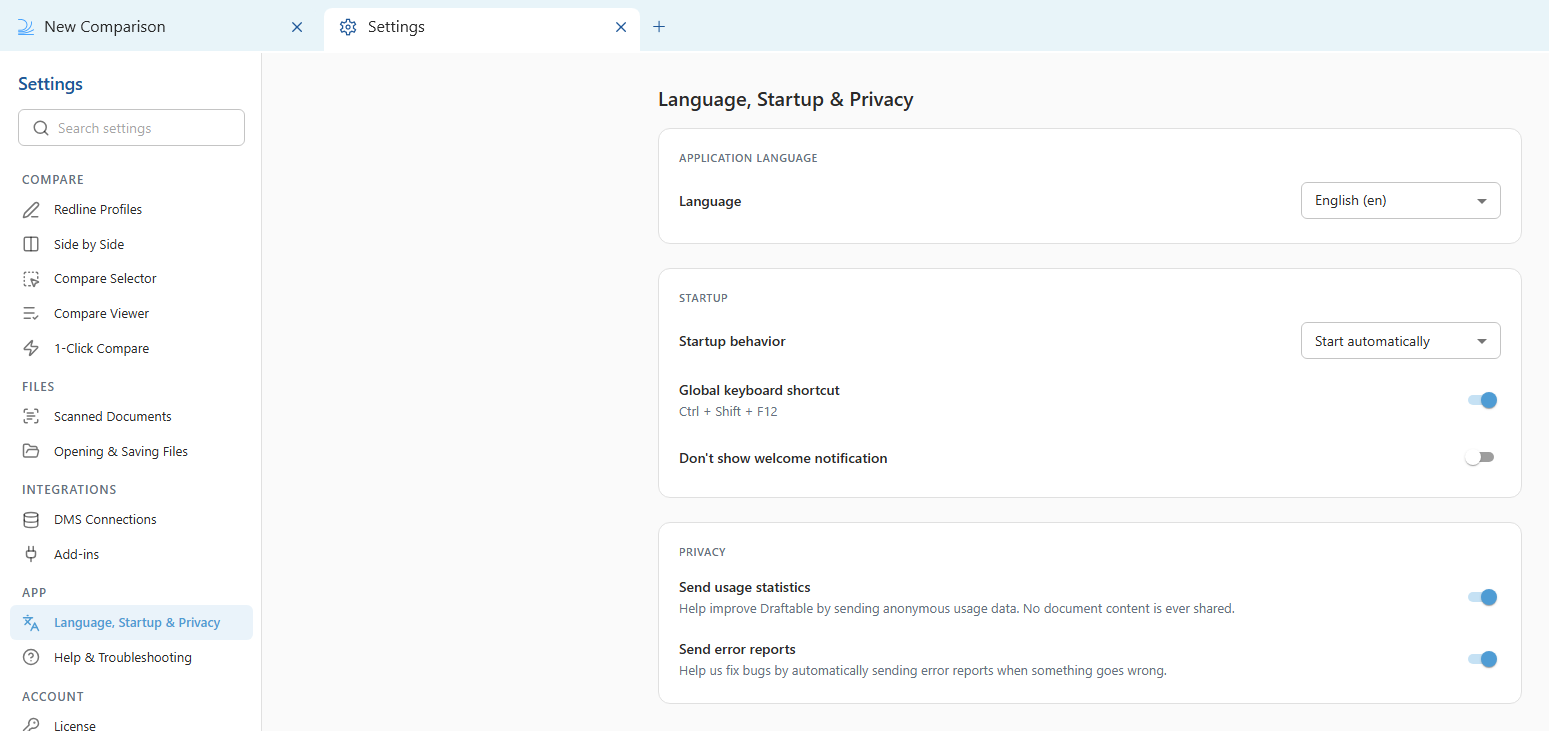
**Language, Startup & Privacy** — Set the application language and startup behaviour, configure the global keyboard shortcut, and choose your privacy options for usage statistics and error reports.
#### App
**Language, Startup & Privacy** — Set the application language and startup behaviour, configure the global keyboard shortcut, and choose your privacy options for usage statistics and error reports.
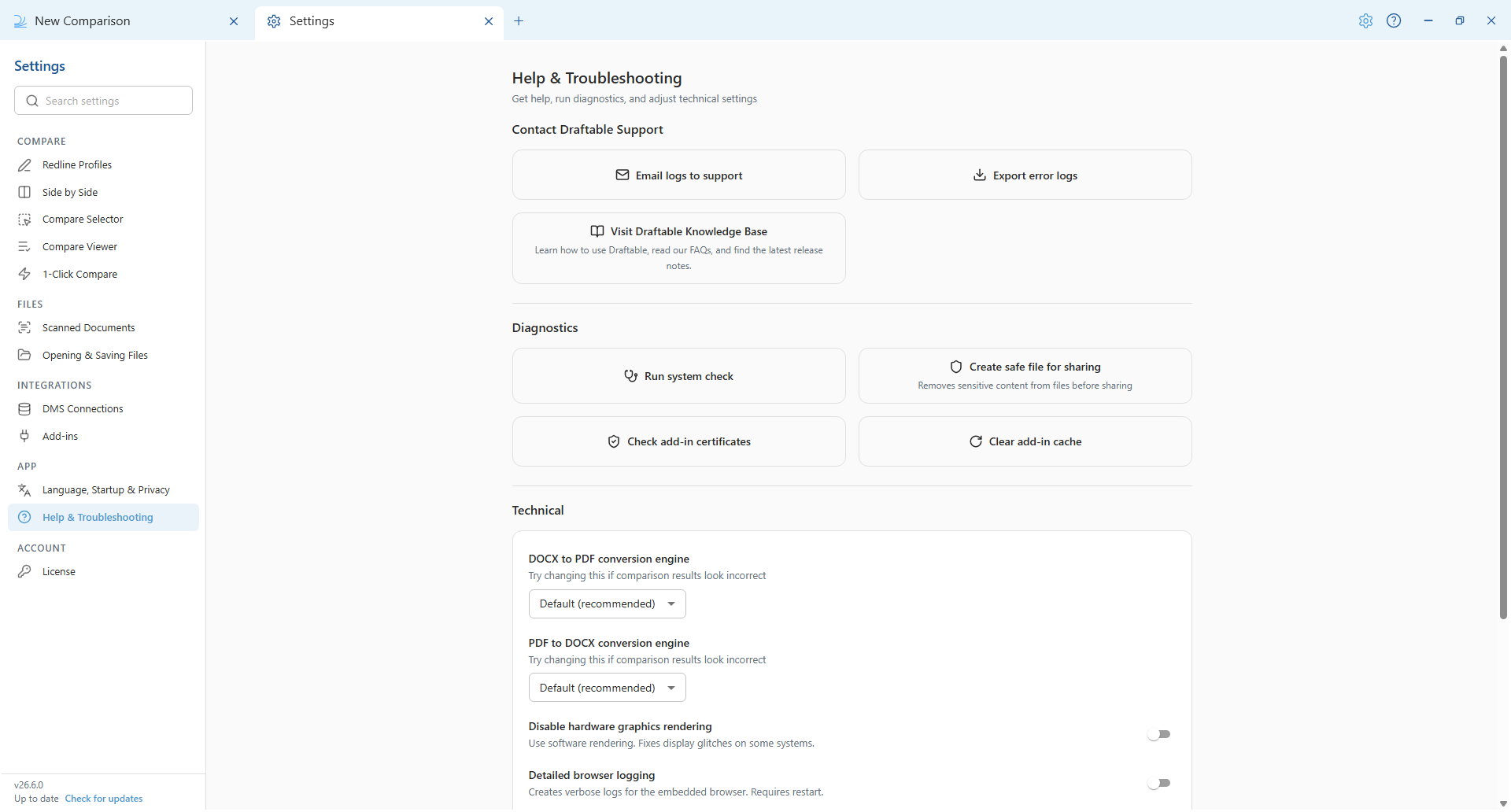
 **Help & Troubleshooting** — Contact support, run diagnostics (system check, create a safe file for sharing, check add-in certificates, clear the add-in cache), and adjust technical settings such as the DOCX to PDF and PDF to DOCX conversion engines. See [Understanding the PDF Conversion Engine Setting](/hc/en-us/articles/34177444131737-Understanding-the-PDF-Conversion-Engine-Setting-in-Draftable-Legal).
 #### Account
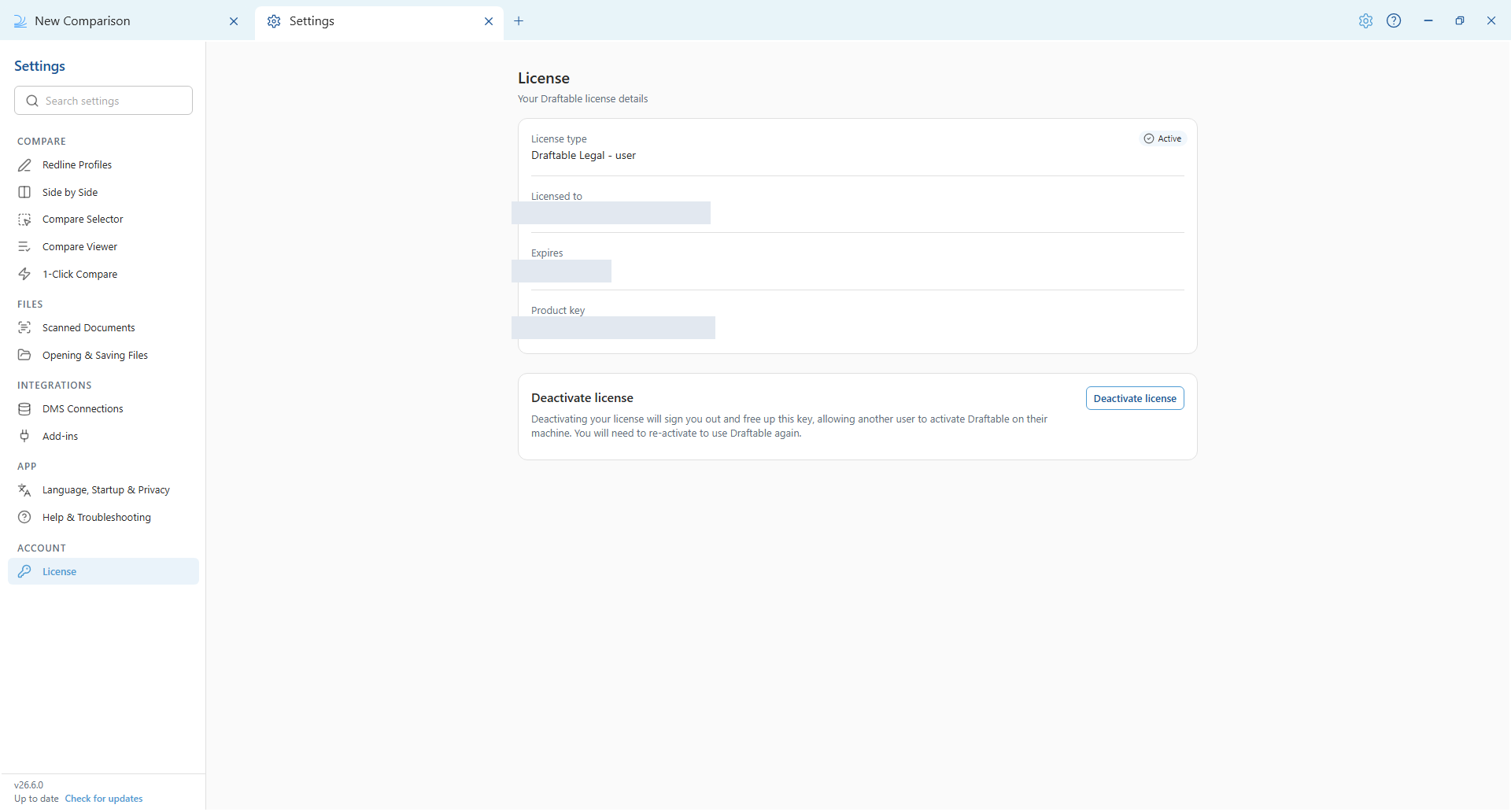
**License** — View your license details, such as the license type, days remaining and product key, and deactivate your license.
#### Account
**License** — View your license details, such as the license type, days remaining and product key, and deactivate your license.
 On versions before 26.6, the settings menu is a single list of sections.
**General Settings**
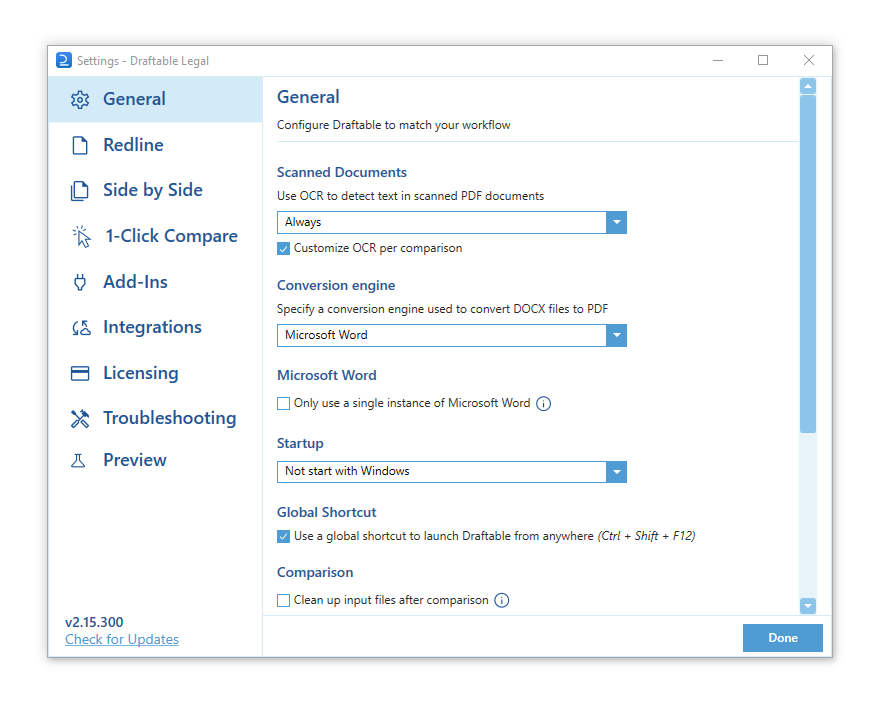
General settings allows users to configure application wide options for Draftable Legal. Here, you can set your preferences for scanned documents, startup options, shortcuts and options for sending telemetry data such as usage and error reports. Importantly, this is where you can ensure that OCR is enabled.
On versions before 26.6, the settings menu is a single list of sections.
**General Settings**
General settings allows users to configure application wide options for Draftable Legal. Here, you can set your preferences for scanned documents, startup options, shortcuts and options for sending telemetry data such as usage and error reports. Importantly, this is where you can ensure that OCR is enabled.
 **Redline**
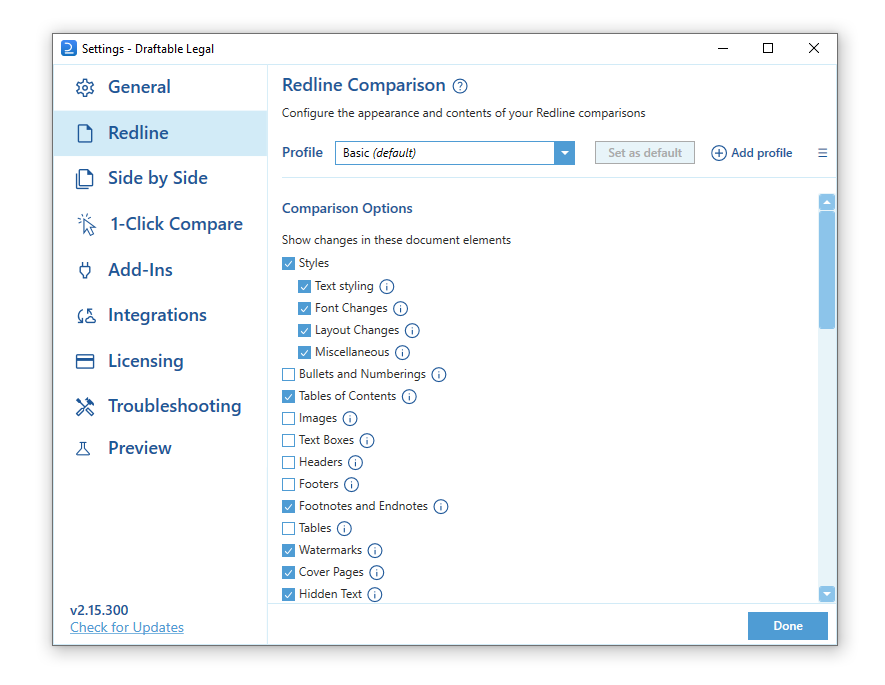
The Redline settings section enables users to configure Redline comparisons to match their requirements. Here, you can adjust many settings such as comparison options, markup schema, and much more. You can read more about Redline settings [here](/hc/en-us/articles/16549612535705-Redline-comparison-settings).
**Redline**
The Redline settings section enables users to configure Redline comparisons to match their requirements. Here, you can adjust many settings such as comparison options, markup schema, and much more. You can read more about Redline settings [here](/hc/en-us/articles/16549612535705-Redline-comparison-settings).
 **Side by Side**
The Side by Side settings section allows users to personalize how their side-by-side comparisons look. This section lets you configure comparison output and viewer options. You can read about that [here](/hc/en-us/articles/17693437607065-Configuring-Side-by-Side-comparison-settings).
**Side by Side**
The Side by Side settings section allows users to personalize how their side-by-side comparisons look. This section lets you configure comparison output and viewer options. You can read about that [here](/hc/en-us/articles/17693437607065-Configuring-Side-by-Side-comparison-settings).
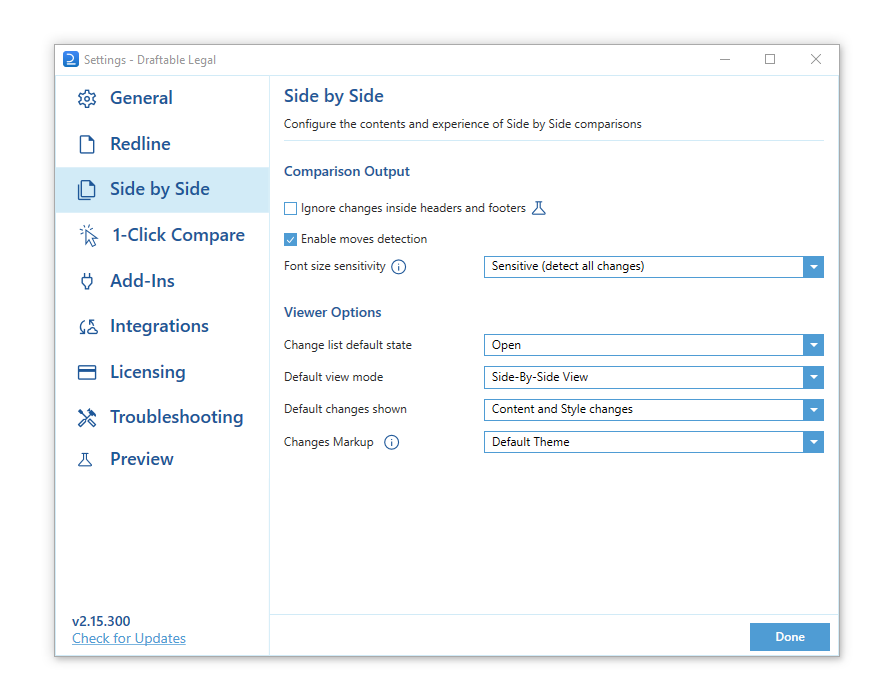 **1-Click Compare**
1-Click Compare allows users to select 2 documents within file explorer in Windows, and with 1-Click start a comparison. The settings page allows you to configure the default action taken for 1-Click compare. For more information, see the dedicated article [here](/hc/en-us/articles/31611819497753-Using-1-Click-Compare-to-run-comparisons-with-your-preferred-default-workflow).
**1-Click Compare**
1-Click Compare allows users to select 2 documents within file explorer in Windows, and with 1-Click start a comparison. The settings page allows you to configure the default action taken for 1-Click compare. For more information, see the dedicated article [here](/hc/en-us/articles/31611819497753-Using-1-Click-Compare-to-run-comparisons-with-your-preferred-default-workflow).
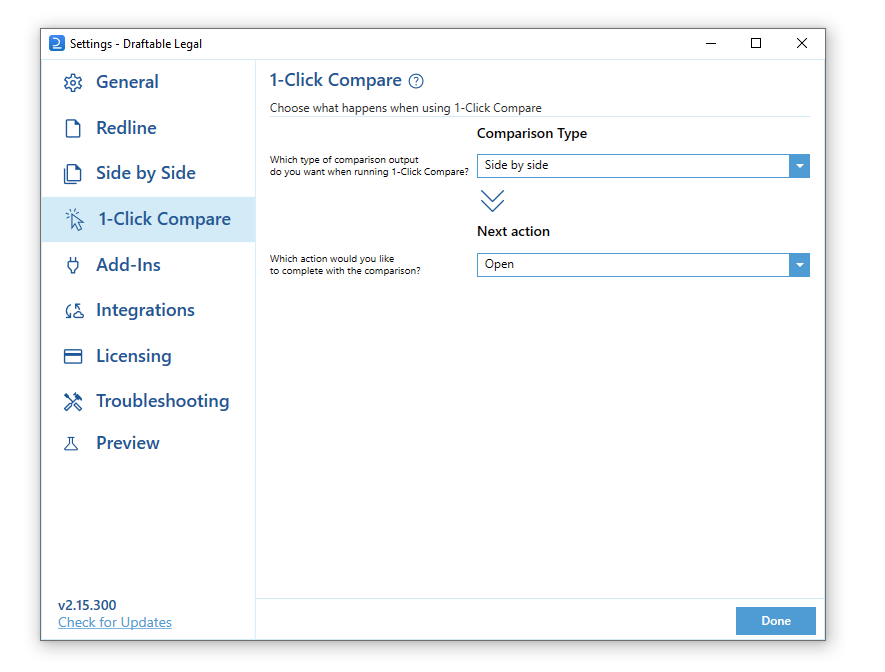 **Add-Ins**
Add-ins are additional components from applications that can be used in conjunction with Draftable Legal. Here, you can manage these add-ins and extensions.
**Add-Ins**
Add-ins are additional components from applications that can be used in conjunction with Draftable Legal. Here, you can manage these add-ins and extensions.
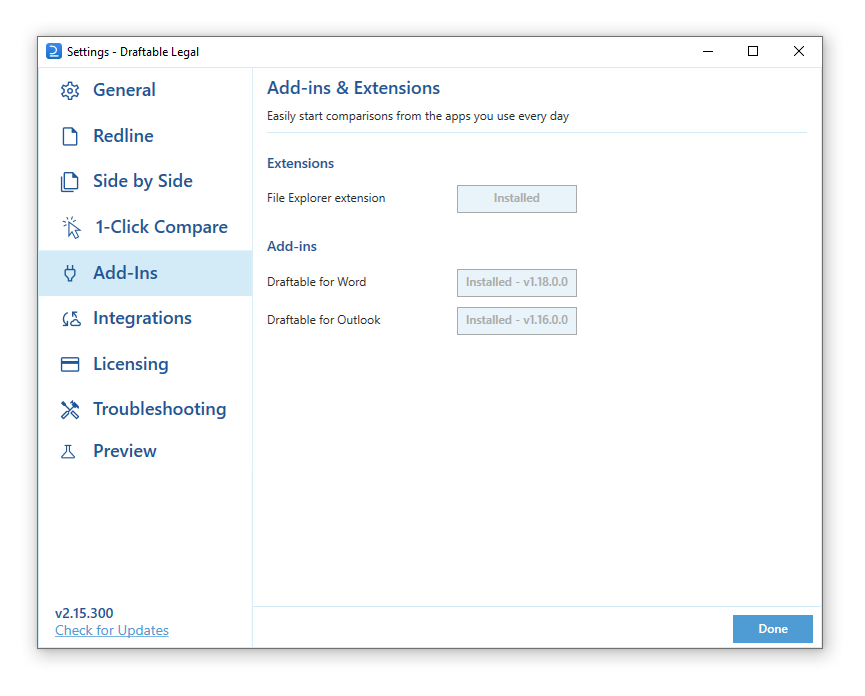 **Integrations**
The Integrations settings section enables users to manage connections with document management systems. Here, you can configure the following DMS's to use Draftable Legal:
* Your [iManage](/hc/en-us/sections/20525461300633-Using-Draftable-Legal-with-iManage) account
* Your [SharePoint](/hc/en-us/sections/25458896791961-Using-Draftable-Legal-with-SharePoint) account
* Your [NetDocuments](/hc/en-us/sections/25953160161049-Using-Draftable-Legal-with-NetDocuments) account
* Your [Worldox](/hc/en-us/articles/31708233972121-How-to-enable-Worldox-integration-in-Draftable-Legal) account
**Integrations**
The Integrations settings section enables users to manage connections with document management systems. Here, you can configure the following DMS's to use Draftable Legal:
* Your [iManage](/hc/en-us/sections/20525461300633-Using-Draftable-Legal-with-iManage) account
* Your [SharePoint](/hc/en-us/sections/25458896791961-Using-Draftable-Legal-with-SharePoint) account
* Your [NetDocuments](/hc/en-us/sections/25953160161049-Using-Draftable-Legal-with-NetDocuments) account
* Your [Worldox](/hc/en-us/articles/31708233972121-How-to-enable-Worldox-integration-in-Draftable-Legal) account
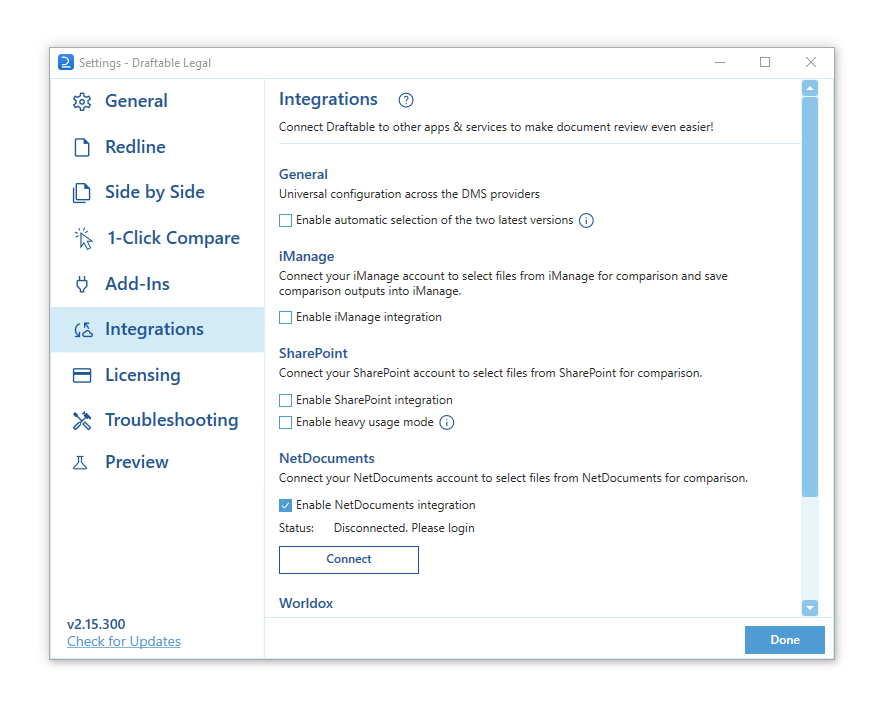 **Licensing**
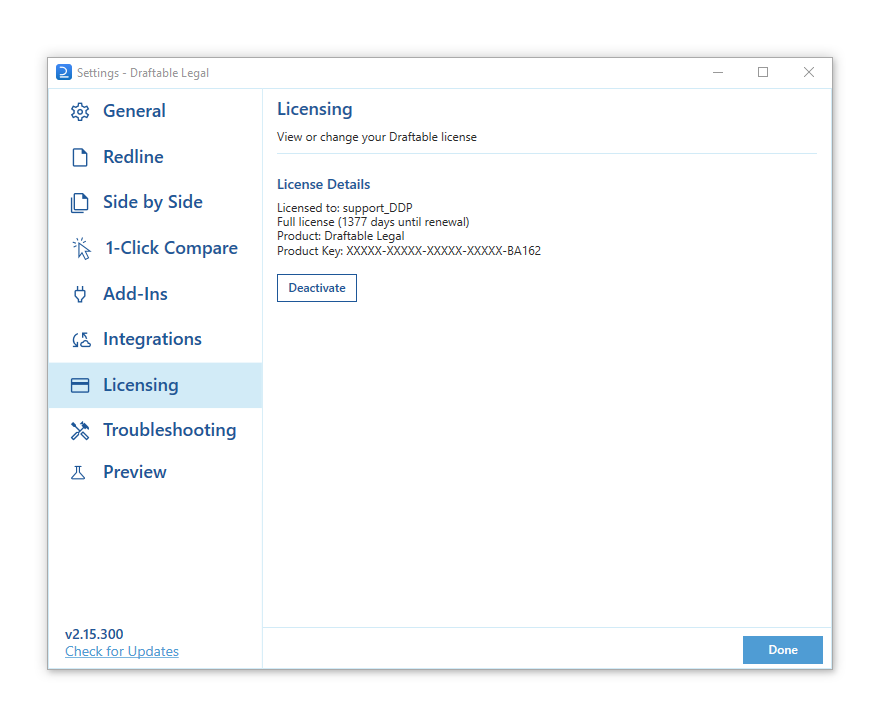
The Licensing section allows users to manage their Draftable Legal license. Here, you can view your license details, such as the license type, days left in the subscription, and product key. You can also deactivate your current license in this section.
**Licensing**
The Licensing section allows users to manage their Draftable Legal license. Here, you can view your license details, such as the license type, days left in the subscription, and product key. You can also deactivate your current license in this section.
 **Troubleshooting**
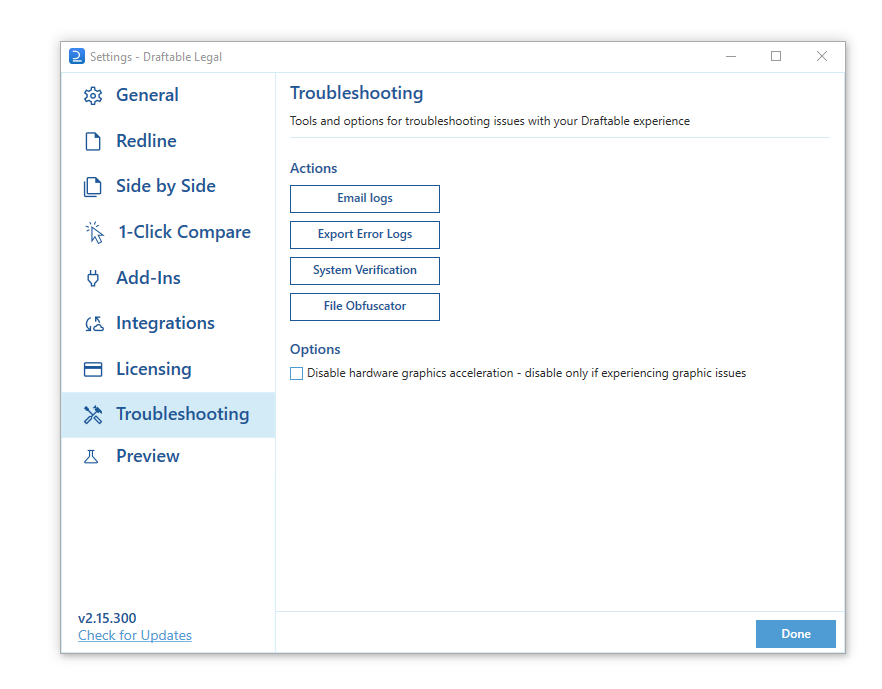
The Troubleshooting section provides options for resolving issues with Draftable Legal. This includes exporting error log files (to share when contacting support), performing a system verification to ensure Draftable Legal will function fully, and disabling hardware graphics acceleration for troubleshooting.
**Troubleshooting**
The Troubleshooting section provides options for resolving issues with Draftable Legal. This includes exporting error log files (to share when contacting support), performing a system verification to ensure Draftable Legal will function fully, and disabling hardware graphics acceleration for troubleshooting.
 **Preview**
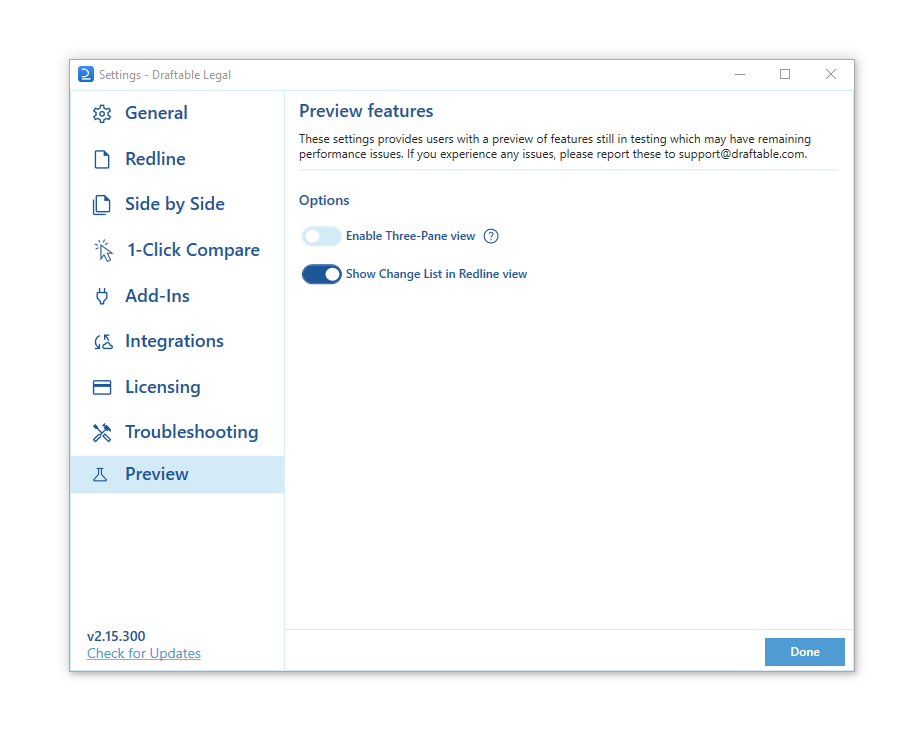
The preview section (which can be enabled via a [specific registry key](/hc/en-us/articles/24732245077401-Most-common-Draftable-Legal-registry-configurations)) allows you to access unreleased settings that are hidden by default in Draftable Legal. This allows you to view new features before they are completed so you may become familiar with them before they are formally released into the product.
**Preview**
The preview section (which can be enabled via a [specific registry key](/hc/en-us/articles/24732245077401-Most-common-Draftable-Legal-registry-configurations)) allows you to access unreleased settings that are hidden by default in Draftable Legal. This allows you to view new features before they are completed so you may become familiar with them before they are formally released into the product.
 ## Need further help?
If you are having difficulty or want to learn more about Draftable Legal settings, contact our support team at [support@draftable.com](mailto:support@draftable.com) and they will assist you in any query you may have.
## Need further help?
If you are having difficulty or want to learn more about Draftable Legal settings, contact our support team at [support@draftable.com](mailto:support@draftable.com) and they will assist you in any query you may have.