> ## Documentation Index
> Fetch the complete documentation index at: https://help.draftable.com/llms.txt
> Use this file to discover all available pages before exploring further.
# Guide for iManage On-Premises integration with Draftable Legal
> Draftable Legal allows you to integrate your iManage On-Premise solution with Draftable Legal itself. This article will provide a step-by-step guide on how to set up this integration by first configuring Draftable Legal for iManage, and then completing the iManage-specific integration in control center. Additionally there is information for Draftable Legal configuration in conjunction with group policy.
**The settings menu was reorganised in Draftable Legal 26.6.** If you are on 26.6 or later, follow the "26.6 and later" tabs below. On earlier versions, follow "Before 26.6". To check your version, open Settings. The version number shows at the bottom-left (for example, v26.6.0).
**Please note:**
* This guide requires that you have installed the Draftable App for iManage in your iManage applications.
* It is recommended that **if are planning to use the Machine Wide MSI installer** for your Draftable Legal installation, we highly recommend that you use the default install location if you also plan to integrate with iManage to reduce the likelihood of any issues during the integration process.
* This is a technical integration guide written for administrator-level users. This is **not a guide** for **using iManage with Draftable Legal,** if you are looking for information on how to use iManage with Draftable Legal, please [visit this article instead](/hc/en-us/articles/16549583625241-iManage-Integration-with-Draftable-Legal).
**Video Resource:** For a comprehensive understanding of Draftable deployment with iManage On-Premises, we offer our specially crafted explainer video, accessible [via this link.](/hc/en-us/articles/27926474751641-iManage-On-Premise-Integration-with-Draftable-Legal)
## Configure Draftable Legal within iManage On-Premises Control Center
There are two distinct steps for Draftable iManage configuration, first we need to setup the integration from the Draftable Legal application in the iManage Control Centre, and then we need to setup the Draftable application within iManage itself.
### Configuring iManage Draftable app for on-premises
Firstly, we need to configure iManage On-Premise within control center.
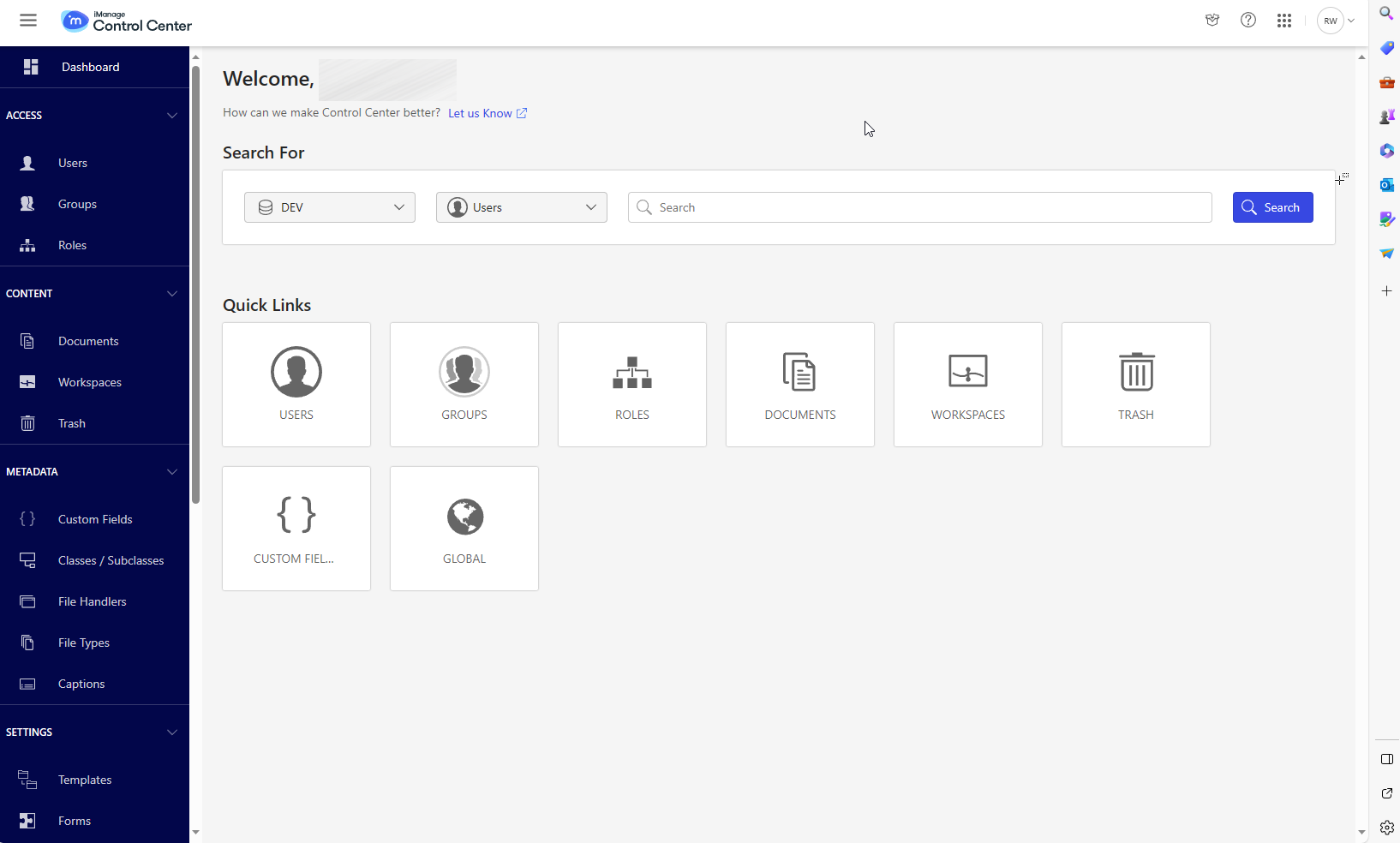
Login into your iManage On-Premise server, and navigate to **control center.**
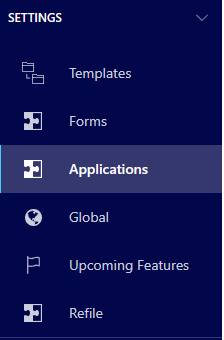
 On the left hand menu bar, scroll until you see **settings,** then select **applications.**
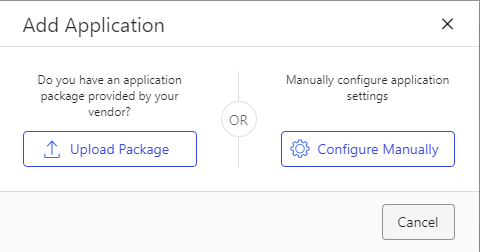
 On the top right-hand side, select **Add Application.**
 The following window will appear. Draftable now allows you to upload a package file, so we will select **Upload Package.**
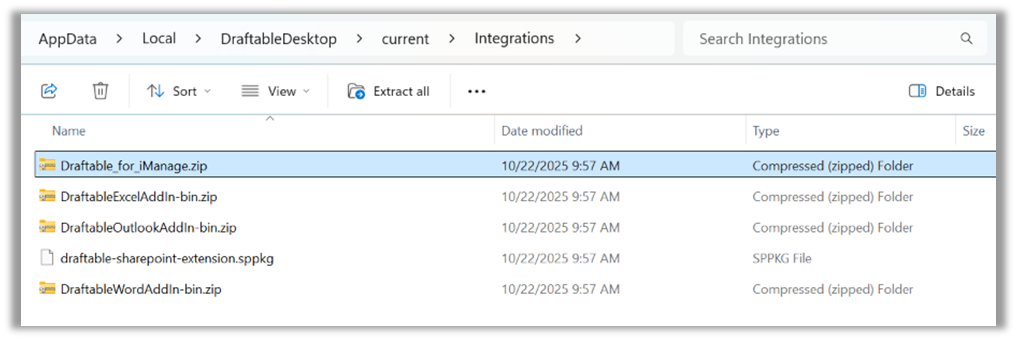
 Navigate to the following location:
```bash theme={null}
C:\Users\\AppData\Local\DraftableDesktop\current\Integrations
```
Where `` is the name of your account on the local machine, see below for an example.
Navigate to the following location:
```bash theme={null}
C:\Users\\AppData\Local\DraftableDesktop\current\Integrations
```
Where `` is the name of your account on the local machine, see below for an example.
 Or if you are using the MSI install, the files will be located here instead
```bash theme={null}
C:\Program Files (x86)\Draftable\Integrations
```
Select the **Draftable\_for\_iManage.Zip** file and click **open.**
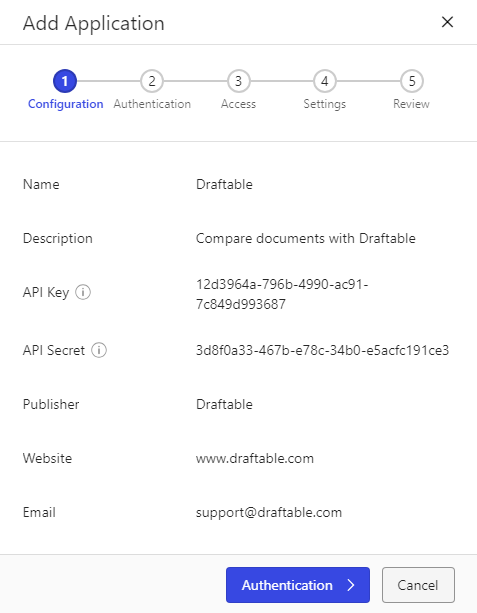
The following screen will appear. Since we added the package the information is prefilled. Click **Authentication.**
Or if you are using the MSI install, the files will be located here instead
```bash theme={null}
C:\Program Files (x86)\Draftable\Integrations
```
Select the **Draftable\_for\_iManage.Zip** file and click **open.**
The following screen will appear. Since we added the package the information is prefilled. Click **Authentication.**
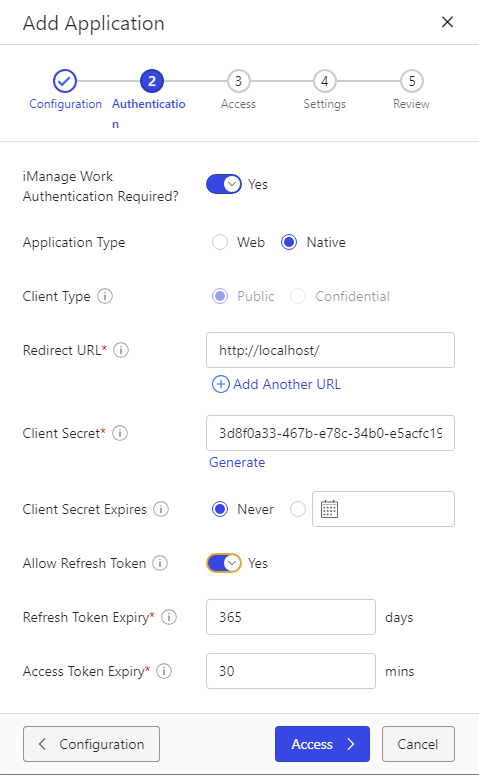
 Again the information is prefilled, except for **Allow Refresh Token,** ensure this is ticked as **Yes**. **Please** also ensure you set the **"Redirect URL"** to **["http://localhost/"](http://localhost/).** If this is not set you will experience issues with configuration as its required for correct integration with Draftable Legal.Once this is done, then click **Access.**
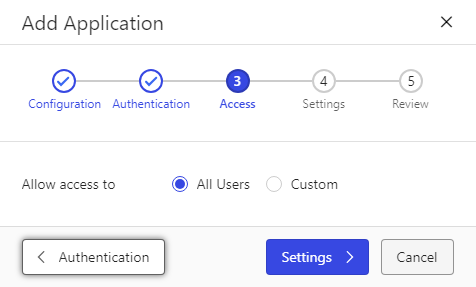
 Again the information is prefilled, so just click **Settings.**
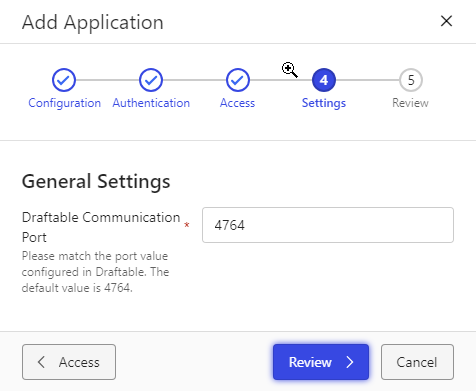
 Again the information is prefilled, so just click **Review.**
You can set the Draftable Communication port to a different value, however, this will require you to change the value on the client end as well via group policy. If you wish to change the port value, set it here within iManage to your desired value and also set the group policy for the Draftable communication port. For the group policy information please refer to [this article.](/hc/en-us/articles/18763487262105-Configuring-settings-with-Group-Policy-Draftable-Legal)
Again the information is prefilled, so just click **Review.**
You can set the Draftable Communication port to a different value, however, this will require you to change the value on the client end as well via group policy. If you wish to change the port value, set it here within iManage to your desired value and also set the group policy for the Draftable communication port. For the group policy information please refer to [this article.](/hc/en-us/articles/18763487262105-Configuring-settings-with-Group-Policy-Draftable-Legal)
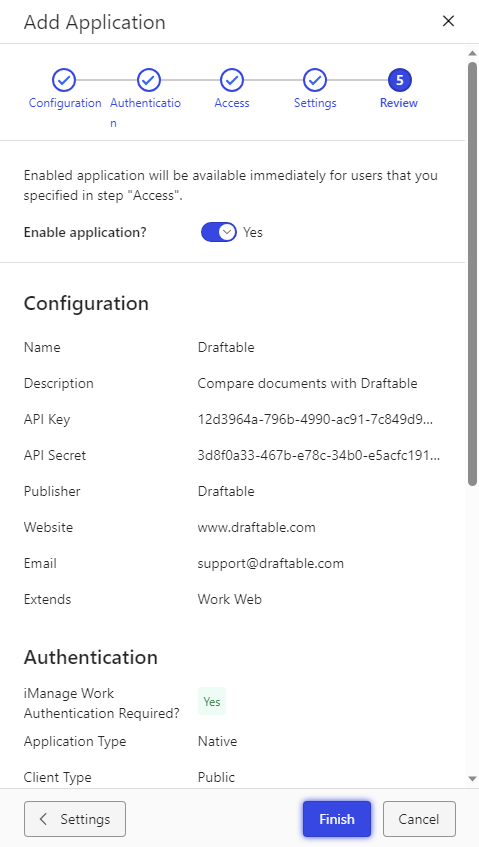
 Review the information to ensure everything appears to look right and then click **Finish.**
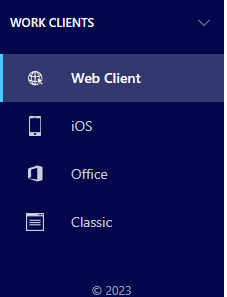
 Now that the application is configured, we need to set up the web client context menus. In the left-hand menu bar, scroll until you see **Work Clients,** then select **Web Client.**
 Within the web client section, select the **context menus** option to start editing the context menus.\
You will see two context menus, one for **Documents,** and another for **Versions.** We need to edit both in order to correctly configure. We will first configure **Documents.**
Within the web client section, select the **context menus** option to start editing the context menus.\
You will see two context menus, one for **Documents,** and another for **Versions.** We need to edit both in order to correctly configure. We will first configure **Documents.**
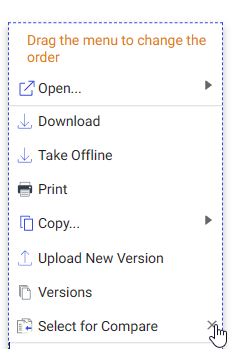
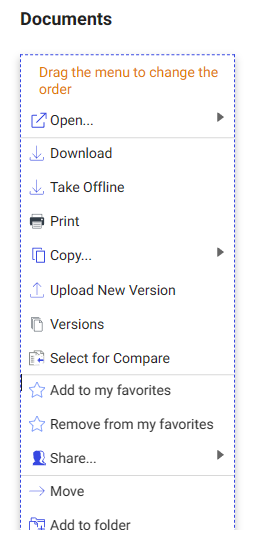 We first need to remove any options for **Select for Compare**, by clicking the X next to it. Do so before continuing to the next step.
 Now click on the menu itself so it highlights, and at the bottom of the menu select **Add action**
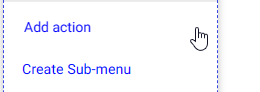 Select the **Compare** menu item, to add it to the menu. Repeat this for **Compare Versions, 1-Click Compare** and **Compare with latest** items as well.
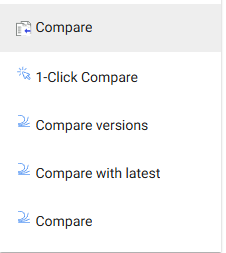 Reorder the new menu option by selecting and dragging the **Compare** options to anywhere in your menu. See below for reference.
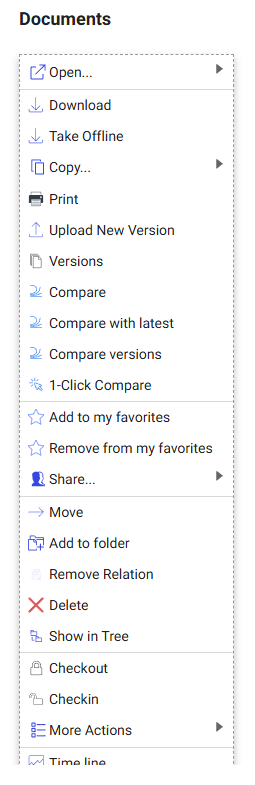 That completes the context menu for the **Documents** context menu. Repeat steps 11 to 15 for the version's context menu. You should see a result similar to below.
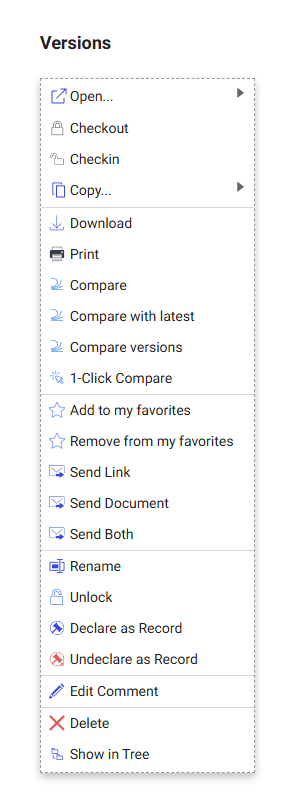 This completes the configuration for the setup for iManage on-premises. If you want to know how to use the feature itself, of launching Draftable from within iManage, please see [this article.](/hc/en-us/articles/22873285776409-Launching-comparisons-from-within-iManage)
### Configuring Draftable Legal
Now we need to ensure that we are logging into our On-Premise iManage account. Navigate to the **Integrations** section of the settings menu.
Depending on what version of Draftable you are using, there are two different procedures you need to follow depending on the version.
### If you are using Draftable v25.9.300 or earlier:
Firslty, ensure you have selected the **On-premises option** within the iManage section of the integrations tab.
The **Communication Port** and **Draftable App Id** are prefilled, so you only need to add the **Service URL** of your On-Premise iManage server. **Remember,** the service URL is the link to the domain hosting your iManage on-premises link.
This completes the configuration for the setup for iManage on-premises. If you want to know how to use the feature itself, of launching Draftable from within iManage, please see [this article.](/hc/en-us/articles/22873285776409-Launching-comparisons-from-within-iManage)
### Configuring Draftable Legal
Now we need to ensure that we are logging into our On-Premise iManage account. Navigate to the **Integrations** section of the settings menu.
Depending on what version of Draftable you are using, there are two different procedures you need to follow depending on the version.
### If you are using Draftable v25.9.300 or earlier:
Firslty, ensure you have selected the **On-premises option** within the iManage section of the integrations tab.
The **Communication Port** and **Draftable App Id** are prefilled, so you only need to add the **Service URL** of your On-Premise iManage server. **Remember,** the service URL is the link to the domain hosting your iManage on-premises link.
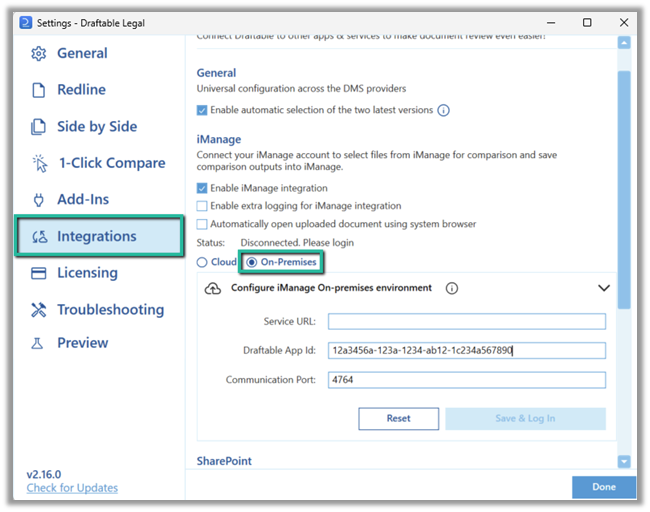 That concludes the iManage configuration process between Draftable Legal and On-Premise iManage.
### If you are using Draftable v25.10.000 or later
Open the settings menu and navigate to the **integrations** section of the settings.
That concludes the iManage configuration process between Draftable Legal and On-Premise iManage.
### If you are using Draftable v25.10.000 or later
Open the settings menu and navigate to the **integrations** section of the settings.
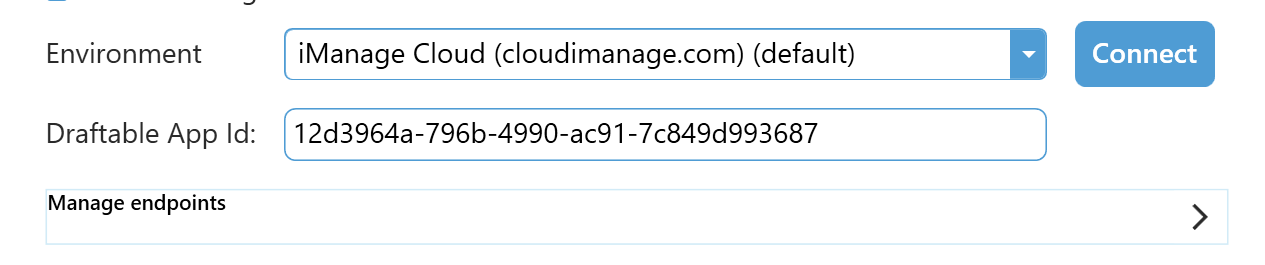
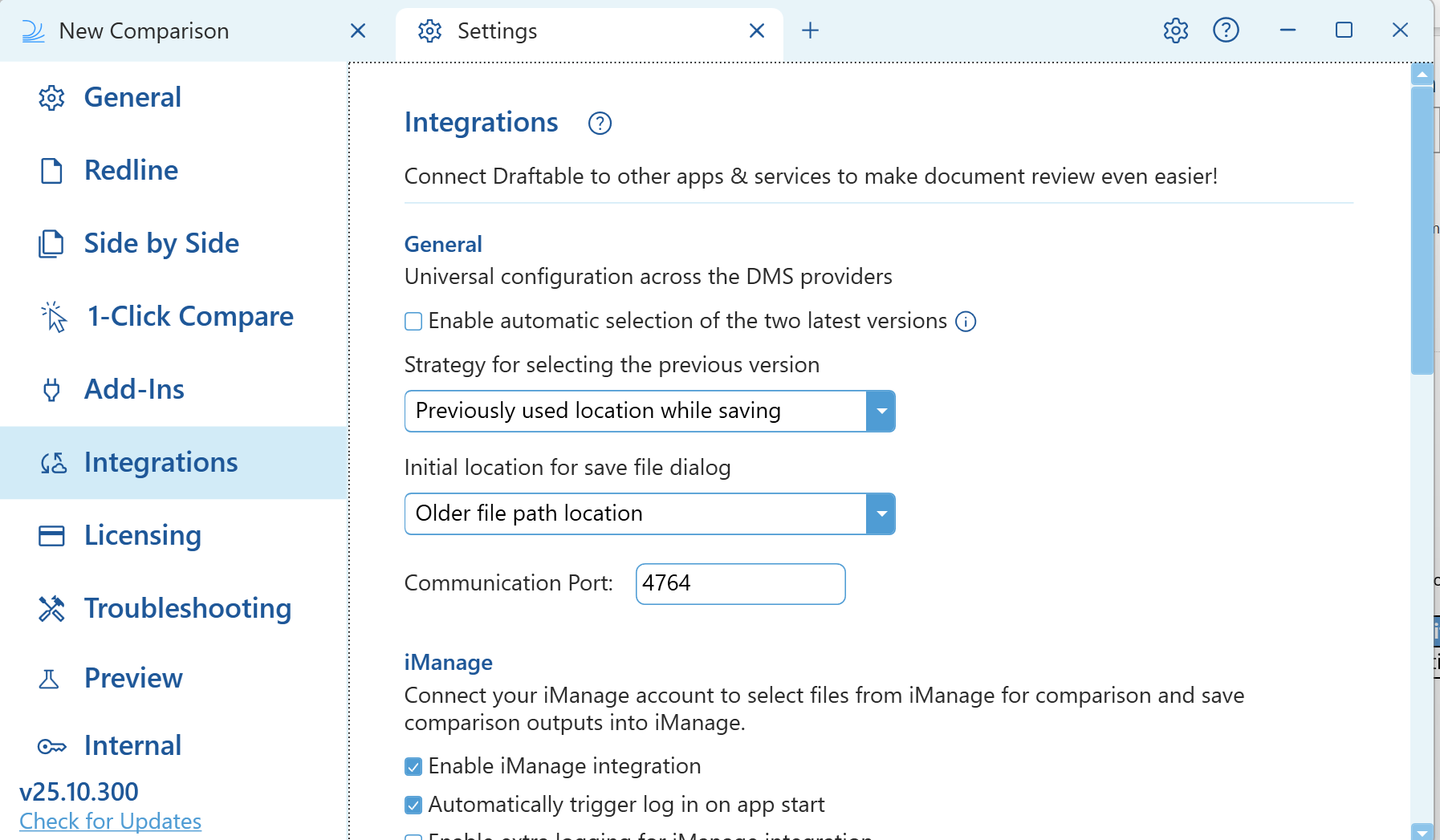 Enter your credentials for your iManage account (if they haven't already been configured by Group Policy) by clicking the arrow in the "Manage endpoints" section.
 You can enter the endpoint name and the endpoint URL. This is important if you are using multiple tenancies. In this case, you would select the endpoint you would've just defined.
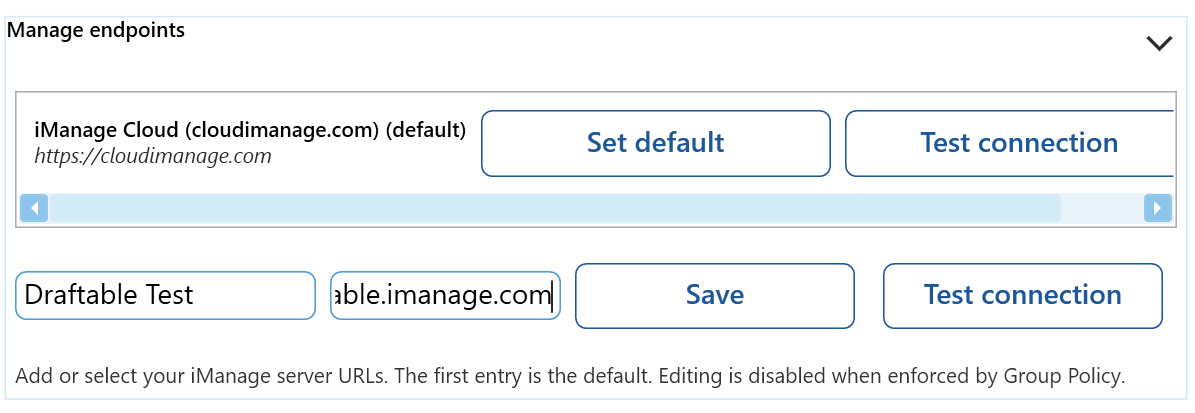 Click the **Save.** It will now add that endpoint to the **endpoint section.**
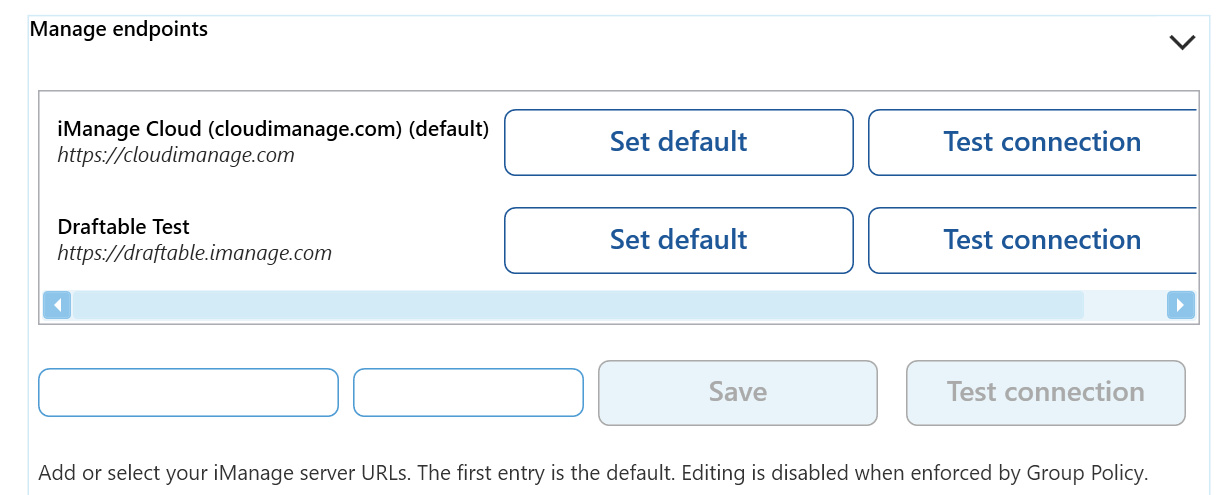 In the environment dropdown section, select the endpoint you want to connect to and click **Connect.** In this case, you would select the On-Premises endpoint you would've just defined.
 Connection is validated when the "Logout" button appears and the dropdown icon greys out.
 That concludes the iManage configuration process between Draftable Legal and On-Premise iManage.
### Draftable Legal integration configuration via group policy
You can also configure the integration configuration step shown at the start of the guide above via group policy for convenience to deploy across multiple user accounts.
Depending on what version of Draftable you are using, there are two different procedures you need to follow depending on the version.
### If you are using Draftable v25.9.300 or earlier:
The two configurable fields for iManage on-premise integration with Draftable are the **Enable iManage integration on Behalf of users,** **Service URL** and **Draftable App ID (or Client ID).**
You can configure this via group policy and follow the steps shown in [this article.](/hc/en-us/articles/18763487262105-Configuring-settings-with-Group-Policy-Draftable-Legal) The image below shows what these group policy settings are.
That concludes the iManage configuration process between Draftable Legal and On-Premise iManage.
### Draftable Legal integration configuration via group policy
You can also configure the integration configuration step shown at the start of the guide above via group policy for convenience to deploy across multiple user accounts.
Depending on what version of Draftable you are using, there are two different procedures you need to follow depending on the version.
### If you are using Draftable v25.9.300 or earlier:
The two configurable fields for iManage on-premise integration with Draftable are the **Enable iManage integration on Behalf of users,** **Service URL** and **Draftable App ID (or Client ID).**
You can configure this via group policy and follow the steps shown in [this article.](/hc/en-us/articles/18763487262105-Configuring-settings-with-Group-Policy-Draftable-Legal) The image below shows what these group policy settings are.
 ### If you are using Draftable v25.10.000 or later
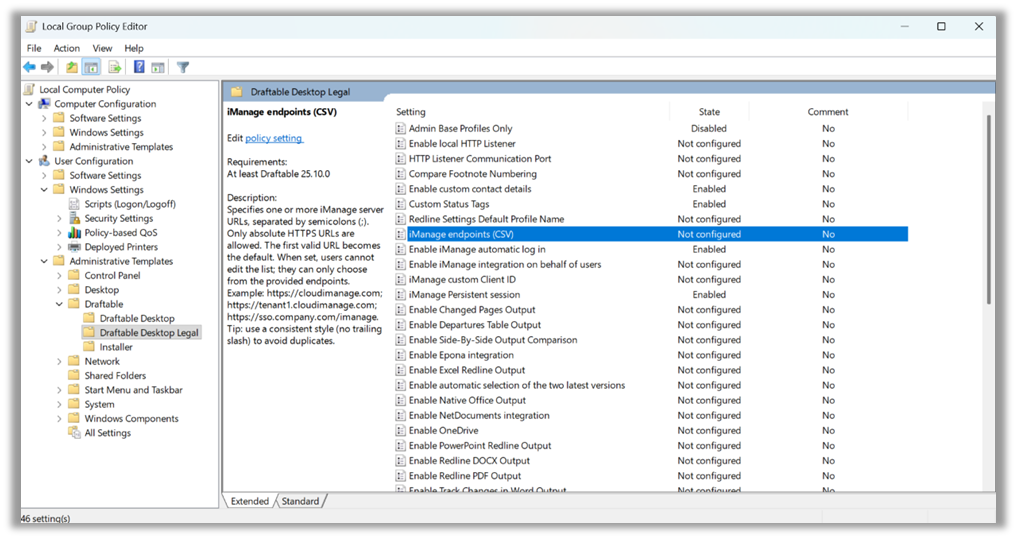
The two configurable fields for iManage cloud integration with Draftable are the, **Enable iManage integration on Behalf of users,** and **iManage endpoints (CSV).**
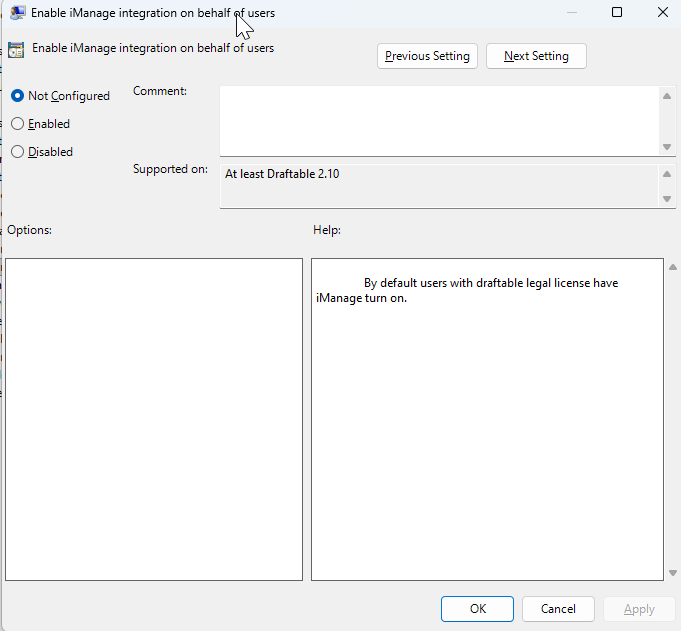
The first **Enable iManage integration on Behalf of users,** is just a Binary field that enables the integration for users.
### If you are using Draftable v25.10.000 or later
The two configurable fields for iManage cloud integration with Draftable are the, **Enable iManage integration on Behalf of users,** and **iManage endpoints (CSV).**
The first **Enable iManage integration on Behalf of users,** is just a Binary field that enables the integration for users.
 The other policy that needs configuring is **iManage endpoints (CSV).**
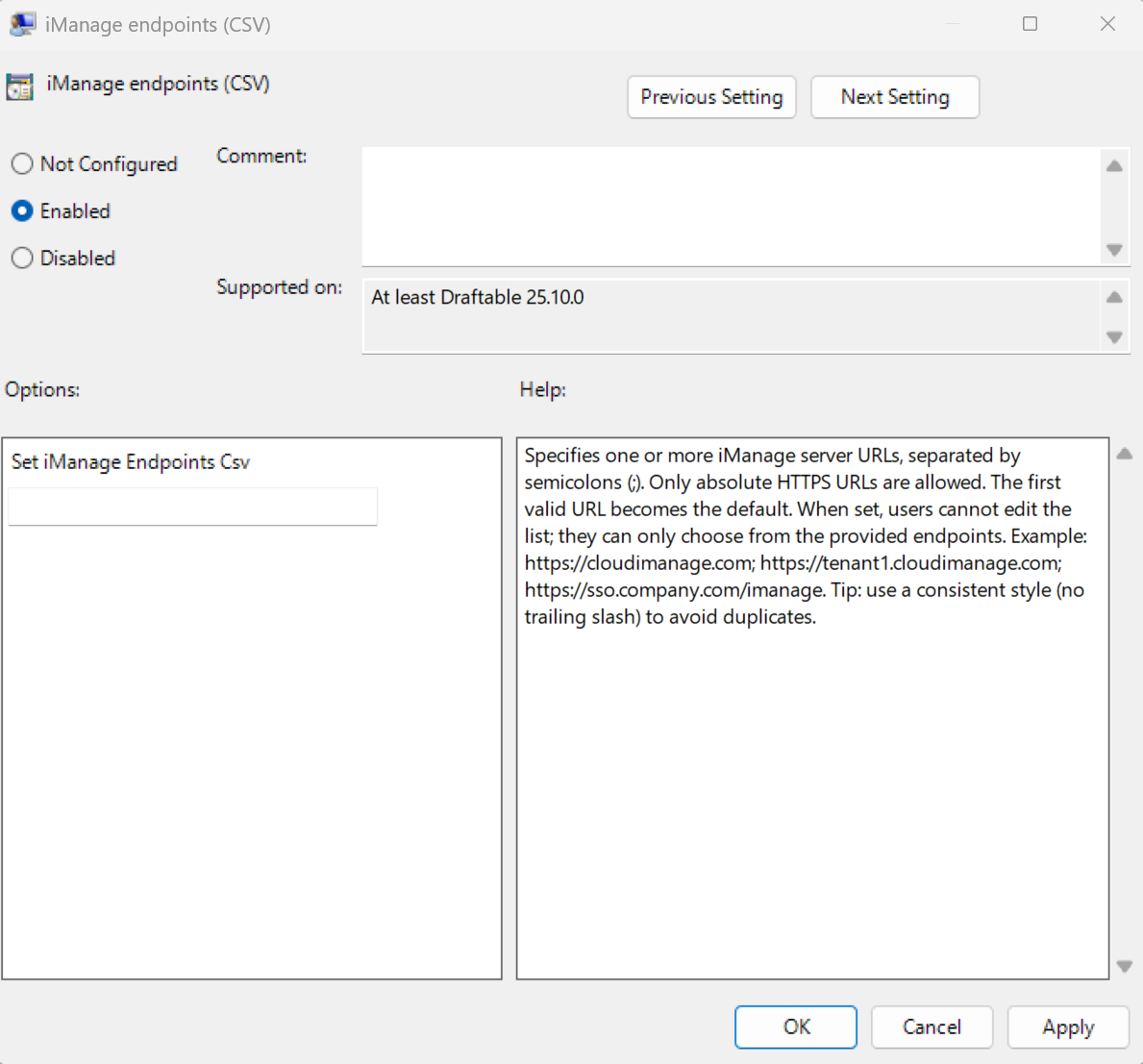 To configure this field, ensure you provide valid URLs, separated by a ";" and a space. For example:
```bash theme={null}
https://draftable.com; https://newcompany.com; https://test_domain.com
```
**Note:** The first URL provided will be the default one that is selected by Draftable.
## Having issues with integration?
Please get in touch with our support team at [support@draftable.com,](mailto:support@draftable.com) please include all information regarding your configuration including screenshots and logs from Draftable in your reply.
10 KB
To configure this field, ensure you provide valid URLs, separated by a ";" and a space. For example:
```bash theme={null}
https://draftable.com; https://newcompany.com; https://test_domain.com
```
**Note:** The first URL provided will be the default one that is selected by Draftable.
## Having issues with integration?
Please get in touch with our support team at [support@draftable.com,](mailto:support@draftable.com) please include all information regarding your configuration including screenshots and logs from Draftable in your reply.
10 KB