> ## Documentation Index
> Fetch the complete documentation index at: https://help.draftable.com/llms.txt
> Use this file to discover all available pages before exploring further.
# How to view and export ‘changed pages only’ in Draftable Legal
> In this knowledge-based article, we will guide you through the steps on how to view and export only the 'changed pages' of your Redline comparisons in Draftable Legal.
This feature provides a quicker way to focus solely on the modifications between the original document and its revised version. This way, no time is wasted scrolling through unchanged parts of the documents.
**Important note:**
This feature currently only filters for pages that have substantive text changes (e.g. insertions, deletions, moved text). It will **not** show pages that have only had style changes (e.g. font changes, alignment, etc).
## Viewing Changed Pages in Draftable Legal
In Draftable Legal, you can easily view only the changed pages of your Redline comparisons, following the steps below:
Run a Redline comparison your comparison in New Comparison Window
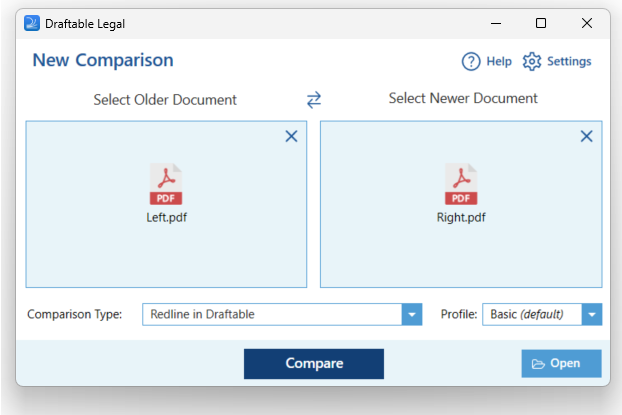 Look for the **Only Show Changed Pages** icon in the toolbar at the top of the interface. Click on it.
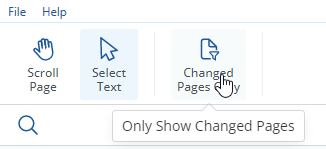 This will filter your view to only show the pages where changes have occurred in your Redline Comparison.
## Exporting Changed Pages in Draftable Legal
Draftable Legal also allows you to export only the pages of your document comparison that have changes. Here is how to do it:
Run a Redline comparison your comparison in New Comparison Window
This will filter your view to only show the pages where changes have occurred in your Redline Comparison.
## Exporting Changed Pages in Draftable Legal
Draftable Legal also allows you to export only the pages of your document comparison that have changes. Here is how to do it:
Run a Redline comparison your comparison in New Comparison Window
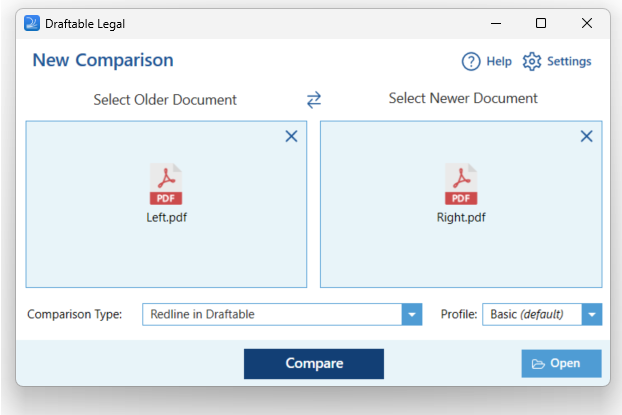 On the top ribbon menu of the comparison viewer, select **any** output options.
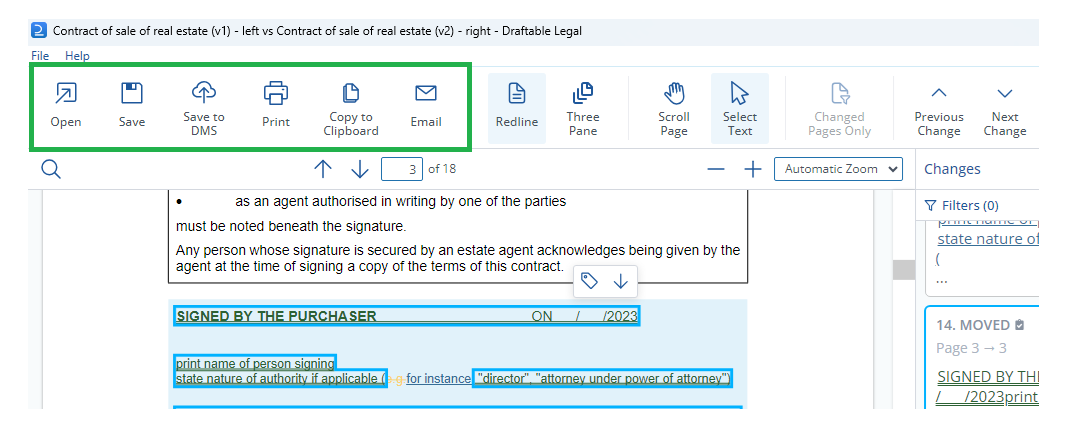 All of the output options provide a Changed Pages export option. Hence, the user can choose which output method they wish to use for the Change Pages export. In the below example we used the **Save** option.
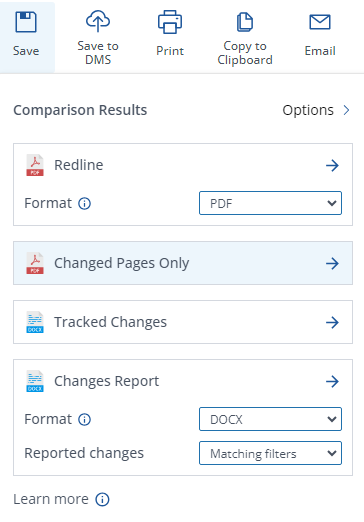 After selecting any of the **Changed Pages PDF** options, you will be prompted to save the export to a location on your computer, DMS or open the export directly.