> ## Documentation Index
> Fetch the complete documentation index at: https://help.draftable.com/llms.txt
> Use this file to discover all available pages before exploring further.
# Running compares with files from iManage and saving outputs to iManage
> iManage is a document and email management software for legal, financial, and accounting professionals. It provides advanced features and an intuitive interface to securely organize, store, and collaborate on documents.
This article will show you how to start comparisons by selecting documents from iManage, and also how to save these comparison exports as outputs to iManage.
## Selecting a document from iManage to start a comparison
In the New Comparison window, click the **iManage** option.
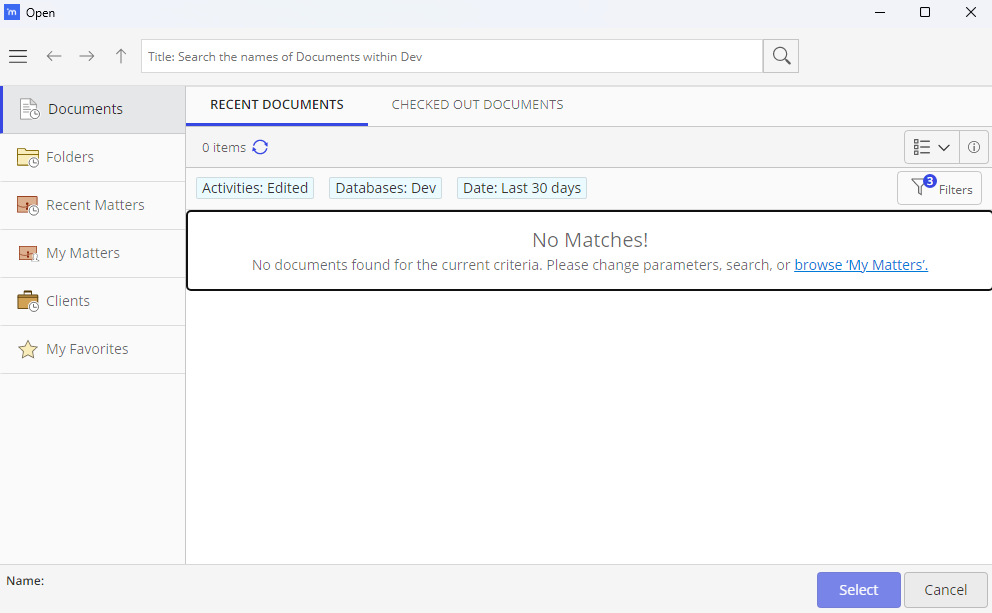
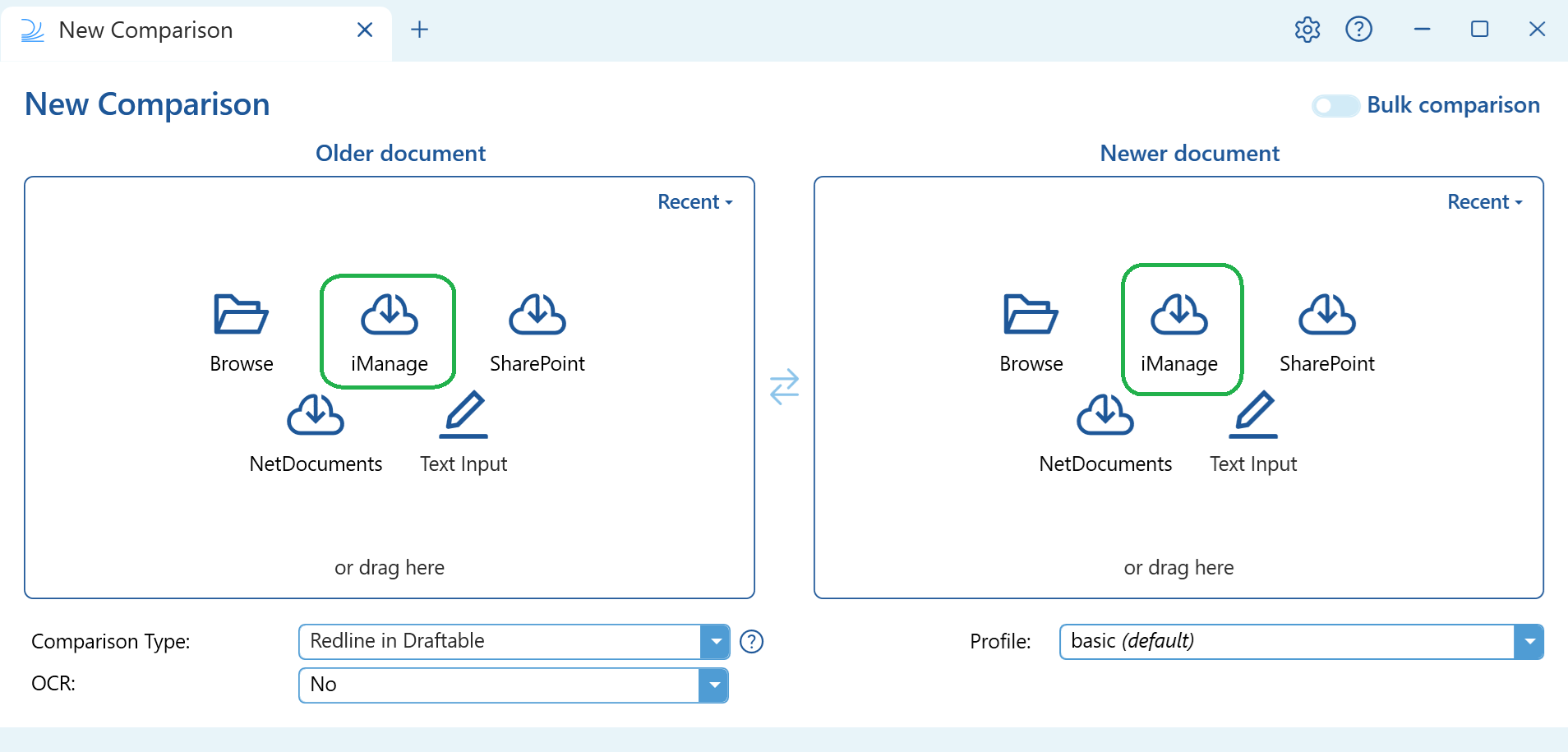 An iManage window will open, which will allow you to navigate to your documents hosted within iManage.
 Navigate to your desired matter location and click on the document you wish to load. If you would like to load a specific **version** of a document, first click on the **"i"** located at the top right where it is highlighted in the image below. Otherwise, if you just want to load the document as is, simply ensure it is highlighted and click on **select** and skip to step 4.
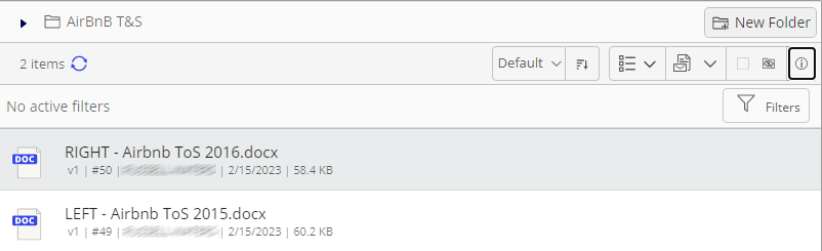
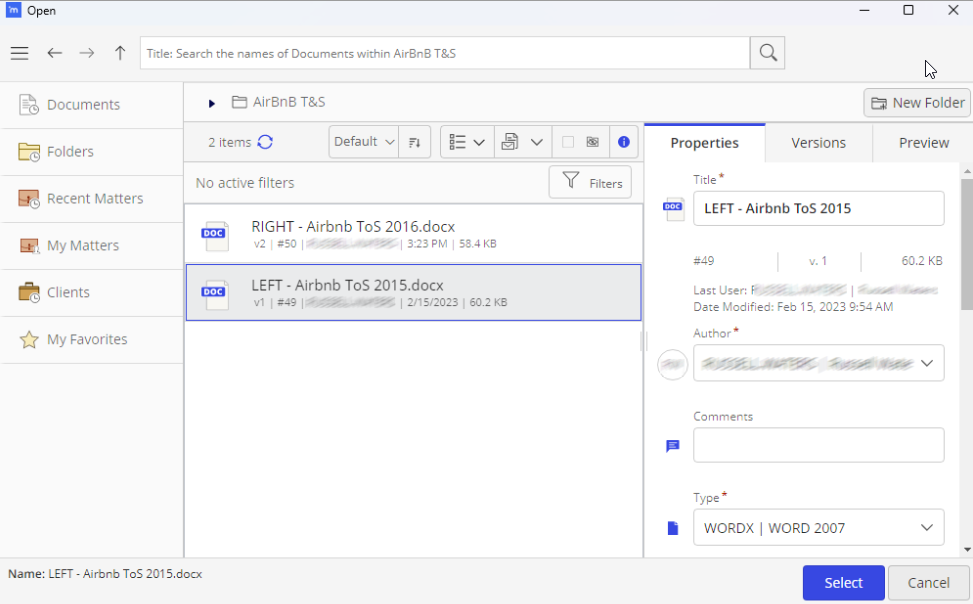 This opens all the details for the document which includes specific versions. Now click on the **versions** tab, then select the specific document version you wish to load into Draftable Legal
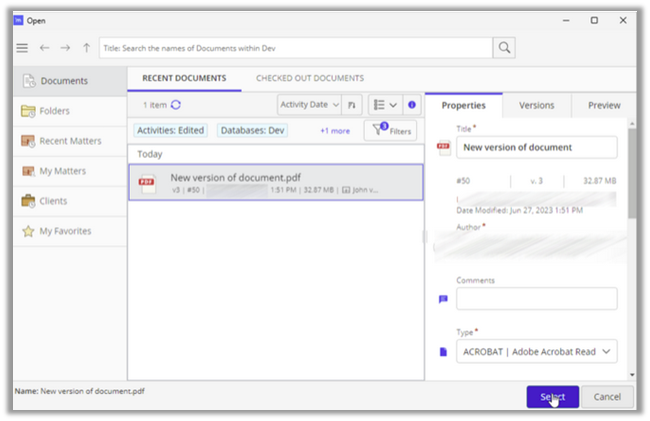
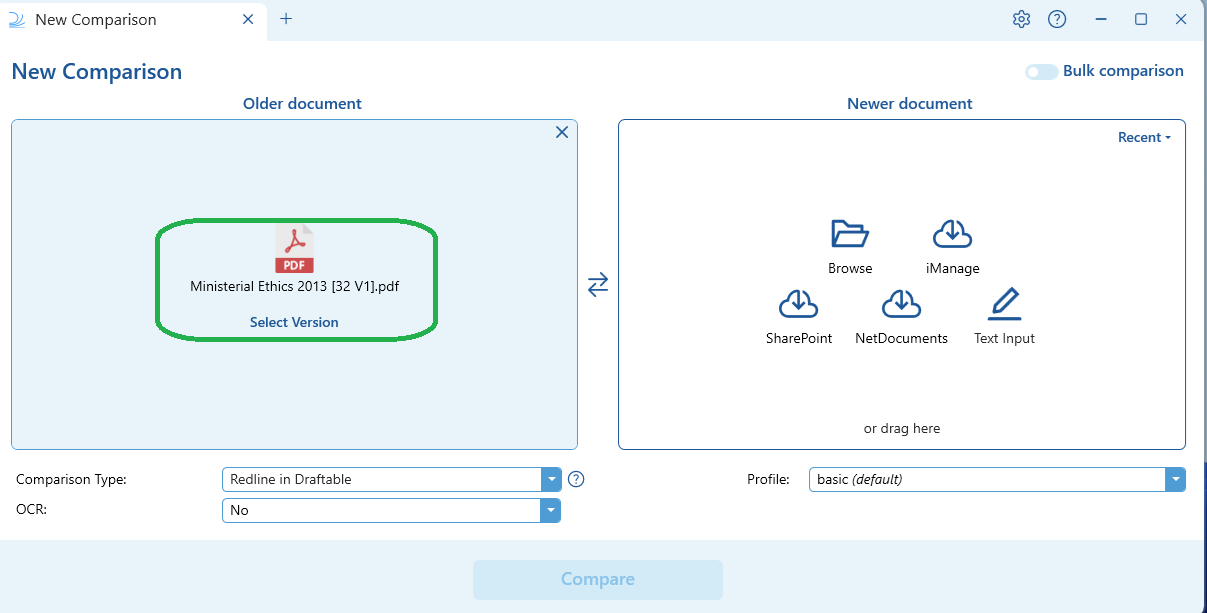
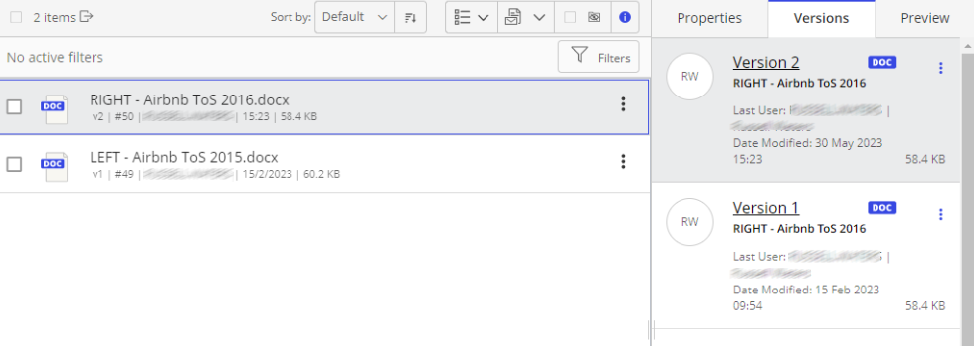 Once selected, this document will appear in the New Comparison window. You can repeat this process for the newer document
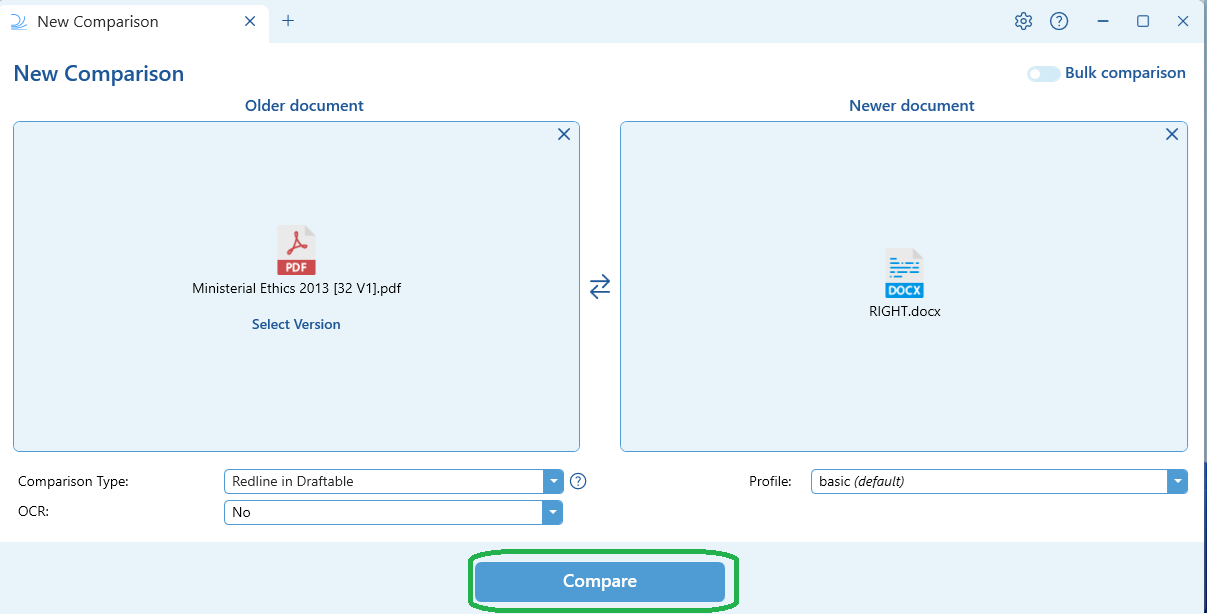
 Once both documents are selected, you can start your comparison by selecting **Compare.**
 ## Saving comparisons outputs to iManage
When running a new comparison, ensure the Redline in Draftable option has been selected.
## Saving comparisons outputs to iManage
When running a new comparison, ensure the Redline in Draftable option has been selected.
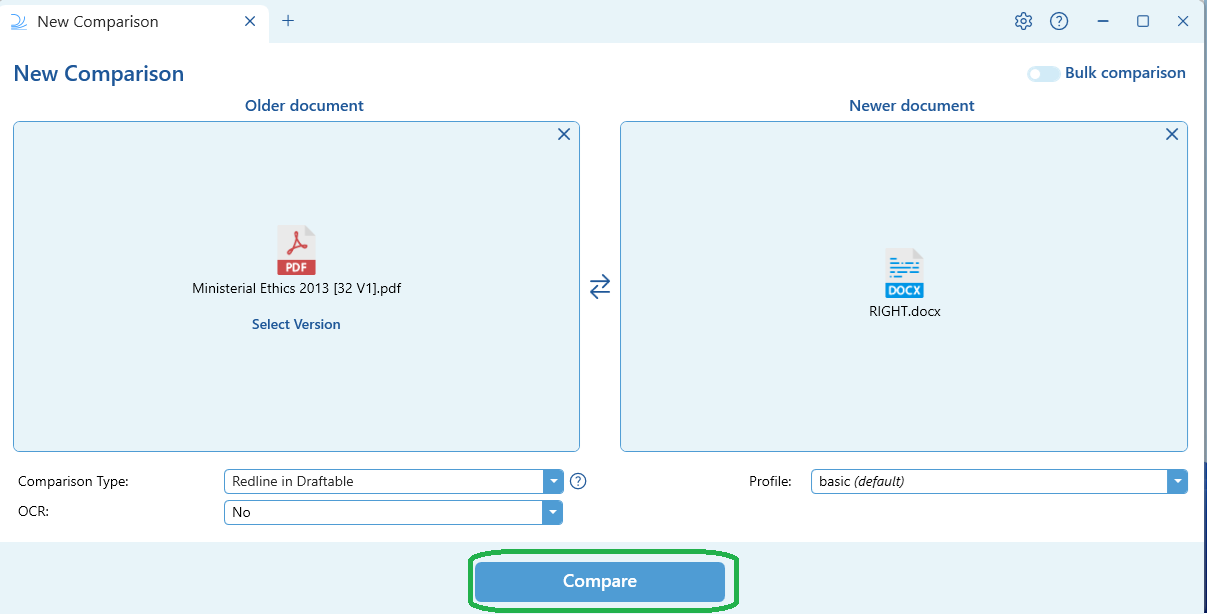 Once the comparison is ready, you will see the comparison window appear
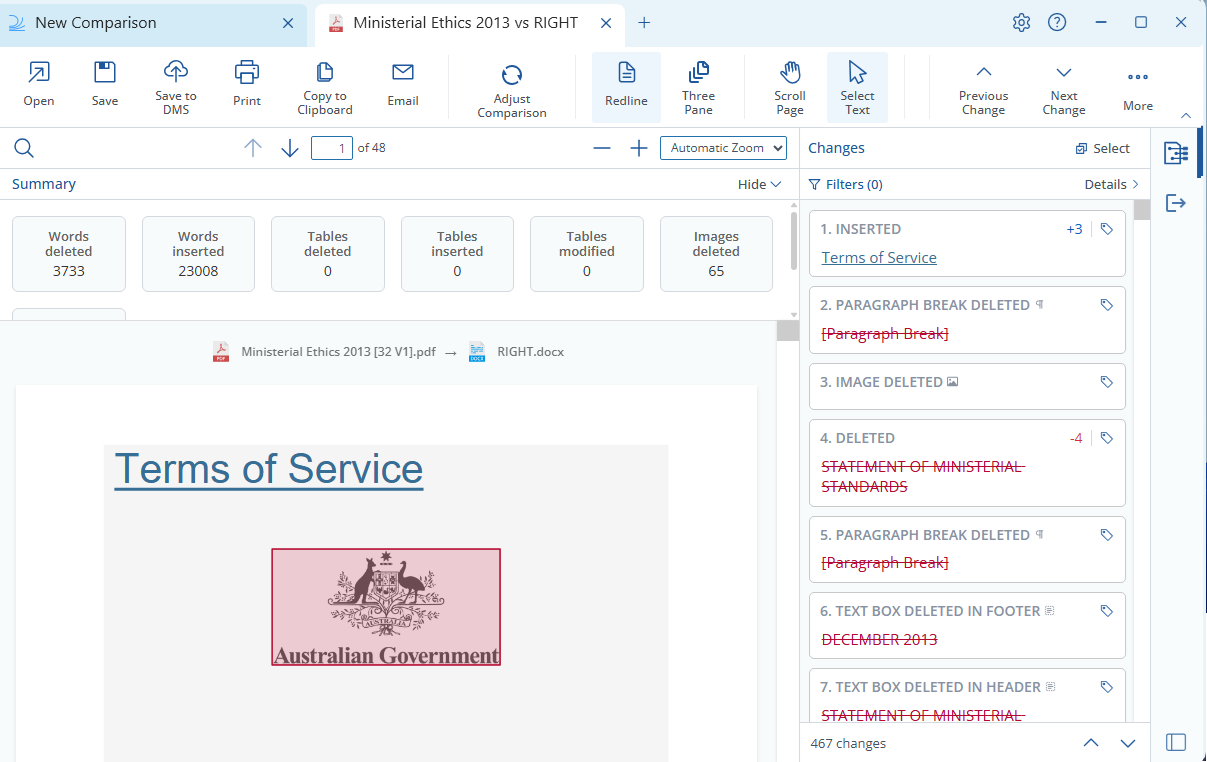 You can select the "Save to DMS" on the top ribbon in the comparison window. From here you have three options
1. **Save to iManage (as a new file):** When saving to iManage, this will create a new document in an existing matter.
You can select the "Save to DMS" on the top ribbon in the comparison window. From here you have three options
1. **Save to iManage (as a new file):** When saving to iManage, this will create a new document in an existing matter.
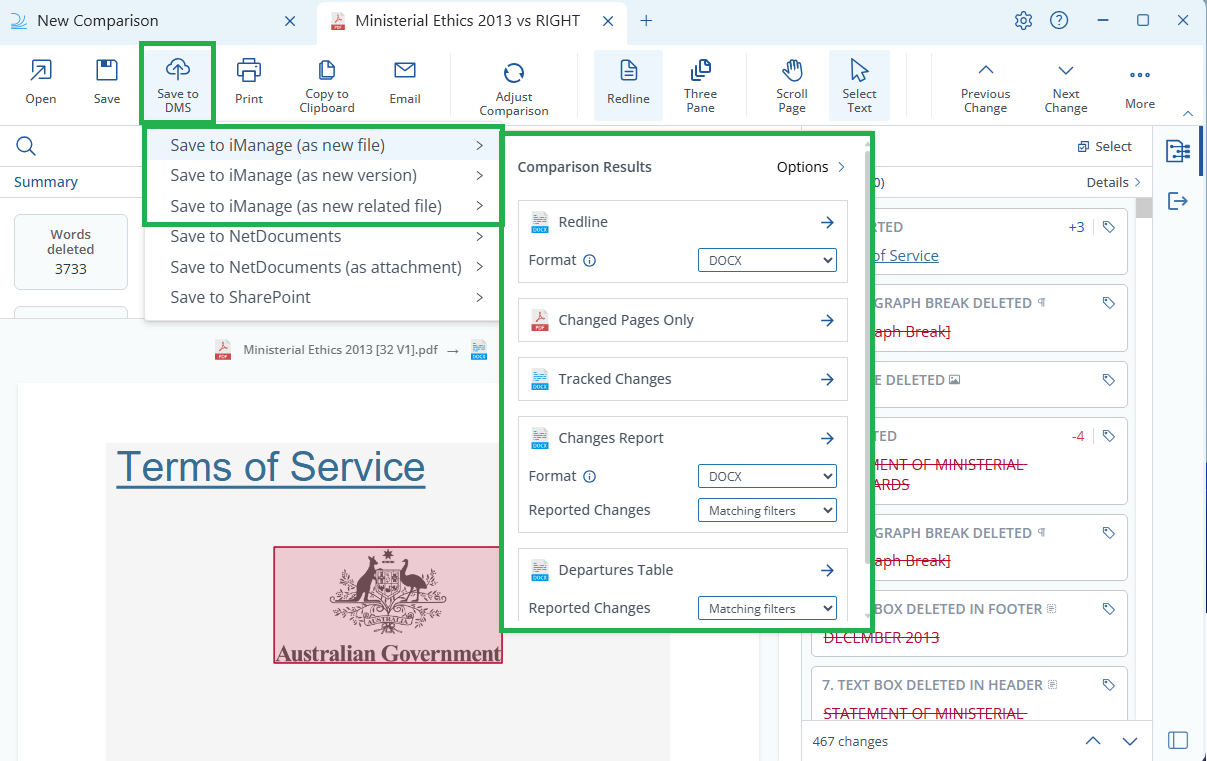 2. **Save to iManage (as a new version):** When saving to iManage, this will create a new version of an existing document within iManage.
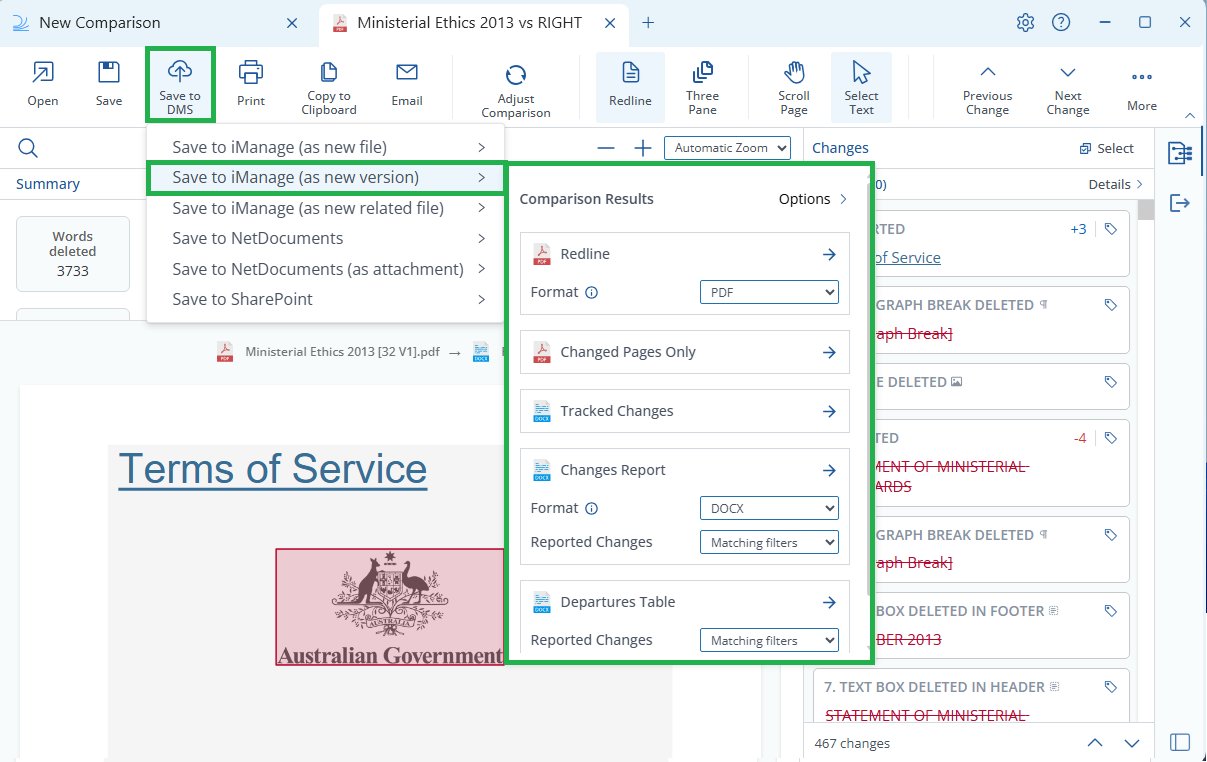 3. **Save to iManage (as a new related file):** When saving to iManage, this will create a new document within iManage but also create a link to an existing document within iManage.
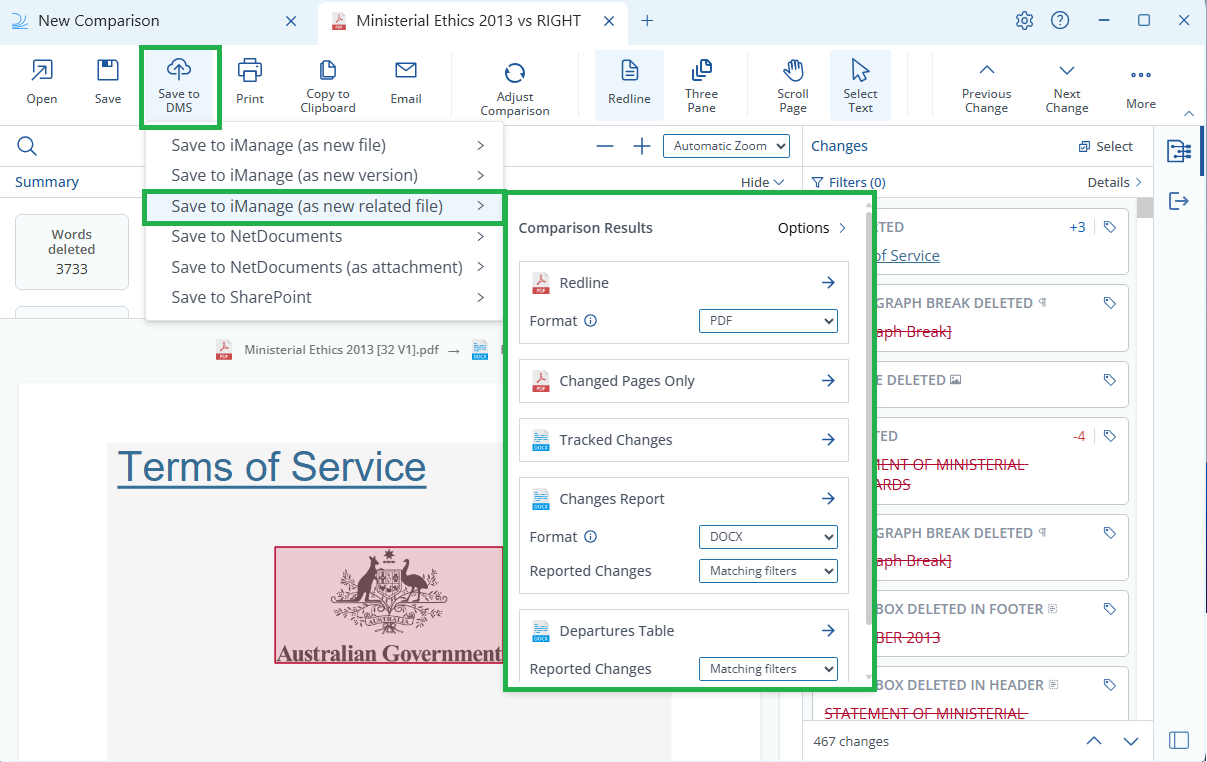 Additionally, you have the choice of 5 different comparison output types as well:
**Redline (.pdf or .docx):** A Redline output is a document comparison output that highlights the differences between two documents using coloured markup, making it easy to identify added, removed, or modified content at a glance.
**Changed Pages Only (.pdf):** A Changed Pages Only Redline PDF is a document comparison output that only includes pages with differences between the two documents, highlighting the modifications using colored markup for a focused review of altered content.
**Track Changes (.docx):** A Word document with Tracked Changes is a version of your document that displays all insertions, deletions, and formatting adjustments made, using Microsoft Word's built-in feature that allows you to review, accept, or reject the modifications individually.
**Changes Report (.docx or .csv):** A Changes Report is a document listing all the changes detected within the comparison. You can choose to include all changes or only changes matching your current Change List filters. Tags and notes applied to changes are included in the report. To learn more, see [Emailing comparison outputs](/hc/en-us/articles/16115297005849-Emailing-comparison-outputs).
**Departures Table (.docx):** A Departures Table is a structured, clause-by-clause summary of all changes detected between two versions of a document. Rather than showing changes inline like a traditional redline, it organizes each change into a table row under its relevant clause or subclause heading. You can choose to include all changes or only changes matching your current filters. To learn more, see [Understanding and using the Departures Table](/hc/en-us/articles/51552545500569-Understanding-and-Using-the-Departures-Table).
If you selected **Save to iManage (as a new file)** An iManage window will appear for you to select the save location. Use the location of your choice and save the export
Additionally, you have the choice of 5 different comparison output types as well:
**Redline (.pdf or .docx):** A Redline output is a document comparison output that highlights the differences between two documents using coloured markup, making it easy to identify added, removed, or modified content at a glance.
**Changed Pages Only (.pdf):** A Changed Pages Only Redline PDF is a document comparison output that only includes pages with differences between the two documents, highlighting the modifications using colored markup for a focused review of altered content.
**Track Changes (.docx):** A Word document with Tracked Changes is a version of your document that displays all insertions, deletions, and formatting adjustments made, using Microsoft Word's built-in feature that allows you to review, accept, or reject the modifications individually.
**Changes Report (.docx or .csv):** A Changes Report is a document listing all the changes detected within the comparison. You can choose to include all changes or only changes matching your current Change List filters. Tags and notes applied to changes are included in the report. To learn more, see [Emailing comparison outputs](/hc/en-us/articles/16115297005849-Emailing-comparison-outputs).
**Departures Table (.docx):** A Departures Table is a structured, clause-by-clause summary of all changes detected between two versions of a document. Rather than showing changes inline like a traditional redline, it organizes each change into a table row under its relevant clause or subclause heading. You can choose to include all changes or only changes matching your current filters. To learn more, see [Understanding and using the Departures Table](/hc/en-us/articles/51552545500569-Understanding-and-Using-the-Departures-Table).
If you selected **Save to iManage (as a new file)** An iManage window will appear for you to select the save location. Use the location of your choice and save the export
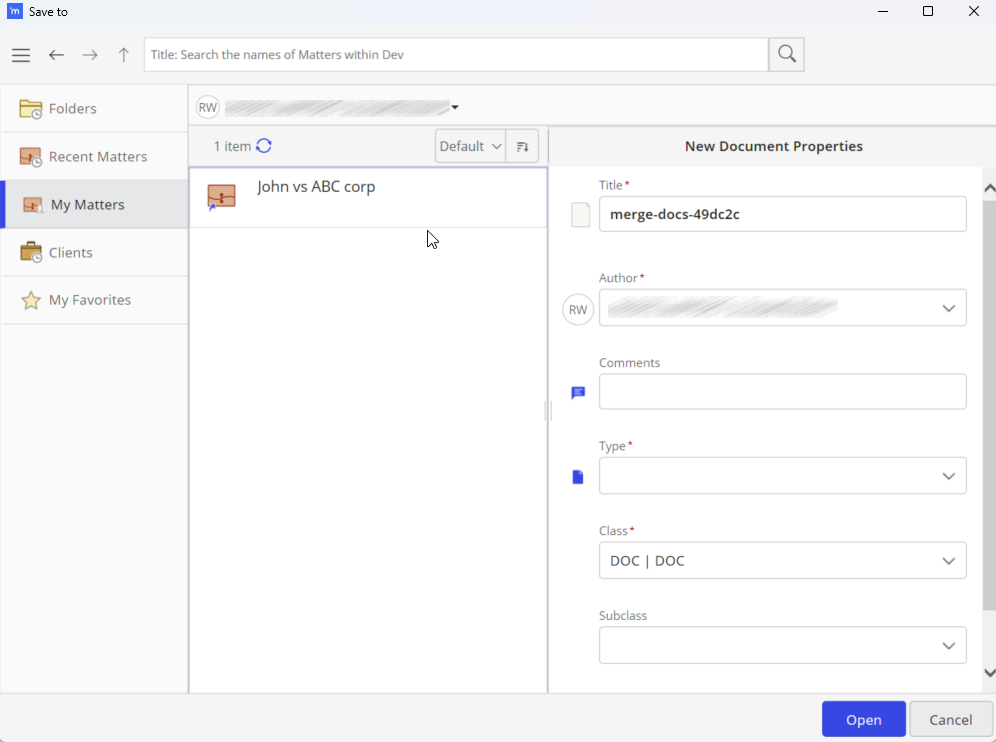 Once you have chosen the location, ensure you have specified the **type** and **class** of the output. Once ready, click **save** and your output will be saved to iManage.
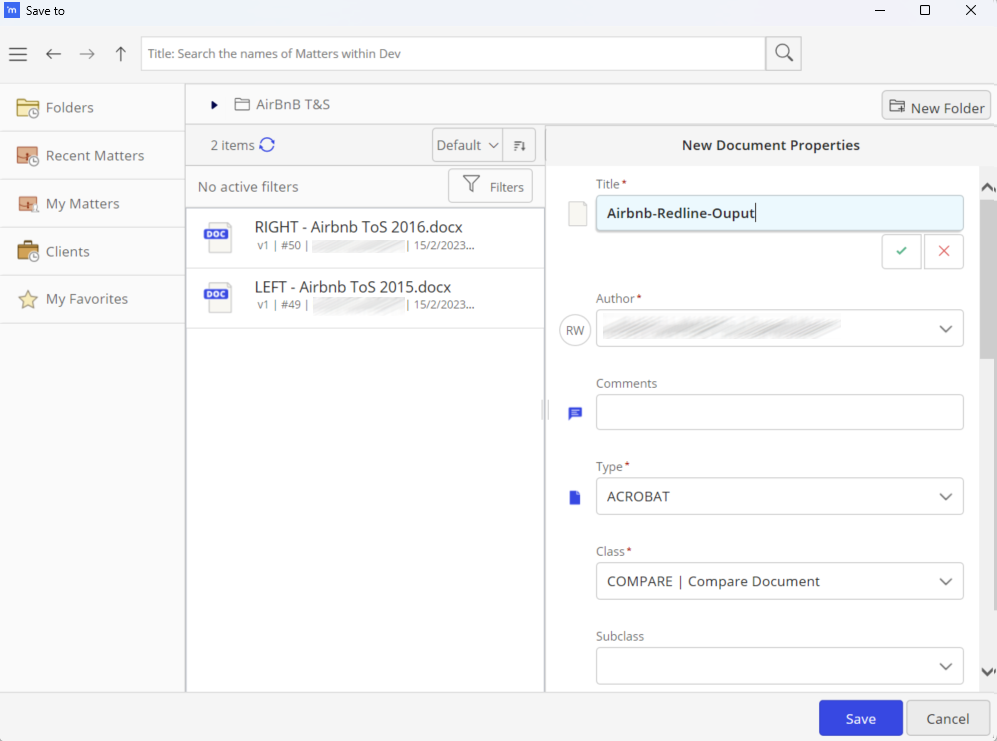 However, if you selected **Save to iManage (as a new version)** An iManage window will appear for you to select an existing document to save as the new version, and select the document you wish to create a new version of and click **select.**
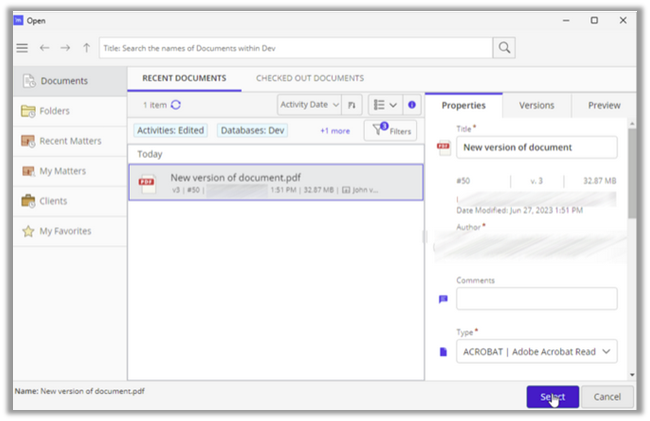 Then the following window will appear.
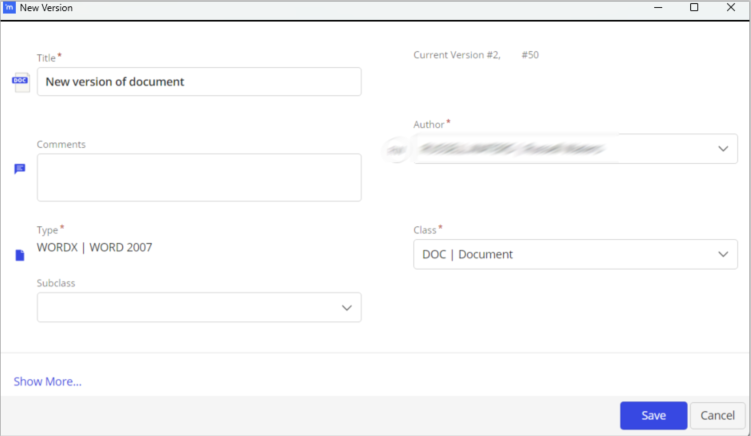 Enter the relevant details and select **Save.**
When selecting **Save to iManage (as a new related file)**, you first be prompted to save the file in a location of your choosing.
Enter the relevant details and select **Save.**
When selecting **Save to iManage (as a new related file)**, you first be prompted to save the file in a location of your choosing.
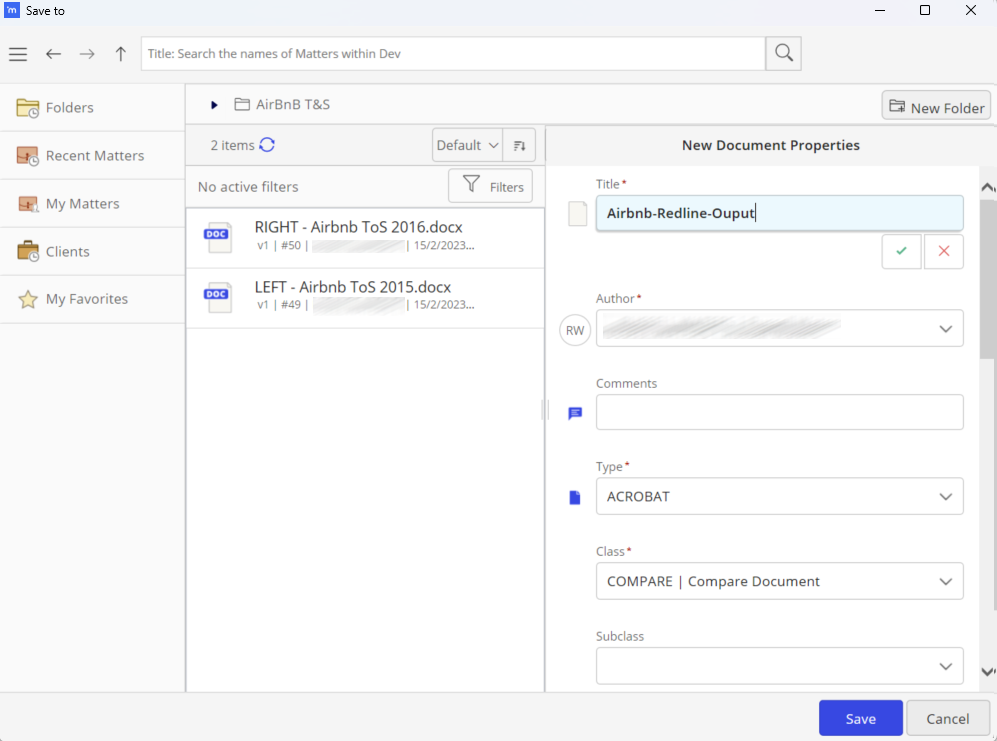 Once the document has been saved, a second prompt will pop up, this time asking you which document you would like to relate the comparison to. Browse to the appropriate file and then hit the select button.