> ## Documentation Index
> Fetch the complete documentation index at: https://help.draftable.com/llms.txt
> Use this file to discover all available pages before exploring further.
# Side-by-Side Document Compare Failure in Draftable Business
> If you are seeing this article, it is likely that Draftable Business has detected a failure in the side-by-side document comparison feature. There could be several causes for this issue, from permission-related problems to document corruption. Unfortunately, because this issue is complex and has various potential causes, an immediate solution may not be available for users to implement on their own.
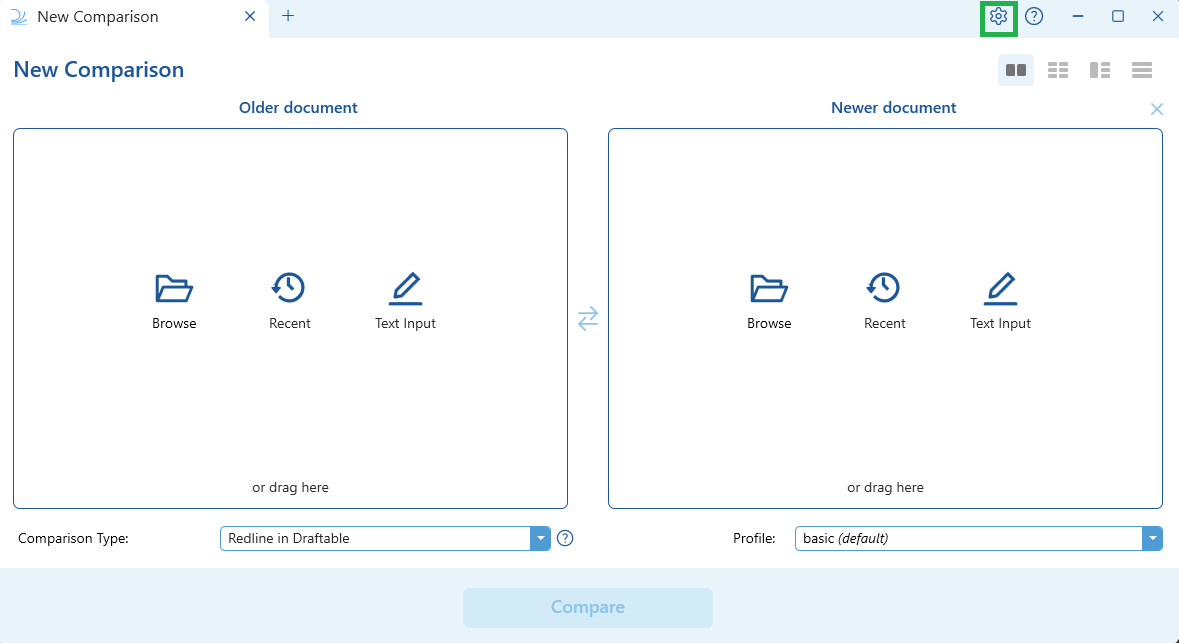
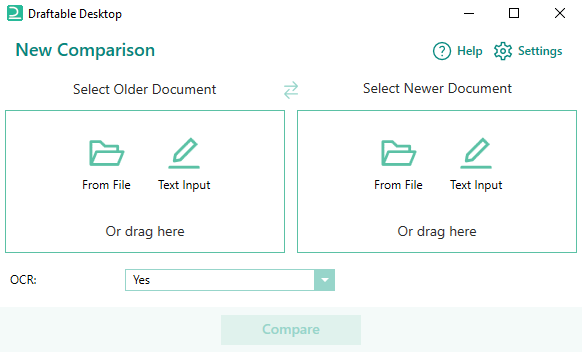
**Draftable Business 26.6 changed how you open the Settings menu from the New Comparison window.** If you are on 26.6 or later, follow the "26.6 and later" tabs below. On earlier versions, follow "Before 26.6". To check your version, open Settings. The version number shows at the bottom-left (for example, v26.6.0).
## What's the issue?
The side-by-side document compares feature in Draftable Business is a powerful tool that allows you to view differences between two versions of a document.
However, due to the complex nature of the feature and the variety of document formats and settings it handles, issues may occasionally arise that prevent it from functioning as intended. These could be due to:
1. **Permission Issues:** The application might not have the necessary permissions to access or modify the documents.
2. **Document Corruption:** The documents being compared may be corrupted or damaged, preventing the comparison from being completed.
3. **Software Bugs:** There may be unidentified bugs in our application causing the comparison to fail.
## Here's the solution
Given the potential complexity of the issue, the best course of action is to send logs from your application to our support team for analysis. Here's how you can do it:
Navigate to the settings section of Draftable Desktop
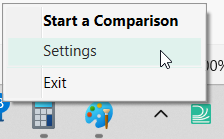
This can be done in various ways, either by clicking **settings** in the new comparison window or right-clicking the taskbar icon and selecting **settings.** See the examples below.
 Go to the **Troubleshooting** tab.
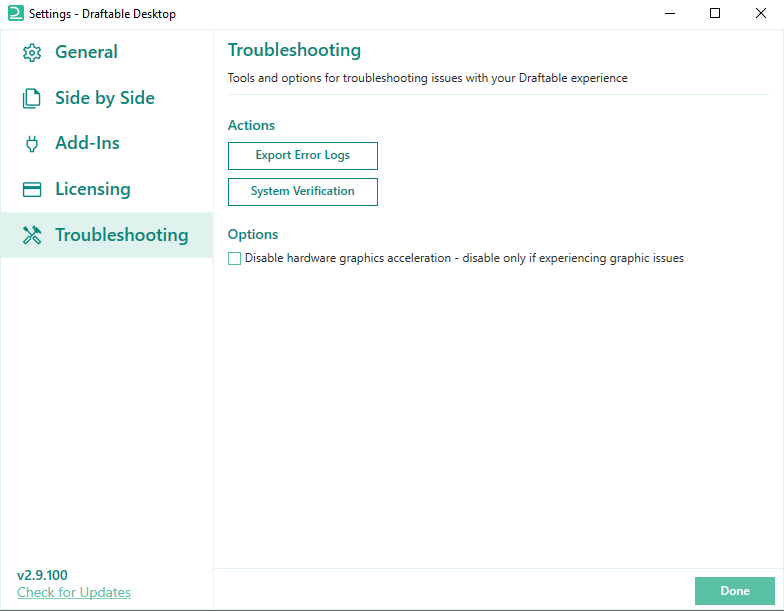 Select **Export Error Logs,** and send the output to our support team at [support@draftable.com](mailto:support@draftable.com)
Sending these logs will provide our support team with detailed information about the actions leading up to the failure, which can help them identify and resolve the issue more effectively.
Select **Export Error Logs,** and send the output to our support team at [support@draftable.com](mailto:support@draftable.com)
Sending these logs will provide our support team with detailed information about the actions leading up to the failure, which can help them identify and resolve the issue more effectively.