> ## Documentation Index
> Fetch the complete documentation index at: https://help.draftable.com/llms.txt
> Use this file to discover all available pages before exploring further.
# Changes markup theme options for Draftable Business
> Draftable Business offers users the power to change the viewer markup theme option, to make comparisons look and feel closer to their tailored needs.
**Draftable Business 26.6 changed how you open the Settings menu from the New Comparison window.** If you are on 26.6 or later, follow the "26.6 and later" tabs below. On earlier versions, follow "Before 26.6". To check your version, open Settings. The version number shows at the bottom-left (for example, v26.6.0).
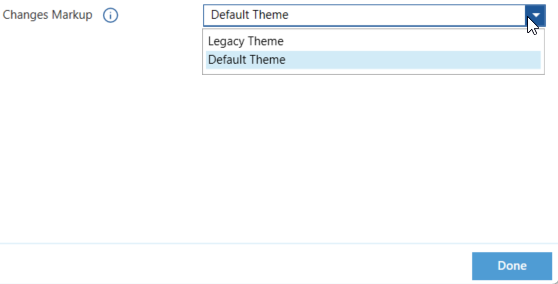
You can select the theme you wish to use in order to more easily read comparisons based on your preference. We currently offer two themes:
1. Default theme: Deletions appear red, insertions are green, and moves are blue.
2. Legacy theme: Deletions appear red, insertions are blue, and moves are green.
This article shows you how to change the currently active theme used for Draftable comparisons.
## How to change the current markup theme
1. Firstly, we need to open the settings menu, this can be done in a few ways:
Open settings via the Taskbar
1. Right-click the **Draftable** icon in the taskbar
2. Select **Settings** as the 2nd option
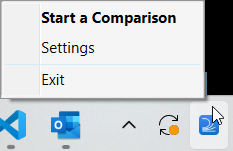 Or, open the settings menu via the New Comparison Window
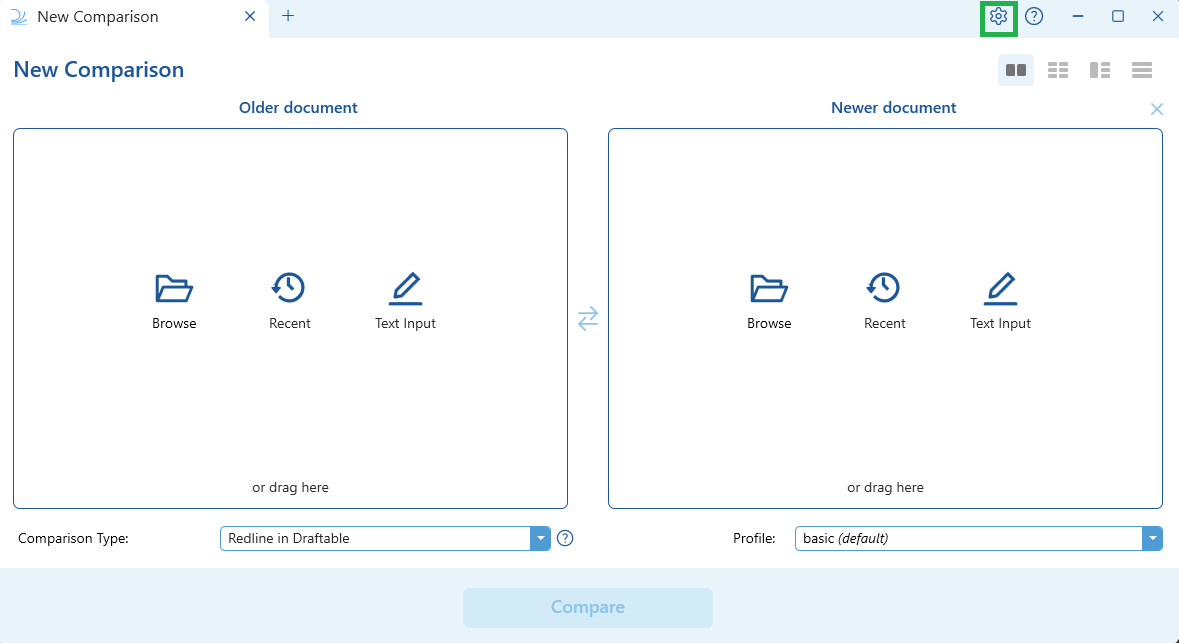
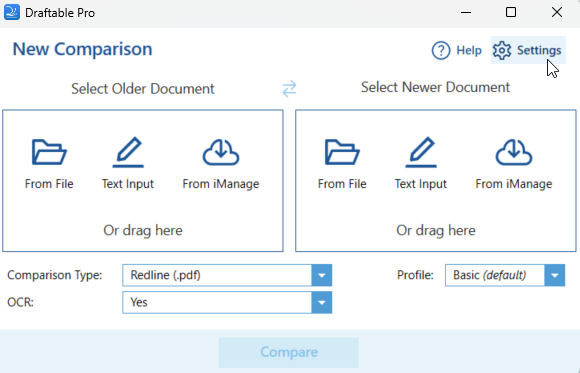
1. Open the [New Comparison window](/hc/en-us/articles/19002140760217-Launching-a-Comparison-in-Draftable-Legal-A-Step-by-Step-Guide)
2. Select **Settings** in the top right of the window
Or, open the settings menu via the New Comparison Window
1. Open the [New Comparison window](/hc/en-us/articles/19002140760217-Launching-a-Comparison-in-Draftable-Legal-A-Step-by-Step-Guide)
2. Select **Settings** in the top right of the window
 Once the settings menu is open, navigate to the **Side by Side** section
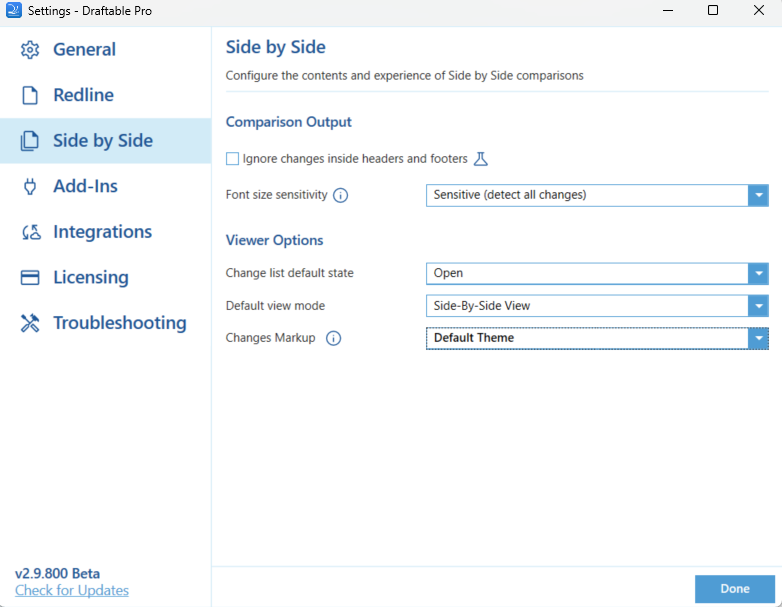 Under **Viewer Options,** select the drop down box next to **Changes Markup** and select **Done** once you have finalized your choice.
 Run a new comparison, and you will see your selected theme appear.