> ## Documentation Index
> Fetch the complete documentation index at: https://help.draftable.com/llms.txt
> Use this file to discover all available pages before exploring further.
# Performing system verification in Draftable Legal
> To utilize all the features that Draftable Legal has to offer, the application will perform a system verification step upon its first use.
**The settings menu was reorganised in Draftable Legal 26.6.** If you are on 26.6 or later, follow the "26.6 and later" tabs below. On earlier versions, follow "Before 26.6". To check your version, open Settings. The version number shows at the bottom-left (for example, v26.6.0).
This process confirms the proper functioning of various features and their integration with your existing computer environment. Should any component fail during this verification, Draftable Legal will provide recommendations on how to rectify the failing component.
However, if you ever need to manually perform this step, this article covers the process required to do so.
## Opening the settings menu
First, we need to open the settings menu to get access to the system verification button. 3 methods allow you to open the settings menu for Draftable Legal.
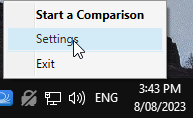
### Open the settings menu via the taskbar
Right-click the **Draftable Legal** icon in the taskbar
Select **Settings** as the 2nd option
 ### Open the settings menu via the New Comparison Window
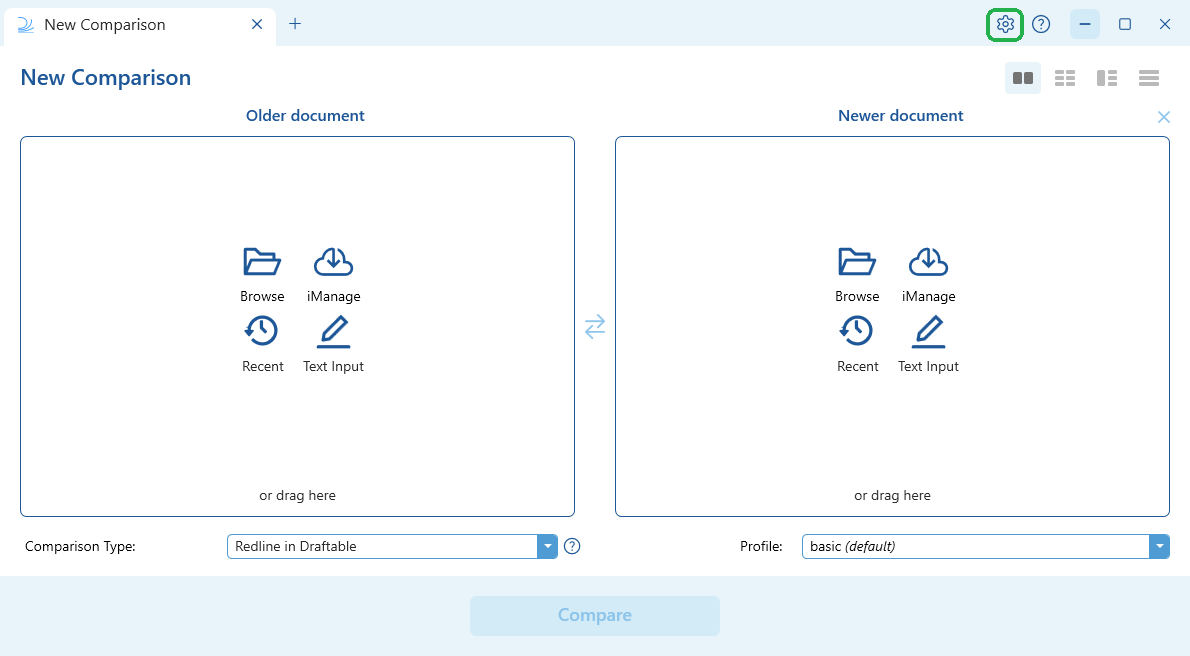
Open the [New Comparison window](/hc/en-us/articles/19002140760217-Launching-a-Comparison-in-Draftable-Legal-A-Step-by-Step-Guide)
Select **Settings** in the top right of the window
### Open the settings menu via the New Comparison Window
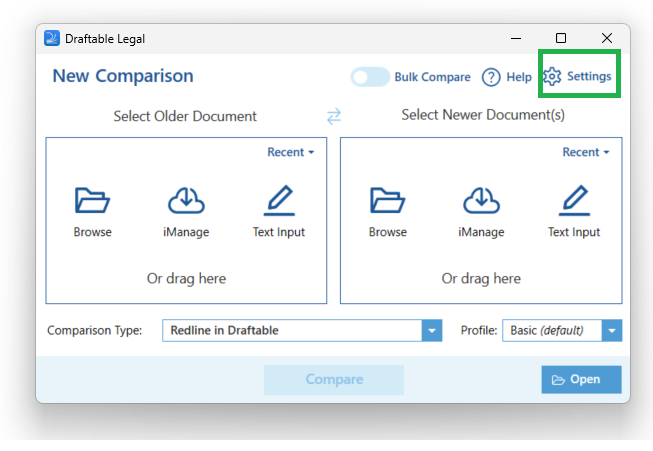
Open the [New Comparison window](/hc/en-us/articles/19002140760217-Launching-a-Comparison-in-Draftable-Legal-A-Step-by-Step-Guide)
Select **Settings** in the top right of the window
 Once you have opened the settings menu, you may proceed with the next step.
## Performing system verification
Once the settings menu is open, locate the system check action.
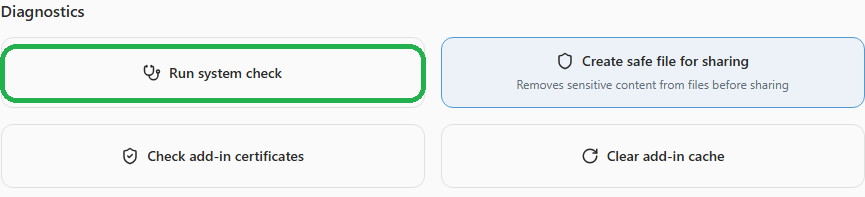
Select **Help & Troubleshooting** in the settings menu, then under the **Diagnostics** section select **Run system check** (this was previously called System Verification).
Once you have opened the settings menu, you may proceed with the next step.
## Performing system verification
Once the settings menu is open, locate the system check action.
Select **Help & Troubleshooting** in the settings menu, then under the **Diagnostics** section select **Run system check** (this was previously called System Verification).
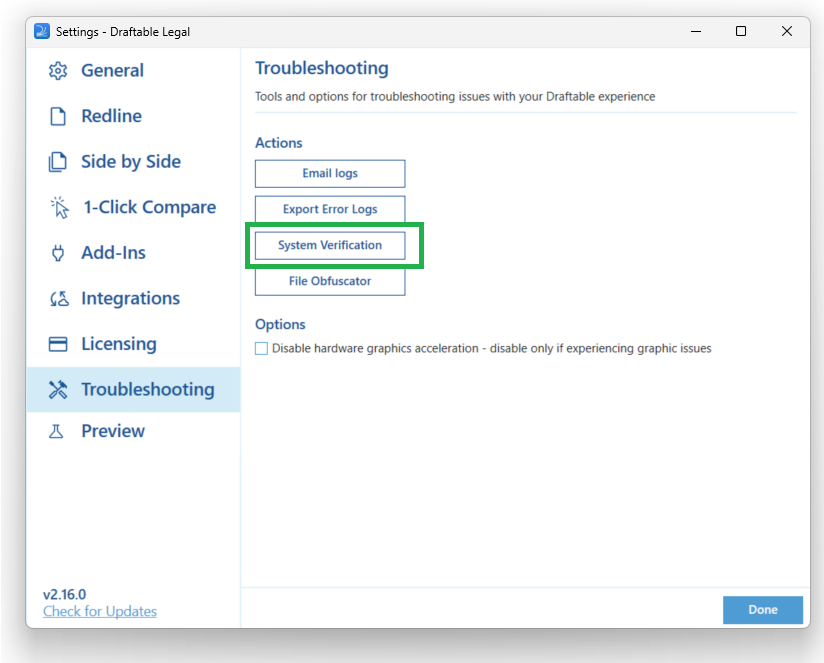
 Navigate to the **Troubleshooting** section, then select **System Verification**.
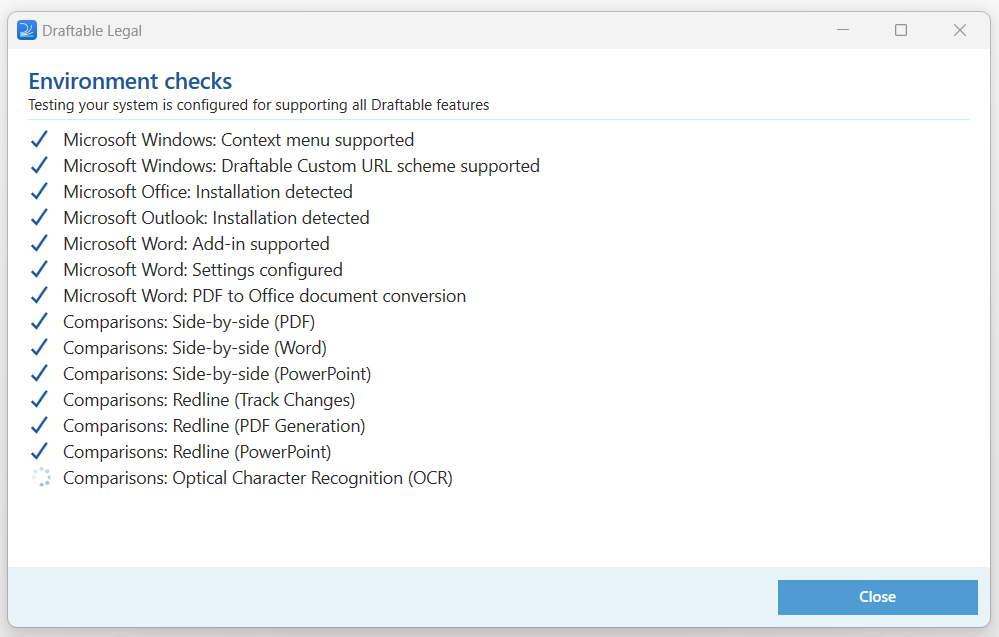
 The system verification process will begin, wait until the process is completed. There can be two outcomes.
1\. Draftable Legal has not detected any failed checks within your environment, which means that all features and integrations should work as expected.
The system verification process will begin, wait until the process is completed. There can be two outcomes.
1\. Draftable Legal has not detected any failed checks within your environment, which means that all features and integrations should work as expected.
 2\. There were environment checks that failed.
If there are issues with your environment, they are indicated via the X mark next to the specific check, which contains additional information.
2\. There were environment checks that failed.
If there are issues with your environment, they are indicated via the X mark next to the specific check, which contains additional information.
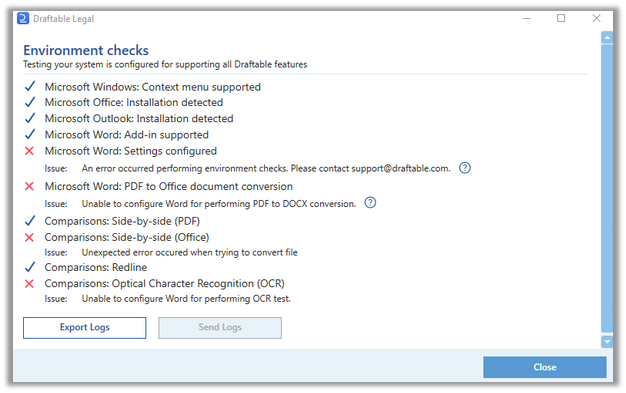 Clicking on the **question mark icons** will take you to a knowledge base article specific to that failed check. It is recommended that when you find failed checks, you always export your logs and send them to [support@draftable.com](mailto:support@draftable.com) so that we can further assist you with your specific error. In 26.6 and later, the export action is **Export error logs** under **Help & Troubleshooting**. On earlier versions, it is **Export Logs** under **Troubleshooting**.
Next steps for each failed test:
**Microsoft Windows**: Context menu supported\
a) Ensure context menu support is enabled.
**Microsoft Office**: Installation detected\
a) Verify that the installation is detected (Office 2016 or later).
**Microsoft Outlook**: Installation\
a) Confirm that the Draftable tab appears in the Outlook menu ribbon.
**Microsoft Word**: Add-in supported\
a) Check if Add-in support is enabled by opening Microsoft Word.\
b) Confirm that the Draftable tab is present in the Word menu ribbon.
**Microsoft Word**: Settings configured\
a) Confirm that settings are correctly configured by going to File > Options > Add-Ins in Microsoft Word.\
b) Check if the Draftable add-in is listed and enabled.
**Microsoft Word**: PDF to Office document conversion\
a) Verify the PDF to Office document conversion capability by opening Microsoft Word.
**Comparisons:** Side-by-Side (PDF)
Make sure that the documents you are attempting to compare are in a compatible PDF format
Confirm that the documents are not corrupted or password-protected, as these factors can affect the comparison process.
Check the file sizes of the documents, as excessively large files might encounter challenges during the comparison.
**Comparisons:** Side-by-Side (Office)
Make sure that the documents you are attempting to compare are in a compatible format such as Word, Excel or PowerPoint.
Confirm that the documents are not corrupted or password-protected, as these factors can affect the comparison process.
Check the file sizes of the documents, as excessively large files might encounter challenges during the comparison.
**Comparisons:** Redline
Verify that the documents have tracked changes enabled and are in a compatible format (such as Word documents).
For PDF generation, ensure that the original documents are in a supported format for conversion to PDF.
For PowerPoint comparisons, make sure the PowerPoint files are valid and in a format that can be processed by Draftable.
**For Optical Character Recognition (OCR)**:
a) Ensure that Draftable is correctly installed, update to the latest version, and verify the compatibility of the scanned images or PDF files being used.
Regardless if you experience any issues with your environment or Draftable Legal features not working, complete the system verification and then export the logs.
Please send all the information to us via [support@draftable.com](mailto:support@draftable.com)
Clicking on the **question mark icons** will take you to a knowledge base article specific to that failed check. It is recommended that when you find failed checks, you always export your logs and send them to [support@draftable.com](mailto:support@draftable.com) so that we can further assist you with your specific error. In 26.6 and later, the export action is **Export error logs** under **Help & Troubleshooting**. On earlier versions, it is **Export Logs** under **Troubleshooting**.
Next steps for each failed test:
**Microsoft Windows**: Context menu supported\
a) Ensure context menu support is enabled.
**Microsoft Office**: Installation detected\
a) Verify that the installation is detected (Office 2016 or later).
**Microsoft Outlook**: Installation\
a) Confirm that the Draftable tab appears in the Outlook menu ribbon.
**Microsoft Word**: Add-in supported\
a) Check if Add-in support is enabled by opening Microsoft Word.\
b) Confirm that the Draftable tab is present in the Word menu ribbon.
**Microsoft Word**: Settings configured\
a) Confirm that settings are correctly configured by going to File > Options > Add-Ins in Microsoft Word.\
b) Check if the Draftable add-in is listed and enabled.
**Microsoft Word**: PDF to Office document conversion\
a) Verify the PDF to Office document conversion capability by opening Microsoft Word.
**Comparisons:** Side-by-Side (PDF)
Make sure that the documents you are attempting to compare are in a compatible PDF format
Confirm that the documents are not corrupted or password-protected, as these factors can affect the comparison process.
Check the file sizes of the documents, as excessively large files might encounter challenges during the comparison.
**Comparisons:** Side-by-Side (Office)
Make sure that the documents you are attempting to compare are in a compatible format such as Word, Excel or PowerPoint.
Confirm that the documents are not corrupted or password-protected, as these factors can affect the comparison process.
Check the file sizes of the documents, as excessively large files might encounter challenges during the comparison.
**Comparisons:** Redline
Verify that the documents have tracked changes enabled and are in a compatible format (such as Word documents).
For PDF generation, ensure that the original documents are in a supported format for conversion to PDF.
For PowerPoint comparisons, make sure the PowerPoint files are valid and in a format that can be processed by Draftable.
**For Optical Character Recognition (OCR)**:
a) Ensure that Draftable is correctly installed, update to the latest version, and verify the compatibility of the scanned images or PDF files being used.
Regardless if you experience any issues with your environment or Draftable Legal features not working, complete the system verification and then export the logs.
Please send all the information to us via [support@draftable.com](mailto:support@draftable.com)