> ## Documentation Index
> Fetch the complete documentation index at: https://help.draftable.com/llms.txt
> Use this file to discover all available pages before exploring further.
# Silent install/launch options for Draftable Legal
> This article is for system administrators who want to deploy the Draftable Legal application via a silent install method or want to configure Draftable Legal to start silently for users. This article discusses all the silent options available for Draftable Legal.
## Installation
Various silent installation parameters are required to be parsed for the silent installation of Draftable Legal. These differ for each of the different installer types:
### Default Installer
The silent install parameter `-s|--silent` is required for the default installer.
Hence an example of installing the default installer silently is:
```bash theme={null}
C:\Users\YourUsername\Documents\DraftableDesktopSetup.exe --silent
```
### Machine Wide MSI
To install the Machine-wide MSI installer silently, use the `/quiet` command-line parameter. We have two examples that can apply to the machine-wide MSI.
**Include the HTTP Listener Service (`HttpListener`) in every silent MSI command.** It is a required component and is **not** installed by default. Because `ADDLOCAL` installs only the features you list, any command that omits `HttpListener` will not install the service. See [Deployment options via MSI (System-wide) installer](/hc/en-us/articles/31609155610393-Deployment-options-via-MSI-System-wide-installer) for the full feature list and examples.
#### Example 1: Install silently into a custom location
```bash theme={null}
msiexec /i DraftableSetupSystem.msi /quiet INSTALLDIR="C:\Apps\Draftable\Desktop"
```
#### Example 2: Install silently without a desktop shortcut
```bash theme={null}
msiexec /i DraftableSetupSystem.msi /quiet ADDLOCAL=DraftableDesktop,StartMenuShortcut,HttpListener
```
This example omits the desktop shortcut but still includes the required `HttpListener` feature. Add the add-in features you need (`WordAddin`, `ExcelAddin`, `OutlookAddin`) to the same comma-separated list.
## Silent launch parameters
There are various ways to configure the launch behaviour for Draftable Legal.
### Within Draftable Legal settings
In the general settings, users can manually select how they wish for Draftable Legal to start by default. Under the **Startup** menu option, we see there are 3 options to select from.
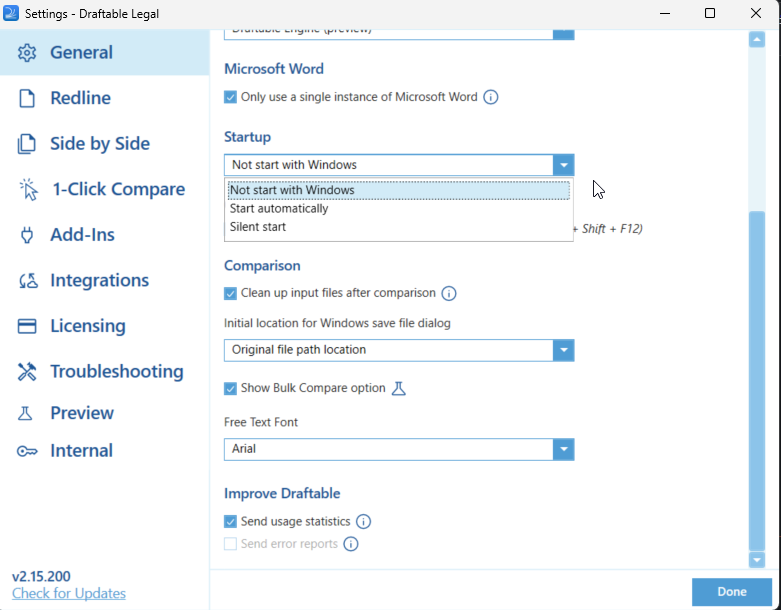 There are 3 options here:
1. Start Automatically: This starts Draftable Legal when Windows launches, the New Comparison Window will be shown on the main desktop after Windows has been booted.
2. Not Start with Windows: Draftable Legal does not start at all, and the user will need to manually open the program.
3. Silent start: This is our silent option, it starts Draftable Legal in the background when Windows starts, but does not launch the New Comparison window.
### Group Policy option
You can configure the default behaviour for the Draftable Legal start option via Group Policy options, specifically the 'Launch Draftable Automatically when Windows Start' option.
There are 3 options here:
1. Start Automatically: This starts Draftable Legal when Windows launches, the New Comparison Window will be shown on the main desktop after Windows has been booted.
2. Not Start with Windows: Draftable Legal does not start at all, and the user will need to manually open the program.
3. Silent start: This is our silent option, it starts Draftable Legal in the background when Windows starts, but does not launch the New Comparison window.
### Group Policy option
You can configure the default behaviour for the Draftable Legal start option via Group Policy options, specifically the 'Launch Draftable Automatically when Windows Start' option.
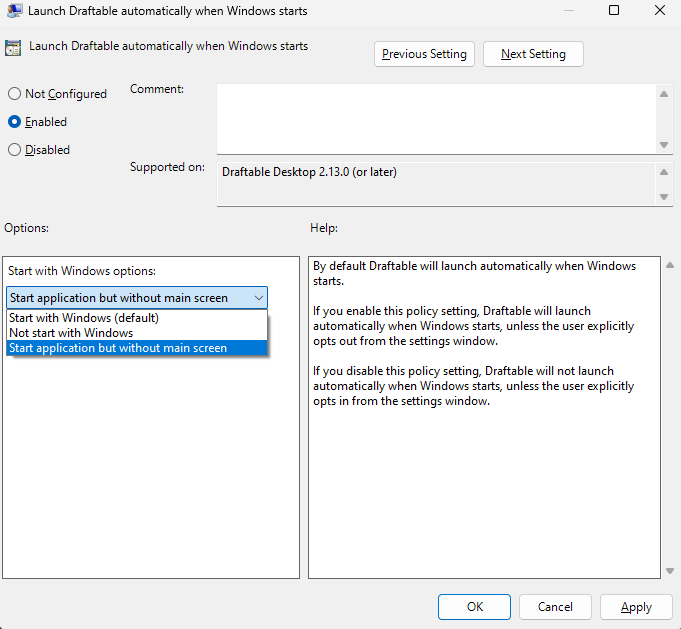 There are 3 options here:
1. Start with Windows: This starts Draftable Legal when Windows launches. The New Comparison Window will be shown on the main desktop after Windows has started.
2. Not Start with Windows: Draftable Legal does not start at all, and the user will need to manually open the program.
3. Start application but without main screen: This is our silent option, it starts Draftable Legal in the background when Windows starts, but does not launch the New Comparison window.
Remember, you can always download the latest group policy templates [here](/hc/en-us/articles/28666057117721-Draftable-Legal-Group-Policy-Template-Files).
### Registry setting
The registry key that can be configured, to control whether Draftable Legal starts, when Windows starts, can be set in the below registry key.
```bash theme={null}
Key: HKCU:\Software\Draftable\Compare
Value name: startOnStartupOption
Value type: REG_SZ
Value data:
```
The `` value can be configured with 3 different options:
1. **Start** - This starts Draftable Legal when Windows launches. The New Comparison Window will be shown on the main desktop after Windows has started.
2. **NotStart** - Draftable Legal does not start at all, and the user will need to manually open the program.
3. **Silent** - This is our silent option, it starts Draftable Legal in the background when Windows starts, but does not launch the New Comparison window.
There are 3 options here:
1. Start with Windows: This starts Draftable Legal when Windows launches. The New Comparison Window will be shown on the main desktop after Windows has started.
2. Not Start with Windows: Draftable Legal does not start at all, and the user will need to manually open the program.
3. Start application but without main screen: This is our silent option, it starts Draftable Legal in the background when Windows starts, but does not launch the New Comparison window.
Remember, you can always download the latest group policy templates [here](/hc/en-us/articles/28666057117721-Draftable-Legal-Group-Policy-Template-Files).
### Registry setting
The registry key that can be configured, to control whether Draftable Legal starts, when Windows starts, can be set in the below registry key.
```bash theme={null}
Key: HKCU:\Software\Draftable\Compare
Value name: startOnStartupOption
Value type: REG_SZ
Value data:
```
The `` value can be configured with 3 different options:
1. **Start** - This starts Draftable Legal when Windows launches. The New Comparison Window will be shown on the main desktop after Windows has started.
2. **NotStart** - Draftable Legal does not start at all, and the user will need to manually open the program.
3. **Silent** - This is our silent option, it starts Draftable Legal in the background when Windows starts, but does not launch the New Comparison window.