> ## Documentation Index
> Fetch the complete documentation index at: https://help.draftable.com/llms.txt
> Use this file to discover all available pages before exploring further.
# Configuring iManage to be able to launch comparisons directly from within iManage
> This article is intended for administrators who want to configure iManage with Draftable Legal to simplify document comparison by providing the ability to start comparisons directly from within iManage.
**The settings menu was reorganised in Draftable Legal 26.6.** If you are on 26.6 or later, follow the "26.6 and later" tabs below. On earlier versions, follow "Before 26.6". To check your version, open Settings. The version number shows at the bottom-left (for example, v26.6.0).
This guide includes the process for both iManage cloud and on-premise, hence, both deployments of iManage are supported for this integration.
### Note regarding Machine Wide MSI installation for Draftable Legal and iManage integration
It is recommended that if are planning to use the Machine Wide MSI installer for your Draftable Legal installation, we highly recommend that you use the default install location if you also plan to integrate with iManage to reduce the likelihood of any issues during the integration process.
## iManage Cloud configuration
The iManage cloud configuration requires access to both Draftable Legal and an administrator-level \
(with access to control center) account for configuring Draftable within iManage.
### Configuring Draftable Legal
Ensure you have logged into iManage on your Draftable Legal application. This depends on what version of **Draftable** you are using. If you are using Draftable version 25.9.300 or earlier, please follow the process below.
Open the settings menu and navigate to the **integrations** section of the settings.
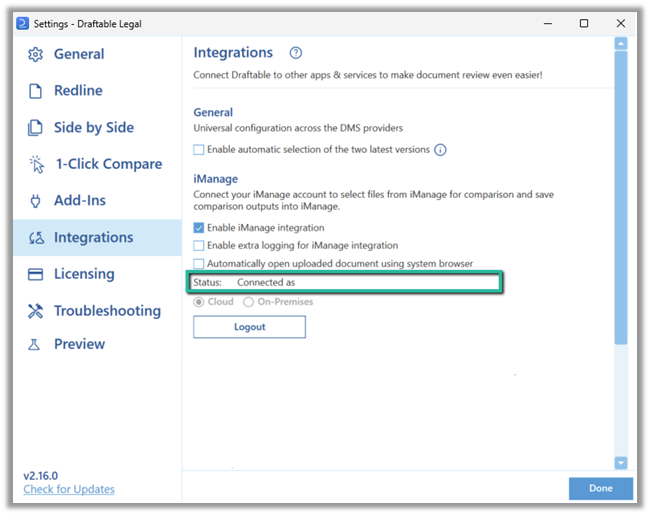
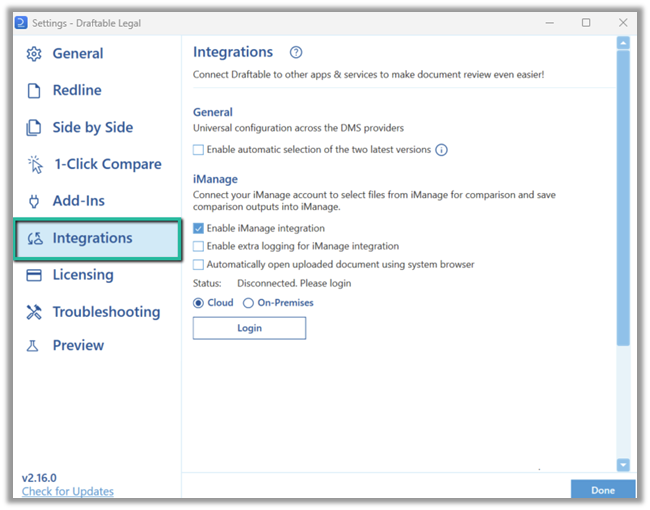 Click the **Login** button, enter your credentials for your iManage account. It should display as *Connected as* with your correct account details if done correctly.
 If you're using Draftable version 25.10.000 or later, please see the following process:
In 26.6 the iManage settings live under **DMS Connections** (previously **Integrations**).
Before you can connect, you need to turn on the iManage integration. In the settings menu, select **DMS Connections**, find the **iManage** section, and switch on its enable toggle. The connection options and **Servers** list only appear once iManage is enabled.
If you're using Draftable version 25.10.000 or later, please see the following process:
In 26.6 the iManage settings live under **DMS Connections** (previously **Integrations**).
Before you can connect, you need to turn on the iManage integration. In the settings menu, select **DMS Connections**, find the **iManage** section, and switch on its enable toggle. The connection options and **Servers** list only appear once iManage is enabled.
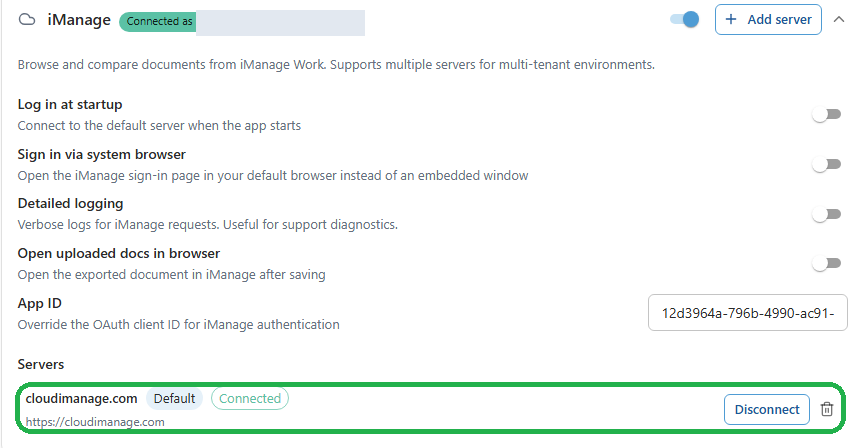
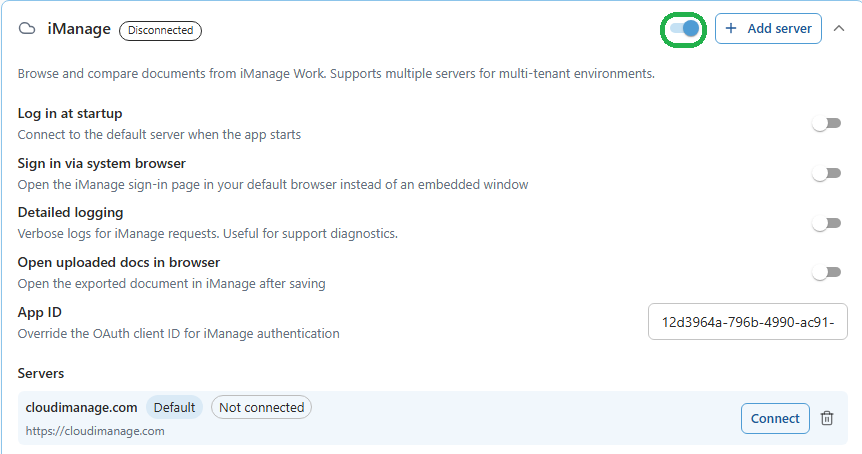 Open the settings menu, select **DMS Connections**, then expand the **iManage** section. Your iManage servers are listed at the bottom under **Servers**.
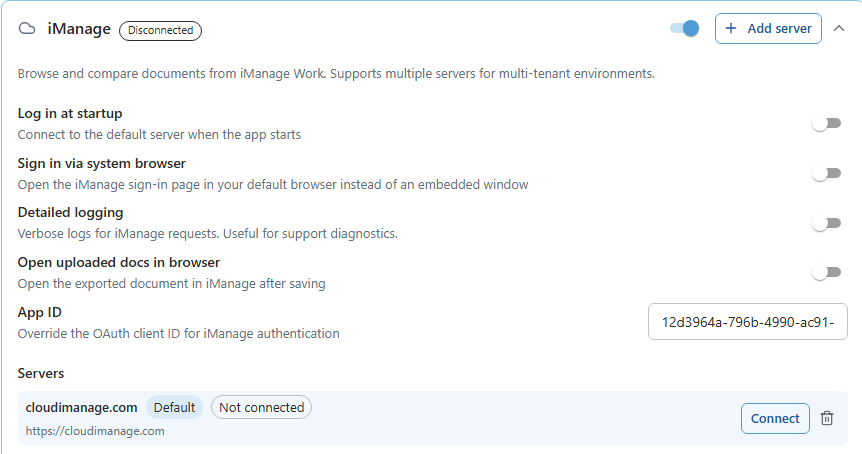 To add a server, click **Add server**. In the **Add iManage Server** dialog, enter your iManage Work server address in the **Server URL** field. For the default cloud configuration, enter:
```bash theme={null}
https://cloudimanage.com
```
Then click **Add Server**.
In 26.6 and later the dialog has a single **Server URL** field. There is no separate name field; the server name is taken from the URL.
To add a server, click **Add server**. In the **Add iManage Server** dialog, enter your iManage Work server address in the **Server URL** field. For the default cloud configuration, enter:
```bash theme={null}
https://cloudimanage.com
```
Then click **Add Server**.
In 26.6 and later the dialog has a single **Server URL** field. There is no separate name field; the server name is taken from the URL.
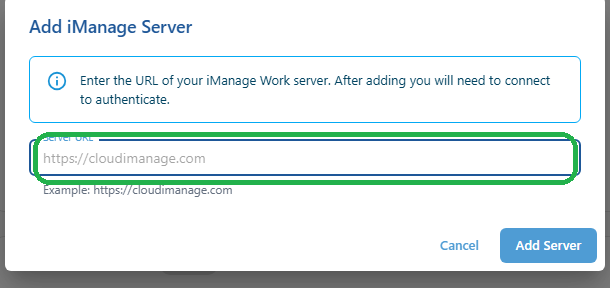 The server is added to the **Servers** list. You can add more than one server if you work across multiple tenancies.
 Find the server you want to use in the **Servers** list and click **Connect**, then enter your iManage credentials (unless they have already been configured by Group Policy).
 The connection is validated when the iManage header shows a green **Connected** badge with your account, the server is marked **Connected** in the **Servers** list, and its **Connect** button changes to **Disconnect**.
 Open the settings menu and navigate to the **integrations** section of the settings.
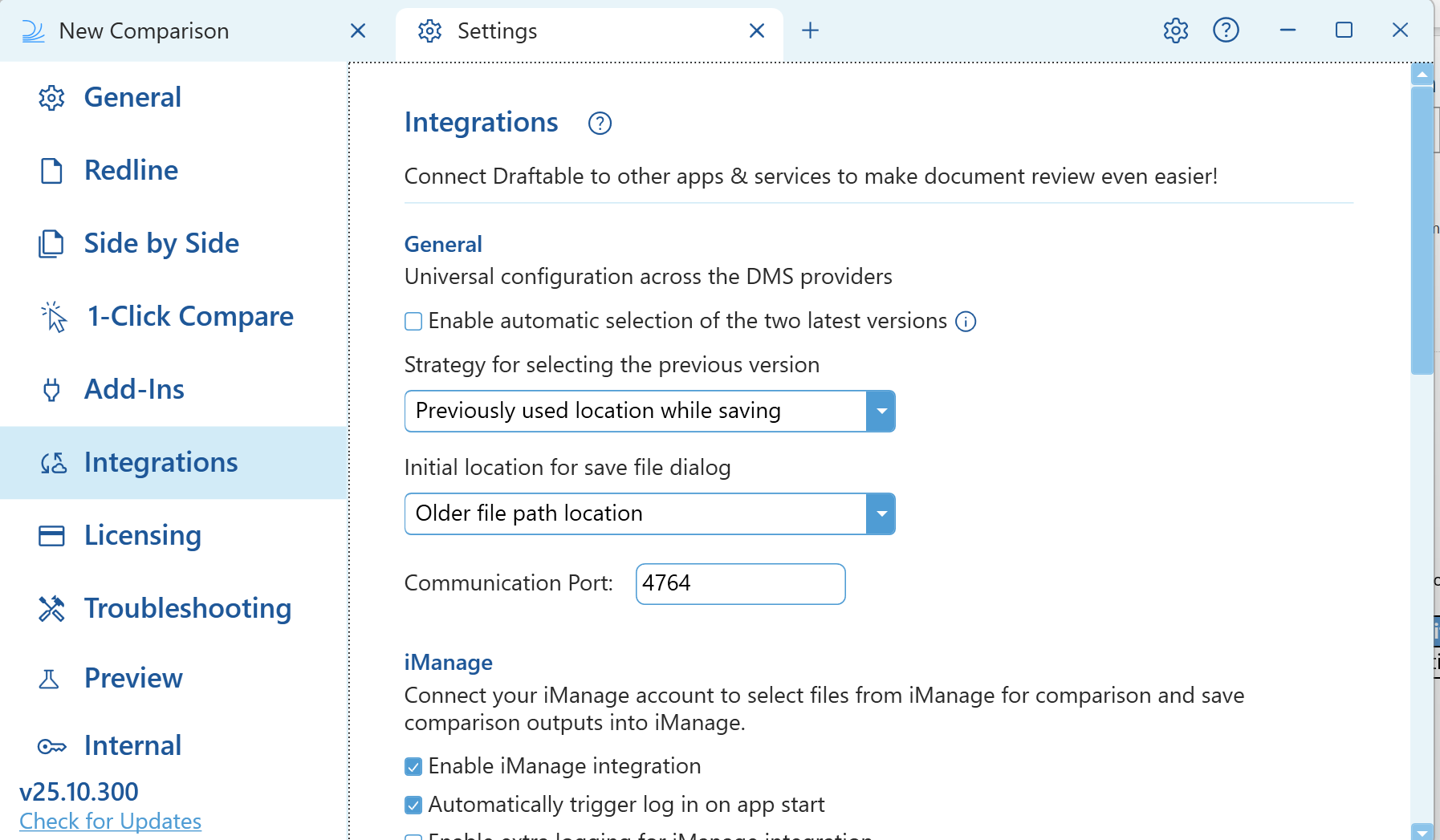 Enter your credentials for your iManage account (if they haven't already been configured by Group Policy) by clicking the arrow in the "Manage endpoints" section.
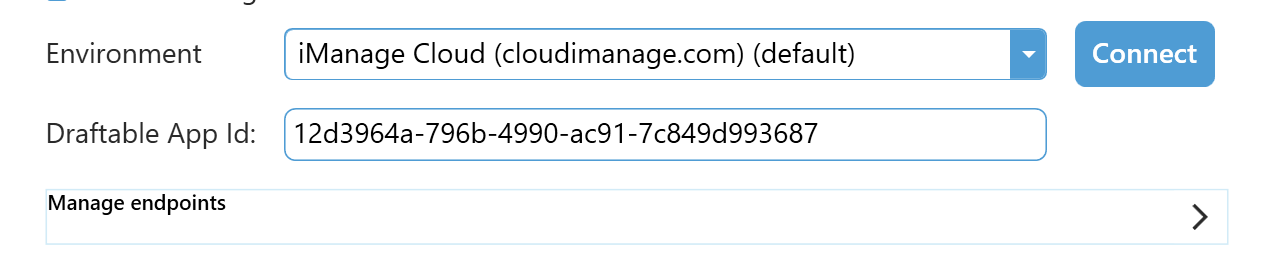 You can enter the endpoint name and the endpoint URL. This is important if you are using multiple tenancies. If you are using just the default cloud configuration, just ensure you enter:
```bash theme={null}
https://cloudimanage.com
```
You can enter the endpoint name and the endpoint URL. This is important if you are using multiple tenancies. If you are using just the default cloud configuration, just ensure you enter:
```bash theme={null}
https://cloudimanage.com
```
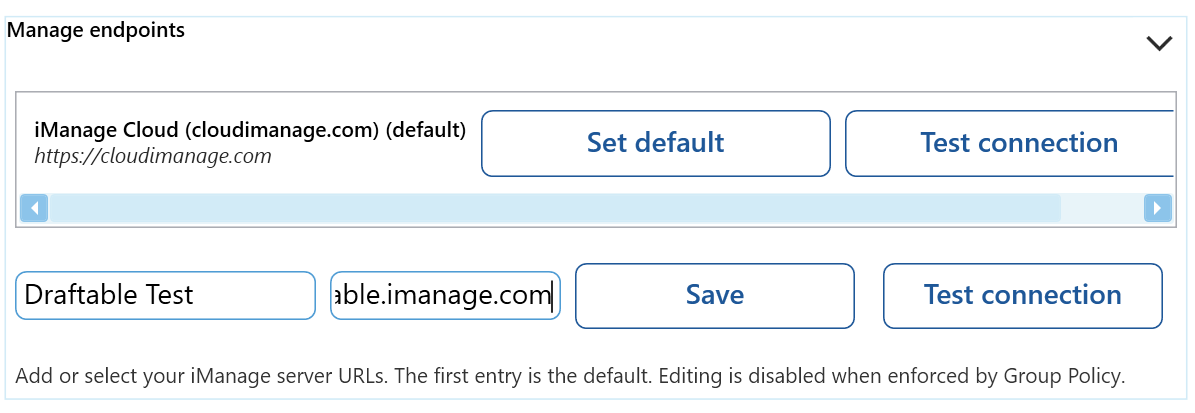 Click the **Save.** It will now add that endpoint to the endpoint section.
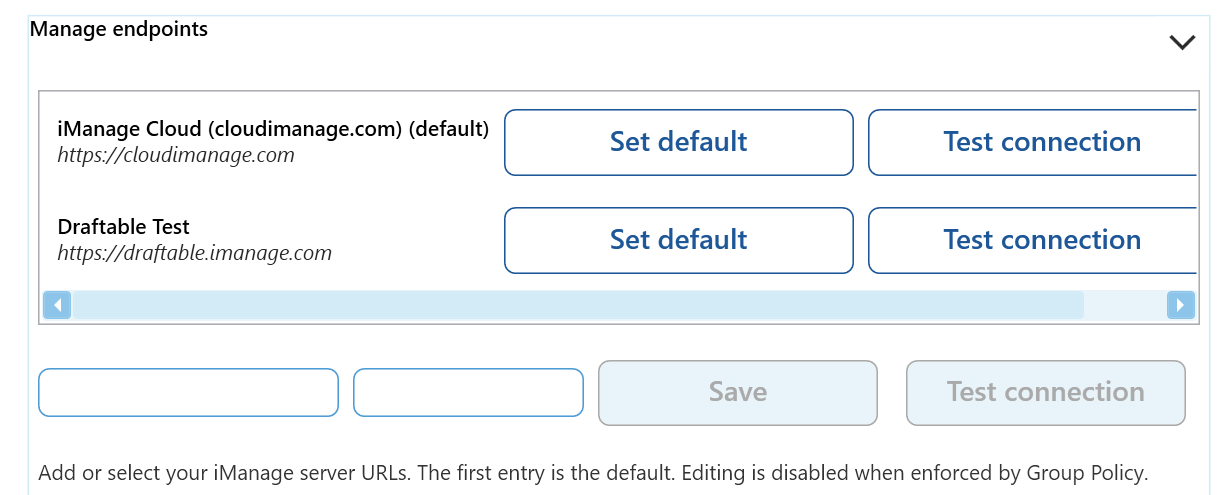 In the environment dropdown section, select the endpoint you want to connect to and click **Connect.**
 Connection is validated when the "Logout" button appears and the dropdown icon greys out.
 ### Configuring iManage cloud
We need to complete a few steps in order to correctly integrate Draftable Legal in iManage, and also setup the context menus to allow your users to compare with Draftable within iManage cloud.
**Note:** If you already have completed the application configuration within control center, and you want to setup context menus, you can skip to step 9.
Login into iManage and navigate to **control center.**
### Configuring iManage cloud
We need to complete a few steps in order to correctly integrate Draftable Legal in iManage, and also setup the context menus to allow your users to compare with Draftable within iManage cloud.
**Note:** If you already have completed the application configuration within control center, and you want to setup context menus, you can skip to step 9.
Login into iManage and navigate to **control center.**
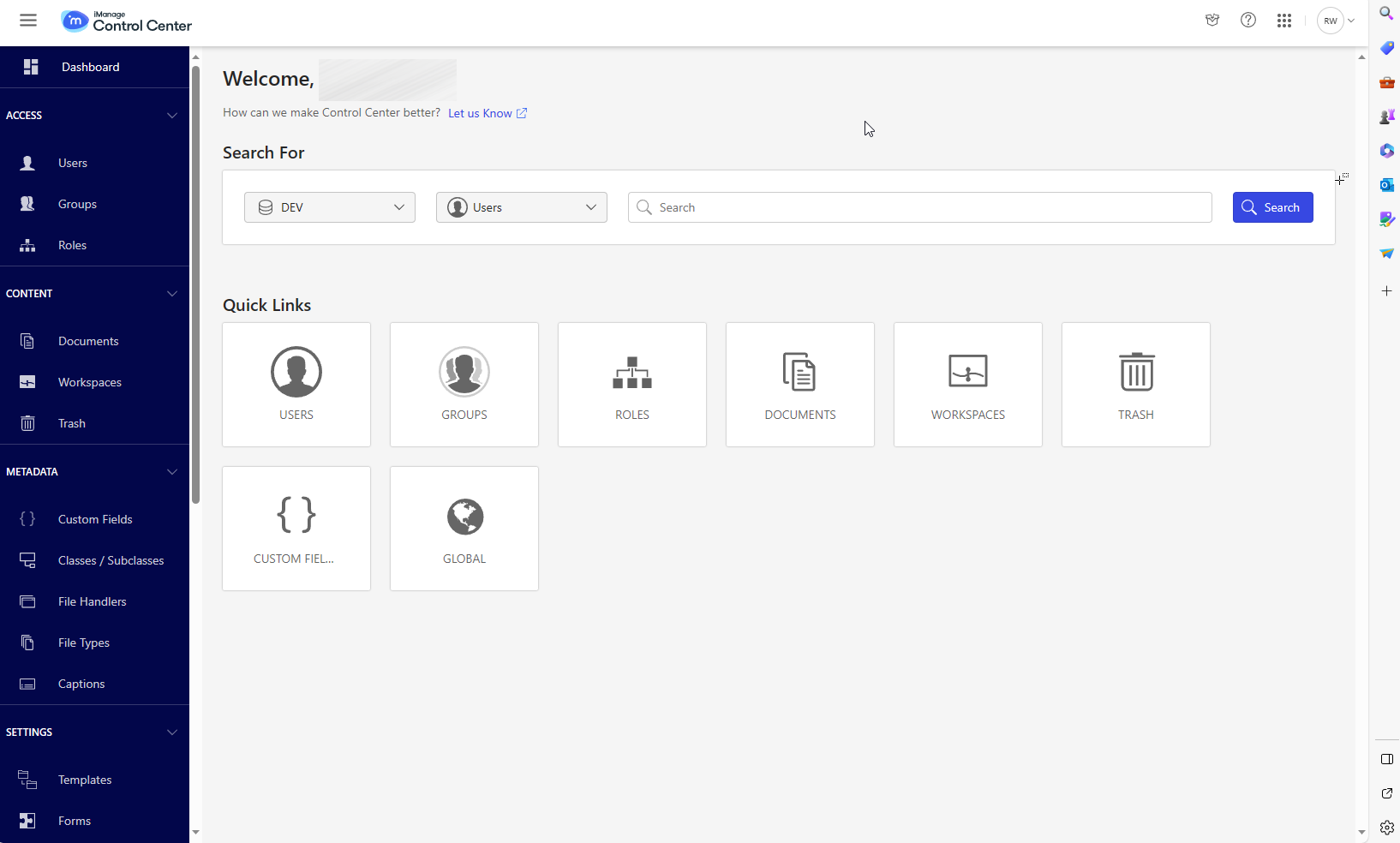 On the left hand menu bar, scroll until you see **settings,** then select **applications**
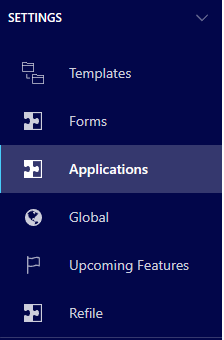 On the top right-hand side, select **Add Application**\\
 Search for **Draftable**, select the **Draftable** option, and then click **Authentication**
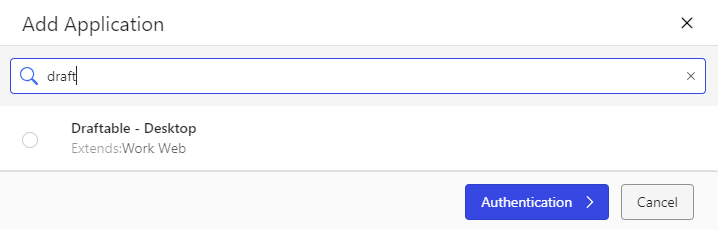 Now we configure the application, in the authentication section ensure we have the following settings configured:\
**Allow Refresh Token = Yes\
Refresh Token Expiry = 365\
Access Token Expiry = 30**
Once configured, select **Access.**
Now we configure the application, in the authentication section ensure we have the following settings configured:\
**Allow Refresh Token = Yes\
Refresh Token Expiry = 365\
Access Token Expiry = 30**
Once configured, select **Access.**
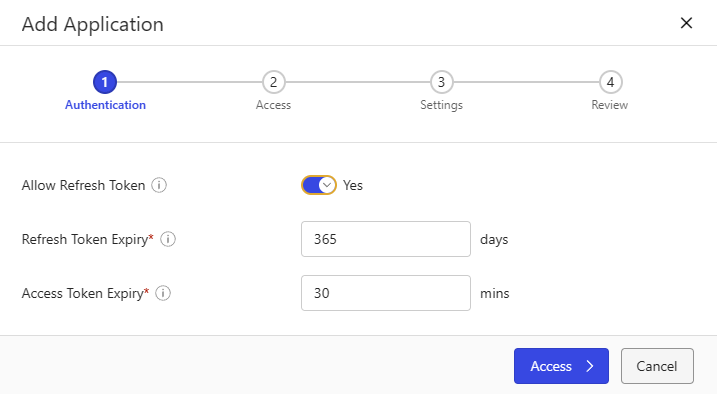 In the "Access" window, ensure that **Allow access to** is set to **All Users.** Then click **Review.**
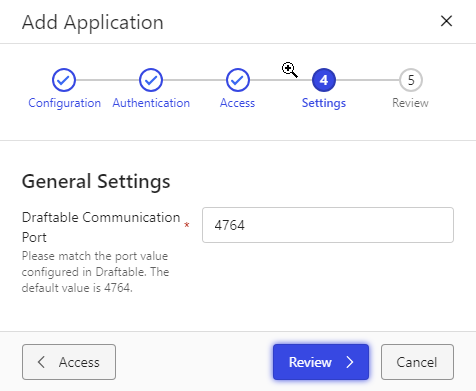
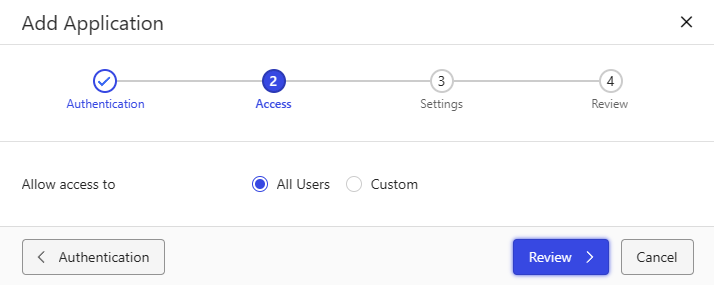 In the "Settings" window, ensure that the **Draftable Communication Port** is set to **4764.** Then click **Review.**
**Note:** You can set this to a different value, however, this will require you to change the value on the client end as well via group policy. If you wish to change the port value, set it here within iManage to your desired value and also set the group policy for the Draftable communication port. For the group policy information please refer to [this article.](/hc/en-us/articles/18763487262105-Configuring-settings-with-Group-Policy-Draftable-Legal)
In the "Settings" window, ensure that the **Draftable Communication Port** is set to **4764.** Then click **Review.**
**Note:** You can set this to a different value, however, this will require you to change the value on the client end as well via group policy. If you wish to change the port value, set it here within iManage to your desired value and also set the group policy for the Draftable communication port. For the group policy information please refer to [this article.](/hc/en-us/articles/18763487262105-Configuring-settings-with-Group-Policy-Draftable-Legal)
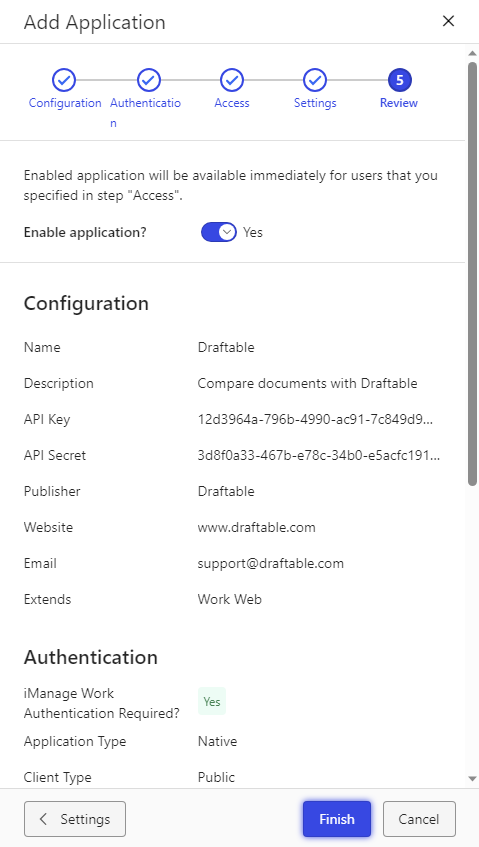
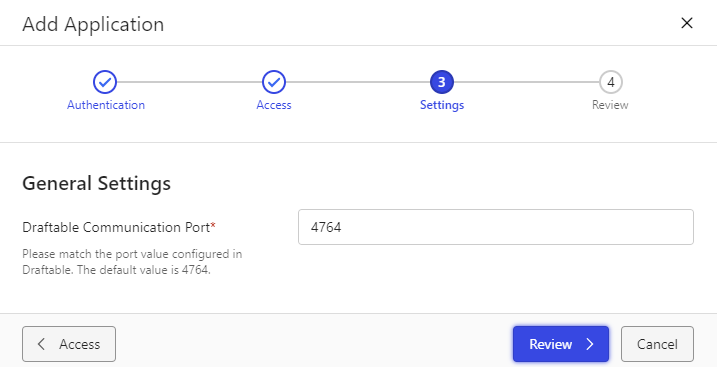 In the "Review" window, ensure that the information configured is correct, and then select **Finish.**
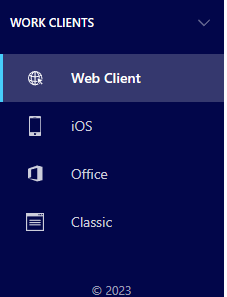
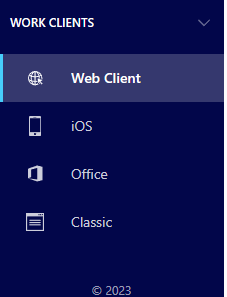
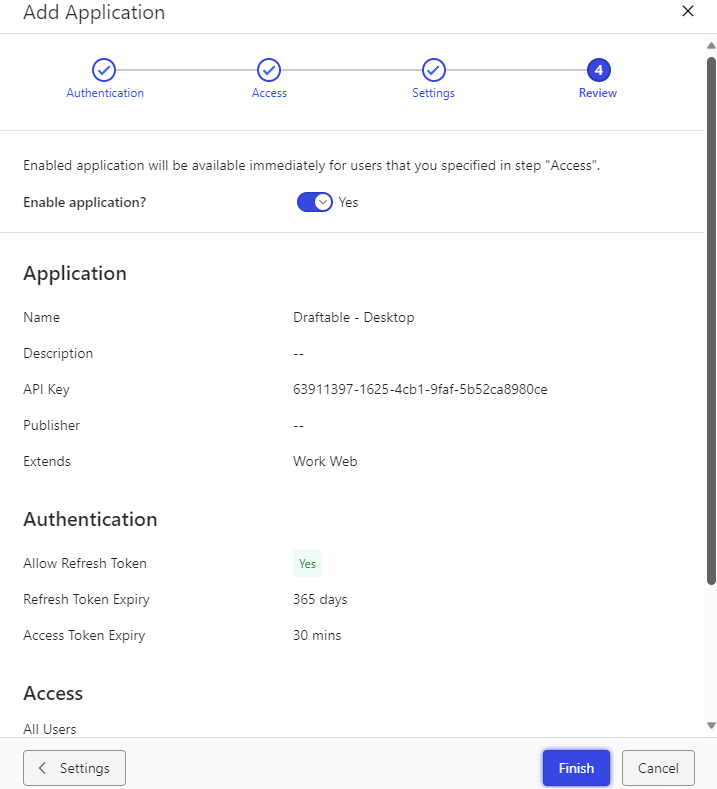 Now that the application is configured, we need to set up the web client context menus. In the left-hand menu bar, scroll until you see **Work Clients,** then select **Web Client.**
 Within the web client section, select the **context menus** option to start editing the context menus.
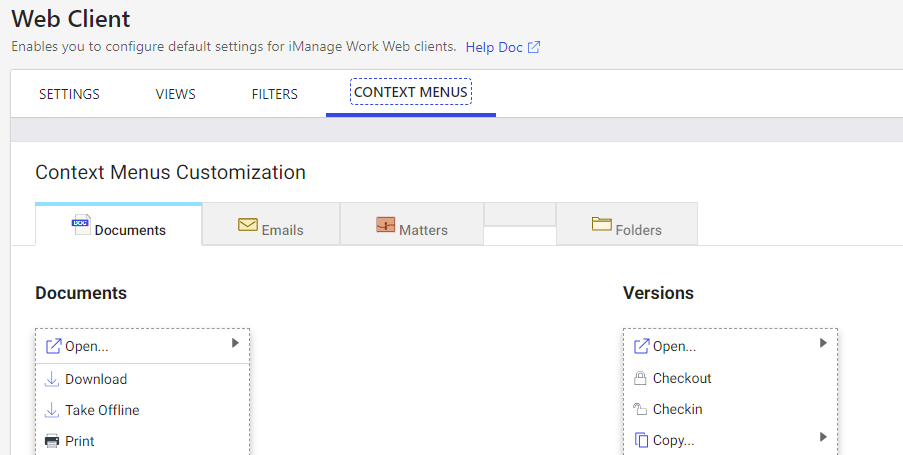 You will see two context menus, one for **Documents,** and another for **Versions.** We need to edit both in order to correctly configure. We will first configure **Documents.**
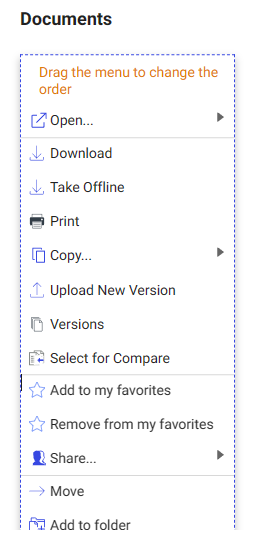 We first need to remove any options for **Select for Compare**, by clicking the X next to it. Do so before continuing to the next step.
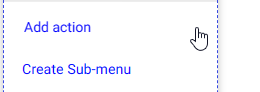
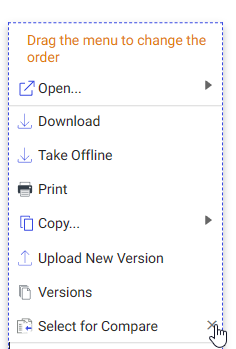 Now click on the menu itself so it highlights, and at the bottom of the menu select **Add action.**
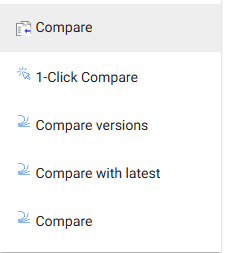
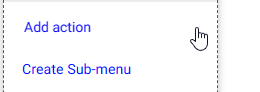 Select the **Compare** menu item, to add it to the menu. Repeat this for **Compare Versions, 1-Click Compare** and **Compare with latest** items as well.
!
Select the **Compare** menu item, to add it to the menu. Repeat this for **Compare Versions, 1-Click Compare** and **Compare with latest** items as well.
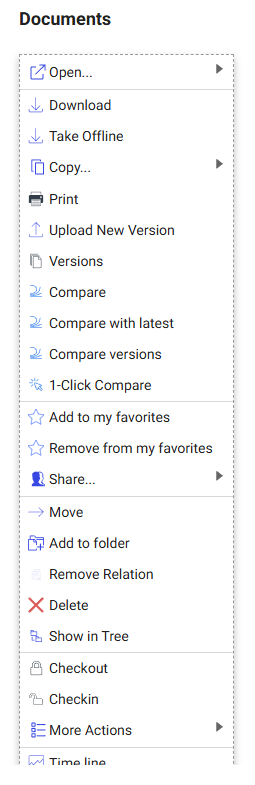
!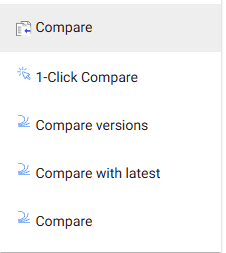 Reorder the new menu option by selecting and dragging the **Compare** options to anywhere in your menu. See below for reference.
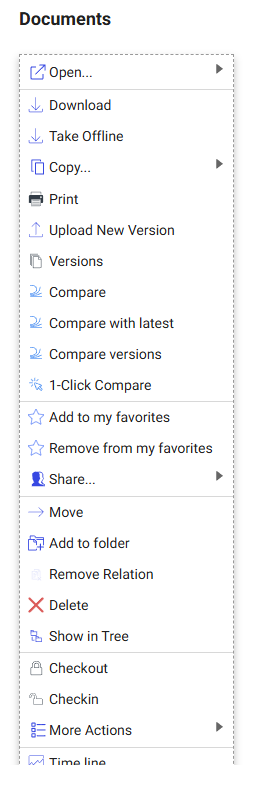 That completes the context menu for the **Documents** context menu. Repeat steps 11 to 15 for the version's context menu. You should see a result similar to below.
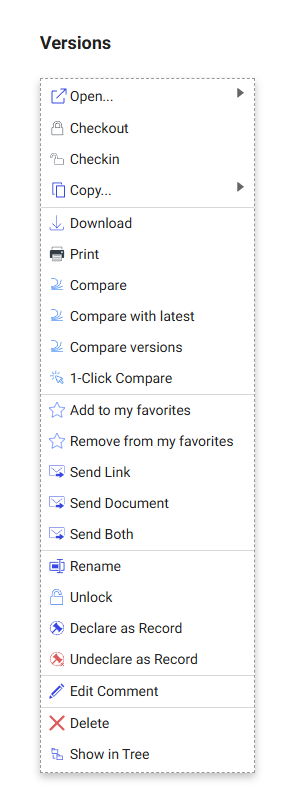 This completes the configuration for the setup for iManage on cloud. If you want to know how to use the feature itself, of launching Draftable from within iManage, please see [this article.](/hc/en-us/articles/22873285776409-Launching-comparisons-from-within-iManage)
## iManage On-Premise configuration
The iManage on-premise configuration requires access to both Draftable Legal and an administrator-level (with access to control center) account for configuring Draftable within iManage on-premise.
### Configuring Draftable Legal
In 26.6 there is no separate **On-Premises** sub-tab. You add your on-premise iManage server the same way as a cloud server, under **DMS Connections > iManage**.
Open the settings menu, select **DMS Connections**, expand the **iManage** section, and turn on its enable toggle if it is not already on. Click **Add server** and, in the **Add iManage Server** dialog, enter the **Server URL** of your on-premise iManage server, then click **Add Server**. Once the server is listed, click **Connect** and authenticate.
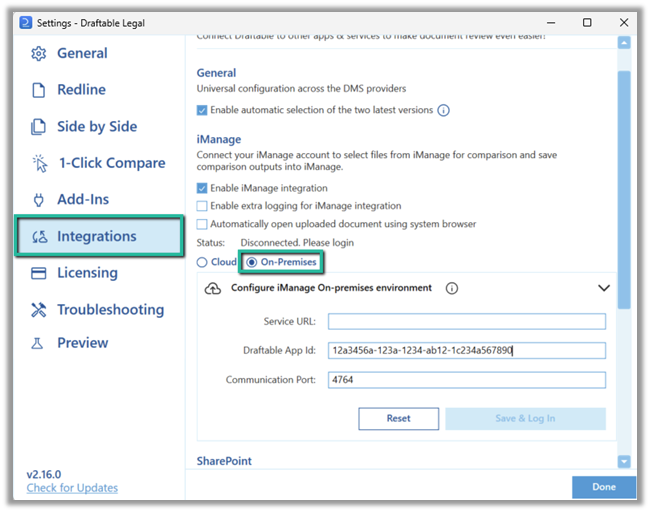
Firstly we need to ensure that we are logging into our On-Premise iManage account. Navigate to the **Integrations** section of the settings menu and select **On-Premises.** The **Communication Port** and **Draftable App Id** are prefilled, so you only need to add the **Service URL** of your On-Premise iManage server.
This completes the configuration for the setup for iManage on cloud. If you want to know how to use the feature itself, of launching Draftable from within iManage, please see [this article.](/hc/en-us/articles/22873285776409-Launching-comparisons-from-within-iManage)
## iManage On-Premise configuration
The iManage on-premise configuration requires access to both Draftable Legal and an administrator-level (with access to control center) account for configuring Draftable within iManage on-premise.
### Configuring Draftable Legal
In 26.6 there is no separate **On-Premises** sub-tab. You add your on-premise iManage server the same way as a cloud server, under **DMS Connections > iManage**.
Open the settings menu, select **DMS Connections**, expand the **iManage** section, and turn on its enable toggle if it is not already on. Click **Add server** and, in the **Add iManage Server** dialog, enter the **Server URL** of your on-premise iManage server, then click **Add Server**. Once the server is listed, click **Connect** and authenticate.
Firstly we need to ensure that we are logging into our On-Premise iManage account. Navigate to the **Integrations** section of the settings menu and select **On-Premises.** The **Communication Port** and **Draftable App Id** are prefilled, so you only need to add the **Service URL** of your On-Premise iManage server.
 Once you have done this, we can move to configuring iManage On-Premise.
### Configuring iManage on-premises
Login into your iManage On-Premise server, and navigate to **control center.**
Once you have done this, we can move to configuring iManage On-Premise.
### Configuring iManage on-premises
Login into your iManage On-Premise server, and navigate to **control center.**
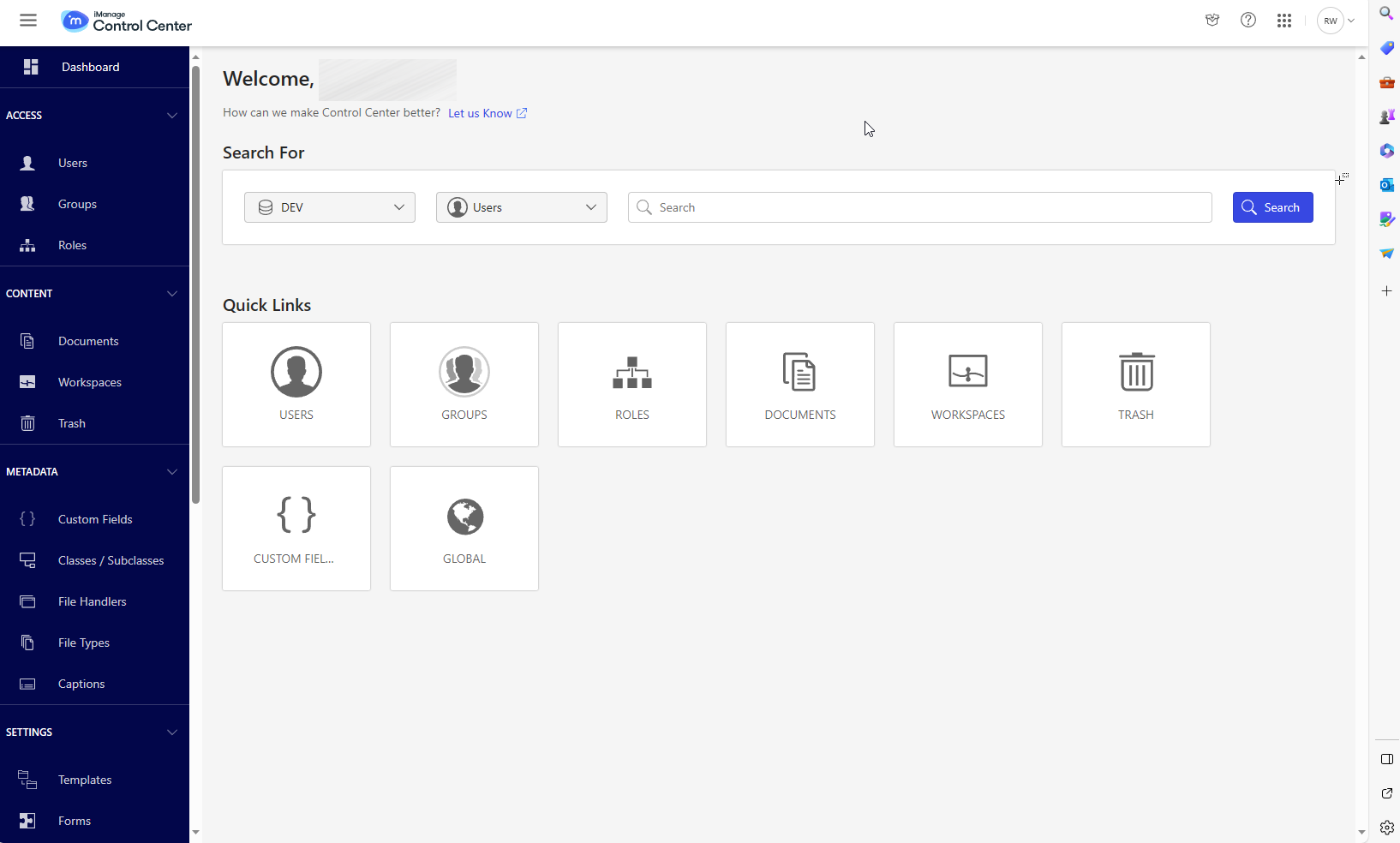 On the left hand menu bar, scroll until you see **settings,** then select **applications.**
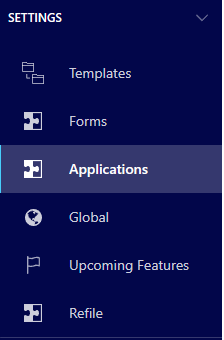 On the top right-hand side, select **Add Application**
 The following window will appear. Draftable now allows you to upload a package file, so we will select **Upload Package.**
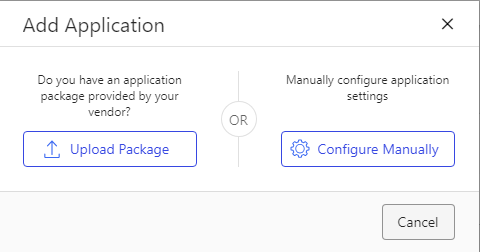 Navigate to the following location:
```bash theme={null}
C:\Users\\AppData\Local\DraftableDesktop\app-Y.ZZ.XXX\Integrations
```
Where `` is the name of your account on the local machine, and Y.ZZ.XXX is the version number of Draftable, see below for an example.
Navigate to the following location:
```bash theme={null}
C:\Users\\AppData\Local\DraftableDesktop\app-Y.ZZ.XXX\Integrations
```
Where `` is the name of your account on the local machine, and Y.ZZ.XXX is the version number of Draftable, see below for an example.
 Select the **Draftable\_for\_iManage.Zip** file and click **open.**
The following screen will appear. Since we added the package the information is prefilled. Click **Authentication.**
Select the **Draftable\_for\_iManage.Zip** file and click **open.**
The following screen will appear. Since we added the package the information is prefilled. Click **Authentication.**
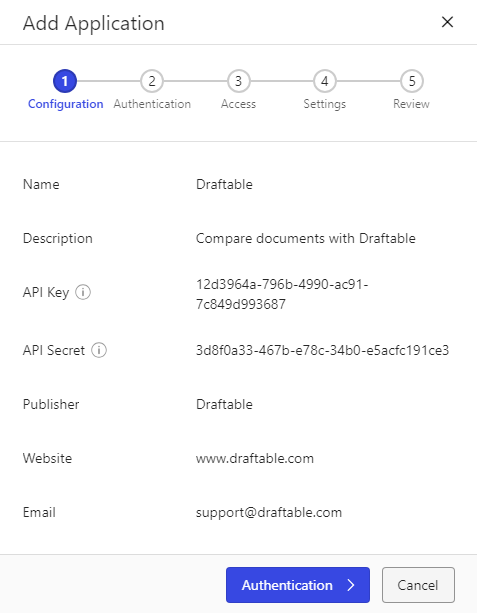 Again the information is prefilled, except for **Allow Refresh Token,** ensure this is ticked as **Yes**. Then click **Access.**
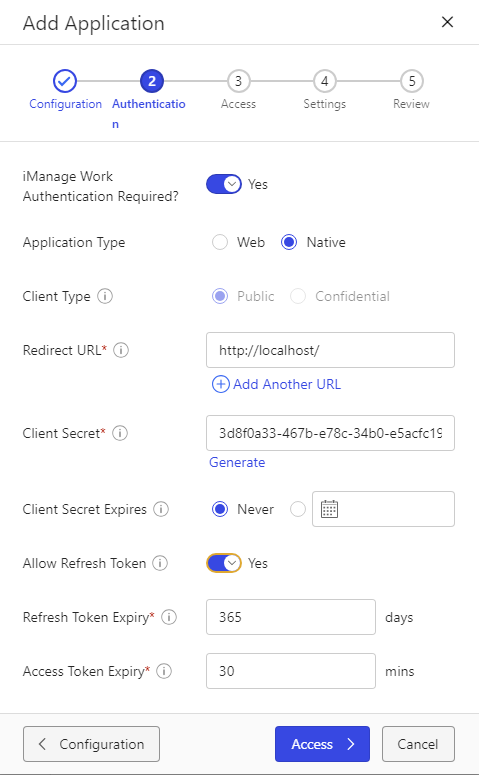 Again the information is prefilled, so just click **Settings.**
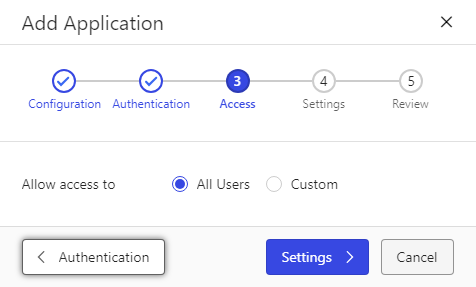 Again the information is prefilled, so just click **Review.**
**Note:** You can set the Draftable Communication port to a different value, however, this will require you to change the value on the client end as well via group policy. If you wish to change the port value, set it here within iManage to your desired value and also set the group policy for the Draftable communication port. For the group policy information please refer to [this article.](/hc/en-us/articles/18763487262105-Configuring-settings-with-Group-Policy-Draftable-Legal)
Again the information is prefilled, so just click **Review.**
**Note:** You can set the Draftable Communication port to a different value, however, this will require you to change the value on the client end as well via group policy. If you wish to change the port value, set it here within iManage to your desired value and also set the group policy for the Draftable communication port. For the group policy information please refer to [this article.](/hc/en-us/articles/18763487262105-Configuring-settings-with-Group-Policy-Draftable-Legal)
 Review the information to ensure everything appears to look right and then click **Finish.**
 Now that the application is configured, we need to set up the web client context menus. In the left-hand menu bar, scroll until you see **Work Clients,** then select **Web Client.**
 Within the web client section, select the **context menus** option to start editing the context menus.\
You will see two context menus, one for **Documents,** and another for **Versions.** We need to edit both in order to correctly configure. We will first configure **Documents.**
Within the web client section, select the **context menus** option to start editing the context menus.\
You will see two context menus, one for **Documents,** and another for **Versions.** We need to edit both in order to correctly configure. We will first configure **Documents.**
 We first need to remove any options for **Select for Compare**, by clicking the X next to it. Do so before continuing to the next step.
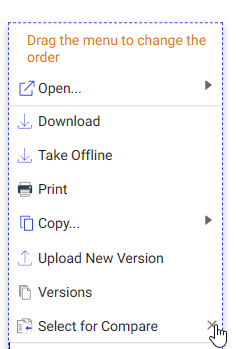 Now click on the menu itself so it highlights, and at the bottom of the menu select **Add action**
 Select the **Compare** menu item, to add it to the menu. Repeat this for **Compare Versions, 1-Click Compare** and **Compare with latest** items as well.
 Reorder the new menu option by selecting and dragging the **Compare** options to anywhere in your menu. See below for reference.
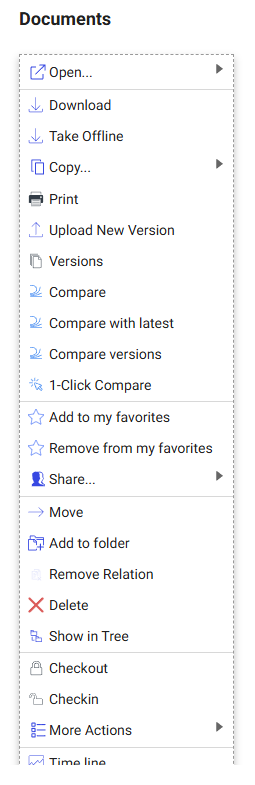 That completes the context menu for the **Documents** context menu. Repeat steps 11 to 15 for the version's context menu. You should see a result similar to below.
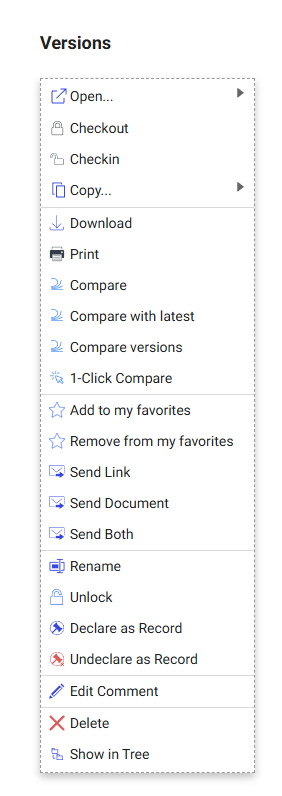 This completes the configuration for the setup for iManage on-premises. If you want to know how to use the feature itself, of launching Draftable from within iManage, please see [this article.](/hc/en-us/articles/22873285776409-Launching-comparisons-from-within-iManage)