> ## Documentation Index
> Fetch the complete documentation index at: https://help.draftable.com/llms.txt
> Use this file to discover all available pages before exploring further.
# Launching comparisons from within iManage
> We have built integration with iManage which allows you to launch comparisons directly into Draftable Legal from within iManage. This exciting feature streamlines your workflows, reducing the number of clicks required to get a comparison generated.
This article will show you the various methods on how to launch a comparison from iManage to Draftable Legal.
**Please note:** As referenced before this is an integration, meaning that iManage (either on-premise or cloud) has been correctly configured prior to following the steps in this article. If you have not done this, please [complete the configuration](/hc/en-us/articles/22860371094681-Configuring-iManage-to-be-able-to-launch-comparisons-directly-from-within-iManage) before returning to the launch steps in this article.
## How to launch comparisons directly from iManage
There are a few methods to launch comparisons from iManage, either using the context menus or the toolbar within iManage. To ensure you are getting the absolute full usage of this feature, below outlines all the possible avenues of launching comparisons directly from iManage.
### Launching comparisons via the context menu
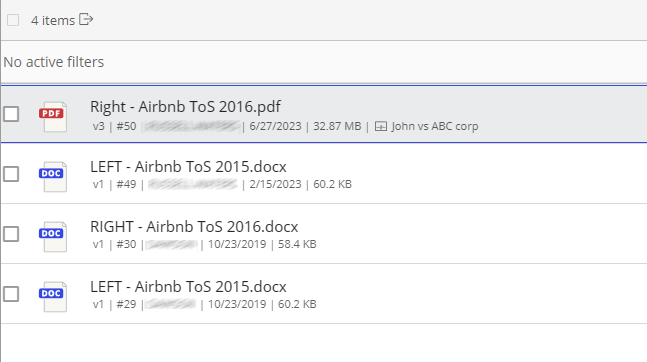
Navigate to the desired matter which contains the desired files you want to compare.
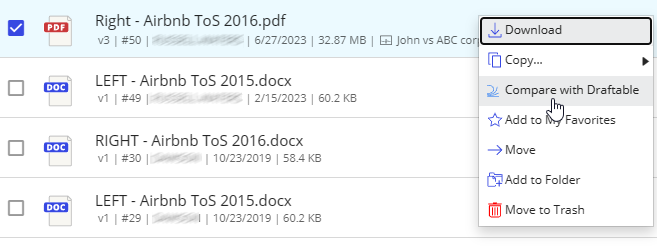
 Select a file, **right-click** it, and then select **Compare with Draftable.**
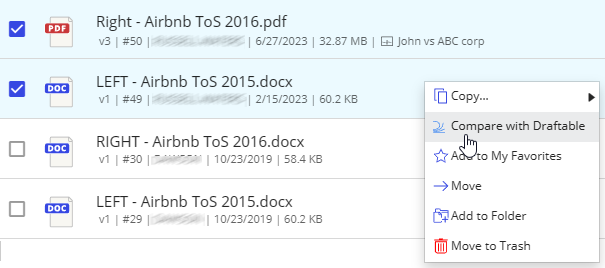
 **Alternatively,** you can also select two files, **right-click** them, and then select **Compare with Draftable.**
**Note:** If you select 3 or more files, the Compare with Draftable context menu option will not be available.
**Alternatively,** you can also select two files, **right-click** them, and then select **Compare with Draftable.**
**Note:** If you select 3 or more files, the Compare with Draftable context menu option will not be available.
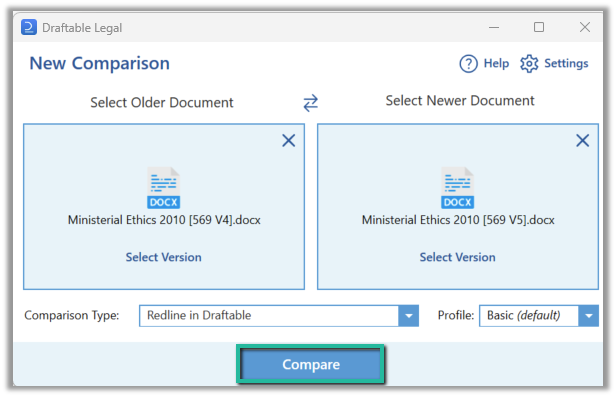
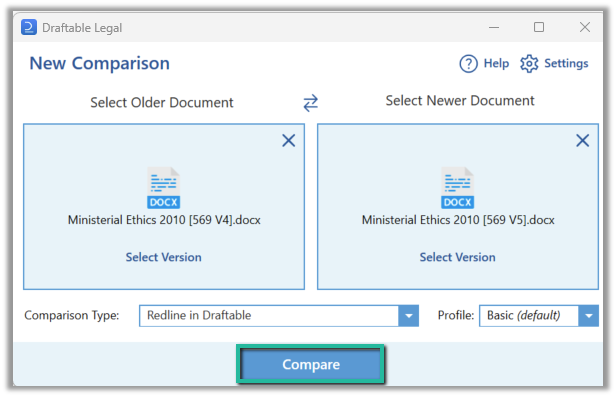
 Regardless of whether you selected 1 or 2 documents, Draftable Legal will load the New Comparison window with the selected documents, ready for you to **Compare.**
 ### Launching a comparison via the toolbar menu option
Navigate to the desired matter which contains the desired files you want to compare.
### Launching a comparison via the toolbar menu option
Navigate to the desired matter which contains the desired files you want to compare.
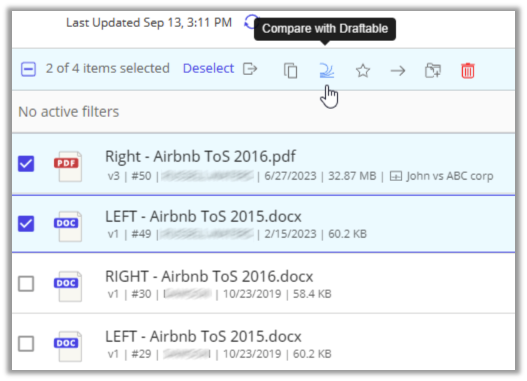
 Select a file(s), then select the **Compare with Draftable** icon located in the toolbar.
**Note:** If you select 3 or more files, the Compare with Draftable toolbar menu option will not be available.
Select a file(s), then select the **Compare with Draftable** icon located in the toolbar.
**Note:** If you select 3 or more files, the Compare with Draftable toolbar menu option will not be available.
 Regardless of whether you selected 1 or 2 documents, Draftable Legal will load the New Comparison window with the selected documents, ready for you to **Compare**.
 ### Launching a comparison using a specific document version within the version tab
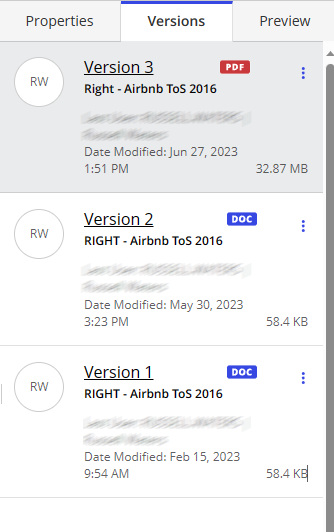
If you want to compare a specific version of a document in iManage, you can by going to the versions tab.
Select the file you want to compare the select the **versions** tab located on the right-hand side.
### Launching a comparison using a specific document version within the version tab
If you want to compare a specific version of a document in iManage, you can by going to the versions tab.
Select the file you want to compare the select the **versions** tab located on the right-hand side.
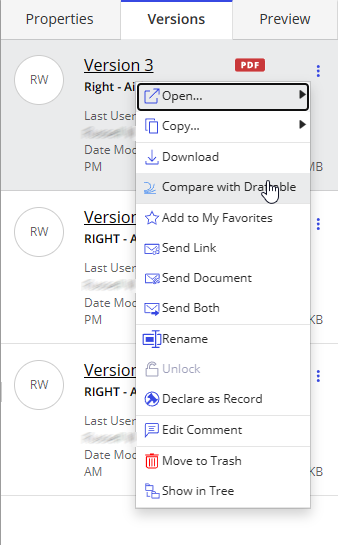
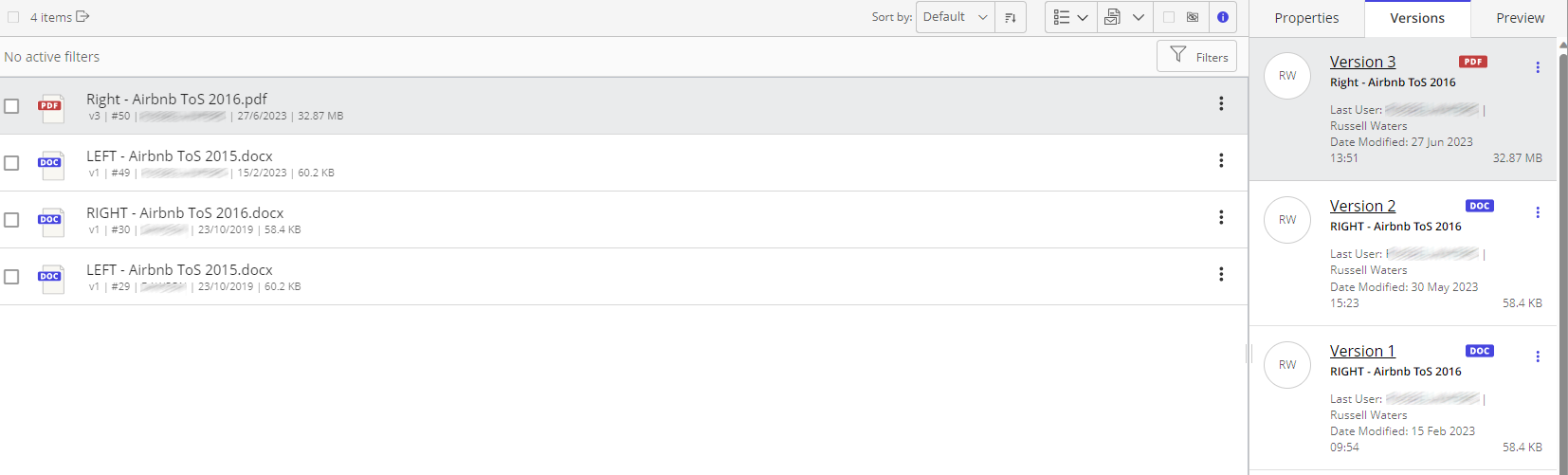 In the versions tab, select and **right-click** the document you wish to compare by opening up the context menu.
 Select **Compare with Draftable**
 Draftable Legal will load the New Comparison window with the selected document, ready for you to **Compare**.