> ## Documentation Index
> Fetch the complete documentation index at: https://help.draftable.com/llms.txt
> Use this file to discover all available pages before exploring further.
# Draftable Legal Outlook add-in
> The Draftable Legal Outlook add-in integrates directly into your Microsoft Outlook ribbon, giving you quick access to document comparison workflows from within your emails. You can compare attachments, run a 1-Click Compare, or compare highlighted text — all without leaving Outlook.
This add-in is what we refer to as the **COM add-in** for Outlook. For our JavaScript-based add-ins, which offer completely different and more advanced workflows, see [Draftable in Outlook](/hc/en-us/articles/Using-Draftable-in-Outlook) and [Draftable for Outlook](/hc/en-us/articles/Using-Draftable-for-Outlook).
## Where do I find the Draftable add-in within Outlook?
Open any email that contains the documents or text you wish to compare. In the Outlook ribbon, select the **Draftable** tab to reveal the available comparison options.
 You will see three options:
* **Compare attachments** — Select email attachments to load into the New Comparison window
* **1-Click Compare** — Instantly run a comparison using your preferred default workflow
* **Compare text** — Highlight text in the email body and load it into the New Comparison window
Each option is covered in detail below.
## Compare attachments
Use this option when you want to compare documents that are attached to the email.
In the Draftable tab, click **Compare attachments**.
You will see three options:
* **Compare attachments** — Select email attachments to load into the New Comparison window
* **1-Click Compare** — Instantly run a comparison using your preferred default workflow
* **Compare text** — Highlight text in the email body and load it into the New Comparison window
Each option is covered in detail below.
## Compare attachments
Use this option when you want to compare documents that are attached to the email.
In the Draftable tab, click **Compare attachments**.
 A prompt will appear asking you to select two files from the list of attachments on the email. Select the files you wish to compare, then click **Select**.
The New Comparison window will open with the selected documents loaded. Choose your comparison type and click **Compare** to start.
## 1-Click Compare
Use this option to run a comparison immediately using your default workflow settings, without needing to manually configure the New Comparison window.
In the Draftable tab, click **1-Click Compare**.
A prompt will appear asking you to select two files from the list of attachments on the email. Select the files you wish to compare, then click **Select**.
The New Comparison window will open with the selected documents loaded. Choose your comparison type and click **Compare** to start.
## 1-Click Compare
Use this option to run a comparison immediately using your default workflow settings, without needing to manually configure the New Comparison window.
In the Draftable tab, click **1-Click Compare**.
 Draftable will automatically compare the email attachments using your preferred default comparison settings. The comparison runs straight away without opening the New Comparison window first.
For more details on configuring your 1-Click Compare defaults, see [1-Click Compare: Run comparisons with your preferred default workflow](/hc/en-us/articles/31611819497754-Using-1-Click-Compare-to-run-comparisons-with-your-preferred-default-workflow).
## Compare text
Use this option when you want to compare text from within the email body rather than file attachments.
In the email, highlight the text you want to use for comparison.
Draftable will automatically compare the email attachments using your preferred default comparison settings. The comparison runs straight away without opening the New Comparison window first.
For more details on configuring your 1-Click Compare defaults, see [1-Click Compare: Run comparisons with your preferred default workflow](/hc/en-us/articles/31611819497754-Using-1-Click-Compare-to-run-comparisons-with-your-preferred-default-workflow).
## Compare text
Use this option when you want to compare text from within the email body rather than file attachments.
In the email, highlight the text you want to use for comparison.
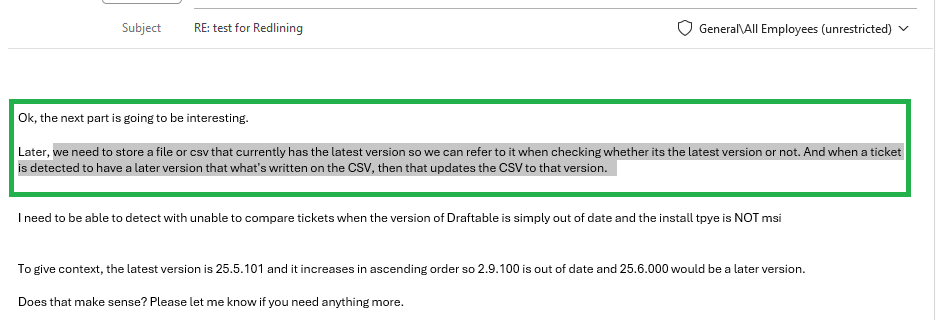 In the Draftable tab, click **Compare text**.
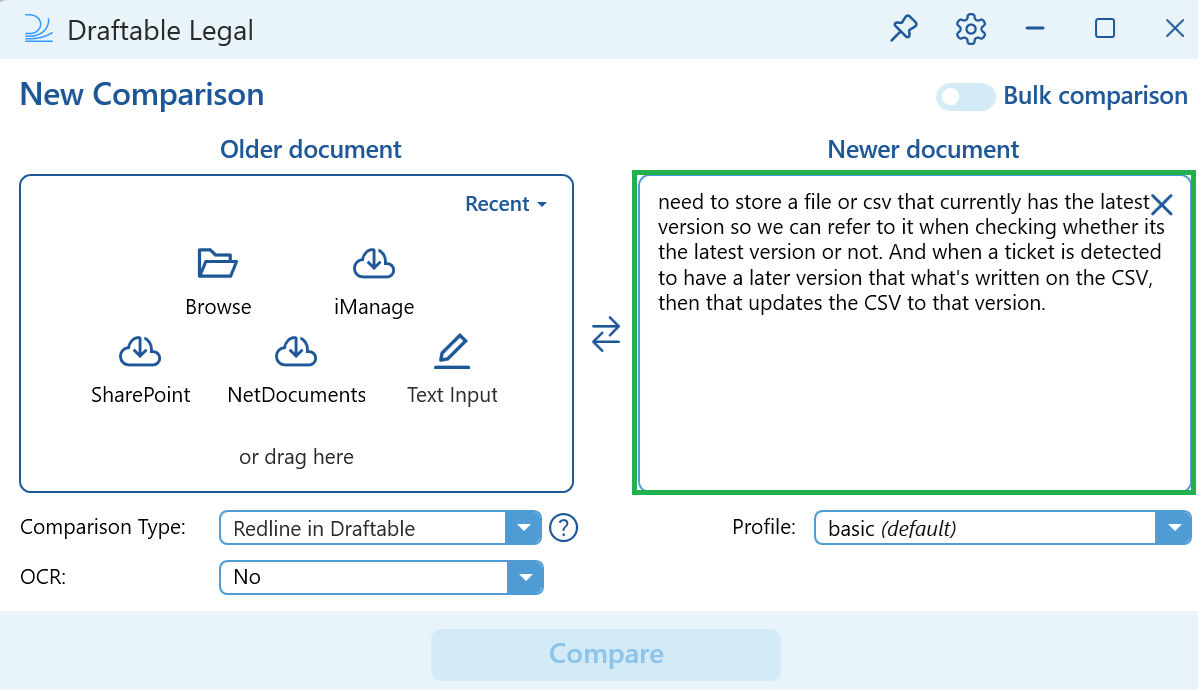
 The New Comparison window will open with the selected text loaded into one of the document fields. Simply add your second document or text input and click **Compare**.