> ## Documentation Index
> Fetch the complete documentation index at: https://help.draftable.com/llms.txt
> Use this file to discover all available pages before exploring further.
# Recent Documents: Quickly select from previously compared files
> Draftable Legal now includes the option to be able to use recently selected documents for comparison, conveniently from within the New Comparison window. This allows you to quickly re-compare your recently used documents without having the hassle of navigating to the document location within file explorer.
This article aims to guide you on how to use this feature.
## Selecting recently used documents for comparison
Ensure you have the New Comparison window open. If you look at the comparison selection boxes you will note there is now a new option in the top right corner called **Recent** which is a drop down box selection button.
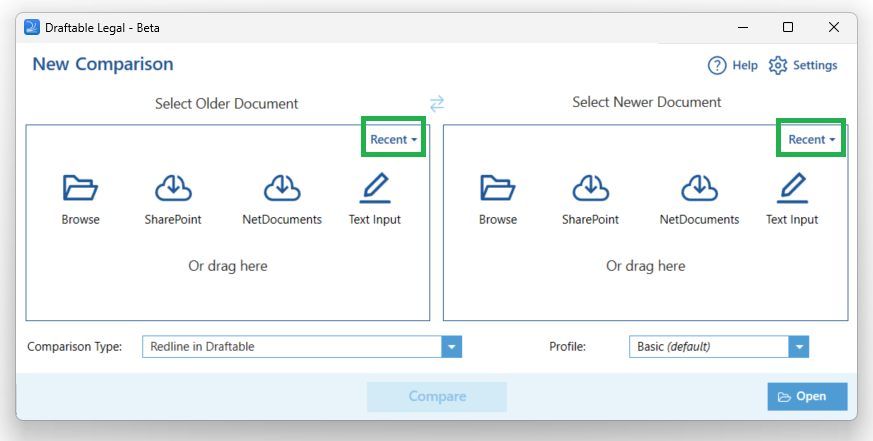 **Selecting** this option will provide a drop down list of all the recent documents you have used to compare and provides time information of how long ago you used that document.
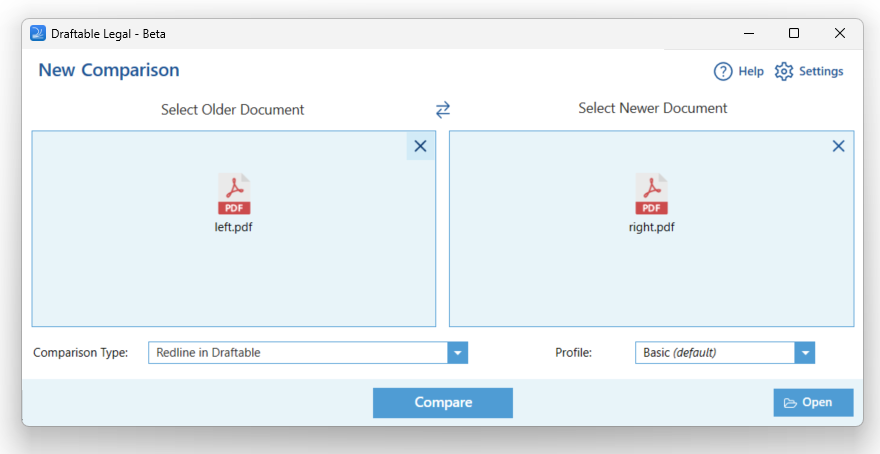
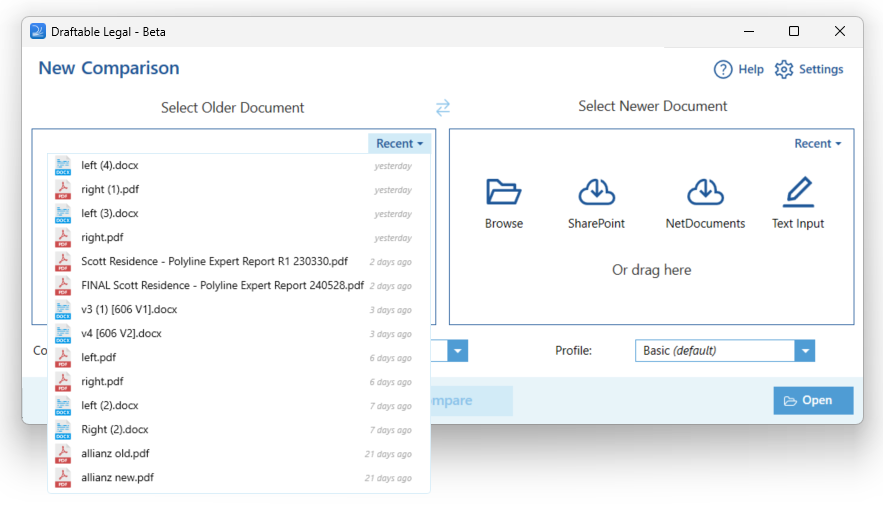 Selecting the documents from this list will automatically load them into the selection boxes without the need of having to find these documents again.
 ## What appears in your recent documents list
Draftable can only add a document to your recent list if that document has a **stable, permanent location** it can point back to later. Not every file you compare meets this requirement, so you may occasionally find that a document you just compared does not appear under **Recent**.
### Documents that are added to Recent
* **Files saved on your computer or a network/synced folder** — anything with a real file path, including local drives and synced OneDrive or SharePoint folders.
* **Files opened from a connected document management system (DMS)** — iManage, NetDocuments, SharePoint, Worldox, or Epona — where Draftable can reference the stored document (and version) again later.
### Documents that are *not* added to Recent
* **Email attachments compared directly through a Draftable Outlook add-in** (Draftable in Outlook / Draftable for Outlook). When you compare an attachment from within Outlook, the attachment's contents are passed straight into the comparison rather than being saved to disk as a standalone file. Because there is no permanent file for Draftable to return to, these comparisons cannot be added to the recent list.
* **Free text** that you type or paste into a comparison — there is no file involved.
* **Files supplied by some drag-and-drop sources** that only ever hand Draftable a temporary placeholder instead of the actual document.
If you want an email attachment to appear in your recent list (and to be quick to re-compare later), **save it to your computer or your DMS first**, then run the comparison from that saved location.
## What appears in your recent documents list
Draftable can only add a document to your recent list if that document has a **stable, permanent location** it can point back to later. Not every file you compare meets this requirement, so you may occasionally find that a document you just compared does not appear under **Recent**.
### Documents that are added to Recent
* **Files saved on your computer or a network/synced folder** — anything with a real file path, including local drives and synced OneDrive or SharePoint folders.
* **Files opened from a connected document management system (DMS)** — iManage, NetDocuments, SharePoint, Worldox, or Epona — where Draftable can reference the stored document (and version) again later.
### Documents that are *not* added to Recent
* **Email attachments compared directly through a Draftable Outlook add-in** (Draftable in Outlook / Draftable for Outlook). When you compare an attachment from within Outlook, the attachment's contents are passed straight into the comparison rather than being saved to disk as a standalone file. Because there is no permanent file for Draftable to return to, these comparisons cannot be added to the recent list.
* **Free text** that you type or paste into a comparison — there is no file involved.
* **Files supplied by some drag-and-drop sources** that only ever hand Draftable a temporary placeholder instead of the actual document.
If you want an email attachment to appear in your recent list (and to be quick to re-compare later), **save it to your computer or your DMS first**, then run the comparison from that saved location.