> ## Documentation Index
> Fetch the complete documentation index at: https://help.draftable.com/llms.txt
> Use this file to discover all available pages before exploring further.
# How to enable iManage logging (Diagnostics)
> You may be experiencing issues with iManage and Draftable, and as a way to further investigate issues, there is a setting within Draftable Legal to capture logs for iManage specifically.
**The settings menu was reorganised in Draftable Legal 26.6.** If you are on 26.6 or later, follow the "26.6 and later" tabs below. On earlier versions, follow "Before 26.6". To check your version, open Settings. The version number shows at the bottom-left (for example, v26.6.0).
This article provides the method for how to activate this logging feature so that additional iManage diagnostic log files can be captured.
## How to enable the iManage logging option
Firstly, we need to open the settings menu, this can be done in a few ways:
1. Open settings via the Taskbar
Right-click the **Draftable** icon in the taskbar
Select **Settings** as the 2nd option
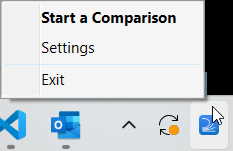 2. Or, open the settings menu via the New Comparison Window
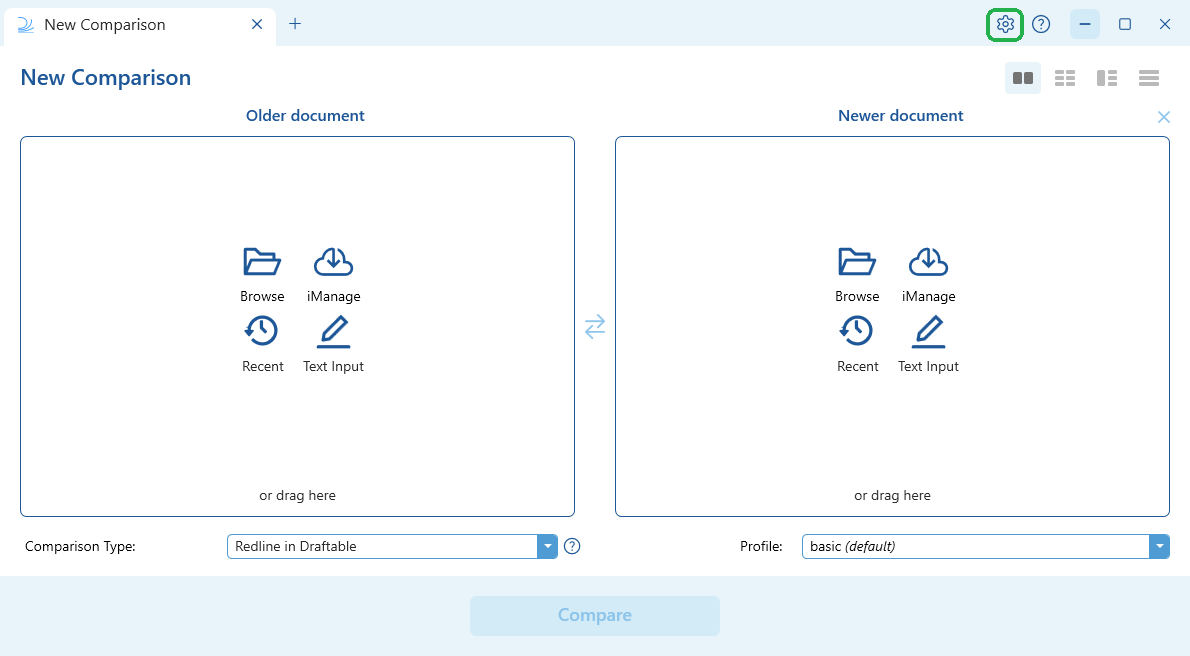
Open the [New Comparison window](/hc/en-us/articles/19002140760217-Launching-a-Comparison-in-Draftable-Legal-A-Step-by-Step-Guide)
Select **Settings** in the top right of the window
2. Or, open the settings menu via the New Comparison Window
Open the [New Comparison window](/hc/en-us/articles/19002140760217-Launching-a-Comparison-in-Draftable-Legal-A-Step-by-Step-Guide)
Select **Settings** in the top right of the window
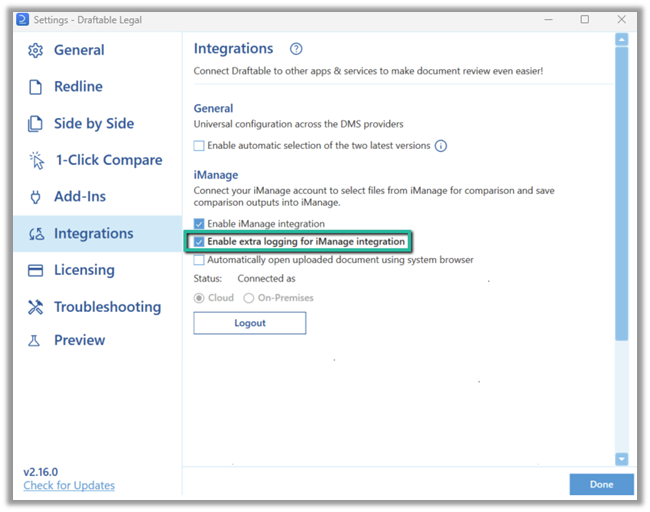
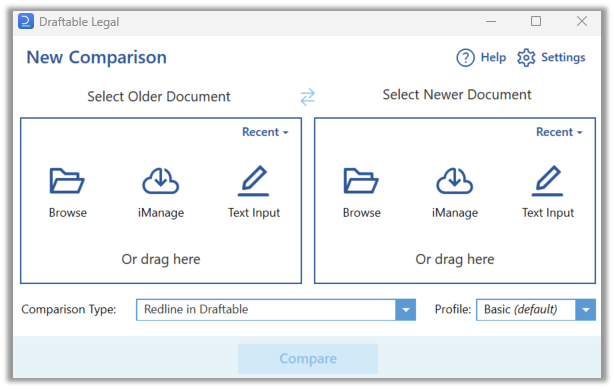 Once the settings menu is open navigate to the **Integrations** section. Here you can access the **Enable extra logging for iManage integration.**
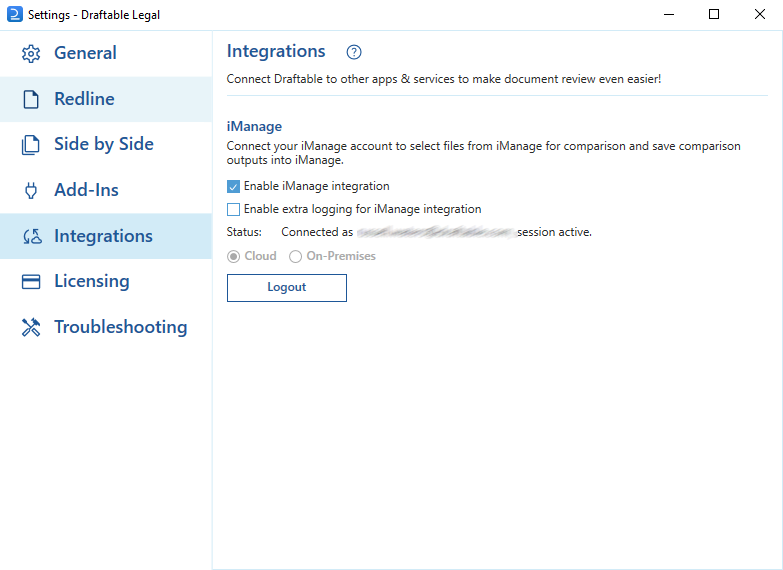 Select this menu option as highlighted below if you require additional logging for iManage integration to be enabled.
 If you have a persisting iManage issue, and you have ensured that iManage logging is enabled, we recommend you reproduce the issue, and then export the Draftable logs.
This can be found in the **Troubleshooting** section where you will export a zip file of all the logs, and we then recommend you email these logs to us at \[[support@draftable.com](mailto:support@draftable.com)] where we will investigate your issue further from there.
If you have a persisting iManage issue, and you have ensured that iManage logging is enabled, we recommend you reproduce the issue, and then export the Draftable logs.
This can be found in the **Troubleshooting** section where you will export a zip file of all the logs, and we then recommend you email these logs to us at \[[support@draftable.com](mailto:support@draftable.com)] where we will investigate your issue further from there.