> ## Documentation Index
> Fetch the complete documentation index at: https://help.draftable.com/llms.txt
> Use this file to discover all available pages before exploring further.
# How to retrieve error logs from Draftable Legal
> If you are experiencing issues with Draftable Legal, you can always retrieve error logs that can be used for support diagnosis. This article outlines how to retrieve these log files so that you can send them to our support team for further investigation.
**The settings menu was reorganised in Draftable Legal 26.6.** If you are on 26.6 or later, follow the "26.6 and later" tabs below. On earlier versions, follow "Before 26.6". To check your version, open Settings. The version number shows at the bottom-left (for example, v26.6.0).
## Exporting the error logs
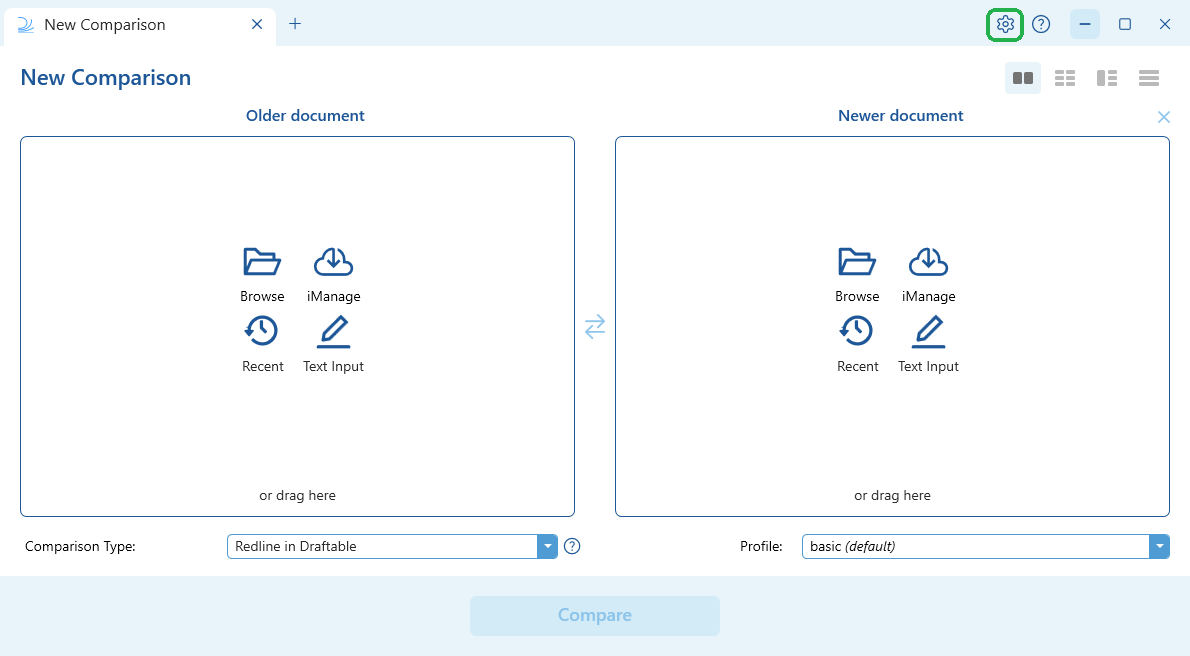
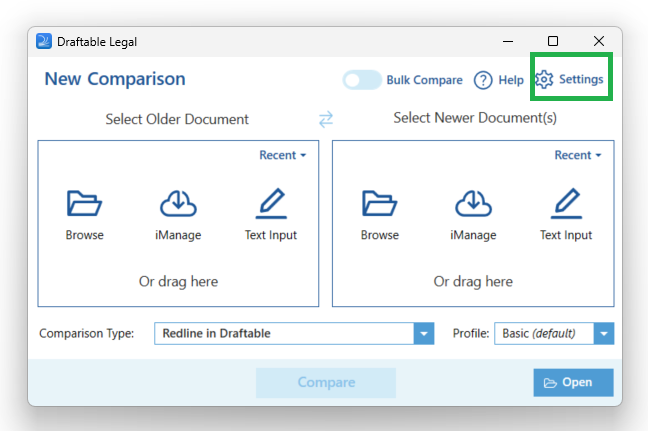
Open the settings menu by selecting **Settings** in the New Comparison window
 Once the settings menu is open, find the **Export error logs** option.
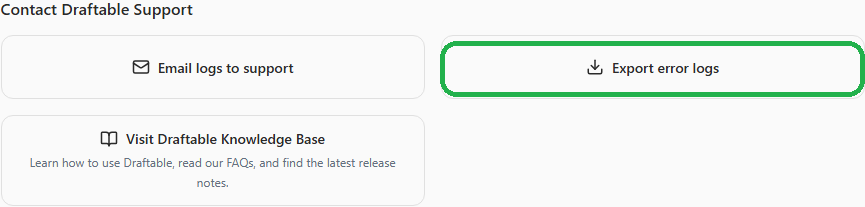
In the settings menu, select **Help & Troubleshooting**. Under **Contact Draftable Support**, select **Export error logs**.
Once the settings menu is open, find the **Export error logs** option.
In the settings menu, select **Help & Troubleshooting**. Under **Contact Draftable Support**, select **Export error logs**.
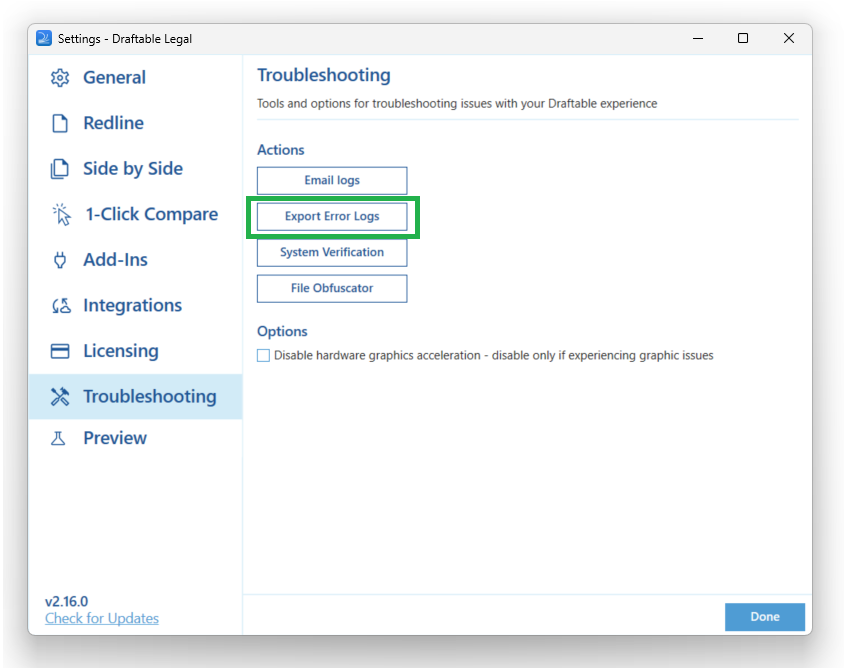
 Navigate to the **Troubleshooting** tab and select the **Export Error Logs** option.
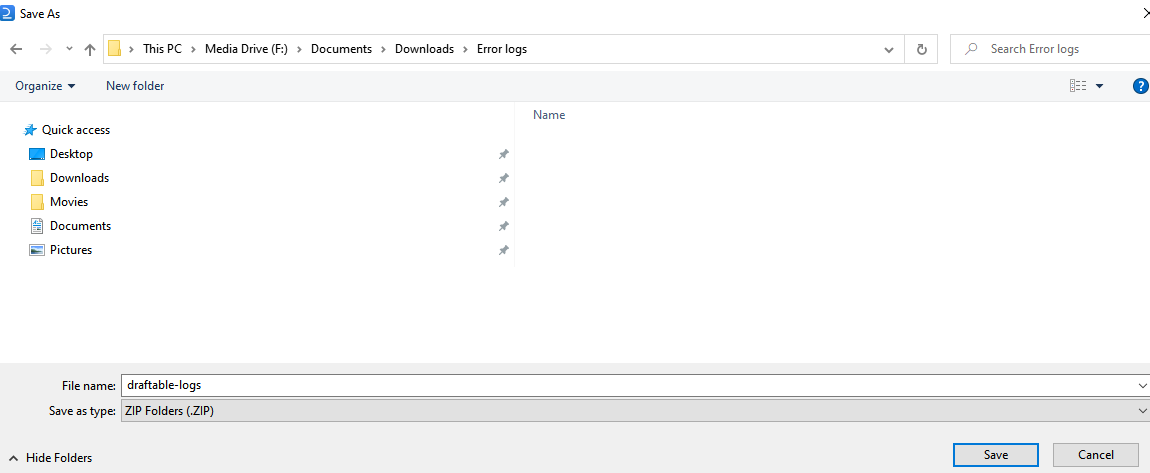
 Save the error log Zip file to a location on your PC
 Once you have exported the logs, attach them to an email (or existing email) and send them to [support@draftable.com](mailto:support@draftable.com).
If you have any issues with the above process and cannot export the logs, get in touch with us at [support@draftable.com](mailto:support@draftable.com)
Once you have exported the logs, attach them to an email (or existing email) and send them to [support@draftable.com](mailto:support@draftable.com).
If you have any issues with the above process and cannot export the logs, get in touch with us at [support@draftable.com](mailto:support@draftable.com)