> ## Documentation Index
> Fetch the complete documentation index at: https://help.draftable.com/llms.txt
> Use this file to discover all available pages before exploring further.
# Connecting your Sharepoint account with Draftable Legal
> SharePoint is a document and email management software for professionals. You can connect your SharePoint account to Draftable Legal. In this article, we will guide end users through the process of connecting SharePoint accounts to Draftable Legal.
**The settings menu was reorganised in Draftable Legal 26.6.** If you are on 26.6 or later, follow the "26.6 and later" tabs below. On earlier versions, follow "Before 26.6". To check your version, open Settings. The version number shows at the bottom-left (for example, v26.6.0).
This is required to use the SharePoint Add-in extension (i.e. loading files from your SharePoint online web browser). To use the add-in, you will also need to have your system administrator set up the extension.
**Video Resource:** For a comprehensive understanding of Draftable deployment with Sharepoint, we offer our specially crafted explainer video, accessible [via this link.](/hc/en-us/articles/27926669420825-SharePoint-Integration-with-Draftable-Legal)
## Connecting your SharePoint account to Draftable Legal
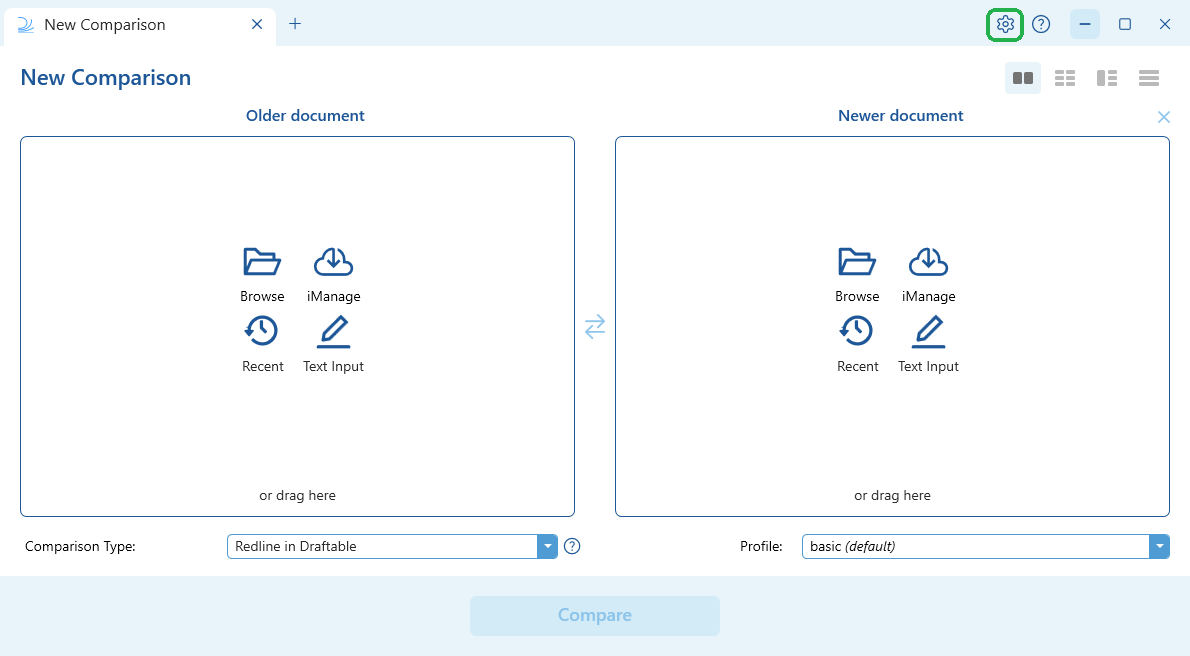
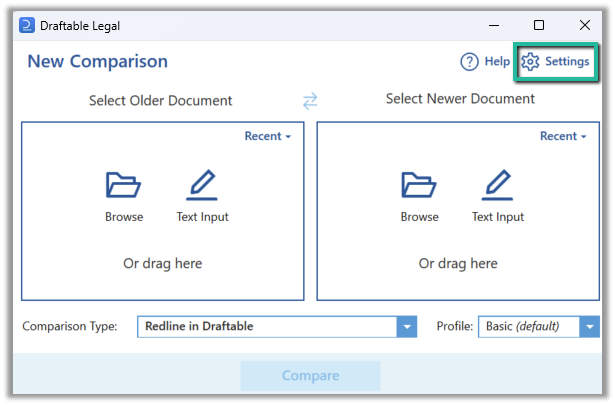
Open the **Draftable Desktop (New Comparison Window)** and select the **'settings'** in the top right corner
 Open the SharePoint settings and enable the integration. SharePoint must be enabled first before you can sign in.
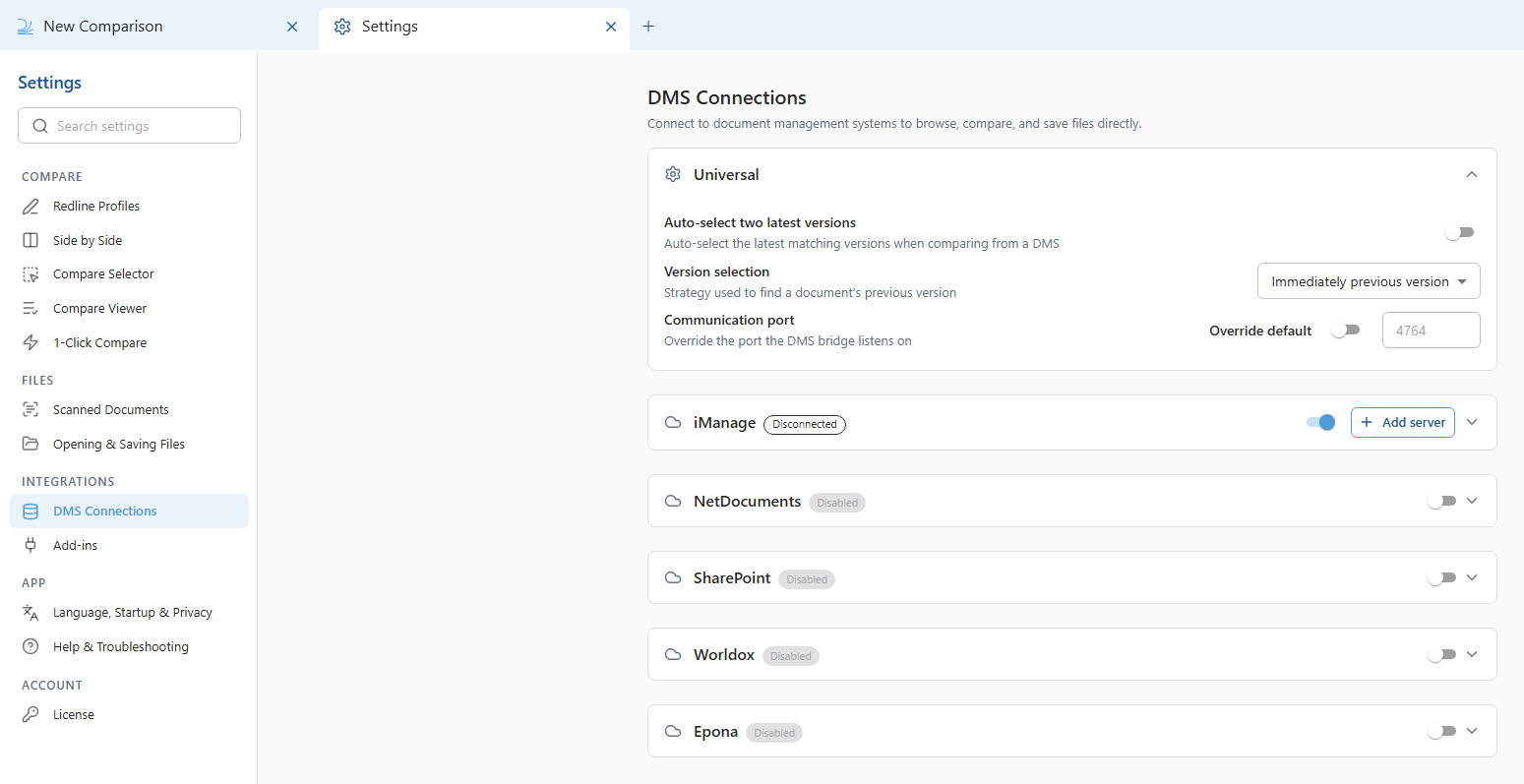
In the settings menu, select **DMS Connections**, then expand the **SharePoint** accordion.
Turn on the **SharePoint** toggle to enable the integration. This must be done first, before signing in.
Open the SharePoint settings and enable the integration. SharePoint must be enabled first before you can sign in.
In the settings menu, select **DMS Connections**, then expand the **SharePoint** accordion.
Turn on the **SharePoint** toggle to enable the integration. This must be done first, before signing in.

 In settings, go to the **Integrations** tab, and under SharePoint click **Enable SharePoint**.
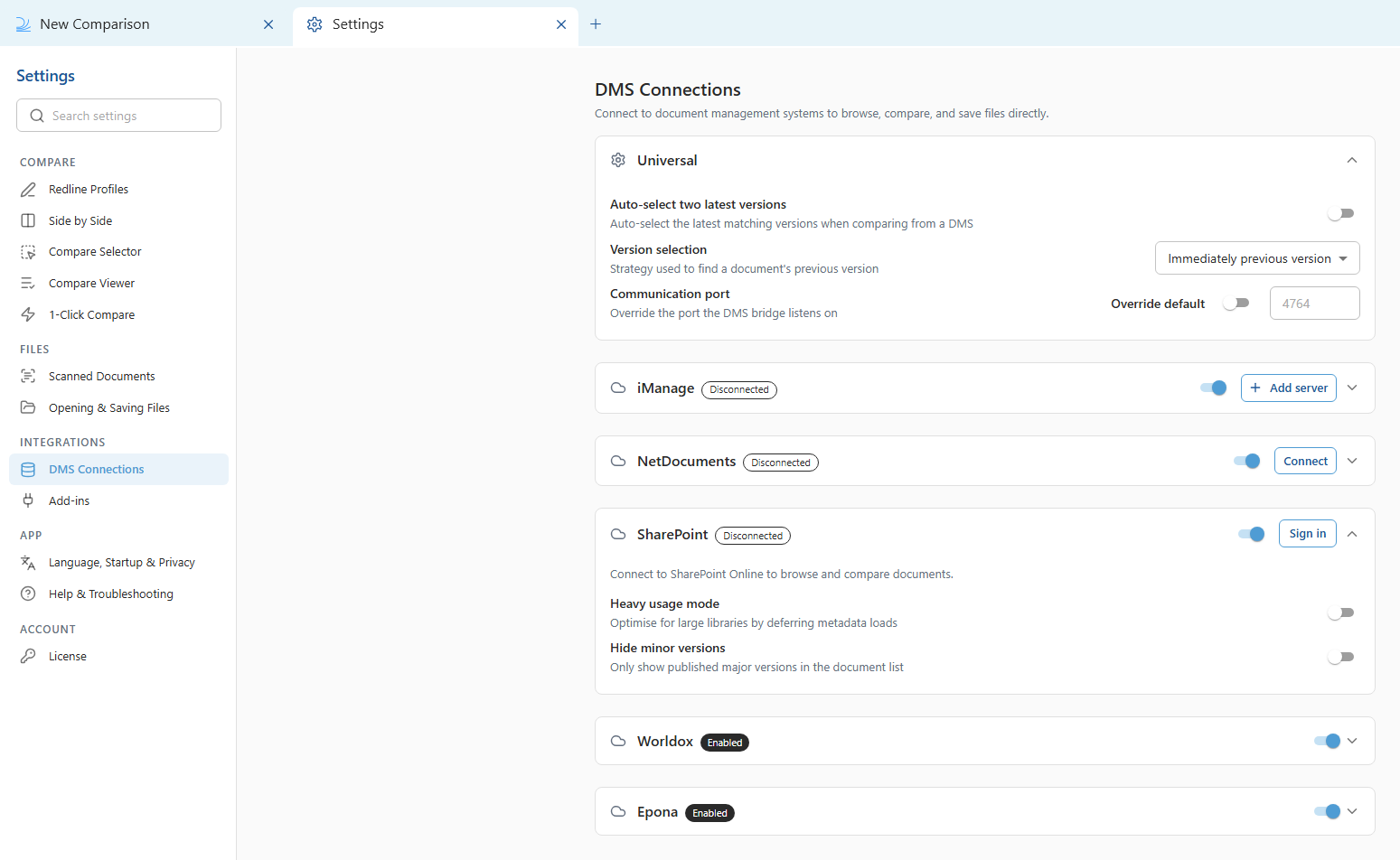
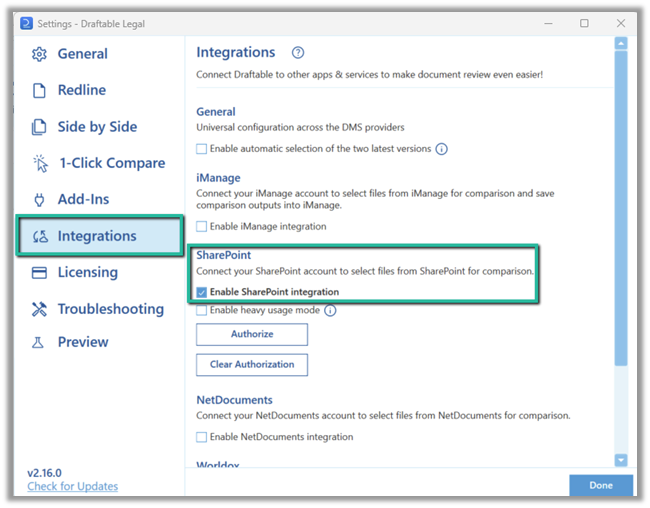 Select **Sign in** (called "Authorize" before 26.6) to start the connection.
With the **SharePoint** accordion still expanded under **DMS Connections**, select **Sign in**.
Select **Sign in** (called "Authorize" before 26.6) to start the connection.
With the **SharePoint** accordion still expanded under **DMS Connections**, select **Sign in**.
 Under SharePoint in the **Integrations** tab, click **Authorize**.
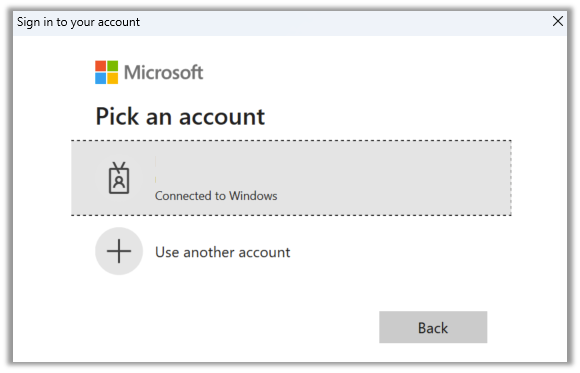
In the **Microsoft sign in** screen, **select an account** to authorize the connection.
Under SharePoint in the **Integrations** tab, click **Authorize**.
In the **Microsoft sign in** screen, **select an account** to authorize the connection.
 Your SharePoint integration should now be enabled.
In 26.6 and later, you can disconnect the account at any time with **Clear authorization** in the SharePoint accordion under **DMS Connections**.
Your SharePoint integration should now be enabled.
In 26.6 and later, you can disconnect the account at any time with **Clear authorization** in the SharePoint accordion under **DMS Connections**.