> ## Documentation Index
> Fetch the complete documentation index at: https://help.draftable.com/llms.txt
> Use this file to discover all available pages before exploring further.
# Configuring Sharepoint Online to launch directly into Draftable
> This article is intended for administrators who want to configure SharePoint Online with Draftable Legal to simplify document comparison by providing the ability to start comparisons directly from within SharePoint Online (accessed via web browser).
The Draftable App for SharePoint Online requires access to both Draftable Legal and an **administrator-level account for configuring Draftable within** your **SharePoint Admin Center**.
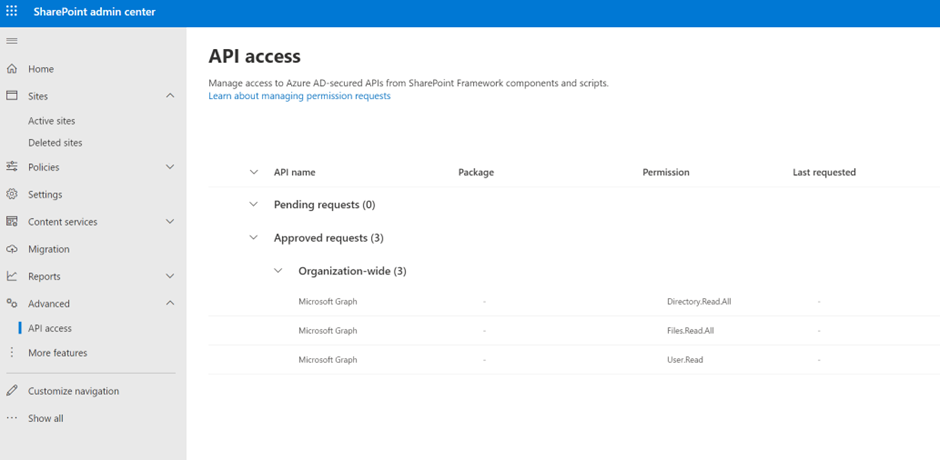
Note, once the Draftable App for SharePoint is enabled, API access for the following needs to be approved:
* Microsoft Graph, Directory.Read.All
* Microsoft Graph, Files.Read.All
* Microsoft Graph, User.Read
This is covered in the second section of this guide.
**Video Resource:** For a comprehensive understanding of configuring SharePoint to launch directly into Draftable, we offer our specially crafted explainer video, accessible [via this link.](/hc/en-us/articles/27924970143385-Configuring-SharePoint-to-Launch-Directly-into-Draftable-Legal)
## Enabling SharePoint App
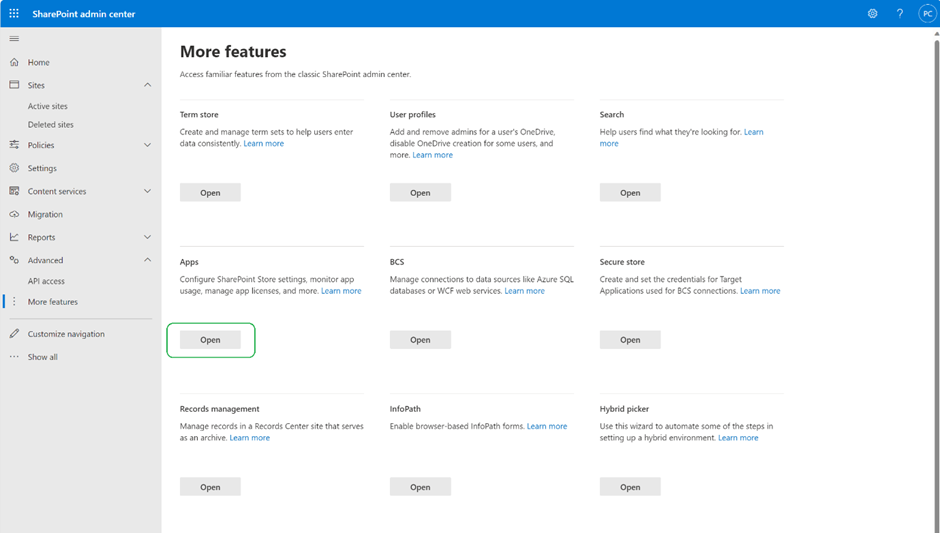
Login into your SharePoint Admin Center and navigate to **More features then select Open under Apps**
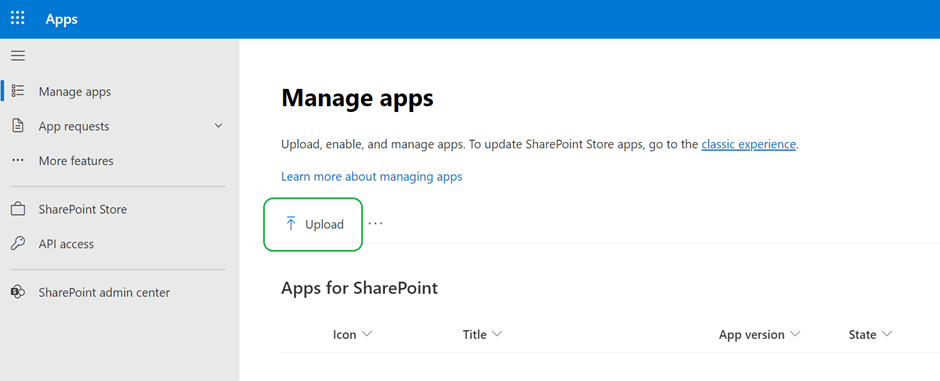
 Click **Upload**
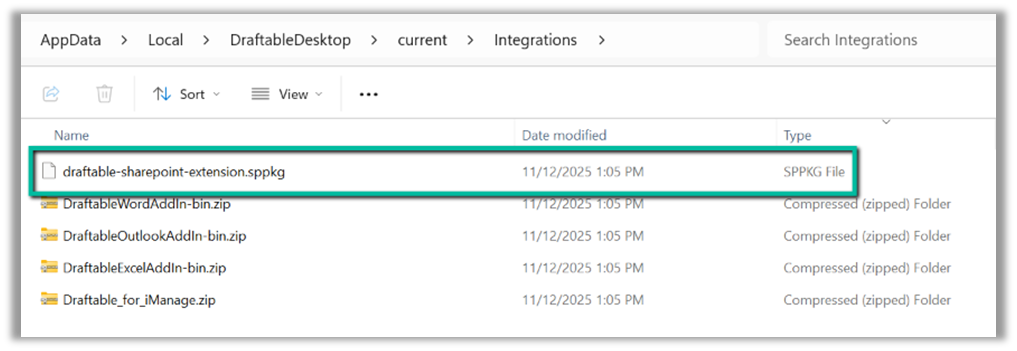
 **Navigate to the location below,** select the **"draftable-sharepoint-extension.sppkg"** file and click **open**.
```bash theme={null}
C:\Users\\AppData\Local\DraftableDesktop\current\Integrations
```
**Navigate to the location below,** select the **"draftable-sharepoint-extension.sppkg"** file and click **open**.
```bash theme={null}
C:\Users\\AppData\Local\DraftableDesktop\current\Integrations
```
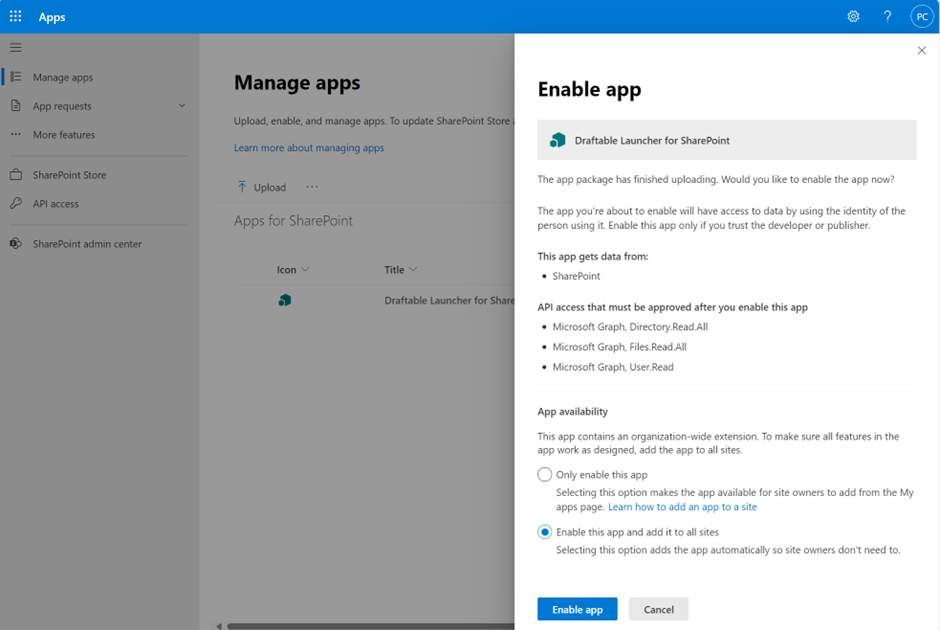
 Select **Enable app**
 ## Approving Draftable App access to APIs
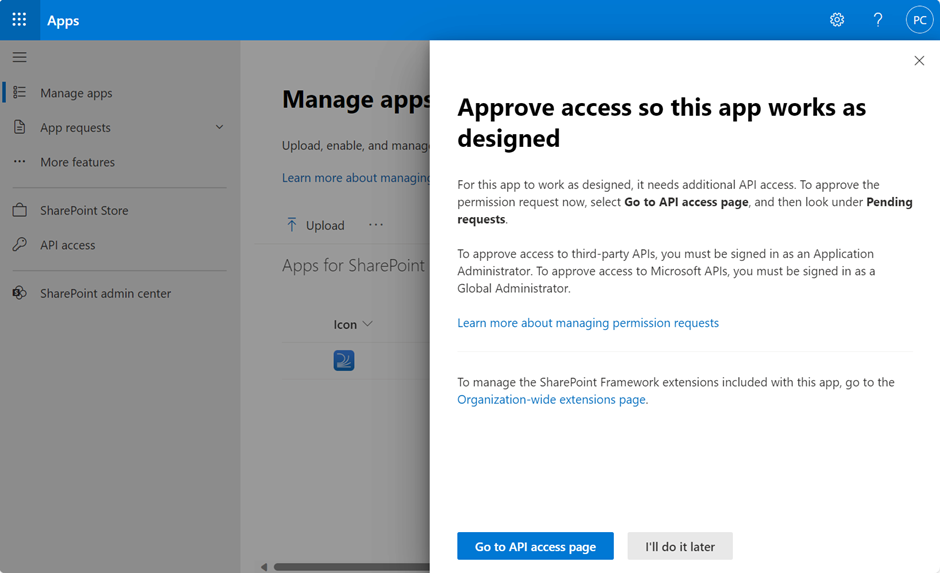
Draftable needs approval to access the graph API proceed to the API access page by clicking **Go to API access page**
## Approving Draftable App access to APIs
Draftable needs approval to access the graph API proceed to the API access page by clicking **Go to API access page**
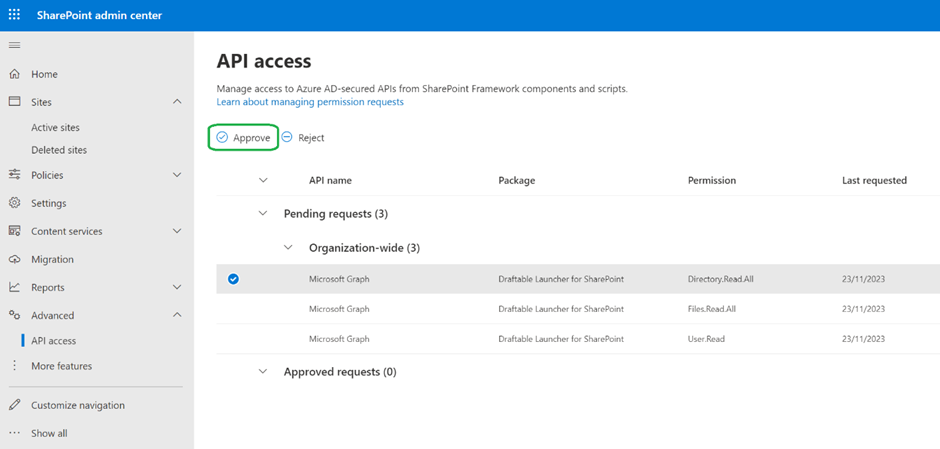
 Under pending requests approve each of the following individual permissions: *Directory.Read.All, Files.Read.All, User.Read*, by clicking **Approve.**
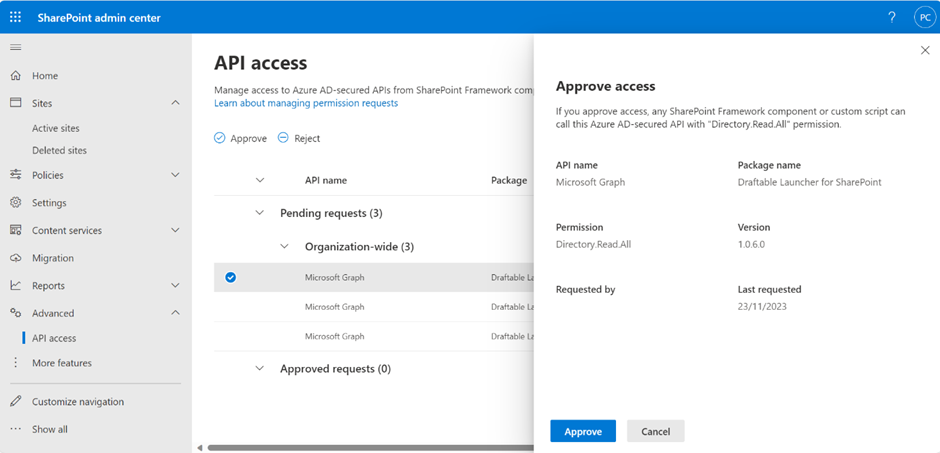
 Click **Approve** again in the confirmation modal.
**Note:** You will need to repeat the above steps for each permission.
Click **Approve** again in the confirmation modal.
**Note:** You will need to repeat the above steps for each permission.
 ## Confirm permissions have been approved
Confirm that the permissions have been approved by viewing each permission has now been moved to ***Approved requests***
## Confirm permissions have been approved
Confirm that the permissions have been approved by viewing each permission has now been moved to ***Approved requests***