> ## Documentation Index
> Fetch the complete documentation index at: https://help.draftable.com/llms.txt
> Use this file to discover all available pages before exploring further.
# Set up guide for Draftable Legal integration with Netdocuments
> Draftable Legal allows you to integrate your Netdocuments account. This allows users to easily load input files from, and save comparison outputs to Netdocuments. This article will provide a step-by-step guide on how to set up this integration by adding Draftable Legal external applications for Netdocuments in the Admin Console.
**Please note:** This is a technical integration guide written for administrator-level users. This is **not a guide** for **using Netdocuments with Draftable Legal,** if you are looking for information on how to use Netdocuments with Draftable Legal, please **visit this article instead**.
**Video Resource:** For a comprehensive understanding of configuring Netdocuments to work with Draftable Legal, we offer our specially crafted explainer video, accessible [via this link.](/hc/en-us/articles/27924867840537-Configuring-NetDocuments-with-Draftable-as-an-External-Application)
## Add Draftable Legal Apps within Netdocuments Vault Admin Console
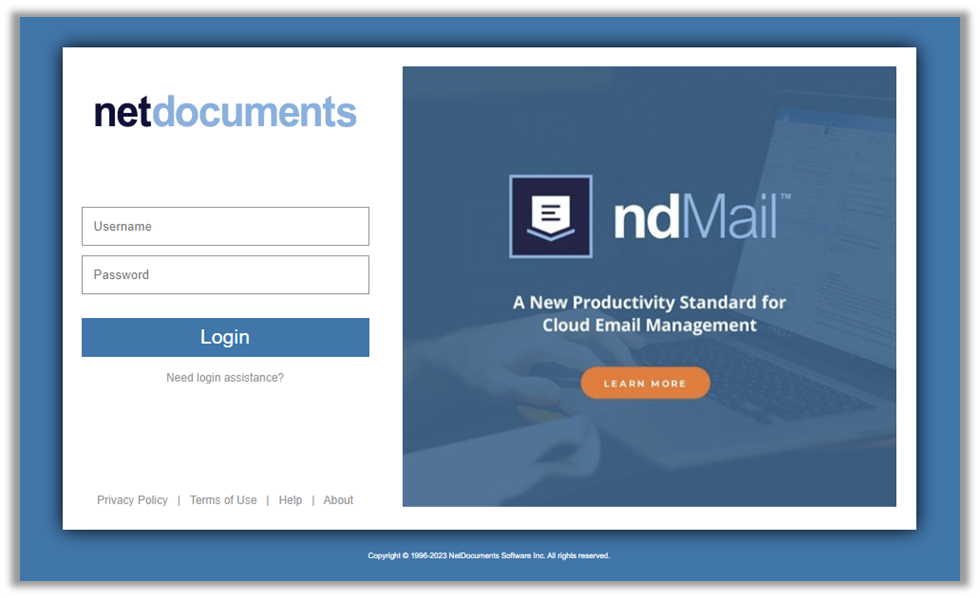
Go to **Netdocuments Vault** webpage and login (note, an account with administrator rights is required to complete this workflow)
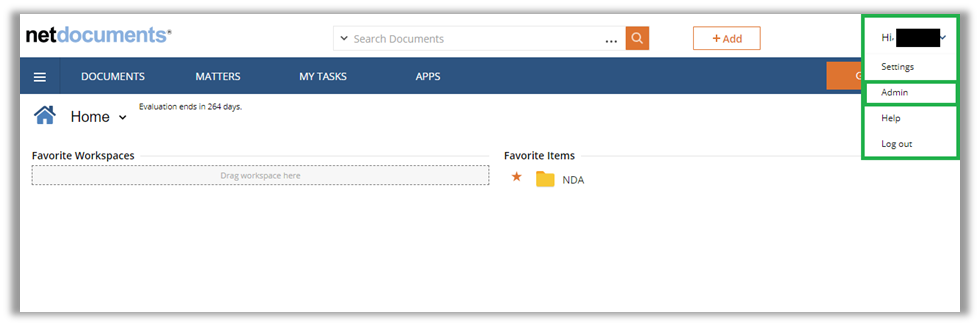
 In the top right corner of the screen, **click on your account name**, then **select 'Admin'** in the drop down menu to navigate to the Admin Console
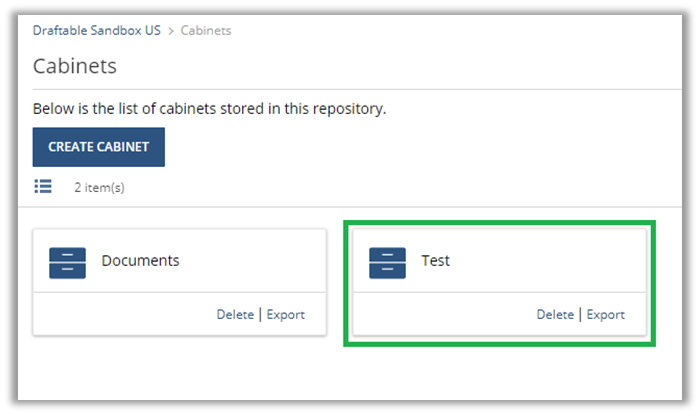
 In the Cabinet view, **select the cabinet** that you wish to integrate with Draftable Legal
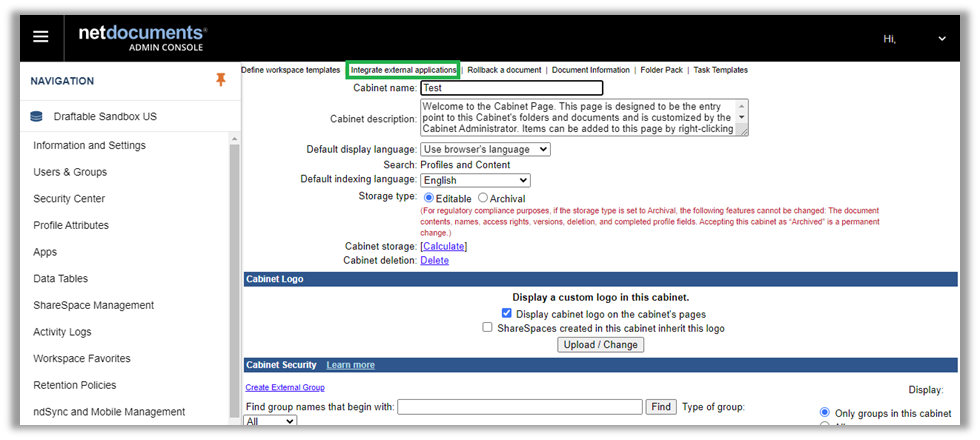
 In the Cabinet settings, select the **Integrate with external application** option from the top menu
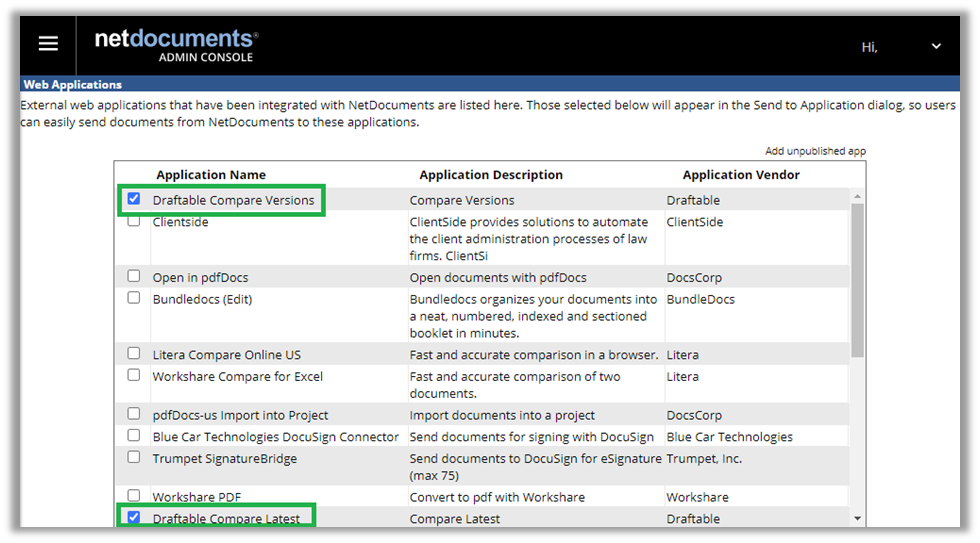
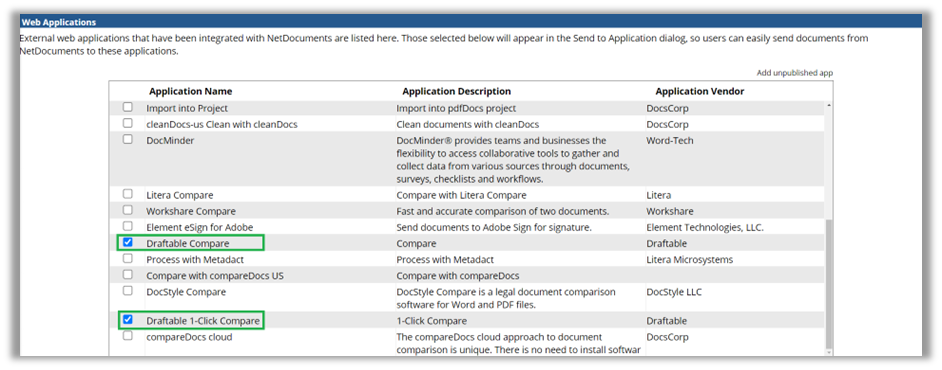
 In the 'Web applications' section, **select the following Draftable external applications** from the list provided (by checking the tick box on the left hand side):
* **Draftable Compare:** *This external application is required for users to be able to use Draftable Legal to select files from and save outputs to Netdocuments. Without it, the Netdocuments integration will not connect to a user's account*.
* **Draftable Compare Versions:** *This is an optional app which allows users to see a command in Netdocuments that will open the Draftable file version selection menu with all versions of a selected file available to load.*
* **Draftable Compare Latest:** *This is an optional web app that allows users to see a command in Netdocuments that loads the file version selected and the other most recent version into Draftable for comparison.*
* **Draftable 1-Click Compare** *This is an optional web app that allows users to see a command in NetDocuments that loads two selected files and runs a preset default workflow in 1-Click ([see here for details](/hc/en-us/articles/31611819497753-Using-1-Click-Compare-to-run-comparisons-with-your-preferred-default-workflow))*
In the 'Web applications' section, **select the following Draftable external applications** from the list provided (by checking the tick box on the left hand side):
* **Draftable Compare:** *This external application is required for users to be able to use Draftable Legal to select files from and save outputs to Netdocuments. Without it, the Netdocuments integration will not connect to a user's account*.
* **Draftable Compare Versions:** *This is an optional app which allows users to see a command in Netdocuments that will open the Draftable file version selection menu with all versions of a selected file available to load.*
* **Draftable Compare Latest:** *This is an optional web app that allows users to see a command in Netdocuments that loads the file version selected and the other most recent version into Draftable for comparison.*
* **Draftable 1-Click Compare** *This is an optional web app that allows users to see a command in NetDocuments that loads two selected files and runs a preset default workflow in 1-Click ([see here for details](/hc/en-us/articles/31611819497753-Using-1-Click-Compare-to-run-comparisons-with-your-preferred-default-workflow))*
 Once the desired apps are selected, hit **'save'** at the bottom of the screen.
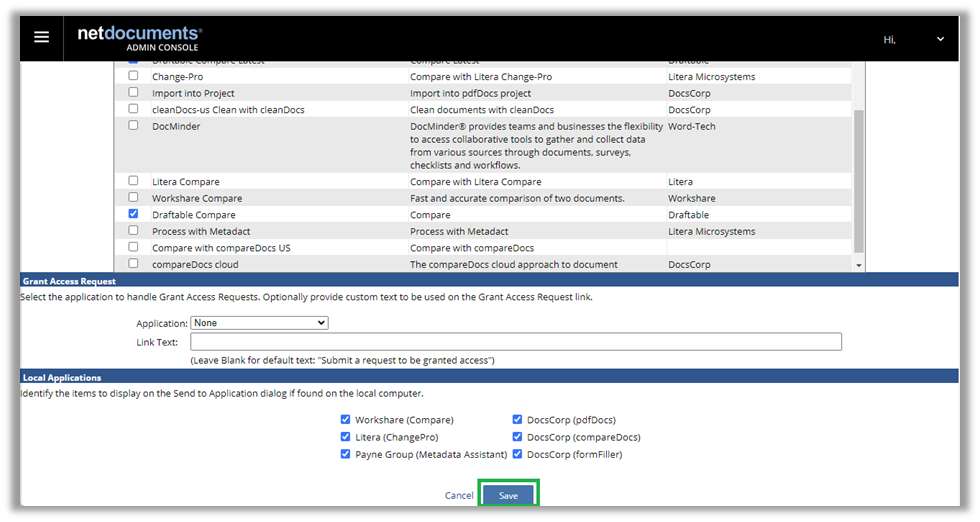 Users in the cabinet should now be able to access Draftable Legal integration functions. Repeat these steps as required for other cabinets.