> ## Documentation Index
> Fetch the complete documentation index at: https://help.draftable.com/llms.txt
> Use this file to discover all available pages before exploring further.
# Connecting your NetDocuments account with Draftable Legal
> NetDocuments is a document and email management software for legal, financial, and accounting professionals. It provides advanced features and an intuitive interface to securely organize, store, and collaborate on documents.
**The settings menu was reorganised in Draftable Legal 26.6.** If you are on 26.6 or later, follow the "26.6 and later" tabs below. On earlier versions, follow "Before 26.6". To check your version, open Settings. The version number shows at the bottom-left (for example, v26.6.0).
You can connect your NetDocuments account to Draftable Legal to load files from and save files to NetDocuments. In this article, we will guide you in connecting your NetDocuments account to Draftable Legal. You will need to have **ND Office** installed on your computer to use the Draftable Legal integration with NetDocuments. For more information on ND office, visit [https://support.netdocuments.com/s/article/205220000](https://support.netdocuments.com/s/article/205220000)
**Please note:** This workflow is required to use the NetDocuments integration (i.e. loading files from NetDocuments, saving to NetDocuments). To use this integration, you will also need to have your system administrator set up the integration with your NetDocuments cabinet ([see here](/hc/en-us/articles/25960764447385-Set-up-guide-for-Draftable-Legal-integration-with-Netdocuments)).
**Video Resource:** For a comprehensive understanding of Draftable deployment with Netdocuments, we offer our specially crafted explainer video, accessible [via this link.](/hc/en-us/articles/27925254889113-Connecting-NetDocuments-with-Draftable)
## Enable NetDocuments integration in Draftable
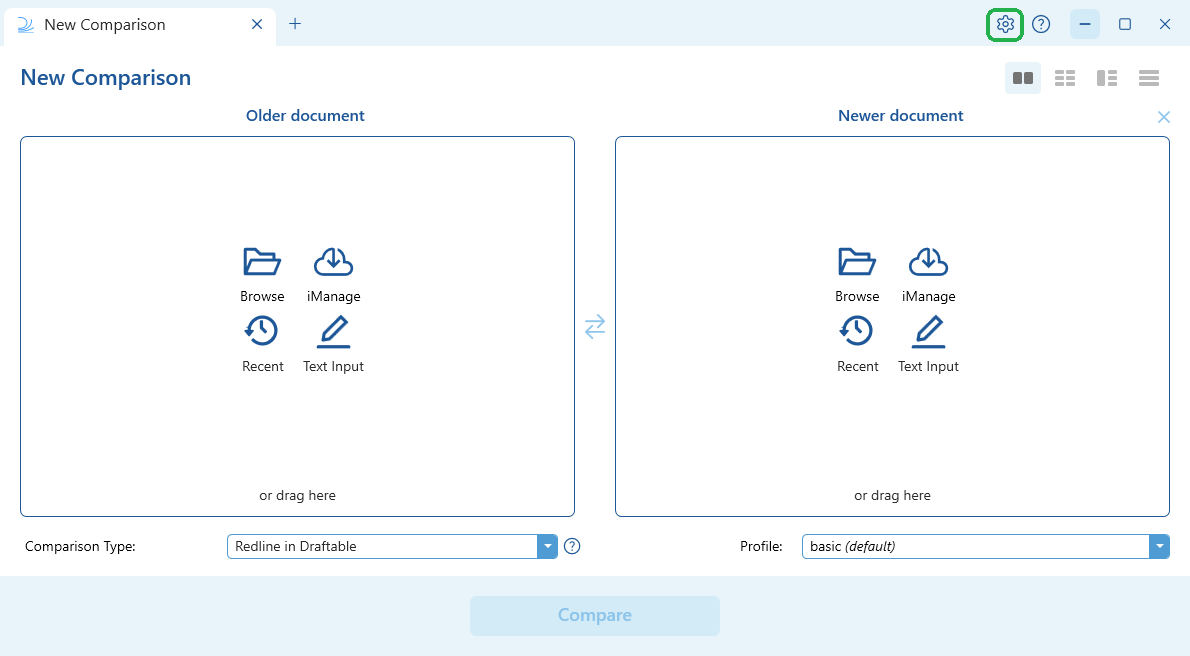
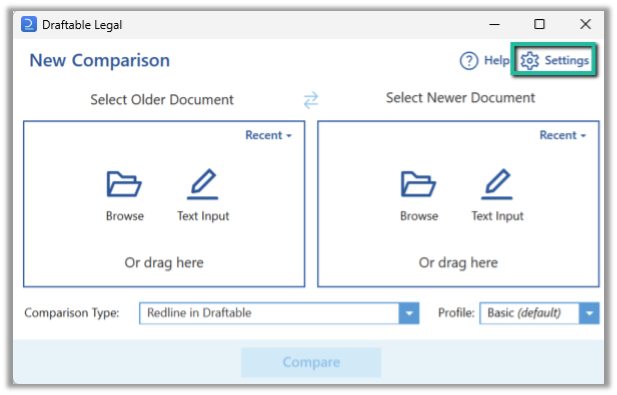
Open Draftable Legal and go to the **Settings** menu in the top right corner of the New Comparison Window
 Open the NetDocuments connection settings and turn the integration on.
In the settings menu, select **DMS Connections** under the **Integrations** group, then expand the **NetDocuments** row and turn on its toggle to enable the integration.
NetDocuments must be enabled before you can connect your account. Turn on the **NetDocuments** toggle in **Settings > DMS Connections > NetDocuments** first; the **Connect** button only becomes available once the integration is enabled.
Open the NetDocuments connection settings and turn the integration on.
In the settings menu, select **DMS Connections** under the **Integrations** group, then expand the **NetDocuments** row and turn on its toggle to enable the integration.
NetDocuments must be enabled before you can connect your account. Turn on the **NetDocuments** toggle in **Settings > DMS Connections > NetDocuments** first; the **Connect** button only becomes available once the integration is enabled.
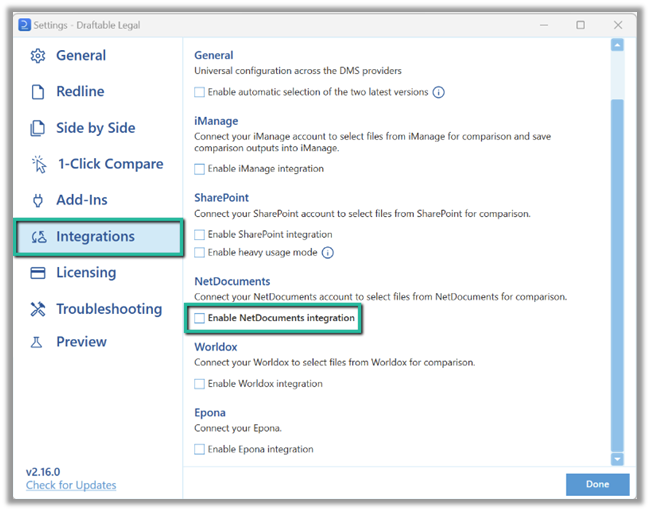
 Go to the **'Integrations'** section on the left hand side menu, and click the **Enable NetDocuments integration** check box.
 Select the **Connect** button to start linking your account.
With the **NetDocuments** row expanded, select the **Connect** button to sign in to your account. You can also turn on **Auto check-in** here if you want files to be checked back in automatically after saving.
Select the **Connect** button to start linking your account.
With the **NetDocuments** row expanded, select the **Connect** button to sign in to your account. You can also turn on **Auto check-in** here if you want files to be checked back in automatically after saving.
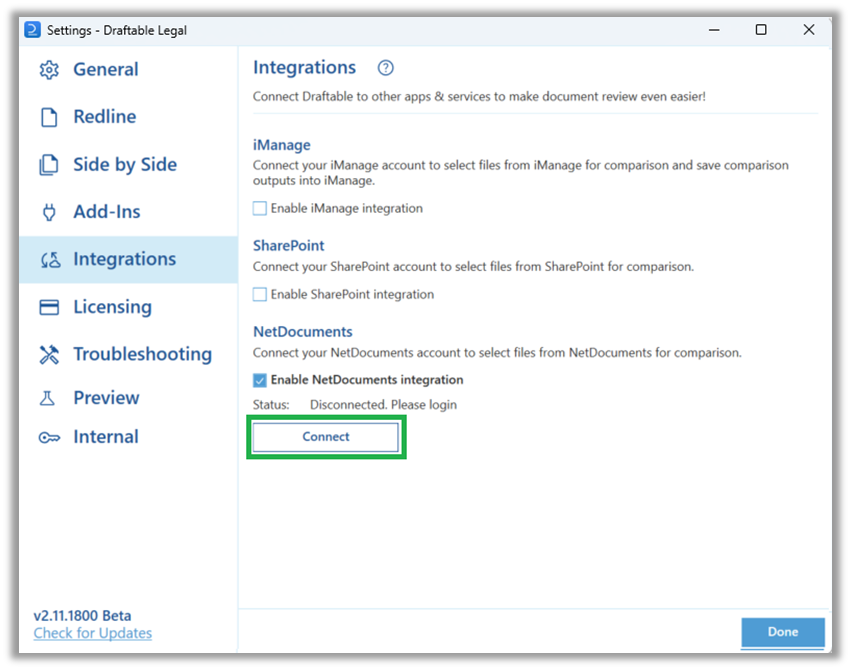
 Once the check box is selected, hit the '**Connect**' button below.
 You will be prompted to log in to your NetDocuments account via the ND Office app's Activity Center
## Connect your NetDocuments Account
### If required: Connect ND Office if you are not already logged in
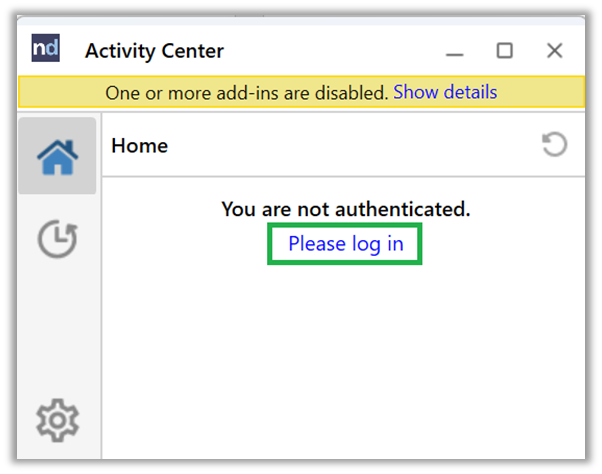
If you are not already logged into you NetDocuments account via the ND office app, you will be prompted to do so via the screen below
You will be prompted to log in to your NetDocuments account via the ND Office app's Activity Center
## Connect your NetDocuments Account
### If required: Connect ND Office if you are not already logged in
If you are not already logged into you NetDocuments account via the ND office app, you will be prompted to do so via the screen below
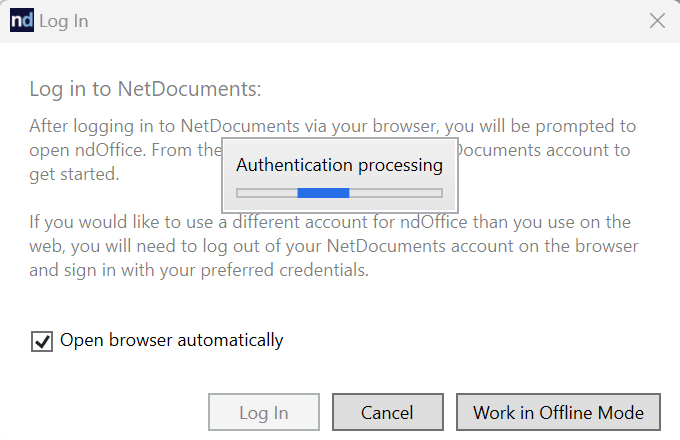
 Once logged in, ND office will automatically prompt to authenticate Draftable Legal via the screen below
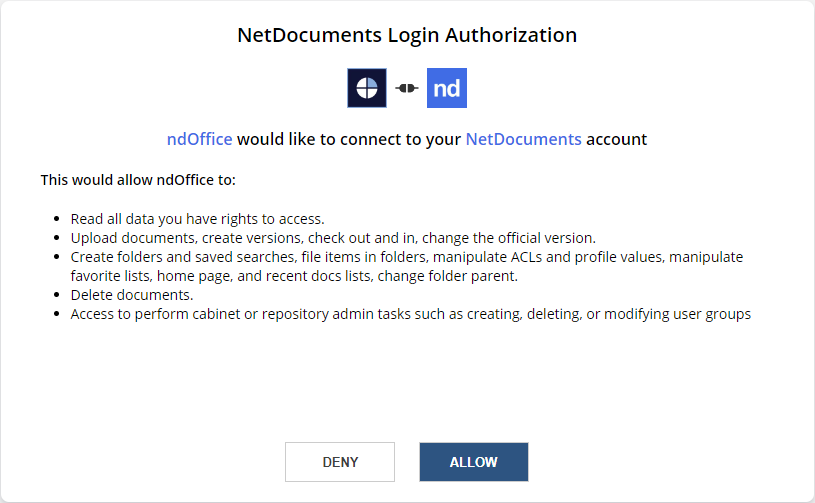
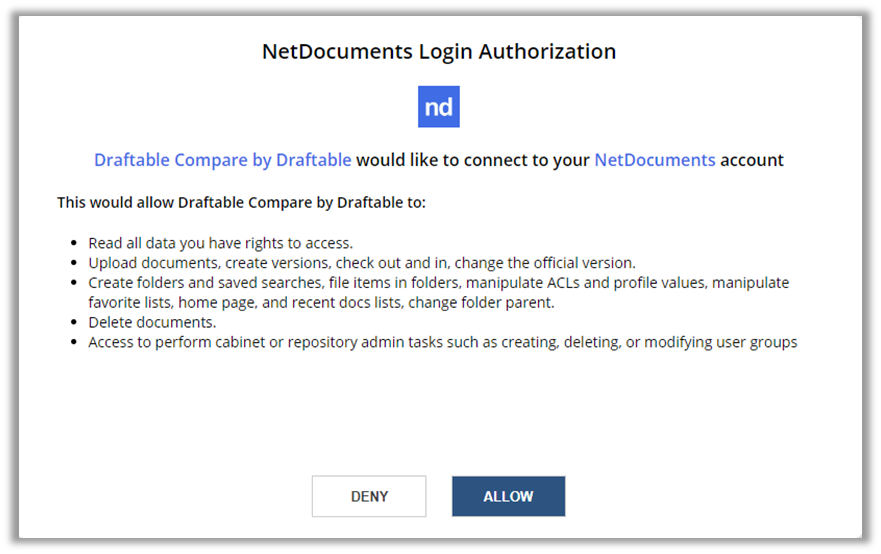
 A web browser window will open automatically asking you to agree to allow ND Office to connect to your NetDocuments account. Hit '**Allow**'
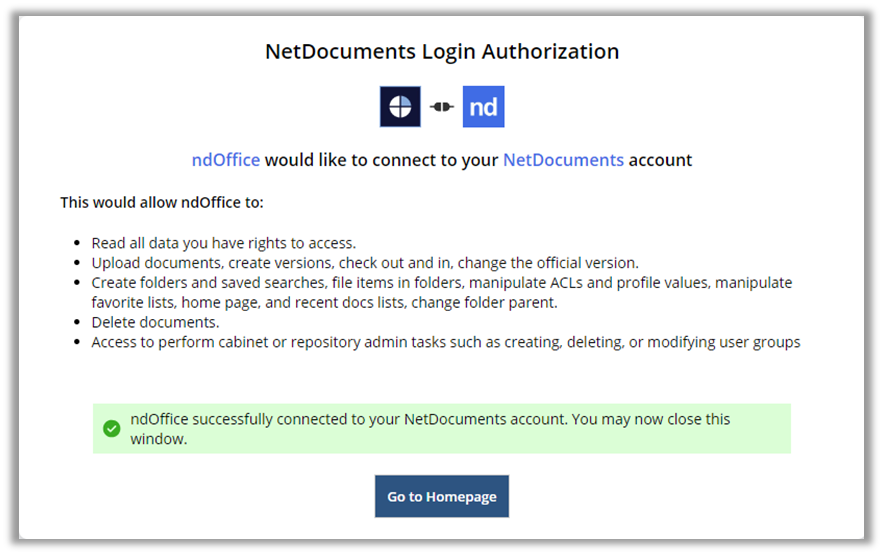
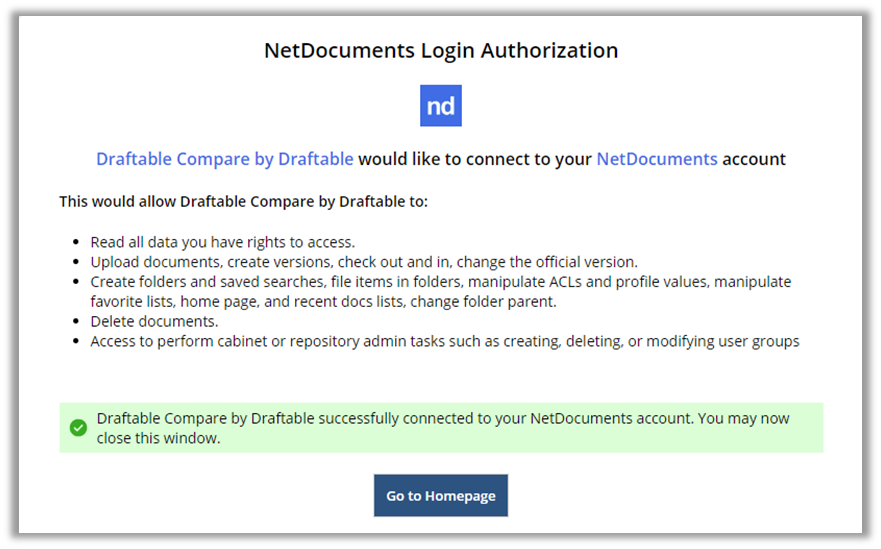
 You should now be shown this screen which confirms your ND Office app is linked to your NetDocuments account.
 ### Allow Draftable to connect to your NetDocuments account
Once you hit the 'Connect' option under the NetDocuments integration in the Draftable Settings menu, a popup should appear in your ND office application.
### Allow Draftable to connect to your NetDocuments account
Once you hit the 'Connect' option under the NetDocuments integration in the Draftable Settings menu, a popup should appear in your ND office application.
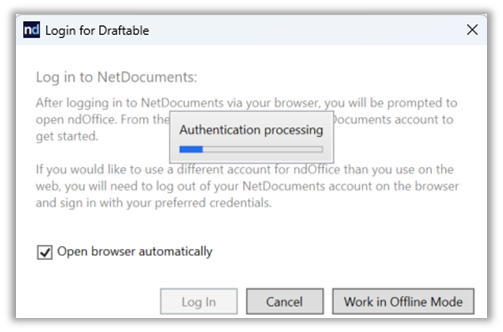 ND office will automatically open a web browser window, asking you to allow Draftable to connect to your NetDocuments account. Select "**Allow**"
 You will be shown the following screen. You should now be able to use Draftable to load files and save to your NetDocuments account.
 ## If required, update Service Region for ND Office
If your ND Office prompts you to login to a NetDocuments URL that does not accept your login credentials, you may need to update the Service Region in your ND Office account.
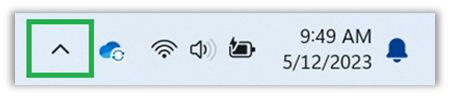
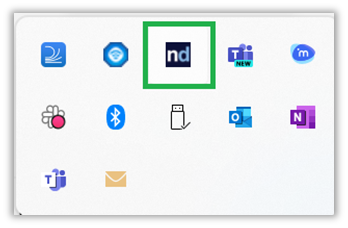
Open your **ND Office Activity Center** in the **system tray** (located in the windows start bar at the bottom right corner of your primary monitor)
## If required, update Service Region for ND Office
If your ND Office prompts you to login to a NetDocuments URL that does not accept your login credentials, you may need to update the Service Region in your ND Office account.
Open your **ND Office Activity Center** in the **system tray** (located in the windows start bar at the bottom right corner of your primary monitor)
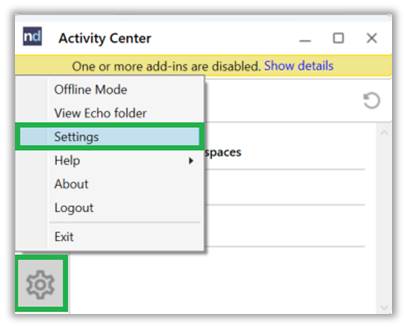
 Open the settings menu in the activity center by **selecting the cog** in the bottom left corner and selecting **Settings** from the popup menu
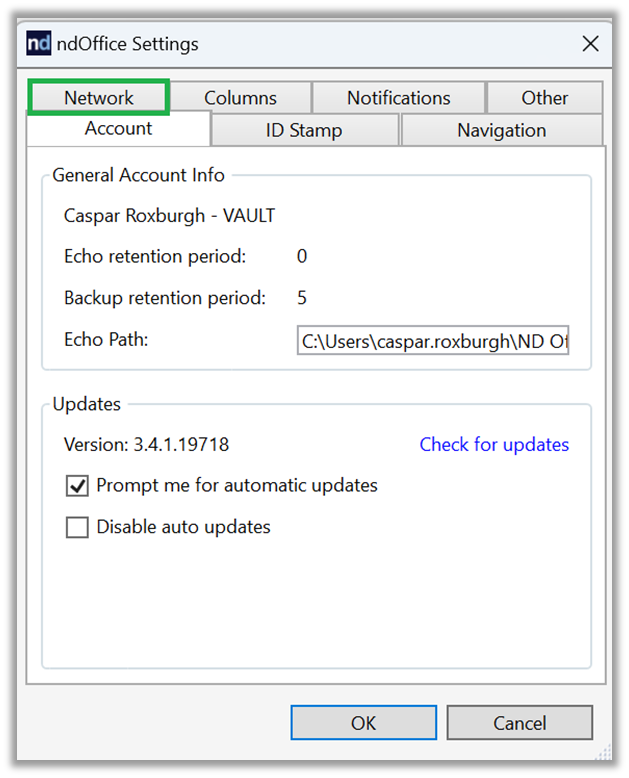
 In the settings menu, select the **Network** tab at the top left corner of the window
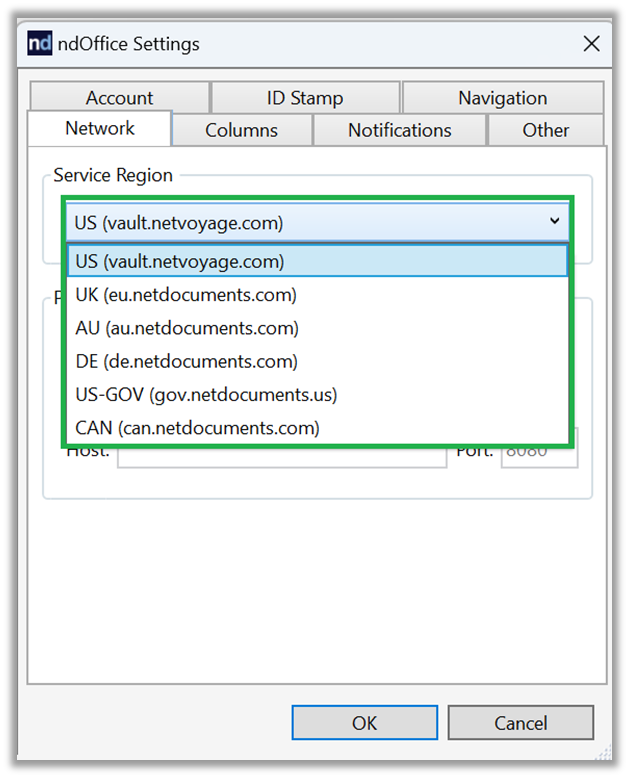
 In the **Service Region** section, select the region used by your NetDocuments account and hit **OK** at the bottom of the window.
 You should now be able to retry logging in to your NetDocuments account to link ND Office to Draftable Legal.