> ## Documentation Index
> Fetch the complete documentation index at: https://help.draftable.com/llms.txt
> Use this file to discover all available pages before exploring further.
# Launching comparisons from within NetDocuments
> We have developed an integration with NetDocs that allows you to initiate comparisons in Draftable Legal right from NetDocs. This feature optimises your workflows, reducing the number of steps needed to generate a comparison. This article will guide you through the various methods on how to launch a comparison from NetDocuments to Draftable Legal.
**Please note:** In order to use the features outlined in this article, you must first:
* Confirm your System Administrator has [added the Draftable Compare external app](/hc/en-us/articles/25960764447385-Set-up-guide-for-Draftable-Legal-integration-with-Netdocuments) to your NetDocuments Admin Console, and
* Have [enabled the NetDocuments integration in your Draftable Settings and via ND Office](/hc/en-us/articles/25961845165081-Connecting-your-NetDocuments-account-with-Draftable-Legal).
## How to launch comparisons directly from NetDocuments
There are a few methods to launch comparisons from NetDocuments, either using external context menus or the toolbar. To ensure that you are getting the full usage of this feature, below outlines all the possible workstreams for launching comparisons directly from NetDocuments.
### Launching comparisons via the context menu
On your enterprise's online NetDocuments instance, **navigate to your desired files** for comparison
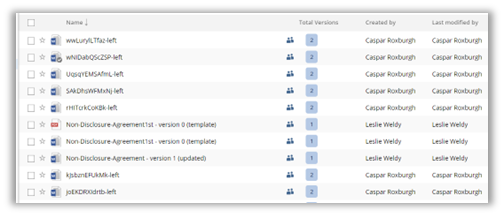 Select a file, **right-click** it, and then select **Send to application**
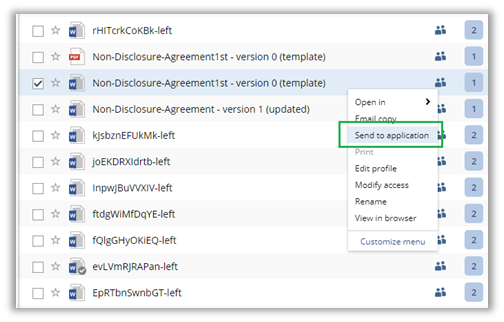 **Alternatively,** you can also select two files, **right-click** them, and then select **Send to application**
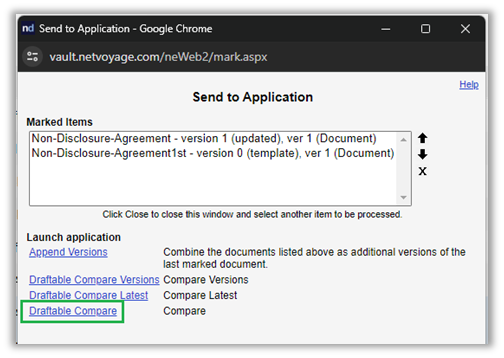
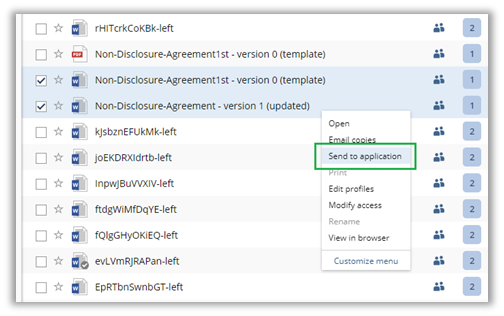 This will launch the **Send to Application window**. Verify the documents you have selected under **Marked Items**. If selecting multiple file versions at once, these will all appear in the Marked Items section. Once files are selected, you have 3 comparison options: "Draftable Compare Versions", "Draftable Compare Latest" or "Draftable Compare"
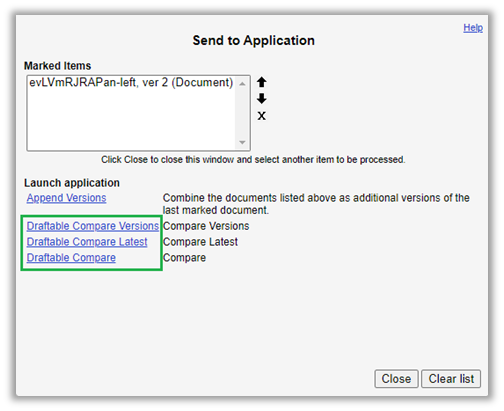 ### Draftable compare versions
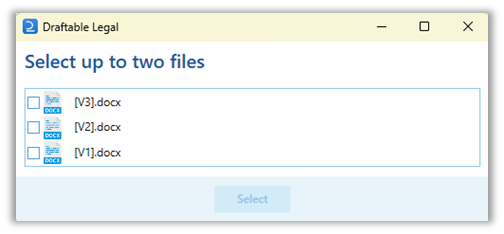
**For files with only 2 versions**, this option will automatically **load the two versions** of the selected document. For **files with 3 or more versions**, this option will **open the Draftable version selector menu** to show a list of versions for loading. Users are able to **select up to two versions** for comparison, and then load by clicking '**Select**'.
### Draftable compare versions
**For files with only 2 versions**, this option will automatically **load the two versions** of the selected document. For **files with 3 or more versions**, this option will **open the Draftable version selector menu** to show a list of versions for loading. Users are able to **select up to two versions** for comparison, and then load by clicking '**Select**'.
 ### Draftable Compare Latest
This option uses smart logic to load file versions for comparison. If a **file is selected**, Draftable Compare Latest will load the **two latest** **versions** of the document, so you will not be prompted to select any specific versions. If a **file version** is selected, Draftable Compare Latest will **load the selected version and the most recent other version available**. For example, if a file has 4 versions (V1-V4) and V1 is selected, it will load V1 and V4. In the same example, if V4 is selected, it will load V3 and V4.
### Draftable Compare
This loads only the selected document into the **newer** (left) side of **Draftable Legal**
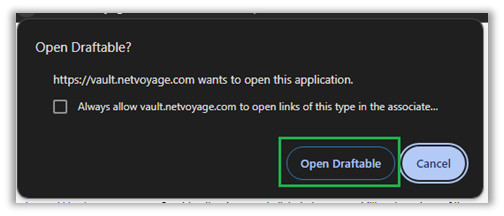
**Note:** When loading files you may be prompted with a **confirmation box**. Simply press **Open Draftable** to progress
### Draftable Compare Latest
This option uses smart logic to load file versions for comparison. If a **file is selected**, Draftable Compare Latest will load the **two latest** **versions** of the document, so you will not be prompted to select any specific versions. If a **file version** is selected, Draftable Compare Latest will **load the selected version and the most recent other version available**. For example, if a file has 4 versions (V1-V4) and V1 is selected, it will load V1 and V4. In the same example, if V4 is selected, it will load V3 and V4.
### Draftable Compare
This loads only the selected document into the **newer** (left) side of **Draftable Legal**
**Note:** When loading files you may be prompted with a **confirmation box**. Simply press **Open Draftable** to progress
 ### Launching comparisons via the toolbar
On your enterprise's online NetDocuments instance, **navigate to your desired files** for comparison
### Launching comparisons via the toolbar
On your enterprise's online NetDocuments instance, **navigate to your desired files** for comparison
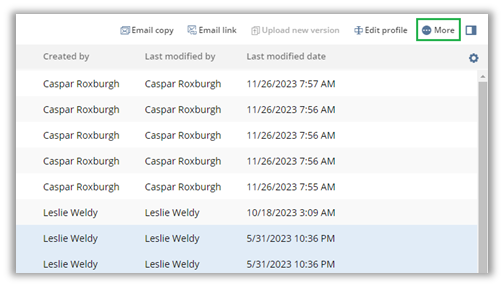
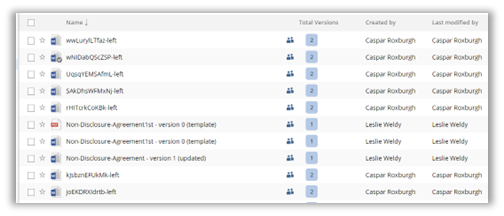 **Select your file(s)**, then navigate to the **3 small dots next to 'More'** in the top right corner of the dashboard.
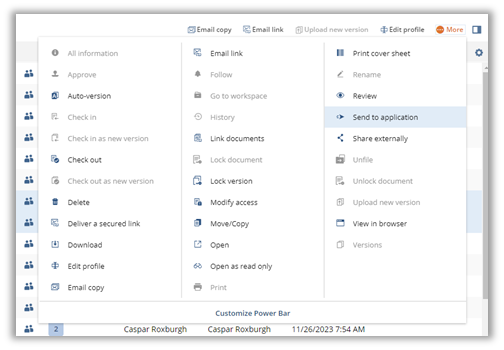
 From the drop down menu, select **Send to application**
 This will launch the **Send to Application window**. Verify the documents you have selected under Marked Items, and **left-click on your preferred option (Compare versions, Compare Latest, Compare)** to transfer these items into Draftable
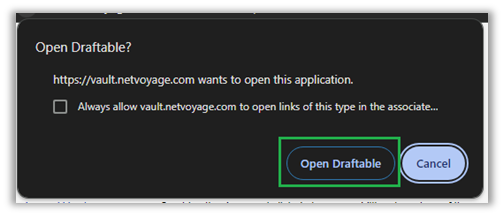
 **Note:** You may be prompted with a **confirmation box**. Simply press **Open Draftable** to progress
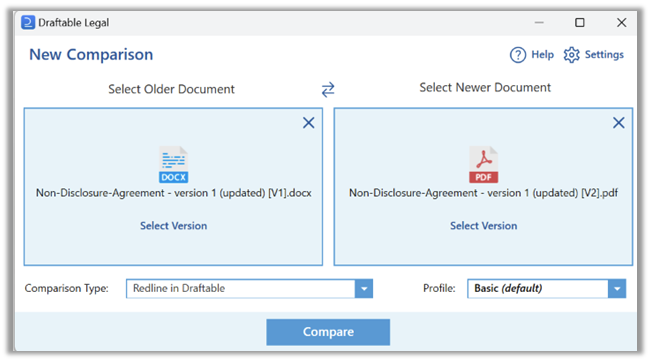
 Regardless of whether you selected 1 or 2 documents, Draftable Legal will load the **New Comparison window** with the selected documents, ready for comparison.