> ## Documentation Index
> Fetch the complete documentation index at: https://help.draftable.com/llms.txt
> Use this file to discover all available pages before exploring further.
# How to authenticate iManage on behalf of users via Group Policy
> Draftable Legal allows you to integrate your iManage setup with Draftable Legal itself, so you can run comparisons directly from iManage. This article provides a guide on how to enable automatic authentication of iManage for your users, via Group Policy. **Please note**, that this is not the complete configuration required for iManage integration with Draftable Legal, please see these specific articles for full configuration depending on your iManage environment.
### Configuring the setting via group policy
If you do not already have the Group Policy templates installed, please read this article first about the Draftable Legal [Group Policy Settings](/hc/en-us/articles/18763487262105-Configuring-settings-with-Group-Policy-Draftable-Legal) which details where the templates are located and how to install them.
Once you have installed the templates, you can open up the Group Policy Editor and expand either the Computer Configuration or User Configuration depending on how you are deploying Draftable Legal. Under the Administrative Templates folder, you will see a Draftable folder which contains three subfolders which that allow you to configure various Draftable Legal settings.
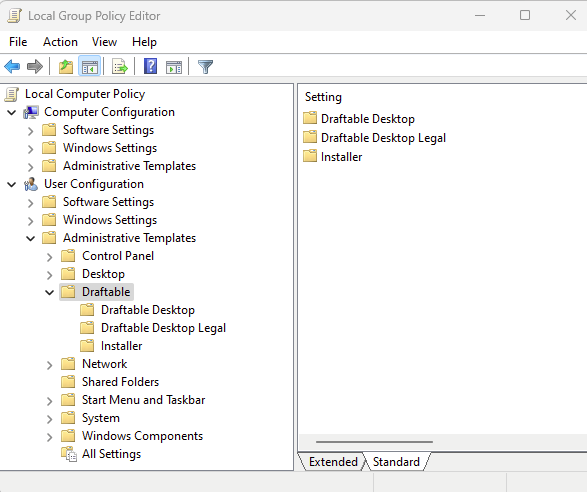 Select the folder Draftable Desktop Legal folder. Once opened, you will be presented with many group policy options. Select the **Enable iManage integration on behalf of users** option.
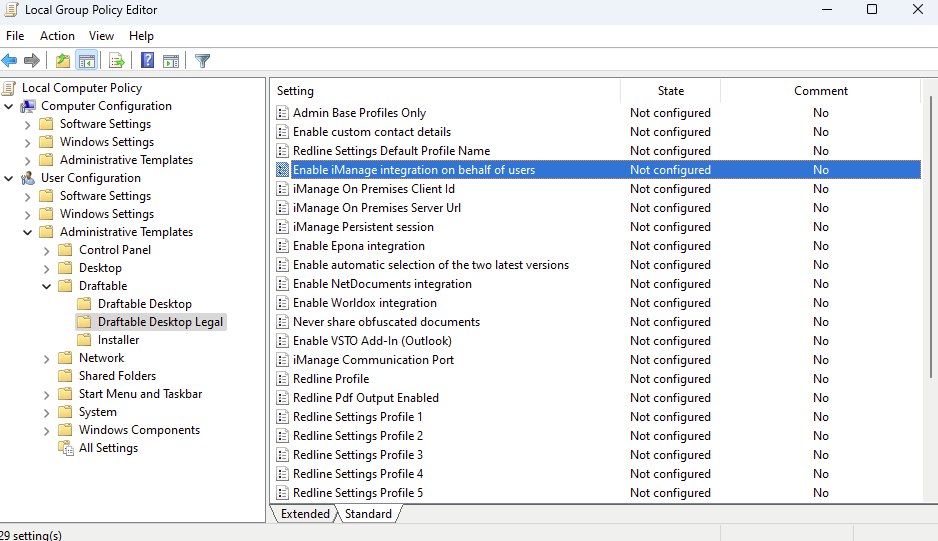 Double-click on the setting, to bring up the window to allow you to configure the setting.
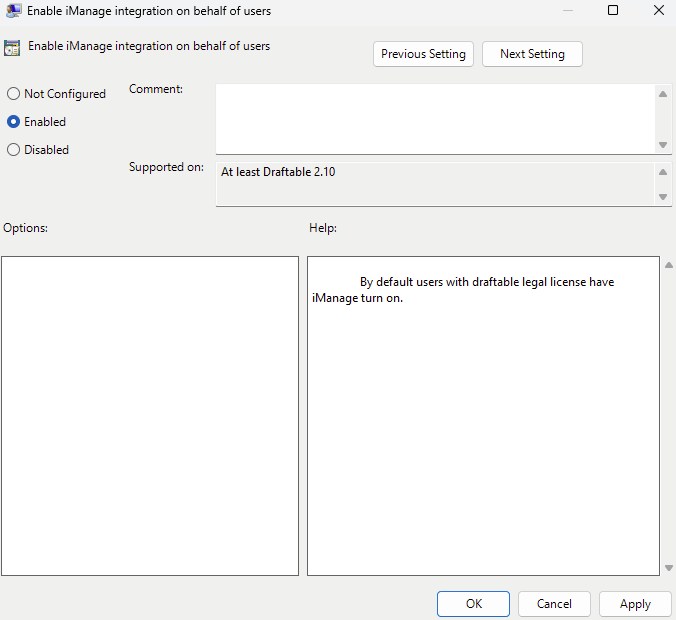 Here you can enable (to allow users to connect to iManage) or disable (prevent users from connecting to iManage) the setting. Once configured and saved, you can push out the setting to the relevant group of users.
This feature has been available since version 2.10 of Draftable Legal.
Here you can enable (to allow users to connect to iManage) or disable (prevent users from connecting to iManage) the setting. Once configured and saved, you can push out the setting to the relevant group of users.
This feature has been available since version 2.10 of Draftable Legal.