> ## Documentation Index
> Fetch the complete documentation index at: https://help.draftable.com/llms.txt
> Use this file to discover all available pages before exploring further.
# Draftable Legal Configuring Custom Output Filenames
> Draftable Legal lets you fully customize the file naming schema for your comparison outputs, giving you greater control over your workflows.
This article details how to configure this feature, what each token represents, which preset patterns are available, and how to create your own output filename schema.
**The settings menu was reorganised in Draftable Legal 26.6.** If you are on 26.6 or later, follow the "26.6 and later" tabs below. On earlier versions, follow "Before 26.6". To check your version, open Settings. The version number shows at the bottom-left (for example, v26.6.0).
## Enabling custom output filenames
Where you find the custom filename setting depends on your version of Draftable Legal.
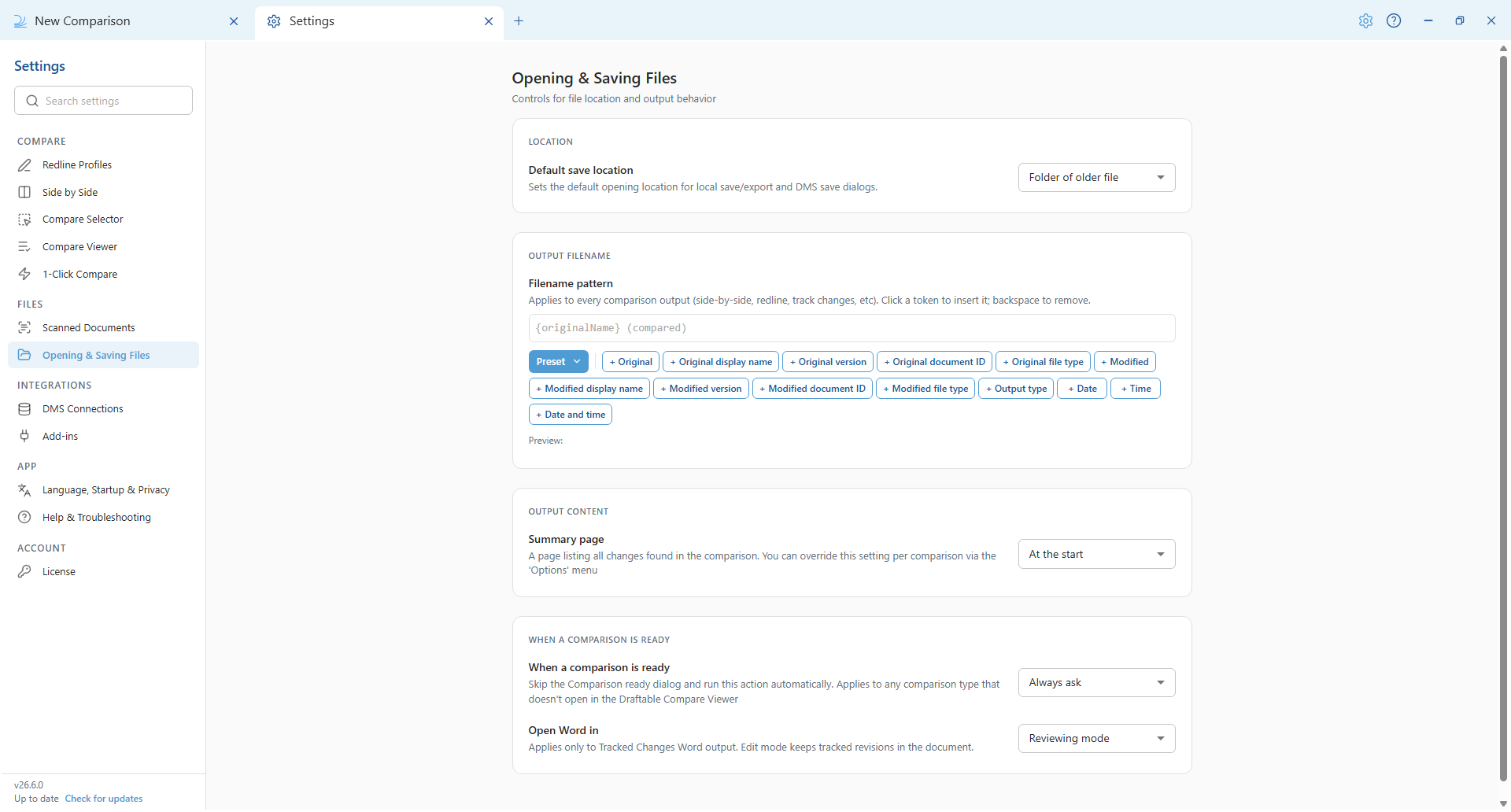
In the settings menu, select **Opening & Saving Files** under the **Files** group. The custom filename setting is the **Filename pattern** field in the **Output Filename** section (this was called "Output filename" and lived on the Redline tab before 26.6).
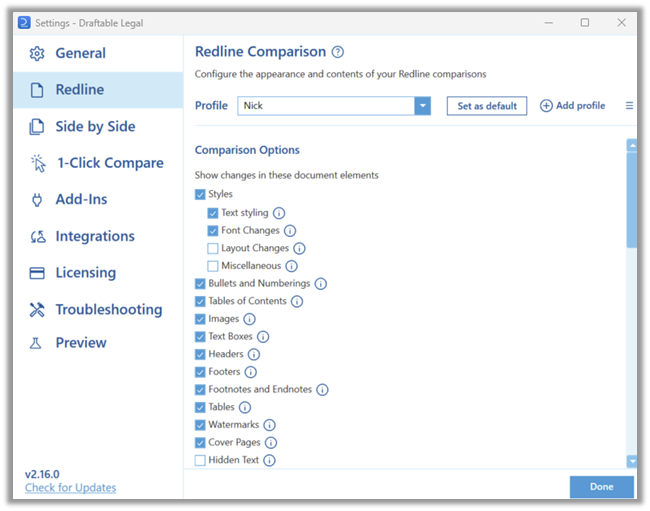
 The **Filename output** feature can be found in the Redline section of the settings menu.
 Once you have selected this section, scroll down until you see the **Filename output** option.
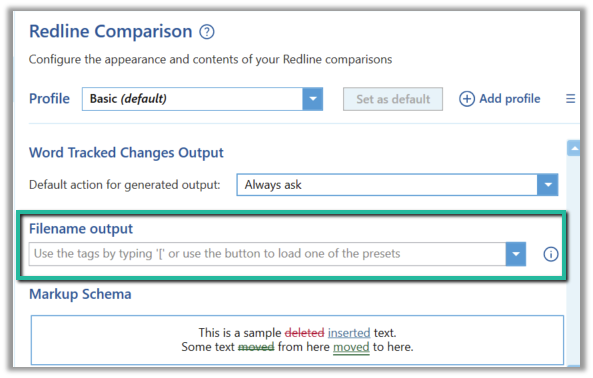 This is where you can configure your own filename schema for your comparison outputs. First, it is important to understand what the tokens used in this feature represent.
## Filename tokens
Tokens automatically prefill the filename with data drawn from the documents in the comparison, the comparison itself, or your machine (the date and time tokens).
In 26.6 the filename pattern applies to **every comparison output**, including side-by-side, redline and tracked changes. You build the pattern from a row of token buttons below the **Filename pattern** field. Each button inserts a token written in curly braces, for example `{date}`.
This is where you can configure your own filename schema for your comparison outputs. First, it is important to understand what the tokens used in this feature represent.
## Filename tokens
Tokens automatically prefill the filename with data drawn from the documents in the comparison, the comparison itself, or your machine (the date and time tokens).
In 26.6 the filename pattern applies to **every comparison output**, including side-by-side, redline and tracked changes. You build the pattern from a row of token buttons below the **Filename pattern** field. Each button inserts a token written in curly braces, for example `{date}`.
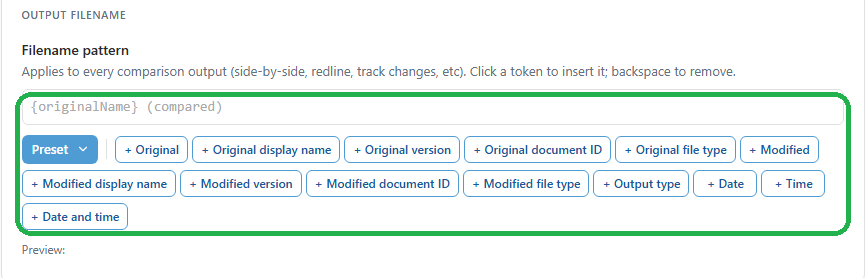 The available token buttons are listed below, grouped as they appear in the app. The bare **Original** and **Modified** tokens insert `{originalName}` and `{modifiedName}`, which are the document filenames without their extension.
**Original document tokens**
* **Original** (`{originalName}`): Filename of the older document, without its extension.
* **Original display name** (`{originalDisplayName}`): Display name of the older document, including its extension. This can differ from the filename.
* **Original version** (`{originalVersion}`): DMS version of the older document, for example V3. Empty when the comparison is not from a DMS.
* **Original document ID** (`{originalId}`): DMS document ID of the older document. Empty when the comparison is not from a DMS.
* **Original file type** (`{originalFileType}`): Extension of the older document, for example .docx.
**Modified document tokens**
* **Modified** (`{modifiedName}`): Filename of the newer document, without its extension.
* **Modified display name** (`{modifiedDisplayName}`): Display name of the newer document, including its extension. This can differ from the filename.
* **Modified version** (`{modifiedVersion}`): DMS version of the newer document, for example V4. Empty when the comparison is not from a DMS.
* **Modified document ID** (`{modifiedId}`): DMS document ID of the newer document. Empty when the comparison is not from a DMS.
* **Modified file type** (`{modifiedFileType}`): Extension of the newer document, for example .docx.
**Comparison and date tokens**
* **Output type** (`{outputType}`): Label for the comparison output, for example Redline or Side-by-Side.
* **Date** (`{date}`): The comparison date in YYYY-MM-DD format.
* **Time** (`{time}`): The comparison time in HH-MM format.
* **Date and time** (`{dateAndTime}`): The comparison date and time together.
On versions before 26.6 the filename feature applied to Redline outputs only, and tokens were written in square brackets, for example `[date]`.
The available token buttons are listed below, grouped as they appear in the app. The bare **Original** and **Modified** tokens insert `{originalName}` and `{modifiedName}`, which are the document filenames without their extension.
**Original document tokens**
* **Original** (`{originalName}`): Filename of the older document, without its extension.
* **Original display name** (`{originalDisplayName}`): Display name of the older document, including its extension. This can differ from the filename.
* **Original version** (`{originalVersion}`): DMS version of the older document, for example V3. Empty when the comparison is not from a DMS.
* **Original document ID** (`{originalId}`): DMS document ID of the older document. Empty when the comparison is not from a DMS.
* **Original file type** (`{originalFileType}`): Extension of the older document, for example .docx.
**Modified document tokens**
* **Modified** (`{modifiedName}`): Filename of the newer document, without its extension.
* **Modified display name** (`{modifiedDisplayName}`): Display name of the newer document, including its extension. This can differ from the filename.
* **Modified version** (`{modifiedVersion}`): DMS version of the newer document, for example V4. Empty when the comparison is not from a DMS.
* **Modified document ID** (`{modifiedId}`): DMS document ID of the newer document. Empty when the comparison is not from a DMS.
* **Modified file type** (`{modifiedFileType}`): Extension of the newer document, for example .docx.
**Comparison and date tokens**
* **Output type** (`{outputType}`): Label for the comparison output, for example Redline or Side-by-Side.
* **Date** (`{date}`): The comparison date in YYYY-MM-DD format.
* **Time** (`{time}`): The comparison time in HH-MM format.
* **Date and time** (`{dateAndTime}`): The comparison date and time together.
On versions before 26.6 the filename feature applied to Redline outputs only, and tokens were written in square brackets, for example `[date]`.
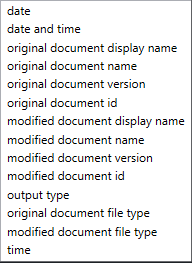 Above is the list of all the tags that could be used to create a filename output schema. This is what each of these tags represented.
**Date:** Shows the date in the YYYYMMDD format when the output is created
**Time:** Shows the time in the HHMM format when the output is created
**Date and time:** Shows the date and time in the YYYYMMDD and HHMM format when the output is created (example: "20240214 1345", represents the date and time for 14/02/2024 1:45pm)
**Original document display name:** Displays the original document (left side) display name. This can be different to the *document name.*
**Original document name:** Displays the original document (left side) filename. This can be different to the *display name.*
**Original document version:** Displays the document version. If there is no version set, this is ignored.
**Original document ID:** Displays the document ID. If there is no ID set, this is ignored.
**Modified document display name:** Displays the modified document (right side) display name. This can be different to the *document name.*
**Modified document name:** Displays the modified document (right side) filename. This can be different to the *display name.*
**Modified document version:** Displays the document version. If there is no version set, this is ignored.
**Modified document ID:** Displays the document ID. If there is no ID set, this is ignored.
**Output type:** Provides the output type for selected output. For example if a Redline export was performed, then it will say "Redline".
**Original document file type:** Displays the original (left side) document file type. If the file type was PDF it would say "pdf".
**Modified document file type:** Displays the modified (right side) document file type. If the file type was docx it would say "docx".
Now that we understand what the tokens represent, below are the two ways you can set your own filename schema.
### Method 1: Preset options
Select the **Preset** button to the left of the token buttons to open a menu of ready-made patterns. Selecting one replaces the current pattern.
Above is the list of all the tags that could be used to create a filename output schema. This is what each of these tags represented.
**Date:** Shows the date in the YYYYMMDD format when the output is created
**Time:** Shows the time in the HHMM format when the output is created
**Date and time:** Shows the date and time in the YYYYMMDD and HHMM format when the output is created (example: "20240214 1345", represents the date and time for 14/02/2024 1:45pm)
**Original document display name:** Displays the original document (left side) display name. This can be different to the *document name.*
**Original document name:** Displays the original document (left side) filename. This can be different to the *display name.*
**Original document version:** Displays the document version. If there is no version set, this is ignored.
**Original document ID:** Displays the document ID. If there is no ID set, this is ignored.
**Modified document display name:** Displays the modified document (right side) display name. This can be different to the *document name.*
**Modified document name:** Displays the modified document (right side) filename. This can be different to the *display name.*
**Modified document version:** Displays the document version. If there is no version set, this is ignored.
**Modified document ID:** Displays the document ID. If there is no ID set, this is ignored.
**Output type:** Provides the output type for selected output. For example if a Redline export was performed, then it will say "Redline".
**Original document file type:** Displays the original (left side) document file type. If the file type was PDF it would say "pdf".
**Modified document file type:** Displays the modified (right side) document file type. If the file type was docx it would say "docx".
Now that we understand what the tokens represent, below are the two ways you can set your own filename schema.
### Method 1: Preset options
Select the **Preset** button to the left of the token buttons to open a menu of ready-made patterns. Selecting one replaces the current pattern.
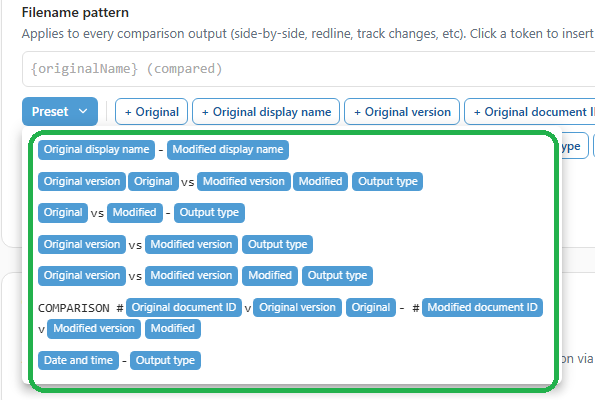 Below are a few examples to show what some of the preset patterns produce.
**Example 1:**
Original document name: original\_draft
Original document version: V2
Modified document name: original\_draft\_v2
Modified document version: V3
Preset used: `{originalVersion}{originalName} vs {modifiedVersion}{modifiedName} {outputType}`
Output type: Redline
Filename for the output: **V2original\_draft vs V3original\_draft\_v2 Redline**
**Example 2:**
Original document name: contract\_town-planning
Original document version: V2
Original document ID: 1546
Modified document name: contract\_town-planning\_variation
Modified document version: V3
Modified document ID: 1685
Preset used: `COMPARISON #{originalId}v{originalVersion} {originalName} - #{modifiedId}v{modifiedVersion} {modifiedName}`
Filename for the output: **COMPARISON #1546vV2 contract\_town-planning - #1685vV3 contract\_town-planning\_variation**
Below are a few examples to show what some of the preset patterns produce.
**Example 1:**
Original document name: original\_draft
Original document version: V2
Modified document name: original\_draft\_v2
Modified document version: V3
Preset used: `{originalVersion}{originalName} vs {modifiedVersion}{modifiedName} {outputType}`
Output type: Redline
Filename for the output: **V2original\_draft vs V3original\_draft\_v2 Redline**
**Example 2:**
Original document name: contract\_town-planning
Original document version: V2
Original document ID: 1546
Modified document name: contract\_town-planning\_variation
Modified document version: V3
Modified document ID: 1685
Preset used: `COMPARISON #{originalId}v{originalVersion} {originalName} - #{modifiedId}v{modifiedVersion} {modifiedName}`
Filename for the output: **COMPARISON #1546vV2 contract\_town-planning - #1685vV3 contract\_town-planning\_variation**
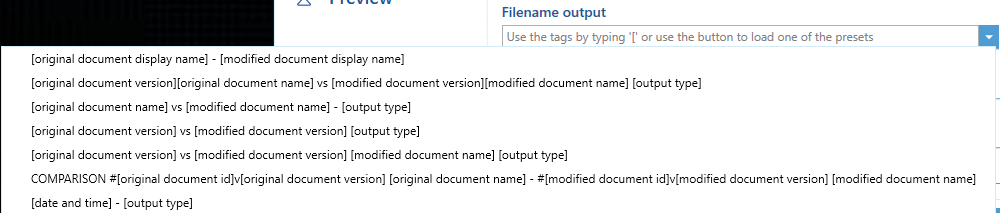 You can select from the many preset options shown above, each with its own unique use-cases. Below are a few examples to understand what some of the preset filename outputs would look like.
**Example 1:**
Original document name: original\_draft
Original document ID: 232
Modified document name: original\_draft\_v2
Modified document ID: 234
Preset used: \[original document version] \[original document name] vs \[modified document version] \[modified document name] \[output type]
Output used: Redline
Filename for the output: **original\_draft 232 vs original\_draft\_v2 234 Redline**
**Example 2:**
Original document name: contract\_town-planning
Original document version: 2.3
Original document ID: 1546
Modified document name: contract\_town-planning\_variation
Modified document version: 2.7
Modified document ID: 1685
Preset used: COMPARISON #\[original document ID]v\[original document version] \[original document name] vs #\[modified document ID]v\[modified document version] \[modified document name]
Output used: Redline
Filename for the output: **COMPARISON #1546v2.3 contract\_town-planning vs #1685v2.7 contract\_town-planning\_variation**
### Method 2: Create your own schema
You can build your own pattern from any combination of tokens and free text. Click a token button to insert that token at the cursor; press **Backspace** to remove a whole token at once. Any free text you type appears literally in every output filename and is not dynamic like the tokens.
For example, if you type the text `Comparison Export` and then click the **Date and time** button, the pattern becomes `Comparison Export {dateAndTime}`. The **Preview** line beneath the buttons shows how a sample filename would look. For a comparison run at 12:35pm on 17 February 2026, the resulting output filename would be: **Comparison Export 2026-02-17 12-35**
You can select from the many preset options shown above, each with its own unique use-cases. Below are a few examples to understand what some of the preset filename outputs would look like.
**Example 1:**
Original document name: original\_draft
Original document ID: 232
Modified document name: original\_draft\_v2
Modified document ID: 234
Preset used: \[original document version] \[original document name] vs \[modified document version] \[modified document name] \[output type]
Output used: Redline
Filename for the output: **original\_draft 232 vs original\_draft\_v2 234 Redline**
**Example 2:**
Original document name: contract\_town-planning
Original document version: 2.3
Original document ID: 1546
Modified document name: contract\_town-planning\_variation
Modified document version: 2.7
Modified document ID: 1685
Preset used: COMPARISON #\[original document ID]v\[original document version] \[original document name] vs #\[modified document ID]v\[modified document version] \[modified document name]
Output used: Redline
Filename for the output: **COMPARISON #1546v2.3 contract\_town-planning vs #1685v2.7 contract\_town-planning\_variation**
### Method 2: Create your own schema
You can build your own pattern from any combination of tokens and free text. Click a token button to insert that token at the cursor; press **Backspace** to remove a whole token at once. Any free text you type appears literally in every output filename and is not dynamic like the tokens.
For example, if you type the text `Comparison Export` and then click the **Date and time** button, the pattern becomes `Comparison Export {dateAndTime}`. The **Preview** line beneath the buttons shows how a sample filename would look. For a comparison run at 12:35pm on 17 February 2026, the resulting output filename would be: **Comparison Export 2026-02-17 12-35**
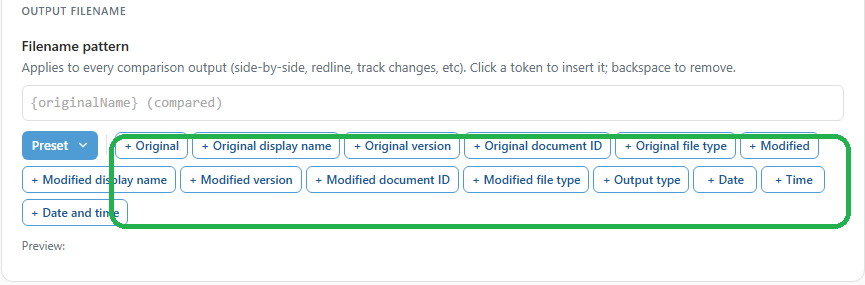 The token buttons insert tokens for you, so there is no need to type the curly braces by hand. There is no autocomplete or Tab-key selection in 26.6.
Using the information above we can create our own schema using any combination of tags and free text. Any free text used in the schema will appear on all comparison outputs. For example if you enter the text "Comparison Export" like shown below:
The token buttons insert tokens for you, so there is no need to type the curly braces by hand. There is no autocomplete or Tab-key selection in 26.6.
Using the information above we can create our own schema using any combination of tags and free text. Any free text used in the schema will appear on all comparison outputs. For example if you enter the text "Comparison Export" like shown below:
 That will appear at the start of every comparison output, and is not dynamic like the tags. If we add tags to the above filename output such as the \[date and time] tag, it will look like this.
 This means that if a comparison was completed at 12:35pm on the 17/02/2024, then the resulting output filename for the output would be: **Comparison Export 20240217 1235**
There are also some additional considerations to be noted:
* **Autocomplete Feature**: As you type in the Filename output field, an autocomplete dropdown should appear after you type the `[` character. This dropdown will suggest possible tags based on what the user has typed after `[`.
* **Selection of Autocomplete Options**: You can select an option from the autocomplete suggestions either by using the `Tab` key or by clicking on one of the suggestions.
* **Easy Tag Removal**: If you make a mistake, pressing the backspace key will remove the entire tag instead of just one character.
If you have any issues with this feature, or any questions, please get in touch with us at [support@draftable.com](mailto:support@draftable.com).
This means that if a comparison was completed at 12:35pm on the 17/02/2024, then the resulting output filename for the output would be: **Comparison Export 20240217 1235**
There are also some additional considerations to be noted:
* **Autocomplete Feature**: As you type in the Filename output field, an autocomplete dropdown should appear after you type the `[` character. This dropdown will suggest possible tags based on what the user has typed after `[`.
* **Selection of Autocomplete Options**: You can select an option from the autocomplete suggestions either by using the `Tab` key or by clicking on one of the suggestions.
* **Easy Tag Removal**: If you make a mistake, pressing the backspace key will remove the entire tag instead of just one character.
If you have any issues with this feature, or any questions, please get in touch with us at [support@draftable.com](mailto:support@draftable.com).