> ## Documentation Index
> Fetch the complete documentation index at: https://help.draftable.com/llms.txt
> Use this file to discover all available pages before exploring further.
# How to fix 'unable to compare' errors when comparing PDF files
> This article provides troubleshooting steps for users encountering issues under two scenarios.
**The settings menu was reorganised in Draftable Legal 26.6.** If you are on 26.6 or later, follow the "26.6 and later" tabs below. On earlier versions, follow "Before 26.6". To check your version, open Settings. The version number shows at the bottom-left (for example, v26.6.0).
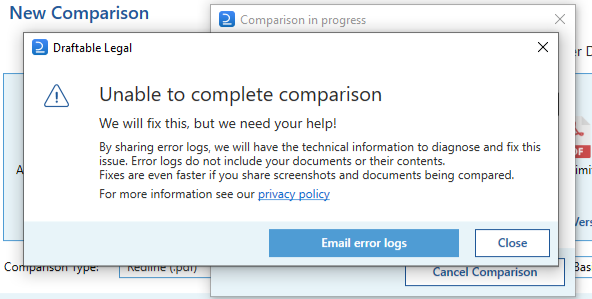
**Scenario A: Unable to compare PDF files:** Where users receive an 'Unable to compare' error when trying to compare PDF files (either 'PDF vs PDF' or 'PDF vs Docx' combinations).
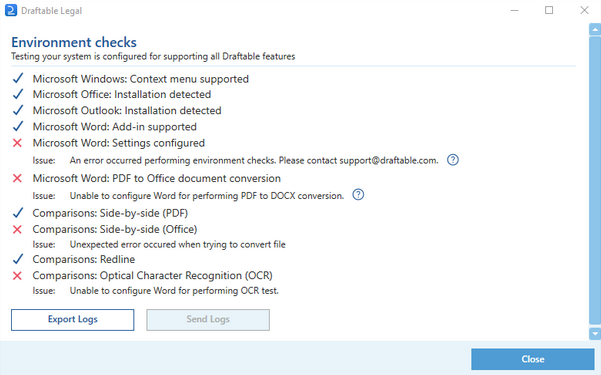
 **Scenario B: Failed Microsoft Word or OCR System Verification tests:** Where users see errors in System Verification results for the following tests:
* Microsoft Word settings configured
* Microsoft Word: PDF to Office document conversion
* Comparisons: Optical Character Recognition (OCR)
**Scenario B: Failed Microsoft Word or OCR System Verification tests:** Where users see errors in System Verification results for the following tests:
* Microsoft Word settings configured
* Microsoft Word: PDF to Office document conversion
* Comparisons: Optical Character Recognition (OCR)
 This article provides troubleshooting steps for users encountering issues under two scenarios.
## Why Does This Happen?
These errors most commonly occur due to issues when Draftable is attempting to use Microsoft Word to complete document preprocessing steps (PDF conversion to Docx, or for Optical Character Recognition). The underlying cause of Word being unable to perform these tasks are:
* **Outdated Version**: Redlining functions best with the most recent versions of Microsoft Word. Older versions may cause conflicts.
* **Conflicting Settings:** Word has numerous settings that control its document handling. Sometimes, these settings can become jumbled and prevent Word from launching correctly.
* **PDF Conversion Issues**: Redlining often involves converting PDF files into Word documents. If this conversion process encounters problems, it can lead to Word crashing.
## The Solution: Troubleshooting Steps
### Check Office Version
Ensure that the application has correctly identified and set the Office version. Verify the Office install details below, ensuring it is Office 2016 or later (Version: 16.0.17126.20132, Arch: x64, Type: C2R).
Open any Office application, such as Word or Excel, and select **Account**.
**Note:** If you don't see **Account** or you already have a file or document open, choose **File** from the menu, and then select either **Account** or **Help** from the list on the left.
Under **Product** **Information**, you'll find your Office product name and, in some cases, the full version number.
This article provides troubleshooting steps for users encountering issues under two scenarios.
## Why Does This Happen?
These errors most commonly occur due to issues when Draftable is attempting to use Microsoft Word to complete document preprocessing steps (PDF conversion to Docx, or for Optical Character Recognition). The underlying cause of Word being unable to perform these tasks are:
* **Outdated Version**: Redlining functions best with the most recent versions of Microsoft Word. Older versions may cause conflicts.
* **Conflicting Settings:** Word has numerous settings that control its document handling. Sometimes, these settings can become jumbled and prevent Word from launching correctly.
* **PDF Conversion Issues**: Redlining often involves converting PDF files into Word documents. If this conversion process encounters problems, it can lead to Word crashing.
## The Solution: Troubleshooting Steps
### Check Office Version
Ensure that the application has correctly identified and set the Office version. Verify the Office install details below, ensuring it is Office 2016 or later (Version: 16.0.17126.20132, Arch: x64, Type: C2R).
Open any Office application, such as Word or Excel, and select **Account**.
**Note:** If you don't see **Account** or you already have a file or document open, choose **File** from the menu, and then select either **Account** or **Help** from the list on the left.
Under **Product** **Information**, you'll find your Office product name and, in some cases, the full version number.
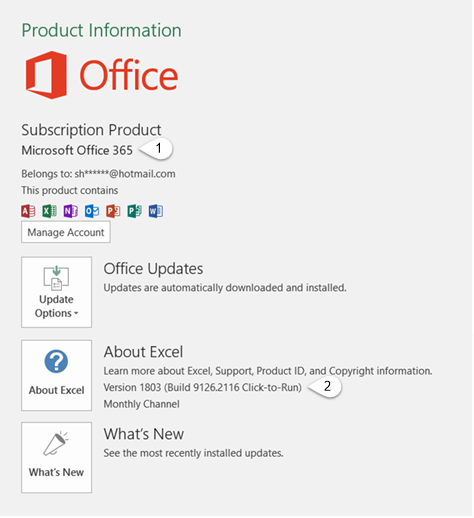 1 - **Product name**, such as Microsoft 365 ProPlus or Office Home and Student.
2 - **Version number**, which includes version, build number, and the type of installation such as Click-to-run or Windows Store.
*For more information, such as the bit-version, choose **About Excel**. A dialog box opens, showing the full version number and bit version (32-bit or 64-bit).*
See [https://support.microsoft.com/en-au/office/about-office-what-version-of-office-am-i-using-932788b8-a3ce-44bf-bb09-e334518b8b19](https://support.microsoft.com/en-au/office/about-office-what-version-of-office-am-i-using-932788b8-a3ce-44bf-bb09-e334518b8b19) for more information.
### Enable the 'Use Single Instance of Word' Setting
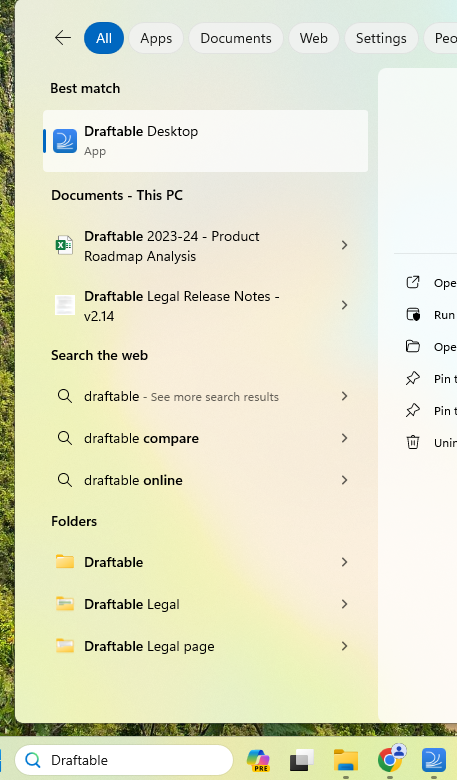
**Open Draftable via the Windows Search Bar**
1 - **Product name**, such as Microsoft 365 ProPlus or Office Home and Student.
2 - **Version number**, which includes version, build number, and the type of installation such as Click-to-run or Windows Store.
*For more information, such as the bit-version, choose **About Excel**. A dialog box opens, showing the full version number and bit version (32-bit or 64-bit).*
See [https://support.microsoft.com/en-au/office/about-office-what-version-of-office-am-i-using-932788b8-a3ce-44bf-bb09-e334518b8b19](https://support.microsoft.com/en-au/office/about-office-what-version-of-office-am-i-using-932788b8-a3ce-44bf-bb09-e334518b8b19) for more information.
### Enable the 'Use Single Instance of Word' Setting
**Open Draftable via the Windows Search Bar**
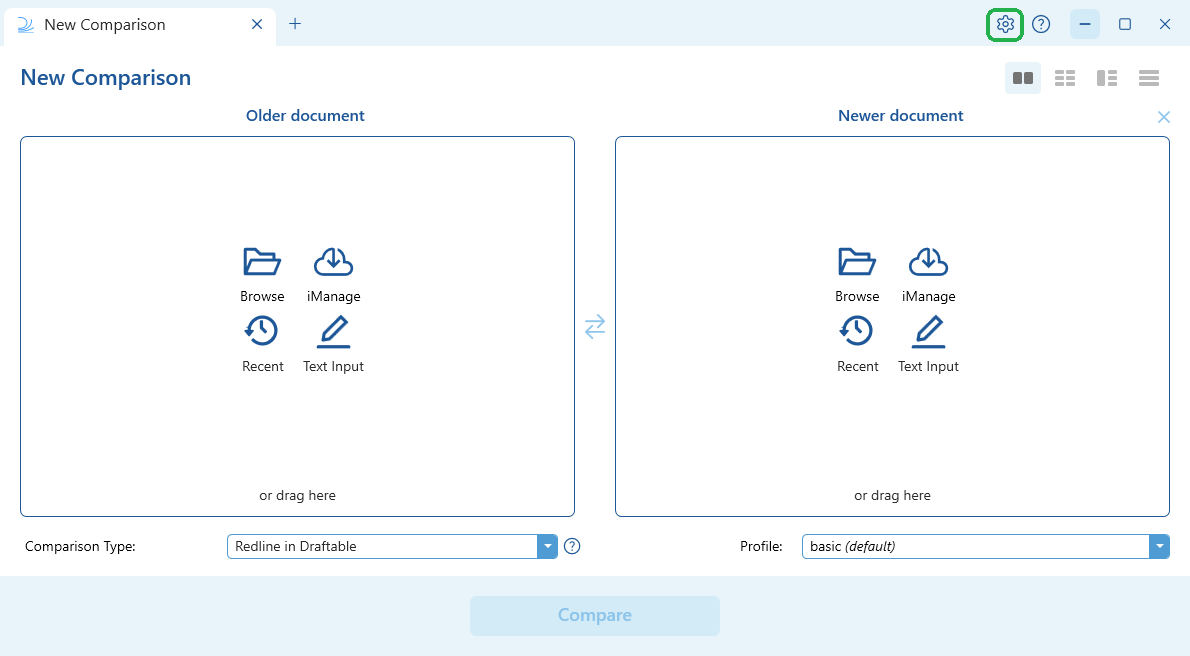
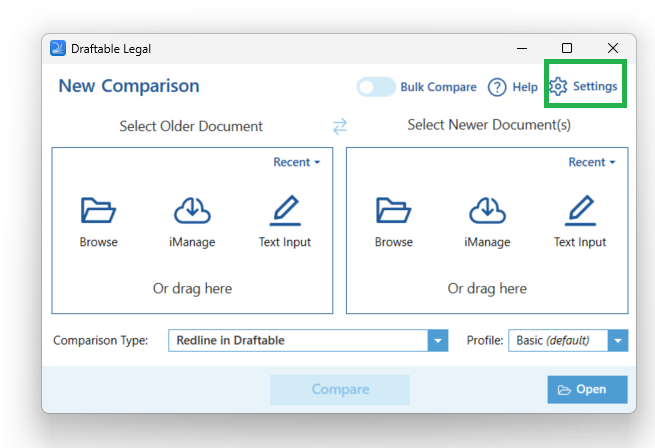
 Open the **Settings** menu in the top right corner of the Draftable **New Comparison Window**
 **Find and enable the "Single Instance" setting:**
In 26.6 and later this setting is no longer shown in the in-app Settings menu. It is still available and enabled by default, and it can be managed centrally through Group Policy or the Windows Registry. If you need to confirm or change it, see the [most common registry configurations](/hc/en-us/articles/24732245077401-Most-common-Draftable-Legal-registry-configurations) or your administrator. If you are on 26.6 and later, you can move on to the next troubleshooting step.
* A new window will appear with the Settings information about Draftable. Look for the **General** settings.
* Under this, look for the Microsoft Word section and find the **Only use a single instance of Microsoft Word** setting.
**Find and enable the "Single Instance" setting:**
In 26.6 and later this setting is no longer shown in the in-app Settings menu. It is still available and enabled by default, and it can be managed centrally through Group Policy or the Windows Registry. If you need to confirm or change it, see the [most common registry configurations](/hc/en-us/articles/24732245077401-Most-common-Draftable-Legal-registry-configurations) or your administrator. If you are on 26.6 and later, you can move on to the next troubleshooting step.
* A new window will appear with the Settings information about Draftable. Look for the **General** settings.
* Under this, look for the Microsoft Word section and find the **Only use a single instance of Microsoft Word** setting.
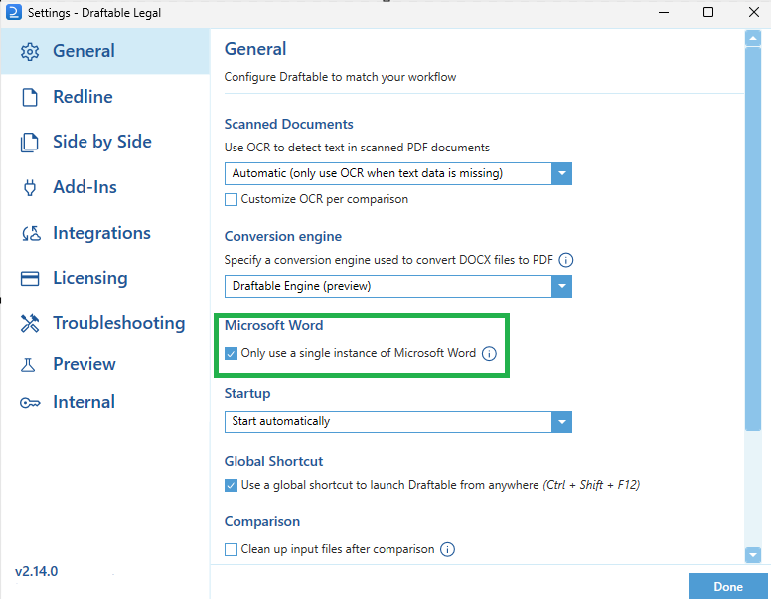 * Next to the words "Single Instance" or "Only use one Word," there will be a check box. If the box is empty, click on it so the "Single Instance" is enabled.
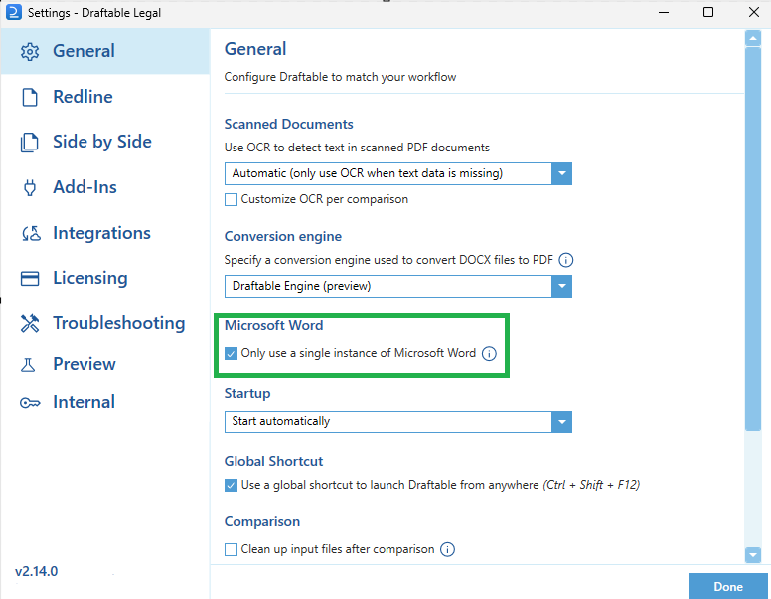
* If the box already has a checkmark in it, then the setting is already turned on and you don't need to do anything else.
* Next to the words "Single Instance" or "Only use one Word," there will be a check box. If the box is empty, click on it so the "Single Instance" is enabled.
* If the box already has a checkmark in it, then the setting is already turned on and you don't need to do anything else.
 If the setting was not enabled previously, try using Draftable again:\*\*
* Close the Draftable settings window.
* Now you can try using Draftable again and see if the problem is fixed.
* Note: if you already had this setting enabled, move to the next troubleshooting step (see below)
### Try switching to the Draftable PDF conversion engine
Open Draftable via the **Windows Search Bar**
If the setting was not enabled previously, try using Draftable again:\*\*
* Close the Draftable settings window.
* Now you can try using Draftable again and see if the problem is fixed.
* Note: if you already had this setting enabled, move to the next troubleshooting step (see below)
### Try switching to the Draftable PDF conversion engine
Open Draftable via the **Windows Search Bar**
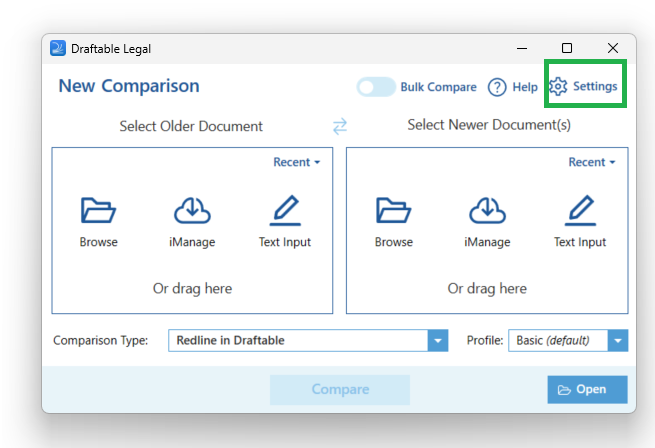
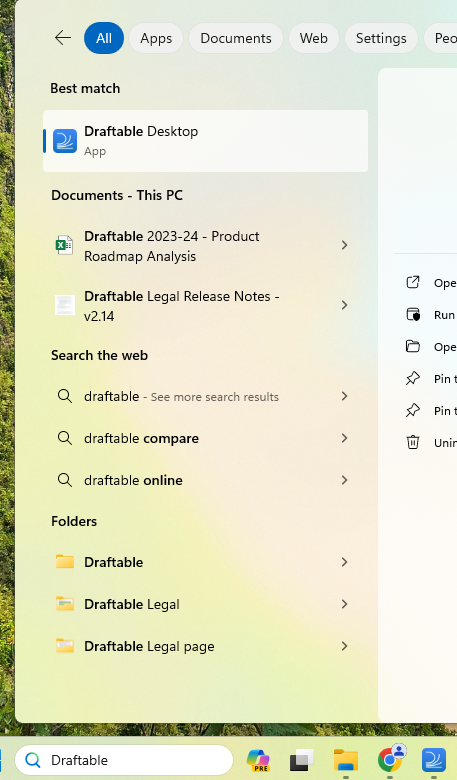 Open the **Settings** menu in the top right corner of the Draftable **New Comparison Window**
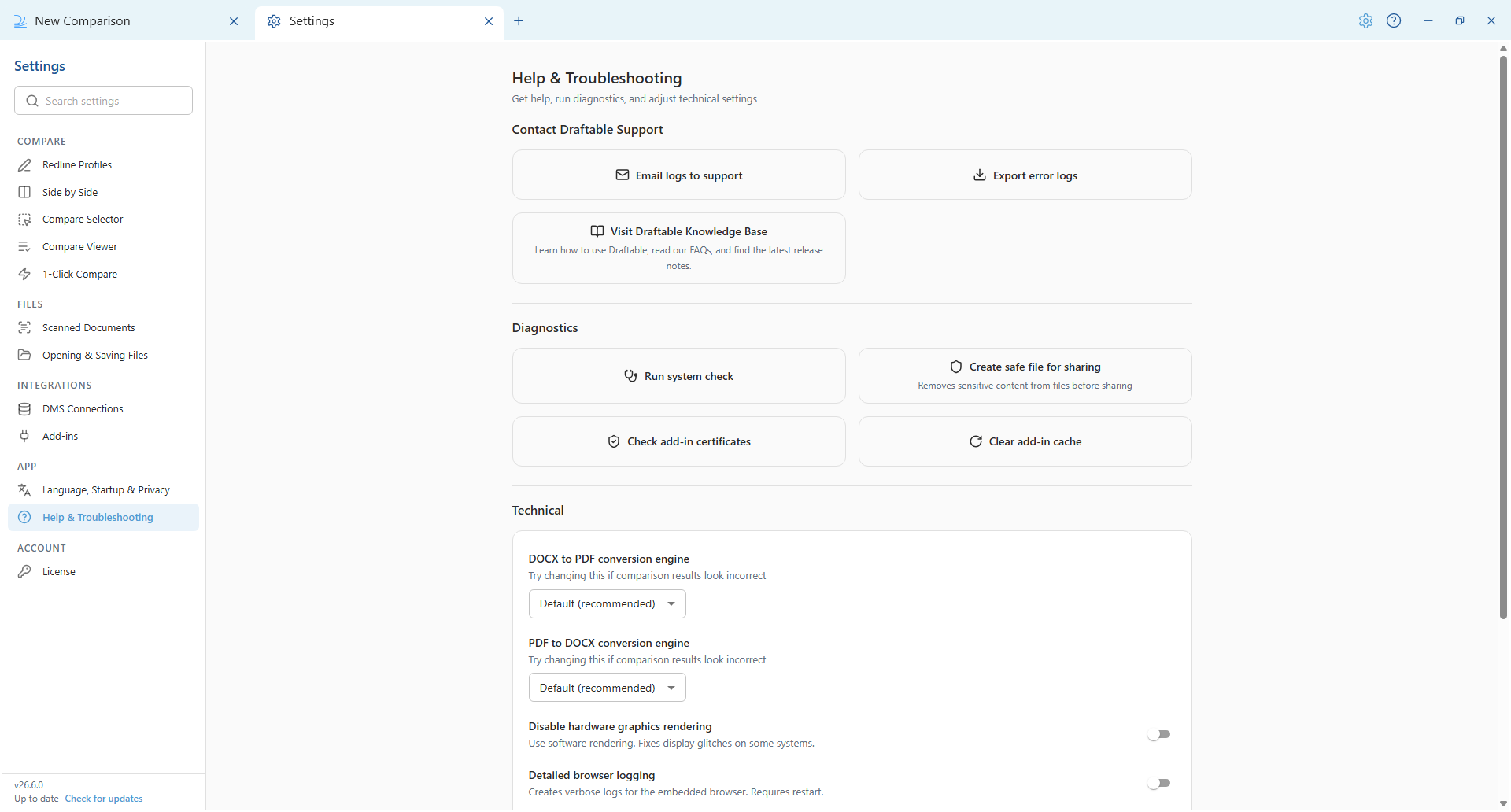
 **Find the conversion engine setting and switch to the Draftable engine:**
The location of this setting changed in 26.6. Select the tab that matches your version. For more detail on what each engine does, see [Understanding the PDF conversion engine setting](/hc/en-us/articles/34177444131737-Understanding-the-PDF-Conversion-Engine-Setting-in-Draftable-Legal).
* In the settings menu, select **Help & Troubleshooting**, then scroll to the **Technical** section.
* Set **DOCX to PDF conversion engine** to **Default (recommended)**, which is the Draftable engine. A separate **PDF to DOCX conversion engine** is available for comparisons that convert PDFs to Word.
**Find the conversion engine setting and switch to the Draftable engine:**
The location of this setting changed in 26.6. Select the tab that matches your version. For more detail on what each engine does, see [Understanding the PDF conversion engine setting](/hc/en-us/articles/34177444131737-Understanding-the-PDF-Conversion-Engine-Setting-in-Draftable-Legal).
* In the settings menu, select **Help & Troubleshooting**, then scroll to the **Technical** section.
* Set **DOCX to PDF conversion engine** to **Default (recommended)**, which is the Draftable engine. A separate **PDF to DOCX conversion engine** is available for comparisons that convert PDFs to Word.
 * Under the **General** settings, look for the **Conversion engine** section. It might be set to the Default Microsoft Word conversion engine.
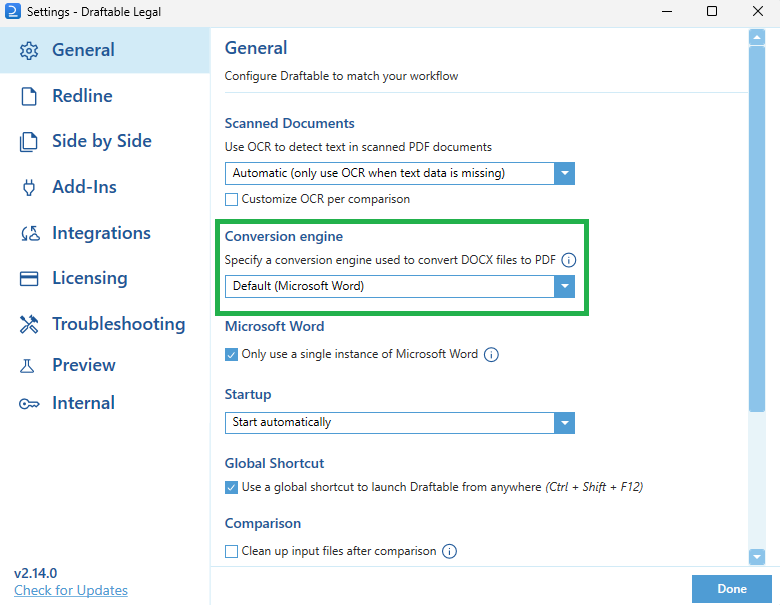 * Select the dropdown menu in this section and select the Draftable Engine. This will make Draftable the engine your software uses.
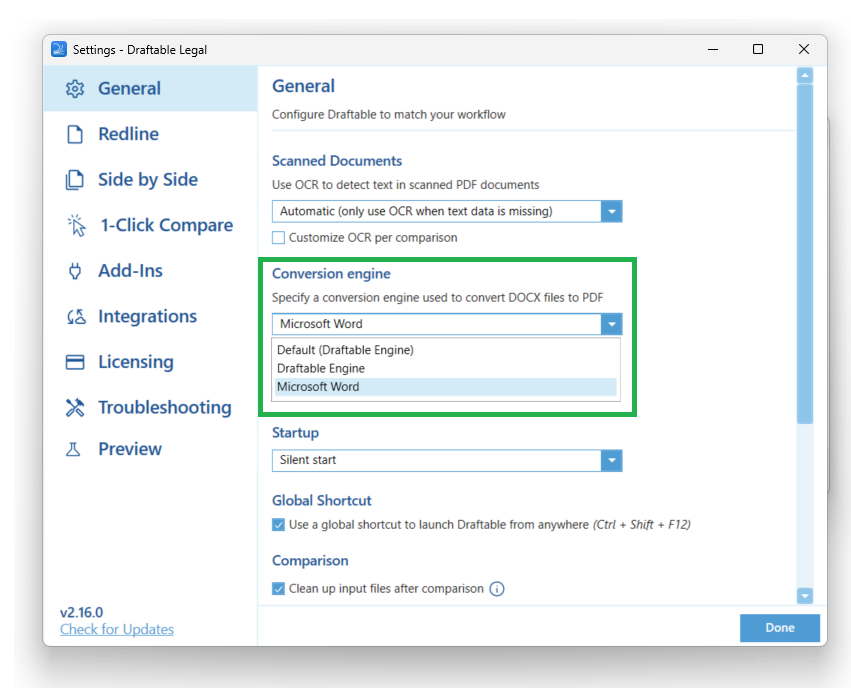 **If you were not previously using the Draftable Engine, rerun your comparison:**
* If you changed the conversion engine, try and re-run the comparison to see if the problem is fixed.
### Microsoft Office Repair
**Before you begin:**
* Close any Office applications (Word, Excel, PowerPoint, etc.).
* Make sure you have a stable internet connection (needed for Online Repair).
**Repairing Microsoft Office:**
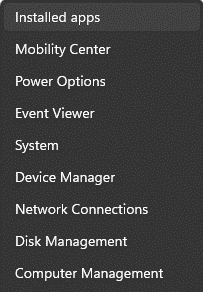
Right-click the Start button (lower-left corner) and select Installed apps on the pop-up menu.
**If you were not previously using the Draftable Engine, rerun your comparison:**
* If you changed the conversion engine, try and re-run the comparison to see if the problem is fixed.
### Microsoft Office Repair
**Before you begin:**
* Close any Office applications (Word, Excel, PowerPoint, etc.).
* Make sure you have a stable internet connection (needed for Online Repair).
**Repairing Microsoft Office:**
Right-click the Start button (lower-left corner) and select Installed apps on the pop-up menu.
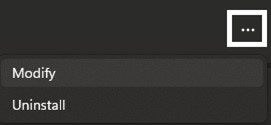
 Select the Microsoft Office product you want to repair, click the ellipses, and select **Modify**.
 **Note:** This will repair the entire Office suite even if it's just one application you want to repair such as Word or Excel. If you have a standalone app installed, then search for that application by name.
Depending on your Office installation type (Click-to-run or MSI-based), you'll see the following options to proceed with the repair. Follow the steps for your installation type.
**Click-to-run**
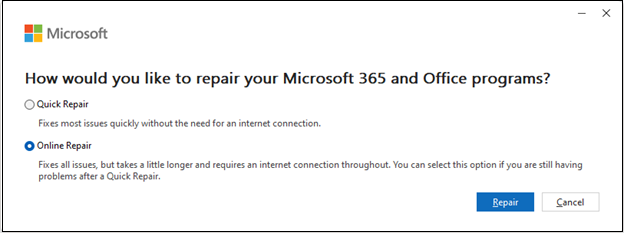
In the window **How would you like to repair your Office** Programs, select **Online Repair** > **Repair** to make sure everything gets fixed. (The faster **Quick Repair** option is also available, but it only detects and then replaces corrupted files.)
**Note:** This will repair the entire Office suite even if it's just one application you want to repair such as Word or Excel. If you have a standalone app installed, then search for that application by name.
Depending on your Office installation type (Click-to-run or MSI-based), you'll see the following options to proceed with the repair. Follow the steps for your installation type.
**Click-to-run**
In the window **How would you like to repair your Office** Programs, select **Online Repair** > **Repair** to make sure everything gets fixed. (The faster **Quick Repair** option is also available, but it only detects and then replaces corrupted files.)
 **MSI-based**
In the **Change your installation** window, select **Repair** and then click **Continue**.
Follow the instructions on the screen to complete the repair.
**After the Repair:**
* Try opening a document in Word or any other Office application and see if the issue is resolved.
* If you were getting the error during a Draftable Desktop comparison, try comparing your documents again to see if it's fixed.
### Microsoft Repair in Draftable Settings
Open Draftable via the **Windows Search Bar**
**MSI-based**
In the **Change your installation** window, select **Repair** and then click **Continue**.
Follow the instructions on the screen to complete the repair.
**After the Repair:**
* Try opening a document in Word or any other Office application and see if the issue is resolved.
* If you were getting the error during a Draftable Desktop comparison, try comparing your documents again to see if it's fixed.
### Microsoft Repair in Draftable Settings
Open Draftable via the **Windows Search Bar**
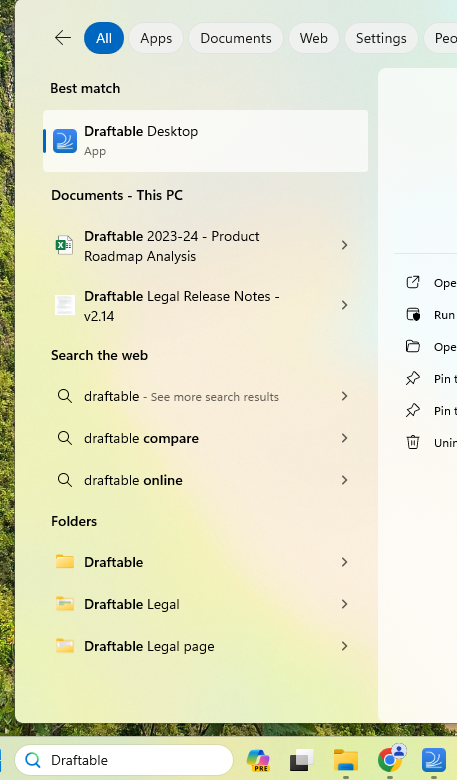 Open the **Settings** menu in the top right corner of the Draftable **New Comparison Window**
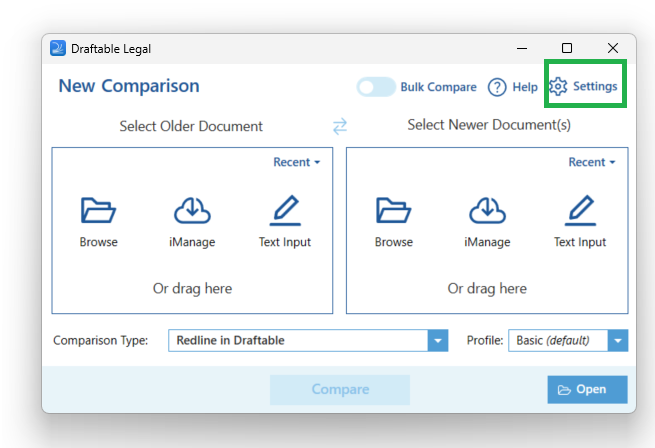 **Find the Add-ins setting:**
* A new window will appear with the Settings information about Draftable. Look for the **Add-ins** settings (called **Add-Ins** before 26.6).
* Under this, look for the Word Add-in setting. If there are Word Add-in issues, you will have the option to **repair** the Add-In.
**Find the Add-ins setting:**
* A new window will appear with the Settings information about Draftable. Look for the **Add-ins** settings (called **Add-Ins** before 26.6).
* Under this, look for the Word Add-in setting. If there are Word Add-in issues, you will have the option to **repair** the Add-In.
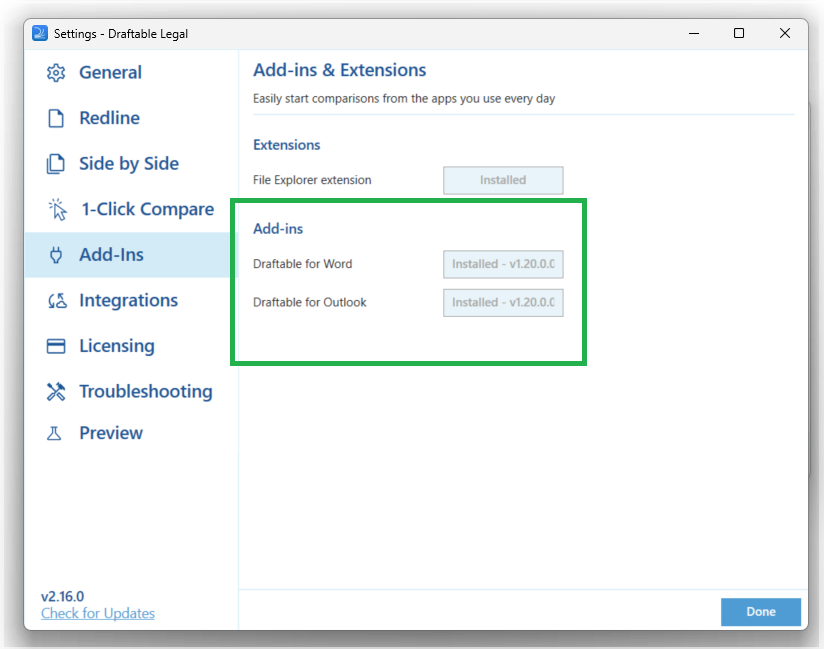 **Run the Word Add-in repair:**
* Click on the Repair Word Add-in button. It all happens in the background, so nothing will pop up on the screen, but it will have run the repair.
#### **After the Repair:**
* Close the Draftable settings window.
* Try opening a document in Word or any other Office application and see if the issue is resolved.
* If you were getting the error during a Draftable Desktop comparison, try comparing your documents again to see if it's fixed.
### What if the problem persists?
If you continue to face difficulties after going through the troubleshooting steps, please contact our customer support team for help at [support@draftable.com.](mailto:support@draftable.com)
**Run the Word Add-in repair:**
* Click on the Repair Word Add-in button. It all happens in the background, so nothing will pop up on the screen, but it will have run the repair.
#### **After the Repair:**
* Close the Draftable settings window.
* Try opening a document in Word or any other Office application and see if the issue is resolved.
* If you were getting the error during a Draftable Desktop comparison, try comparing your documents again to see if it's fixed.
### What if the problem persists?
If you continue to face difficulties after going through the troubleshooting steps, please contact our customer support team for help at [support@draftable.com.](mailto:support@draftable.com)