> ## Documentation Index
> Fetch the complete documentation index at: https://help.draftable.com/llms.txt
> Use this file to discover all available pages before exploring further.
# Bulk Compare: How to load and run multiple comparisons at once
**The settings menu was reorganised in Draftable Legal 26.6.** If you are on 26.6 or later, follow the "26.6 and later" tabs below. On earlier versions, follow "Before 26.6". To check your version, open Settings. The version number shows at the bottom-left (for example, v26.6.0).
**Legacy article.** This page describes the earlier Bulk Compare interface. From Draftable Legal v26.4.0, Bulk Compare is organised into three modes — Matched Pairs, One-to-Many, and Timeline. For current guidance, see [Using the new Bulk Compare modes: Matched Pairs, One-to-Many, and Timeline](/hc/en-us/articles/Using-the-new-Bulk-Compare-modes-Matched-Pairs-One-to-Many-and-Timeline). This article is kept for reference and will be retired in a future update.
**Note:**
This article was updated in January 2025 to reflect major changes to Bulk Compare's file loading interface and functionality in our [December 2024 release (v24.12.0)](/hc/en-us/articles/41369665084313-Release-Notes-Draftable-Legal-December-2024-v24-12-0)
Bulk Compare allows users to **load multiple documents for comparison and run them simultaneously**. This 'Bulk Compare' feature is designed to save you time by removing the need to manually run every single comparison one by one.
Draftable's Bulk Compare allows up to 100s\* of comparisons to compare at once. Each comparison is run independently and users are then able to open each individually for review and to take next actions or to save all comparisons in one bulk action.
*\*While there is no limit to the number of comparisons that can be run using the Bulk Compare feature, Draftable Legal only supports running up to 100 bulk compares at a time. Users can load and run more compares than this at their own discretion.*
A guide to using the older version of Bulk Compare (before v24.12.0) is included in our specially crafted explainer video.
## How to enable the 'Bulk Compare' setting and turn on 'Bulk Compare' mode
To get started with Bulk Compare, you will first need to enable the feature in your settings.
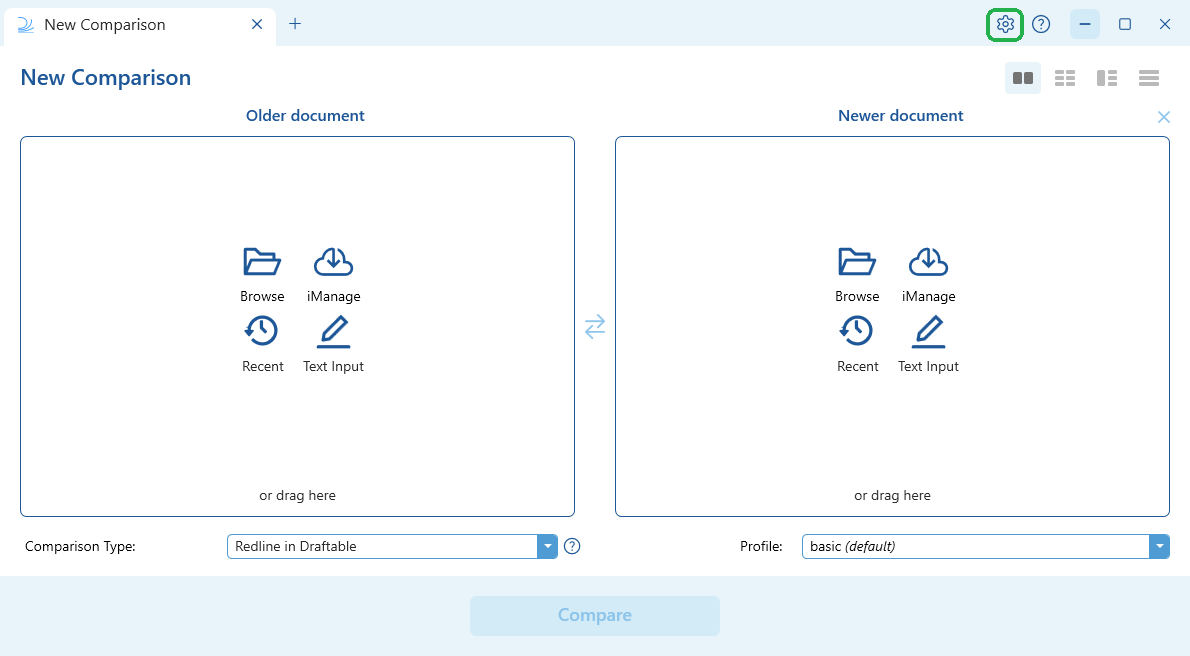
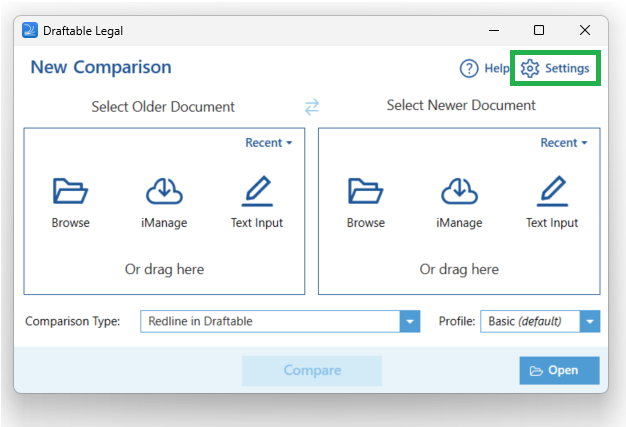
Open Draftable Legal and go to the Settings menu in the top right corner of the New Comparison Window.
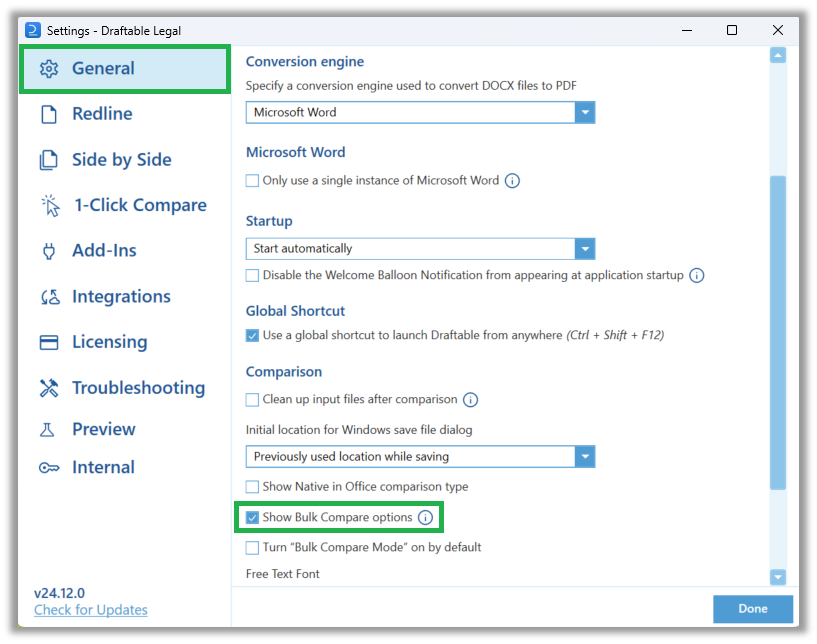
 Go to the **'General'** section on the left hand side menu, and click the **Show Bulk Compare option** check box.
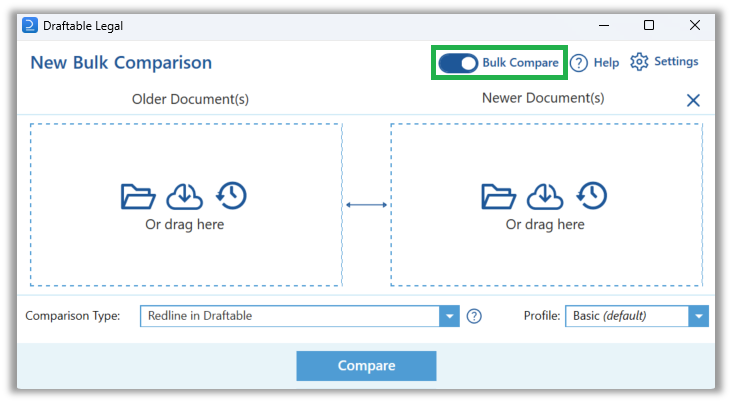
 Once the check box is selected, close the Settings menu and click the **Bulk Compare** toggle on the New Comparison Window.
 ## How to load files in Bulk Compare mode
File loading for Bulk Compare is designed to be intuitive and flexible. Individual files can be added either as Older or Newer documents, but once they are loaded can be easily rearranged however necessary to reflect the pairs and ordering needed.
Files can be loaded into Draftable when Bulk Compare mode is enabled via:
* Local file browsing
* From your Document Management System (DMS)
* From recently compared files
* Via Drag and Drop.
**New Outlook — Drag and drop not supported:**
Dragging and dropping email attachments from Microsoft's **New Outlook** into Draftable is not supported due to a Microsoft limitation. To compare email attachments when using New Outlook, use the [Draftable for Outlook](/hc/en-us/articles/Using-Draftable-for-Outlook) or [Draftable in Outlook](/hc/en-us/articles/Using-Draftable-in-Outlook) add-in workflows instead. See [Microsoft's documentation](https://learn.microsoft.com/en-us/answers/questions/5535929/new-outlook-drag-drop-support-in-winforms) for further details.
### Loading via local file browsing
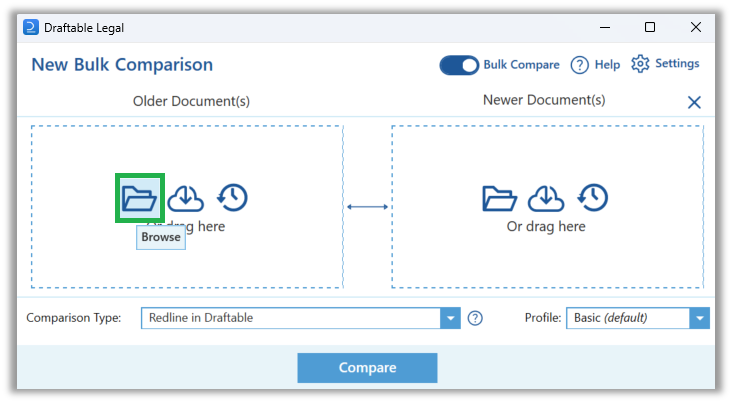
Click the **Browse** folder icon (shown in the screenshot below) for either the **Older Document(s)** or **Newer Document(s).**
## How to load files in Bulk Compare mode
File loading for Bulk Compare is designed to be intuitive and flexible. Individual files can be added either as Older or Newer documents, but once they are loaded can be easily rearranged however necessary to reflect the pairs and ordering needed.
Files can be loaded into Draftable when Bulk Compare mode is enabled via:
* Local file browsing
* From your Document Management System (DMS)
* From recently compared files
* Via Drag and Drop.
**New Outlook — Drag and drop not supported:**
Dragging and dropping email attachments from Microsoft's **New Outlook** into Draftable is not supported due to a Microsoft limitation. To compare email attachments when using New Outlook, use the [Draftable for Outlook](/hc/en-us/articles/Using-Draftable-for-Outlook) or [Draftable in Outlook](/hc/en-us/articles/Using-Draftable-in-Outlook) add-in workflows instead. See [Microsoft's documentation](https://learn.microsoft.com/en-us/answers/questions/5535929/new-outlook-drag-drop-support-in-winforms) for further details.
### Loading via local file browsing
Click the **Browse** folder icon (shown in the screenshot below) for either the **Older Document(s)** or **Newer Document(s).**
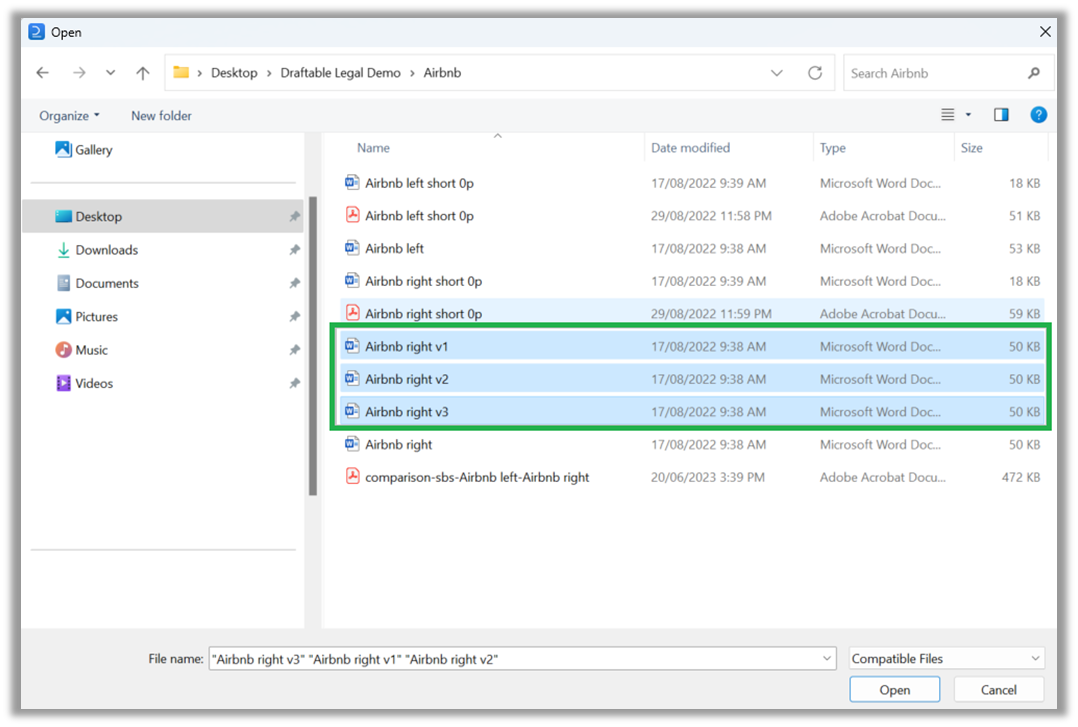
 Draftable will open the windows file explorer menu, where you can select all documents required for bulk comparison and hit **Open** to add to Draftable. \*Note, you are able to select multiple files at once by **holding 'Ctrl'** and clicking each individual file or by holding the '**Shift'** key and selecting the first and last files in the desired list.
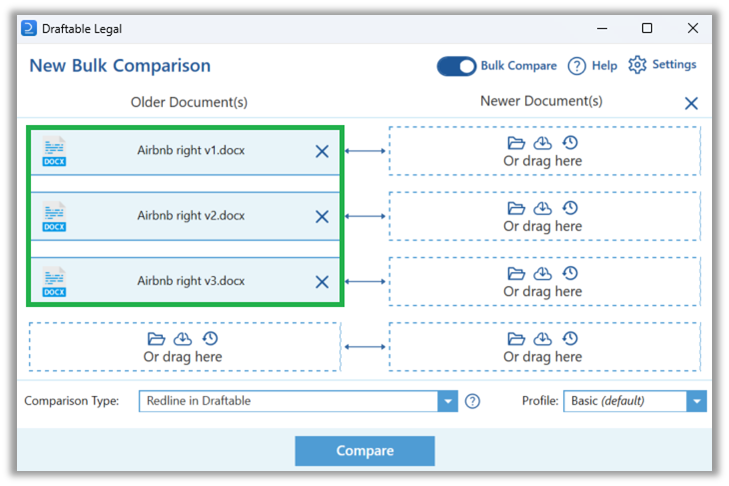
 Once selected, the files will be added to either the 'Older Documents' or 'Newer Document(s) section based on the location where you opened the 'Browse menu. Draftable will automatically create spaces for potential pairings for each document. You can drag any of your loaded files to any other space in the arrangement.
 ### Loading files from your Document Management System (DMS)
In Bulk Compare mode, you can load files from your Document Management System via the DMS icon inside Draftable or via your DMS application's file loading options.
#### Load DMS files via the icon in Draftable
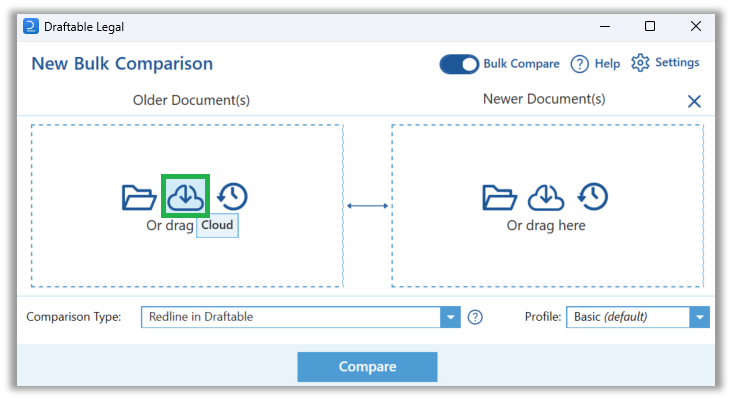
Click the **DMS** cloud icon (shown in the screenshot below) for either the **Older Document(s)** or **Newer Document(s)**.
### Loading files from your Document Management System (DMS)
In Bulk Compare mode, you can load files from your Document Management System via the DMS icon inside Draftable or via your DMS application's file loading options.
#### Load DMS files via the icon in Draftable
Click the **DMS** cloud icon (shown in the screenshot below) for either the **Older Document(s)** or **Newer Document(s)**.
 **Note:**
Draftable will automatically detect which DMS you have enabled and open the file selection menu. If you have multiple DMS integrations enabled, Draftable will choose the 'priority DMS' based on the following hierarchy: \*iManage > NetDocuments > SharePoint > Epona. This means if you have iManage and SharePoint enabled, the DMS cloud icon will only open the iManage file selection menu.
Select the files using your Document Management System file selection menu. You can select as many files at once as you need providing multi selection is supported by your DMS browsing interface).
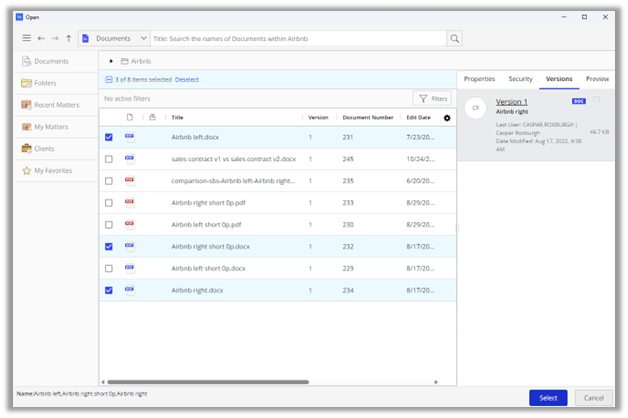
**Example of iManage file selection menu:**
**Note:**
Draftable will automatically detect which DMS you have enabled and open the file selection menu. If you have multiple DMS integrations enabled, Draftable will choose the 'priority DMS' based on the following hierarchy: \*iManage > NetDocuments > SharePoint > Epona. This means if you have iManage and SharePoint enabled, the DMS cloud icon will only open the iManage file selection menu.
Select the files using your Document Management System file selection menu. You can select as many files at once as you need providing multi selection is supported by your DMS browsing interface).
**Example of iManage file selection menu:**
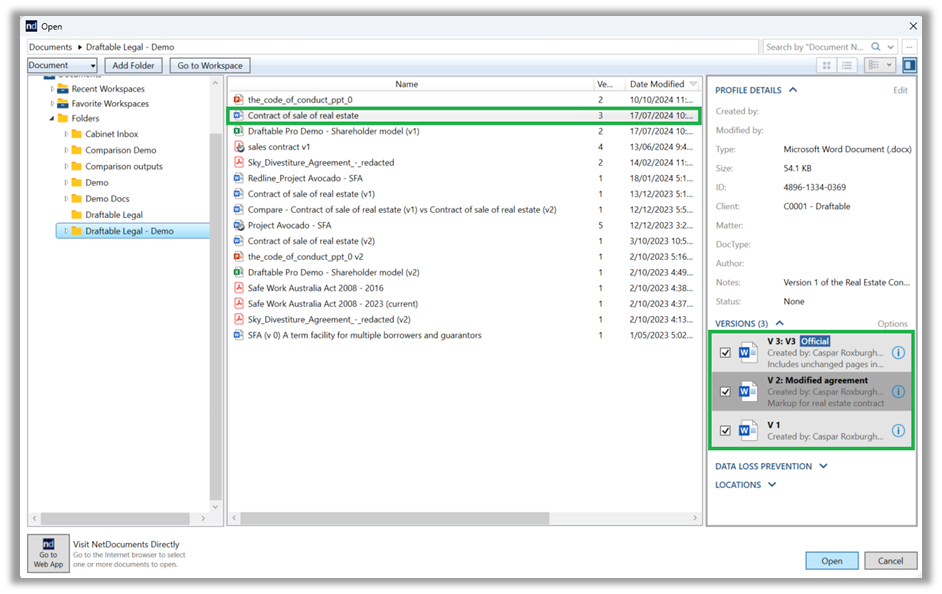
 **Example of NetDocuments file selection menu:**
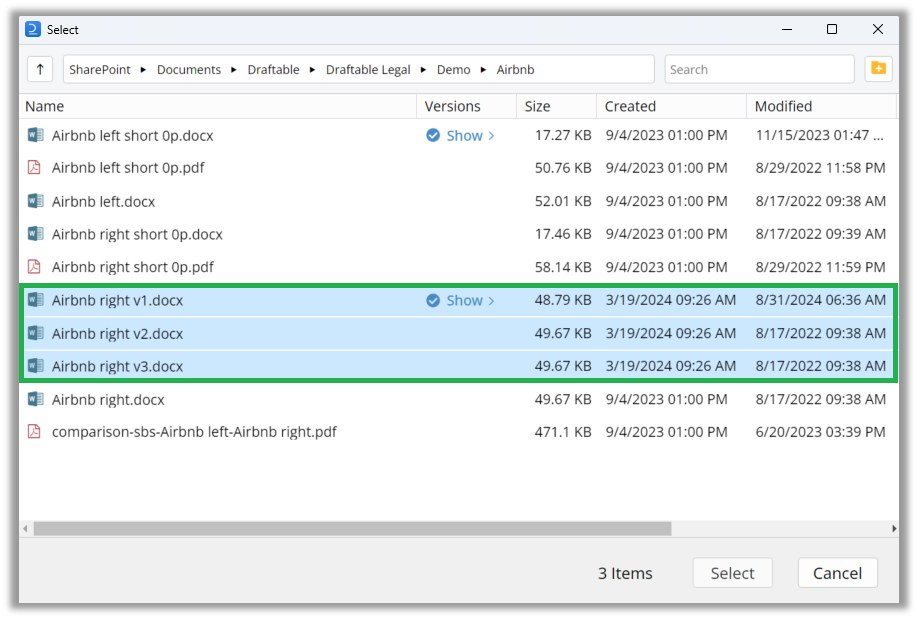
 **Example of SharePoint files selection menu:**
 Once selected, the files will be added to either the 'Older Documents' or 'Newer Document(s) section based on the location where you opened the DMS file browsing menu. Draftable will automatically create spaces for potential pairings for each document. You can drag any of your loaded files to any other space in the arrangement.
 #### Load DMS files from your DMS
You can also use the file loading options in your Document Management System to load files when Bulk Compare Mode is enabled. For guidance on how to load files from your DMS, see the relevant guides below:
### Load recently compared files
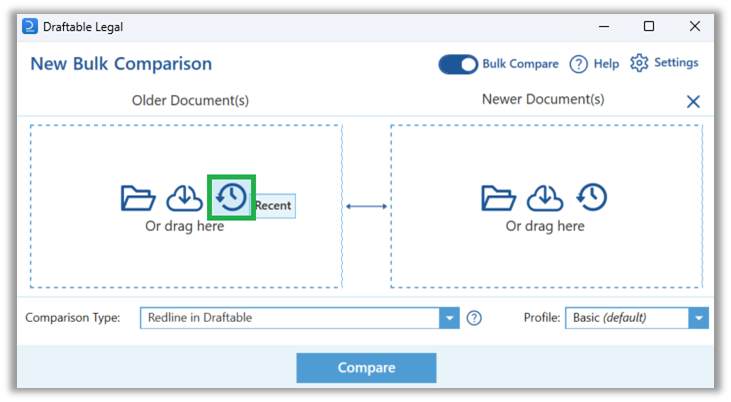
Click the **Recent** icon (shown in the screenshot below) for either the **Older Document(s)** or **Newer Document(s).**
#### Load DMS files from your DMS
You can also use the file loading options in your Document Management System to load files when Bulk Compare Mode is enabled. For guidance on how to load files from your DMS, see the relevant guides below:
### Load recently compared files
Click the **Recent** icon (shown in the screenshot below) for either the **Older Document(s)** or **Newer Document(s).**
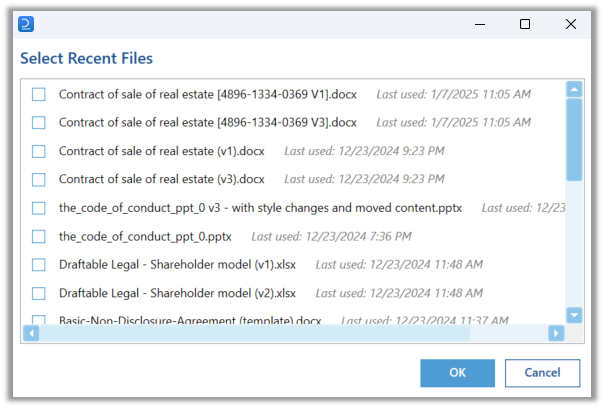
 Select the recently compare files you wish to compare. You can select as many files as you wish.
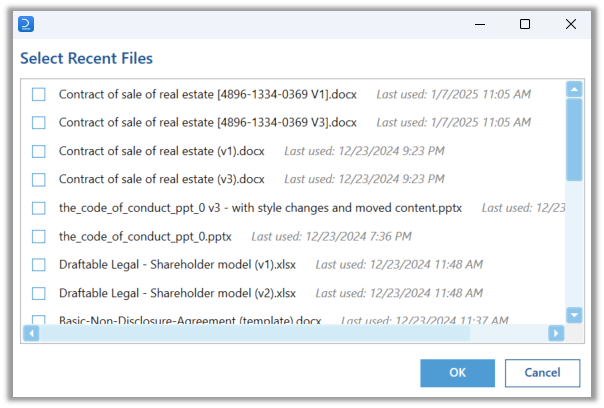
 Once selected, the files will be added to either the 'Older Documents' or 'Newer Document(s) section based on the location where you opened the Recent Files menu. Draftable will automatically create spaces for potential pairings for each document. You can drag any of your loaded files to any other space in the arrangement.
 ## How to compare files in Bulk Compare mode
### Comparing multiple discrete pairs of documents
To compare multiple discrete pairs of documents in Bulk Compare mode, start by loading the desired files into Draftable.
## How to compare files in Bulk Compare mode
### Comparing multiple discrete pairs of documents
To compare multiple discrete pairs of documents in Bulk Compare mode, start by loading the desired files into Draftable.
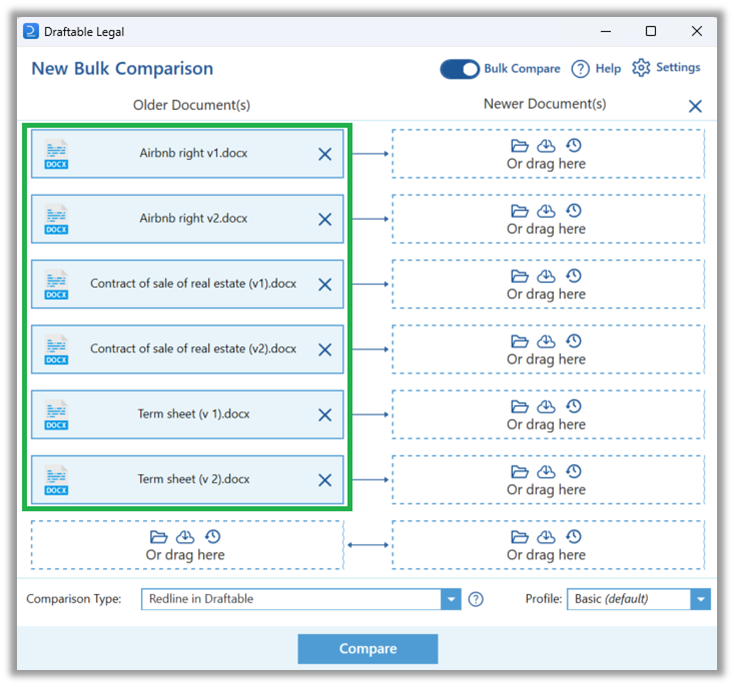 Once these are loaded, simply rearrange your files so that the desired pairs of Older and Newer Documents are aligned.
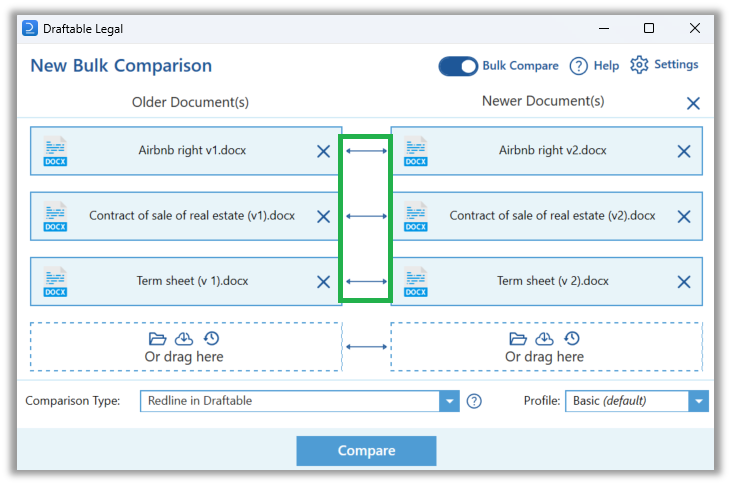
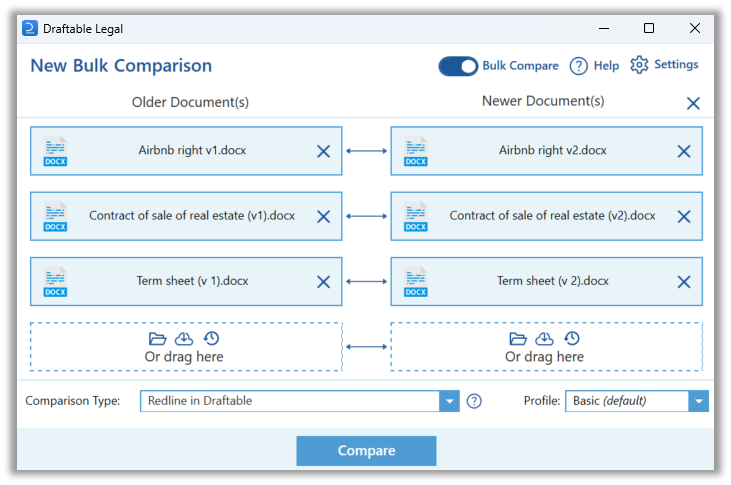 To confirm that your arrangement will compare files as discrete pairings, you should see individual bi-directional arrows between the Older and Newer Documents (see picture below).
 Once your files Select your preferred **Comparison Type** - e.g. "Redline (.pdf)", "Redline (Word with Tracked Changes)", etc and settings **'Profile'.**
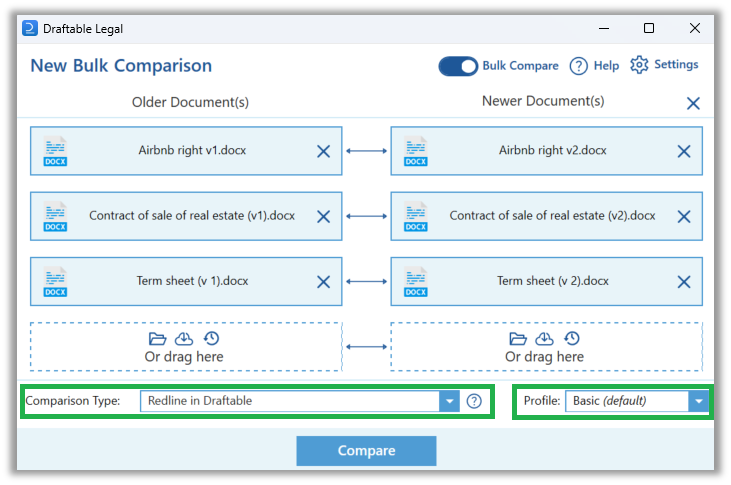 Click **Compare.**
### Comparing one Older Document against multiple Newer Documents
To compare one Older Document against multiple Newer Documents, start by loading the relevant files into Draftable.
Click **Compare.**
### Comparing one Older Document against multiple Newer Documents
To compare one Older Document against multiple Newer Documents, start by loading the relevant files into Draftable.
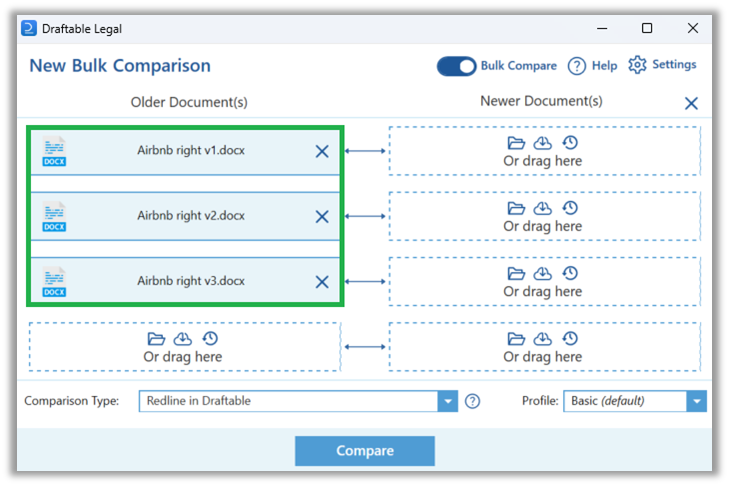 Once these are loaded, simply rearrange your files so that the desired Older Document is on the left and the Newer Documents are on the right.
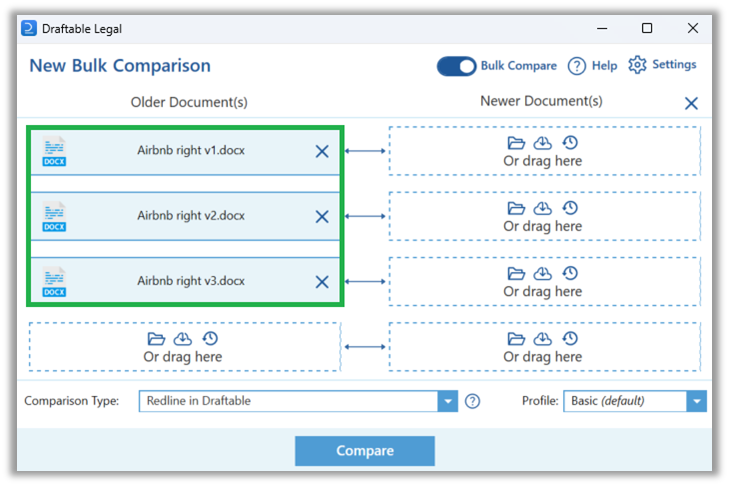
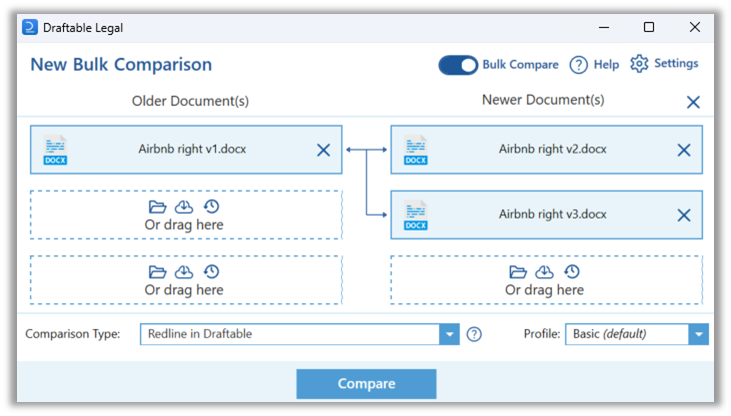 Draftable will indicate with arrows in the middle that all Newer Documents will be compared against your one Older Document (see below example where the Airbnb file v1 is compared against v2 and v3).
 Once your files Select your preferred **Comparison Type** - e.g. "Redline (.pdf)", "Redline (Word with Tracked Changes)", etc and settings **'Profile'**.
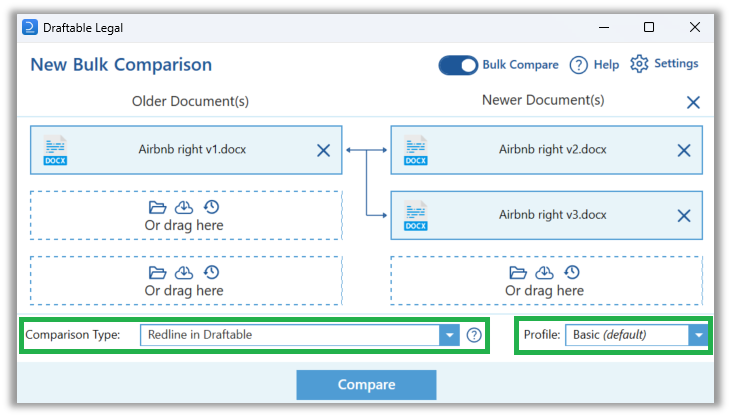 Click **Compare.**
### Comparing multiple Older Documents against one Newer Document
The same approach above can be used to compare multiple Older Documents against a single Newer Document. First, load the Documents you wish to compare into Draftable.
Click **Compare.**
### Comparing multiple Older Documents against one Newer Document
The same approach above can be used to compare multiple Older Documents against a single Newer Document. First, load the Documents you wish to compare into Draftable.
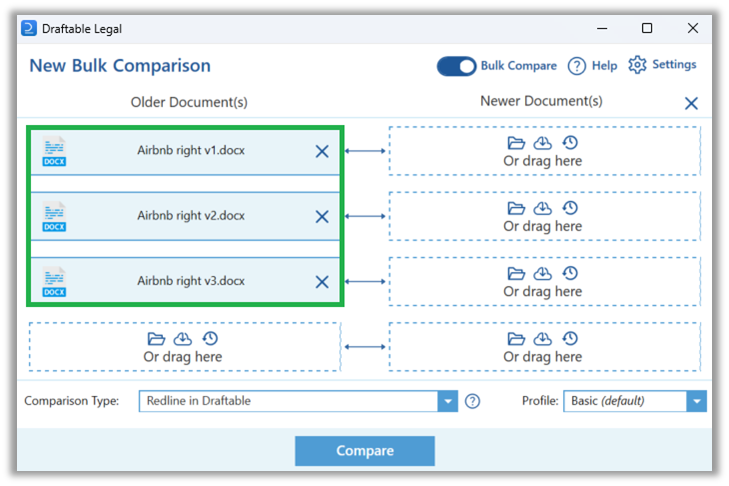 Once your documents are loaded, rearrange them as needed by dragging and dropping them into place, ensuring your have only one file on the right side under the Newer Document(s). *Note: you can place the one Newer Document in any position on the right side - see picture below*).
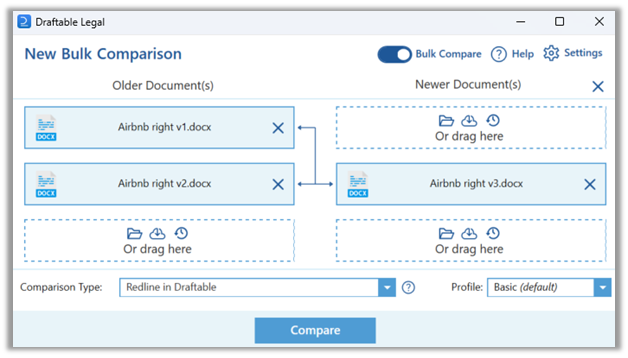 Once your files Select your preferred **Comparison Type** - e.g. "Redline (.pdf)", "Redline (Word with Tracked Changes)", etc and settings **'Profile'**.
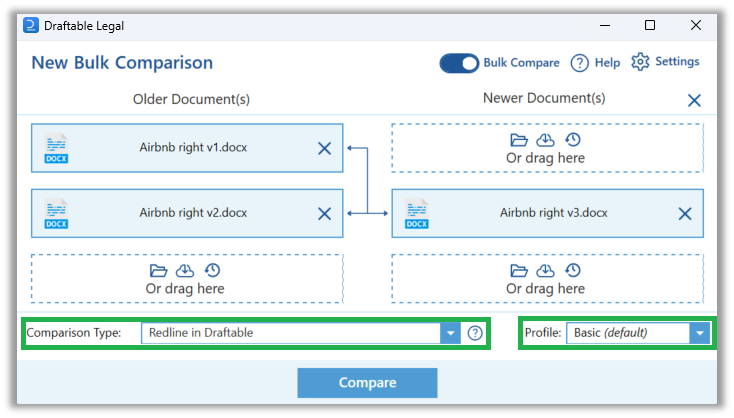 Click **Compare**
## Actions after the comparisons are completed
After the comparison is complete, Draftable Legal supports directly saving all output files to your local computer or opening them individually in the comparison viewer to review and take any 'next action' (save to DMS, copy to clipboard, email, print).
### Action 1: Save all output files to your computer
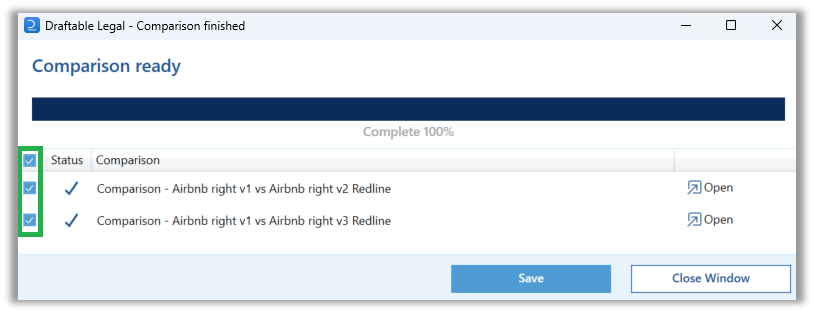
From the **Comparison finished** window **select all the comparisons** that are intended to be saved, then click **Save.**
Click **Compare**
## Actions after the comparisons are completed
After the comparison is complete, Draftable Legal supports directly saving all output files to your local computer or opening them individually in the comparison viewer to review and take any 'next action' (save to DMS, copy to clipboard, email, print).
### Action 1: Save all output files to your computer
From the **Comparison finished** window **select all the comparisons** that are intended to be saved, then click **Save.**
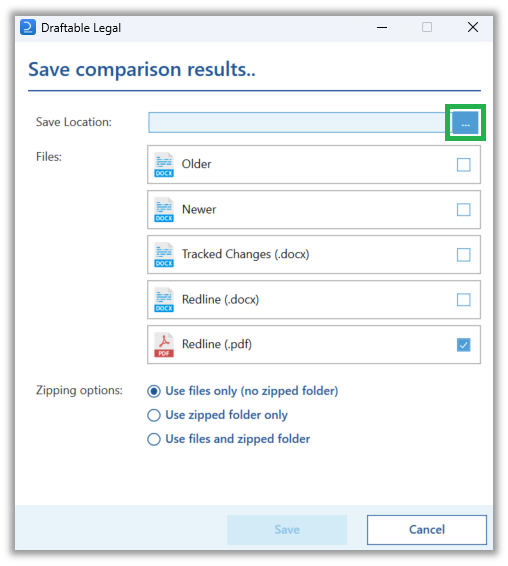
 In the popup menu, you can specify the save location by selecting the "..." button (pictured).
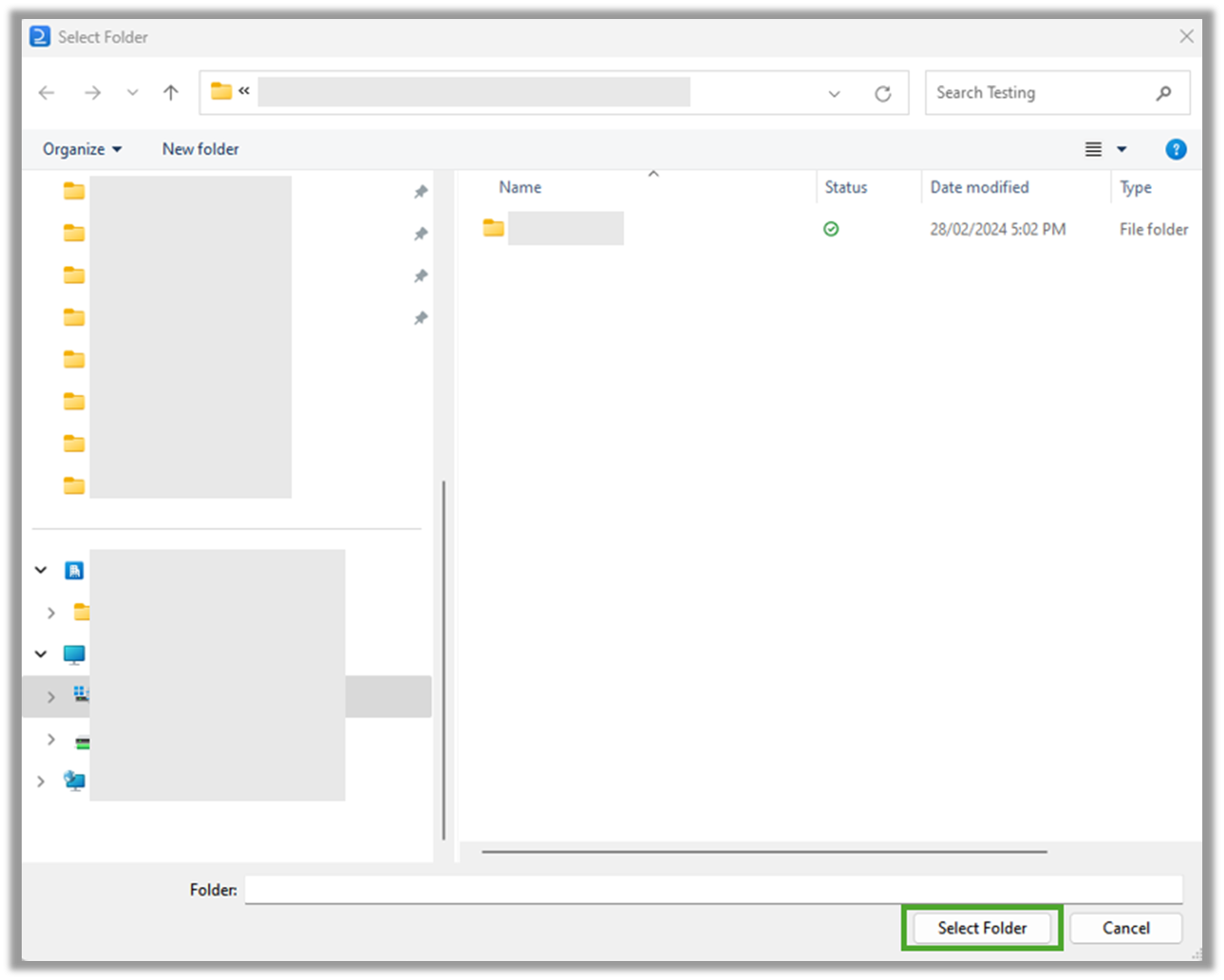
 Once opened, the **Select Folder** pop-up will allow you to navigate to the folder that the comparison outputs are to be saved in, then click **Select Folder.**
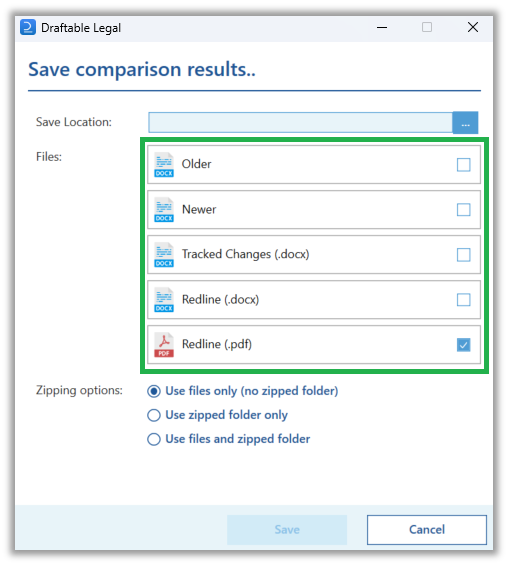
 Select the files you wish to save (you can choose to save the Older and Newer input files for each comparison as well as the comparison output in the form of Tracked Changes, Redline Docx and Redline PDF).
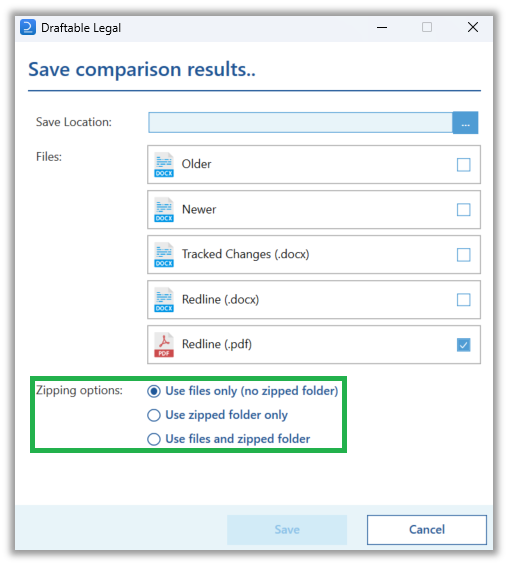
 Select whether you wish to save the files only, save the files into a zipped folder, or save both the files and a zipped folder of the files.
 Select **Save.**
### Action 2: Open comparison outputs individually for review & next action
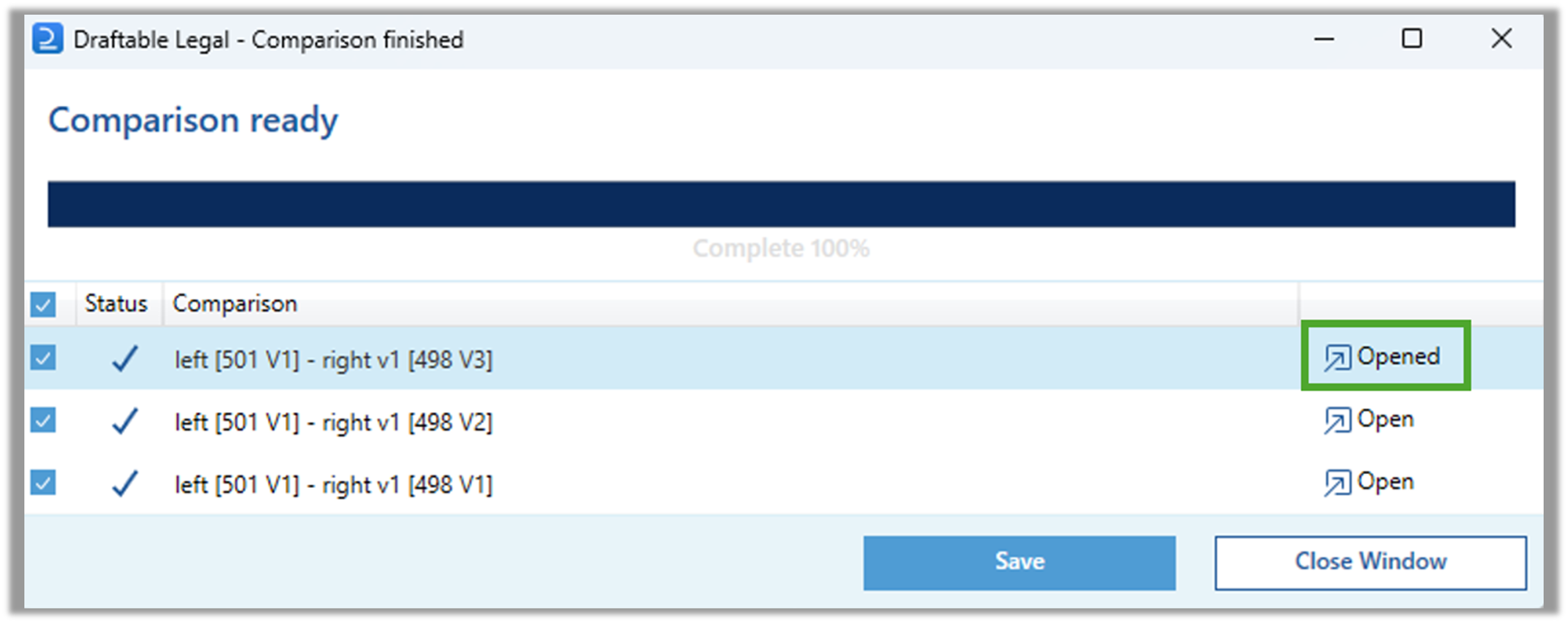
From the **Comparison finished** window click **Open on the desired comparison** output to review it in the comparison viewer. Redline .pdf comparisons and Side by Side comparisons will open in the Draftable viewer and Redline (Word with Tracked Changes) will open in MS Word.
Select **Save.**
### Action 2: Open comparison outputs individually for review & next action
From the **Comparison finished** window click **Open on the desired comparison** output to review it in the comparison viewer. Redline .pdf comparisons and Side by Side comparisons will open in the Draftable viewer and Redline (Word with Tracked Changes) will open in MS Word.
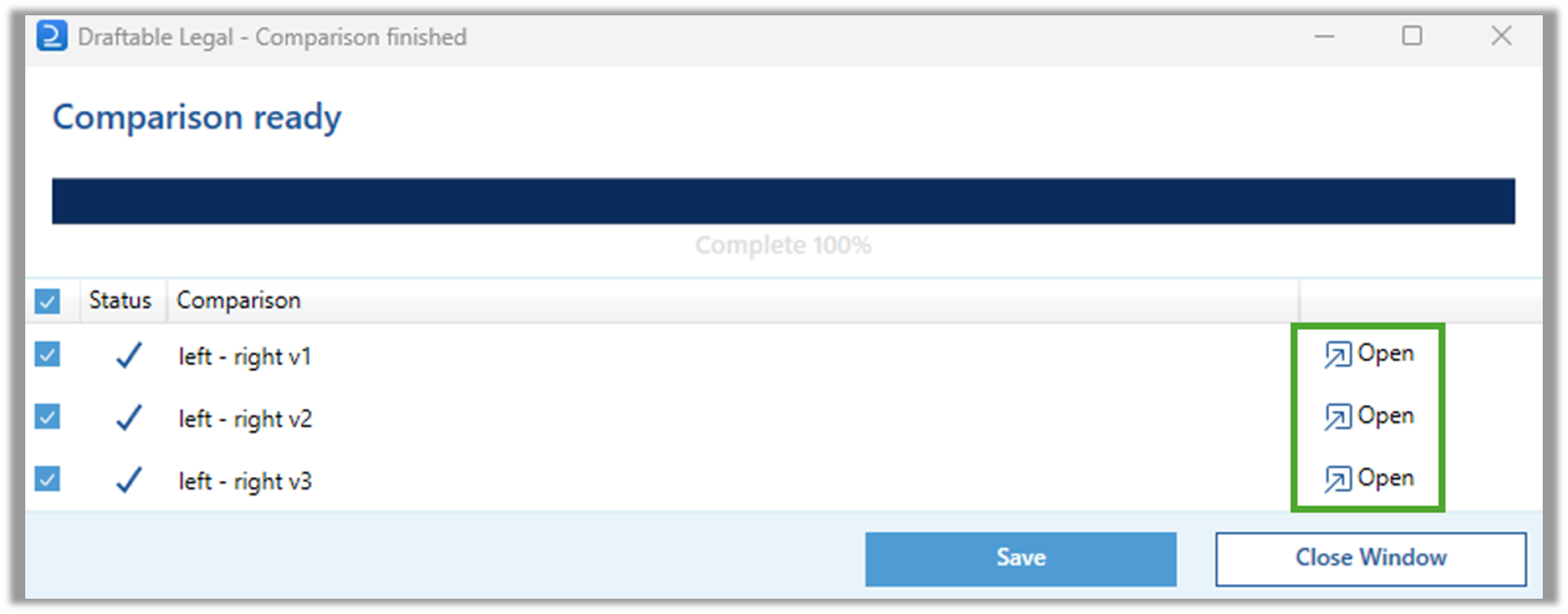 After a comparison has been opened, its status will appear in the **Comparison finished** window will change to \*\*Opened.