> ## Documentation Index
> Fetch the complete documentation index at: https://help.draftable.com/llms.txt
> Use this file to discover all available pages before exploring further.
# How to manually re-install the Draftable MS Word Add-in
## Introduction
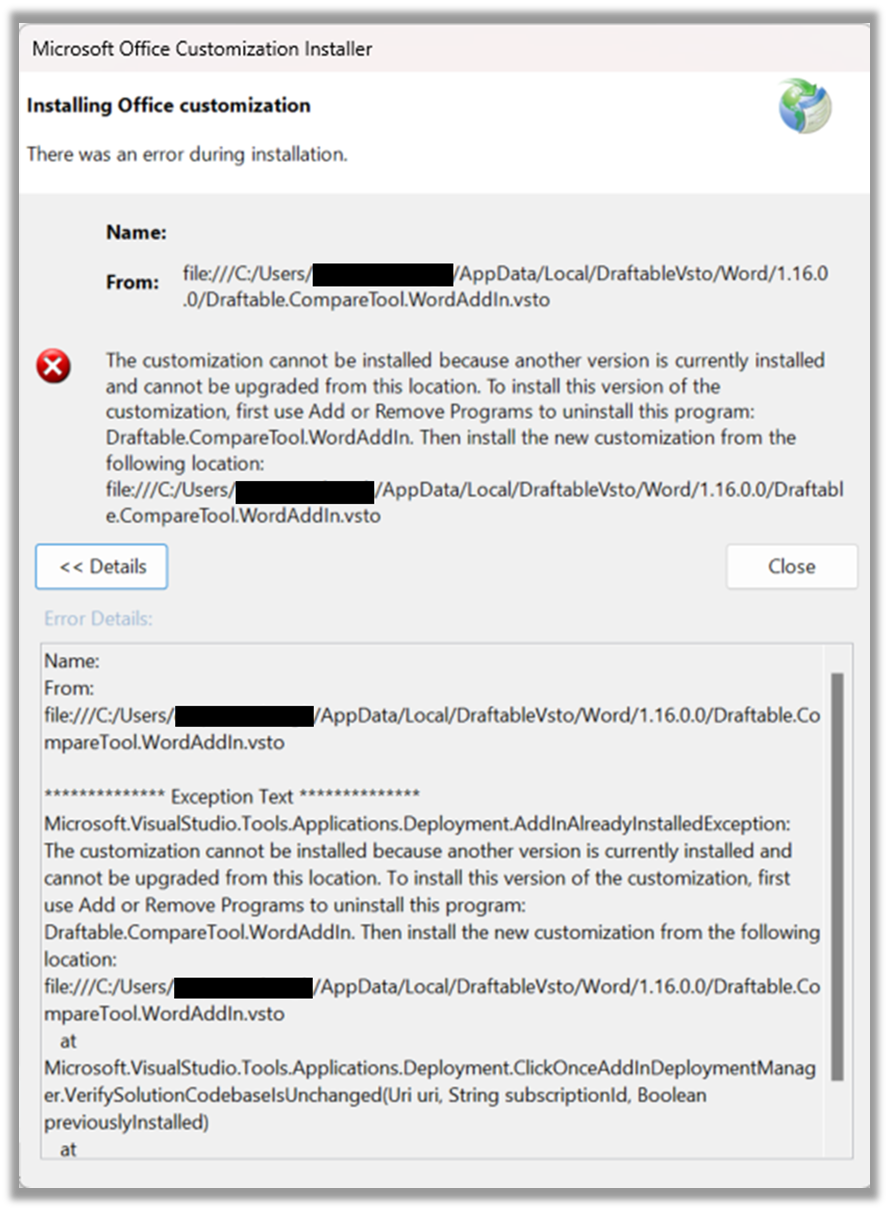
This article is designed to assist users in troubleshooting their Draftable MS Word Add-In. Users may find this useful if they receive errors after installing or updating Draftable Legal (see image below) or if they have followed the [How to re-enable Draftable Word Add-in](/hc/en-us/articles/26630500422809-How-to-re-enable-Draftable-Word-Add-in) and were unsuccessful in re-enabling the add-in.
**Please note:** This guide assumes that users have installed Draftable Desktop on their machine and have a Draftable Legal license activated.
 ## The solution: perform a manual uninstall and re-install of the Word add-in
### Part 1: Uninstall the existing add-in from your machine
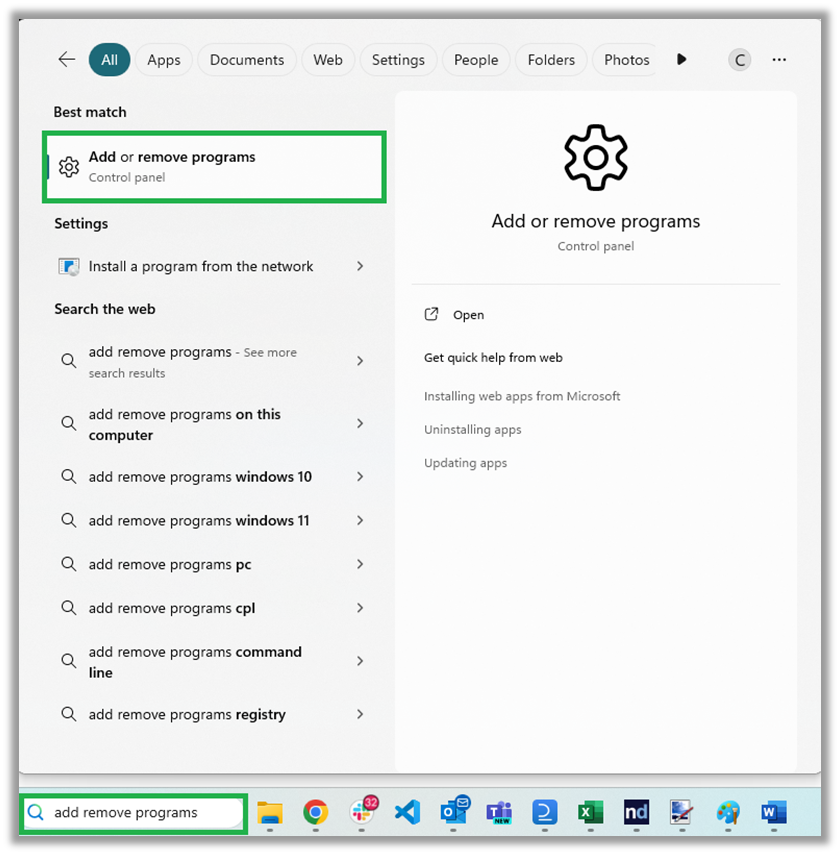
In your windows search bar (at the bottom of your primary monitor screen), type in **add remove programs** and \*\*open the option 'Add or remove programs (control panel)'.
## The solution: perform a manual uninstall and re-install of the Word add-in
### Part 1: Uninstall the existing add-in from your machine
In your windows search bar (at the bottom of your primary monitor screen), type in **add remove programs** and \*\*open the option 'Add or remove programs (control panel)'.
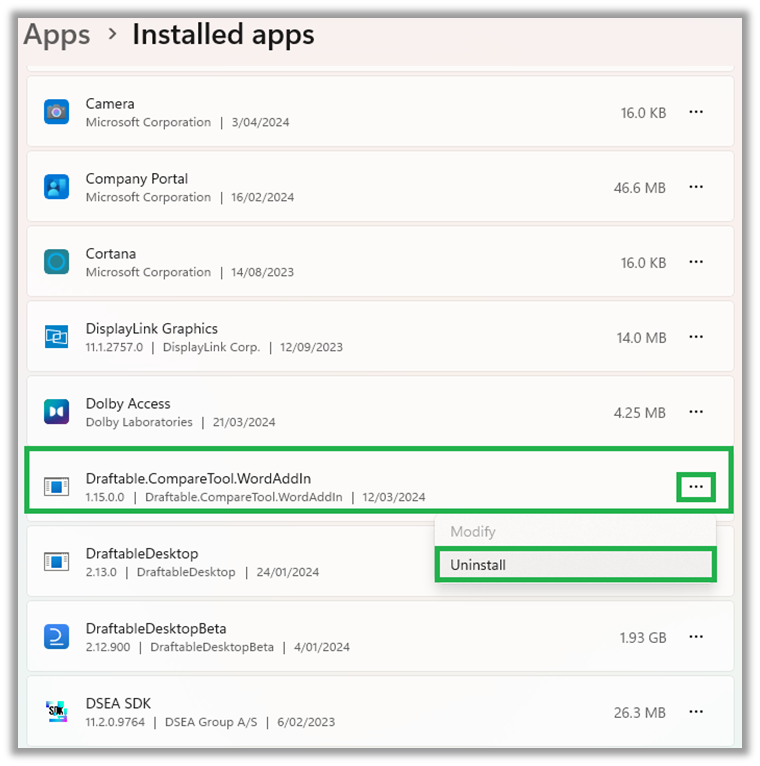
 Programs are in alphabetical order. Scroll down the list until you find **Draftable.CompareTool.WordAddIn,** click on the **"..."** ellipses and select **Uninstall**.
Note, If this item does not appear in your list of installed apps you can proceed to the next section.
Programs are in alphabetical order. Scroll down the list until you find **Draftable.CompareTool.WordAddIn,** click on the **"..."** ellipses and select **Uninstall**.
Note, If this item does not appear in your list of installed apps you can proceed to the next section.
 Windows will warn you that the app will be uninstalled. Select the **Uninstall** to proceed.
Microsoft Office will warn you that the add in will uninstall. Select **OK** to continue and the add-in will be uninstalled. Note you will not receive a notification that this is completed.
### Part 2: Manually install the latest Word add-in
First make sure that all your work in Microsoft Word is saved
Then close all Word files / windows on your computer.
To be certain no Word processes are running in the background, press **Ctrl + Alt + Delete** on your keyboard and select **Task Manager.**
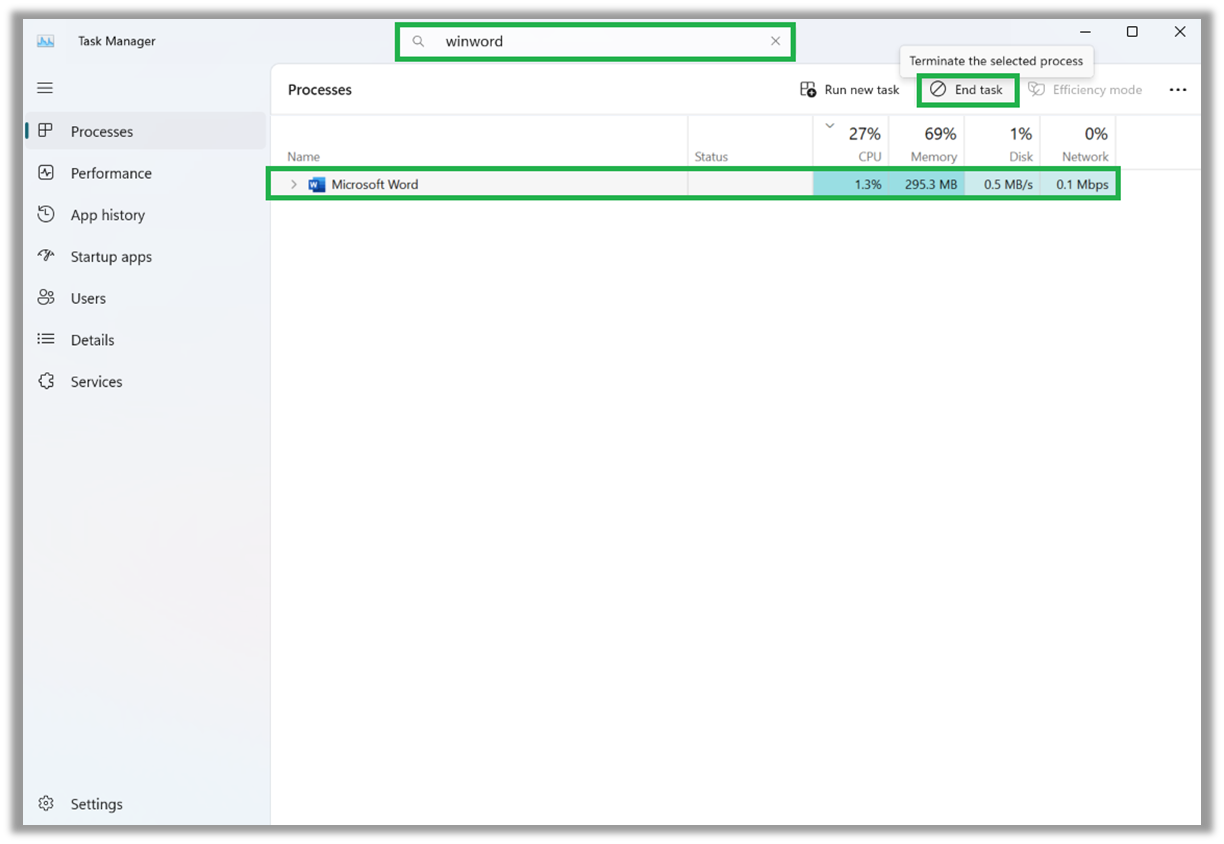
In the task manager, under 'Processes', type **winword** into the search bar, select any processes in the search result and select \*\*End Task.
Windows will warn you that the app will be uninstalled. Select the **Uninstall** to proceed.
Microsoft Office will warn you that the add in will uninstall. Select **OK** to continue and the add-in will be uninstalled. Note you will not receive a notification that this is completed.
### Part 2: Manually install the latest Word add-in
First make sure that all your work in Microsoft Word is saved
Then close all Word files / windows on your computer.
To be certain no Word processes are running in the background, press **Ctrl + Alt + Delete** on your keyboard and select **Task Manager.**
In the task manager, under 'Processes', type **winword** into the search bar, select any processes in the search result and select \*\*End Task.
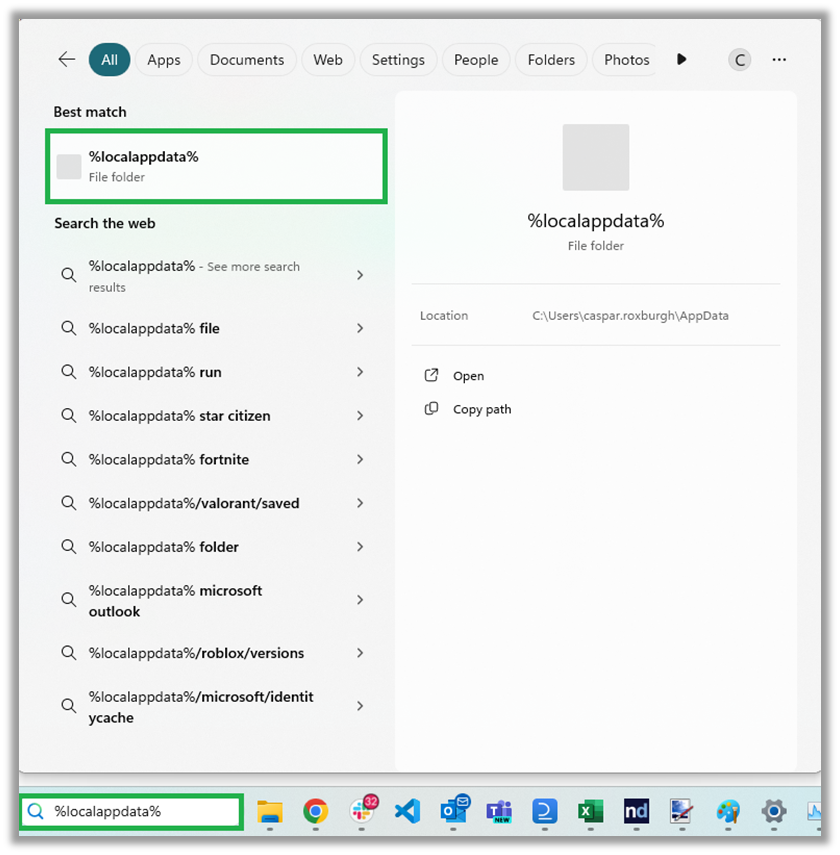
 In your windows search bar at the bottom of your screen, type **%localappdata%** and open the %localappdata% file folder in the results.
**Note:** If you have installed Draftable Legal via the MSI system wide installer, navigate instead to the install folder of where Draftable was installed.
In your windows search bar at the bottom of your screen, type **%localappdata%** and open the %localappdata% file folder in the results.
**Note:** If you have installed Draftable Legal via the MSI system wide installer, navigate instead to the install folder of where Draftable was installed.
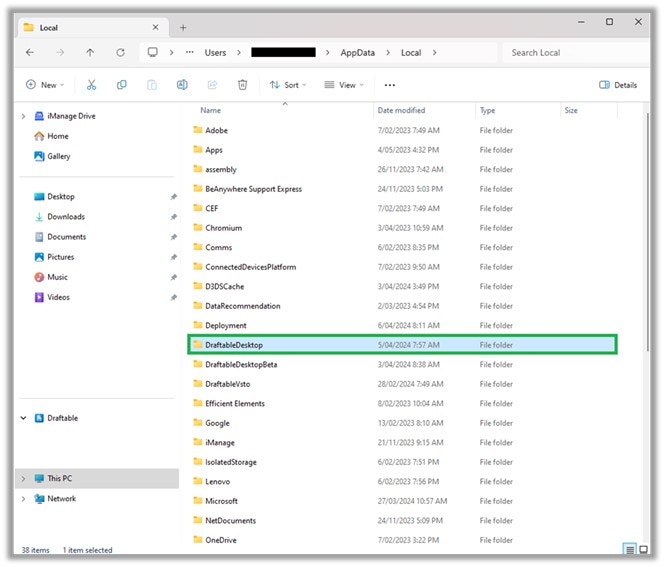
 In the file explorer folder that opens, find the folder for **DraftableDesktop** and open it.
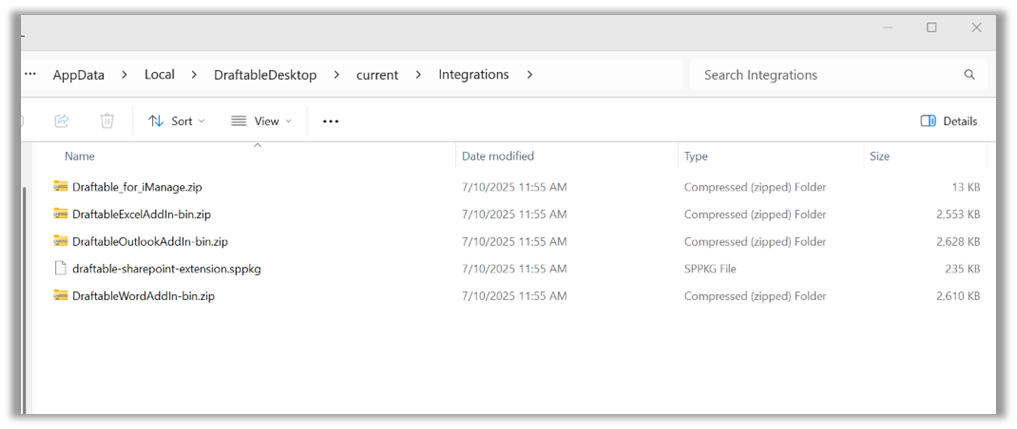
 Once the **DraftableDesktop** folder is opened, go to the **current** folder, followed by the **integrations** folder.
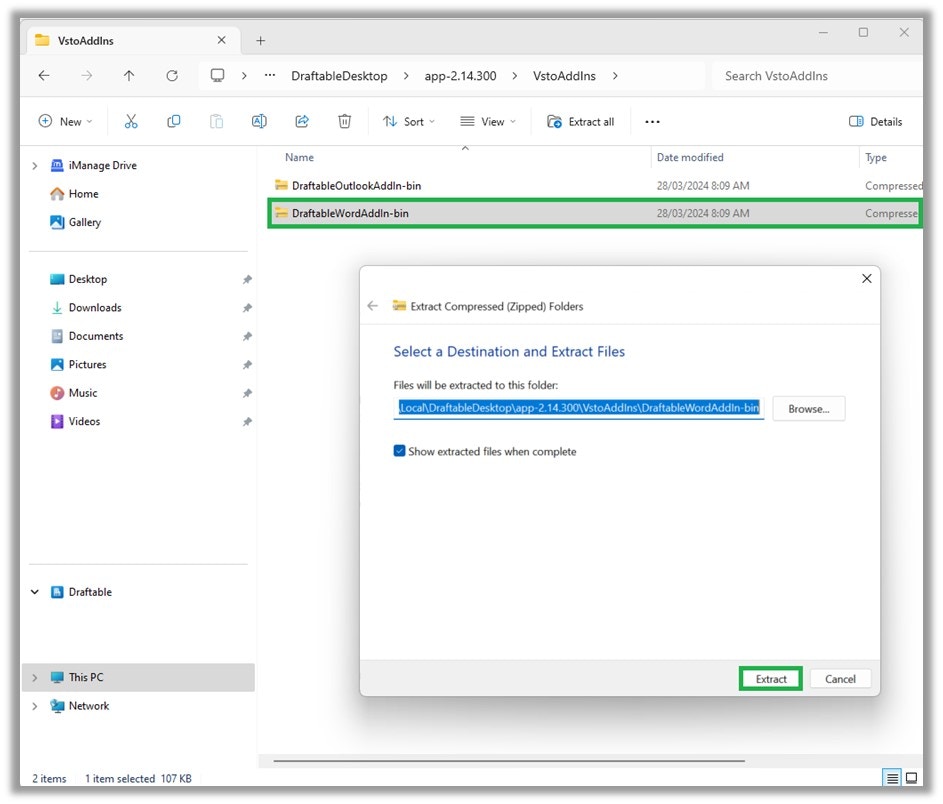
 Right click 'DraftableWordAddIn-bin.zip' and select 'Extract'
 The extracted folder will automatically open when complete. In the folder, **double click** the **Draftable.CompareTool.WordAddIn** **VSTO Deployment Manifest** file. You can confirm the right file by checking the file type is VSTO Deployment Manifest.
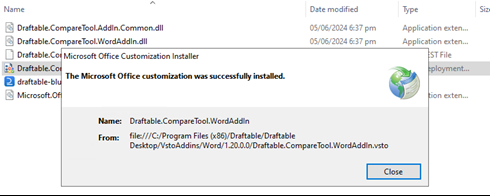
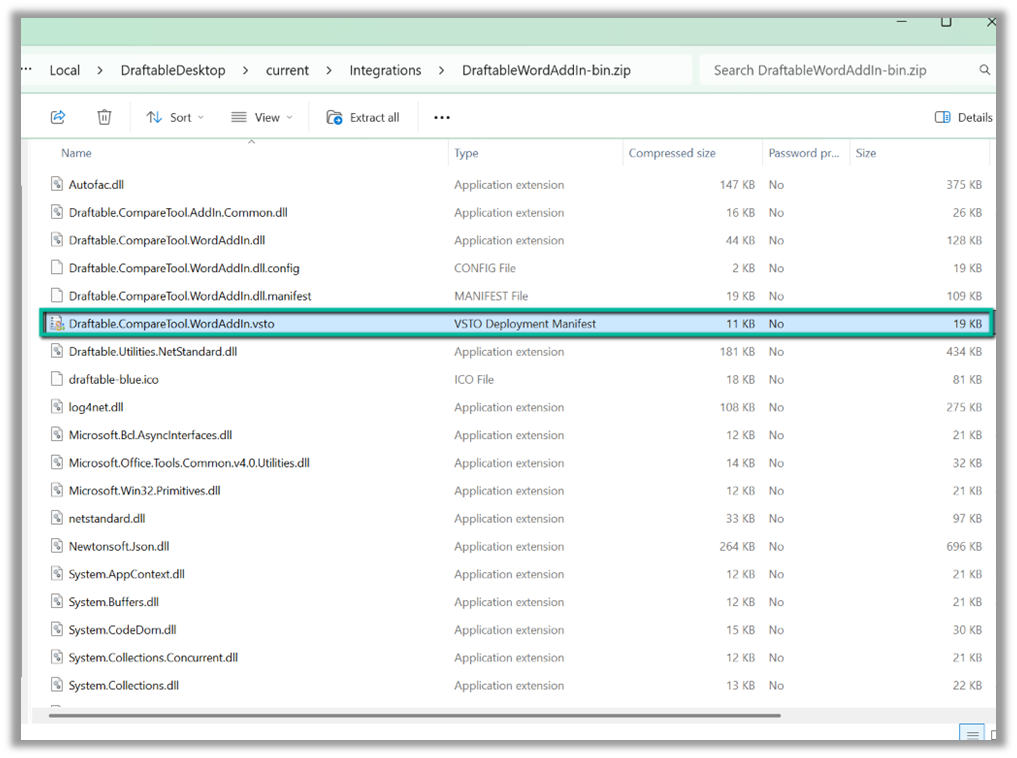 This will trigger the manual installation of the Word Add in. Once completed, you should see a notification saying the installation was successful.
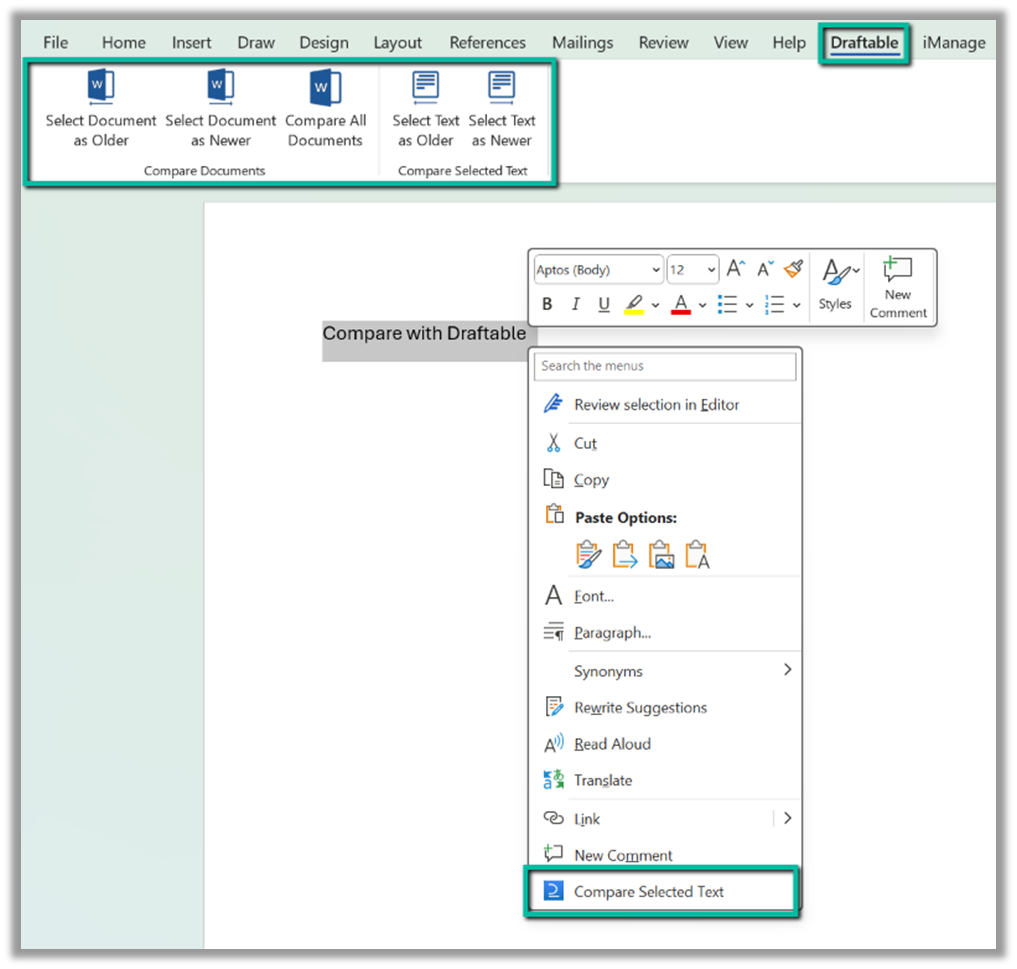
 After successfully installing the Word Add-in, **open** **Microsoft Word**. The Add-in should load correctly and be available for use in the ribbon menu and via right click when selecting text (see below).
 If you continue to have trouble with your Word Add In installation, please contact [support@draftable.com](mailto:support@draftable.com) and our team will be glad to assist.