> ## Documentation Index
> Fetch the complete documentation index at: https://help.draftable.com/llms.txt
> Use this file to discover all available pages before exploring further.
# Deployment options via MSI (System wide) installer
> This guide is for IT administrators who wish to deploy Draftable Legal and want to select what additional parameters are included within the install. This can include selections for Office add ins (Outlook and Word), shortcuts and options for the iManage listener sevice. This guide is specific to the Machine-Wide MSI (also known as the System-Wide MSI, Native MSI, or Per-Machine MSI) and only from DraftableDesktopSystem.msi v2.15 onwards.
**Deploying via Microsoft Intune?** If you're planning to deploy Draftable Legal using Microsoft Intune, you can use both this article and our dedicated [Enterprise installation for Draftable using Intune](/hc/en-us/articles/19521353760921-Enterprise-installment-for-Draftable-using-Intune) article as reference points. The Intune article covers adding Draftable to Intune, deploying via Intune, and managing product keys through Intune group policy.
## Deployment options via standard MSI installer
**Deploying to Citrix or Remote Desktop (RDP/RDS)?** Licensing in these environments needs to be configured for your setup before your users activate. Please read [Deployment advice for Citrix and RDP environments](/hc/en-us/articles/Deployment-advice-for-Citrix-and-RDP-environments) before you deploy.
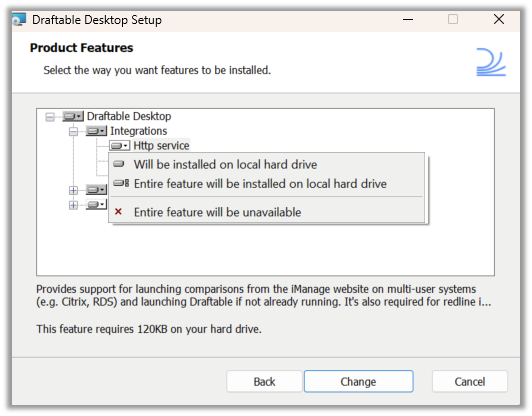
**Install the HTTP Listener Service — this is required.** The HTTP Listener Service (the `HttpListener` MSI feature) is a required component of every machine-wide MSI deployment. It provides support for launching comparisons from iManage (including on multi-user systems such as Citrix and RDS), lets Draftable open when it is not already running, and is required for the Draftable Outlook add-in (Redline in Email). It is **not** selected by default in the installer, so you must include it explicitly: in the **Advanced** installer set **Http service** (under **Integrations**) to install, or add `HttpListener` to your `ADDLOCAL` list in a scripted or silent install.
Download and run the Machine Wide MSI (you can download the latest version of this installer via [https://dl.draftable.com/desktop/DraftableDesktopSystem.msi](https://dl.draftable.com/desktop/DraftableDesktopSystem.msi))
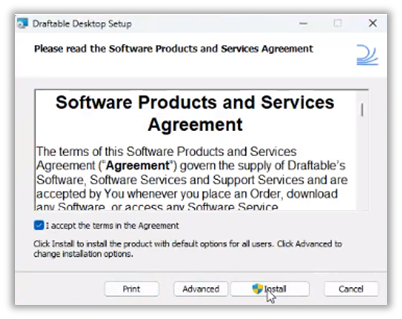
In the installation menu, select the **Advanced** option and click 'next'\
Select item to see menu
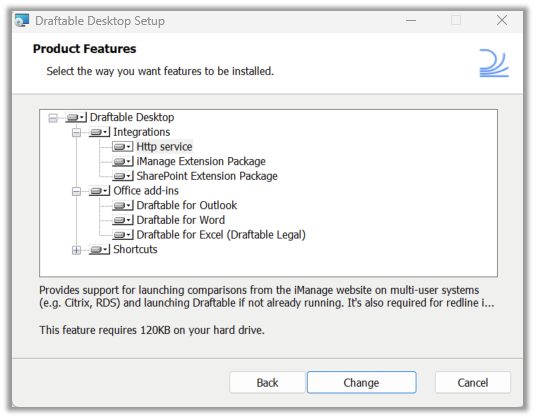
 In the Advanced screen, you will see an expandable feature tree user interface. Expand the **Draftable Desktop** node, then the **Office add-ins** node to view individual add ins (pictured)
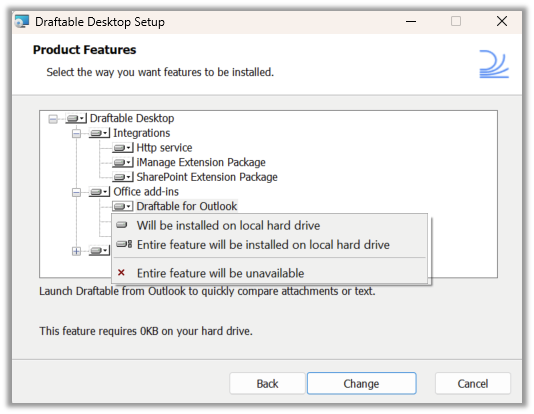
 **Select** the add in(s) that you do not want installed and use the menu to select **Entire feature will be unavailable**
 Expand the **Integrations** node and set **Http service** to **Entire feature will be installed on the local hard drive**. The HTTP Listener Service is a required component and is **not** selected by default, so this step must not be skipped.
 Select **Install** to proceed with installation
The iManage HTTP Listener Service requires more configuration beyond that is setup in this article. The steps in this article merely deploys the Listener Service, but for complete configuration [please see here.](/hc/en-us/articles/33978111642905-Alternative-iManage-HTTP-listener-service-installation-guide-for-Draftable-Legal)
## Custom MSI deployment via scripted automated installs
The following steps are suitable for administrators deploying Draftable Desktop via a command line interface, InTune or similar. It outlines how to programmatically control features being installed by the MSI via the well-known [ADDLOCAL property (link to Microsoft Learn page)](https://learn.microsoft.com/en-us/windows/win32/msi/addlocal). This allows administrators to provide a comma-separated list of features to be installed.
**Always include the HTTP Listener Service (`HttpListener`).** It is a required component of every machine-wide MSI deployment. Because `ADDLOCAL` installs **only** the features you list, you must include `HttpListener` in every `ADDLOCAL` command — otherwise the service will not be installed. For complete iManage configuration (including Citrix/RDS), please refer to the [iManage HTTP Listener Service installation guide](/hc/en-us/articles/33978111642905-Alternative-iManage-HTTP-listener-service-installation-guide-for-Draftable-Legal).
The features available for specification are listed in the table below
| Feature name ("Title") | Feature ID ("Feature") |
| :---------------------------- | :--------------------- |
| Draftable for Outlook | OutlookAddin |
| Draftable for Word | WordAddin |
| Draftable for Excel | ExcelAddin |
| Desktop | DesktopShortcut |
| Start Menu | StartMenuShortcut |
| iManage HTTP Listener Service | HttpListener |
Use the ADDLOCAL property to programmatically specify which 'Features' are installed by the MSI by listing the Feature ID (see table above). *Note, this property specifies what IS INSTALLED. Features absent from this property will NOT be installed.*
### Basic command - MSI installation
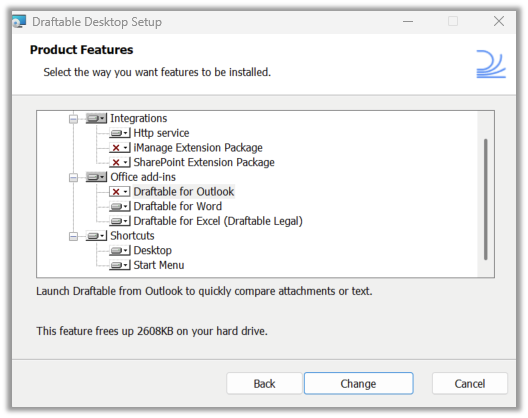
Below is a **basic** example of how to install Draftable via a command line. This example shows installation without the Outlook add-in but including the Word and Excel add-ins and the two shortcuts and the iManage HTTP Listener Service.
```bash theme={null}
msiexec /i DraftableDesktopSystem.msi ADDLOCAL=StartMenuShortcut,DesktopShortcut,HttpListener,WordAddin,ExcelAddin
```
Based on the above, running the installer would result in the following Advanced UI set-up:
Select **Install** to proceed with installation
The iManage HTTP Listener Service requires more configuration beyond that is setup in this article. The steps in this article merely deploys the Listener Service, but for complete configuration [please see here.](/hc/en-us/articles/33978111642905-Alternative-iManage-HTTP-listener-service-installation-guide-for-Draftable-Legal)
## Custom MSI deployment via scripted automated installs
The following steps are suitable for administrators deploying Draftable Desktop via a command line interface, InTune or similar. It outlines how to programmatically control features being installed by the MSI via the well-known [ADDLOCAL property (link to Microsoft Learn page)](https://learn.microsoft.com/en-us/windows/win32/msi/addlocal). This allows administrators to provide a comma-separated list of features to be installed.
**Always include the HTTP Listener Service (`HttpListener`).** It is a required component of every machine-wide MSI deployment. Because `ADDLOCAL` installs **only** the features you list, you must include `HttpListener` in every `ADDLOCAL` command — otherwise the service will not be installed. For complete iManage configuration (including Citrix/RDS), please refer to the [iManage HTTP Listener Service installation guide](/hc/en-us/articles/33978111642905-Alternative-iManage-HTTP-listener-service-installation-guide-for-Draftable-Legal).
The features available for specification are listed in the table below
| Feature name ("Title") | Feature ID ("Feature") |
| :---------------------------- | :--------------------- |
| Draftable for Outlook | OutlookAddin |
| Draftable for Word | WordAddin |
| Draftable for Excel | ExcelAddin |
| Desktop | DesktopShortcut |
| Start Menu | StartMenuShortcut |
| iManage HTTP Listener Service | HttpListener |
Use the ADDLOCAL property to programmatically specify which 'Features' are installed by the MSI by listing the Feature ID (see table above). *Note, this property specifies what IS INSTALLED. Features absent from this property will NOT be installed.*
### Basic command - MSI installation
Below is a **basic** example of how to install Draftable via a command line. This example shows installation without the Outlook add-in but including the Word and Excel add-ins and the two shortcuts and the iManage HTTP Listener Service.
```bash theme={null}
msiexec /i DraftableDesktopSystem.msi ADDLOCAL=StartMenuShortcut,DesktopShortcut,HttpListener,WordAddin,ExcelAddin
```
Based on the above, running the installer would result in the following Advanced UI set-up:
 ### Advanced command - MSI installation
If you wanted a more complex configuration that specifies:
* The install location
* Multiple Draftable add-ins
* HTTP listener service for imanage
* Quiet/silent installation
* Specify no machine restart after installation
* Verbose logging of the full install. **Recommended** if you are having issues with certain components not installing correctly.
The command below is more **advanced** with demonstrates more options during installation.
```powershell theme={null}
Start-Process msiexec -ArgumentList '/i "DraftableDesktopSystem.msi" ADDLOCAL=StartMenuShortcut,DesktopShortcut,HttpListener,WordAddin,ExcelAddin,OutlookAddin INSTALLDIR="C:\Program Files (x86)\Draftable" /qn /norestart /L*V "C:\Logs\draftable_install.log"' -Wait
```
For logging to work, please ensure you create the logging location **prior** to installation. This command will also wait to complete before returning to the command line, that way you know when the installation is completed.
If you need further assistance in deploying the Draftable Machine-wide MSI via command line, please contact [support@draftable.com](mailto:support@draftable.com)
## Troubleshooting Add-in Installation Issues
If Office Add-ins are not loading correctly after MSI installation, this may be due to the LoadBehavior registry value not being set correctly. For troubleshooting steps, see [Office Add-ins Not Loading After MSI Installation](/hc/en-us/articles/53125847291673-Office-Add-ins-Not-Loading-After-MSI-Installation).
### Advanced command - MSI installation
If you wanted a more complex configuration that specifies:
* The install location
* Multiple Draftable add-ins
* HTTP listener service for imanage
* Quiet/silent installation
* Specify no machine restart after installation
* Verbose logging of the full install. **Recommended** if you are having issues with certain components not installing correctly.
The command below is more **advanced** with demonstrates more options during installation.
```powershell theme={null}
Start-Process msiexec -ArgumentList '/i "DraftableDesktopSystem.msi" ADDLOCAL=StartMenuShortcut,DesktopShortcut,HttpListener,WordAddin,ExcelAddin,OutlookAddin INSTALLDIR="C:\Program Files (x86)\Draftable" /qn /norestart /L*V "C:\Logs\draftable_install.log"' -Wait
```
For logging to work, please ensure you create the logging location **prior** to installation. This command will also wait to complete before returning to the command line, that way you know when the installation is completed.
If you need further assistance in deploying the Draftable Machine-wide MSI via command line, please contact [support@draftable.com](mailto:support@draftable.com)
## Troubleshooting Add-in Installation Issues
If Office Add-ins are not loading correctly after MSI installation, this may be due to the LoadBehavior registry value not being set correctly. For troubleshooting steps, see [Office Add-ins Not Loading After MSI Installation](/hc/en-us/articles/53125847291673-Office-Add-ins-Not-Loading-After-MSI-Installation).