> ## Documentation Index
> Fetch the complete documentation index at: https://help.draftable.com/llms.txt
> Use this file to discover all available pages before exploring further.
# Set up guide for Draftable Legal integration with Worldox
> Draftable Legal allows you to integrate your Worldox. This allows users to easily load input files from, and save comparison outputs to Worldox. This article will provide a step-by-step guide on how to set up this integration by adding Draftable Legal's webhooks to your Worldox application .ini files.
*This guide assumes the user already has installed Worldox correctly and validated that it works correctly.*
**Please note:**
* This is a technical integration guide written for administrator-level users.
* This is **not a guide** for **using Worldox with Draftable Legal,** if you are looking for information on how to use Worldox with Draftable Legal [see here](/hc/en-us/articles/31690967186201-Running-comparisons-with-files-from-Worldox-and-saving-outputs-to-Worldox).
* Changes to the WORDLOX.ini file that enable the Compare button in the Worldox ribbon will only work for users that have received an associated update from Worldox.
* After completion of this guide, end users will need to [enable the Worldox integration in the Settings menu](/hc/en-us/articles/31708233972121-How-to-enable-Worldox-integration-in-Draftable-Legal) (under **DMS Connections** in Draftable Legal 26.6 and later, or the **Integrations** tab before 26.6).
## Add Draftable Legal webhook to your Worldox .ini files
In your file explorer, navigate to the root directory of the Worldox install. The default location is **This PC** > **Windows (C:) > GX4.**
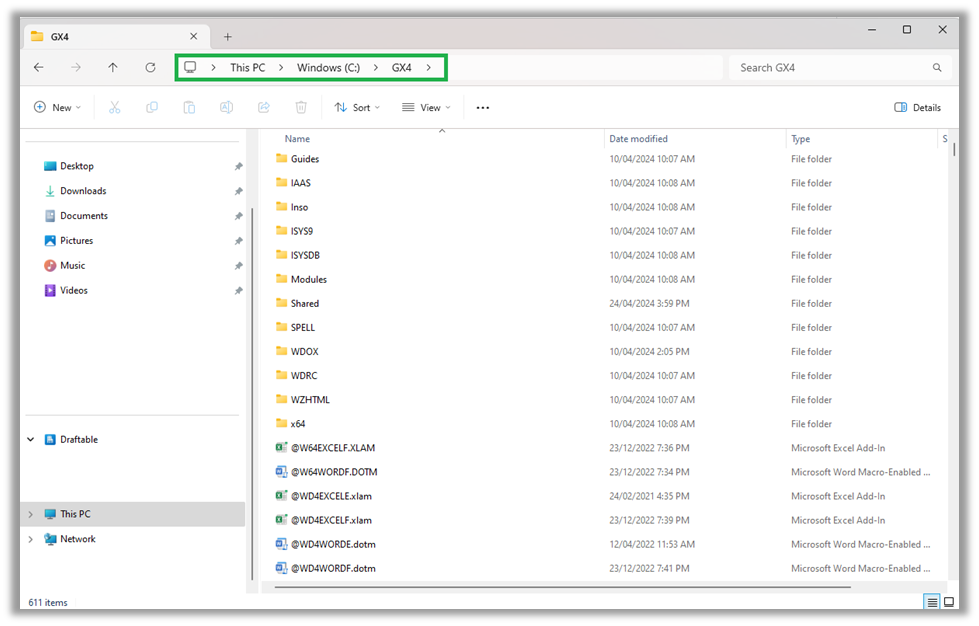 In the **root directory** (in the example above, the GX4 folder), find the **WDUSER32.ini** file, open it and copy and paste the following text below the ----- lines
```ini theme={null}
[Draftable!Open Worldox]
Active_Trigger=1
ModuleName=DraftableDesktop
ApplicationClass=HwndWrapper*
PopupClass=#32770
PopupTitle=Open Worldox
Process_Type=1
MessageID=71
[Draftable!Save Comparison Output to Worldox]
Active_Trigger=1
ModuleName=DraftableDesktop
ApplicationClass=HwndWrapper*
PopupClass=#32770
PopupTitle=Save Comparison Output to Worldox
Process_Type=2
Wait=1
MessageID=71
```
**Save** the file and close
Next, in the **root directory** find the **WDUSER.ini** file, open it and copy and paste the following text below the ----- lines
```ini theme={null}
[Draftable!Open Worldox]
ApplicationName=Draftable
Title=Draftable - New Comparison from File
NotForEdit=1
Macro=&N\vf\n
CancelMacro=\c
[Draftable!Save Comparison Output to Worldox]
ApplicationName=Draftable
Title=Draftable Save Comparison Output As
Macro=\vf\vs\n
CancelMacro=\c
FileNameID=54,48,1001
```
**Save** the file and close
Lastly, in the root directory find the **WORLDOX.ini** file, open it and copy and paste the following text at the end of the document (please note: this enables the Compare button in the Worldox ribbon but will only work for users that have received an associated required update from Worldox)
```ini theme={null}
[Compare Programs]
Draftable Legal=%USERPROFILE%\AppData\Local\DraftableDesktop\DraftableDesktop.exe "%ot" "%nt"
[Compare]
Run=OK
```
Changes to the WORDLOX.ini file that enable the Compare button in the Worldox ribbon will only work for users that have received an associated update from Worldox.
**Save** the file and close
You should now be able to use the Draftable Worldox integration next time you launch Worldox on your machine.
To learn more about how to use Worldox and Draftable, see other articles in this section.
If you encounter problems setting up this integration, please contact [support@draftable.com](mailto:support@draftable.com)
In the **root directory** (in the example above, the GX4 folder), find the **WDUSER32.ini** file, open it and copy and paste the following text below the ----- lines
```ini theme={null}
[Draftable!Open Worldox]
Active_Trigger=1
ModuleName=DraftableDesktop
ApplicationClass=HwndWrapper*
PopupClass=#32770
PopupTitle=Open Worldox
Process_Type=1
MessageID=71
[Draftable!Save Comparison Output to Worldox]
Active_Trigger=1
ModuleName=DraftableDesktop
ApplicationClass=HwndWrapper*
PopupClass=#32770
PopupTitle=Save Comparison Output to Worldox
Process_Type=2
Wait=1
MessageID=71
```
**Save** the file and close
Next, in the **root directory** find the **WDUSER.ini** file, open it and copy and paste the following text below the ----- lines
```ini theme={null}
[Draftable!Open Worldox]
ApplicationName=Draftable
Title=Draftable - New Comparison from File
NotForEdit=1
Macro=&N\vf\n
CancelMacro=\c
[Draftable!Save Comparison Output to Worldox]
ApplicationName=Draftable
Title=Draftable Save Comparison Output As
Macro=\vf\vs\n
CancelMacro=\c
FileNameID=54,48,1001
```
**Save** the file and close
Lastly, in the root directory find the **WORLDOX.ini** file, open it and copy and paste the following text at the end of the document (please note: this enables the Compare button in the Worldox ribbon but will only work for users that have received an associated required update from Worldox)
```ini theme={null}
[Compare Programs]
Draftable Legal=%USERPROFILE%\AppData\Local\DraftableDesktop\DraftableDesktop.exe "%ot" "%nt"
[Compare]
Run=OK
```
Changes to the WORDLOX.ini file that enable the Compare button in the Worldox ribbon will only work for users that have received an associated update from Worldox.
**Save** the file and close
You should now be able to use the Draftable Worldox integration next time you launch Worldox on your machine.
To learn more about how to use Worldox and Draftable, see other articles in this section.
If you encounter problems setting up this integration, please contact [support@draftable.com](mailto:support@draftable.com)