> ## Documentation Index
> Fetch the complete documentation index at: https://help.draftable.com/llms.txt
> Use this file to discover all available pages before exploring further.
# How to automatically open comparison files saved to iManage
> This article provides a guide for iManage users to configure Draftable to automatically open comparison output files saved to iManage. These settings are designed for users who prefer to work on comparison documents within iManage.
**The settings menu was reorganised in Draftable Legal 26.6.** If you are on 26.6 or later, follow the "26.6 and later" tabs below. On earlier versions, follow "Before 26.6". To check your version, open Settings. The version number shows at the bottom-left (for example, v26.6.0).
## Configure setting to automatically open file in iManage after saving
Open the Draftable New Comparison Window and open the Settings menu
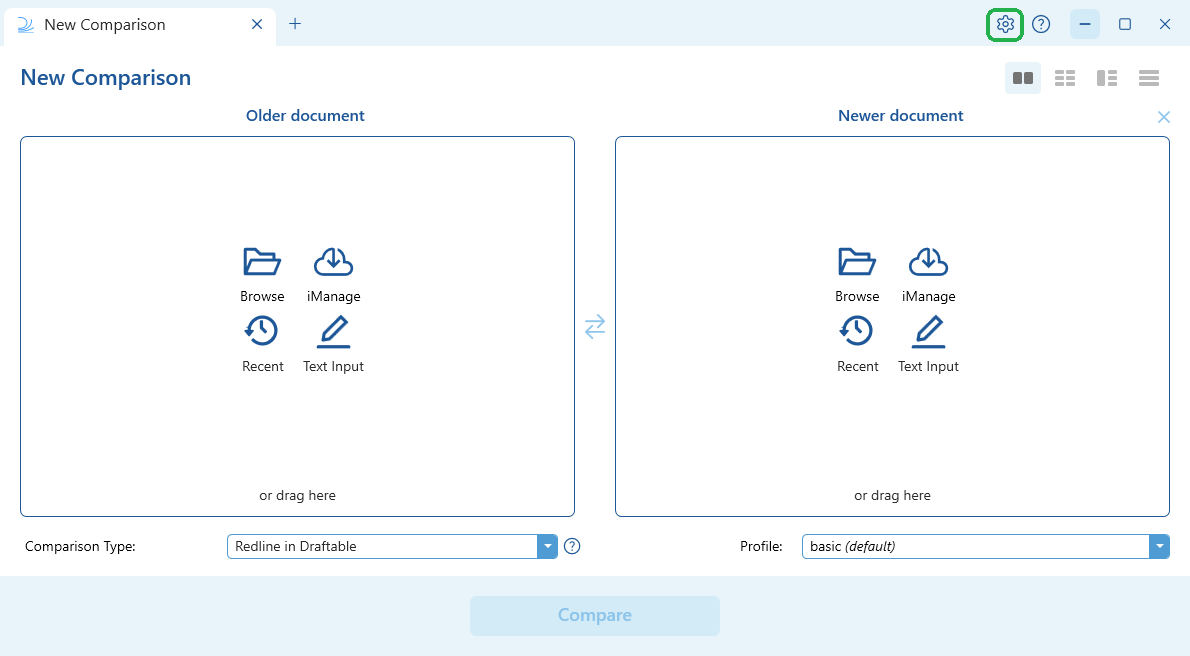
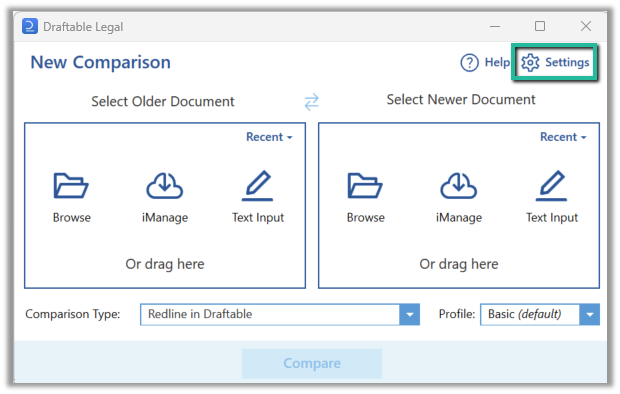 Enable the setting that opens the exported document in iManage after saving. The label and location of this setting depend on your Draftable Legal version.
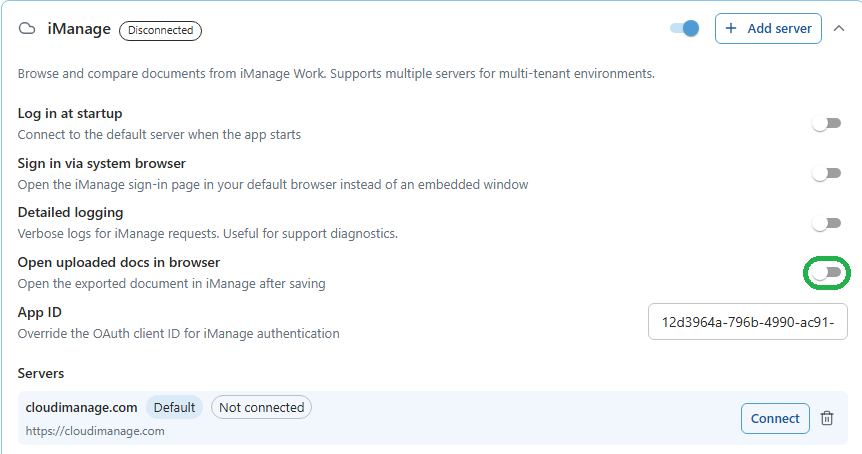
In Settings, select **DMS Connections** (under **Integrations**), expand the **iManage** section, and enable **Open uploaded docs in browser** (described as "Open the exported document in iManage after saving").
Enable the setting that opens the exported document in iManage after saving. The label and location of this setting depend on your Draftable Legal version.
In Settings, select **DMS Connections** (under **Integrations**), expand the **iManage** section, and enable **Open uploaded docs in browser** (described as "Open the exported document in iManage after saving").
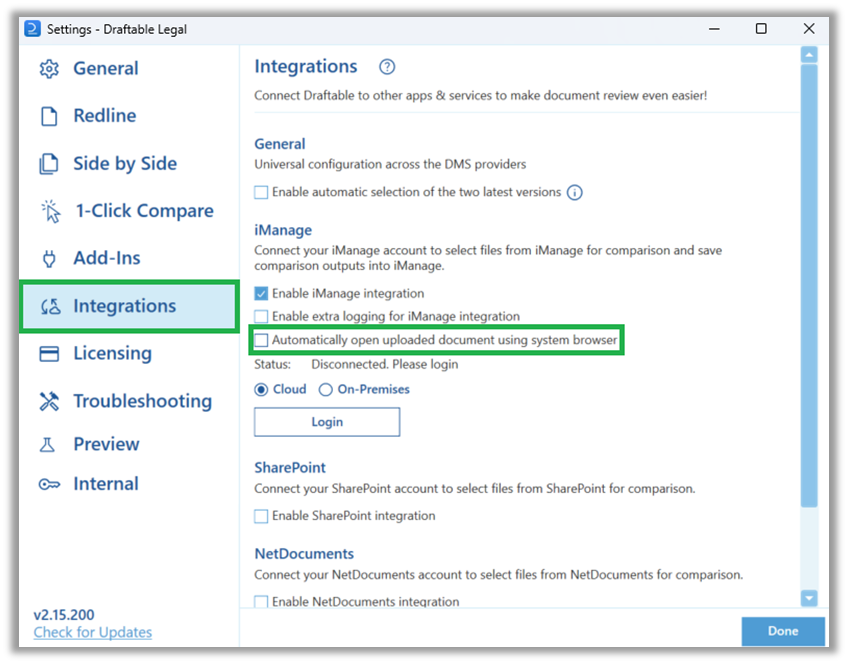
 In Settings, go to **Integrations** and under the **iManage** section, click on the checkbox labelled **Automatically open uploaded document using system browser**
 Select **Done**
## Run your comparison
Load your input files from iManage via one of the following (links will provide you with detailed guides)...\
a) [The **iManage** option in the **New Comparison Window**](/hc/en-us/articles/20525575831705-Running-compares-with-files-from-iManage-and-saving-outputs-to-iManage),
Select **Done**
## Run your comparison
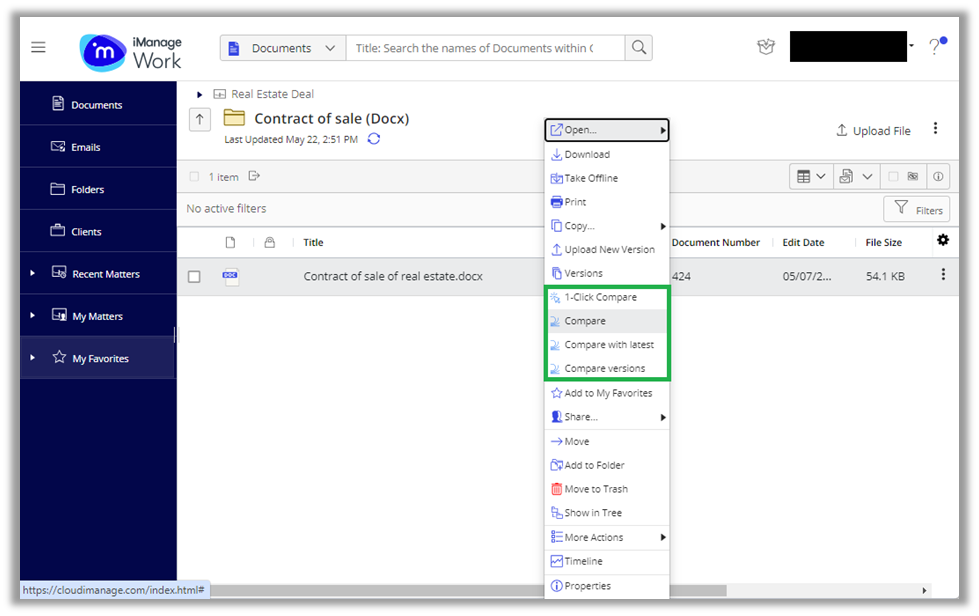
Load your input files from iManage via one of the following (links will provide you with detailed guides)...\
a) [The **iManage** option in the **New Comparison Window**](/hc/en-us/articles/20525575831705-Running-compares-with-files-from-iManage-and-saving-outputs-to-iManage),
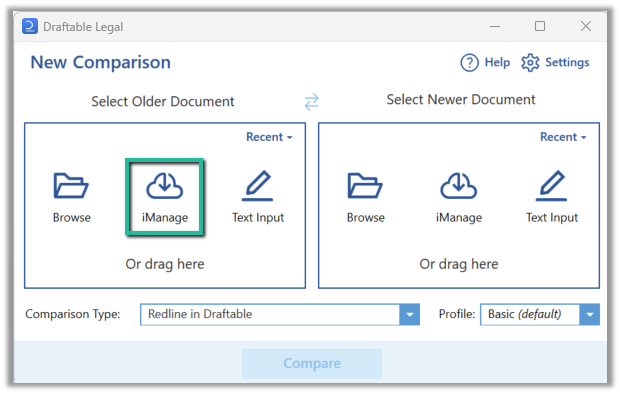 b) [Using the Draftable commands within iManage](/hc/en-us/articles/22873285776409-Launching-comparisons-from-within-iManage), or
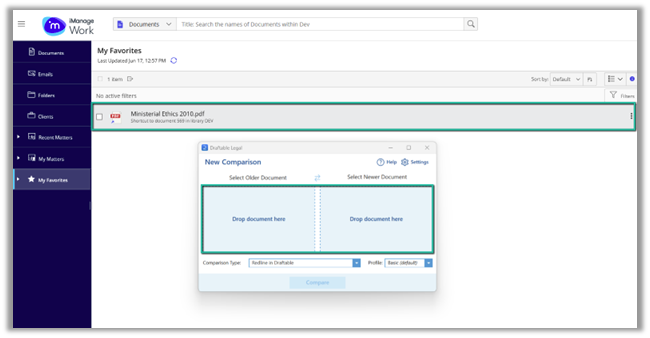
 c) **Dragging and dropping** from iManage
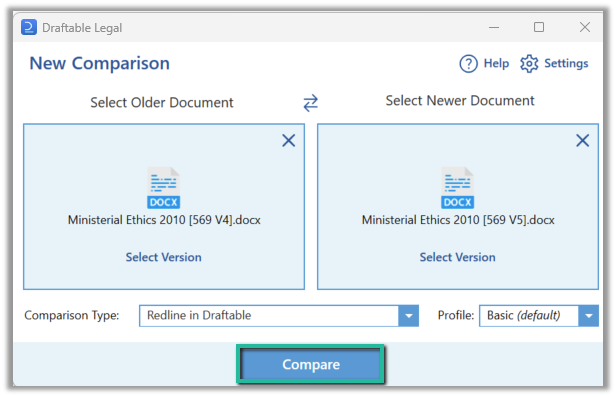
 Once your input files are loaded into the **New Comparison Window,** select the Comparison Type you want and hit **Compare.**
 ## Saving comparison files to automatically open in iManage
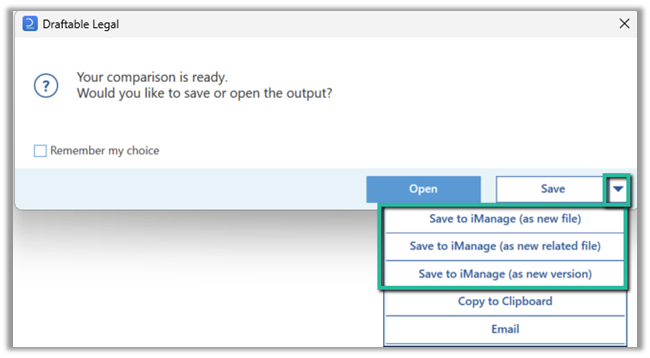
If you select **Tracked Changes in Word** you will have the option to **save directly to iManage** as a new file, a new related file or new version by **selecting the down arrow** on the right side of the **Save** option
## Saving comparison files to automatically open in iManage
If you select **Tracked Changes in Word** you will have the option to **save directly to iManage** as a new file, a new related file or new version by **selecting the down arrow** on the right side of the **Save** option
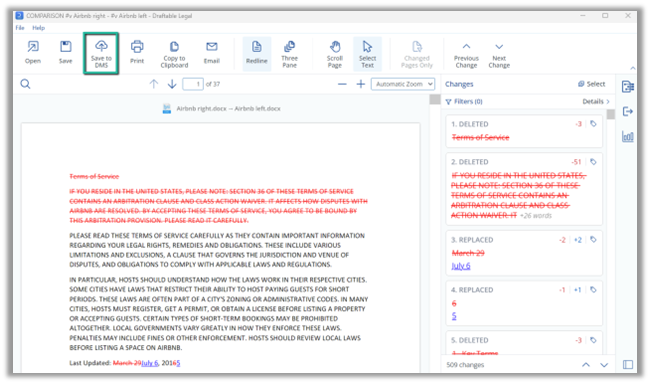
 If you select **Redline in Draftable** or **Side by Side**, your comparison will open in the Draftable Viewer. In this example, we will show the workflow with a Redline in Draftable but the approach is the same for Side by Side.
In the **Draftable Viewer,** select the **Save to DMS icon** n the Ribbon at the viewer.
If you select **Redline in Draftable** or **Side by Side**, your comparison will open in the Draftable Viewer. In this example, we will show the workflow with a Redline in Draftable but the approach is the same for Side by Side.
In the **Draftable Viewer,** select the **Save to DMS icon** n the Ribbon at the viewer.
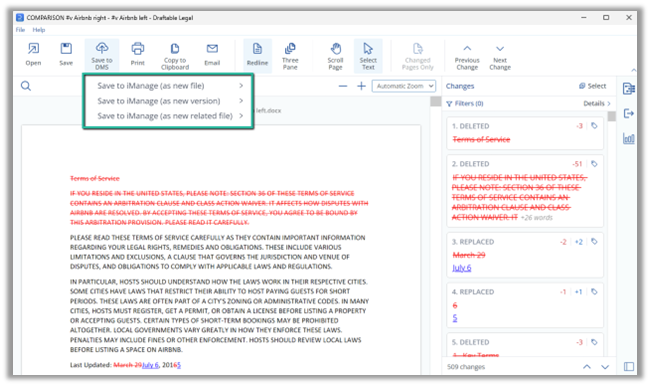
 In the **Save to DMS** menu, select either **Save to iManage (as new file)** or **Save to iManage (as new version)** or **Save to iManage (as new related file)**
 After selecting how you want to save the comparison, you can then go ahead and pick which format and type of comparison you would like to save, so either the **Redline, Changed Pages Only, Tracked Changes** or **Changes Report.**
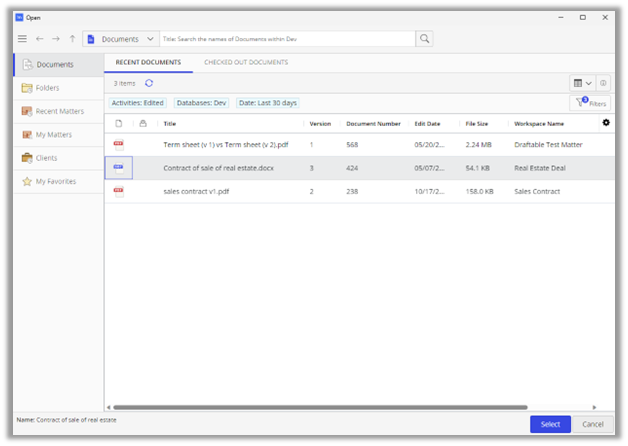
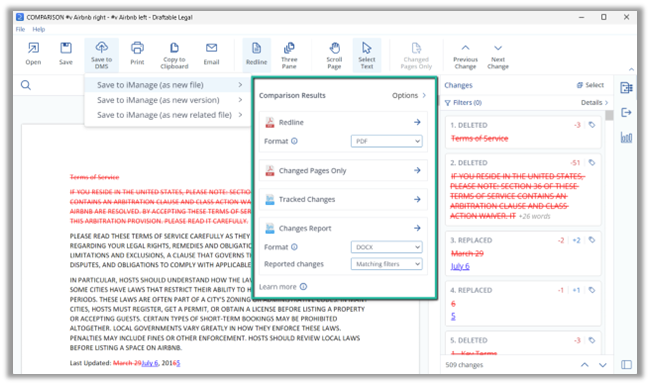 **Follow the steps** within the **iManage window** to save your file.
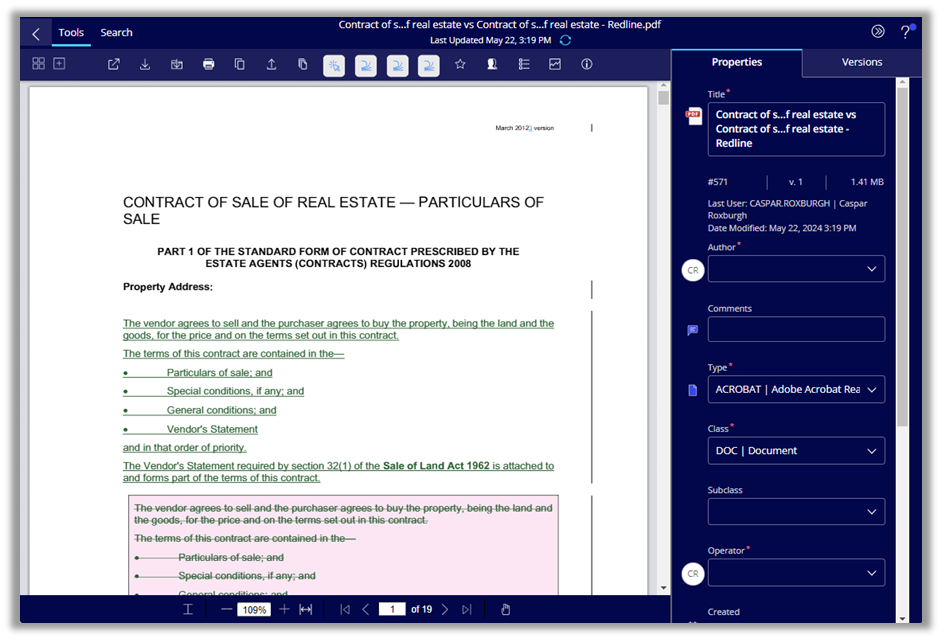
 Once you hit **Save**, your default web browser will **automatically open to display the document** in iManage .
 If you have any issues with this process or otherwise need assistance, please reach out to our support team at [support@draftable.com](mailto:support@draftable.com)