> ## Documentation Index
> Fetch the complete documentation index at: https://help.draftable.com/llms.txt
> Use this file to discover all available pages before exploring further.
# Running comparisons with files from SharePoint Online and saving outputs to SharePoint
> SharePoint is a leading secure cloud-based content management software designed for use across a wide variety of industries.
This article will guide you on how to initiate comparisons by selecting documents from SharePoint online, and how to preserve these comparison exports as outputs within SharePoint.
**Please note:** In order to use the features outline in this article, you must first:
* Have [enabled the SharePoint integration in your Draftable Settings and connected your account](/hc/en-us/articles/25442111938585-Connecting-your-Sharepoint-account-with-Draftable-Legal).
## Ensuring SharePoint integration can handle large numbers (1000+) of sites
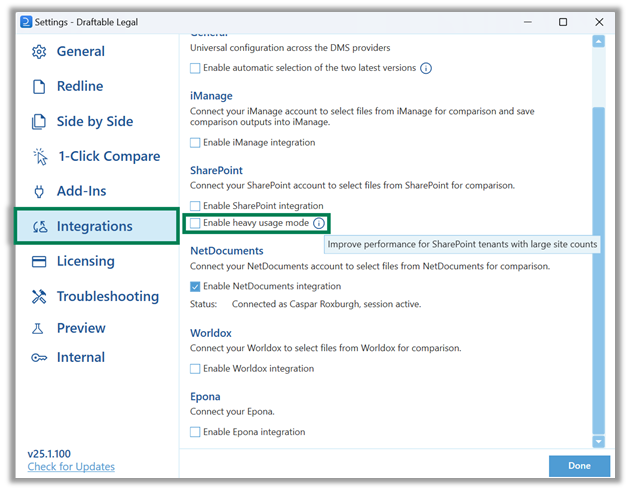
For users who have 1000s of SharePoint sites, you will need to first enable "Heavy Usage Mode" in your Integration Settings (go to the Settings in Draftable, select the "Integrations" tab and under the SharePoint integration section, select the checkbox for 'Enable Heavy Usage Mode')
 ## Selecting input files from SharePoint Online to start a comparison
**Dragging files from SharePoint in a web browser is no longer supported** (a Microsoft change to SharePoint Online that Draftable cannot work around). Use the SharePoint file picker described below instead.
Within the Draftable Legal **New Comparison Window**, click **SharePoint**
## Selecting input files from SharePoint Online to start a comparison
**Dragging files from SharePoint in a web browser is no longer supported** (a Microsoft change to SharePoint Online that Draftable cannot work around). Use the SharePoint file picker described below instead.
Within the Draftable Legal **New Comparison Window**, click **SharePoint**
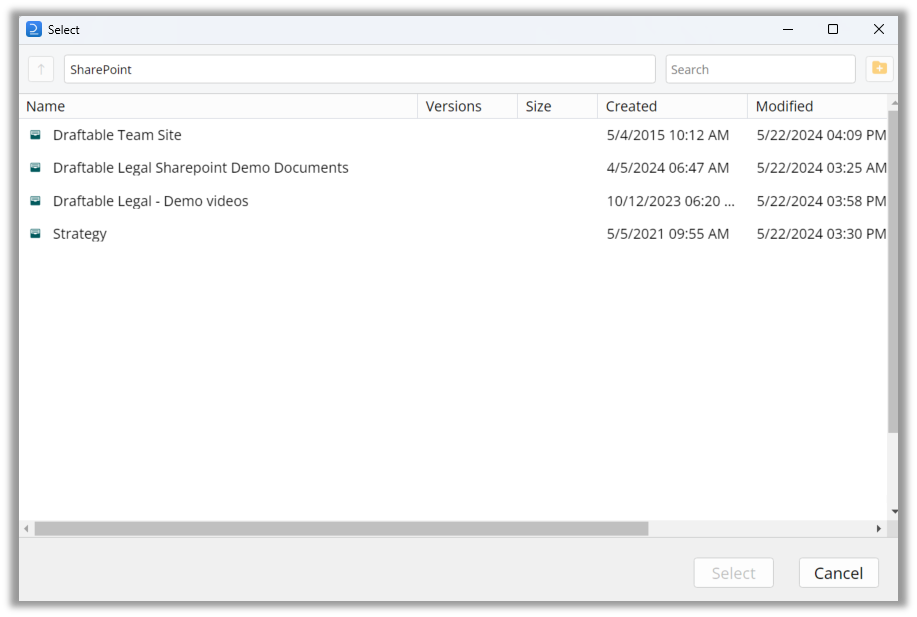
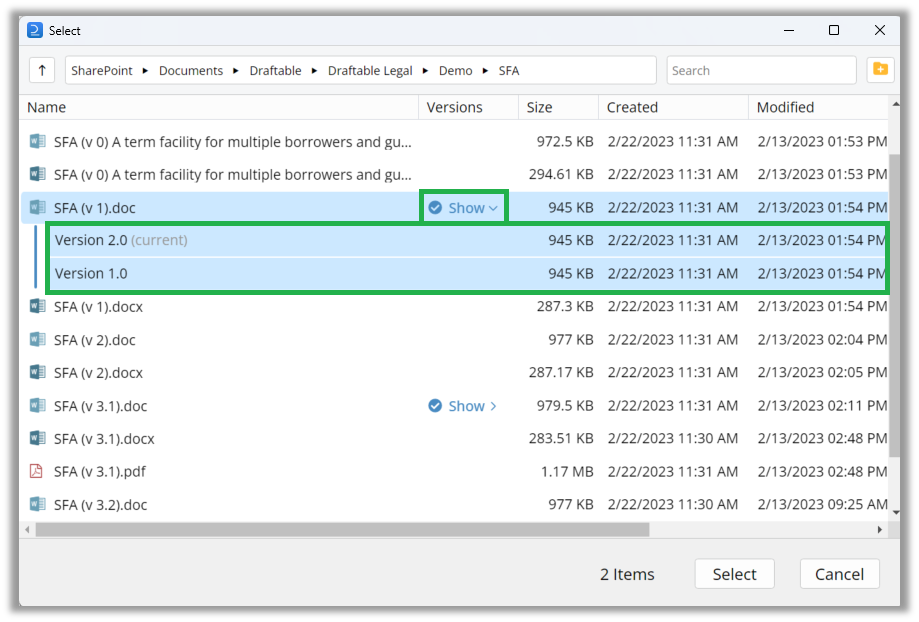
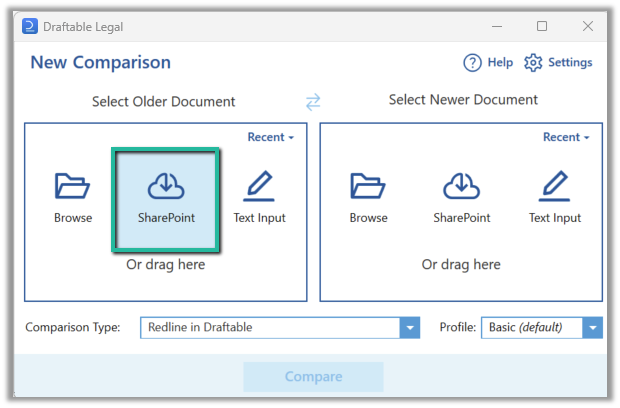 This will launch **Draftable's** **file explorer menu,** where you can **navigate to the file(s)** you wish to compare
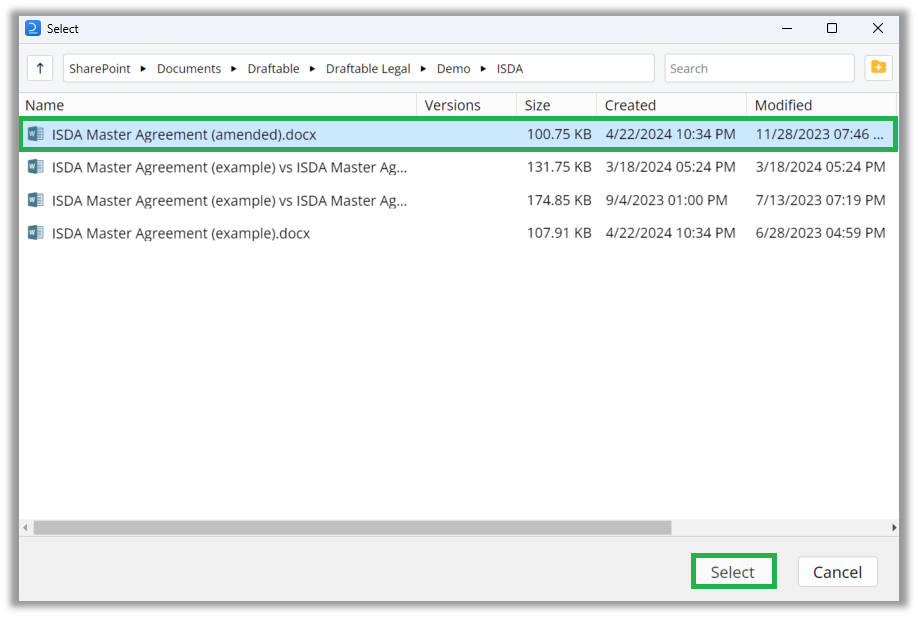
 Navigate to your desired file location and **click on the document** **you wish to load**. Once the document is highlighted click on **Select**
 If you would like to load a specific version of a document, simply click on the **Show** option in the Versions column and the file versions will appear. Select the version(s) you wish to compare (using Ctrl for multi select) and click **Select**
 Once selected, the input document(s) will appear in the **New Comparison Window**. You can **repeat this process** (steps 1-4) for the newer document if this wasn't selected with the older document. If you need to switch the order of the documents loaded, you can use the two arrows icon in the top-center of the window
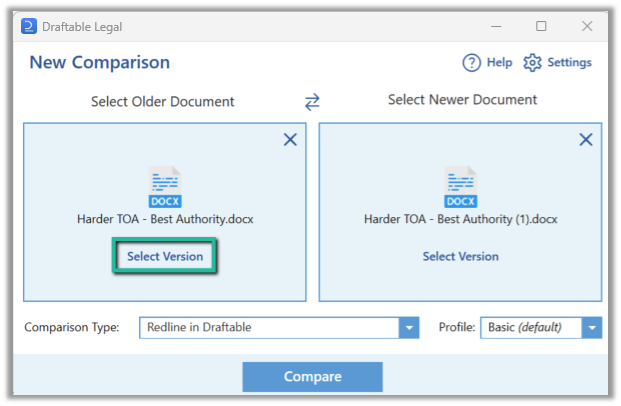
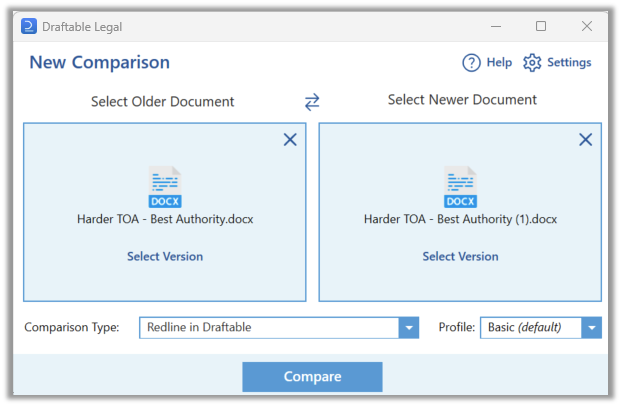 You can also change the file version loaded or add another version by using the **Select Version** option under each filename
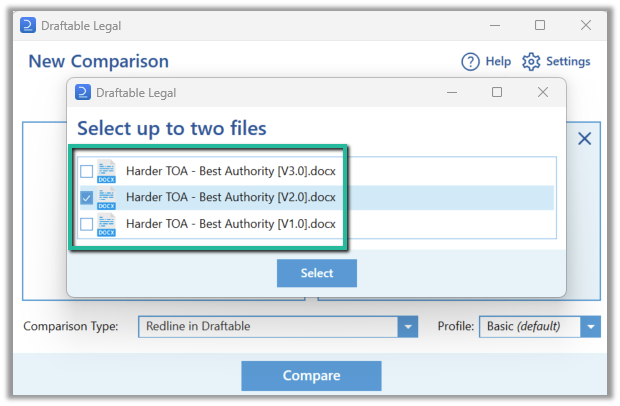
 This will display the Version Selection menu where you can choose one version to replace the current version loaded or select two versions to replace both files in the launcher
 Once both documents have been loaded, select your **Comparison Type** from the drop down menu
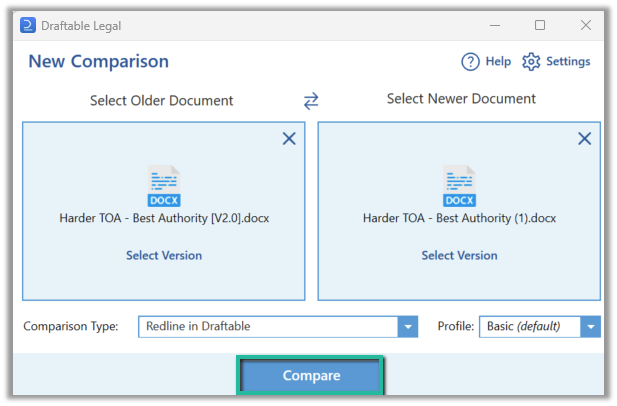
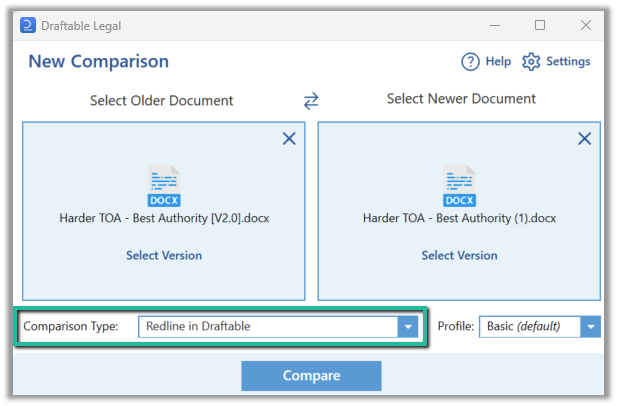 Start your comparison by clicking **Compare**
 ## Saving comparison outputs to SharePoint
### Option 1: Saving via the Draftable Viewer (all output types)
First, in the **New Comparison Window** ensure the **Redline in Draftable** Comparison Type has been selected then hit **Compare**
## Saving comparison outputs to SharePoint
### Option 1: Saving via the Draftable Viewer (all output types)
First, in the **New Comparison Window** ensure the **Redline in Draftable** Comparison Type has been selected then hit **Compare**
 Once the comparison is ready, the **Comparison Viewer** will appear
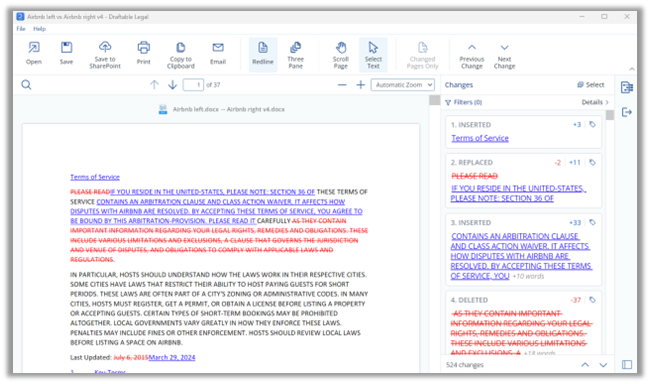 Click on the **Save to SharePoint** button in the Draftable ribbon.
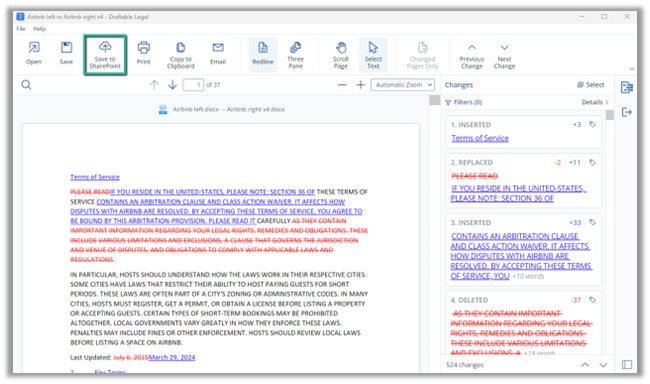 This will bring up the **Comparison Results options**:
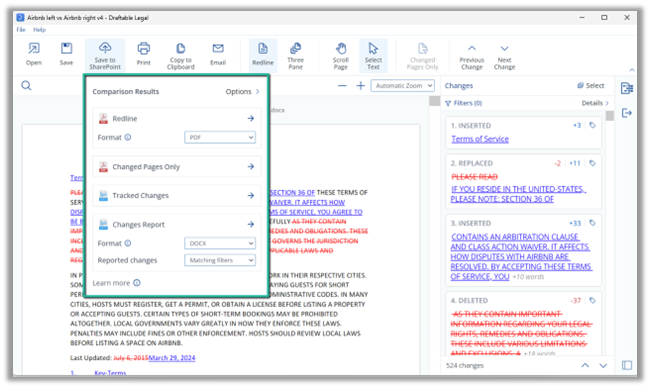 You can select from one of the below options:
**Redline:** This saves into a .pdf or .docx file where all changes are marked or "redlined" over the base document. This layout allows for easy visual comparison between the original and new versions of the document.
**Changed Pages Only:** This is similar to the Redline option, but it only includes pages where changes have occurred. This is a useful feature if you're dealing with lengthy documents and you want to focus just on the pages with modifications. Can only be saved as a .PDF.
**Tracked Changes:** This saves into a .docx file with all updates embedded as 'Tracked Changes' in Microsoft Word. This is useful for further editing or reviewing in Word, as you can accept or reject changes individually and keep a record of who made what changes and when.
**Changes Report:** This will save a summary of the document changes found within the Redline. You can pick to either save this in a DOCX or a CSV file format and show all the Reported changes, or just those Matching the filters you have set in the Change List panel.
Also, if you click on the **"Options'** link at the top of the Comparison Results pop up window, you will also see two additional choices.
You can select from one of the below options:
**Redline:** This saves into a .pdf or .docx file where all changes are marked or "redlined" over the base document. This layout allows for easy visual comparison between the original and new versions of the document.
**Changed Pages Only:** This is similar to the Redline option, but it only includes pages where changes have occurred. This is a useful feature if you're dealing with lengthy documents and you want to focus just on the pages with modifications. Can only be saved as a .PDF.
**Tracked Changes:** This saves into a .docx file with all updates embedded as 'Tracked Changes' in Microsoft Word. This is useful for further editing or reviewing in Word, as you can accept or reject changes individually and keep a record of who made what changes and when.
**Changes Report:** This will save a summary of the document changes found within the Redline. You can pick to either save this in a DOCX or a CSV file format and show all the Reported changes, or just those Matching the filters you have set in the Change List panel.
Also, if you click on the **"Options'** link at the top of the Comparison Results pop up window, you will also see two additional choices.
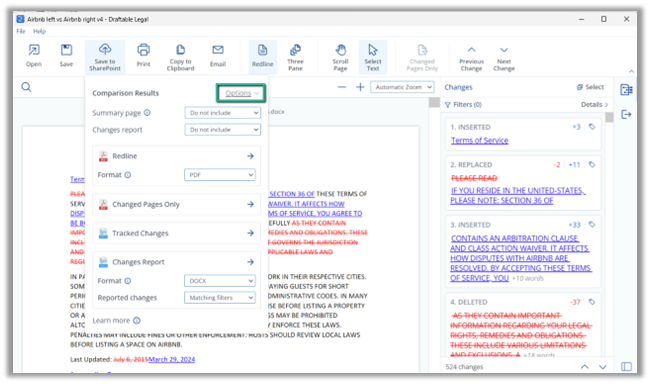 **Summary page:** Includes a brief summary of the number of changes made, as well at the Markup Schema used for the Redline
**Changes report:** Includes the full changes report either at the start of the document or at the end.
The Draftable **'Save As' window** will now appear. By default, this will open in the SharePoint location where the newer input file was stored. From here you can navigate through SharePoint online, edit the file name and create new folders as needed.
**Summary page:** Includes a brief summary of the number of changes made, as well at the Markup Schema used for the Redline
**Changes report:** Includes the full changes report either at the start of the document or at the end.
The Draftable **'Save As' window** will now appear. By default, this will open in the SharePoint location where the newer input file was stored. From here you can navigate through SharePoint online, edit the file name and create new folders as needed.
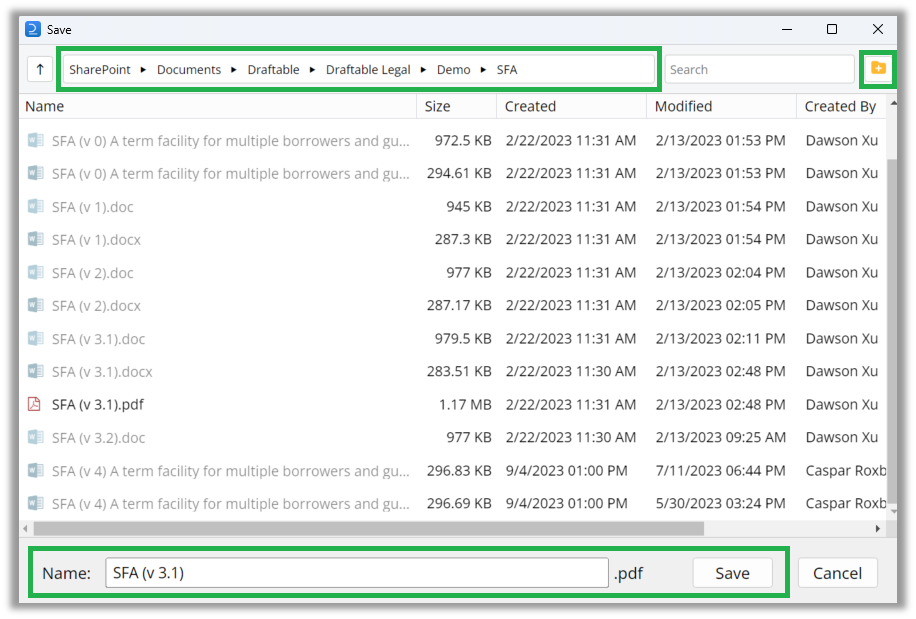 Enter the relevant details and select **'Save'**. Your document has now been saved to **SharePoint**
### Option 2: Saving directly to SharePoint (Tracked Changes in Word outputs)
First, in the **New Comparison Window** ensure the **Tracked Changes in Word** has been selected then hit **Compare**
Enter the relevant details and select **'Save'**. Your document has now been saved to **SharePoint**
### Option 2: Saving directly to SharePoint (Tracked Changes in Word outputs)
First, in the **New Comparison Window** ensure the **Tracked Changes in Word** has been selected then hit **Compare**
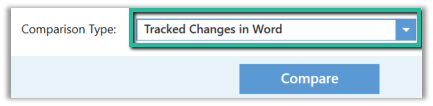 Once the comparison is ready, you will see a popup asking whether you want to Open or Save your comparison output
Note, some users may have set a default action for these comparisons in the Redline section of the Settings menu. If this is the case, you will need to change this setting to see the popup. See [Redline comparison settings](/hc/en-us/articles/16549612535705-Redline-comparison-settings) for details.
Once the comparison is ready, you will see a popup asking whether you want to Open or Save your comparison output
Note, some users may have set a default action for these comparisons in the Redline section of the Settings menu. If this is the case, you will need to change this setting to see the popup. See [Redline comparison settings](/hc/en-us/articles/16549612535705-Redline-comparison-settings) for details.
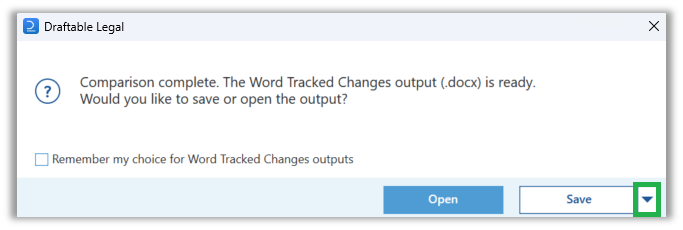
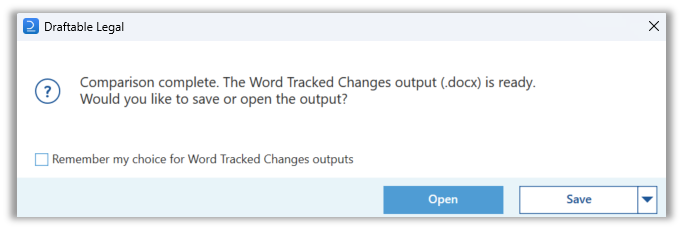 On the right side of the Save option, hit the **down arrow** to show more options
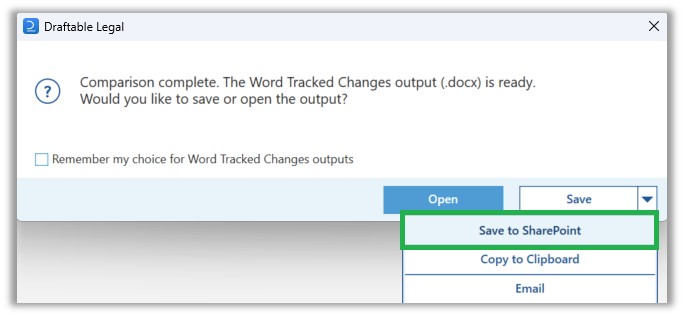
 Select **Save to SharePoint** from the drop down menu
 The Draftable **'Save As' window** will now appear. By default, this will open in the SharePoint location where the newer input file was stored. From here you can navigate through SharePoint online, edit the file name and create new folders as needed
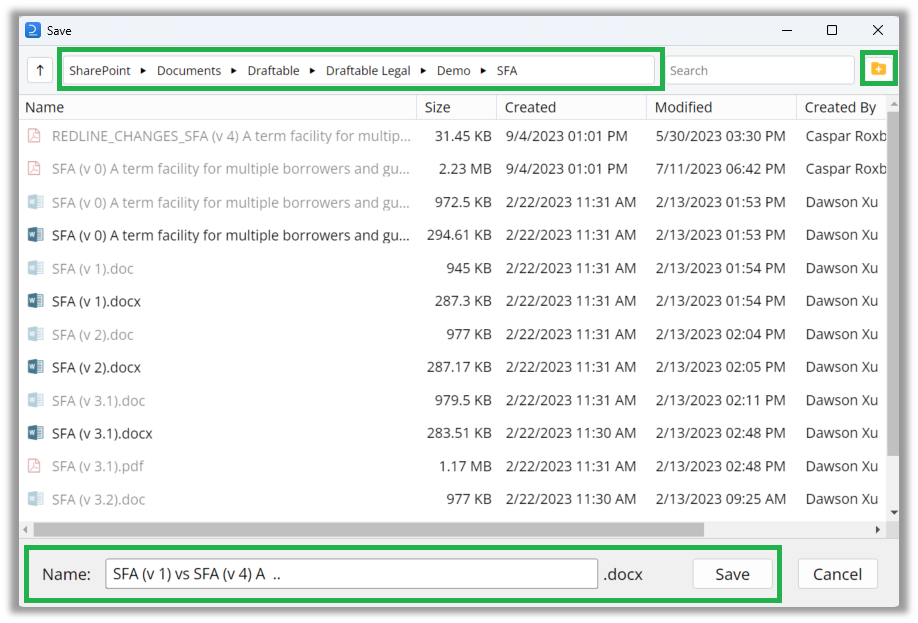 Enter the relevant details and select **'Save'**. Your document has now been saved to **SharePoint**