> ## Documentation Index
> Fetch the complete documentation index at: https://help.draftable.com/llms.txt
> Use this file to discover all available pages before exploring further.
# Comparing PowerPoint files in Draftable Legal
> In direct response to user feedback, the Draftable team is developing a dedicated comparison algorithm to compare PowerPoint files and produce a PowerPoint file with changes shown as redlined markup. This is currently available as a Preview feature and will be released to all customers in November 2024. If you want access to this feature before it is released to all customers, please contact your Account Executive or contact [product@draftable.com](mailto:product@draftable.com).
Otherwise, Draftable Legal currently supports PowerPoint file comparisons via two approaches:
1. Redline PowerPoint comparison, viewed in PowerPoint
2. Redline PowerPoint comparison, viewed in Draftable
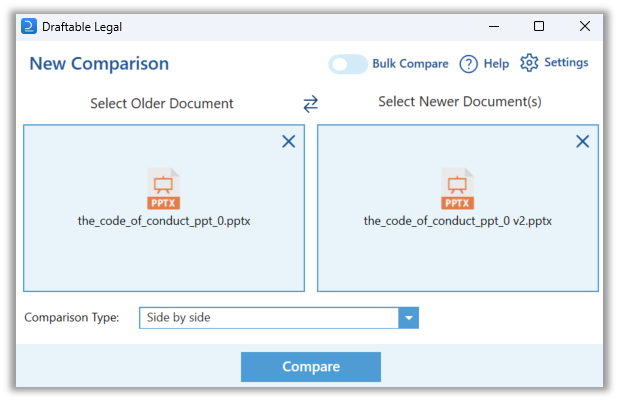
3. Using the Side-by-Side comparison type
This article shows you how to run both of these comparison types. Additionally, this article also include an explanation of the settings for Redline PowerPoint comparison that can be used to configure Redline comparisons.
This topic is included in our specially crafted explainer video.
## How to compare PowerPoint files in the Redline Comparison Type in PowerPoint
Open the [Draftable Legal New Comparison window.](/hc/en-us/articles/19002140760217-Launching-a-Comparison-in-Draftable-Legal-A-Step-by-Step-Guide)
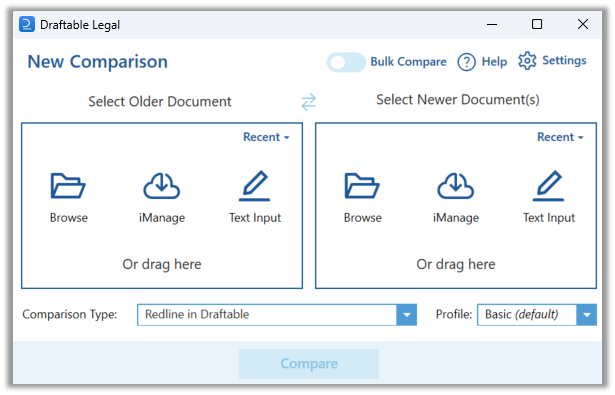 Select the two documents you want to compare, either by browsing your files or dragging and dropping them into the compare window.
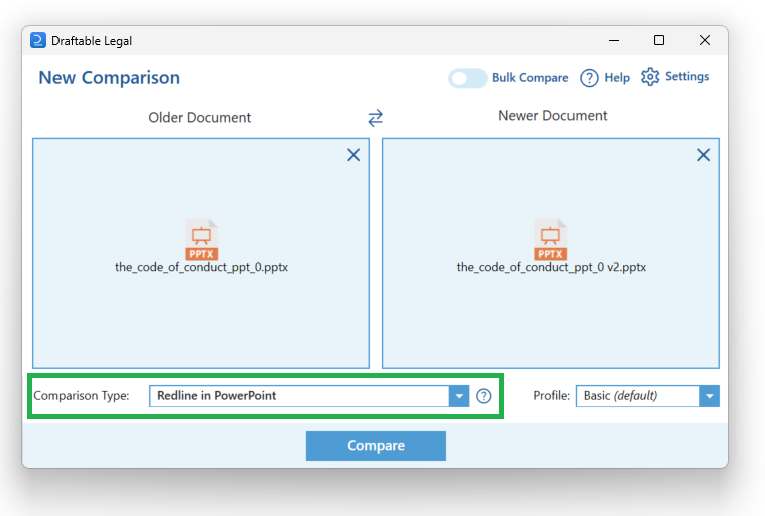
 Ensure you have selected the **Redline in PowerPoint** option for comparison type. Then, hit **Compare.**
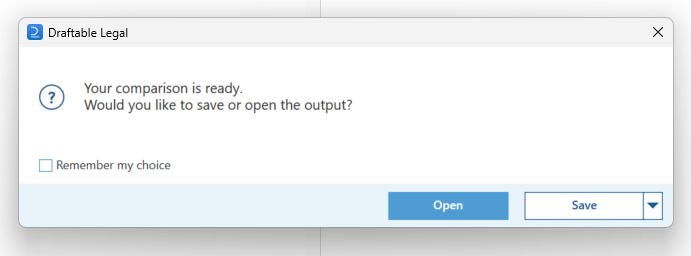
 You will be asked whether you prefer to save the comparison as an export or open it directly in PowerPoint. For the sake of example, we will open this comparison directly into PowerPoint.
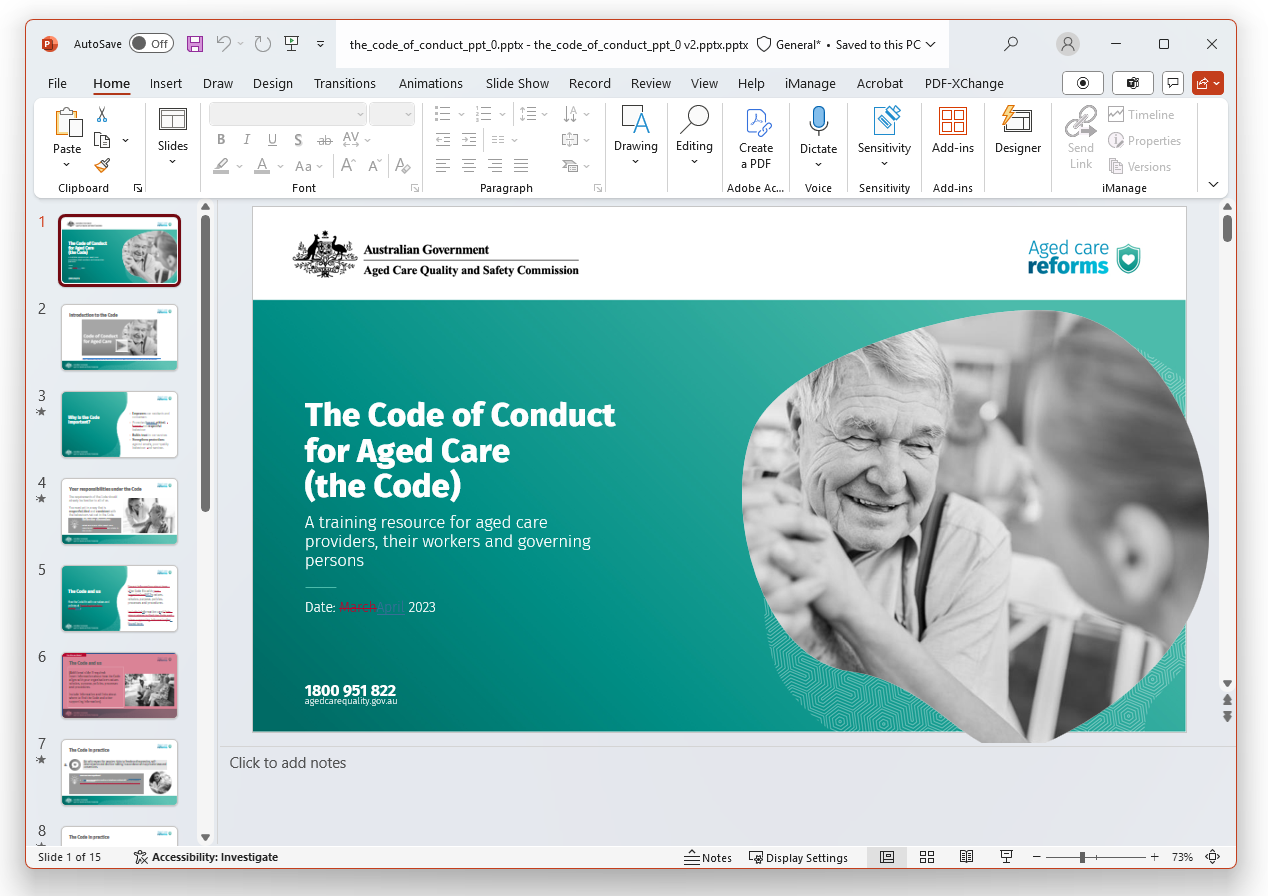
 Your comparison will be opened in PowerPoint
 ### Reviewing your comparison in PowerPoint
Viewing your Redline PowerPoint comparison in PowerPoint, you will note many different formatting elements. Lets take the slide below as an example:
### Reviewing your comparison in PowerPoint
Viewing your Redline PowerPoint comparison in PowerPoint, you will note many different formatting elements. Lets take the slide below as an example:
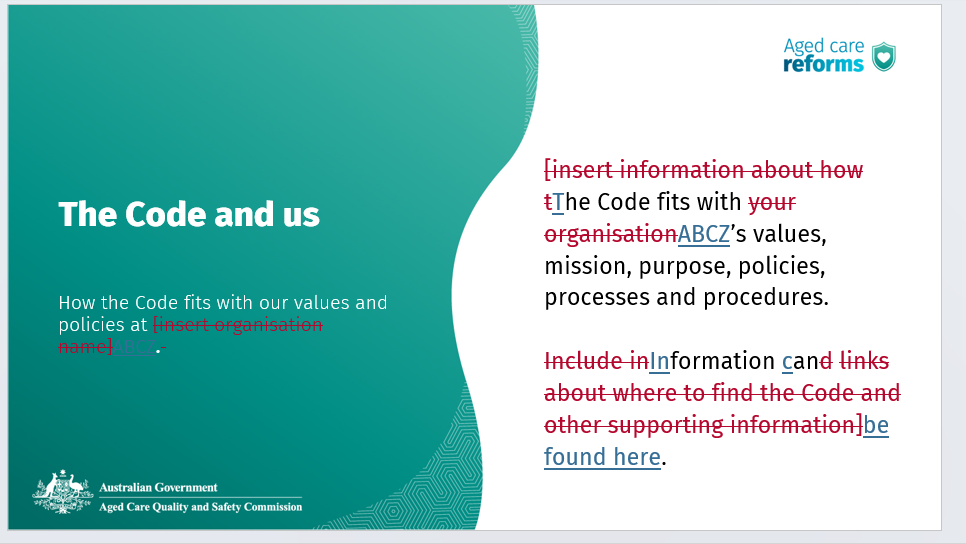 First, we can see 3 elements:
* Text that is highlighted in Red Strikethrough, to indicate this content has been deleted
* Text that is highlighted in Blue Underline, to indicate this content has been added
* Text that remains unchanged, to indicate this content is the same between both documents.
Additionally, in other slides, you will see some content appear in *greyscale*, this is to indicate that this content has also remained unchanged (this can be changed in the settings menu). See the example below:
First, we can see 3 elements:
* Text that is highlighted in Red Strikethrough, to indicate this content has been deleted
* Text that is highlighted in Blue Underline, to indicate this content has been added
* Text that remains unchanged, to indicate this content is the same between both documents.
Additionally, in other slides, you will see some content appear in *greyscale*, this is to indicate that this content has also remained unchanged (this can be changed in the settings menu). See the example below:
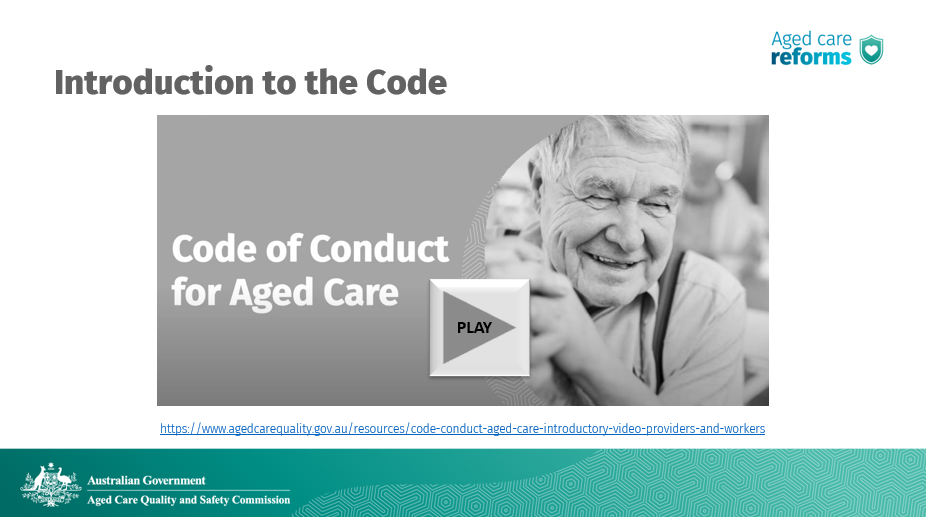 Here we see text content that has remained unchanged and an image that also is consistent between both documents.
## How to compare PowerPoint files in the Redline Comparison Type in Draftable
Open the [Draftable Legal New Comparison window.](/hc/en-us/articles/19002140760217-Launching-a-Comparison-in-Draftable-Legal-A-Step-by-Step-Guide)
Here we see text content that has remained unchanged and an image that also is consistent between both documents.
## How to compare PowerPoint files in the Redline Comparison Type in Draftable
Open the [Draftable Legal New Comparison window.](/hc/en-us/articles/19002140760217-Launching-a-Comparison-in-Draftable-Legal-A-Step-by-Step-Guide)
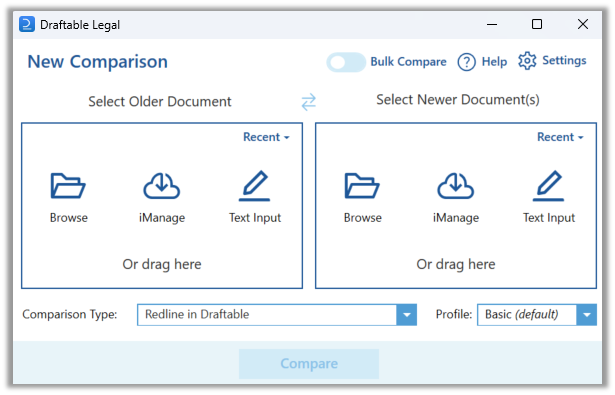 Select the two documents you want to compare, either by browsing your files or dragging and dropping them into the compare window.
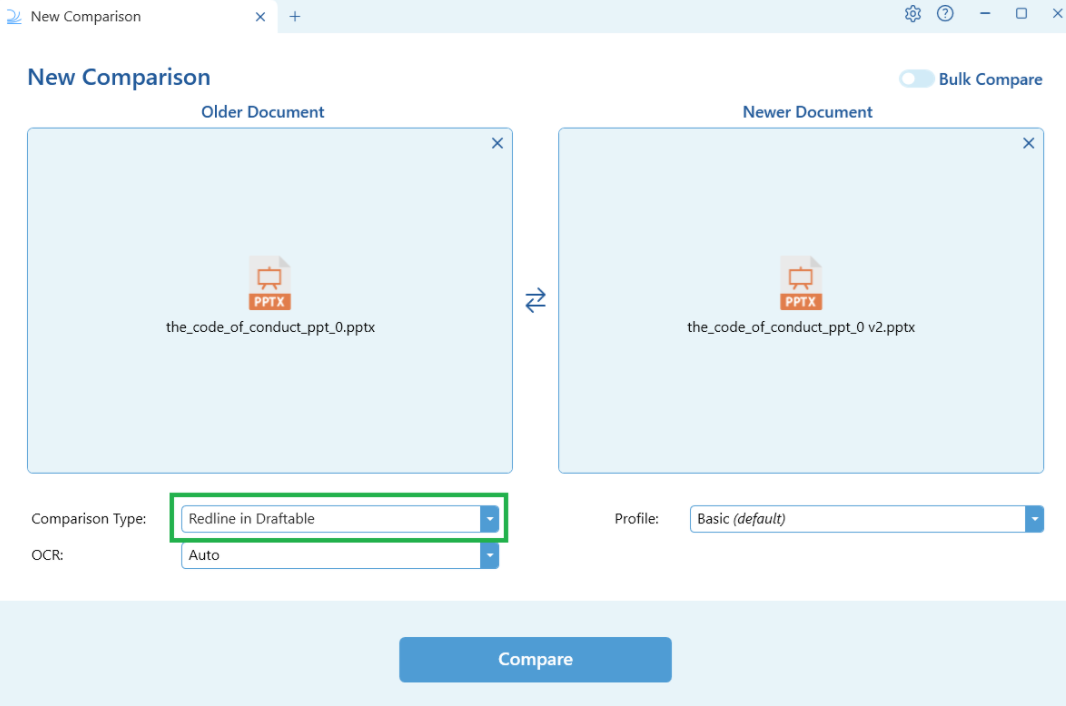
 Ensure you have selected the **Redline in Draftable** option for the comparison type. Then, hit **Compare.**
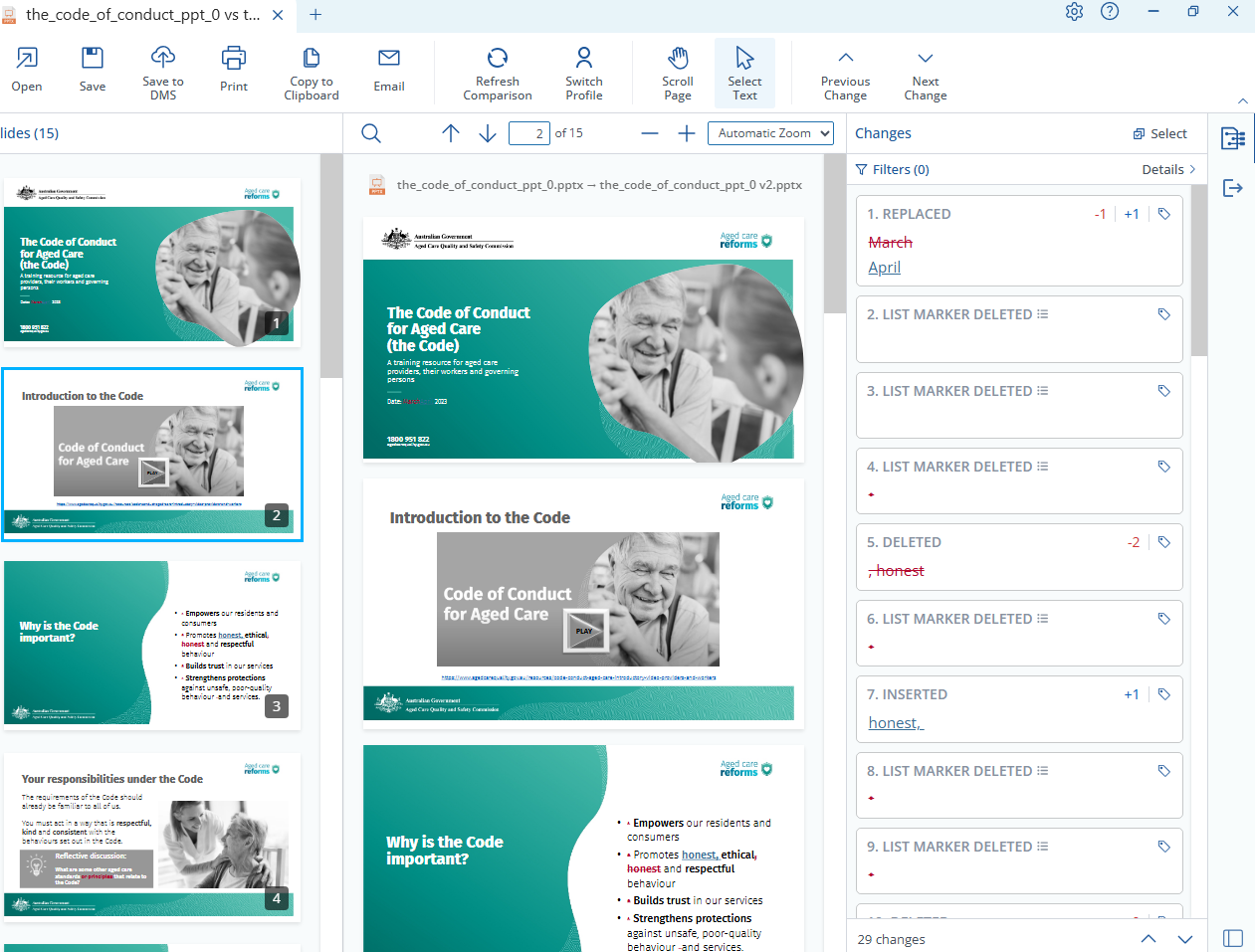
 Your comparison will be opened in Draftable
 ### Reviewing your Redline comparison in Draftable
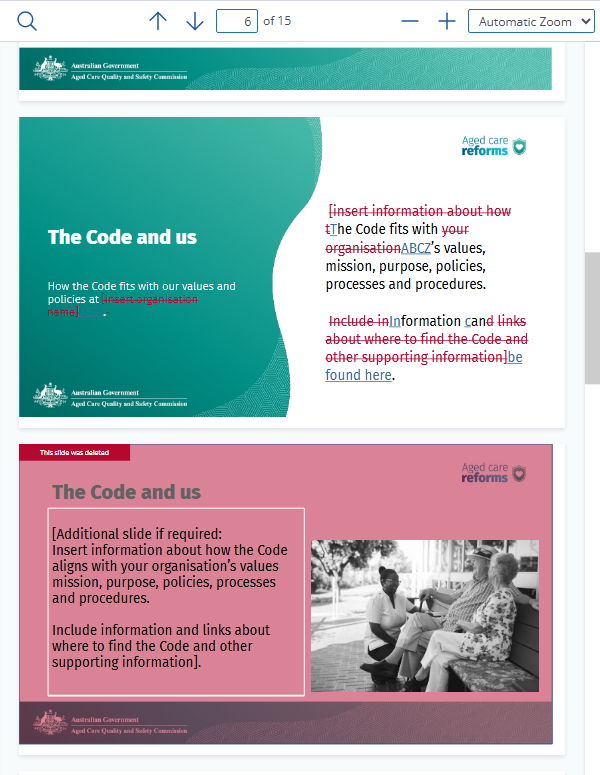
Viewing your Redline PowerPoint comparison in Draftable, you will note many different elements. Lets take the slide below as an example:
### Reviewing your Redline comparison in Draftable
Viewing your Redline PowerPoint comparison in Draftable, you will note many different elements. Lets take the slide below as an example:
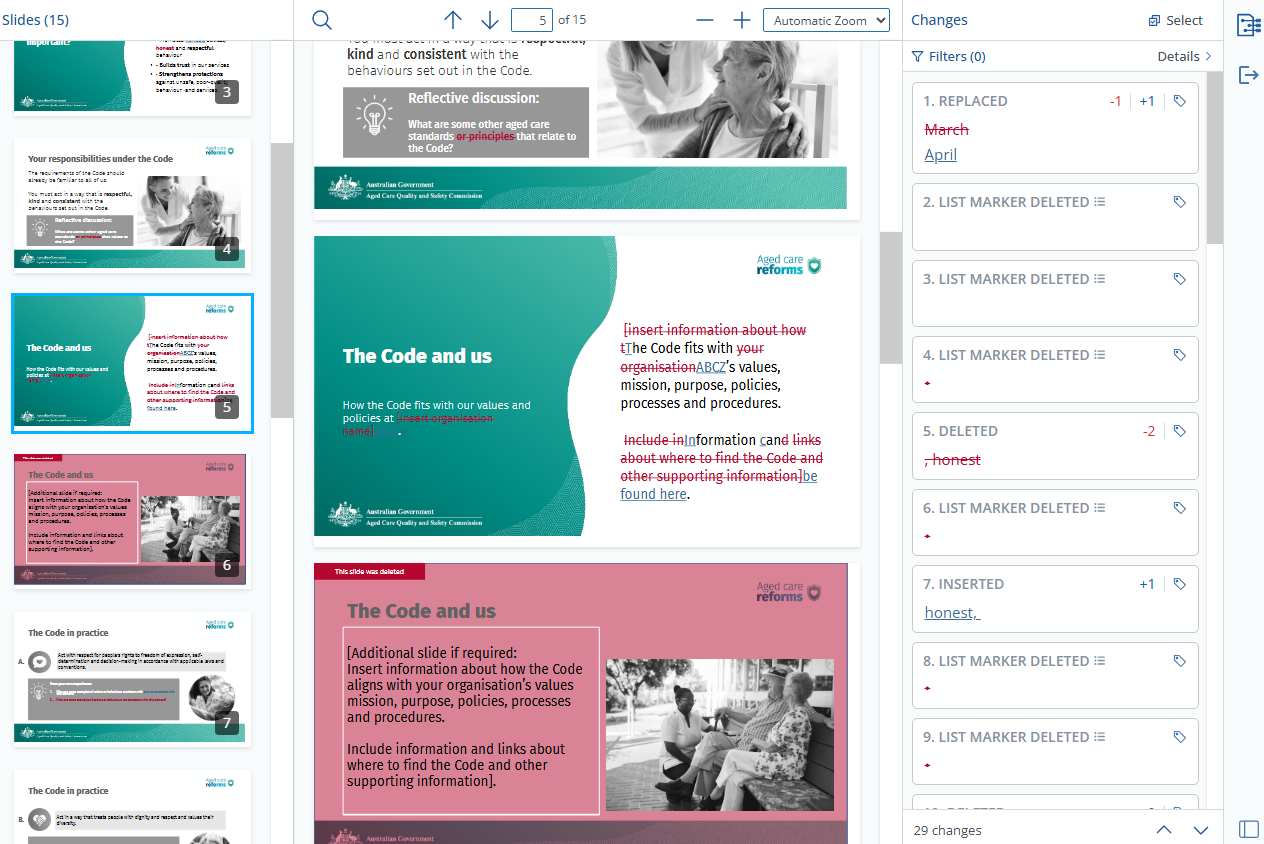 First, we can see 3 components in this viewer:
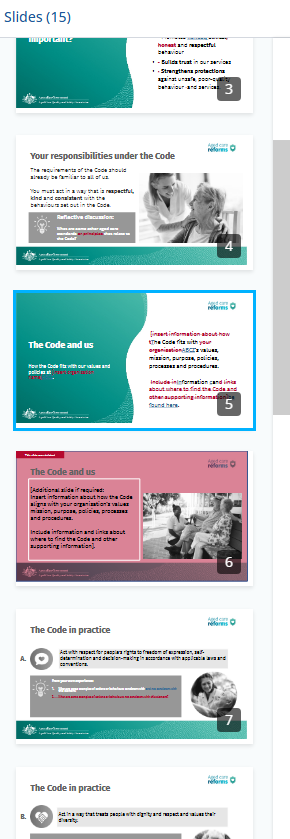
* The slide selection screen on the left: Allowing you to navigate between all the slides
First, we can see 3 components in this viewer:
* The slide selection screen on the left: Allowing you to navigate between all the slides
 * The slide preview screen in the middle: Where you can view your Redlined changes in the compared PowerPoint
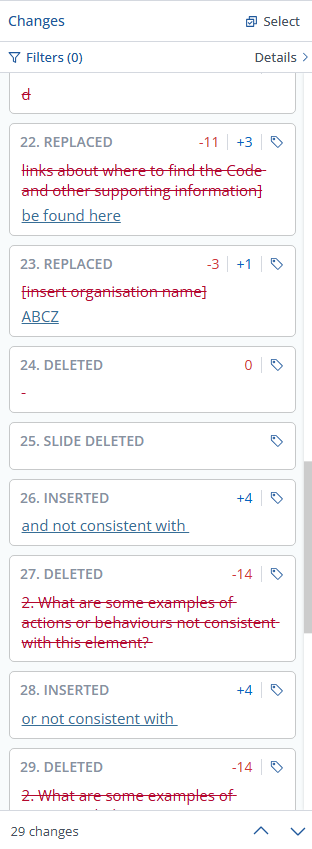
 * Redline Changelist: Where you can easily view all the changes made within this comparison
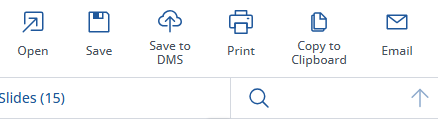
 * Export and saving options: Export options are also available within the Draftable viewer for easy sharing of comparisons for your team to review. Select any of the relevant options if you wish to save or export your Redlined PowerPoint comparison for later viewing
 Additionally, in other slides, you will see some content appear in *greyscale*, this is to indicate that this content has also remained unchanged (this can be changed in the settings menu). See the example below:
 Here we see image content that has remained unchanged; however, there are text changes found on the left-hand side where the date has changed.
PowerPoint Redline comparisons can be configured in the settings menu to better suit your use case.
## How to compare PowerPoint files in the Side-by-Side Comparison Type
Open the [Draftable Legal New Comparison window.](/hc/en-us/articles/19002140760217-Launching-a-Comparison-in-Draftable-Legal-A-Step-by-Step-Guide)
Here we see image content that has remained unchanged; however, there are text changes found on the left-hand side where the date has changed.
PowerPoint Redline comparisons can be configured in the settings menu to better suit your use case.
## How to compare PowerPoint files in the Side-by-Side Comparison Type
Open the [Draftable Legal New Comparison window.](/hc/en-us/articles/19002140760217-Launching-a-Comparison-in-Draftable-Legal-A-Step-by-Step-Guide)
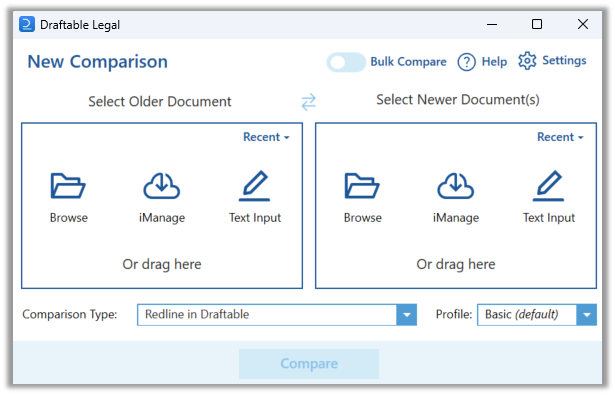 Select the two documents you want to compare, either by browsing your files or dragging and dropping them into the compare window.
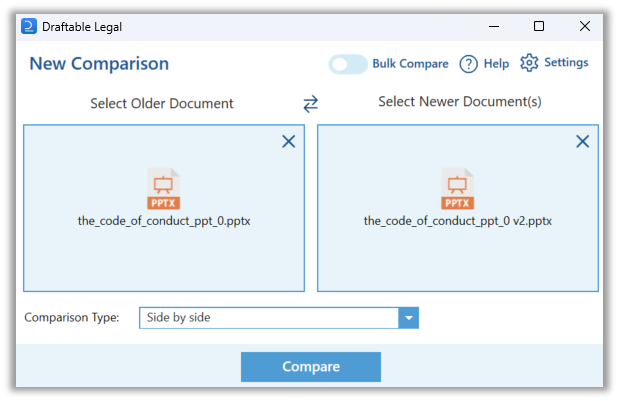
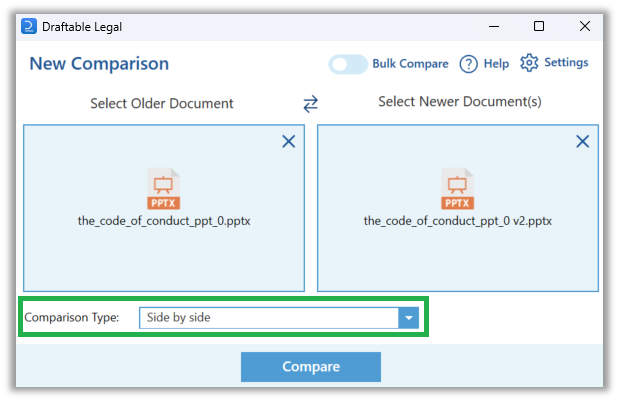
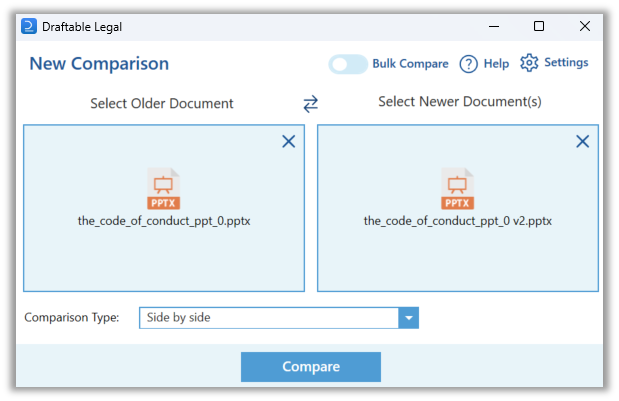 Once the documents are selected, tick the box for **Side by Side** in the comparison type row.
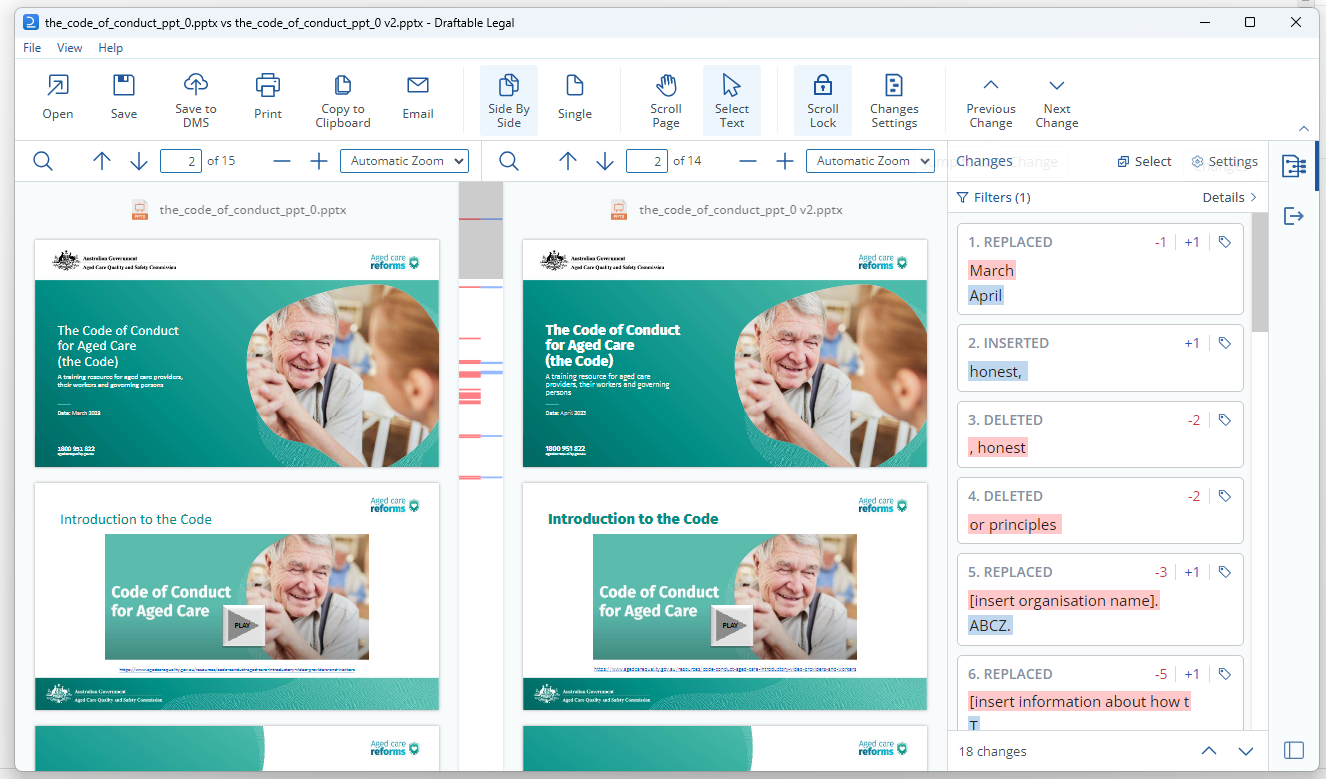
 Click the **Compare** button to run the comparison. When the comparison is complete, it will open in the Draftable **Comparison Viewer** with the older PowerPoint file on the left and newer on the right. Side by side comparisons show changes using highlights instead of redline markup.
 ### Reviewing your comparison in Draftable
The **Comparison Viewer** shows all changes in a dynamic **Change List** on the right-hand side of the screen.
### Reviewing your comparison in Draftable
The **Comparison Viewer** shows all changes in a dynamic **Change List** on the right-hand side of the screen.
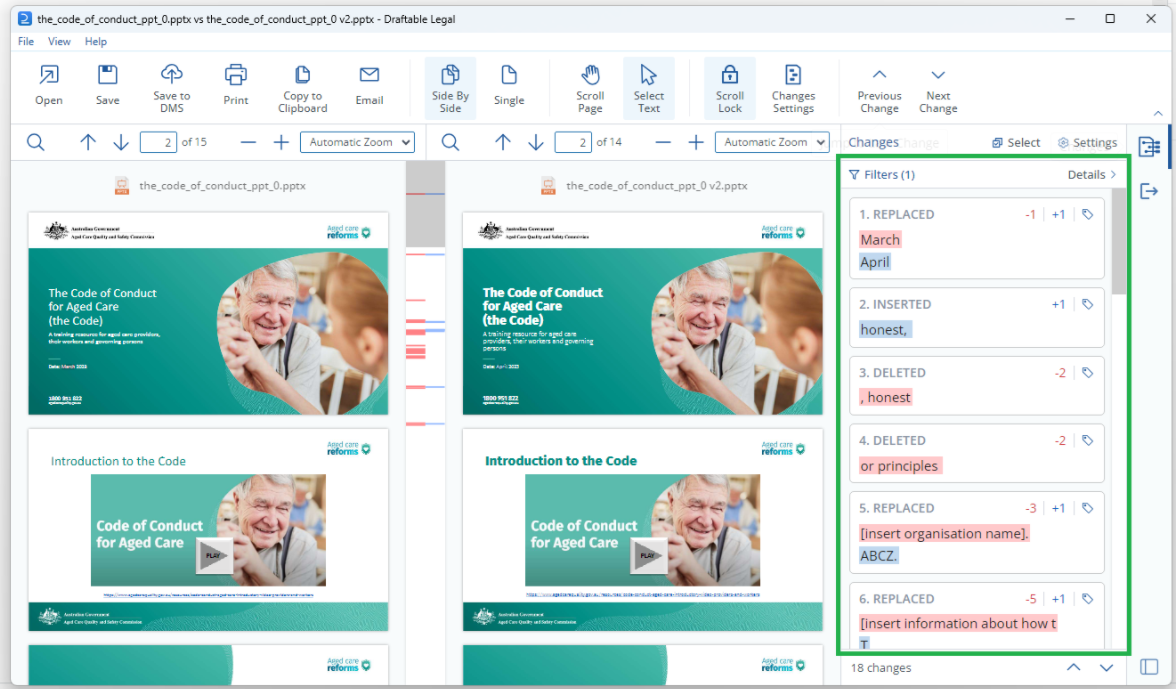 You can scroll through the Change List and **click on any change** **to jump to its location** and have the change **highlighted with a blue box** on both versions shown.
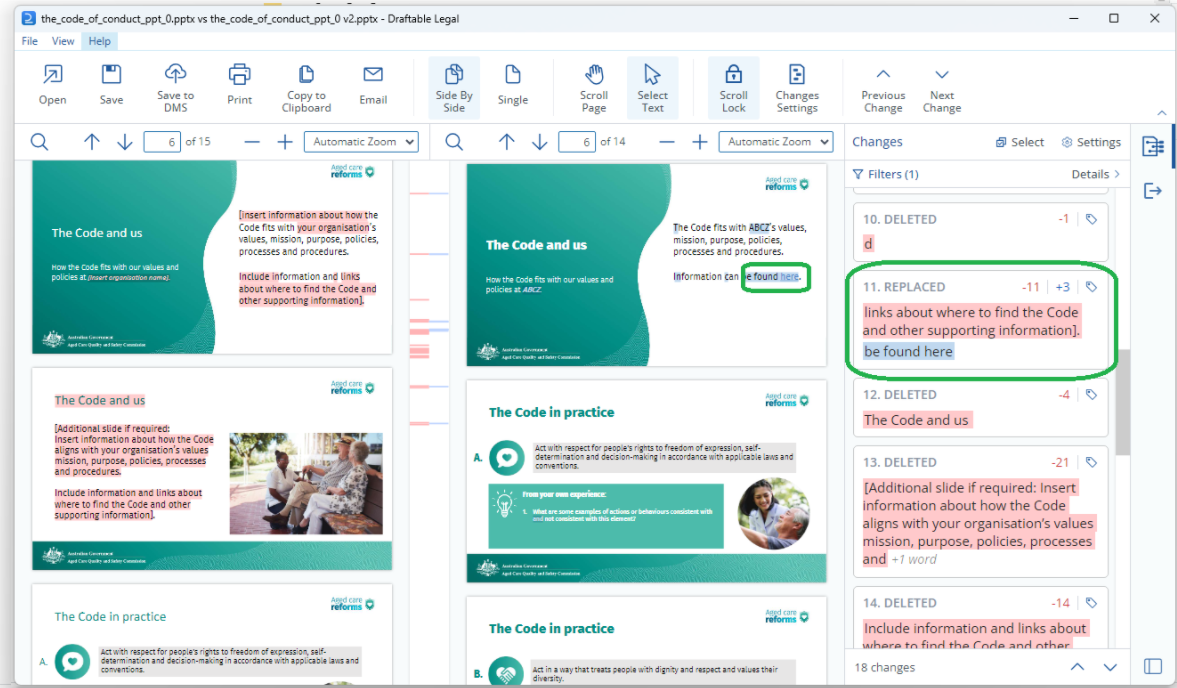 Users can tag changes by selecting the **Tag Icon** on the top right corner of the individual change card in the change list. This will display a list of **5 tagging options** to choose from. Multi-tagging of changes is also possible.
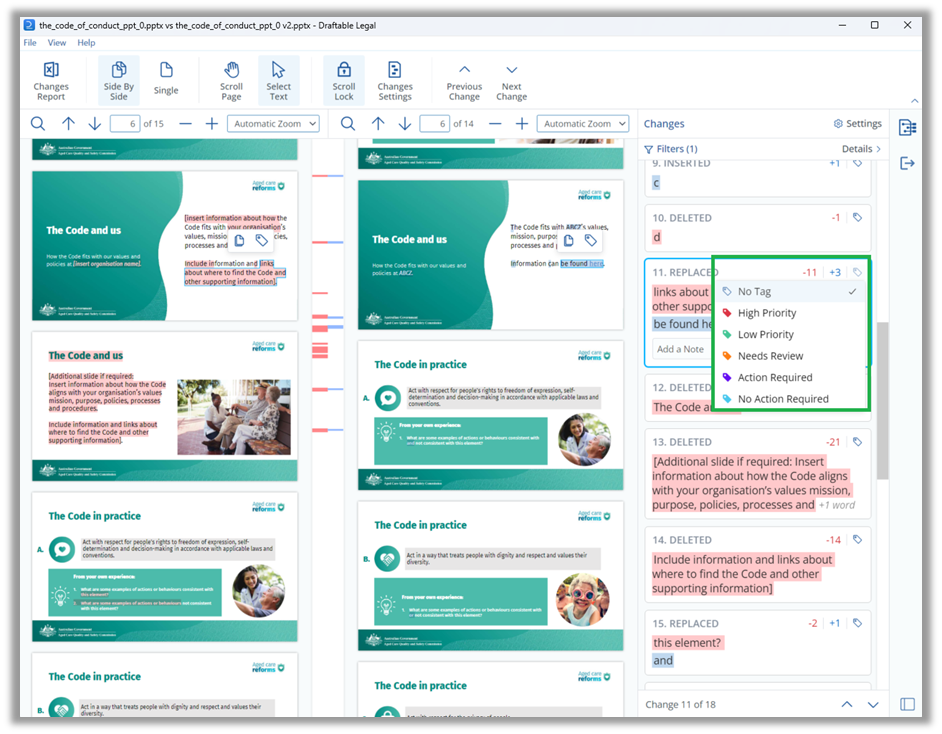 Users can also leave **Notes** on changes by **selecting the Change Card,** writing a note at the bottom of the card and hitting **Enter** to save the Note\*\*.
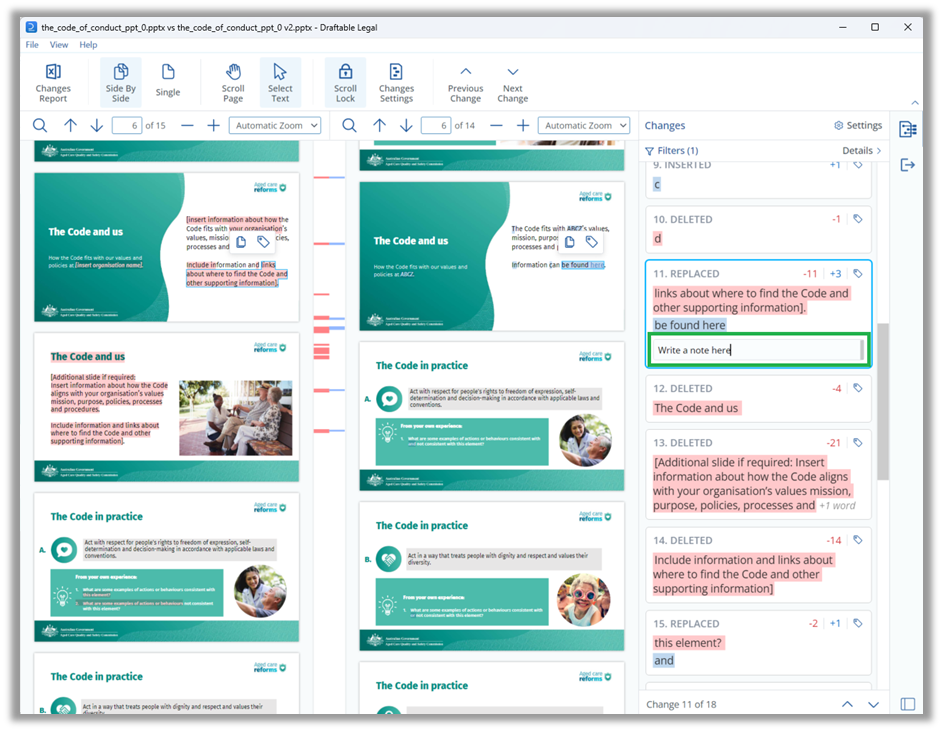 Users can filter changes by using the **Interactive Filter Menu**, available at the top of the change list. This can be opened by selecting the **Details drop-down menu** in the top right corner of the Change List.
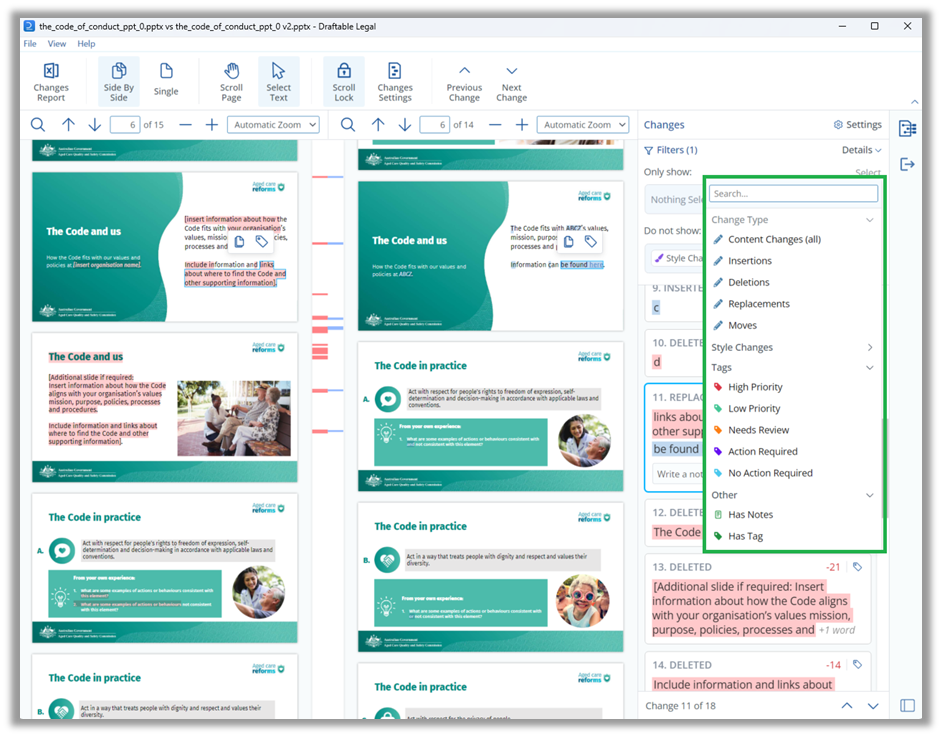
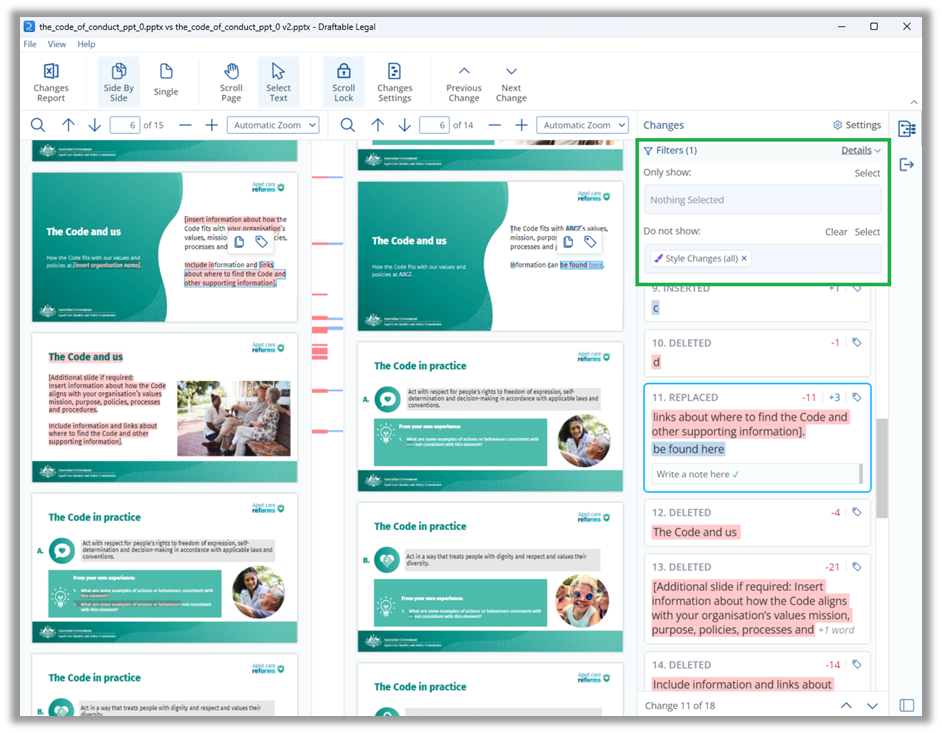 Users can **see filtering options** by selecting either the **Only Show** or **Do Not Show** entry forms. This will display a list of filtering options including **Change Type, Style Changes, Tags and Notes**.
 Once all changes have been reviewed, users can share the Change List, along with any Tags and Notes with colleagues or external parties via the output options, via the **Changes Report** export option.
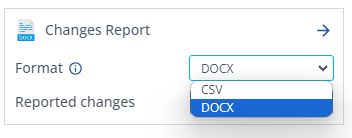
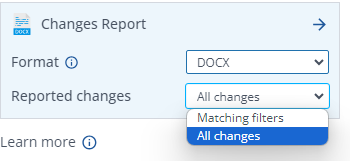
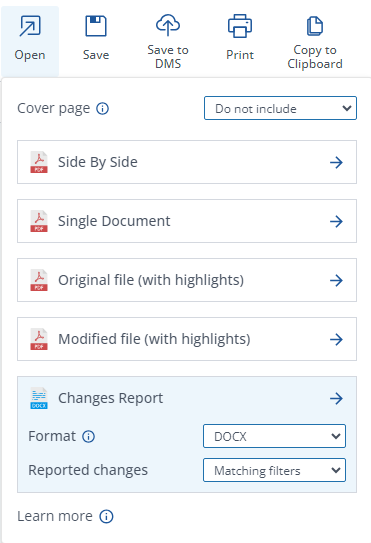 The Changes Report option, a drop-down list will provide options to export changes as a **DOCX** or **exporting to a** **.csv** using either the **All changes** or the **Matching filters**.
 ### Saving / printing / sharing your PowerPoint comparison as a PDF
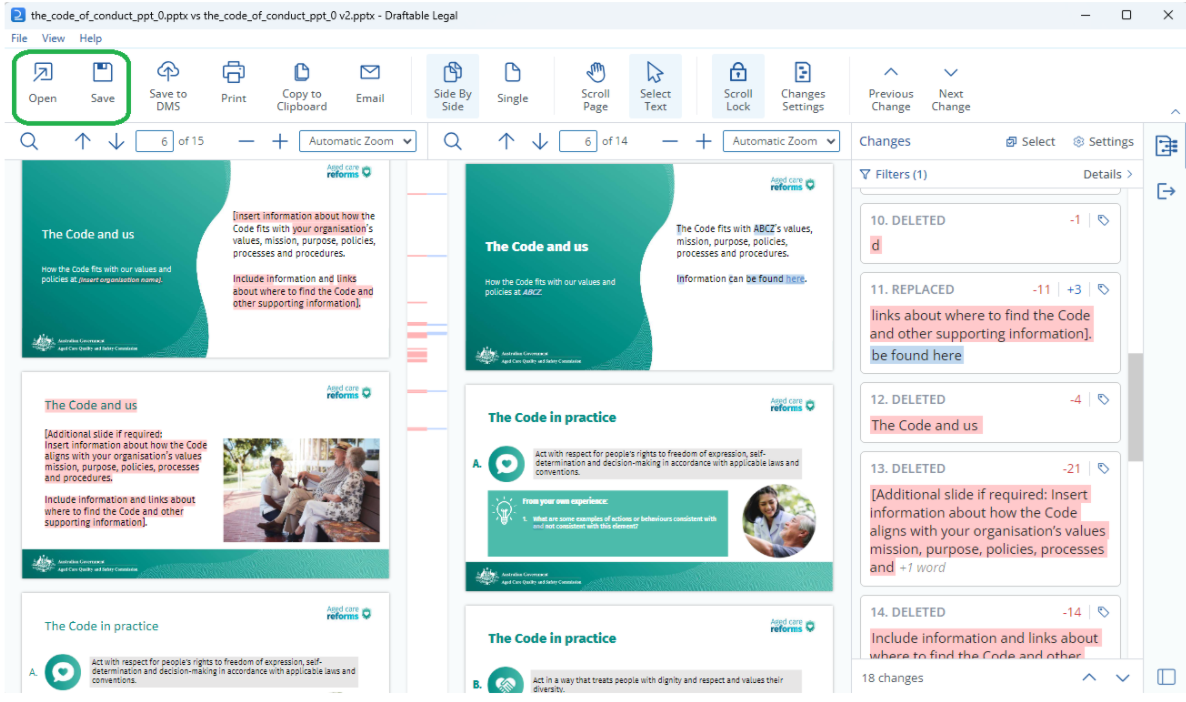
To save, print or email the Side by Side comparison, note all the export options at the top of the comparison viewer as a ribbon menu.
### Saving / printing / sharing your PowerPoint comparison as a PDF
To save, print or email the Side by Side comparison, note all the export options at the top of the comparison viewer as a ribbon menu.
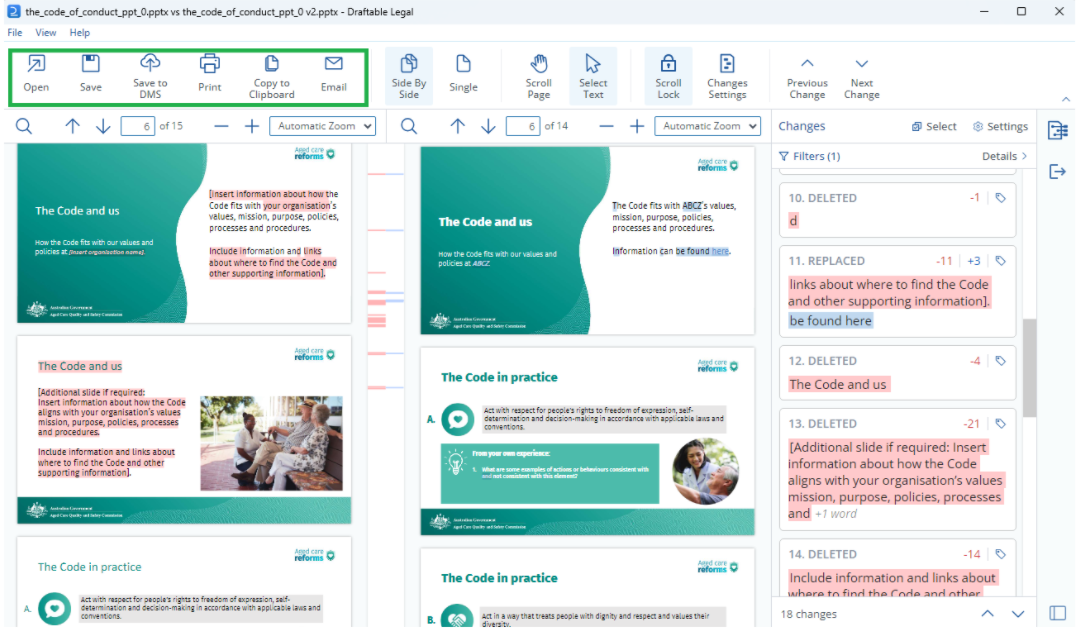 These options allow you to quickly and easily share your PPTX comparison results via your preferred method or DMS. A quick summary of these options are:
* **Open** the results directly in your preferred Word processor or PDF reader.
These options allow you to quickly and easily share your PPTX comparison results via your preferred method or DMS. A quick summary of these options are:
* **Open** the results directly in your preferred Word processor or PDF reader.
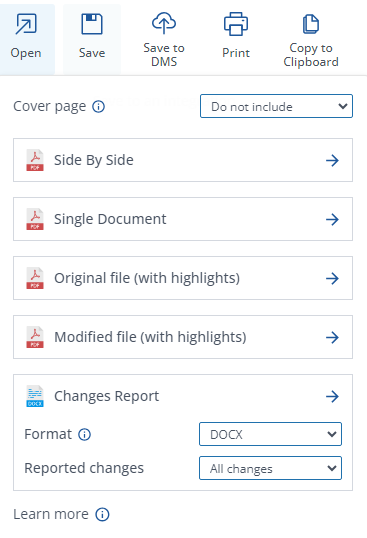 * **Save** the comparison result to your computer.
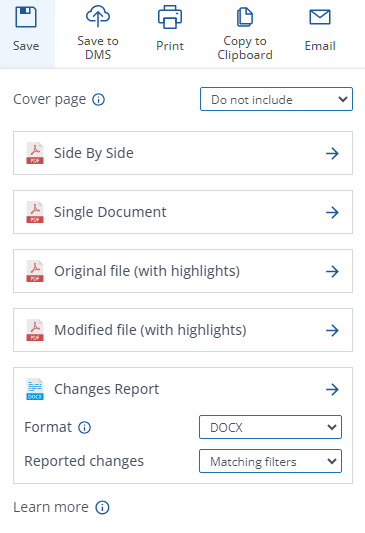 * **Save** **to DMS**, e.g. iManage, NetDocuments
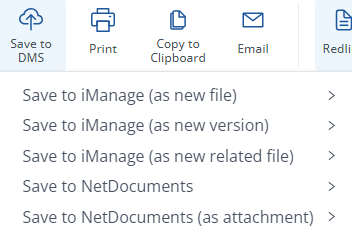 * **Print** a hard copy of the comparison results.
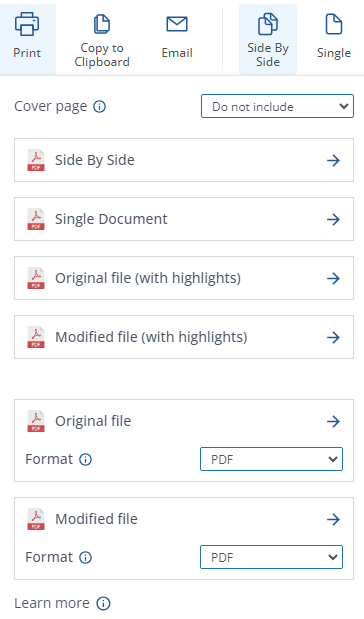 * **Copy to Clipboard** and save the comparison output to your clipboard.
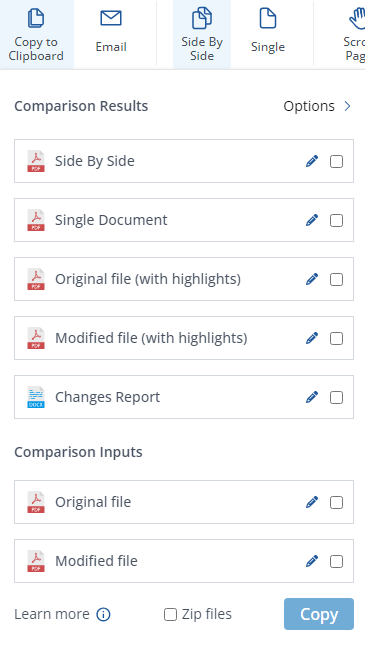 * **Email** the comparison results and/or the input documents using Outlook.
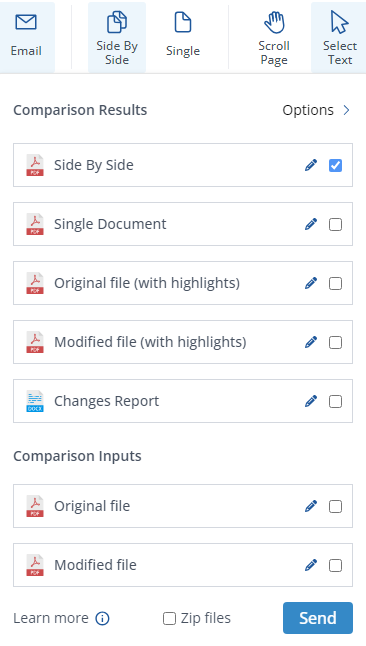 For more information about these specific output options, please see our [Using Draftable](/hc/en-us/sections/15894418277017-Using-Draftable-Legal) section of our Knowledgebase.
## How to configure settings for PowerPoint Redline compare
Settings for the PowerPoint Redline comparisons can be found within the Redline tab of the settings menu. There are many options specific to Redline comparisons.
For more information about these specific output options, please see our [Using Draftable](/hc/en-us/sections/15894418277017-Using-Draftable-Legal) section of our Knowledgebase.
## How to configure settings for PowerPoint Redline compare
Settings for the PowerPoint Redline comparisons can be found within the Redline tab of the settings menu. There are many options specific to Redline comparisons.
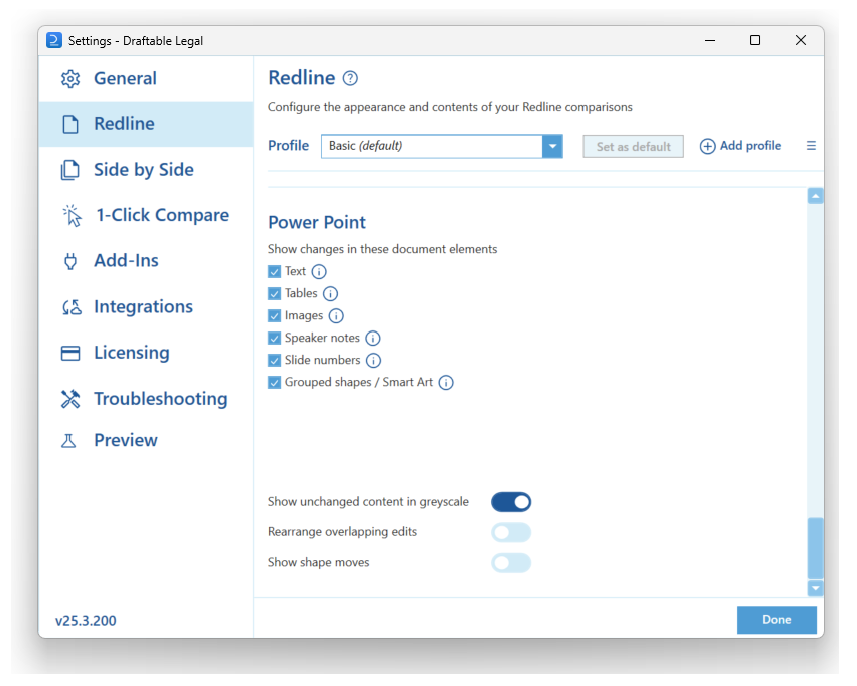 Below is an explainer of each of these options:
**Document elements:** There are various document elements that can be enabled/disabled depending on your use case:
* Text: Detects text content
* Tables: Detects the tables and content inside the tables
* Images: Detects images
* Speaker notes: Compares the speaker notes of slides
* Slide numbers: Compares the slide numbers of slides
* Grouped shapes / Smart Art: Compares the grouped shapes and Smart Art within the slide
**Show unchanged content in greyscale:** Formats unchanged content within the Redline comparison with greyscale colouration
**Rearrange overlapping edits:** This automatically adjusts the layout to resolve overlaps between edits
**Show shape moves:** Marks up moved shapes and draw move arrows
Below is an explainer of each of these options:
**Document elements:** There are various document elements that can be enabled/disabled depending on your use case:
* Text: Detects text content
* Tables: Detects the tables and content inside the tables
* Images: Detects images
* Speaker notes: Compares the speaker notes of slides
* Slide numbers: Compares the slide numbers of slides
* Grouped shapes / Smart Art: Compares the grouped shapes and Smart Art within the slide
**Show unchanged content in greyscale:** Formats unchanged content within the Redline comparison with greyscale colouration
**Rearrange overlapping edits:** This automatically adjusts the layout to resolve overlaps between edits
**Show shape moves:** Marks up moved shapes and draw move arrows