> ## Documentation Index
> Fetch the complete documentation index at: https://help.draftable.com/llms.txt
> Use this file to discover all available pages before exploring further.
# Comparison Type: How to choose the right option in the Draftable New Comparison Window
> Draftable Legal is designed to be easy to use right from your first comparison. To minimize the number of choices you have to make before running a comparison, there are only a few settings in the New Comparison Window.
The most important of these is the **Comparison Type** selection. This article defines what each of these Comparison Type options is and explains their benefits.
## Default Comparison Type behaviour
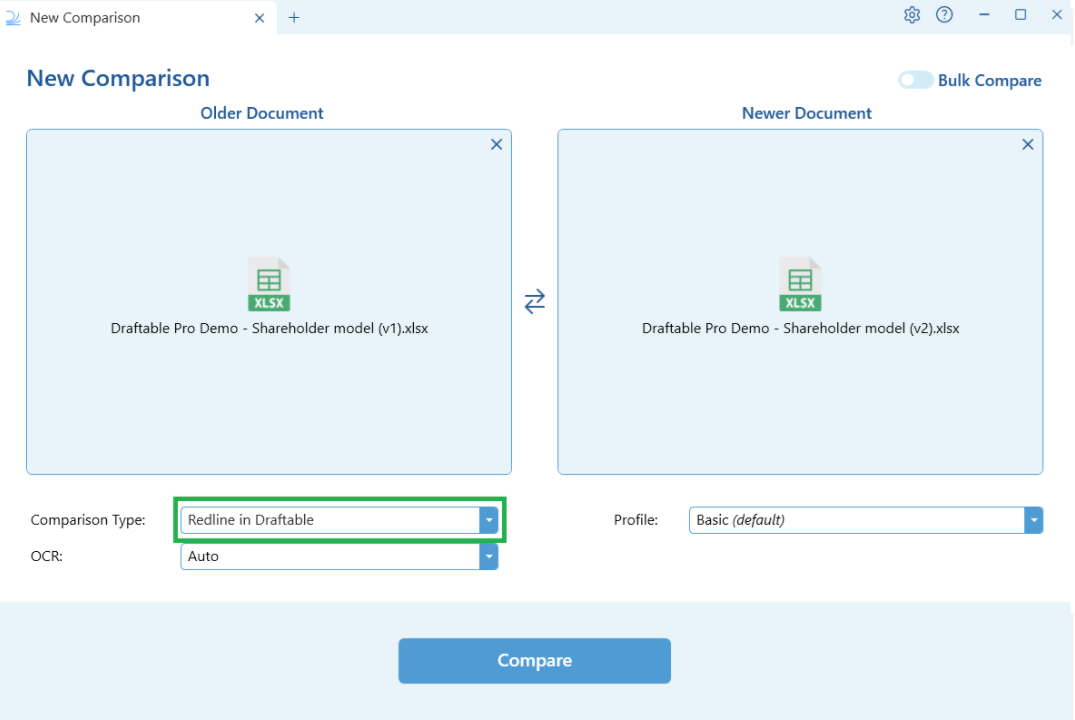
By default, Draftable will auto-select the following comparison types based on the input file loaded (see table below). Once a user selects a Comparison Type, Draftable will 'remember' the choice and keep that selection until it is changed again by the user.
| Input file type | Default Comparison Type |
| :------------------------------------------------- | :---------------------- |
| Word (doc, docx), PDF, Rich Text format, Free Text | Redline in Draftable |
| Excel (xls, xlsx) | Redline in Excel |
| PowerPoint (ppt, pptx) | Redline in PowerPoint |
## Defining Comparison Types in Draftable Legal
There are 8 Comparison Types in Draftable Legal. These are summarized in the table below and described in more detail in the following sections of this guide.
| Comparison Type | Description |
| :--------------------------------------- | :------------------------------------------------------------------------------------------------------------------------------------------------------------------------------------------------------------------------------------------------------------------------------------------------------------------------------------------------------------------------------------------------------------------- |
| Redline in Draftable | Our recommended Redline option. Opens in the Draftable Comparison Viewer for advanced review features and allows for all file types to be opened, saved, printed, emailed or copied to clipboard. |
| Tracked Changes in Word | For users who prefer to work in Word and want their markup as tracked changes with associated metadata |
| Redline in Word | For users who prefer to work in Word and want their markup as static redline (with no associated metadata) |
| Side by side | Our original comparison product for users that need to see changes but don't need to continue working on a file. This produces a side by side PDF with changes shown with highlighting. Comparisons opens in the Draftable Viewer for advanced review features. Can open in Adobe, save to DMS, print, email or copy the output to clipboard. This option compares all files types (including PowerPoint and Excel). |
| Redline in Excel / Redline in PowerPoint | Microsoft Office's native compare functions for PowerPoint and Excel files (Spreadsheet Compare). This is recommended for users who need to compare PowerPoint and Excel files and continue working on those files afterwards. |
| PowerPoint/Excel Redline in Draftable | Draftable also supports comparing PowerPoint and Excel files as Redline, and also viewable within the Draftable application itself. |
| Departures Table | A specialised report that presents document changes with full context. Rather than showing edits inline or as redlines, it highlights the entire section or clause where a change occurred, making it easier to understand the scope of changes at a glance — especially in long or complex documents. Output format is DOCX only, and can be opened directly or saved. |
| Redline - Change Pages only PDF | A streamlined output that focuses solely on modified content by providing only the pages where changes were detected between the original and revised documents. Unchanged pages are excluded entirely, making it a quicker way to review modifications without needing to perform a full Redline comparison first. Output format is PDF only. |
### Redline in Draftable
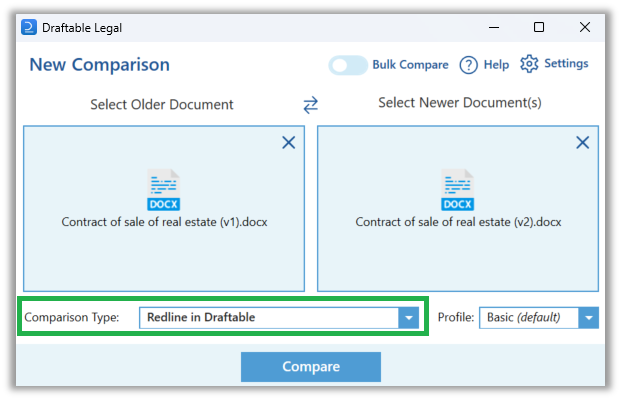 This Comparison Type is our recommended output for Draftable Legal customers when comparing Word and PDF files. It compares your files to produce a Redline that automatically opens in Draftable's purpose build **Comparison Viewer**. Users can export the redline in any format (docx, pdf, tracked changes) from the Comparison Viewer. We recommend this option as the Draftable viewer offers a range of features to give users the best comparison review experience possible, including:
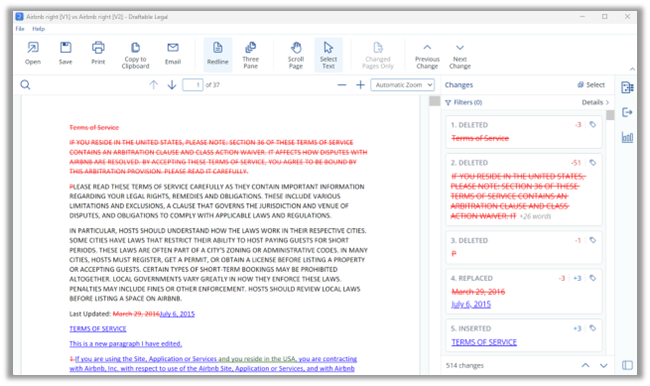
* An interactive (clickable) Change List where selecting changes will jump to their location in the document
* Changes can be tagged or have notes added to them.
* The Change List can also can be filtered by content type, change type, change location and tags or notes ([see here for a detailed guide](/hc/en-us/articles/32514479509785-Using-the-Redline-Change-List-to-review-filter-tag-add-notes-and-export-your-changes)).
* The ability to dynamically show and hide unchanged pages (with options to expand the hidden pages as needed)
* The option to show the input files in the same screen to make it easier to review changes in context ([see here for a detailed guide](/hc/en-us/articles/31975077731225-Three-Pane-View-See-changes-in-context-with-older-newer-and-redlined-documents-in-one-screen))
* The flexibility to choose any 'Next Action' (e.g. email, print, save to DMS, copy to clipboard) using any or all export formats (i.e. Redline, Changed pages only, Tracked Changes, Changes Report). Importantly, users do not need to rerun the comparison to get any output format
This Comparison Type is our recommended output for Draftable Legal customers when comparing Word and PDF files. It compares your files to produce a Redline that automatically opens in Draftable's purpose build **Comparison Viewer**. Users can export the redline in any format (docx, pdf, tracked changes) from the Comparison Viewer. We recommend this option as the Draftable viewer offers a range of features to give users the best comparison review experience possible, including:
* An interactive (clickable) Change List where selecting changes will jump to their location in the document
* Changes can be tagged or have notes added to them.
* The Change List can also can be filtered by content type, change type, change location and tags or notes ([see here for a detailed guide](/hc/en-us/articles/32514479509785-Using-the-Redline-Change-List-to-review-filter-tag-add-notes-and-export-your-changes)).
* The ability to dynamically show and hide unchanged pages (with options to expand the hidden pages as needed)
* The option to show the input files in the same screen to make it easier to review changes in context ([see here for a detailed guide](/hc/en-us/articles/31975077731225-Three-Pane-View-See-changes-in-context-with-older-newer-and-redlined-documents-in-one-screen))
* The flexibility to choose any 'Next Action' (e.g. email, print, save to DMS, copy to clipboard) using any or all export formats (i.e. Redline, Changed pages only, Tracked Changes, Changes Report). Importantly, users do not need to rerun the comparison to get any output format
 ### Tracked Changes in Word
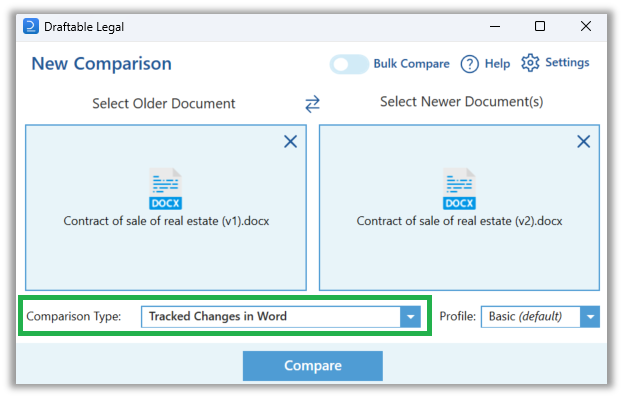 This Comparison Type is designed for users who prefer to work in Word with the markup shown as tracked changes. It creates a comparison output as a Word (docx) file with tracked changes (including associated metadata). This is particularly useful when continuing to work on the document in in Word and allows users to 'accept' and 'reject' changes easily.
Once completed, users are given the option to choose their next action with the Tracked Changes in Word document. Options include:
* Open in Word
* Save (locally or to their DMS),
* Email (generates an email with the file attached),
* Copy to clipboard (useful for attaching to an existing email).
This Comparison Type still uses Draftable's proprietary and advanced comparison algorithm.
### Redline in Word
This Comparison Type is designed for users who prefer to work in Word but require a redline that does not contain any tracked changes metadata. It creates a comparison output as a Word (docx) file with static markup (i.e. the text is altered to reflect the markup but there are no 'changes' to review). This is particularly useful when using metadata cleaning tools that would otherwise remove tracked changes information. It also helps to maintain the [markup schema in your Profile](/hc/en-us/articles/16549612535705-Redline-comparison-settings) regardless of the client or external party word settings.
As with the Tracked Changes in Word Comparison Type, once completed, users are given the option to choose their next action with the Redline in Word document. Options include:
* Open in Word
* Save (locally or to their DMS),
* Email (generates an email with the file attached)
* Copy to clipboard (useful for attaching to an existing email)
This Comparison Type still uses Draftable's proprietary and advanced comparison algorithm.
### Side by side
This Comparison Type is designed for users who prefer to work in Word with the markup shown as tracked changes. It creates a comparison output as a Word (docx) file with tracked changes (including associated metadata). This is particularly useful when continuing to work on the document in in Word and allows users to 'accept' and 'reject' changes easily.
Once completed, users are given the option to choose their next action with the Tracked Changes in Word document. Options include:
* Open in Word
* Save (locally or to their DMS),
* Email (generates an email with the file attached),
* Copy to clipboard (useful for attaching to an existing email).
This Comparison Type still uses Draftable's proprietary and advanced comparison algorithm.
### Redline in Word
This Comparison Type is designed for users who prefer to work in Word but require a redline that does not contain any tracked changes metadata. It creates a comparison output as a Word (docx) file with static markup (i.e. the text is altered to reflect the markup but there are no 'changes' to review). This is particularly useful when using metadata cleaning tools that would otherwise remove tracked changes information. It also helps to maintain the [markup schema in your Profile](/hc/en-us/articles/16549612535705-Redline-comparison-settings) regardless of the client or external party word settings.
As with the Tracked Changes in Word Comparison Type, once completed, users are given the option to choose their next action with the Redline in Word document. Options include:
* Open in Word
* Save (locally or to their DMS),
* Email (generates an email with the file attached)
* Copy to clipboard (useful for attaching to an existing email)
This Comparison Type still uses Draftable's proprietary and advanced comparison algorithm.
### Side by side
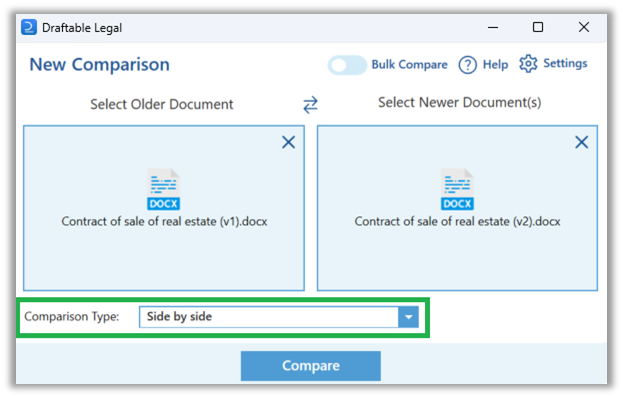 This Comparison Type is Draftable's original product. It is designed for users that need to see the changes in a document but not necessarily continue working on it (as it can only product PDF filetype outputs). As with 'Redline in Draftable', this Comparison Type automatically opens in the Draftable **Comparison Viewer**. The same features are available in the viewer, including:
* An interactive (clickable) Change List where selecting changes will jump to their location in the document
* Changes can be tagged or have notes added to them.
* The Change List can also can be filtered by content type, change type, change location and tags or notes ([see here for a detailed guide](/hc/en-us/articles/32514479509785-Using-the-Redline-Change-List-to-review-filter-tag-add-notes-and-export-your-changes)).
* The flexibility to choose any 'Next Action' (e.g. email, print, save to DMS, copy to clipboard)
We recommend this Comparison Type for users comparing PDF files when their Redline outputs are difficult to work through.
This Comparison Type is Draftable's original product. It is designed for users that need to see the changes in a document but not necessarily continue working on it (as it can only product PDF filetype outputs). As with 'Redline in Draftable', this Comparison Type automatically opens in the Draftable **Comparison Viewer**. The same features are available in the viewer, including:
* An interactive (clickable) Change List where selecting changes will jump to their location in the document
* Changes can be tagged or have notes added to them.
* The Change List can also can be filtered by content type, change type, change location and tags or notes ([see here for a detailed guide](/hc/en-us/articles/32514479509785-Using-the-Redline-Change-List-to-review-filter-tag-add-notes-and-export-your-changes)).
* The flexibility to choose any 'Next Action' (e.g. email, print, save to DMS, copy to clipboard)
We recommend this Comparison Type for users comparing PDF files when their Redline outputs are difficult to work through.
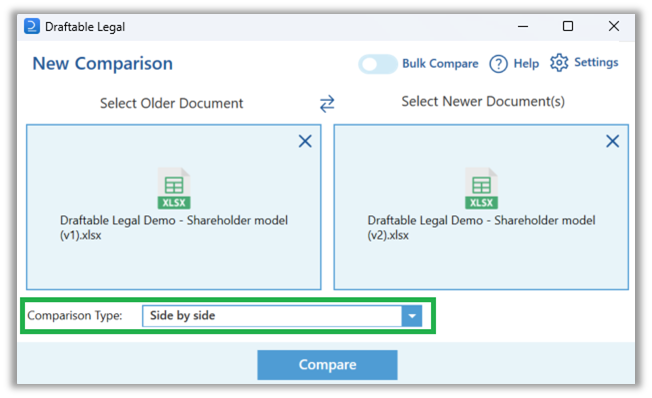
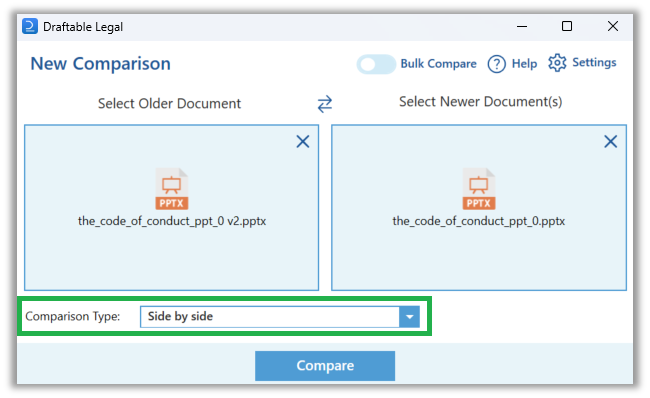
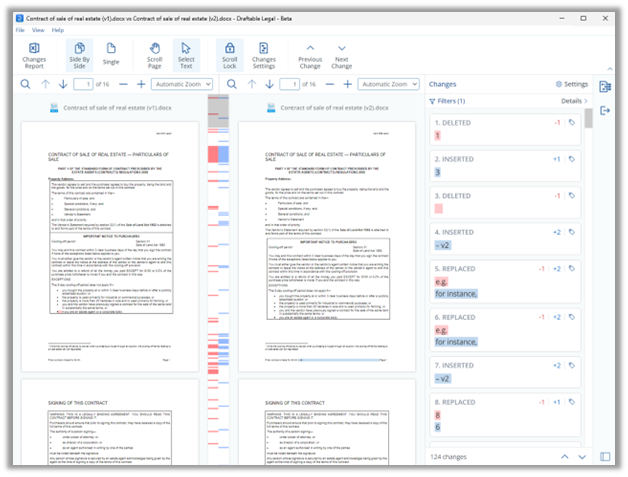 We also recommend it for Excel and PowerPoint comparisons ([see here for our guide to comparing Excel](/hc/en-us/articles/19002208522393-Comparing-Excel-files-in-Draftable-Legal) and [here for PowerPoint](/hc/en-us/articles/32800088338073-Comparing-PowerPoint-files-in-Draftable-Legal)).
 ### Redline in Excel / Redline in PowerPoint
Draftable team has built dedicated comparison algorithms to compare Excel and PowerPoint files and produce an Excel/PowerPoint compare with changes shown as Redlined markup. Additionally, Draftable offers Excel/PowerPoint comparison via our side-by-side comparison type.
* Redline in PowerPoint (.pptx file)
* Redline in Excel (.xlxs file)
### Redline in Excel / Redline in PowerPoint
Draftable team has built dedicated comparison algorithms to compare Excel and PowerPoint files and produce an Excel/PowerPoint compare with changes shown as Redlined markup. Additionally, Draftable offers Excel/PowerPoint comparison via our side-by-side comparison type.
* Redline in PowerPoint (.pptx file)
* Redline in Excel (.xlxs file)
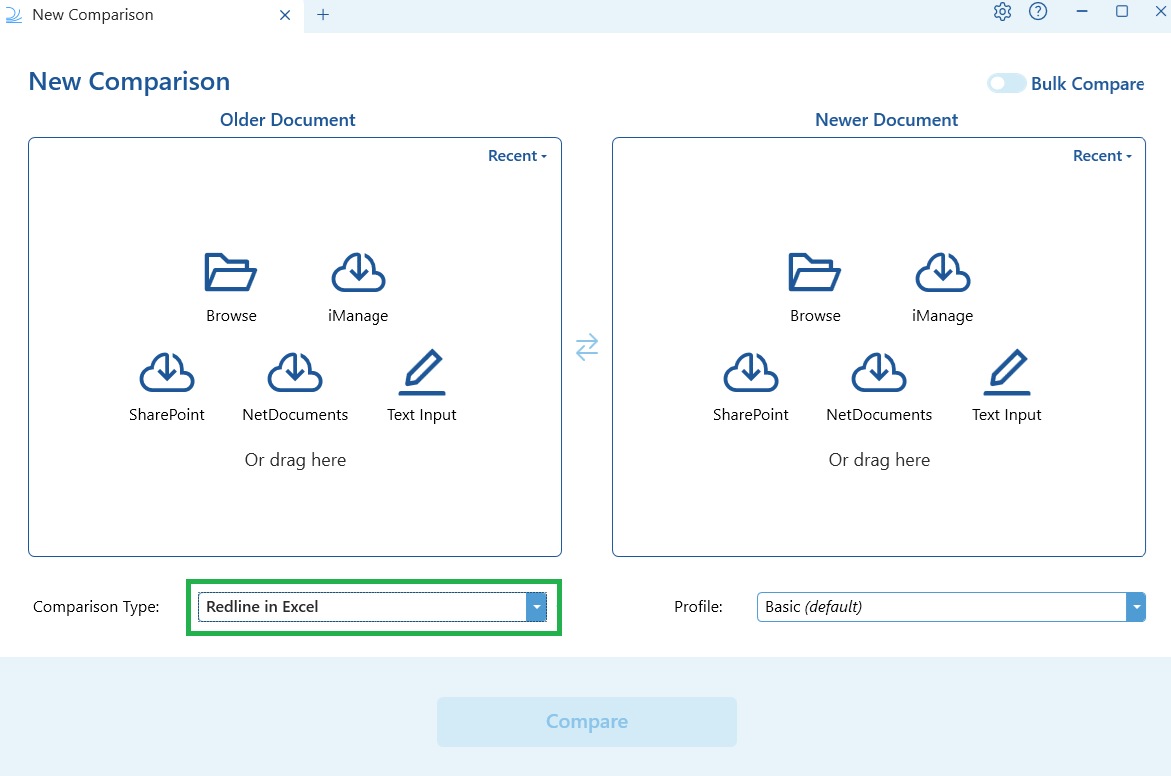
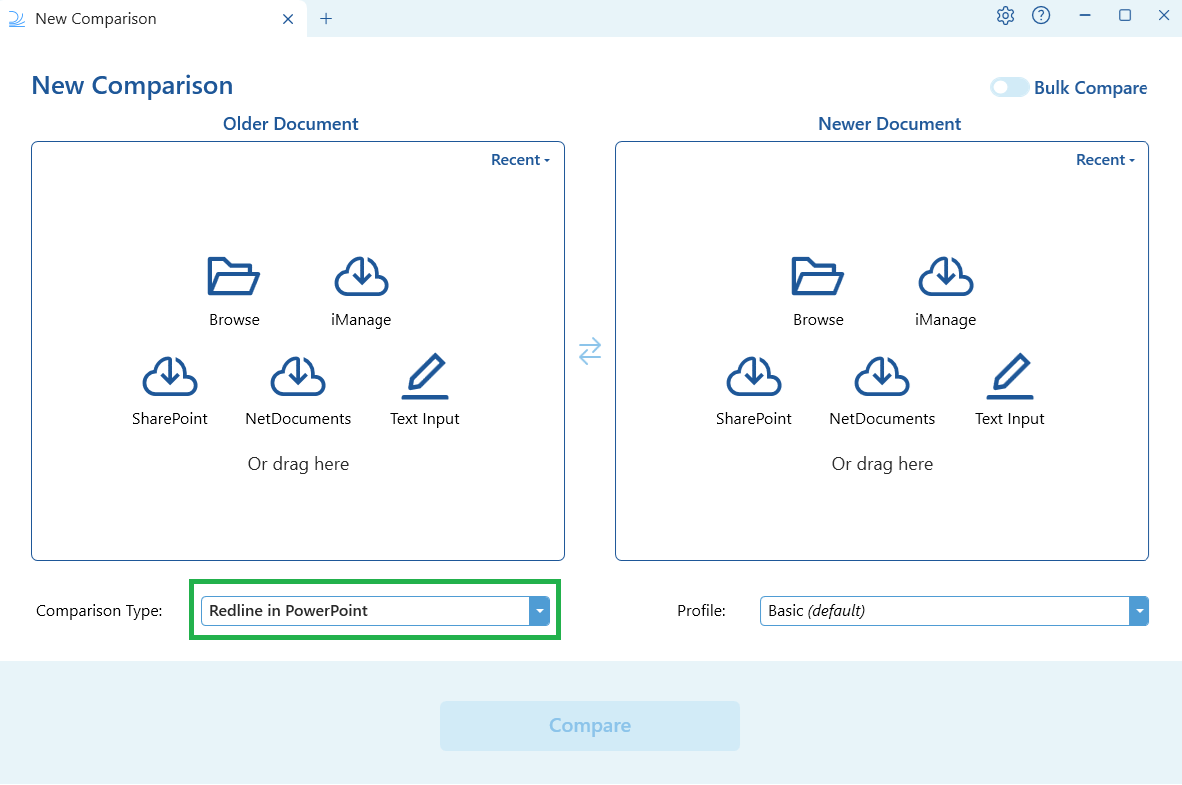 These comparisons will open directly into PowerPoint and Excel based on the input files provided, or you can export the output directly to your PC. For more information on these Comparison Types see our [guide to comparing PowerPoint files](/hc/en-us/articles/32800088338073-Comparing-PowerPoint-files-in-Draftable-Legal) and our [guide to comparing Excel files](/hc/en-us/articles/19002208522393-Comparing-Excel-files-in-Draftable-Legal).
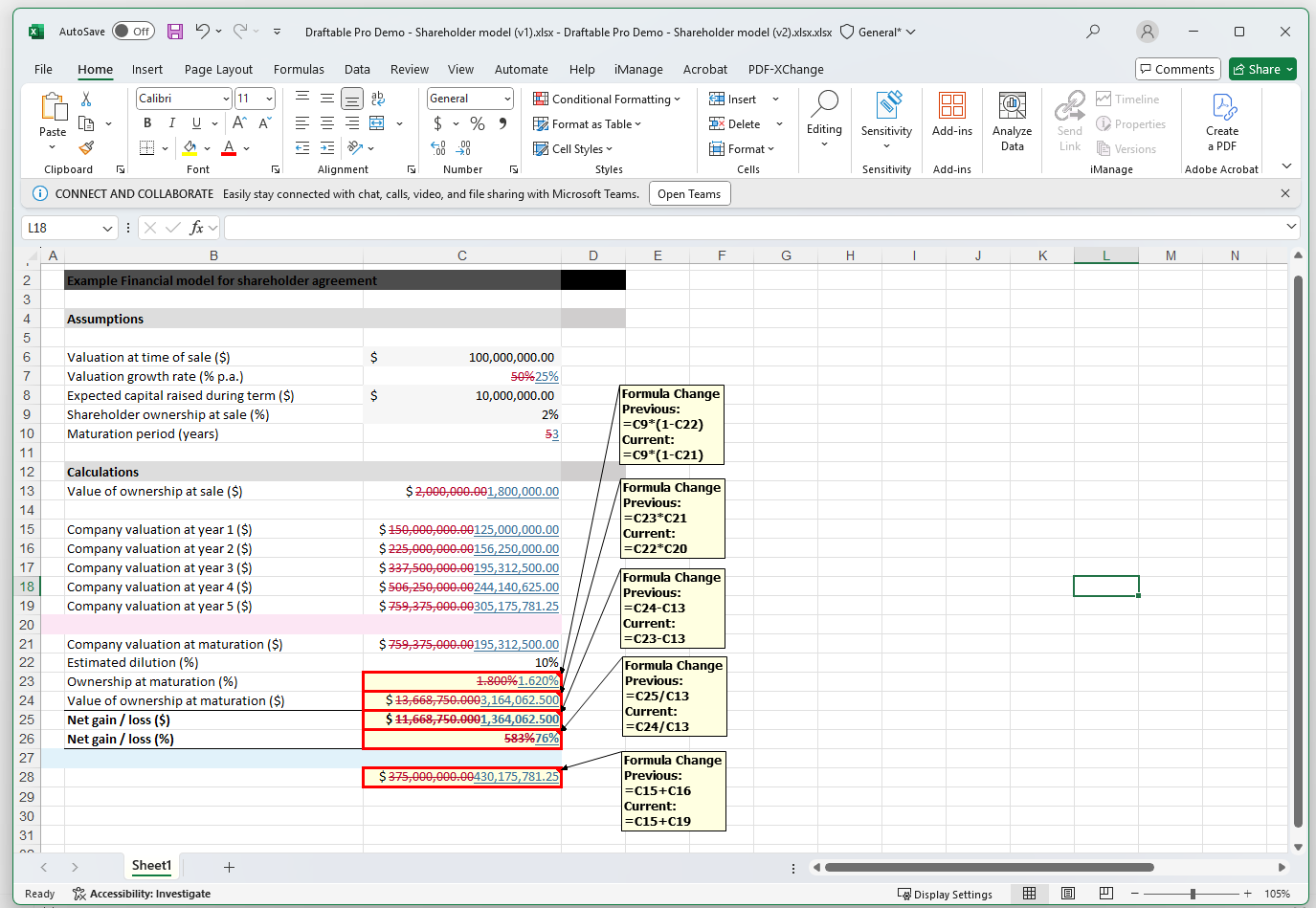
Below is an example of a Redlined Excel comparison;
These comparisons will open directly into PowerPoint and Excel based on the input files provided, or you can export the output directly to your PC. For more information on these Comparison Types see our [guide to comparing PowerPoint files](/hc/en-us/articles/32800088338073-Comparing-PowerPoint-files-in-Draftable-Legal) and our [guide to comparing Excel files](/hc/en-us/articles/19002208522393-Comparing-Excel-files-in-Draftable-Legal).
Below is an example of a Redlined Excel comparison;
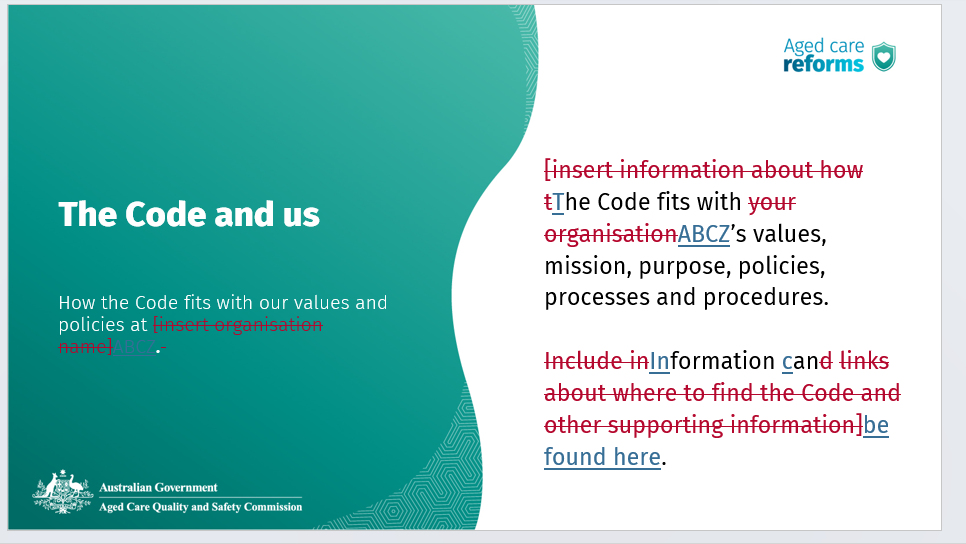
 Below is an example of a Redlined PowerPoint comparison;
 ### PowerPoint/Excel Redline in Draftable
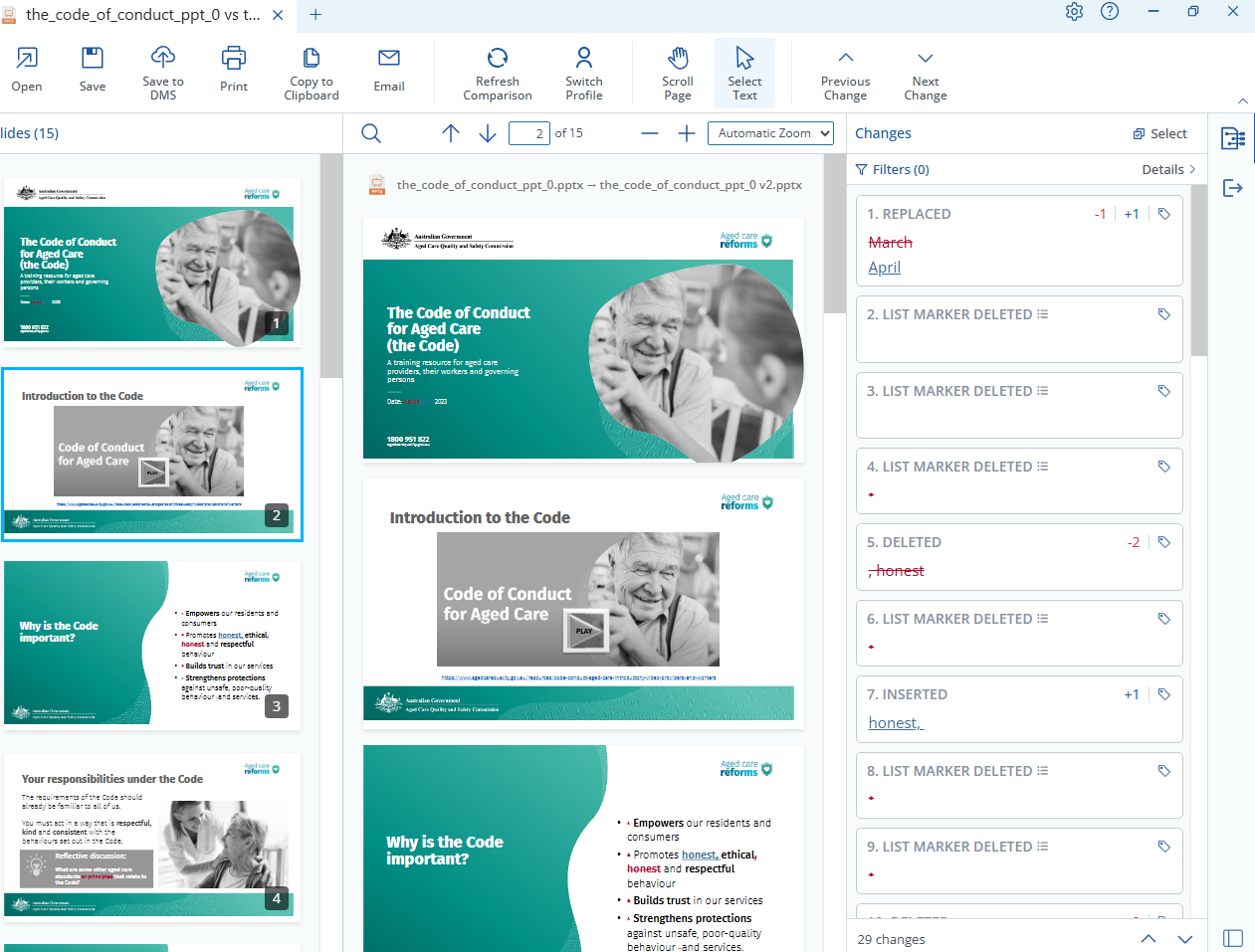
Draftable Legal now supports Redline comparisons for Excel (.xlsx) and PowerPoint (.pptx), and you can review these Redlines directly in the Draftable Comparison Viewer as an in-app experience.
### PowerPoint/Excel Redline in Draftable
Draftable Legal now supports Redline comparisons for Excel (.xlsx) and PowerPoint (.pptx), and you can review these Redlines directly in the Draftable Comparison Viewer as an in-app experience.
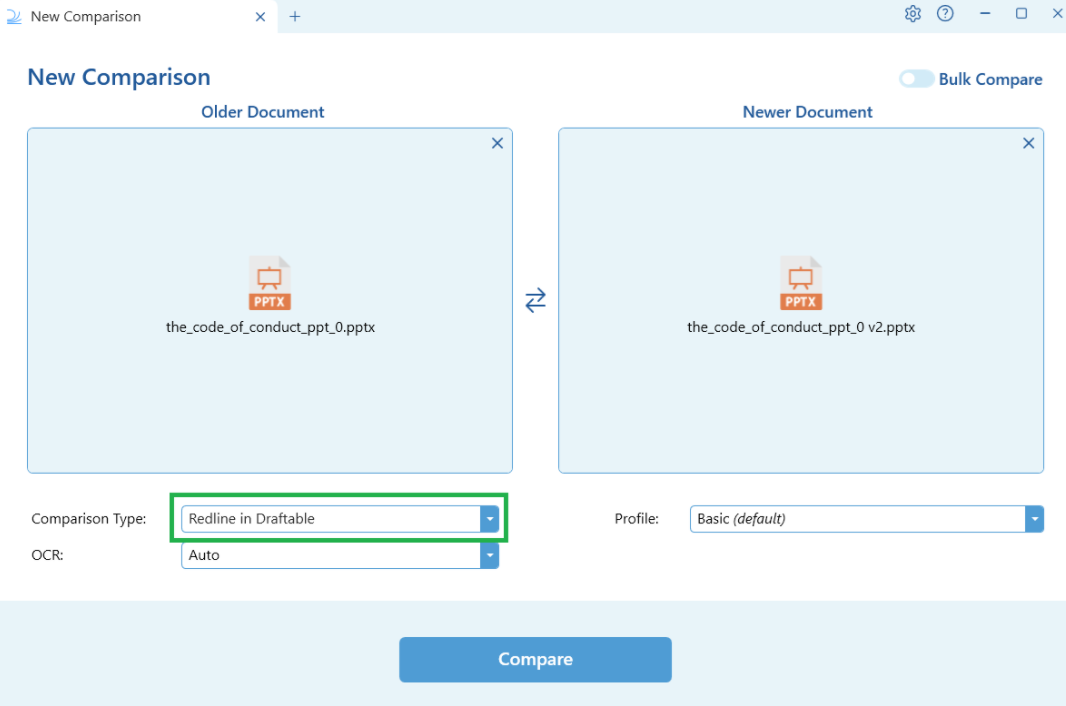
 The viewer includes the Change List for fast review, tagging, filtering and export of changes, so you can work entirely inside Draftable when you prefer.
Below is an example of a Redlined PowerPoint comparison in Draftable.
The viewer includes the Change List for fast review, tagging, filtering and export of changes, so you can work entirely inside Draftable when you prefer.
Below is an example of a Redlined PowerPoint comparison in Draftable.
 ### Departures Table
The Departures Table is a specialised report that presents document changes with full context. Rather than showing individual edits inline or as redlines, it highlights the entire section or clause where a change occurred. This makes it easier to understand the scope and impact of changes at a glance, which is particularly useful for long or complex documents such as contracts, agreements, and policy documents.
The Departures Table is ideal when you need to:
* Quickly identify which sections or clauses have been modified between document versions
* Present a clear summary of changes to stakeholders who need context around each modification, rather than granular word-level edits
* Review changes in a structured, clause-by-clause format
### Departures Table
The Departures Table is a specialised report that presents document changes with full context. Rather than showing individual edits inline or as redlines, it highlights the entire section or clause where a change occurred. This makes it easier to understand the scope and impact of changes at a glance, which is particularly useful for long or complex documents such as contracts, agreements, and policy documents.
The Departures Table is ideal when you need to:
* Quickly identify which sections or clauses have been modified between document versions
* Present a clear summary of changes to stakeholders who need context around each modification, rather than granular word-level edits
* Review changes in a structured, clause-by-clause format
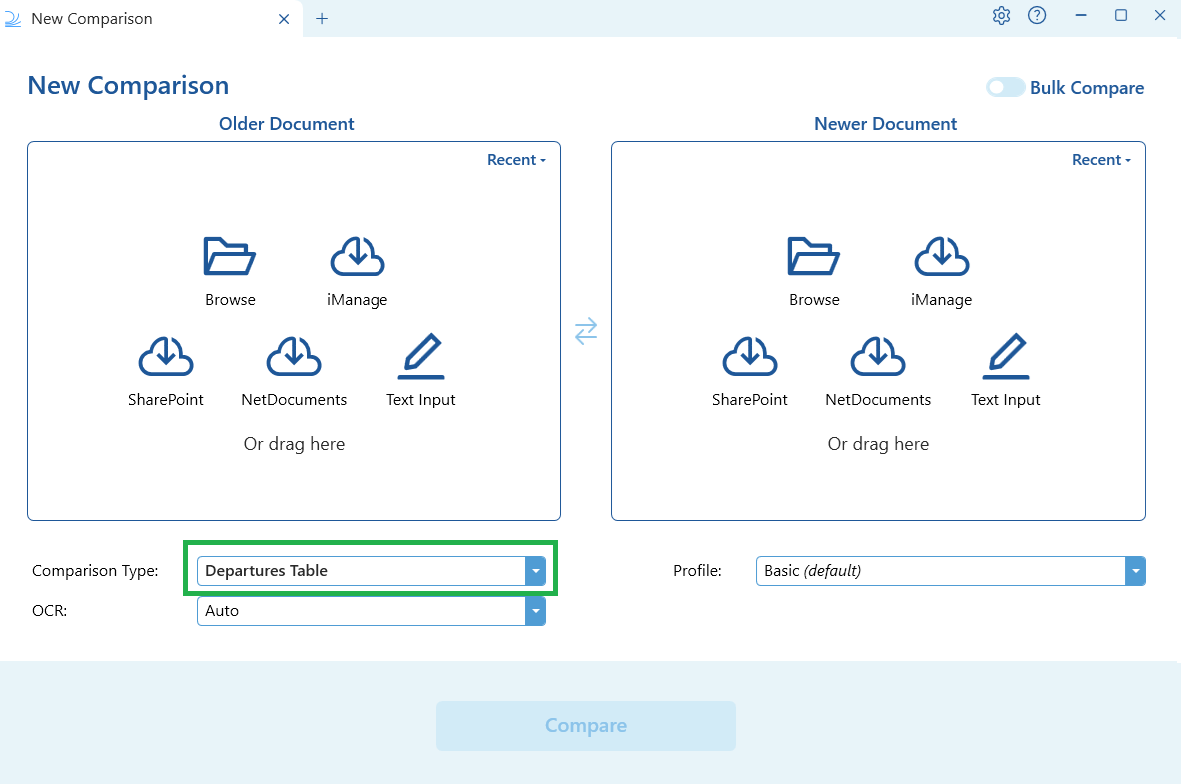 Once you run a Departures Table comparison, Draftable provides the option to directly open the comparison as a DOCX, or save it as a DOCX.
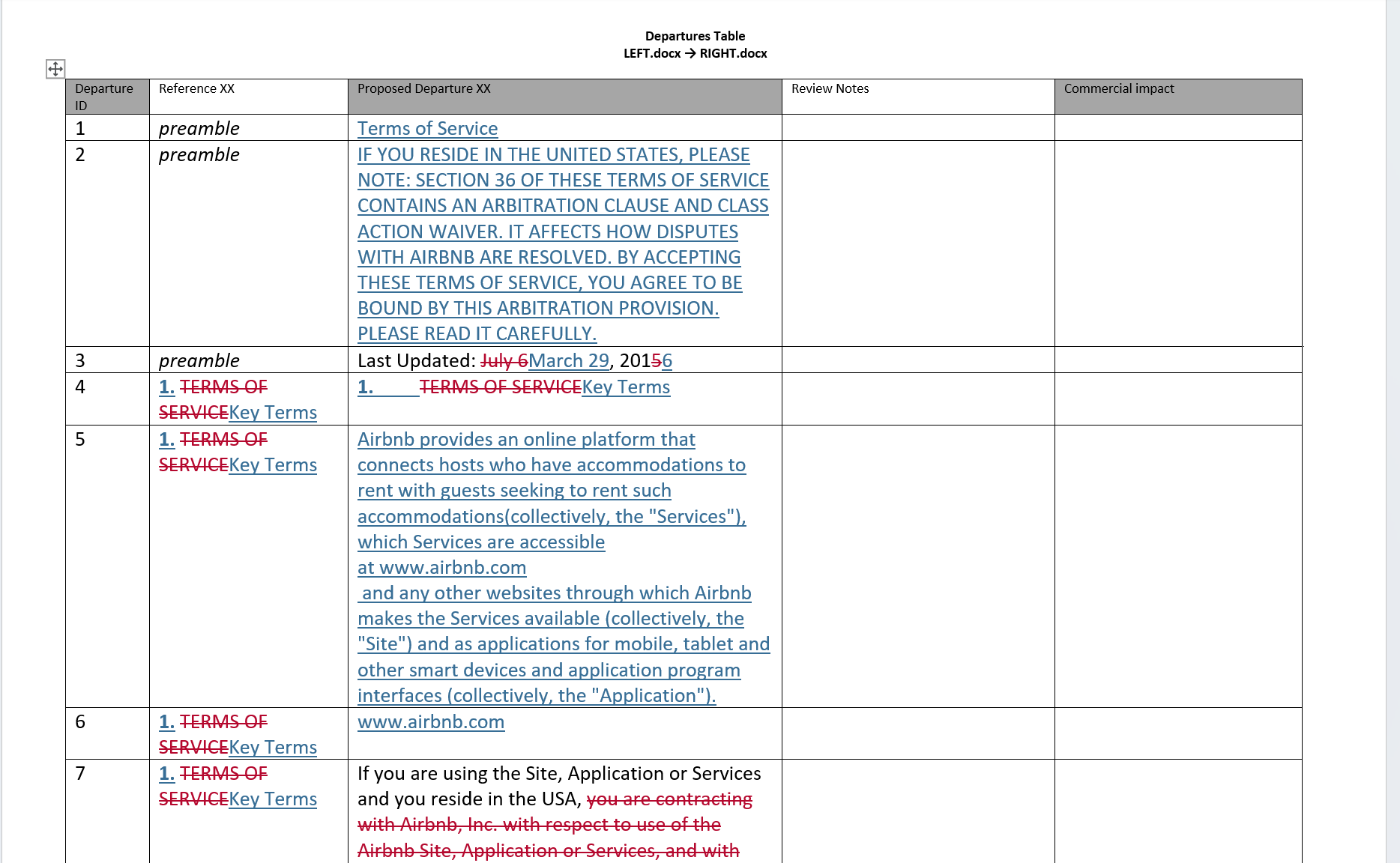 The Departures Table output format is DOCX only.
### Redline - Change Pages only PDF
The Change Pages Only PDF provides a quicker way to focus solely on the modifications between the original document and its revised version. Rather than producing a full redline of the entire document, this Comparison Type outputs only the pages where content changes were detected — unchanged pages are excluded entirely.
This is ideal when you need to:
* Quickly identify which pages have been modified without reviewing the entire document
* Produce a concise record of changed pages for filing or distribution
* Streamline your workflow by going directly to a Changed Pages output without needing to perform a full Redline comparison first
The Departures Table output format is DOCX only.
### Redline - Change Pages only PDF
The Change Pages Only PDF provides a quicker way to focus solely on the modifications between the original document and its revised version. Rather than producing a full redline of the entire document, this Comparison Type outputs only the pages where content changes were detected — unchanged pages are excluded entirely.
This is ideal when you need to:
* Quickly identify which pages have been modified without reviewing the entire document
* Produce a concise record of changed pages for filing or distribution
* Streamline your workflow by going directly to a Changed Pages output without needing to perform a full Redline comparison first
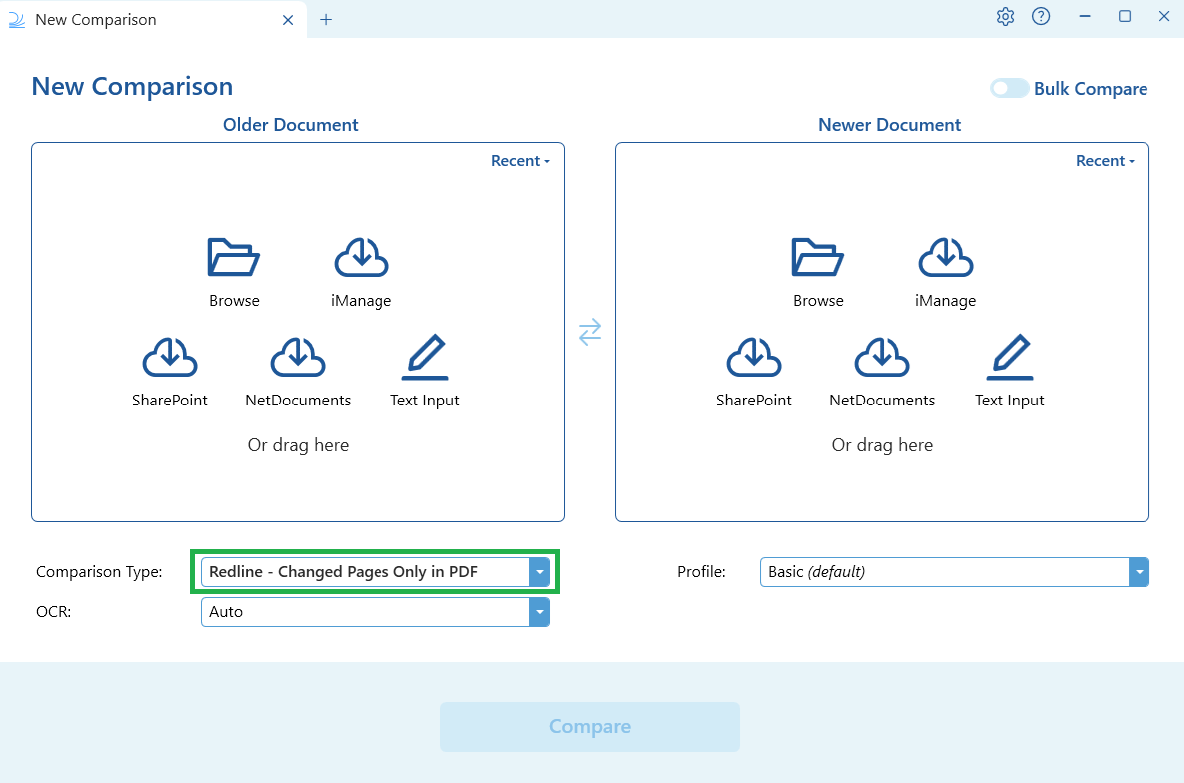 Once the comparison is complete, you can open the output directly as a PDF or save it as a PDF.
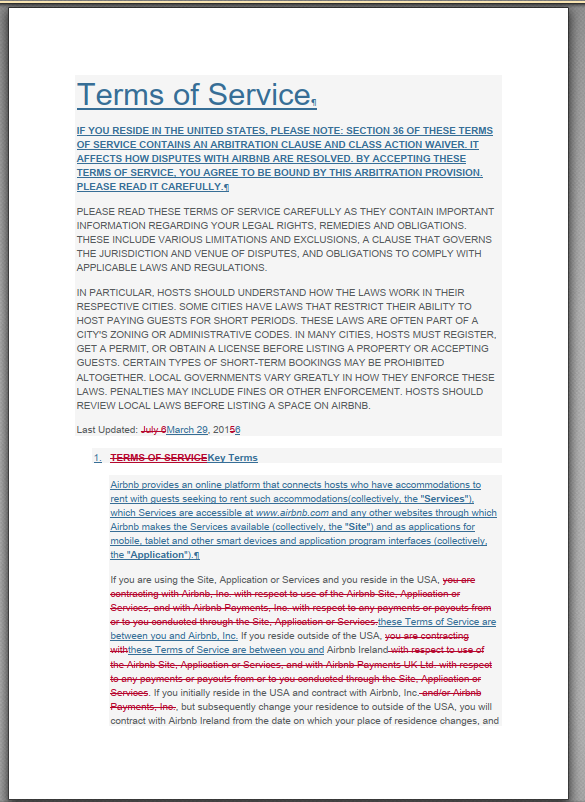 The Change Pages Only PDF output format is PDF only.