> ## Documentation Index
> Fetch the complete documentation index at: https://help.draftable.com/llms.txt
> Use this file to discover all available pages before exploring further.
# Understanding the PDF Conversion Engine Setting in Draftable Legal
> Where to find Draftable Legal's conversion engine setting in 26.6 and earlier, what the DOCX to PDF and PDF to DOCX engines do, and when to switch between the Draftable Engine and Microsoft Word.
**The settings menu was reorganised in Draftable Legal 26.6.** If you are on 26.6 or later, follow the "26.6 and later" tabs below. On earlier versions, follow "Before 26.6". To check your version, open Settings. The version number shows at the bottom-left (for example, v26.6.0).
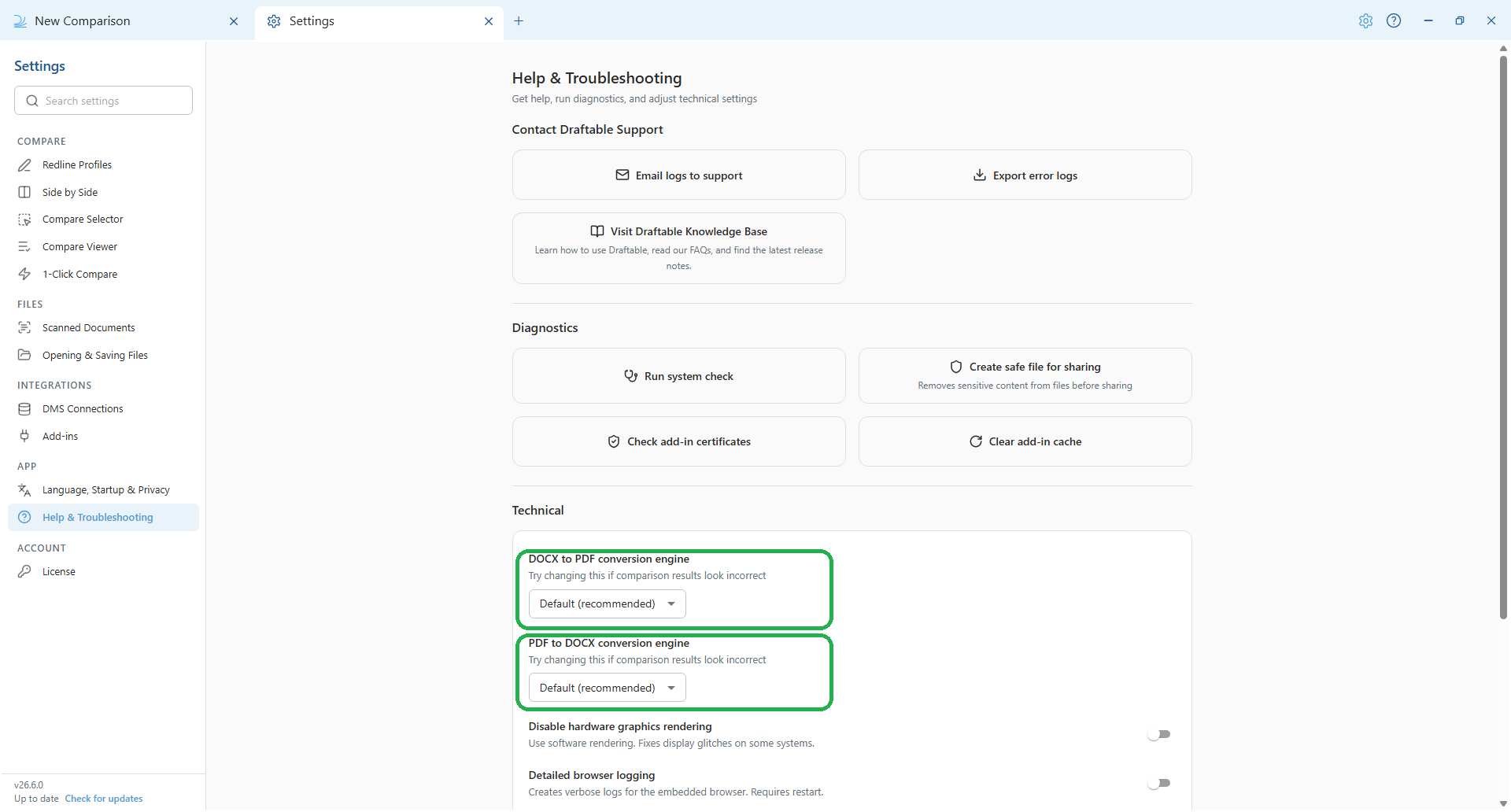
In Draftable Legal 26.6 and later, the conversion engines live under **Settings > Help & Troubleshooting > Technical**. In earlier versions, they're under the **General** tab. The steps below include a tab for each version.
## Purpose of the PDF Conversion Engine Setting
The PDF conversion engine setting in Draftable Legal determines how the application handles the conversion of Word documents (DOCX) to PDFs during the document comparison process. This setting significantly impacts the speed and reliability of your document comparisons. In Draftable Legal 26.6 and later, a separate **PDF to DOCX conversion engine** is also available for comparisons that convert PDFs to Word, and it has its own set of options.
## Importance of the Setting
Selecting the appropriate PDF conversion engine is crucial because it directly influences the performance of your comparisons when using the 'Redline in Draftable' comparison type. For the DOCX to PDF engine, you can leave the setting on **Default (recommended)** or choose **Microsoft Word**. Each option has its own advantages, depending on your specific needs and any issues you might encounter.
## Recommended Settings
### DOCX to PDF conversion engine
In Draftable Legal 26.6 and later, the **DOCX to PDF conversion engine** dropdown has three options:
**Default (recommended)**: This is the recommended setting for most users. It uses the Draftable Engine to provide faster and more reliable comparisons within Draftable Legal. The Draftable Engine is optimized for the software, ensuring that document comparisons are performed efficiently and accurately.
**Draftable Engine**: This selects the Draftable Engine explicitly. It behaves the same as Default (recommended).
**Microsoft Word**: This setting should be used if you experience PDF rendering issues. The Microsoft Word engine uses Microsoft's own capabilities to convert documents, which can be beneficial in cases where the Draftable Engine produces poor formatting in PDF outputs.
### PDF to DOCX conversion engine
Draftable Legal 26.6 and later also includes a separate **PDF to DOCX conversion engine** dropdown for comparisons that convert PDFs to Word. It has its own options, with **Default (recommended)** suited to most users. You only need to change this engine if comparisons that involve converting a PDF to Word produce incorrect or poorly formatted results. If that happens, try one of the other engines, or contact [support@draftable.com](mailto:support@draftable.com) for guidance on which option suits your documents.
## How to Configure the PDF Conversion Engine
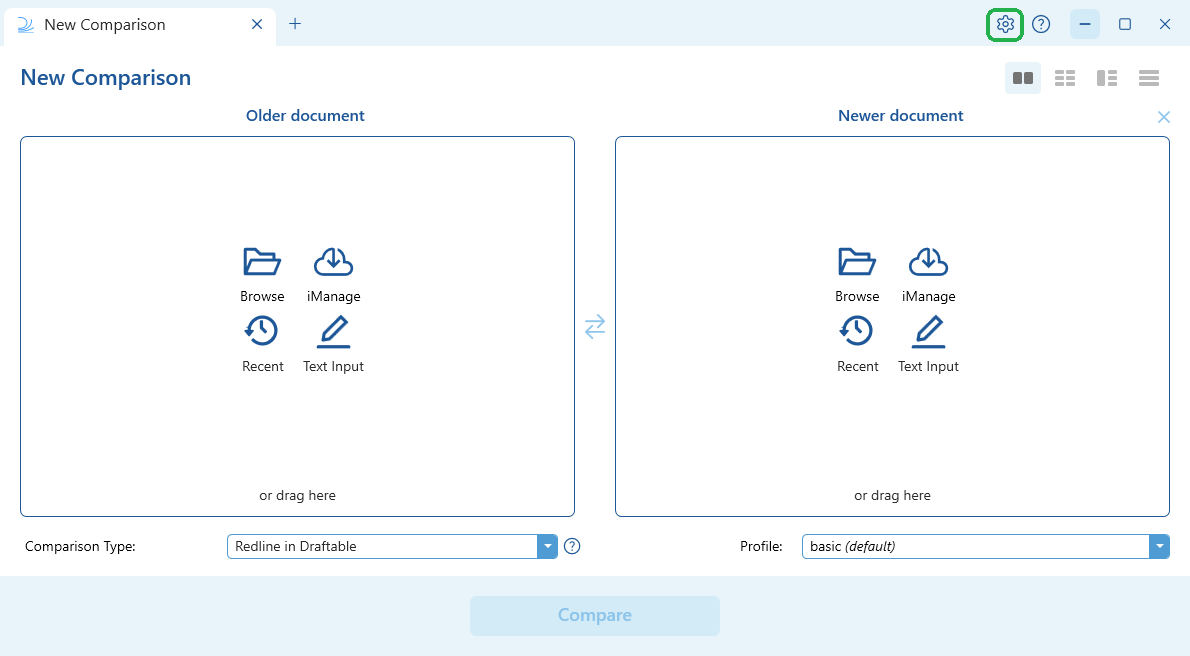
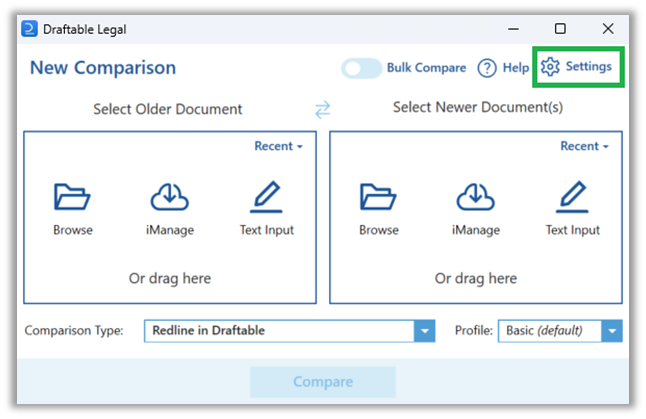
* Via the New Comparison window: open the New Comparison window and click **Settings** in the top-right corner.
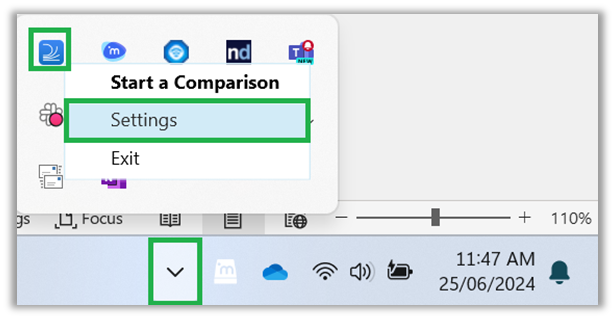
 * Via the taskbar: right-click the Draftable Legal icon in the taskbar and select **Settings**.
 Next, open the conversion engine setting. Its location depends on your Draftable Legal version, so select the tab that matches yours.
1. In the settings menu, select **Help & Troubleshooting**, then scroll to the **Technical** section.
2. Set **DOCX to PDF conversion engine** to your preferred engine. Choose **Default (recommended)** for optimized performance, or **Microsoft Word** if you experience PDF rendering issues. You can also select **Draftable Engine** explicitly, which behaves the same as Default (recommended).
3. A separate **PDF to DOCX conversion engine** is available for comparisons that convert PDFs to Word. It has its own options, with **Default (recommended)** suited to most users. Only change it if these comparisons produce incorrect results.
Next, open the conversion engine setting. Its location depends on your Draftable Legal version, so select the tab that matches yours.
1. In the settings menu, select **Help & Troubleshooting**, then scroll to the **Technical** section.
2. Set **DOCX to PDF conversion engine** to your preferred engine. Choose **Default (recommended)** for optimized performance, or **Microsoft Word** if you experience PDF rendering issues. You can also select **Draftable Engine** explicitly, which behaves the same as Default (recommended).
3. A separate **PDF to DOCX conversion engine** is available for comparisons that convert PDFs to Word. It has its own options, with **Default (recommended)** suited to most users. Only change it if these comparisons produce incorrect results.
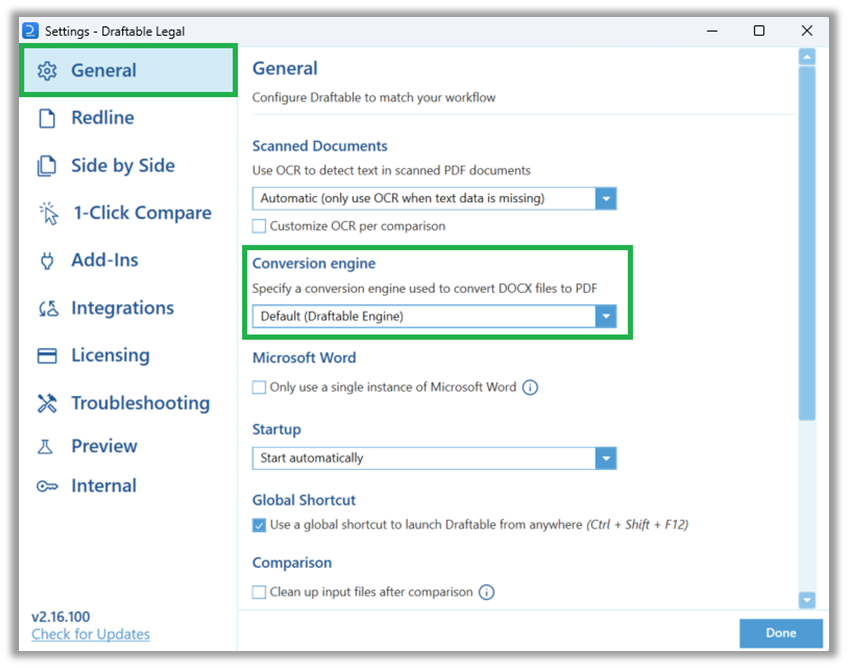
 1. In the settings menu, select the **General** tab.
2. Locate the **Conversion engine** dropdown.
3. Choose between **Draftable Engine** for optimized performance and **MS Word** for compatibility with specific PDF rendering requirements.
1. In the settings menu, select the **General** tab.
2. Locate the **Conversion engine** dropdown.
3. Choose between **Draftable Engine** for optimized performance and **MS Word** for compatibility with specific PDF rendering requirements.
 ## Extending Group Policy or using Registry Keys for PDF Conversion Engine
For organizations utilizing Group Policy to manage settings across multiple user accounts, the PDF conversion engine can also be configured centrally. This ensures consistency in settings across the enterprise and reduces the need for individual user configuration. [A complete guide on using Group Policy can be found here](/hc/en-us/articles/18763487262105-Configuring-settings-with-Group-Policy-Draftable-Legal). [A complete guide on common Windows Registry configurations for Draftable Legal can be found here](/hc/en-us/articles/24732245077401-Most-common-Draftable-Legal-registry-configurations).
Group Policy and registry key names are unchanged in 26.6. Only the in-app location of the setting moved, and the policy below still applies to all versions.
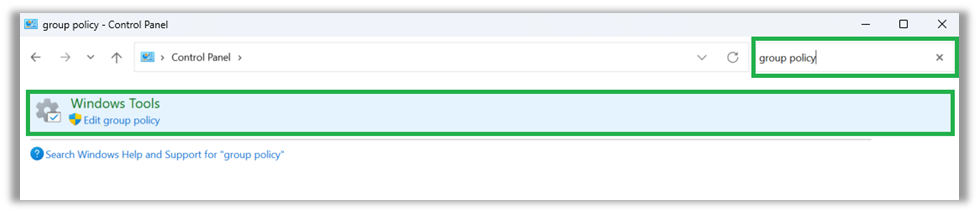
* Navigate to Control Panel > Windows Tools > Edit Group Policy.
## Extending Group Policy or using Registry Keys for PDF Conversion Engine
For organizations utilizing Group Policy to manage settings across multiple user accounts, the PDF conversion engine can also be configured centrally. This ensures consistency in settings across the enterprise and reduces the need for individual user configuration. [A complete guide on using Group Policy can be found here](/hc/en-us/articles/18763487262105-Configuring-settings-with-Group-Policy-Draftable-Legal). [A complete guide on common Windows Registry configurations for Draftable Legal can be found here](/hc/en-us/articles/24732245077401-Most-common-Draftable-Legal-registry-configurations).
Group Policy and registry key names are unchanged in 26.6. Only the in-app location of the setting moved, and the policy below still applies to all versions.
* Navigate to Control Panel > Windows Tools > Edit Group Policy.
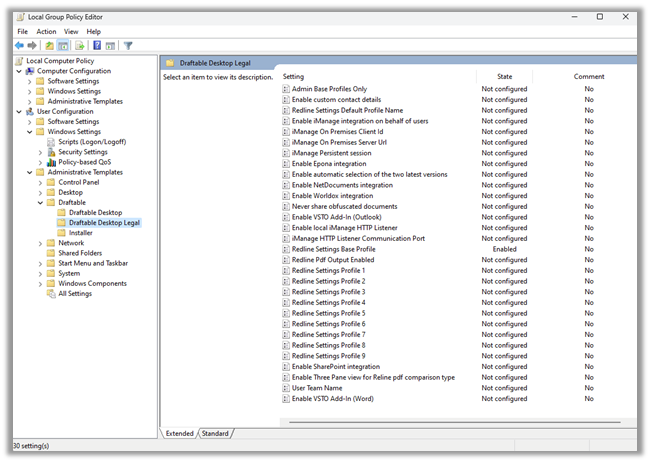 * By default the Conversion Engine is set to the Draftable Engine.
* To configure this to use the Microsoft Word engine:
* Under the Draftable settings, locate the 'DOCX Conversion Engine' policy.
* Set the policy to 'Office' (MS Word).
## Troubleshooting
### Troubleshooting Issues when using the Draftable Engine
The Draftable team have an ongoing project to improve the quality of our conversion engine. If you encounter any issues with your PDF output rendering please share these with [support@draftable.com](mailto:support@draftable.com) so we can make necessary improvements to our comparison algorithm.
If users encounter PDF rendering issues with the Draftable Engine document comparisons, one immediate workaround available is to try switching the DOCX to PDF conversion engine to Microsoft Word.
### Troubleshooting Issues when using the Microsoft Word Engine
If users are experiencing reliability or speed issues when running comparisons using the Redline in Draftable Comparison Type, switching the PDF Conversion Engine often resolves these problems. Try switching the PDF Conversion Engine to Draftable Engine for faster and more reliable results.
* By default the Conversion Engine is set to the Draftable Engine.
* To configure this to use the Microsoft Word engine:
* Under the Draftable settings, locate the 'DOCX Conversion Engine' policy.
* Set the policy to 'Office' (MS Word).
## Troubleshooting
### Troubleshooting Issues when using the Draftable Engine
The Draftable team have an ongoing project to improve the quality of our conversion engine. If you encounter any issues with your PDF output rendering please share these with [support@draftable.com](mailto:support@draftable.com) so we can make necessary improvements to our comparison algorithm.
If users encounter PDF rendering issues with the Draftable Engine document comparisons, one immediate workaround available is to try switching the DOCX to PDF conversion engine to Microsoft Word.
### Troubleshooting Issues when using the Microsoft Word Engine
If users are experiencing reliability or speed issues when running comparisons using the Redline in Draftable Comparison Type, switching the PDF Conversion Engine often resolves these problems. Try switching the PDF Conversion Engine to Draftable Engine for faster and more reliable results.