> ## Documentation Index
> Fetch the complete documentation index at: https://help.draftable.com/llms.txt
> Use this file to discover all available pages before exploring further.
# How to Fix Issues with Drag and Drop from iManage to Draftable Legal
> This troubleshooting article addresses a common issue where users encounter errors when dragging and dropping documents from the iManage interface directly into Draftable Legal.
**The settings menu was reorganised in Draftable Legal 26.6.** If you are on 26.6 or later, follow the "26.6 and later" tabs below. On earlier versions, follow "Before 26.6". To check your version, open Settings. The version number shows at the bottom-left (for example, v26.6.0).
### Cause of the issue
When users try to drag and drop from iManage to Draftable Legal, an error can occur if iManage has not been authenticated with Draftable Legal. This issue usually surfaces after logging into the computer for the first time.
### Resolution of the issue
To resolve this issue, we have developed a new setting that triggers a login prompt for iManage to Draftable Legal when the application launches for the first time.
Open the Settings Menu: via the New Comparison Window: Open the New Comparison window and select "Settings" in the top right corner
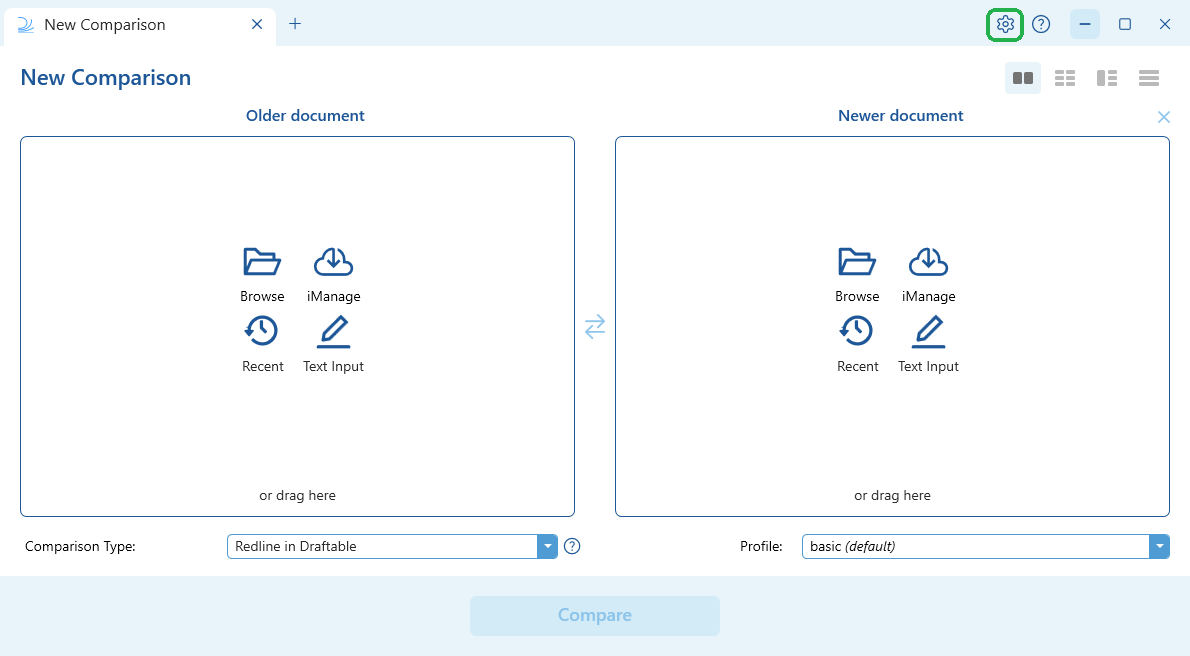
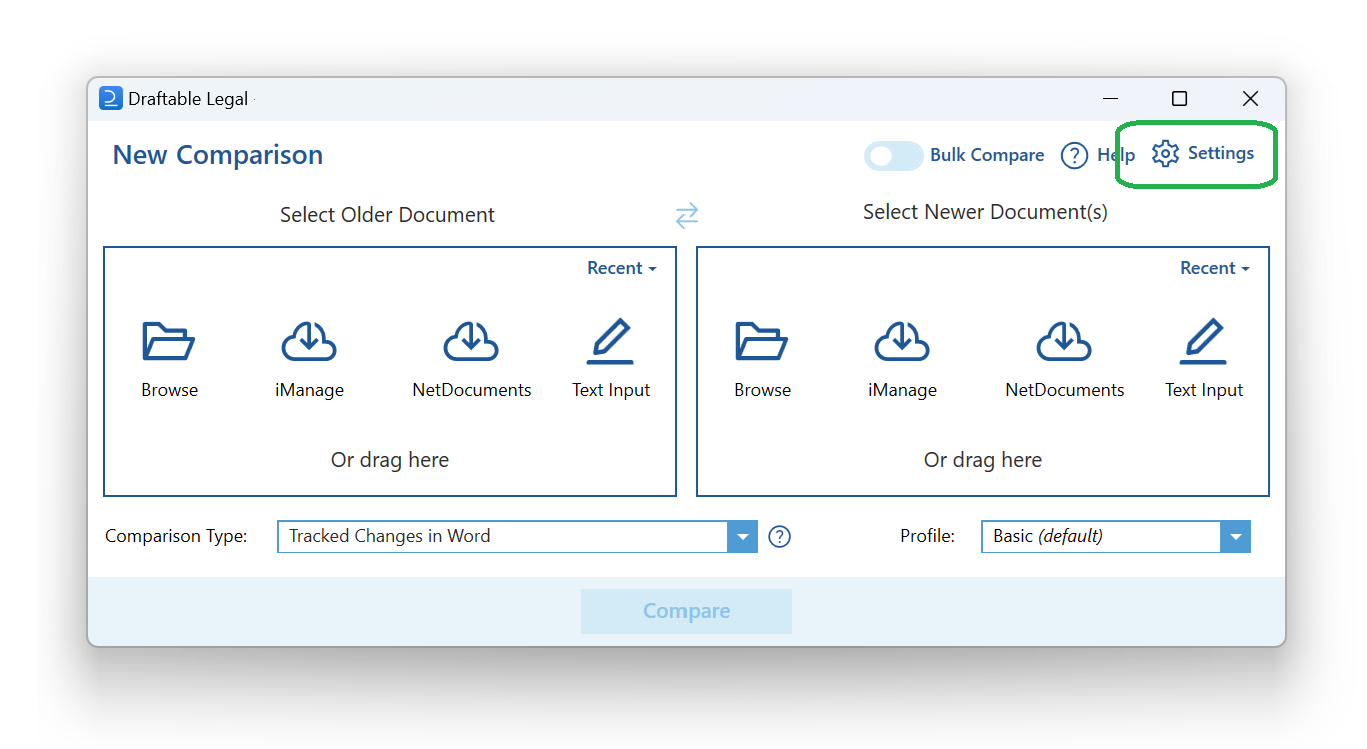 Open the iManage settings:
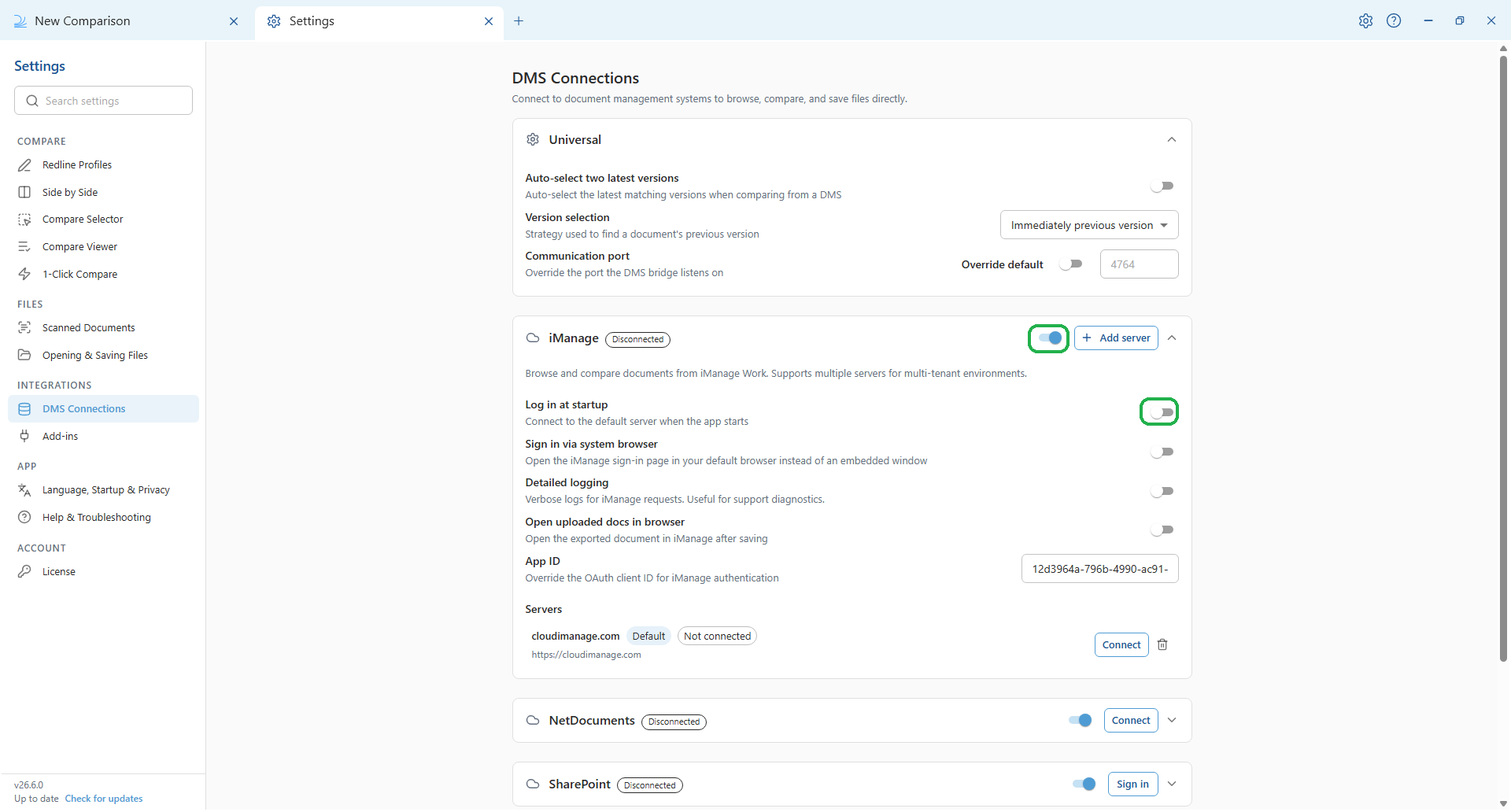
In the settings menu, select **DMS Connections** (under Integrations), then expand the **iManage** section.
Open the iManage settings:
In the settings menu, select **DMS Connections** (under Integrations), then expand the **iManage** section.
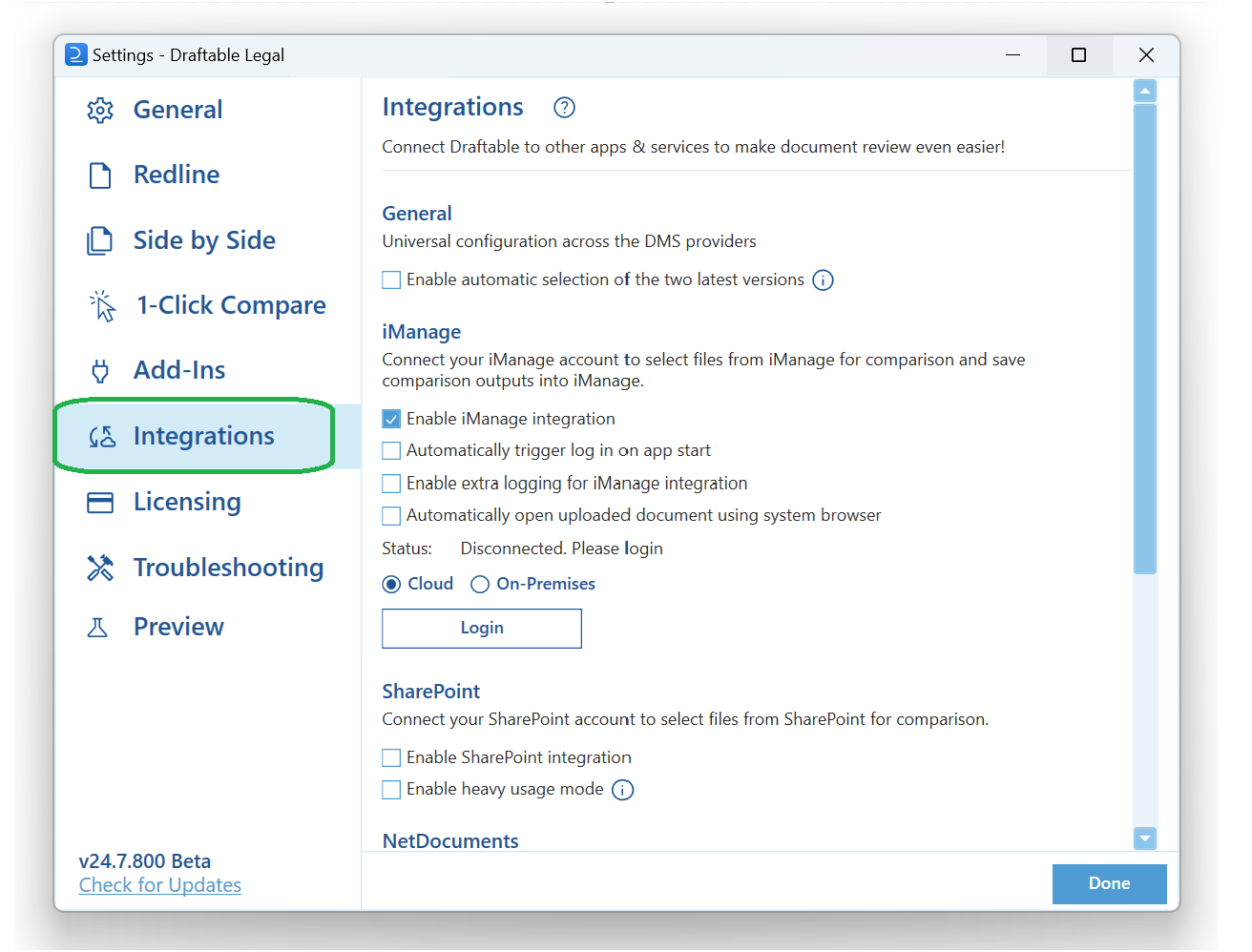
 In the settings menu, navigate to the Integrations tab.
 Enable the setting:
Locate the **Log in at startup** setting in the iManage section (described as "Connect to the default server when the app starts") and enable it.
Locate the "Automatically trigger log in on app start" setting within the Integrations tab and enable it.
Enable the setting:
Locate the **Log in at startup** setting in the iManage section (described as "Connect to the default server when the app starts") and enable it.
Locate the "Automatically trigger log in on app start" setting within the Integrations tab and enable it.
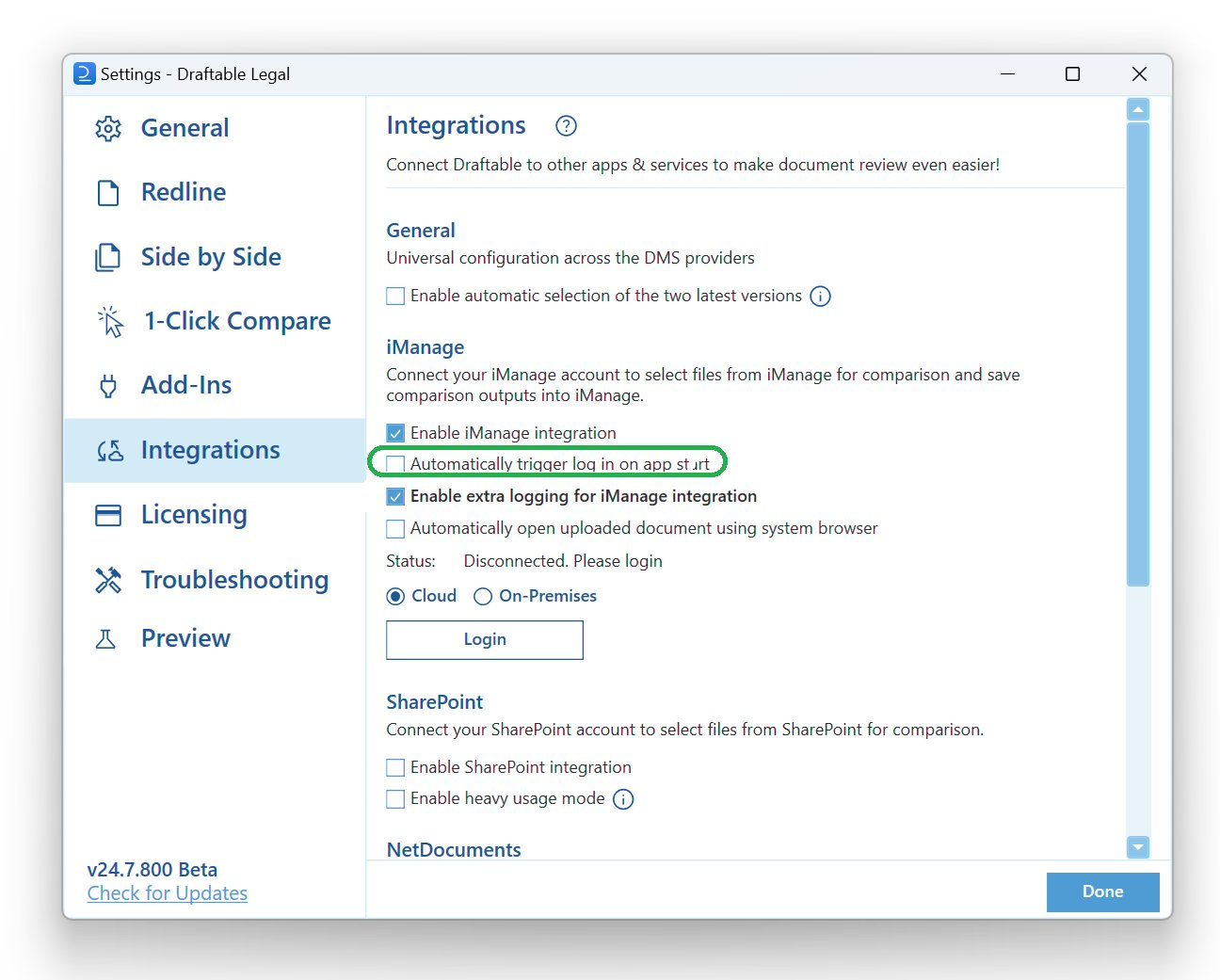 This setting will force users to log into iManage when Draftable Legal launches, ensuring that the drag-and-drop feature works seamlessly. If you ever do experience this issue in the future, ensure that Draftable Legal and iManage are already logged in and authenticated.
If you require further help or have any queries, please get in touch with our support team at [support@draftable.com](mailto:support@draftable.com).
This setting will force users to log into iManage when Draftable Legal launches, ensuring that the drag-and-drop feature works seamlessly. If you ever do experience this issue in the future, ensure that Draftable Legal and iManage are already logged in and authenticated.
If you require further help or have any queries, please get in touch with our support team at [support@draftable.com](mailto:support@draftable.com).