> ## Documentation Index
> Fetch the complete documentation index at: https://help.draftable.com/llms.txt
> Use this file to discover all available pages before exploring further.
# How to enable Epona integration in Draftable Legal
> In this article, we will guide end users through the process of enabling the Epona integration in Draftable Legal.
**The settings menu was reorganised in Draftable Legal 26.6.** If you are on 26.6 or later, follow the "26.6 and later" tabs below. On earlier versions, follow "Before 26.6". To check your version, open Settings. The version number shows at the bottom-left (for example, v26.6.0).
This is required to use the Epona integration functions (i.e. loading files from your Epona matter, saving files in to Epona etc).
## Enabling your Epona integration in Draftable Legal
Open the **Draftable Legal, New Comparison Window** and select **'settings'** in the top right corner of the Window.
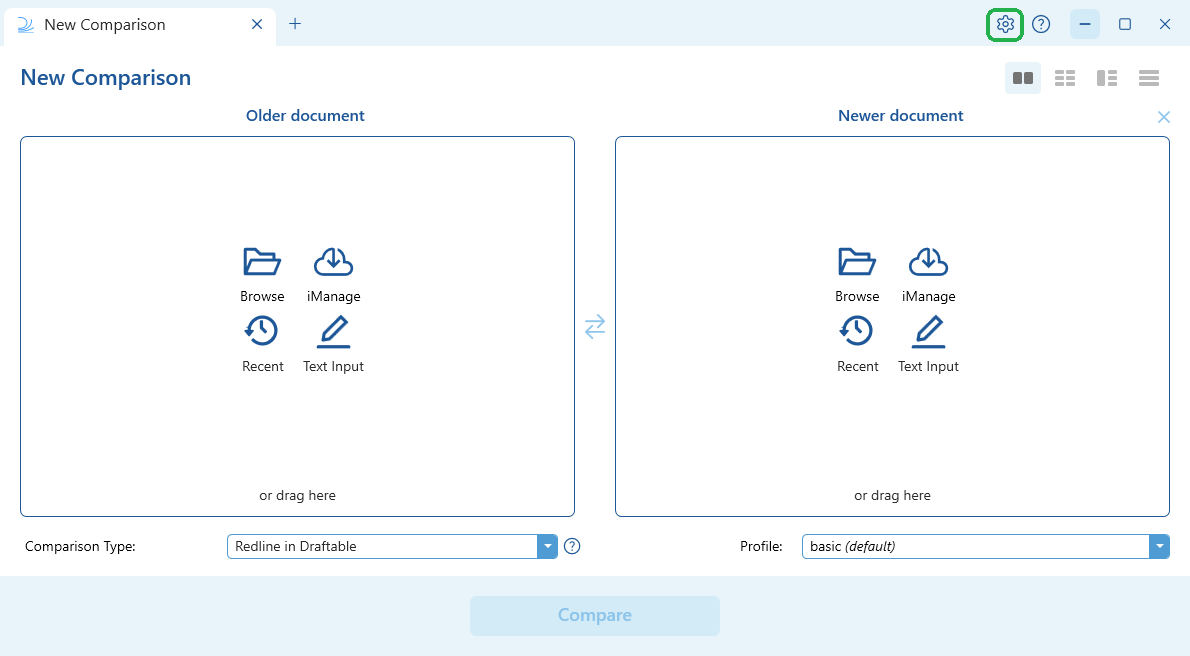
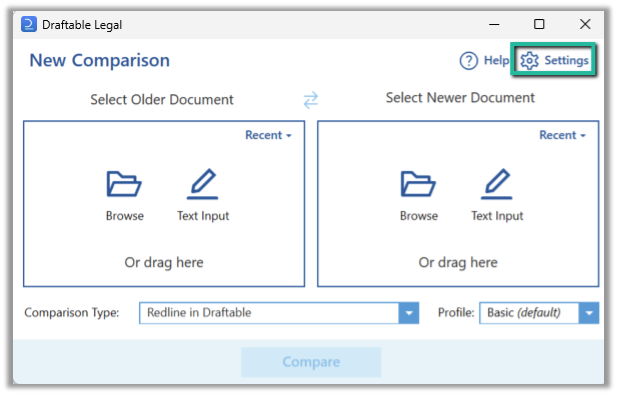 Open the Epona settings and turn on the integration. Epona must be enabled first before you can load files from or save files to your Epona matter.
In the settings menu, select **DMS Connections**, then expand the **Epona** accordion.
Turn on the **Epona** toggle to enable the integration (this was previously called "Enable Epona Integration").
Open the Epona settings and turn on the integration. Epona must be enabled first before you can load files from or save files to your Epona matter.
In the settings menu, select **DMS Connections**, then expand the **Epona** accordion.
Turn on the **Epona** toggle to enable the integration (this was previously called "Enable Epona Integration").

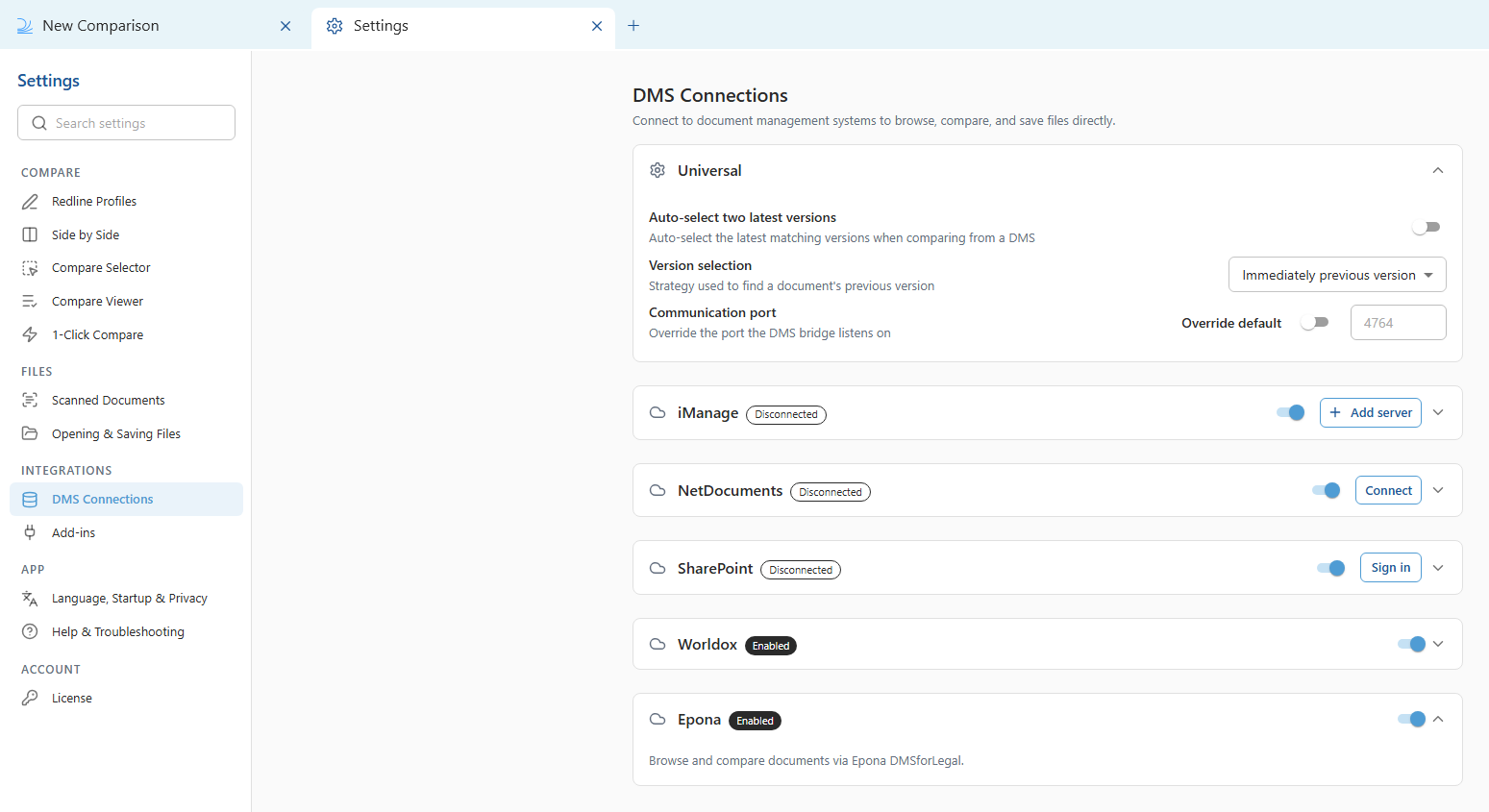 DMS Connections lists every supported document management system. If you do not see Epona listed, you can find it alongside iManage, SharePoint, NetDocuments, and Worldox in the DMS Connections pane.
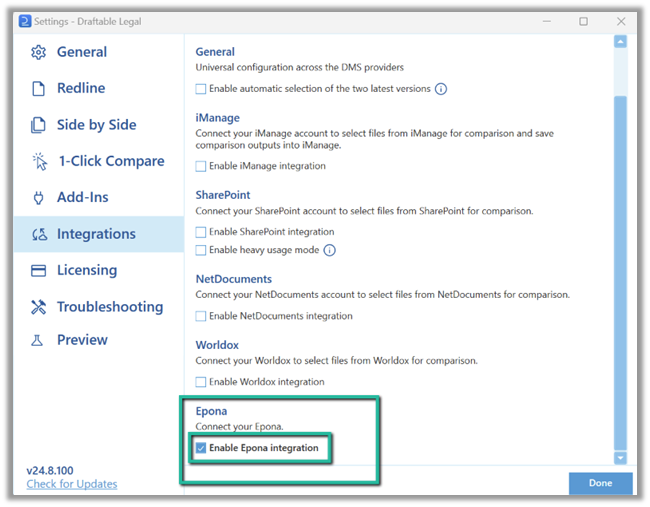
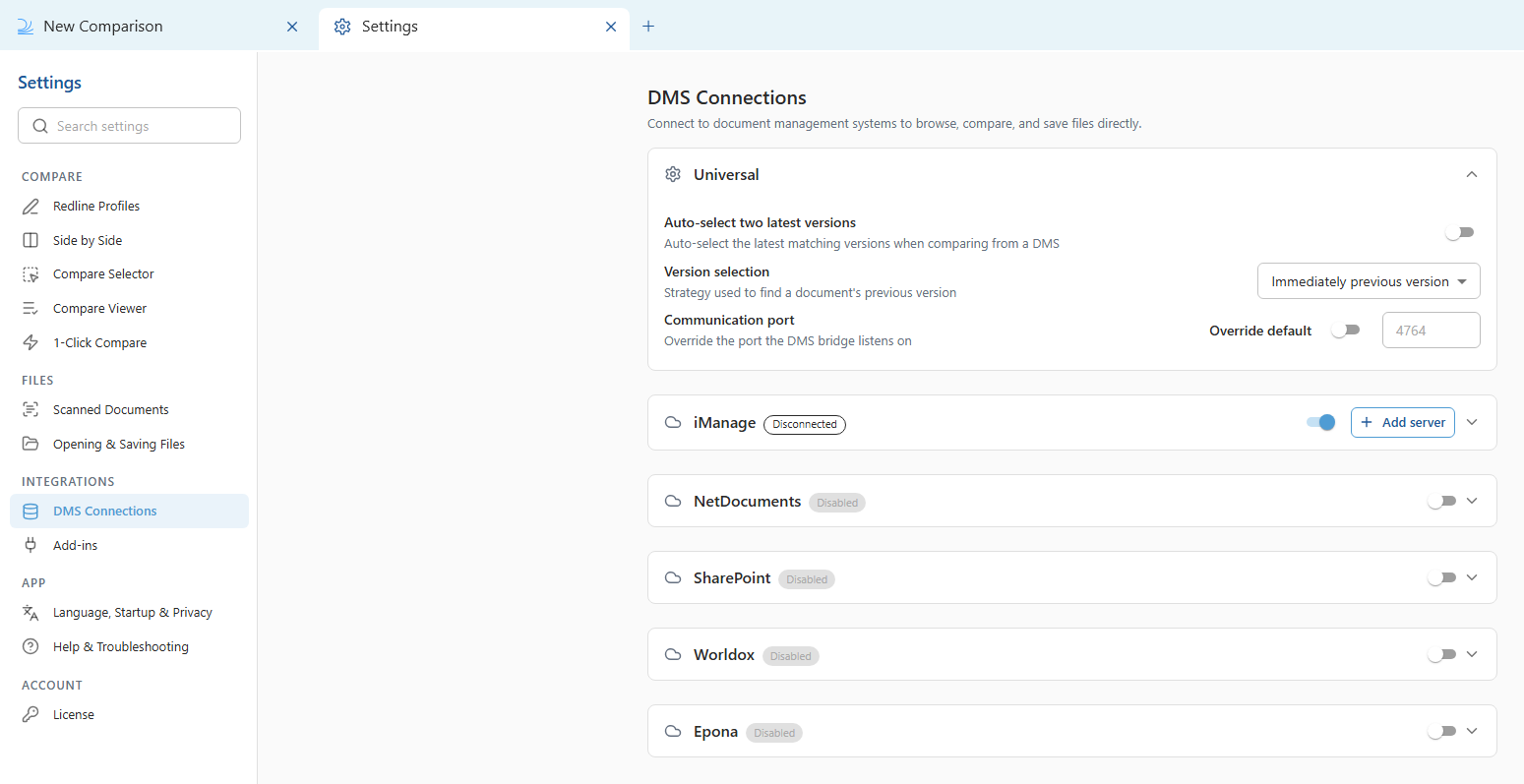 In settings, go to the **Integrations** tab, and under the Epona section, click "**Enable Epona Integration"**
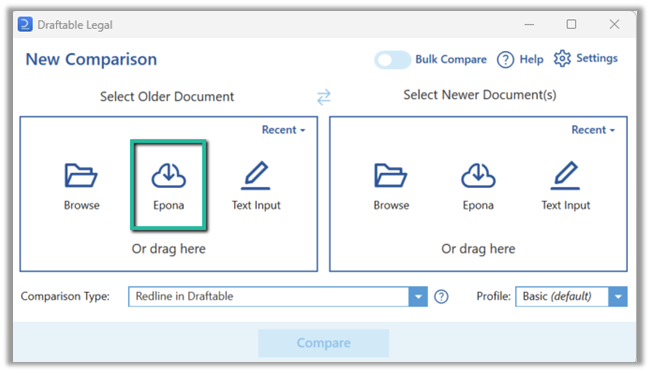
 Close the settings to return to the **New Comparison Window**. Your Epona integration should now be enabled. You can confirm this by checking the Epona file selection menu is available in the **New Comparison Window** (see below).
 If you have issues with your Epona integration, you can contact [support@draftable.com](mailto:support@draftable.com) for assistance.