> ## Documentation Index
> Fetch the complete documentation index at: https://help.draftable.com/llms.txt
> Use this file to discover all available pages before exploring further.
# Configuring Error Messages in Draftable Legal for End Users
> As an administrator, you can customize the error messages shown to end users when they encounter an issue with Draftable Legal. Additionally, you can control the default file attachments policy, custom contact details, and the email content generated when users report errors. This guide walks you through configuring these settings using Group Policy.
## 1. Configuring the Custom Error Message
The custom error message that users see can be configured via Group Policy. This allows you to enter a personalized message that will be displayed whenever an error occurs. **Note:** Please always ensure you are using the latest ADMX/ADML templates which can be [found here.](/hc/en-us/articles/28666057117721-Draftable-Legal-Group-Policy-Template-Files)
### Steps to Edit the Error Message:
Open your preferred **Group Policy Editor**
Navigate to the group policy object "Configure customer error message"
Enable the setting and enter your custom error text in the provided field.
* **Example**: "An unexpected error has occurred. Please contact support."
Apply and save the policy.
 To achieve the same result via registry, please edit the following key:
```bash theme={null}
Key: HKCU:\\Software\\Draftable\\Feature
Value name: CustomCompareErrorMessage
Value type: REG\_SZ
Value data:
```
Where the value of \ is your custom error message.
## 2. Allowing or Disabling File Attachments with Errors
By default, users can choose to attach obfuscated files when they report an error. You can control whether users are allowed to send such attachments by configuring the "Enable custom contact details" setting.
From version 26.6, the feature that produces these files is called **Create safe file for sharing** in the app (under **Help & Troubleshooting → Diagnostics**). The Group Policy object and registry value name (`NeverShareObfuscatedDocuments`) referenced below are unchanged.
### Steps to Control File Attachments:
Open your preferred **Group Policy Editor**.
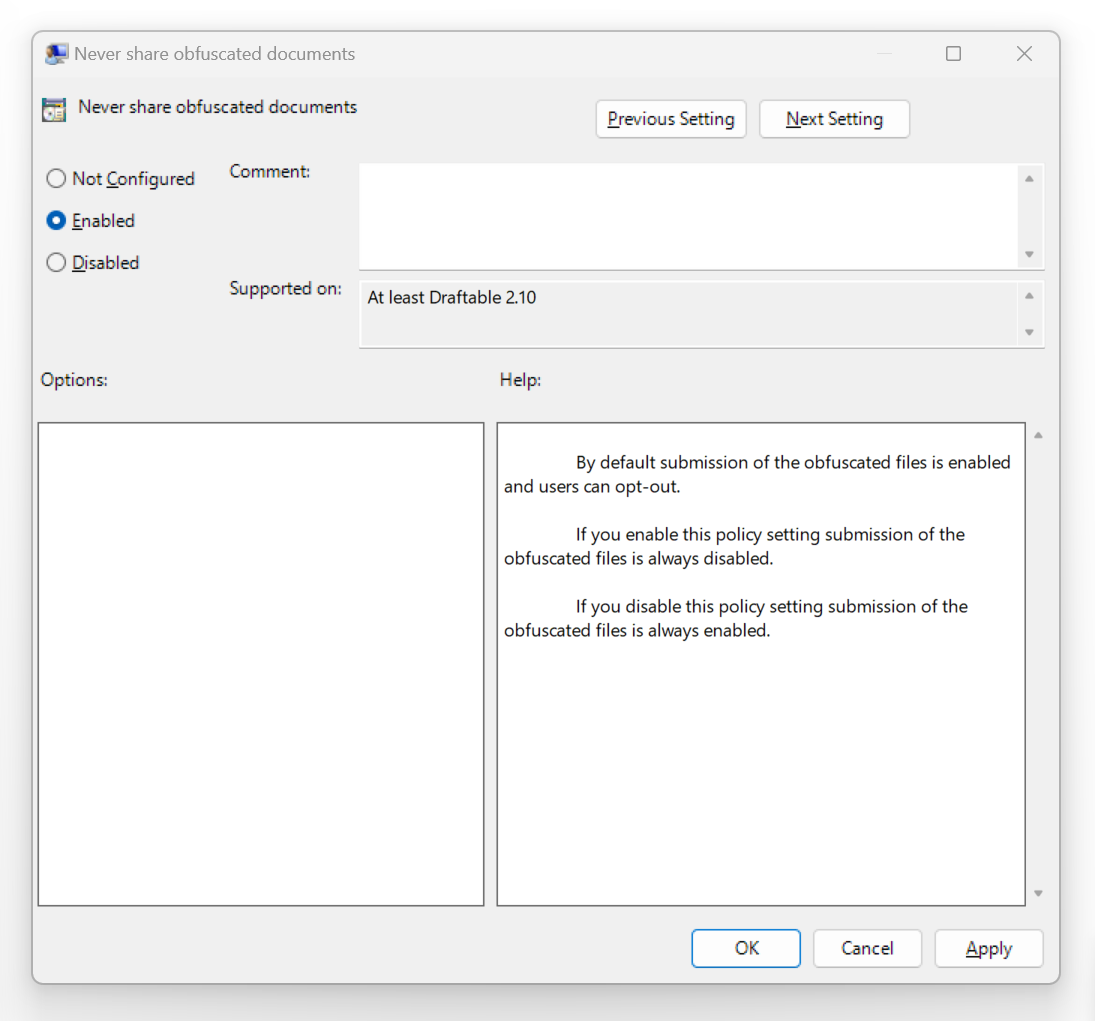
Navigate to the group policy object "Never Share Obfuscated Documents"
Enable the setting to not allow your users to share Obfuscated documents
Disabling this setting will allow users to share Obfuscated documents
To achieve the same result via registry, please edit the following key:
```bash theme={null}
Key: HKCU:\\Software\\Draftable\\Feature
Value name: CustomCompareErrorMessage
Value type: REG\_SZ
Value data:
```
Where the value of \ is your custom error message.
## 2. Allowing or Disabling File Attachments with Errors
By default, users can choose to attach obfuscated files when they report an error. You can control whether users are allowed to send such attachments by configuring the "Enable custom contact details" setting.
From version 26.6, the feature that produces these files is called **Create safe file for sharing** in the app (under **Help & Troubleshooting → Diagnostics**). The Group Policy object and registry value name (`NeverShareObfuscatedDocuments`) referenced below are unchanged.
### Steps to Control File Attachments:
Open your preferred **Group Policy Editor**.
Navigate to the group policy object "Never Share Obfuscated Documents"
Enable the setting to not allow your users to share Obfuscated documents
Disabling this setting will allow users to share Obfuscated documents
 To achieve the same result via registry, please edit the following key:
```bash theme={null}
Key: HKCU:\\Software\\Draftable\\Compare
Value name: NeverShareObfuscatedDocuments
Value type: REG\_DWORD
Value data:
```
Where the \ value of 1 is set to enabled, and 0 for disabled.
## 3. Configuring the Email Body for Error Reports
When an error occurs, Draftable Legal can generate an automatic email with the error details. You can customize the email body that is sent with the error log.
### Steps to Edit the Error Report Email Body:
Open your preferred **Group Policy Editor**.
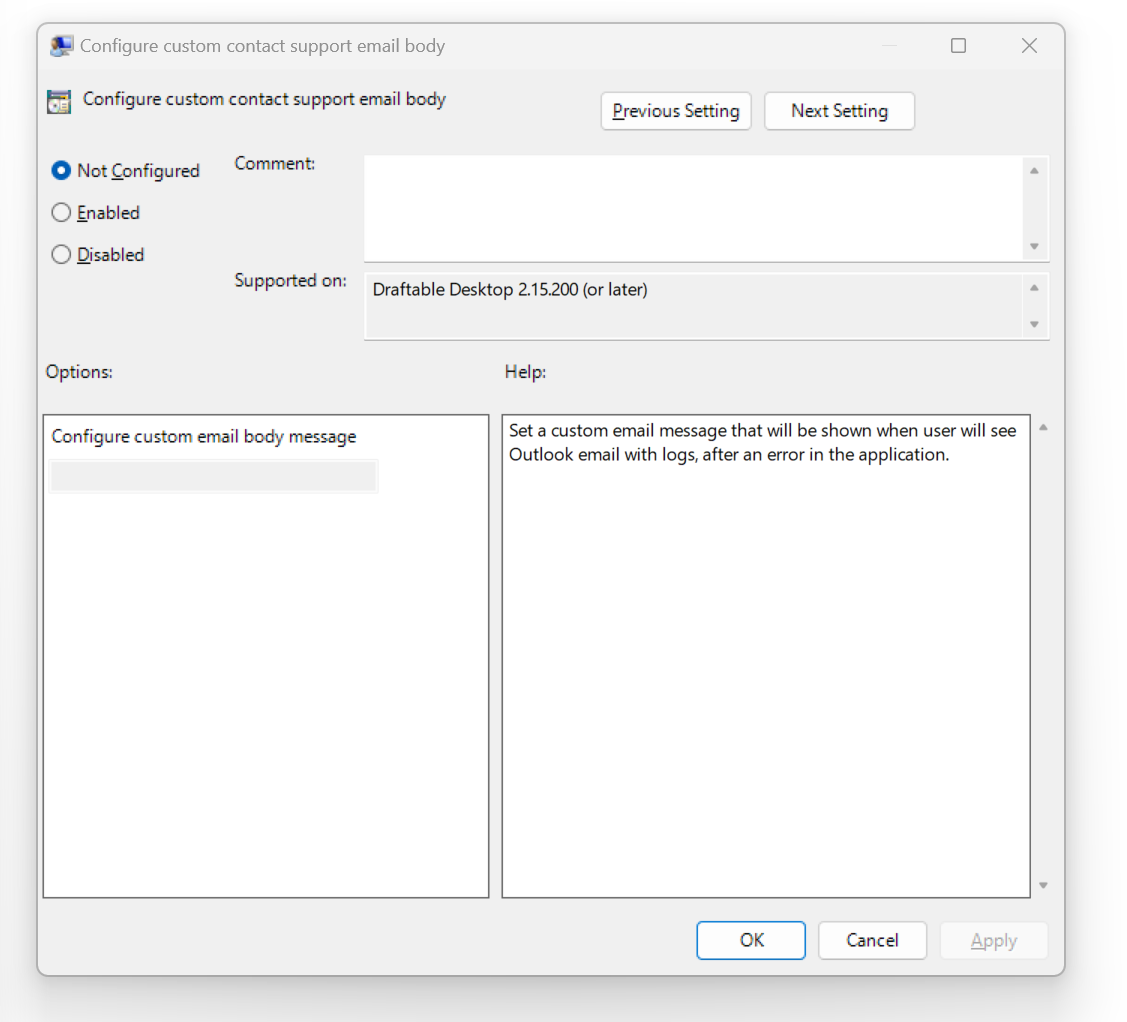
Navigate to "Configure custom contact support email body"
Enable the setting and input the desired email body text.
* **Example**: "Please describe the issue you encountered and attach any relevant screenshots."
Apply and save the policy.
To achieve the same result via registry, please edit the following key:
```bash theme={null}
Key: HKCU:\\Software\\Draftable\\Compare
Value name: NeverShareObfuscatedDocuments
Value type: REG\_DWORD
Value data:
```
Where the \ value of 1 is set to enabled, and 0 for disabled.
## 3. Configuring the Email Body for Error Reports
When an error occurs, Draftable Legal can generate an automatic email with the error details. You can customize the email body that is sent with the error log.
### Steps to Edit the Error Report Email Body:
Open your preferred **Group Policy Editor**.
Navigate to "Configure custom contact support email body"
Enable the setting and input the desired email body text.
* **Example**: "Please describe the issue you encountered and attach any relevant screenshots."
Apply and save the policy.
 To achieve the same result via registry, please edit the following key:
```bash theme={null}
Key: HKCU:\\Software\\Draftable\\Feature
Value name: CustomEmailSupportMessage
Value type: REG\_SZ
Value data:
```
Where the value of \ is your custom email body text.
That concludes this article, if you have any issues with applying these settings or questions, please get in touch with our support team at [support@draftable.com](mailto:support@draftable.com)
To achieve the same result via registry, please edit the following key:
```bash theme={null}
Key: HKCU:\\Software\\Draftable\\Feature
Value name: CustomEmailSupportMessage
Value type: REG\_SZ
Value data:
```
Where the value of \ is your custom email body text.
That concludes this article, if you have any issues with applying these settings or questions, please get in touch with our support team at [support@draftable.com](mailto:support@draftable.com)