> ## Documentation Index
> Fetch the complete documentation index at: https://help.draftable.com/llms.txt
> Use this file to discover all available pages before exploring further.
# Comment Comparison: Compare comments within Redline comparisons
> The Redline comparison feature in Draftable Legal allows users to not only compare the main content of documents but also review changes to comments. This guide provides an overview of how comments are compared, displayed, and managed within Redline comparisons.
**The settings menu was reorganised in Draftable Legal 26.6.** If you are on 26.6 or later, follow the "26.6 and later" tabs below. On earlier versions, follow "Before 26.6". To check your version, open Settings. The version number shows at the bottom-left (for example, v26.6.0).
## How Compare Comments Works
When performing a Redline comparison, Draftable analyzes comments within the documents being compared and identifies any changes, including comment insertions, deletions, and moves. These changes are reflected in the Redline output, allowing users to see how comments evolve between document versions.
However, there are also options to show comments by comparing them, which can be useful if users want to see all comments from either the original document, modified document or both documents without comparison of said comments.
## Managing comment settings in Redline comparisons
Draftable Legal provides flexible options for managing how comments are compared and displayed in your Redline outputs. The comment setting (named **How to handle comments** in 26.6 and later, previously **Comment Options**) offers the following choices:
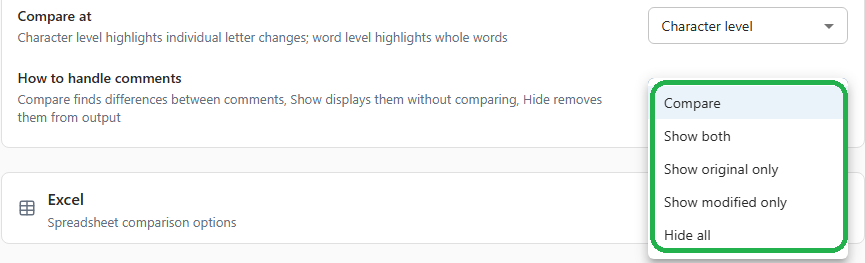 You manage comment settings in the settings menu. The location of this setting changed in 26.6.
Select **Redline Profiles** under the **Compare** group, expand the **Word** accordion, and find **How to handle comments** under **Comparison Behavior**.
You manage comment settings in the settings menu. The location of this setting changed in 26.6.
Select **Redline Profiles** under the **Compare** group, expand the **Word** accordion, and find **How to handle comments** under **Comparison Behavior**.
 Open the **Redline** section and find **Comment Options** under **Comparison options**.
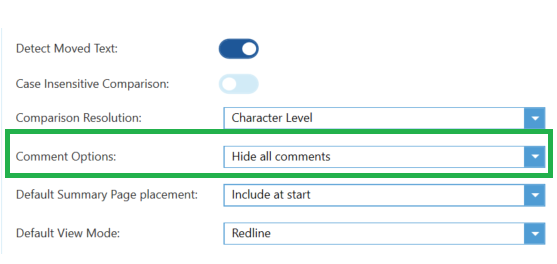 A related setting, **Show comments in three-pane view**, moved to the **Compare Viewer** settings in 26.6.
There are many options on how comments are shown within your Redline comparisons, which are discussed below.
### Turning off comment comparison
If you do not wish to show comments at all in your Redline comparisons, you can disable comments by setting **How to handle comments** to **Hide all** (was "Hide all comments").
A related setting, **Show comments in three-pane view**, moved to the **Compare Viewer** settings in 26.6.
There are many options on how comments are shown within your Redline comparisons, which are discussed below.
### Turning off comment comparison
If you do not wish to show comments at all in your Redline comparisons, you can disable comments by setting **How to handle comments** to **Hide all** (was "Hide all comments").
 ### Show comments from both documents
Users can choose to include seeing comments from both documents but tell Draftable not to compare them.
This can be achieved by setting **How to handle comments** to **Show both** (was "Show comments from both documents").
### Show comments from both documents
Users can choose to include seeing comments from both documents but tell Draftable not to compare them.
This can be achieved by setting **How to handle comments** to **Show both** (was "Show comments from both documents").
 As a result, comments in comparisons will still appear in the change list, but aren't compared so there is no markup applied to indicate deletions, insertions or moves.
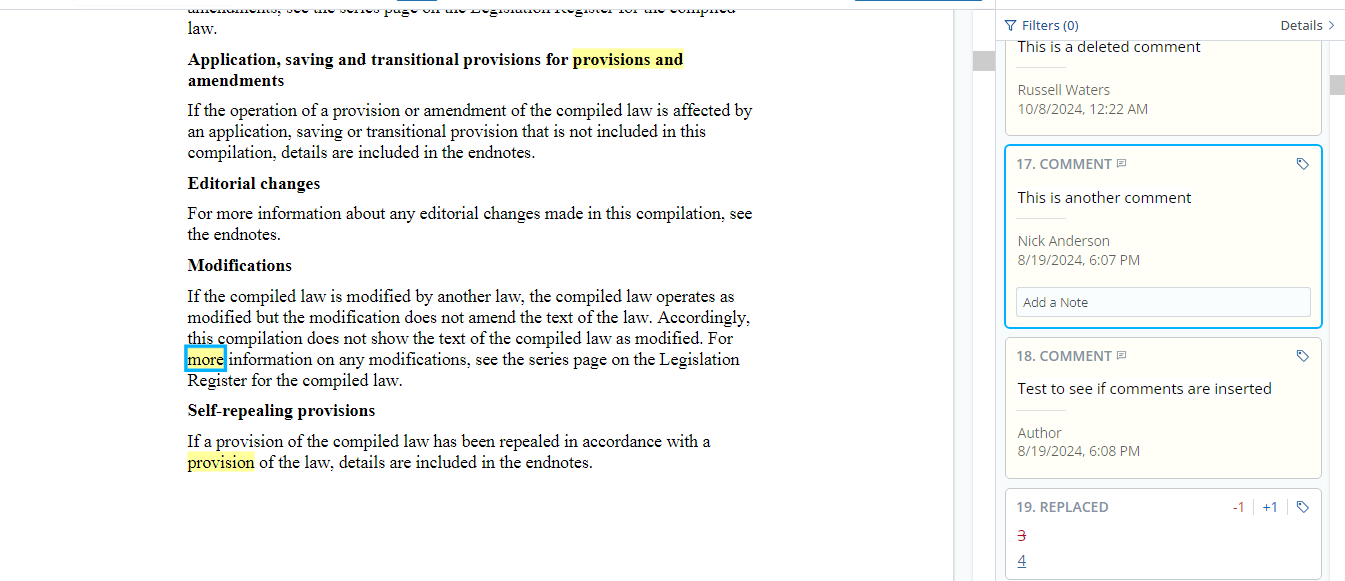 Within the comparison, the text that contains the comments is highlighted in yellow to indicate where the comment is located.
### Showing comments from older files
Users can choose to include comments from the original documents but tell Draftable not to compare them.
This can be achieved by setting **How to handle comments** to **Show original only** (was "Show comments from the original document").
Within the comparison, the text that contains the comments is highlighted in yellow to indicate where the comment is located.
### Showing comments from older files
Users can choose to include comments from the original documents but tell Draftable not to compare them.
This can be achieved by setting **How to handle comments** to **Show original only** (was "Show comments from the original document").
 As a result, comments in the comparisons will still appear in the change list but only from the original document.
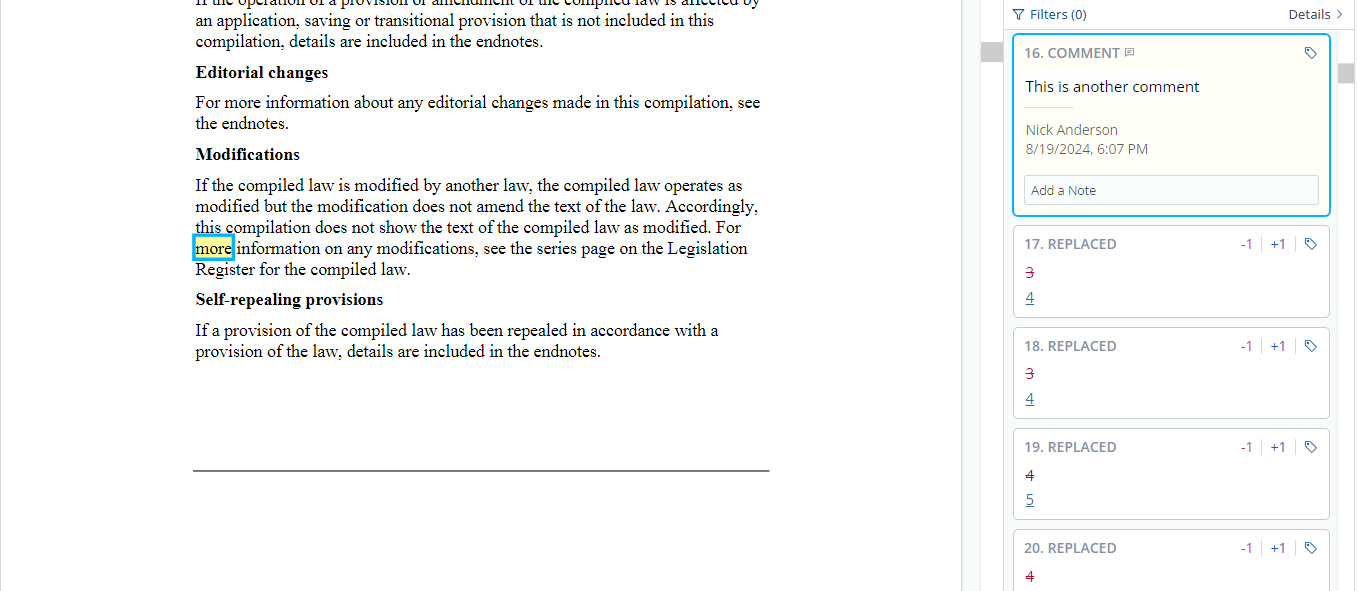 Within the comparison, the text that contains the comments is highlighted in yellow to indicate where the comment is located.
### Showing comments from newer files
Users can choose to include comments from the modified documents but tell Draftable not to compare them.
This can be achieved by setting **How to handle comments** to **Show modified only** (was "Show comments from the modified document").
Within the comparison, the text that contains the comments is highlighted in yellow to indicate where the comment is located.
### Showing comments from newer files
Users can choose to include comments from the modified documents but tell Draftable not to compare them.
This can be achieved by setting **How to handle comments** to **Show modified only** (was "Show comments from the modified document").
 As a result, comments in the comparisons will still appear in the change list but only from the modified document.
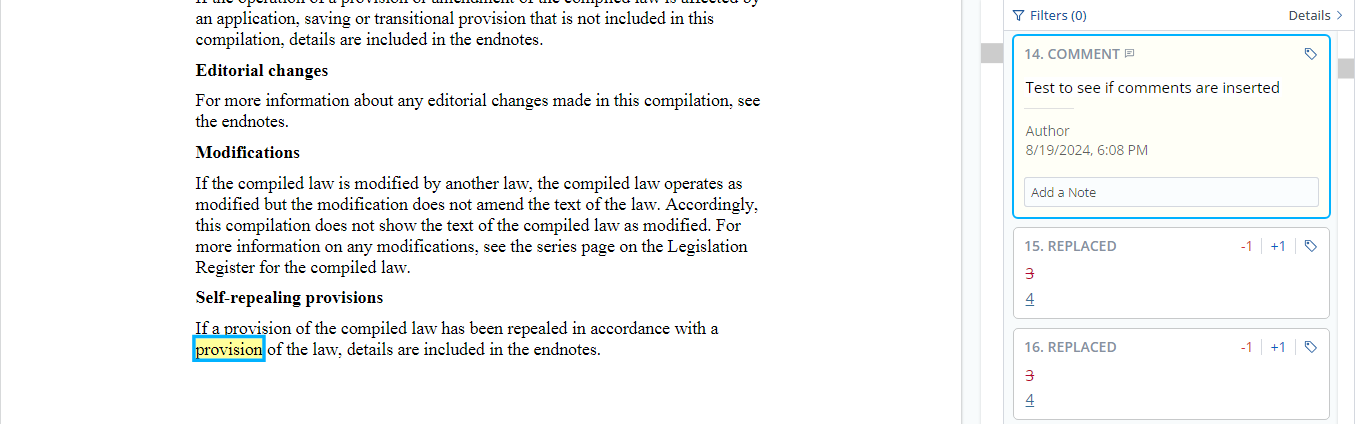 Within the comparison, the text that contains the comments is highlighted in yellow to indicate where the comment is located.
### Comparing comments
Users can choose to compare comments from both documents and show these changes within the change list.
This can be achieved by setting **How to handle comments** to **Compare** (was "Compare comments").
Within the comparison, the text that contains the comments is highlighted in yellow to indicate where the comment is located.
### Comparing comments
Users can choose to compare comments from both documents and show these changes within the change list.
This can be achieved by setting **How to handle comments** to **Compare** (was "Compare comments").
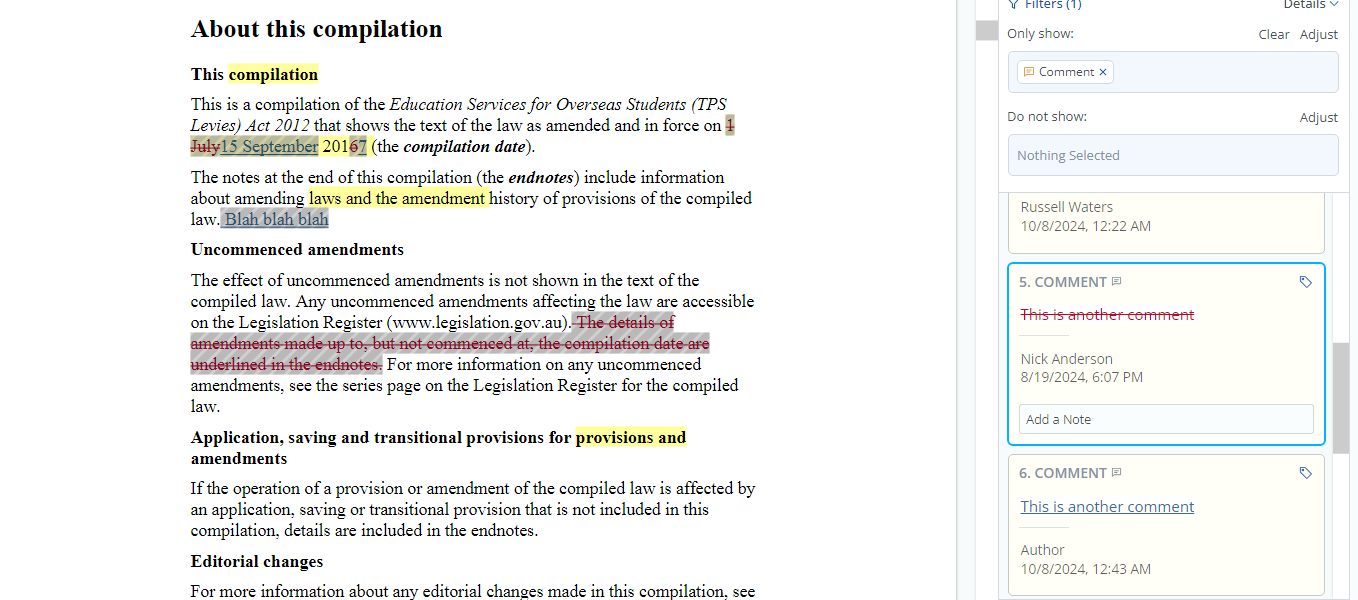
 As a result, comments in the comparisons will still appear in the change list and show the changes between these comments.
 ### Markup settings for comment changes:
Markup settings for comment changes always follow what is set for Redline changes, in your Draftable Redline settings, hence:
* **Insertions**: New comments will be shown in the change list using the markup settings based on Redline settings for insertions. In this article, insertions are shown in blue.
* **Deletions**: Removed comments will appear in the change list using the markup settings based on Redline settings for deletions. In this article, deletions are shown as strikethrough red.
### Understanding compared comments in the Redline viewer
To see changes specifically for comments, in the **filters** option under the changes menu (found in the right-hand side of the view), ensure in the *Only show* field you select **Comment.** See below as an example:
### Markup settings for comment changes:
Markup settings for comment changes always follow what is set for Redline changes, in your Draftable Redline settings, hence:
* **Insertions**: New comments will be shown in the change list using the markup settings based on Redline settings for insertions. In this article, insertions are shown in blue.
* **Deletions**: Removed comments will appear in the change list using the markup settings based on Redline settings for deletions. In this article, deletions are shown as strikethrough red.
### Understanding compared comments in the Redline viewer
To see changes specifically for comments, in the **filters** option under the changes menu (found in the right-hand side of the view), ensure in the *Only show* field you select **Comment.** See below as an example:
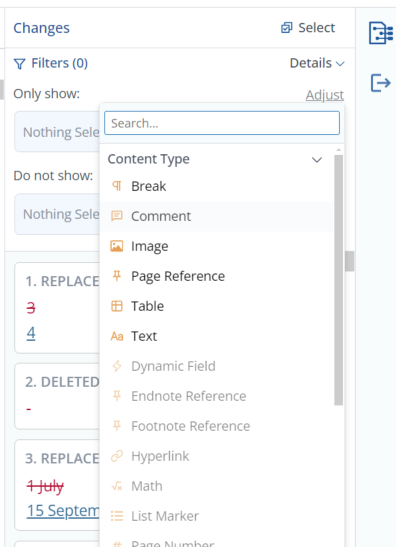 Once set, only comment changes are shown in the comparison change-list. The change-list in the below example shows that we have both a deletion and insertion shown **just for the comments**.
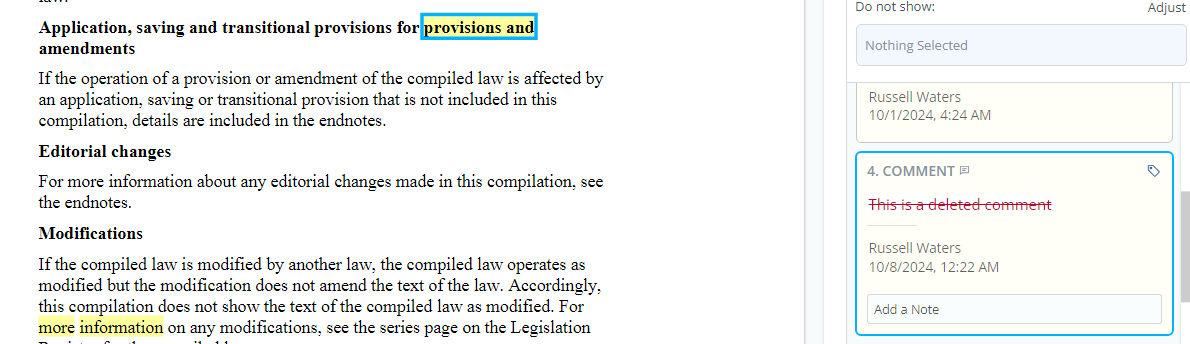
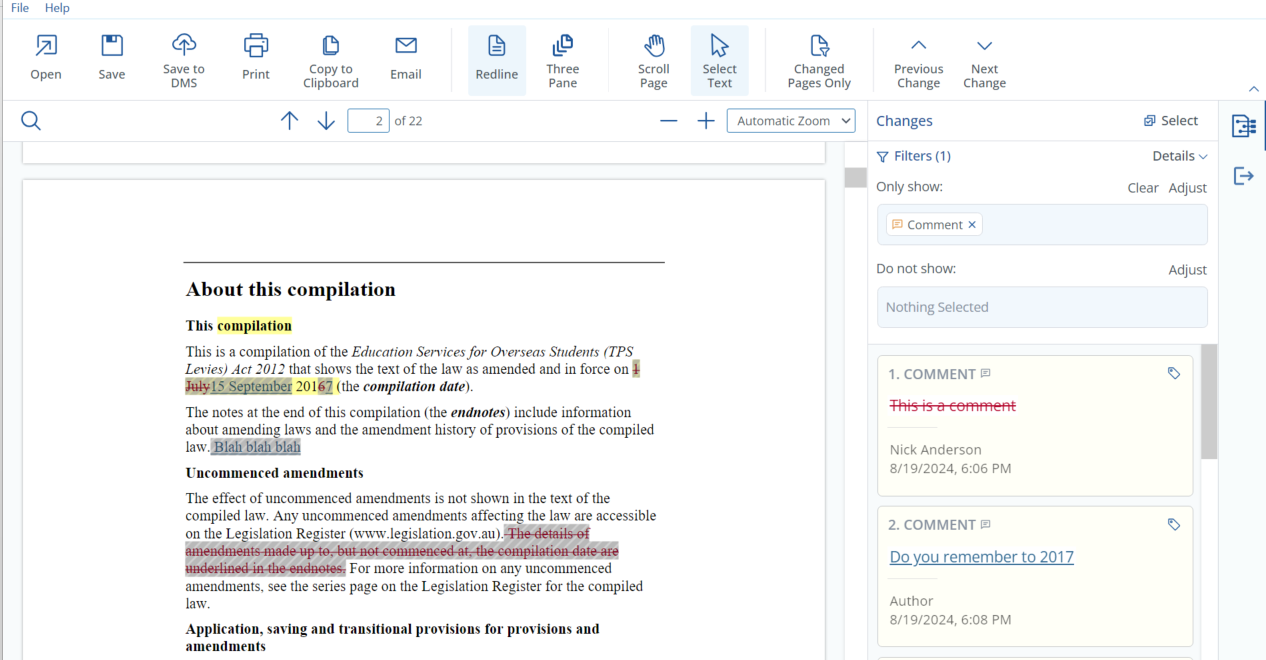 The text in the comparison where there is/was a comment is highlighted as yellow, with the contents of the comment shown in the change list. This means, in the below example we have the text from the comparison "Provisions and" highlighted to indicate a comment was made for this text, and the change list shows us that a comment with the text "This is a deleted comment" was deleted as shown by the red strikethrough highlight.
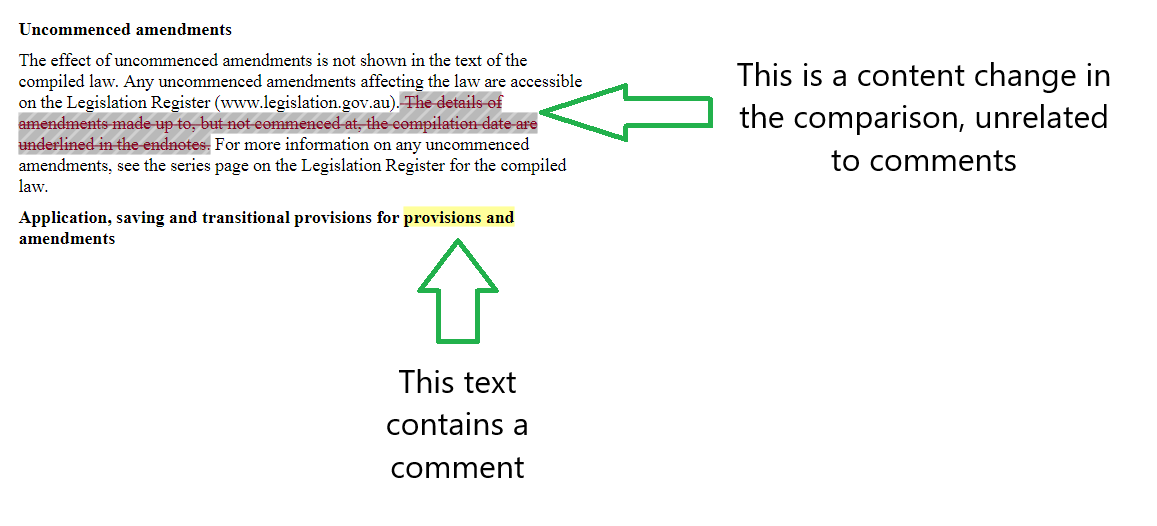
 To make it easier to distinguish between which text content contains comments and what text content are **marked** as changed (i.e normal content change), text that contains comments is marked in the **yellow highlight**, whilst text content changes are marked with **grey shading.**
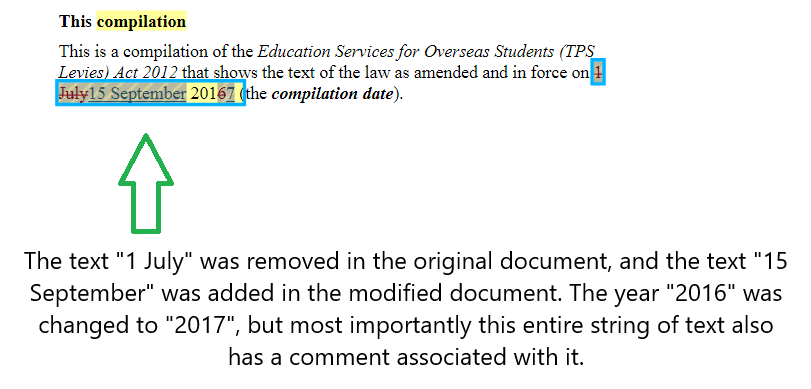
 If the text contains both a yellow highlight and grey shading, it means that the text associated with the content contains both changed text and a comment.
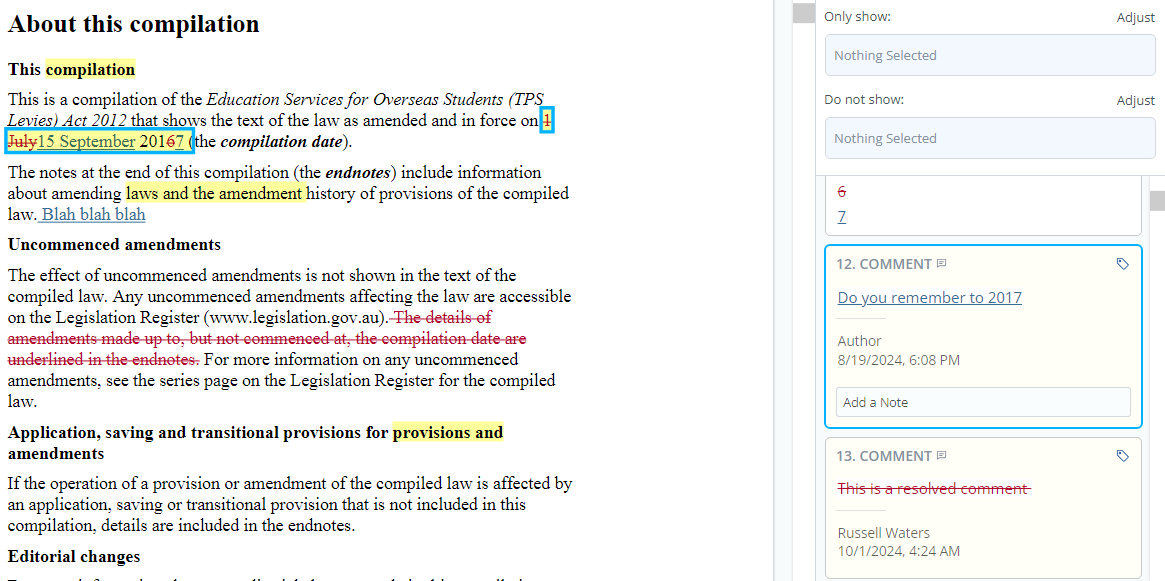
 Please note, that the grey shading for changes only appears if only **Comments** are selected in the *Only show* filter menu. If no filters are applied, comments are still shown and the viewer appears like the below example:
 ## Deleted Comments
Deleted comments are shown within the comparison as highlighted yellow text to indicate where the comment was made. In the change list, you can note that a comment was deleted by the red strikethrough text, which indicates that the comment existed in the older document, but no longer exists in the new document.
## Deleted Comments
Deleted comments are shown within the comparison as highlighted yellow text to indicate where the comment was made. In the change list, you can note that a comment was deleted by the red strikethrough text, which indicates that the comment existed in the older document, but no longer exists in the new document.
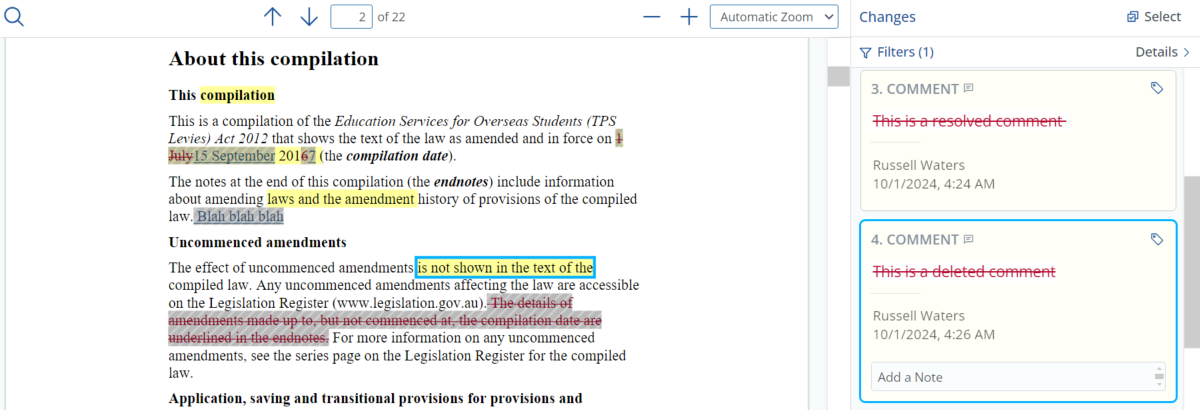 The text where the comment was made still remains highlighted to show users where the comment was before it was removed in the new document.
## Resolved Comments in Comparison Outputs
Resolved comments will also be highlighted when comparing documents, as seen in the example below.
The text where the comment was made still remains highlighted to show users where the comment was before it was removed in the new document.
## Resolved Comments in Comparison Outputs
Resolved comments will also be highlighted when comparing documents, as seen in the example below.
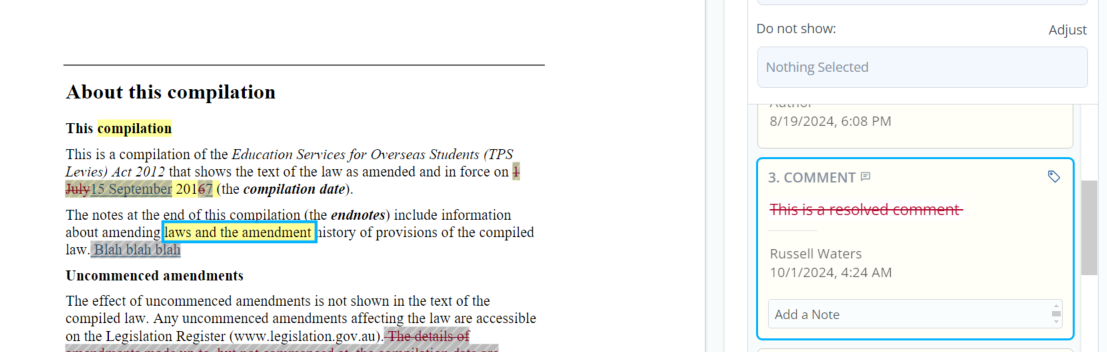 The resolved comment is marked as **deleted** as shown by the red strikethrough text of the comment in the change list, however, the comment itself is still shown by a yellow highlight as shown above in the text "Laws and amendment".
Hence, resolved comments and deleted comments appear the same within the viewer when compared, but are still shown despite being deleted/resolved.
The resolved comment is marked as **deleted** as shown by the red strikethrough text of the comment in the change list, however, the comment itself is still shown by a yellow highlight as shown above in the text "Laws and amendment".
Hence, resolved comments and deleted comments appear the same within the viewer when compared, but are still shown despite being deleted/resolved.